 Destinations
 Data sources
 AI insights
 About us
 Careers
 Security
 Customer reviews
 Contact us
 Affiliate program
 Solution partners
 Template gallery
 Looker Studio templates
 Power BI templates
 Excel templates
 Google Sheets templates
 Tableau templates
 Facebook Ads templates
 Google Ads templates
 Data fields & Metrics
 AI prompt library & Guides
 Product documentation
 API documentation
 Case studies
 Blog
Blog Data models
 Windsor vs Supermetrics
 Windsor vs Funnel.io
 Windsor vs Fivetran
 Windsor vs Rivery
 Windsor vs Portermetrics
 Windsor vs Coupler.io
Connect ConfigCat to Looker Studio
Connect ConfigCat to Looker Studio with a maintenance-free, no-code Windsor.ai connector. You can then use Looker Studio’s advanced visualization tools to analyze your feature and code deployments.
Forget CSVs. Stop copy/paste. Connect data in 2 minutes. No code required.
 Sign up with Google
 Free forever plan
No credit card needed
Free forever plan
No credit card needed









Using Windsor.ai connector to import data from ConfigCat into Looker Studio
Connect ConfigCat to Looker Studio with a maintenance-free, no-code Windsor.ai connector. You can then use Looker Studio’s advanced visualization tools to analyze your feature and code deployments.
To set up the connector, the user should have a ConfigCat account (visit our privacy policy and terms of use) and a Google account for the Looker Studio integration.















How to connect ConfigCat to Looker Studio with Windsor.ai
Follow the steps below to connect ConfigCat to Looker Studio with Windsor.ai.
For more detail on the destination side of the setup, see our Looker Studio integration documentation.
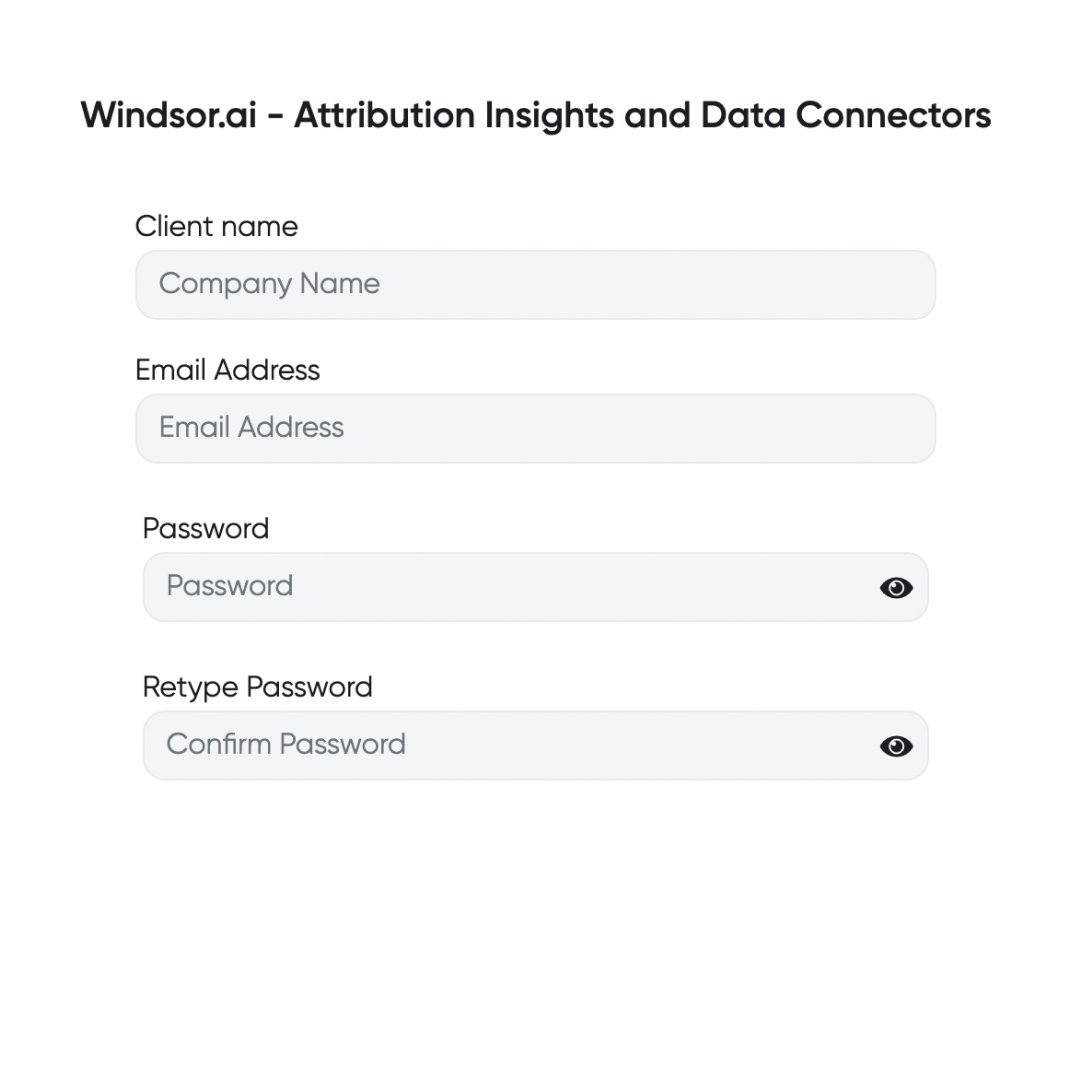
Register
Register or login if you already have an account.
Select your source
You need to select ConfigCat as a Data Source and Grant Access to Windsor.ai.

Select the fields on the right
Select the fields on the right to later use in your data source.
Select Destination
Go to “Select Destination” and Choose Looker Studio.

Sync and authorize data
Select “connect” and authorize access to your data source.
FAQs
What is Looker Studio?
Looker Studio is Google’s business intelligence solution that allows you to tabulate data and visualize trends. It also automates reporting on custom datasets.
Tired of manual ConfigCat data exports? Get started with Windsor.ai today to automate your reporting


