 Destinations
 Data sources
 AI insights
 About us
 Careers
 Security
 Customer reviews
 Contact us
 Affiliate program
 Solution partners
 Template gallery
 Looker Studio templates
 Power BI templates
 Excel templates
 Google Sheets templates
 Tableau templates
 Facebook Ads templates
 Google Ads templates
 Data fields & Metrics
 AI prompt library & Guides
 Product documentation
 API documentation
 Case studies
 Blog
Blog Data models
 Windsor vs Supermetrics
 Windsor vs Funnel.io
 Windsor vs Fivetran
 Windsor vs Rivery
 Windsor vs Portermetrics
 Windsor vs Coupler.io
Connect CoinMarketCap to Azure Blob Storage
Windsor.ai guarantees a hassle-free and efficient way to sync CoinMarketCap with Azure. You don’t have to spend hours coding just to export your cryptocurrency data to the destination. Windsor.ai’s no-code connector enables you to synchronize data within minutes.
Forget CSVs. Stop copy/paste. Connect data in 2 minutes. No code required.
 Sign up with Google
 Free forever plan
No credit card needed
Free forever plan
No credit card needed










Why do I need CoinMarketCap and Azure Integration?
Data transferring from CoinMarketCap to Azure allows you to enjoy these benefits:

Advanced data analytics
Azure features machine learning capabilities that can help you spot anomalies in crypto data, discover market behavior, and forecast market trends. Use the automated insights to develop better investment strategies.

Real-time analytics
Through a service like Azure Stream Analytics, you can process CoinMarketCap data streams in real-time. Track fluctuations in cryptocurrency prices, identify emerging trends, and act on time to optimize profits or minimize losses.

Data backup and recovery
Your CoinMarketCap data in Azure is automatically backed up to ensure resilience against data losses during unexpected events. This means you can comfortably access historical CoinMarketCap data and continue with your operations even during disasters.
Using Windsor.ai connector to import data from CoinMarketCap into Azure Blob Storage
Windsor.ai guarantees a hassle-free and efficient way to sync CoinMarketCap with Azure.
You don’t have to spend hours coding just to export your cryptocurrency data to the destination – Windsor.ai’s no-code connector enables you to synchronize data within minutes.















How to connect CoinMarketCap to Azure Blob Storage with Windsor.ai
Follow the steps below to connect CoinMarketCap to Azure Blob Storage with Windsor.ai. Register or log in if you already have an account, then select your source and destination.
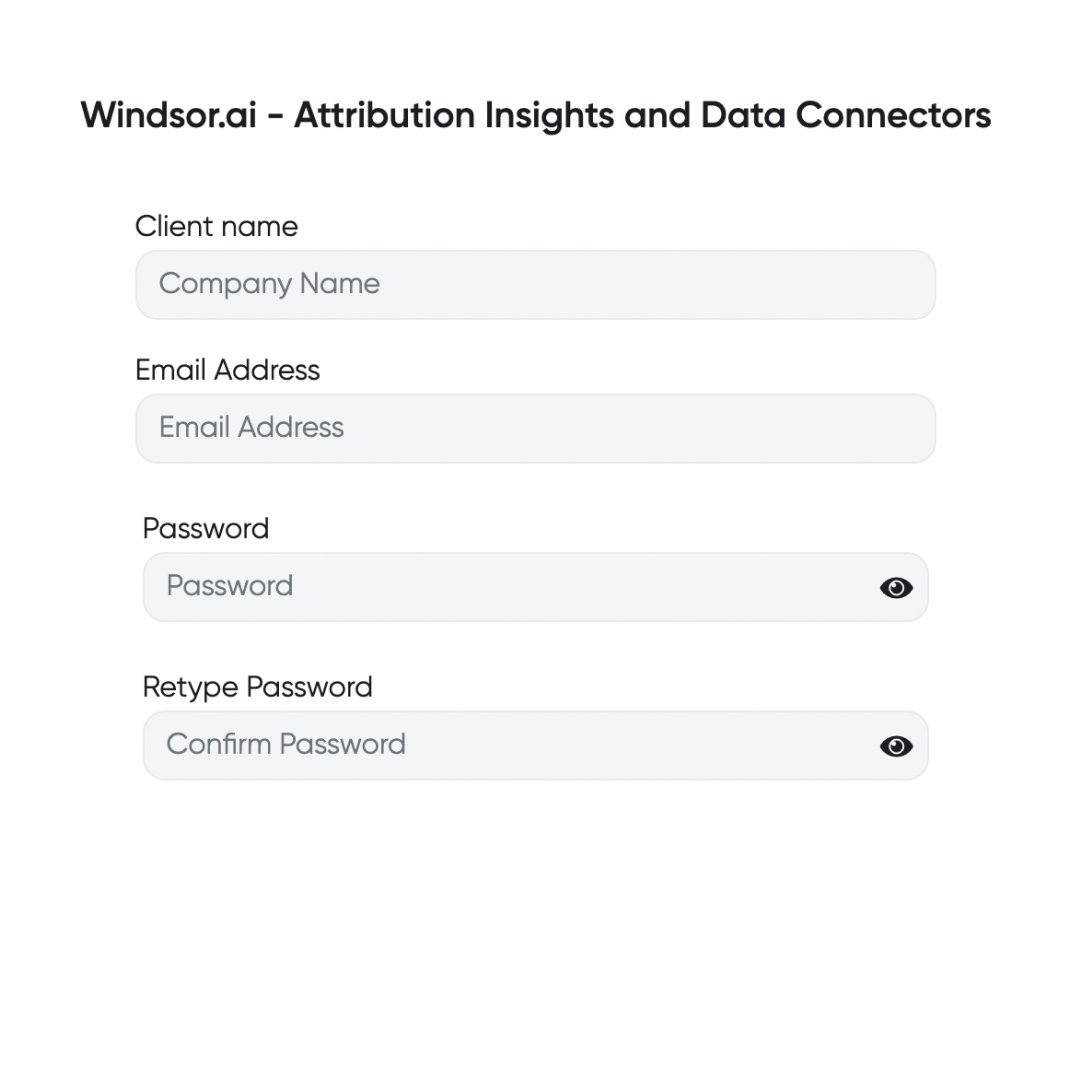
1. Register
Register or login if you already have an account.
2. Select your source
You need to select CoinMarketCap as a Data Source and Grant Access to Windsor.ai.

3. Select Destination
Choose Azure Blob Storage as the destination.

4. Sync your Data
Create an Azure Blob Storage (or an Azure Synapse Analytics) resource on your Azure Portal and provide a connection string for it. Also, you may choose different container and blob names.
Visit the Wiki page for details: https://wiki.windsor.ai/azure_blob_storage
FAQs
What is Azure?
Azure is a public cloud computing platform that provides a range of solutions to create, deploy, and manage apps via Microsoft’s global network of data centers. As such, people and businesses can use it for services like storage, analytics, virtual computing, networking, and more. Azure can also substitute or supplement a business’s on-premise servers.
Tired of manual CoinMarketCap data exports? Get started with Windsor.ai today to automate your reporting


