 Destinations
 Data sources
 AI insights
 About us
 Careers
 Security
 Customer reviews
 Contact us
 Affiliate program
 Solution partners
 Template gallery
 Looker Studio templates
 Power BI templates
 Excel templates
 Google Sheets templates
 Tableau templates
 Facebook Ads templates
 Google Ads templates
 Data fields & Metrics
 AI prompt library & Guides
 Product documentation
 API documentation
 Case studies
 Blog
Blog Data models
 Windsor vs Supermetrics
 Windsor vs Funnel.io
 Windsor vs Fivetran
 Windsor vs Rivery
 Windsor vs Portermetrics
 Windsor vs Coupler.io
 Last updated: 19 August 2026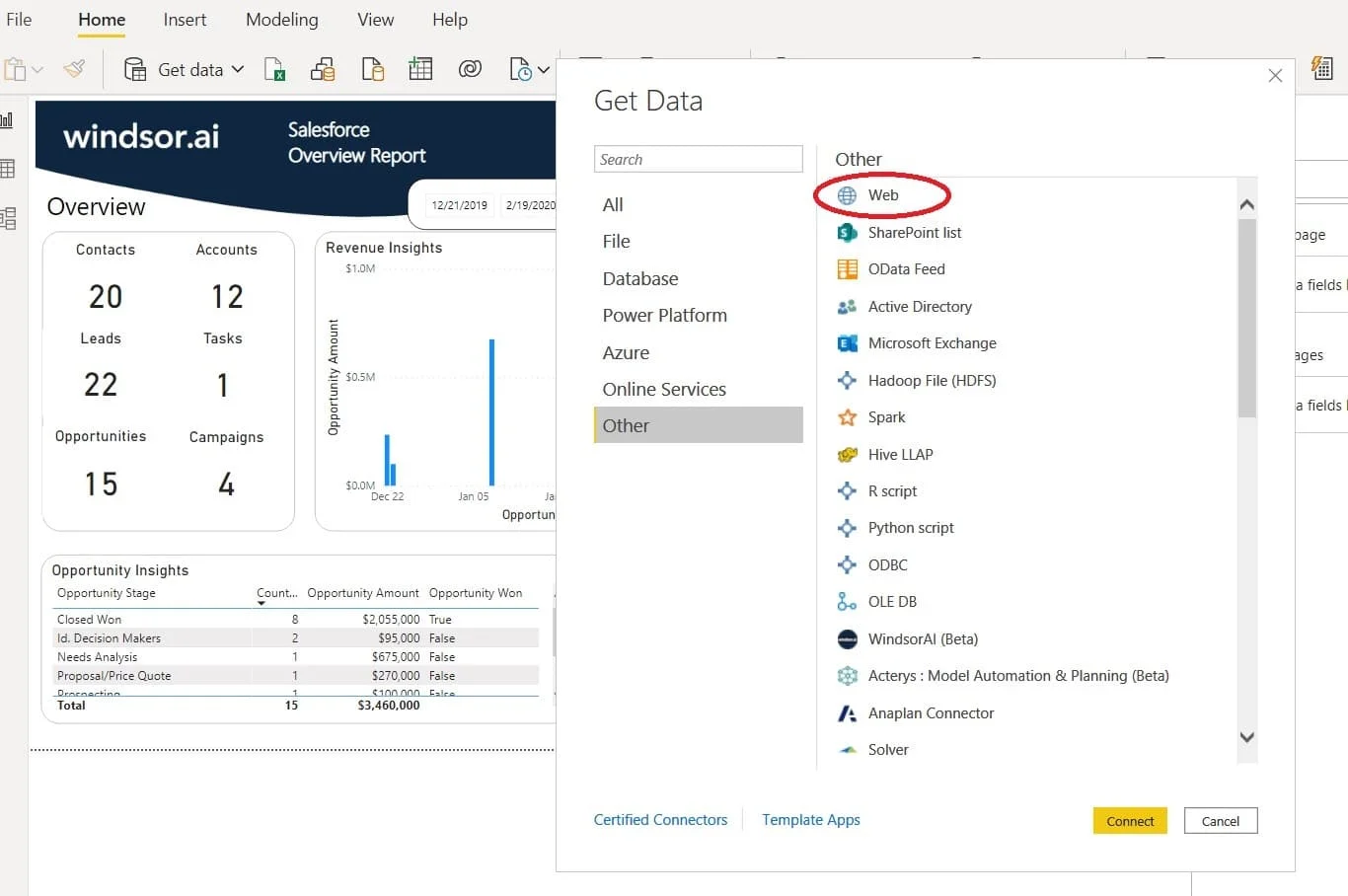




This guide covers known issues and limitations with getting the Windsor.ai data to Microsoft Power BI. You will find it useful, even if you use other connectors like Power BI Salesforce connector.
You can integrate the data collected by Windsor.ai into the Microsoft Power BI visualization tool in more than one way.
Windsor.ai users with their API Key and selected data sources – like Google Analytics 4, Google Ads, Facebook Ads, Salesforce, Shopify, Instagram, Hubspot – can choose Power BI as their data destination.
Power BI Desktop: native connector vs. manual URL
On the Windsor.ai destination page, Power BI Desktop now has two distinct options: Power BI Desktop: Native and Power BI Desktop: Web. Which one you should use depends on your Power BI Desktop version.
Option 1: Native connector (recommended for Power BI Desktop July 2024 Release or later). Instead of copying a URL, Power BI Desktop can connect to Windsor.ai as a first-party data source:
- In Power BI Desktop, go to Get Data and search for the Windsor native connector, then click Connect.
- Sign in to your windsor.ai account if prompted.
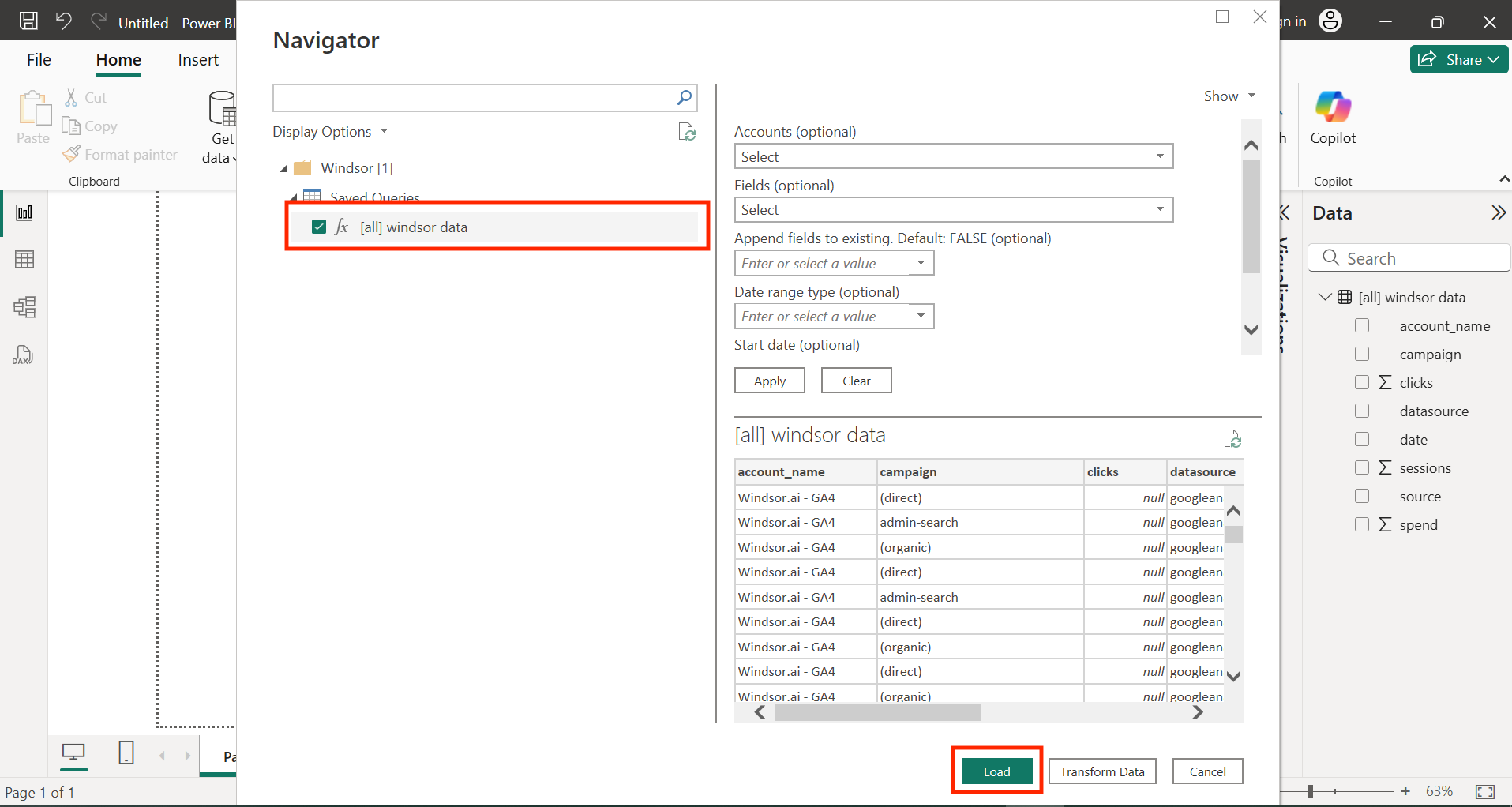
- In the Navigator dialog, select the checkboxes next to any saved queries you’d like to load, then click Load (or Transform Data to adjust fields, accounts, or date ranges first).
The Navigator dialog previews your saved query and lets you load it straight into the report:
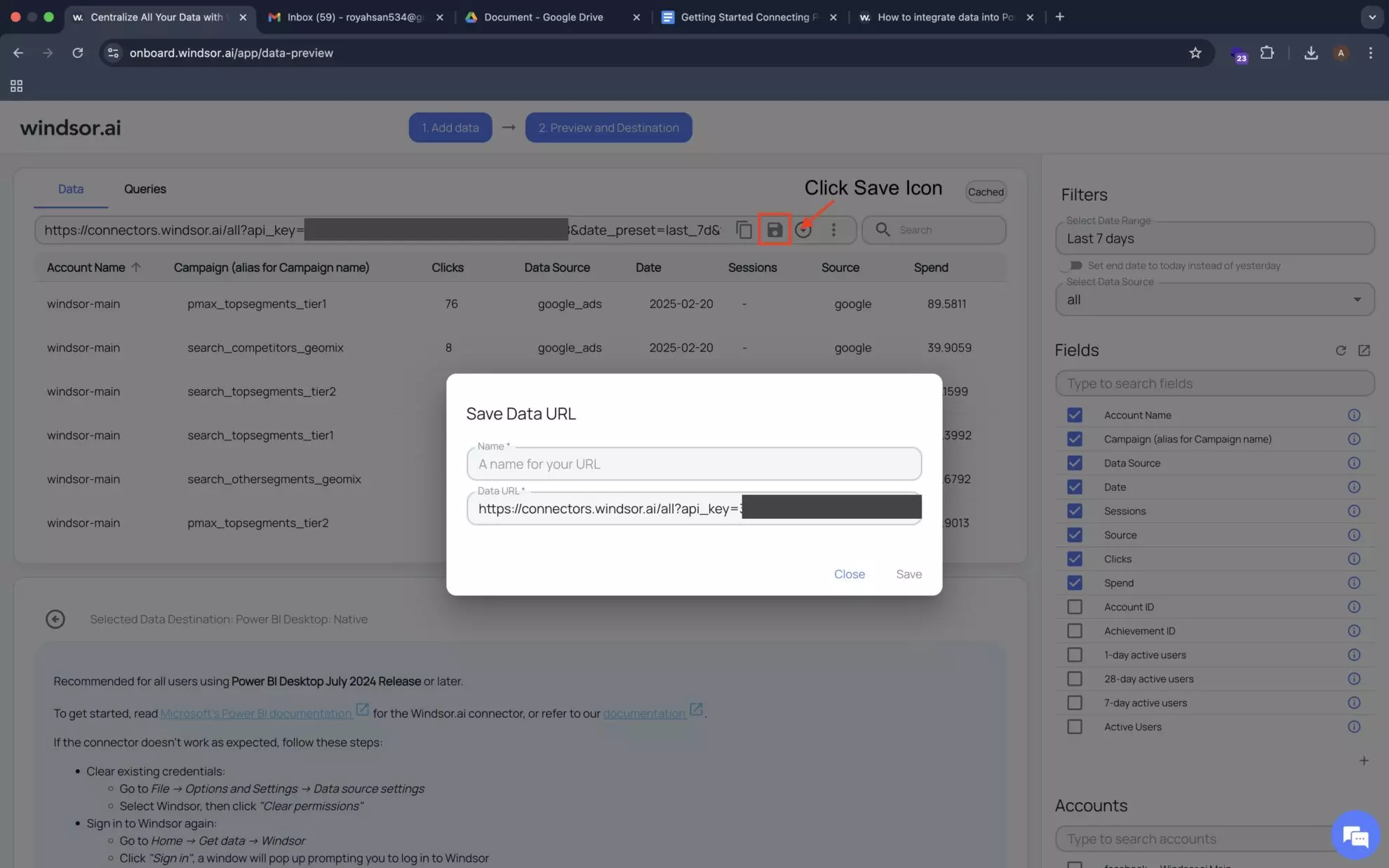
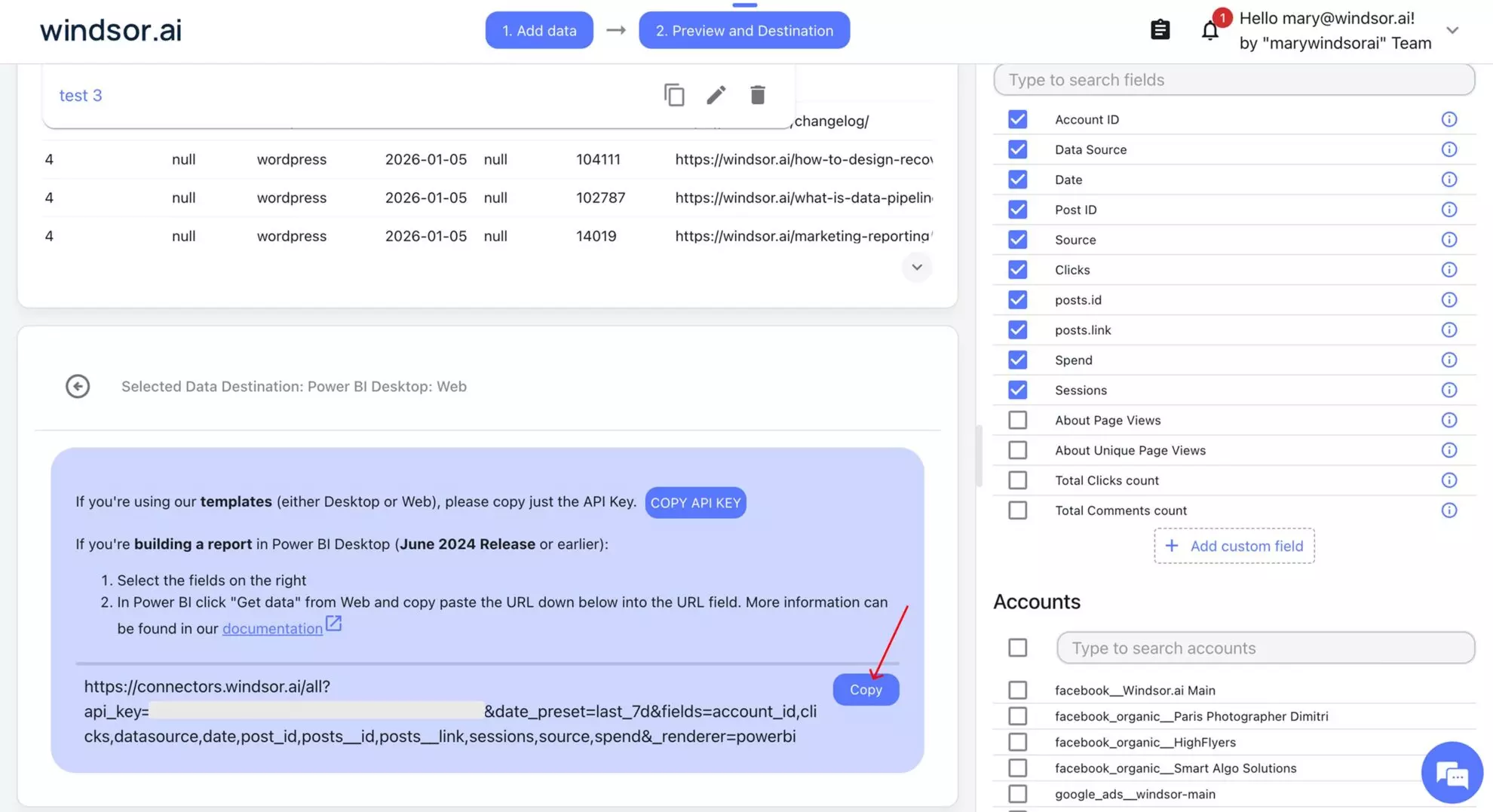
Option 2: Manual URL method (Power BI Desktop: Web, or older Power BI releases). Select your desired fields from the field list on the Windsor.ai destination page and copy the query URL.
This URL is then pasted into Power BI’s Get Data > Web option.

Get started for free
Access all your data from your favorite sources in one place.
Free forever plan, no credit card
Power BI Services (WEB) is an end-user reporting tool. It uses ready reports from App Source (App template), also made by Windsor.ai.
Windsor.ai also provides templates for the Power BI Desktop app. Usually, organizations use Power BI Desktop reports made by their own IT professionals. In this case, templates are meant just as a starting point for advanced users.
If your report’s dataflow settings need re-authentication after publishing to Power BI Web, use “Edit credentials” under Dataset settings and sign in again.
JSON or CSV?
The URL link can bring data in JSON or in .CSV format. The JSON format is more generic and basically in text format. CSV format is Microsoft Excel compatible format that brings the data in tabular form.
- JSON data must then be transformed inside Power BI, choosing the proper Record, Table, and Field conversions, but CSV format is “ready to go.”
- One more significant issue is that it often happens that, for example, you will have no data in the first 100 rows in that column, in JSON format that will remove that column from the fields list. In CSV rendering, it will work just fine.
- After importing the data into an empty report, Power BI automatically places the parameter defining the Column number. This parameter is optional, and if you want to change the number of columns later, you can now remove that parameter.
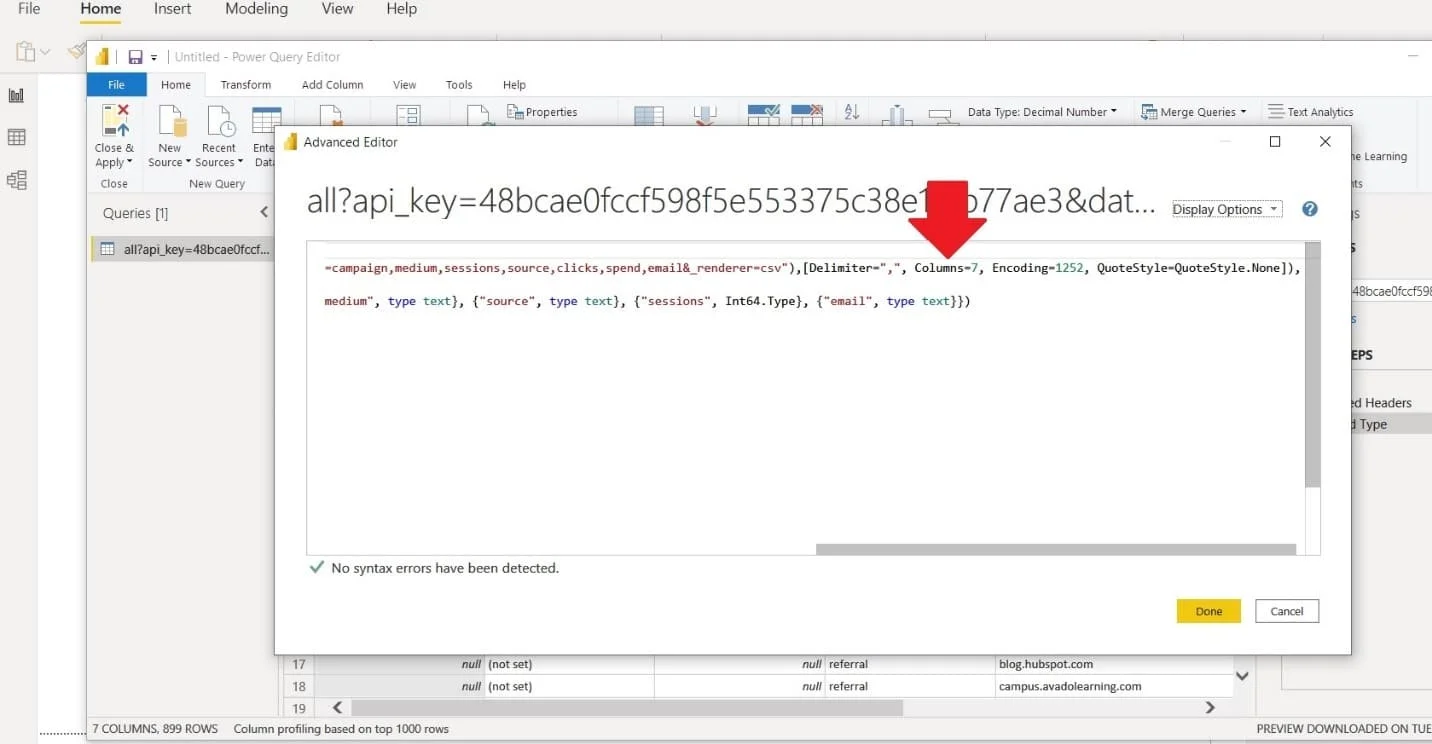
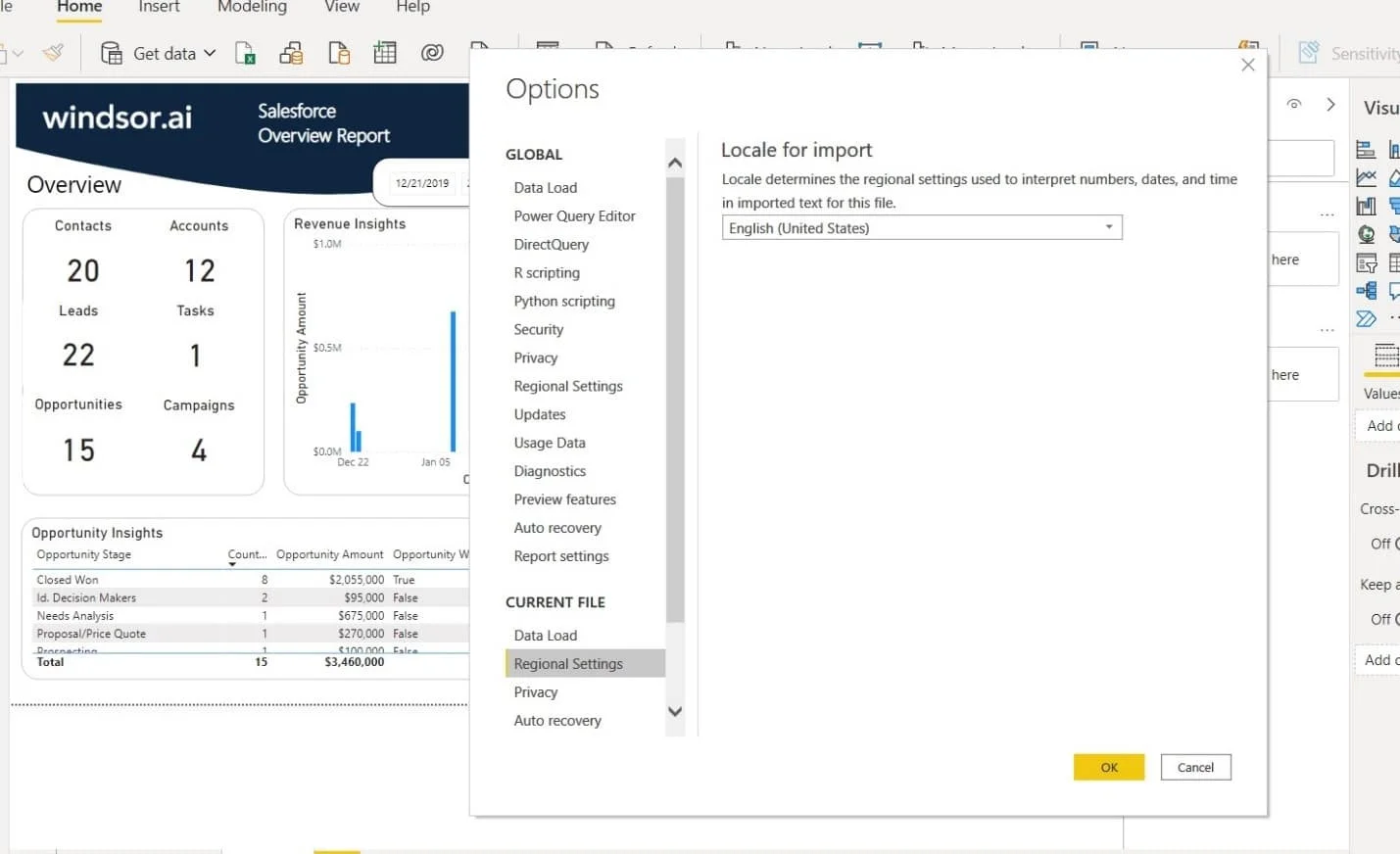
- Other transformations and format adjustments are made following the rules of Power BI. Pay attention that you need to have your regional settings, like time and date format, currency, decimal point or dot, set appropriate.
- If you import the data via URL into the existing report, be aware that data import/refresh errors can influence the report integrity, remove fields, and break visuals. Therefore, all Windsor.ai templates have built-in features to prevent this from happening if the URL query is invalid. It will simply show the message “Data not connected” but leave all tables visuals intact. If you download any Windsor.ai Power BI desktop template, you can check that out.
How do I address issues with automatic data refresh?
To enable auto-refresh, push your Power BI Desktop report to Power BI Web, then go to Datasets > Dataflow settings, click Edit credentials, sign in, and choose your preferred refresh interval there. Manual refresh is always available for both the Desktop and Web (Services) versions if you need the latest data sooner.
If you have any other issues or limitations concerning Power BI, Windsor.ai support will help you solve the problem. Speak to us.
If you wish to try out our other connectors, register here for free >>.


