 Destinations
 Data sources
 AI insights
 About us
 Careers
 Security
 Customer reviews
 Contact us
 Affiliate program
 Solution partners
 Template gallery
 Looker Studio templates
 Power BI templates
 Excel templates
 Google Sheets templates
 Tableau templates
 Facebook Ads templates
 Google Ads templates
 Data fields & Metrics
 AI prompt library & Guides
 Product documentation
 API documentation
 Case studies
 Blog
 Data models
 Windsor vs Supermetrics
 Windsor vs Funnel.io
 Windsor vs Fivetran
 Windsor vs Rivery
 Windsor vs Portermetrics
 Windsor vs Coupler.io
Productive.io MCP for AI Insights
Send your Productive.io data to the AI chat you already use with Windsor MCP.
Windsor.ai connects Productive.io once, and your project and time records become available to ask about in ChatGPT, Claude, Gemini and other MCP-compatible clients.
Forget CSVs. Stop copy/paste. Connect in minutes. No code required.
 Sign up with Google
 Free forever plan
No credit card needed








Get your Productive.io data into the AI chat you already use
Productive.io is connected once in Windsor.ai, and these are the use cases the fields support:

Track budget burn
Budget Utilization next to Budgeted Hours and Actual Hours shows which budgets are close to or over their planned time.

Check billable time
Billable Hours against Actual Hours per budget shows how much of the logged time can be invoiced.

Find stalled tasks
Open tasks with an old Task Last Activity At show work that nobody has touched for a while.

Review invoicing
Invoice Amount by month of Invoiced On shows how much was invoiced to clients each month.
Using Windsor.ai MCP to connect data from Productive.io to LLMs
Without Windsor.ai, getting Productive.io records into an AI chat means an export and an upload every time you want to ask something. Windsor MCP connects Productive.io once and the AI chat reads the live records instead.
Connect in minutes, then ask about your budgets, projects, tasks, time entries and invoices.
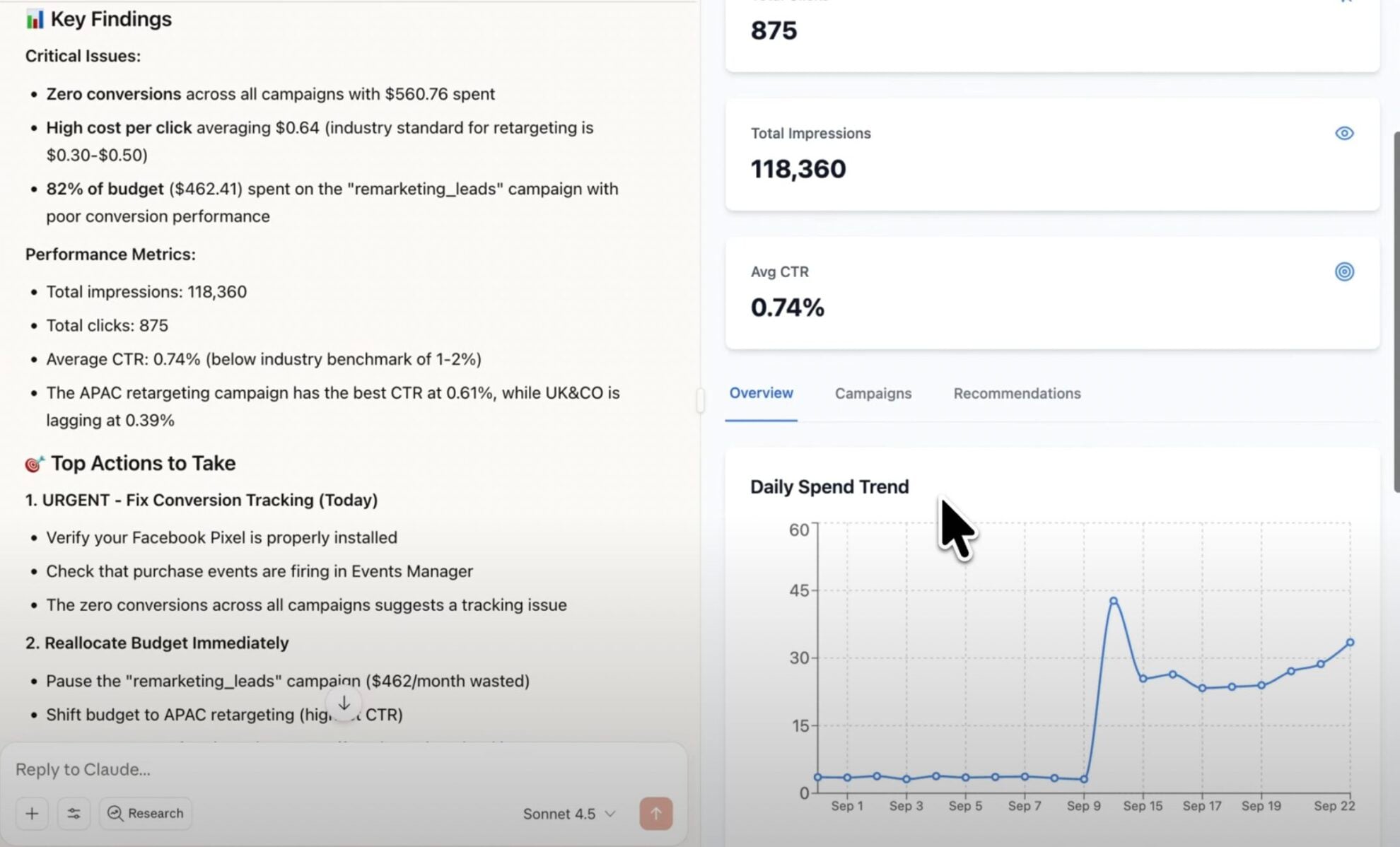


How to connect Productive.io MCP by Windsor.ai
Explore a step-by-step guide to connect your Productive.io data to the AI chat you use with Windsor MCP.
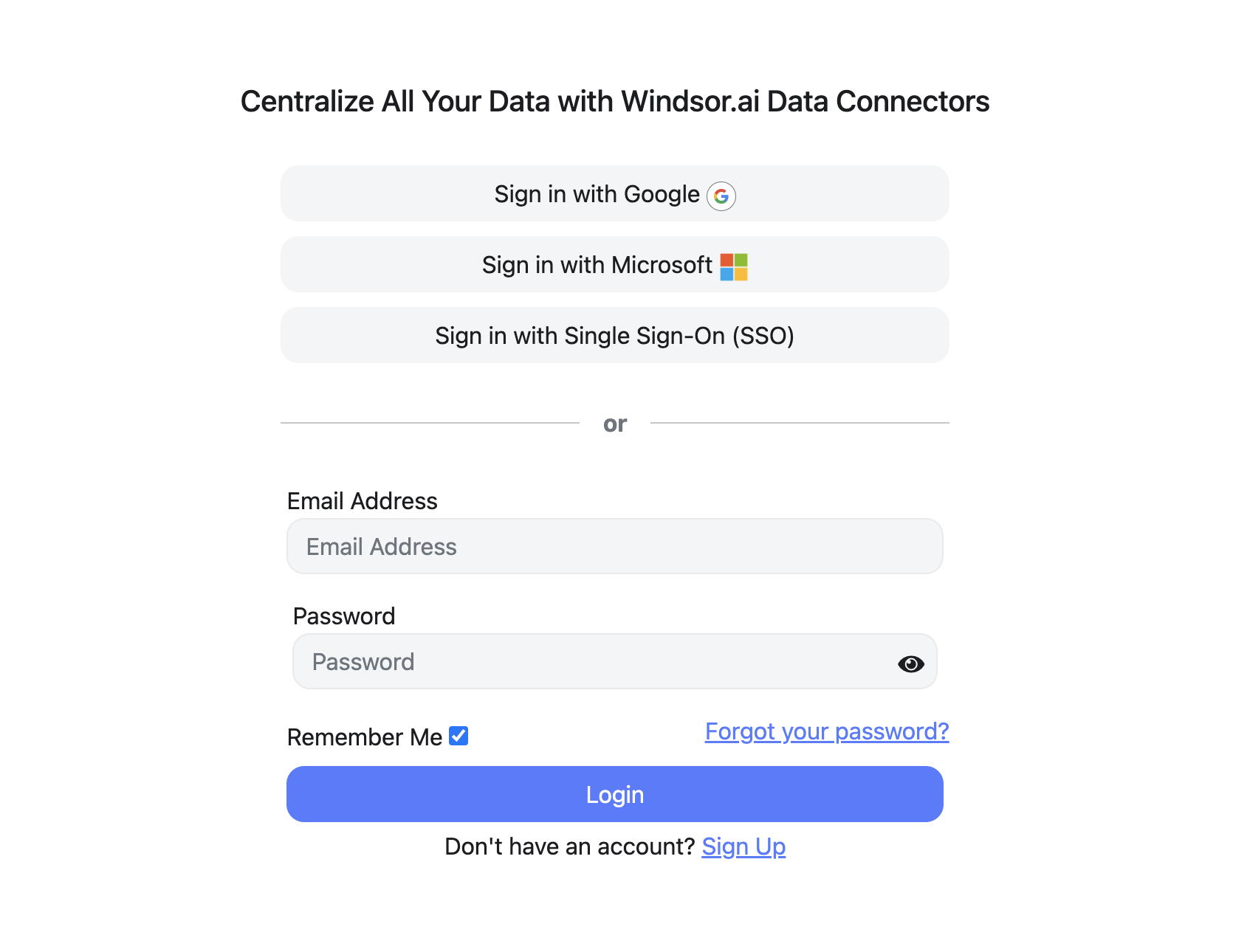
Register and log in to Windsor.ai
Create a new Windsor.ai account or log in if you already have one.
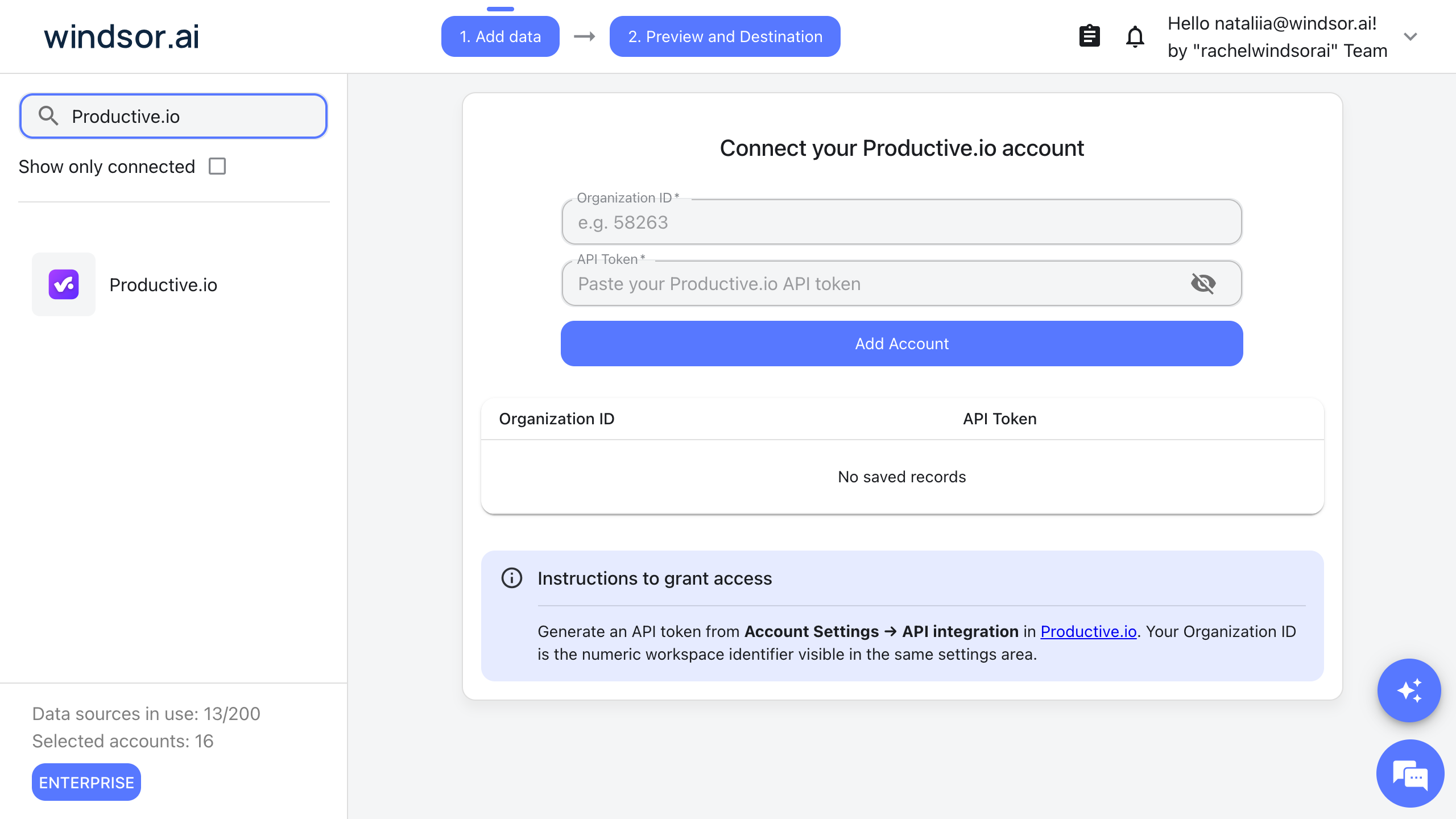
Connect your Productive.io account
Choose Productive.io as your data source and enter your Organization ID and an API token. You create the token in Productive.io under Account Settings, then API integration, and the Organization ID is shown in the same settings area.
Connect Windsor MCP to your favorite LLM
Connect Windsor MCP to the AI chat you use. Open the Windsor MCP documentation and follow the instructions for your platform.
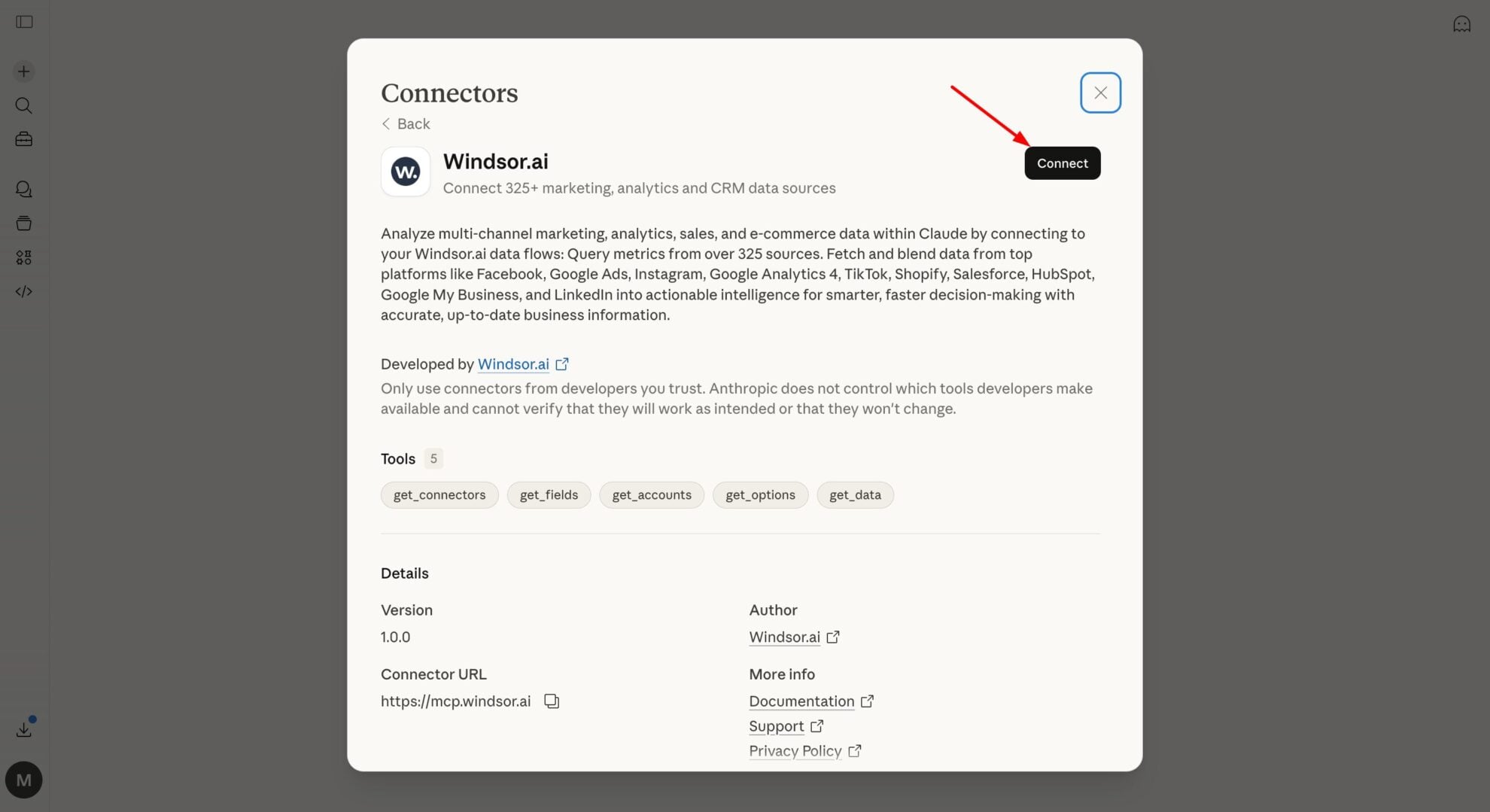
Start analyzing your Productive.io data in the LLM
You can now ask questions about your Productive.io data in the AI chat you connected.
FAQs
What Productive.io data can my AI chat use through Windsor MCP?
Windsor.ai gives access to 78 Productive.io fields. These are the groups; the Productive.io field reference lists all of them:
- Budgets: Budget Name, Budgeted Hours, Actual Hours, Billable Hours, Budget Utilization, Budgeted Revenue.
- Projects: Project Name, Project Number, Project Manager ID, Project Last Activity At, Project Archived At.
- Tasks: Task Title, Task Closed, Task Closed At, Task Last Activity At, Task Worked Hours, Task Assignee ID.
- Time entries: Time Entry Date, Time Entry Hours, Time Entry Billable Minutes, Time Entry Billable, Time Entry Note, Time Entry Person ID.
- Invoices: Invoice Number, Invoice Status, Invoiced On, Invoice Amount, Invoice Company ID.
- Companies, people and services: Company Name, Company Domain, Person First Name, Person Last Name, Person Email, Service Name.
What can I ask my AI chat about my Productive.io data?
These prompts name the fields to use, so the answer comes back on your own records:
-
Which budgets have a Budget Utilization above 90%? Show Budget Name, Budgeted Hours and Actual Hours.
-
Compare Billable Hours with Actual Hours for each Budget Name and list the budgets with the lowest billable share.
-
List open tasks whose Task Last Activity At is more than 14 days ago, with Task Title and Task Project ID.
-
Sum Time Entry Hours and Time Entry Billable Minutes by week for the last 8 weeks.
Can my AI chat change my Productive.io data?
No. The Productive.io connector is read-only. Your AI chat can read your Productive.io records through Windsor MCP and cannot create, edit or delete anything in Productive.io.
Does the Productive.io connector include personal details?
Yes. People records carry first and last names and email addresses, for example Person Email, and time entries carry the free-text Time Entry Note. Pick only the fields you need when you set up a report or ask a question.
Can I combine Productive.io data with other sources through Windsor MCP?
Yes. Windsor.ai supports 350+ data sources, so you can connect Productive.io alongside tools such as Google Ads, GA4 or Shopify and ask about them together. For example, put HubSpot Deal Amount for won deals by Deal Close Date next to the Budgeted Revenue of your Productive.io budgets for the same clients.
Do I need to code to connect Productive.io to Windsor MCP?
No. Connect Productive.io in Windsor.ai, add Windsor MCP to your AI chat, and sign in. After that you ask in plain language.
How much does it cost to integrate Productive.io with Windsor MCP using Windsor.ai?
The free forever plan covers 1 data source, so connecting Productive.io on its own costs nothing and needs no credit card. Combining Productive.io with other sources needs a paid plan: $19/month for 3 sources or $99/month for 7. The AI chat you connect is billed separately by its own provider. See the pricing page.
Do you have helpful links to get started with Productive.io and Windsor MCP?
Yes. These are the resources to start with for the Productive.io to Windsor MCP integration:
Tired of manual Productive.io data exports? Try Windsor.ai today to work on live data


