 Destinations
 Data sources
 AI insights
 About us
 Careers
 Security
 Customer reviews
 Contact us
 Affiliate program
 Solution partners
 Template gallery
 Looker Studio templates
 Power BI templates
 Excel templates
 Google Sheets templates
 Tableau templates
 Facebook Ads templates
 Google Ads templates
 Data fields & Metrics
 AI prompt library & Guides
 Product documentation
 API documentation
 Case studies
 Blog
Blog Data models
 Windsor vs Supermetrics
 Windsor vs Funnel.io
 Windsor vs Fivetran
 Windsor vs Rivery
 Windsor vs Portermetrics
 Windsor vs Coupler.io
How to integrate data into Claude with Windsor.ai
The Windsor.ai connector for Claude gives you AI-powered insights and visual summaries from your business data across 350+ platforms in seconds.
Follow this guide to connect the Windsor-integrated data with your Claude account using the native connector.
Prerequisites
To use Windsor.ai with Claude, make sure you have the following:
- An active Windsor.ai account (free or paid plan) with at least one connected data source
- Claude account (Web or Desktop)
🚀 Get started with Windsor.ai today. Free forever plan, no credit card: https://onboard.windsor.ai/.
Steps to connect your data to Claude
1. Connect the data sources you want to analyze in Claude to Windsor.ai at https://onboard.windsor.ai/. How to connect your first data source in Windsor.ai shows each screen of this step.
❗ You don’t need to manually choose data fields in Windsor.ai. All available fields are automatically sent to Claude.
2. In Claude, open Customize, then Connectors, search for Windsor and click Add. You can also open the Windsor.ai listing in the Claude directory and click Connect.
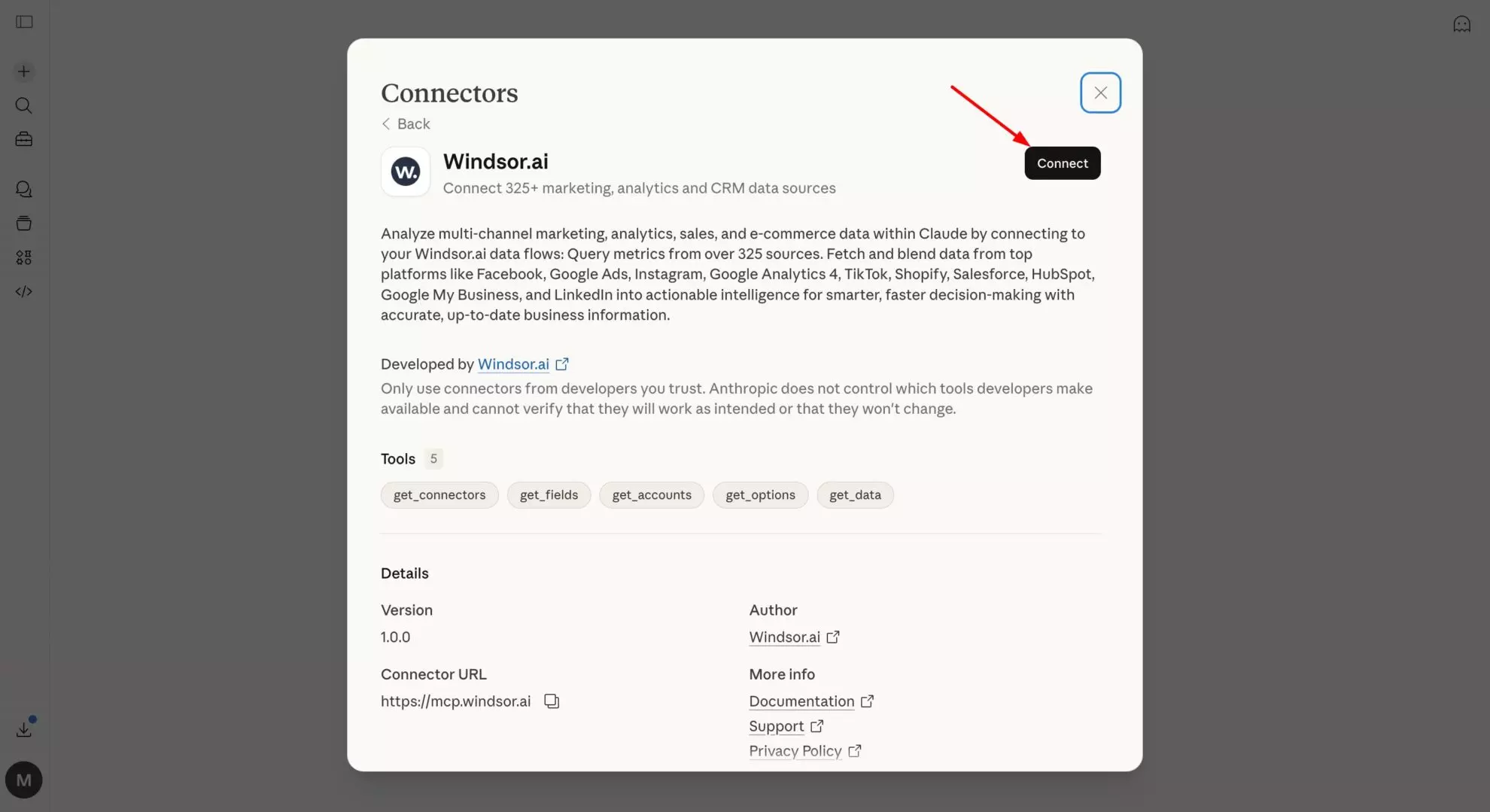
❗ Note: In corporate environments, you must request access from an administrator.
You can also open the connector directly in Claude Desktop here.
👉 If it doesn’t open automatically, open Claude Desktop and search for “Windsor” in the connectors directory.
You’ll be prompted to authorize the connection by signing in with your Windsor.ai account.
Windsor.ai will appear in the list of connectors.
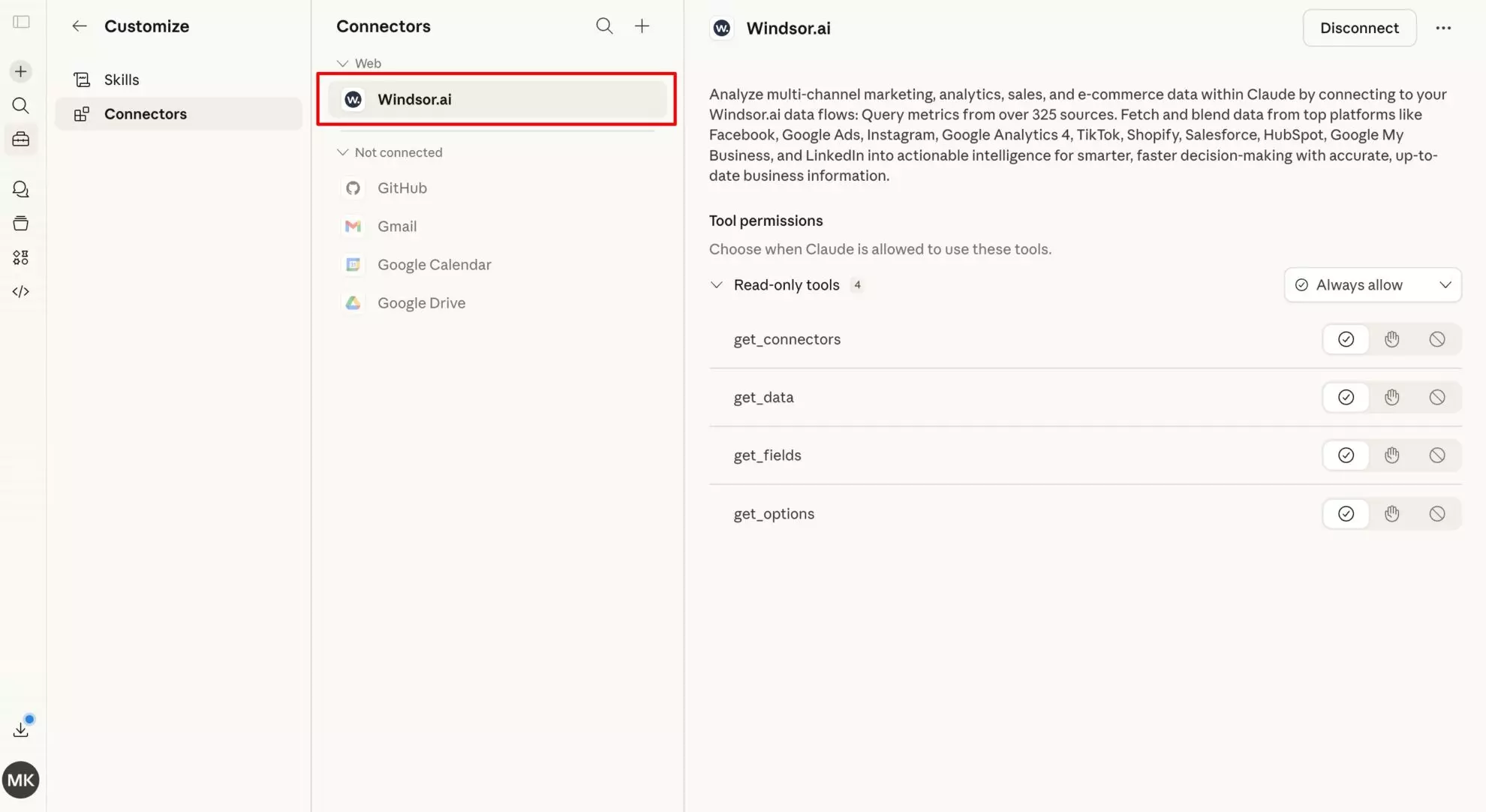
For quicker connector access and use, you can choose ‘Always allow‘ permissions.
❗ Important: The Windsor.ai connector for Claude reads and writes to your connected accounts, so you can analyze and act on your data within your AI chat.
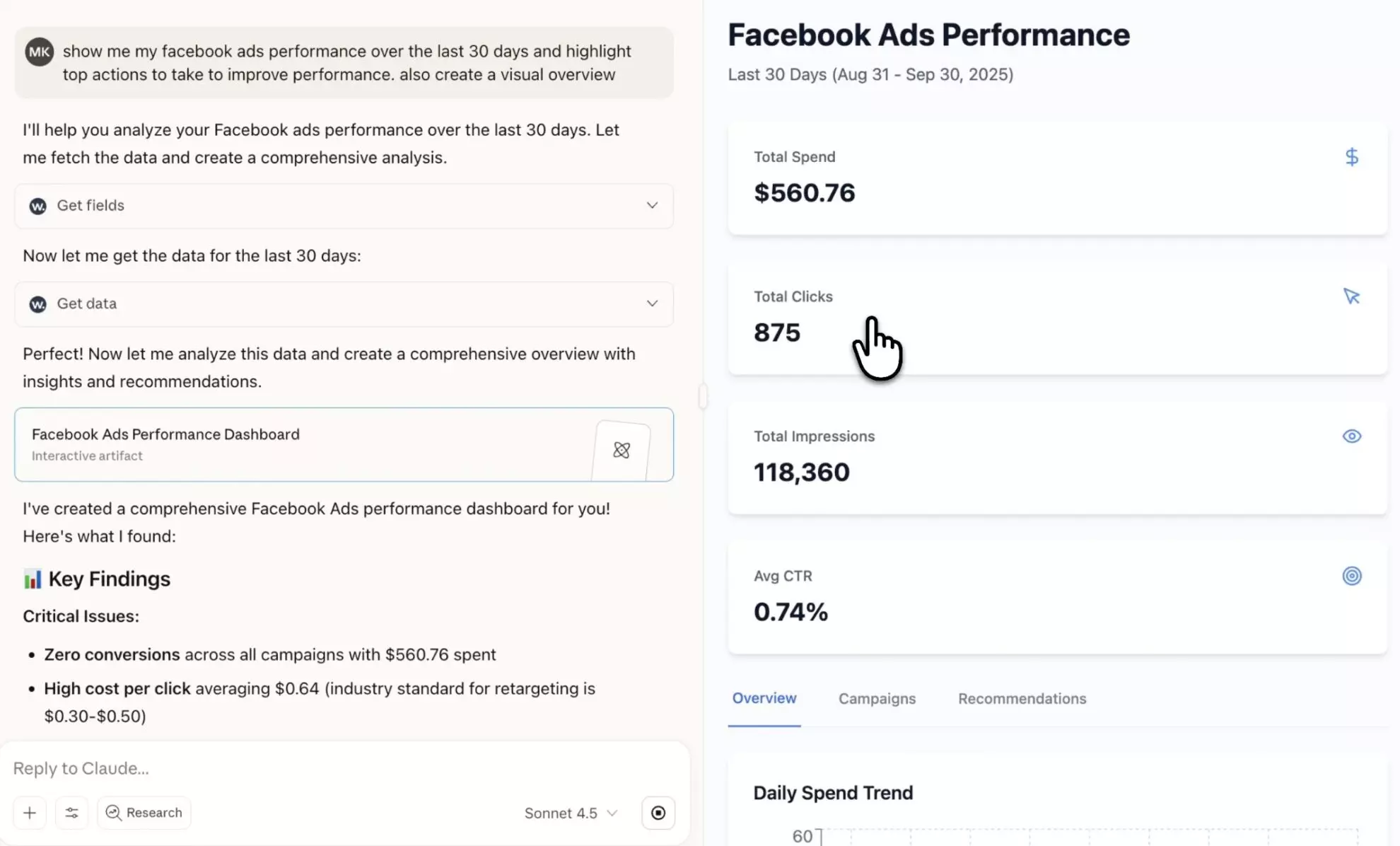
3. Now, create a new Claude chat and put your data to work: pause or launch campaigns, reallocate budgets, push negative keywords, and more. All directly from your chat with Claude. Visit our prompt library for inspiration.
Helpful links
- About Windsor MCP: general info about Windsor MCP, supported data sources and LLMs, benefits and use cases.
- Windsor MCP use cases & examples (30+ prompts inside): if you don’t know what to ask or are looking for advanced Windsor MCP use cases, read this guide for practical examples and prompts that make your Claude data analysis deeper.
- Connect Facebook Ads to Claude: a sample integration page showing how to connect a specific data source (Meta Ads) to Claude and what it provides.
Tired of manual data reporting and analysis? Get started with Windsor MCP today for instant AI insights


