Destinations
 Data sources
 AI insights
 About us
 Careers
 Security
 Customer reviews
 Contact us
 Affiliate program
 Solution partners
 Template gallery
 Looker Studio templates
 Power BI templates
 Excel templates
 Google Sheets templates
 Tableau templates
 Facebook Ads templates
 Google Ads templates
 Data fields & Metrics
 AI prompt library & Guides
 Product documentation
 API documentation
 Case studies
 Blog
 Data models
 Windsor vs Supermetrics
 Windsor vs Funnel.io
 Windsor vs Fivetran
 Windsor vs Rivery
 Windsor vs Portermetrics
 Windsor vs Coupler.io
Connect Threads to Antigravity
Connect your Threads data to Antigravity with the Windsor.ai connector, and ask about posts, views, replies and followers in plain language.
Ask which posts get the most views and quotes, whether text or image posts do better, or what people reply, built on your own Threads data.
Forget CSVs. Stop copy/paste. Connect in minutes. No code required.
 Sign up with Google
 Free forever plan










Get your Threads data into Antigravity
Threads is connected once in Windsor.ai, and these are the use cases the fields support:

Find your top posts
Post Views, Post Likes, Post Reposts and Post Quotes per Post Text show which posts people shared and discussed.

Compare post formats
The same metrics per Post Media Type show whether text, image or video posts get more views.

Track profile views
Profile Views by Date and Profile Followers Count show how the profile grows.

Review replies
Reply Text, Reply Username and Reply Timestamp per Reply Root Post ID show the conversation under each post.
Using Windsor.ai to connect data from Threads to Antigravity
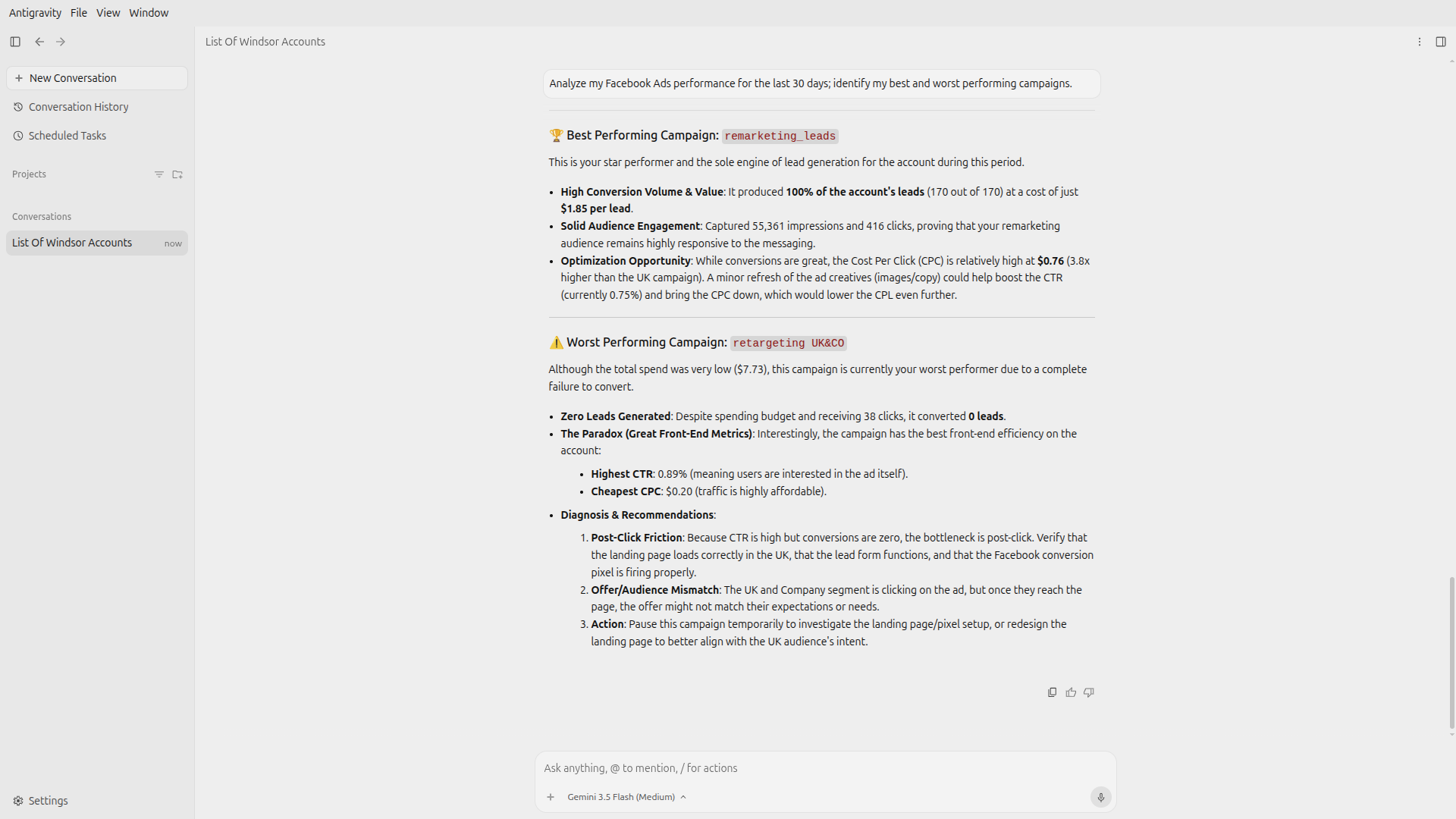
Without Windsor.ai, Antigravity answers about Threads data come from a file you exported and pasted in. Through the Windsor.ai connector, Antigravity reads the live records with their real field names, so the answers match what is in Threads today.
Connect in minutes, then ask about your post, reply, profile and follower data.
Available actions
Create Image Post
Publish a single image post to the connected Threads account. Provide a publicly accessible image URL (JPEG or PNG) and an optional text caption (at most 500 characters). For a text-only post use create_text_post; to reply to an existing post use create_reply.
Create Reply
Publish a text reply to a Threads post or reply on the connected account. reply_to_id is the media id of the post or reply being replied to, as returned by the post_id or reply_id read fields. Threads refuses replies under a root post that another account owns, so the connected account cannot reply to other users' public posts. Provide the reply text (at most 500 characters). The reply is public and attributed to the account.
Create Text Post
Publish a text-only post to the connected Threads account. Provide the post text (at most 500 characters). To attach an image use create_image_post; to reply to an existing post use create_reply.






How to connect Threads to Antigravity with Windsor.ai
Watch the video tutorial, or follow the step-by-step guide to connect your Threads data to Antigravity with Windsor.ai.
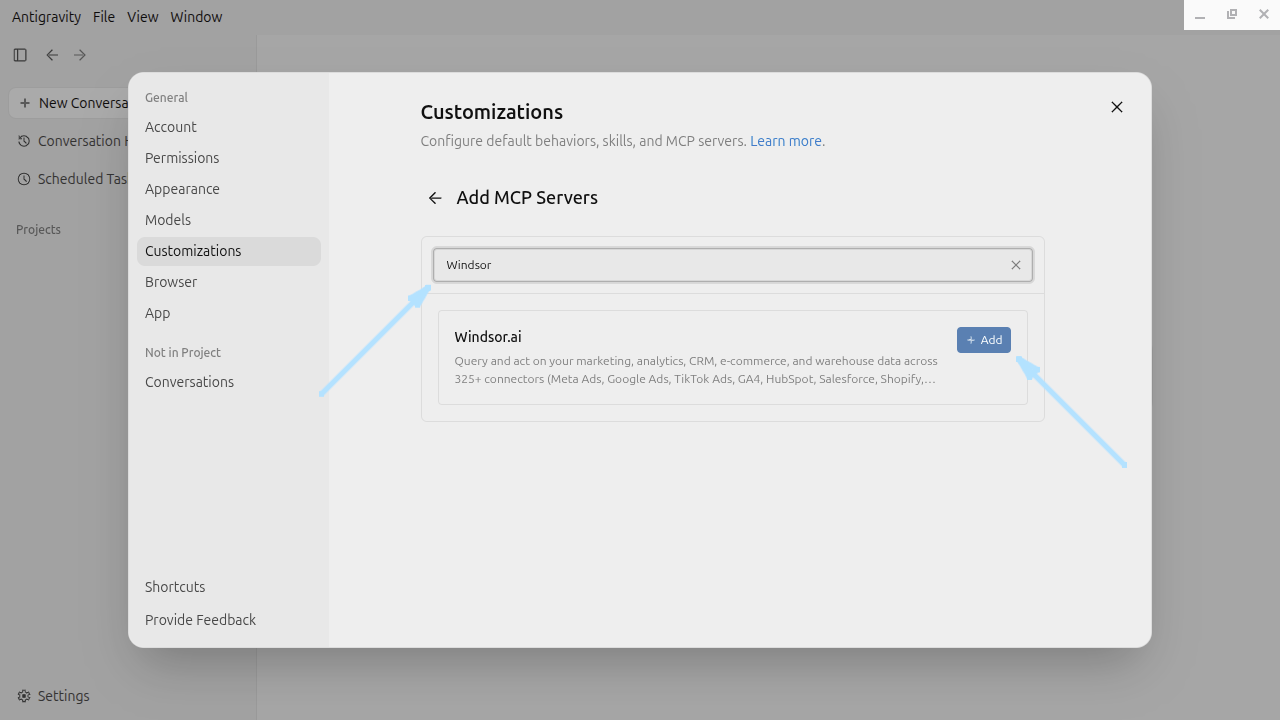
Add Windsor MCP in Antigravity
Open the Antigravity desktop app. At the bottom left of the main window, click Settings, then Customizations, then the Add MCP button. Type Windsor in the search bar and click Add.
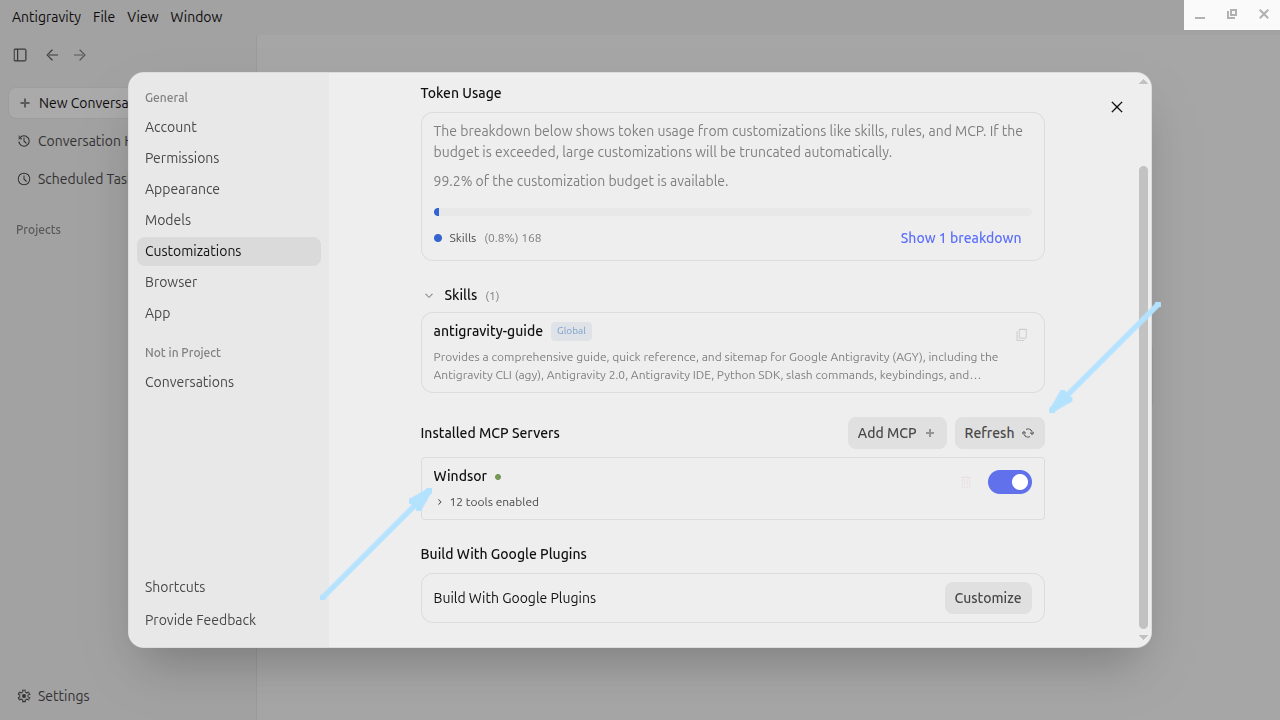
Finish the Windsor.ai sign-in
The Windsor.ai window opens. Click Finish to complete the sign-in, then click Refresh. Windsor appears in the list of installed MCP servers.
Ask Antigravity about your Threads data
Close the Customizations window, return to the main window and ask about your Threads data.

FAQs
What Threads data can Antigravity use?
Windsor.ai gives access to 64 Threads fields. These are the groups; the Threads field reference lists all of them:
- Post performance: Post Views, Post Likes, Post Replies, Post Reposts, Post Quotes, Post Shares.
- Post details: Post Text, Post Media Type, Post Timestamp, Post Permalink, Post Is Quote Post, Post Link Attachment URL.
- Profile insights: Profile Views, Profile Followers Count, Profile Likes, Profile Replies, Profile Reposts, Profile Quotes.
- Follower demographics: Profile Followers Age, Profile Followers Gender, Profile Followers Country, Profile Followers City.
- Replies: Reply Text, Reply Username, Reply Timestamp, Reply To ID, Reply Root Post ID, Reply Hide Status.
- Date and account: Date, Week, Month, Profile Username, Account Name.
What can I ask Antigravity about my Threads data?
These prompts name the fields to use, so the answer comes back on your own records:
-
List my posts from the last 30 days by Post Views, with Post Text, Post Likes, Post Replies, Post Reposts and Post Quotes.
-
Compare average Post Views, Post Likes and Post Replies by Post Media Type for posts published in the last 30 days.
-
Show Profile Views by Date for the last 30 days, and my current Profile Followers Count.
-
Show the replies to my most viewed post from the last 30 days, with Reply Text, Reply Username and Reply Timestamp.
Can Antigravity make changes in my Threads account?
Yes. Windsor.ai has write actions for Threads, and Antigravity can run them through Windsor MCP when you ask: it can publish a text post, publish an image post from a public image URL, and reply to a post or a reply, with up to 500 characters of text each. See the full list of write actions.
Can I combine Threads data with other sources in Antigravity?
Yes. Windsor.ai supports 350+ data sources, so you can connect Threads alongside tools such as Instagram, Facebook Page Insights or GA4 and ask about them together. For example, put Threads Post Views and Post Likes by Date next to Instagram Reach and Likes for the same days, to compare how your account does on the two apps.
Do I need to code to connect Threads to Antigravity?
No. Connect Threads in Windsor.ai, add Windsor to Antigravity, and sign in. After that you ask in plain language.
How much does it cost to integrate Threads with Antigravity using Windsor.ai?
The free forever plan covers 1 data source, so connecting Threads on its own costs nothing and needs no credit card. Combining Threads with other sources needs a paid plan: $19/month for 3 sources or $99/month for 7. Antigravity is billed separately by Google. See the pricing page.
Do you have helpful links to get started with Threads and Antigravity?
Yes. These are the resources to start with for the Threads to Antigravity integration:
Tired of manual Threads data exports? Try Windsor.ai today to work on live data