Destinations
 Data sources
 AI insights
 About us
 Careers
 Security
 Customer reviews
 Contact us
 Affiliate program
 Solution partners
 Template gallery
 Looker Studio templates
 Power BI templates
 Excel templates
 Google Sheets templates
 Tableau templates
 Facebook Ads templates
 Google Ads templates
 Data fields & Metrics
 AI prompt library & Guides
 Product documentation
 API documentation
 Case studies
 Blog
 Data models
 Windsor vs Supermetrics
 Windsor vs Funnel.io
 Windsor vs Fivetran
 Windsor vs Rivery
 Windsor vs Portermetrics
 Windsor vs Coupler.io
Connect Visma e-conomic to Antigravity
Connect your Visma e-conomic data to Antigravity with the Windsor.ai connector, and ask about invoices, customers and accounting entries in plain language.
Ask which invoices are overdue, which customers are close to their credit limit, or how much VAT you invoiced in the last 30 days, built on your own Visma e-conomic data.
Forget CSVs. Stop copy/paste. Connect in minutes. No code required.
 Sign up with Google
 Free forever plan










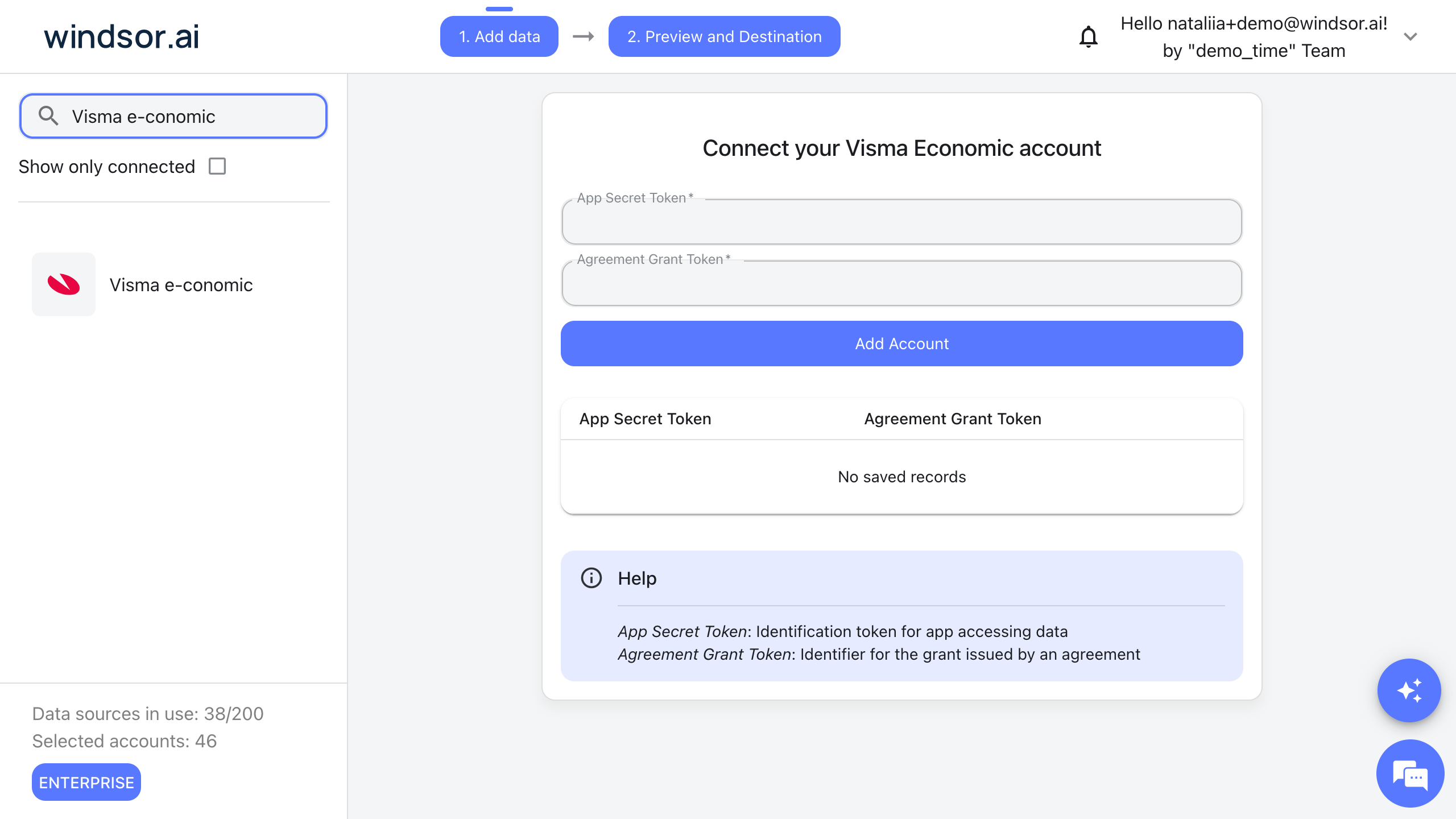
Get your Visma e-conomic data into Antigravity
Visma e-conomic is connected once in Windsor.ai, and these are the use cases the fields support:

Follow up on open invoices
Remainder and Due Date on booked invoices show which invoices are still unpaid after their due date.

Watch credit limits
Due Amount against Credit Limit per customer shows which customers are close to their limit.

Check VAT per month
VAT Amount and Net Amount on booked invoices by Month show how much VAT you invoiced each month.

See what sells
Quantity and Total Net Amount on invoice lines per Product Number show which products and services bring in the most.
Using Windsor.ai to connect data from Visma e-conomic to Antigravity
Without Windsor.ai, Antigravity answers about Visma e-conomic data come from a file you exported and pasted in. Through the Windsor.ai connector, Antigravity reads the live records with their real field names, so the answers match what is in Visma e-conomic today.
Connect in minutes, then ask about your invoice, customer, account and product data.






How to connect Visma e-conomic to Antigravity with Windsor.ai
Watch the video tutorial, or follow the step-by-step guide to connect your Visma e-conomic data to Antigravity with Windsor.ai.
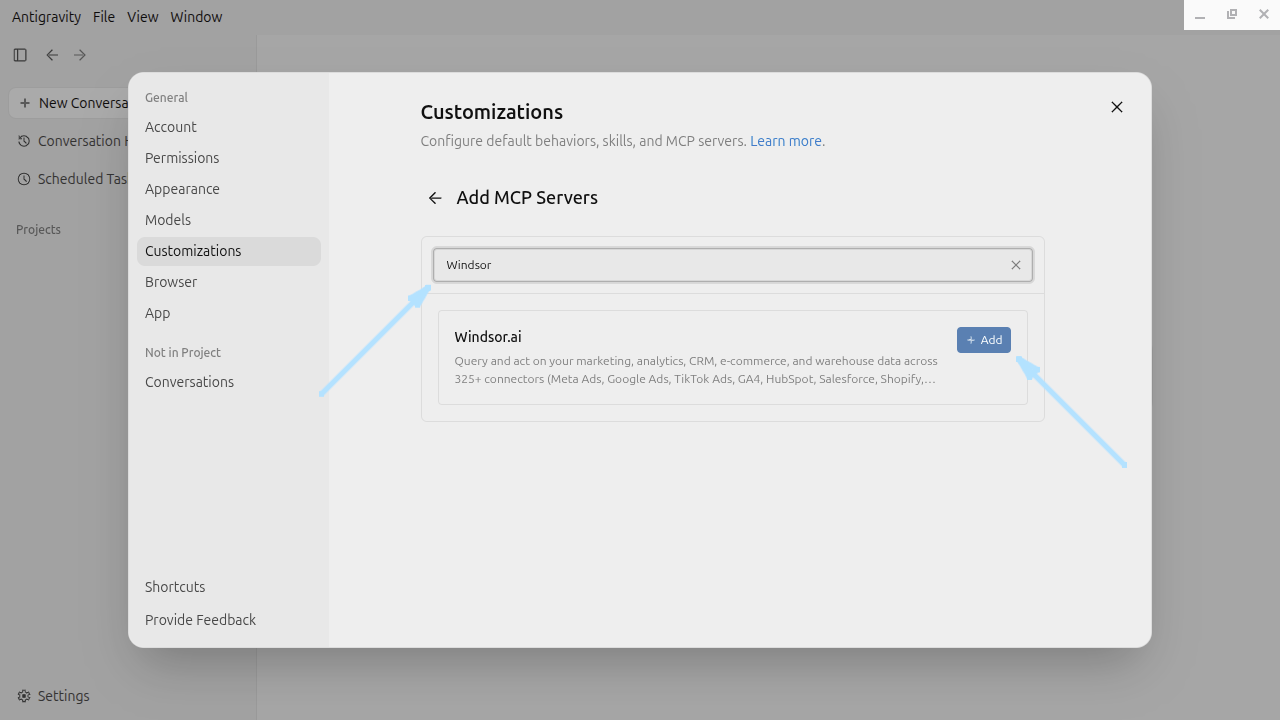
Add Windsor MCP in Antigravity
Open the Antigravity desktop app. At the bottom left of the main window, click Settings, then Customizations, then the Add MCP button. Type Windsor in the search bar and click Add.
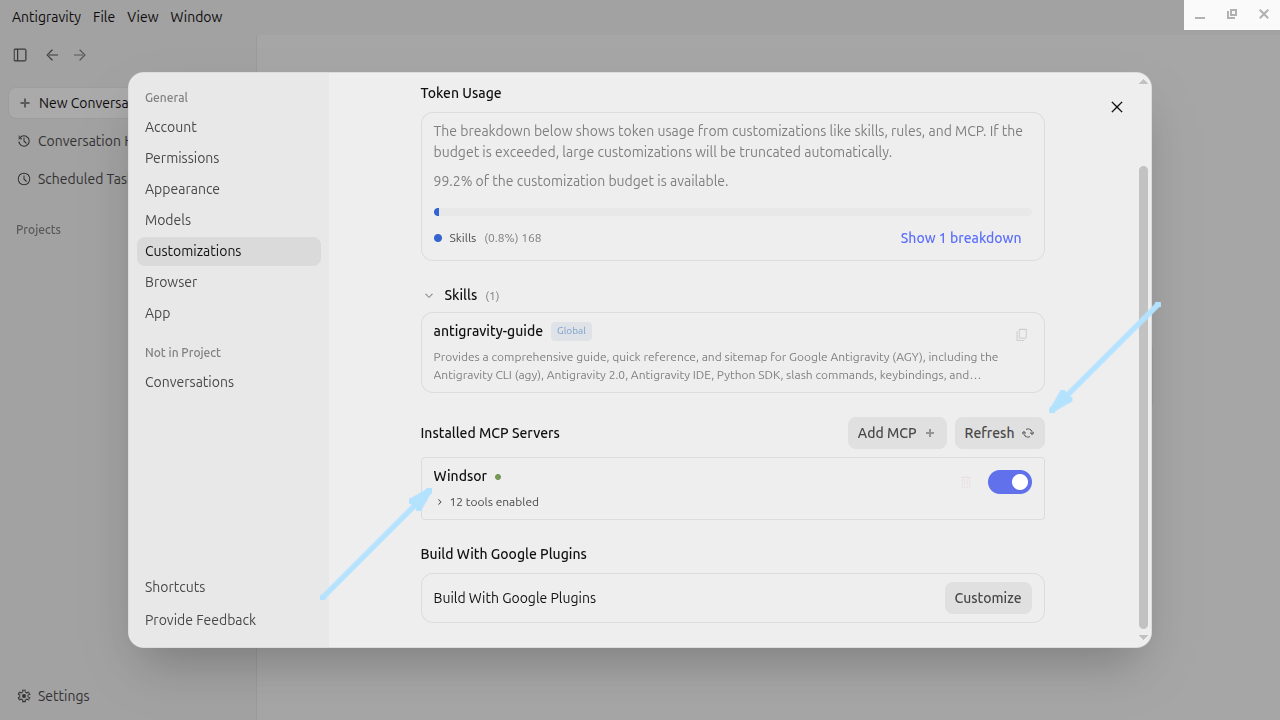
Finish the Windsor.ai sign-in
The Windsor.ai window opens. Click Finish to complete the sign-in, then click Refresh. Windsor appears in the list of installed MCP servers.
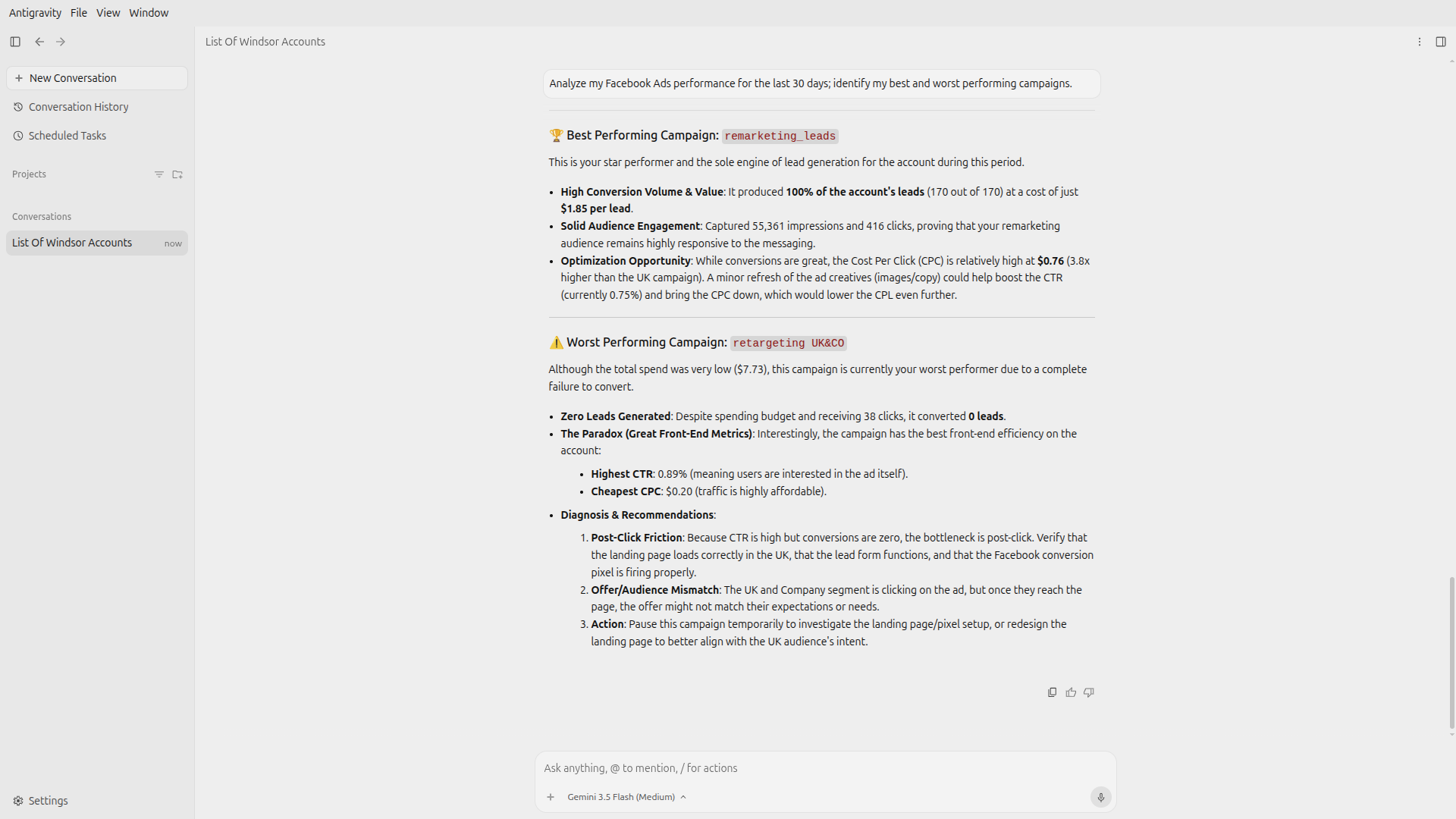
Ask Antigravity about your Visma e-conomic data
Close the Customizations window, return to the main window and ask about your Visma e-conomic data.
FAQs
What Visma e-conomic data can Antigravity use?
Windsor.ai gives access to 206 Visma e-conomic fields. These are the groups; the Visma e-conomic field reference lists all of them:
- Booked and paid invoices: Booked Invoice Number, Gross Amount, Net Amount, VAT Amount, Remainder, Due Date, Currency, Gross Amount In Base Currency.
- Invoice lines: Description, Product Number, Quantity, Unit Net Price, Total Net Amount, Discount Percentage, VAT Rate.
- Customers: Name, Customer Number, Balance, Due Amount, Credit Limit, Country, VAT Zone.
- Accounts: Account Number, Account Type, Balance, Draft Balance, Debit Credit.
- Accounting entries: Amount, Amount In Base Currency, Entry Type, Voucher Number, Entry Number, Text.
- Products: Product Number, Cost Price, Sales Price, Recommended Price, Minimum Stock.
- Date and account: Date, Week, Month, Account Name, Account ID.
What can I ask Antigravity about my Visma e-conomic data?
These prompts name the fields to use, so the answer comes back on your own records:
-
List my customers by Due Amount next to their Credit Limit, and flag the ones above 80% of their limit.
-
Show invoices booked in the last 30 days with a Remainder above 0 and a Due Date that has passed, with Booked Invoice Number and Gross Amount.
-
Total the Net Amount and VAT Amount of invoices booked in the last 30 days, by Currency.
-
Which products sold most on invoice lines in the last 30 days? Sum Quantity and Total Net Amount by Product Number and Description.
Can Antigravity change my Visma e-conomic data?
No. The Visma e-conomic connector is read-only. Antigravity can read your Visma e-conomic records through Windsor.ai and cannot create, edit or delete anything in Visma e-conomic. The write actions list shows the sources Windsor.ai can make changes in.
Does the Visma e-conomic connector include customer contact details?
Yes. Customer records can include Email, Address, Mobile Phone and Telephone And Fax Number. Pick only the fields you need when you set up a report or ask a question.
Can I combine Visma e-conomic data with other sources in Antigravity?
Yes. Windsor.ai supports 350+ data sources, so you can connect Visma e-conomic alongside tools such as Shopify, Stripe or Google Ads and ask about them together. For example, put the Net Amount of invoices booked in Visma e-conomic by Date next to Shopify Order Net Sales for the same days, to check that store sales and booked invoices match.
Do I need to code to connect Visma e-conomic to Antigravity?
No. Connect Visma e-conomic in Windsor.ai, add Windsor to Antigravity, and sign in. After that you ask in plain language.
How much does it cost to integrate Visma e-conomic with Antigravity using Windsor.ai?
The free forever plan covers 1 data source, so connecting Visma e-conomic on its own costs nothing and needs no credit card. Combining Visma e-conomic with other sources needs a paid plan: $19/month for 3 sources or $99/month for 7. Antigravity is billed separately by Google. See the pricing page.
Do you have helpful links to get started with Visma e-conomic and Antigravity?
Yes. These are the resources to start with for the Visma e-conomic to Antigravity integration:
Tired of manual Visma e-conomic data exports? Try Windsor.ai today to work on live data