 Destinations
 Data sources
 AI insights
 About us
 Careers
 Security
 Customer reviews
 Contact us
 Affiliate program
 Solution partners
 Template gallery
 Looker Studio templates
 Power BI templates
 Excel templates
 Google Sheets templates
 Tableau templates
 Facebook Ads templates
 Google Ads templates
 Data fields & Metrics
 AI prompt library & Guides
 Product documentation
 API documentation
 Case studies
 Blog
Blog Data models
 Windsor vs Supermetrics
 Windsor vs Funnel.io
 Windsor vs Fivetran
 Windsor vs Rivery
 Windsor vs Portermetrics
 Windsor vs Coupler.io
Connect Airtable to Claude
Automatically sync your Airtable data to Claude using the Windsor.ai connector.
Bring your Airtable data into Claude to transform static records into a proactive strategy. Identify gaps, surface opportunities, and take action faster, without manual analysis.
Forget CSVs. Stop copy/paste. Connect data in minutes. No code required.
 Sign up with Google
 Free forever plan
No credit card needed
Free forever plan
No credit card needed










Make the most out of your data with Airtable data in Claude
Instead of manually filtering records or building complex views, you can analyze your complex business data and uncover insights using simple natural-language prompts. Discover key benefits:

Get instant AI insights
Instead of building complex formulas or manual pivot tables, simply ask Claude to identify workflow bottlenecks or surface high-performing leads from your Airtable data and get structured answers in seconds.

Analyze historical data at scale
Unlock the full context behind your historical data. Let Claude analyze large volumes of Airtable records to uncover trends, patterns, and changes over time, without complex queries.

Unify data across multiple channels
Bridge the gap between your internal Airtable data and external performance metrics from 350+ sources like Google Ads, Meta, Shopify, or HubSpot. Claude cross-references CRM sales with ad spend, giving you a unified view of true ROI across every channel.

Generate data-driven action plans
Empower Claude to act as a strategic advisor by identifying critical risks and opportunities across your business. Instead of passive summaries, it analyzes your Airtable data to generate prioritized to-do lists and step-by-step execution plans to optimize performance.
Using Windsor.ai to connect data from Airtable to Claude
Syncing complex Airtable data with Claude can be time-consuming and often requires technical expertise or costly tools. The Windsor.ai MCP connector automates the entire flow by pulling, cleaning, and feeding your records directly into Claude.
Connect in minutes and start analyzing any aspect of your business using natural language.
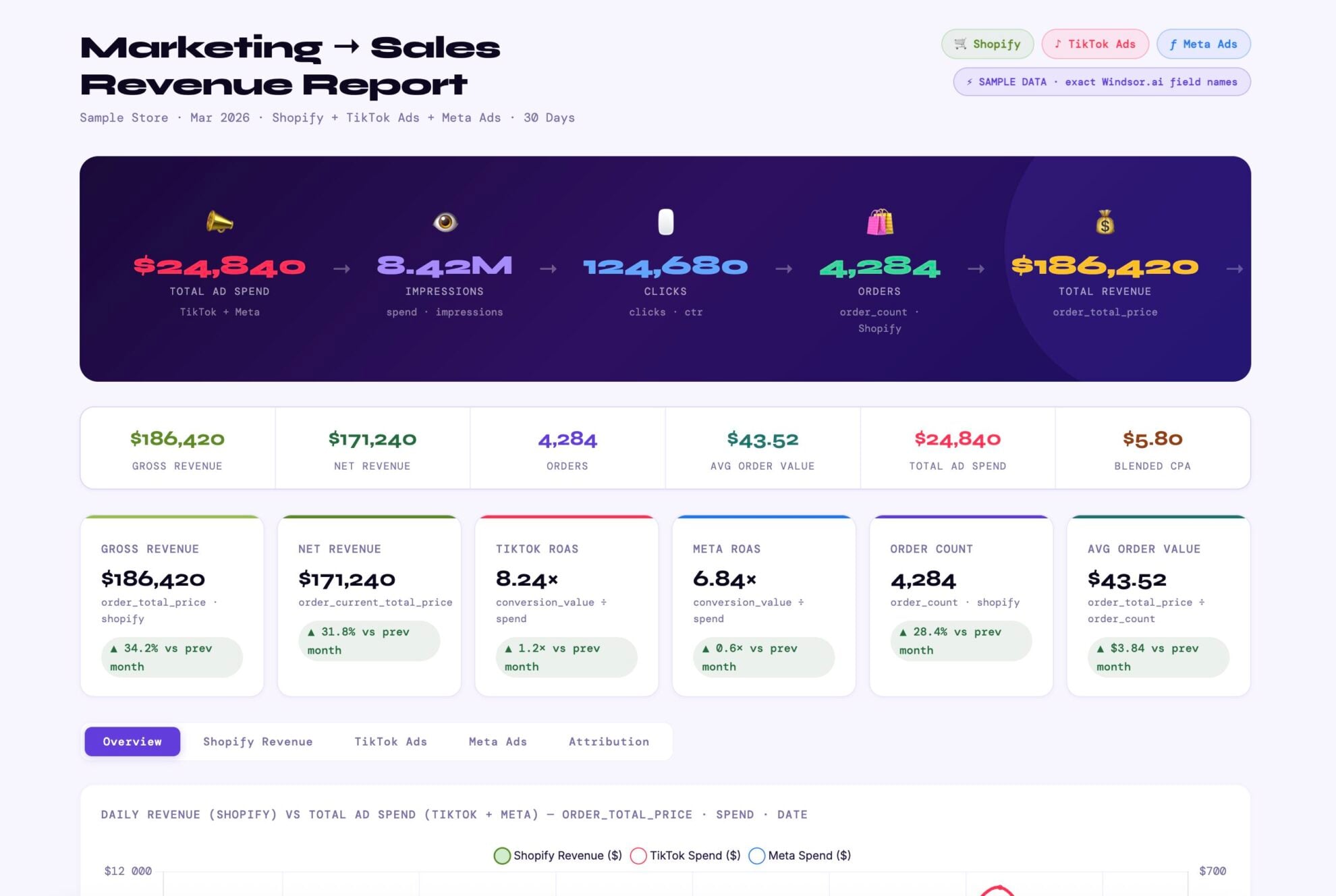














How to connect Airtable to Claude with Windsor.ai
Explore our video tutorial and a step-by-step guide to integrate your data from any source into Claude with the Windsor.ai connector.
Select your data source
Choose Airtable as your data source and grant access to Windsor.ai.

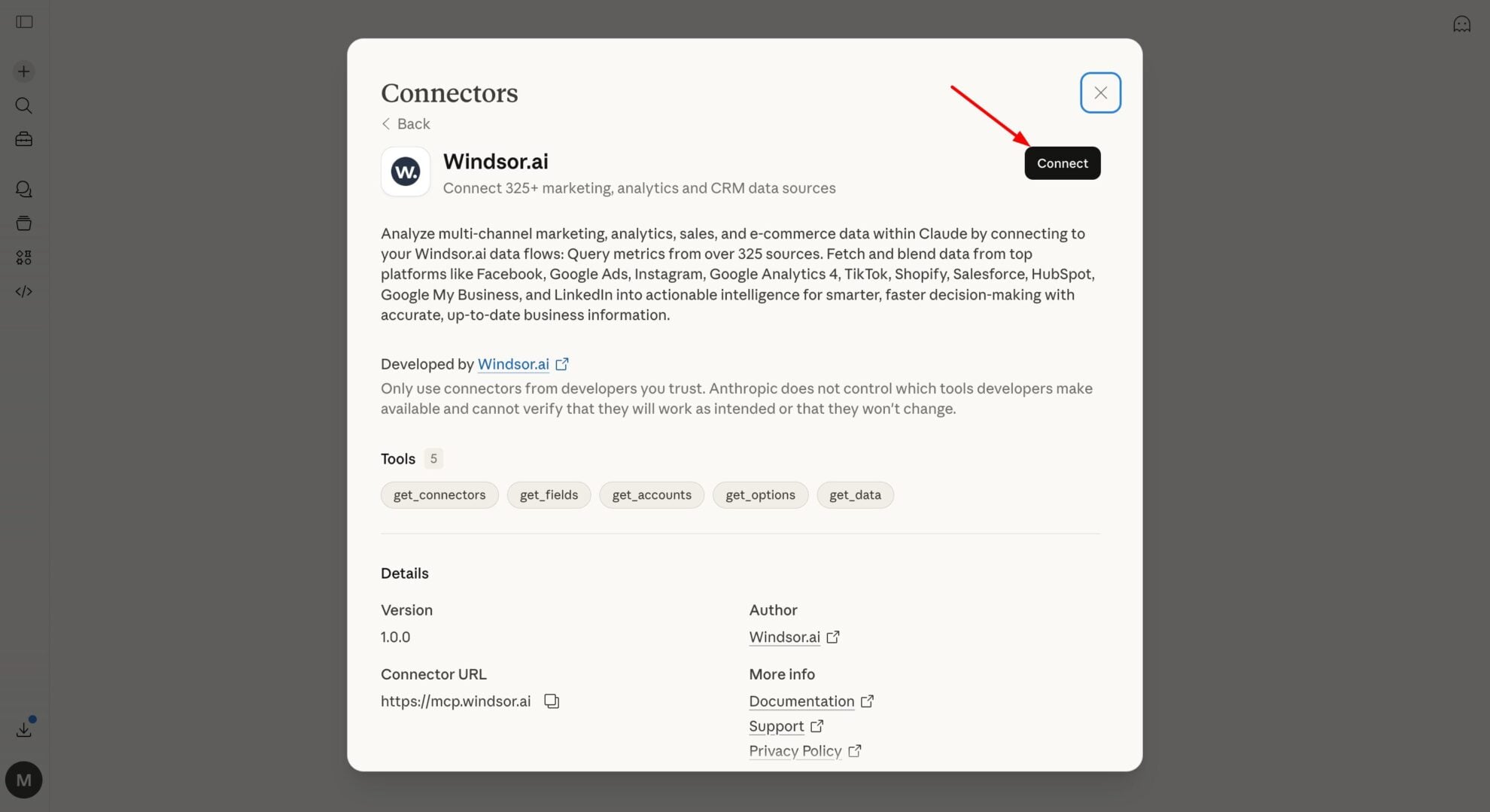
Install the Windsor.ai connector in Claude
In Claude, open Customize, then Connectors, search for Windsor and click Add. Sign in to your Windsor.ai account when prompted, and the connector appears in your Connectors list. You can also open the Windsor.ai listing in the Claude directory and click Connect.
Query your data in Claude
Start a new chat and ask Claude questions about your connected data: summarize KPIs, create client reporting dashboards, or run advanced analyses.

FAQs
How does this integration handle 'Relational Data' across different tables?
Unlike a standard spreadsheet, Airtable relies on linked records. Windsor.ai allows you to pull data from multiple tables simultaneously. This means Claude can analyze the relationship between your ‘Campaigns’ and ‘Leads’ tables to identify which specific creative assets are driving the highest quality conversions.
Can I use Claude to automate my Airtable content calendar?
Yes. By syncing your ‘Topic’ and ‘Status’ fields, you can prompt Claude to draft SEO-optimized outlines, social media snippets, or meta descriptions based on the specific records you’ve marked as ‘Ready for Content.’
Can I fill in missing data or enrich my Airtable records with Claude?
Yes. Claude can help enrich your Airtable data by generating missing fields, such as industry, descriptions, or categories, based on the information available in your records. This helps you complete and standardize your dataset without manual research.
How does Claude handle Airtable attachments like PDFs or images?
While the core sync focuses on structured data, attachments such as PDFs or images can be analyzed by Claude when provided as inputs. This allows you to extract text from documents, summarize content, or review visual assets, making it easier to validate and enrich the data stored in your Airtable base.
What prompts can I use when analyzing Airtable data in Claude?
Go beyond basic queries and use context-aware prompts to unlock deeper insights from your Airtable data in Claude. For example:
-
Compare the CTR and conversion rate across all records in the 'Ads' table. Which creative type (video vs image) is showing performance decline? Suggest three new hooks to improve results for the underperforming group.
-
Analyze the 'User Feedback' table and categorize each record as either a feature request or a bug. What are the top three recurring themes impacting NPS?
-
Based on the 'Projected Revenue' and 'Resources Required' fields in the product roadmap, highlight the three features with the highest ROI and generate a short justification for the leadership team.
-
Compare the 'Lead Status' from my Airtable CRM with the 'Campaign Spend' from Google Ads. Identify which campaigns are generating high-quality leads at the lowest cost, and which ones are driving leads that never close.
Can I merge Airtable data with other sources (like Google Ads) in Claude?
Yes, this is a core strength of Windsor.ai. You can combine your internal ‘Product Margin’ data from Airtable with live ad spend from Google Ads and ask Claude to identify which products are truly profitable after advertising costs, not just which ones generate the most sales.
How much does it cost to integrate Airtable into Claude using Windsor.ai?
Windsor.ai’s pricing for Claude data integration varies depending on the number of connected accounts and data sources. We offer absolutely transparent pricing plans for diversified business needs and budgets.
How long does it take to connect Airtable to Claude?
With Windsor.ai’s easy-to-use connector, the integration process takes just a few minutes. No technical expertise is needed; syncing Airtable to Claude is simple, straightforward, and completely code-free.
Do you have helpful links to get started with integrating Airtable and Claude using Windsor.ai?
Yes, we have helpful resources to help you get started. You can explore our official documentation and tutorials for seamless Airtable to Claude integration with Windsor.ai:
Tired of manual Airtable data exports? Try Windsor.ai today to automate your reporting


