Destinations
 Data sources
 AI insights
 About us
 Careers
 Security
 Customer reviews
 Contact us
 Affiliate program
 Solution partners
 Template gallery
 Looker Studio templates
 Power BI templates
 Excel templates
 Google Sheets templates
 Tableau templates
 Facebook Ads templates
 Google Ads templates
 Data fields & Metrics
 AI prompt library & Guides
 Product documentation
 API documentation
 Case studies
 Blog
 Data models
 Windsor vs Supermetrics
 Windsor vs Funnel.io
 Windsor vs Fivetran
 Windsor vs Rivery
 Windsor vs Portermetrics
 Windsor vs Coupler.io
 Last updated: 20 November 2026




To connect ClickMagick to ChatGPT, add your ClickMagick API key to Windsor.ai, then install the Windsor.ai plugin in ChatGPT. ChatGPT can then read your ClickMagick tracking records, such as actions, engagements and sales with their project, device, UTM source and campaign, click IDs and sale amount, when you ask in plain English.
The connection is read-only. ChatGPT reports on your ClickMagick data but can’t change projects or tracking settings (ClickMagick has no write actions in Windsor.ai, checked on 20 November 2026).
Before you start
- A ClickMagick account and its API key. You find the key in ClickMagick under Settings, then API. Windsor.ai connects with the key, not with a sign-in button.
- A Windsor.ai account. Windsor.ai has a free forever plan with 1 data source and the last 30 days of data. Paid plans start at $19/month for 3 sources, billed annually (pricing).
- A ChatGPT account that can install plugins. In a ChatGPT workspace, your admin may limit which plugins you can install.
Step 1. Add ClickMagick to Windsor.ai
- Go to onboard.windsor.ai/app/clickmagick and sign in or create a Windsor.ai account.
- Paste your ClickMagick API Key. It is the only field.
- Click Add Account. The account then appears in the table under the form.
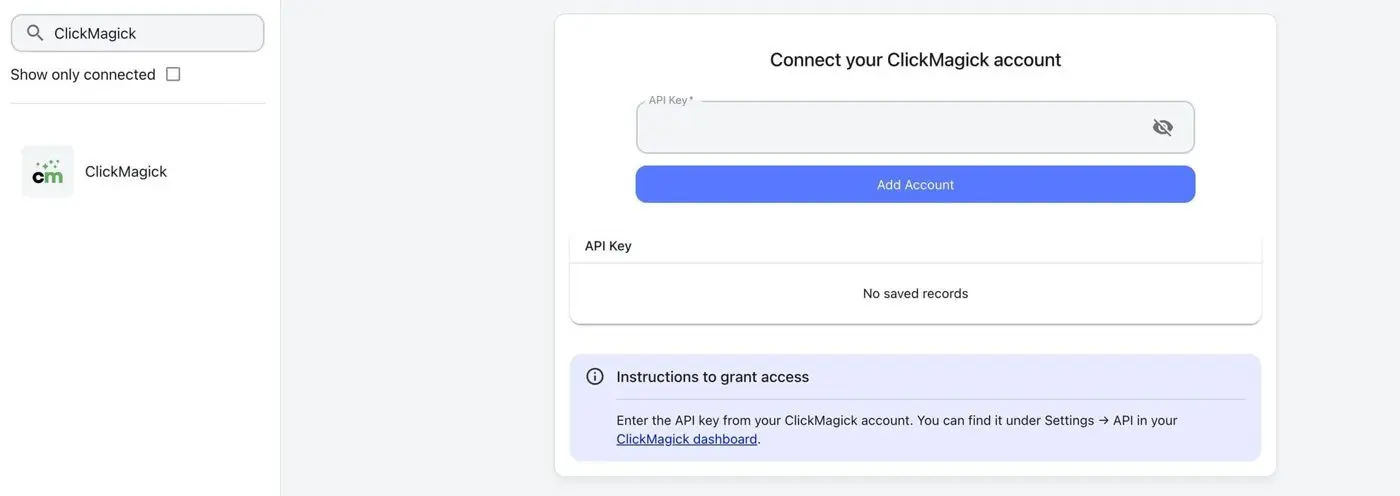
Enter the API key in the Windsor.ai form only. Never paste it into a ChatGPT chat.
Step 2. Install the Windsor.ai plugin in ChatGPT
- In ChatGPT, click Plugins in the sidebar and search for Windsor.ai, or open the Windsor.ai plugin page.
- Click Install plugin and sign in to Windsor.ai with the account you added ClickMagick to.
- In a new chat, click the + sign and pick Windsor.ai, or type @Windsor.ai before your question.
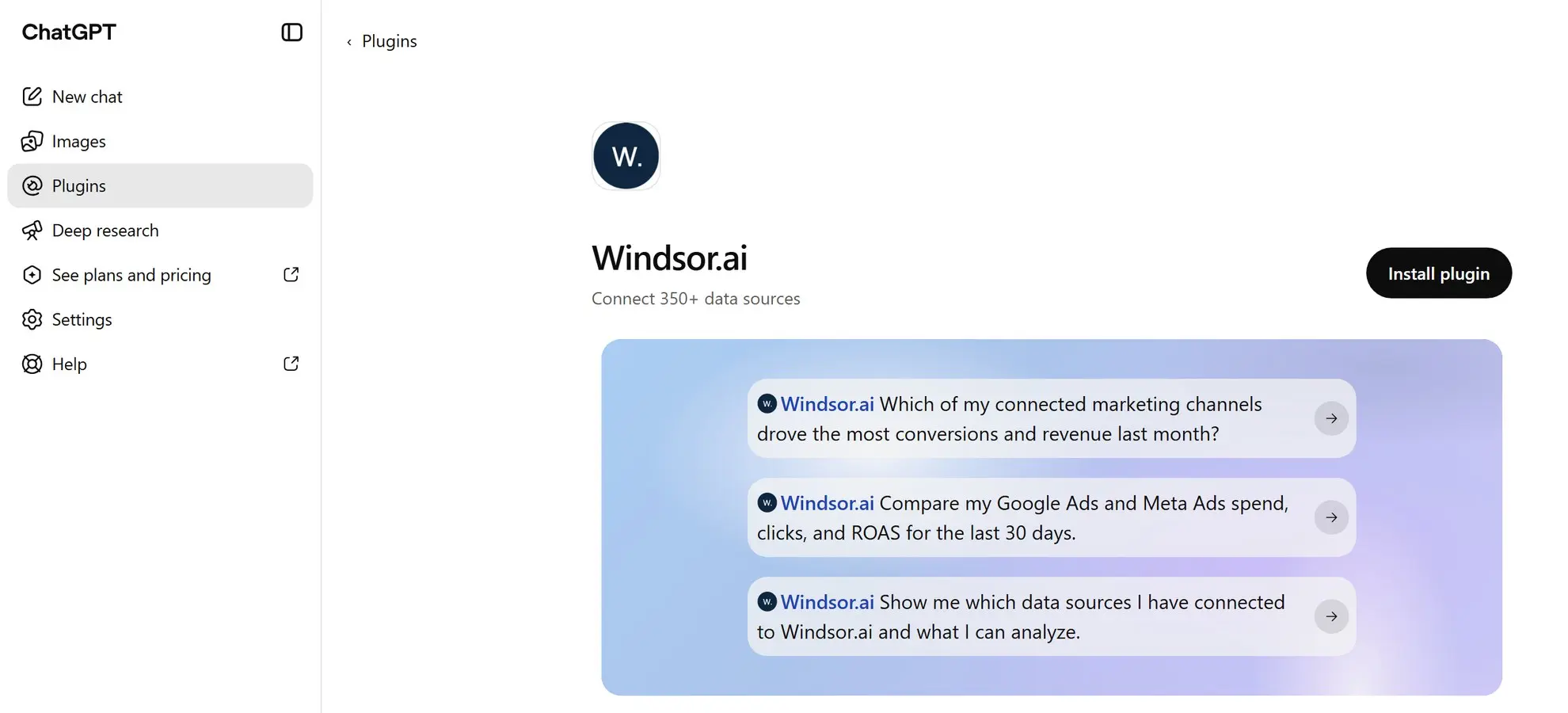
The Windsor.ai ChatGPT setup guide shows each setup screen.
Step 3. Check the ClickMagick connection in ChatGPT
To check the ClickMagick connection, ask ChatGPT whether ClickMagick is connected before you ask about your projects:
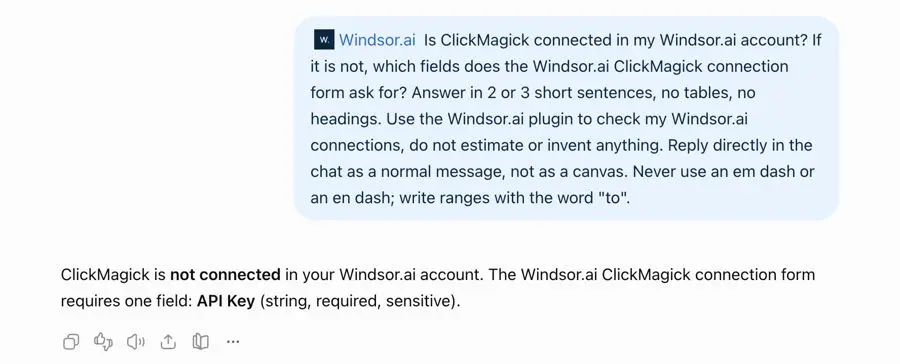
@Windsor.ai Is ClickMagick connected in my Windsor.ai account? If it is not, which fields does the Windsor.ai ClickMagick connection form ask for?
On 20 November 2026 we asked this in our own Windsor.ai account, which has no ClickMagick account added. ChatGPT answered that ClickMagick is not connected and named the one field the Windsor.ai form asks for, the API key, marked as required and sensitive. That matches the form.
If ChatGPT says ClickMagick is not connected after you added your key, the form was not saved or the key was rejected. Open the ClickMagick form again, make sure your account is listed in the table under it, and copy the key again from Settings, then API.
ClickMagick data ChatGPT can read through Windsor.ai
Through the Windsor.ai connector, ChatGPT can read 56 ClickMagick fields: 1 metric and 55 dimensions. The full list is in the ClickMagick field reference. The fields come from three kinds of records:
- Actions (13 fields): ID, timestamp, device, IP address, visitor ID, project ID and name, GCLID, FBCLID, MSCLKID, and UTM source, medium and campaign.
- Engagements (10 fields): ID, timestamp, device, visitor ID, project, GCLID and UTM fields.
- Sales (12 fields): Sale Amount, ID, timestamp, device, visitor ID, project, GCLID, UTM fields and Shopify order ID.
- Account and dates: account ID and name, and date, week, month and year fields.
Sale Amount is the only number. Actions and engagements are single records. ChatGPT counts them, for example actions per UTM source or engagements per project. Actions carry Google, Meta and Microsoft click IDs (GCLID, FBCLID, MSCLKID), while engagements and sales carry only the GCLID. The click IDs show which ad click a record came from, as ClickMagick tracked it. They don’t show the ad’s cost: that sits in the ad platform.
ClickMagick prompts to try in ChatGPT
Start each prompt with @Windsor.ai, or pick Windsor.ai from the + menu first.
-
Show the total Sale Amount and number of sales by project for the last 30 days.
-
Count actions and engagements by UTM source and medium for the last 14 days.
-
How many sales in the last 30 days have a GCLID, and what is their total Sale Amount?
-
Show sales and Sale Amount by device for the last 30 days.
-
List the 10 IP addresses with the most actions in the last 7 days, with their project.
The free forever plan reaches back 30 days. A prompt for a quarter or year over year needs a paid plan.
Combine ClickMagick with other sources in ChatGPT
With ClickMagick and your ad accounts in the same Windsor.ai account, ChatGPT can put them side by side in one answer. For example, ask for ClickMagick Sale Amount by UTM campaign next to Google Ads cost by campaign for the same days. Campaign names must match in both tools for the rows to line up. Compare them as separate numbers. More than one source kept long term needs a paid plan.
Next steps
- The ClickMagick to ChatGPT connector page lists more use cases and prompt ideas.
- To use the same ClickMagick data in Claude, see the ClickMagick to Claude connector page.
- To build dashboards instead of chat answers, see ClickMagick to Data Studio.
To start, add your ClickMagick account to Windsor.ai on the free forever plan, then install the Windsor.ai plugin in ChatGPT.
FAQs
Can ChatGPT tell which ad click a ClickMagick sale came from?
ChatGPT can show the GCLID that ClickMagick recorded on a sale, and the GCLID, FBCLID or MSCLKID on an action. It can’t show the cost of that ad, which sits in the ad platform. Connect the ad account in Windsor.ai to put cost next to it.
How much does it cost to connect ClickMagick to ChatGPT?
Windsor.ai has a free forever plan with 1 data source and the last 30 days of data. Paid plans start at $19/month for 3 sources, billed annually. See the pricing page.
Can ChatGPT change my ClickMagick settings?
No. The connection is read-only. ClickMagick has no write actions in Windsor.ai (write actions list, checked on 20 November 2026). ChatGPT can report on actions, engagements and sales, but it can’t change projects or tracking settings.