 Destinations
 Data sources
 AI insights
 About us
 Careers
 Security
 Customer reviews
 Contact us
 Affiliate program
 Solution partners
 Template gallery
 Looker Studio templates
 Power BI templates
 Excel templates
 Google Sheets templates
 Tableau templates
 Facebook Ads templates
 Google Ads templates
 Data fields & Metrics
 AI prompt library & Guides
 Product documentation
 API documentation
 Case studies
 Blog
 Data models
 Windsor vs Supermetrics
 Windsor vs Funnel.io
 Windsor vs Fivetran
 Windsor vs Rivery
 Windsor vs Portermetrics
 Windsor vs Coupler.io
Connect GA4 to Antigravity
Connect your GA4 data to Antigravity with the Windsor.ai connector, so the dashboards and scripts Antigravity builds use your real traffic, event, ecommerce, and landing page data.
Ask Antigravity for a product funnel Artifact, a landing page revenue report, or a channel quality script built on your own Sessions, Key events, Total revenue, and Item name fields.
Forget CSVs. Stop copy/paste. Connect in minutes. No code required.
 Sign up with Google
 Free forever plan
No credit card needed










Turn GA4 into dashboards and scripts built on your real events
Antigravity works inside the IDE, so what it builds from your GA4 data stays with you as files, scripts, and Artifacts you can rerun. Key use cases:

Find where products drop out of the funnel
Antigravity can line up Items viewed, Items added to cart, and Items purchased by Item name and build an Artifact that shows which products lose shoppers at which step.

Judge landing pages by money, not visits
Ask for a report of Total revenue and Key events per Session by Landing page, so pages that attract traffic but never convert stand out.

Compare channels on engagement and return
Antigravity can rank each Default channel group on Engagement rate, Key events, and Total revenue and write a script that reruns the comparison each month.

Audit tracking with the event list
Have Antigravity list every Event name and Event count in your property and flag events that stopped firing, so tracking gaps are found before reports go wrong.
Using Windsor.ai to connect data from GA4 to Antigravity
Without Windsor.ai, Antigravity builds on placeholder numbers or on CSV exports you paste into the IDE. Windsor MCP gives Antigravity live GA4 data with the real field names, so the dashboards and scripts it writes match your account.
Connect in minutes, then ask Antigravity to build something with your GA4 data.


How to connect GA4 to Antigravity with Windsor.ai
Watch the video tutorial, or follow the step-by-step guide to connect your GA4 data to Antigravity with Windsor.ai.
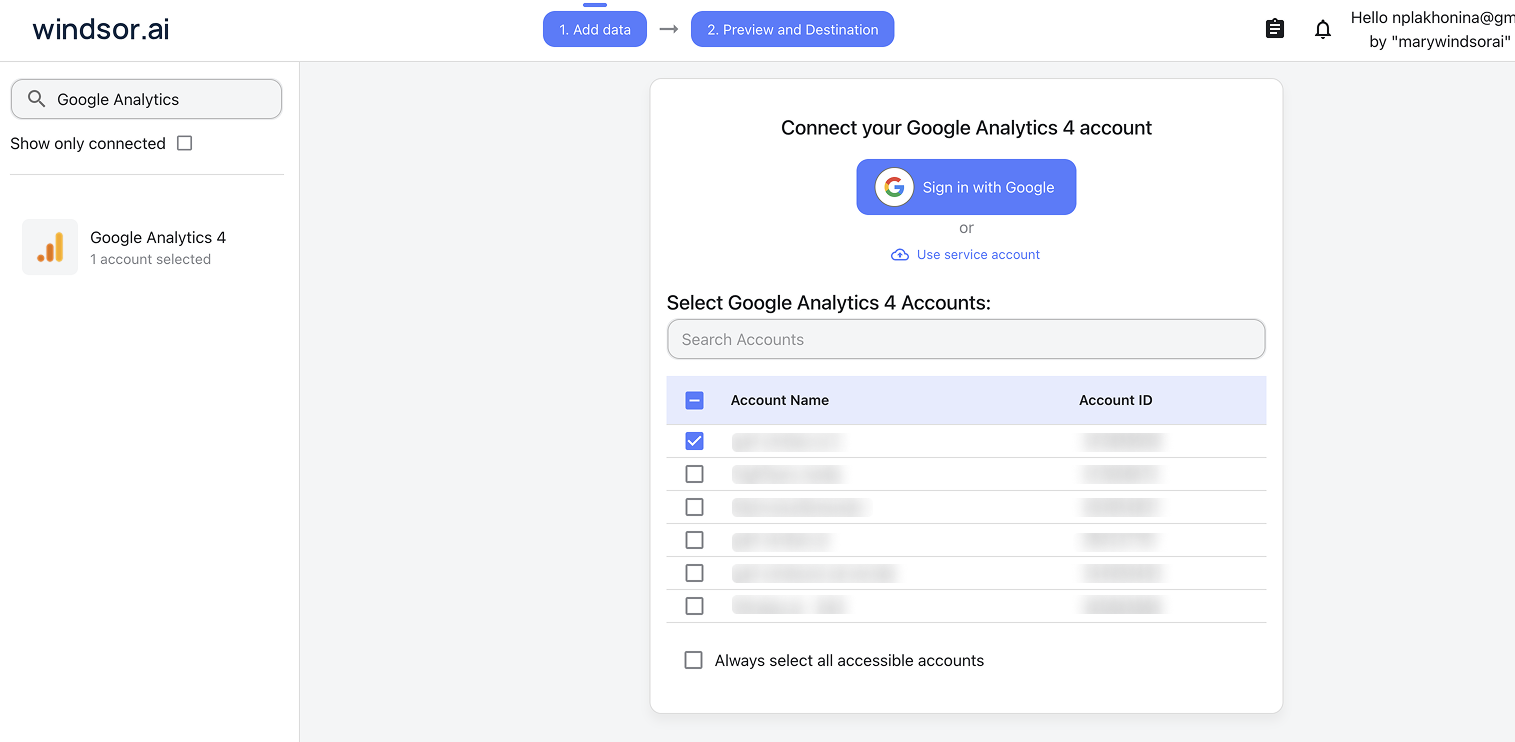
Connect GA4 in the Windsor.ai dashboard
Log in at onboard.windsor.ai, choose GA4 as your data source, and grant Windsor.ai access.
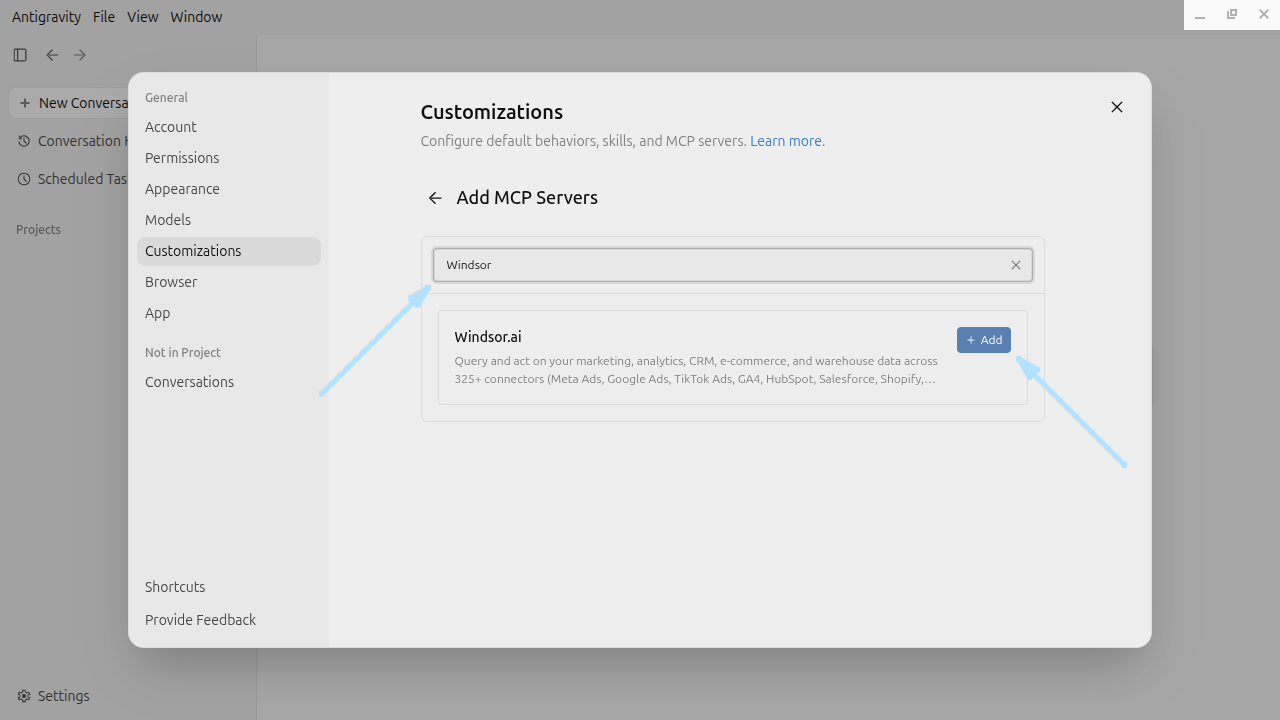
Add Windsor MCP in Antigravity
Open the Antigravity desktop app. At the bottom left of the main window, click Settings, then Customizations, then the Add MCP button. Type Windsor in the search bar and click Add.
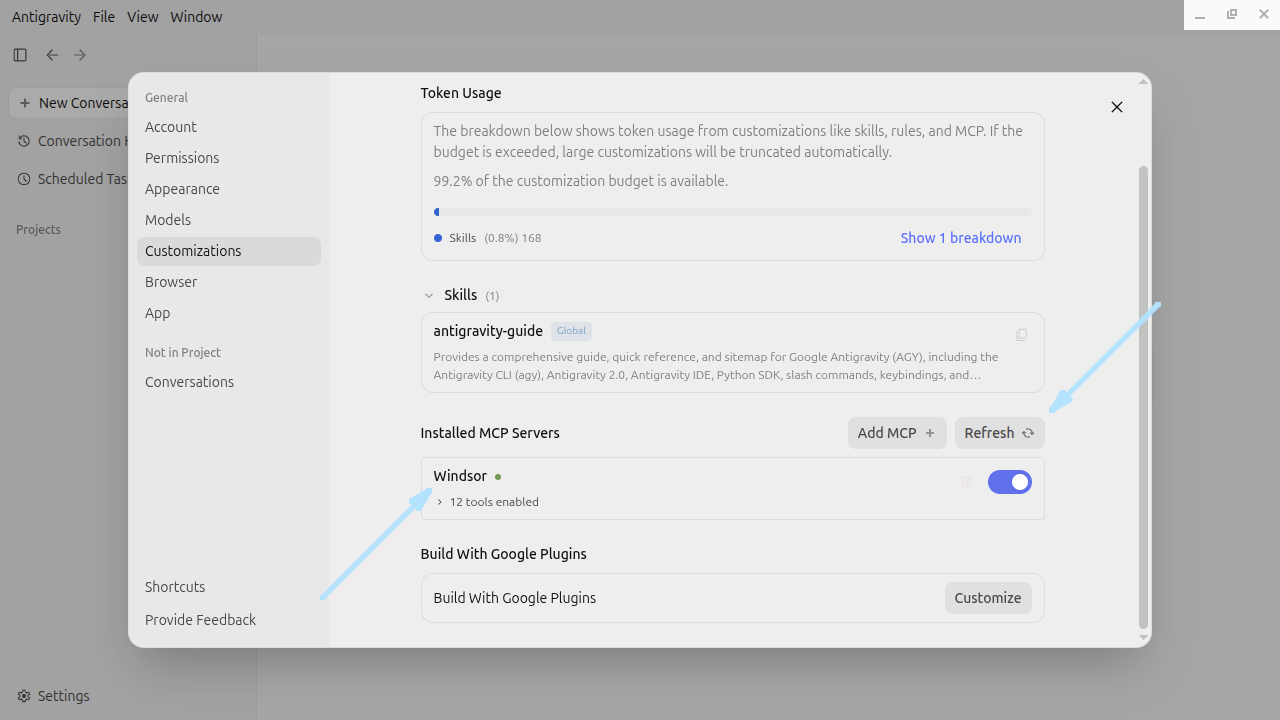
Finish the Windsor.ai sign-in
The Windsor.ai window opens. Click Finish to complete the sign-in, then click Refresh. Windsor appears in the list of installed MCP servers.
Ask Antigravity about your GA4 data
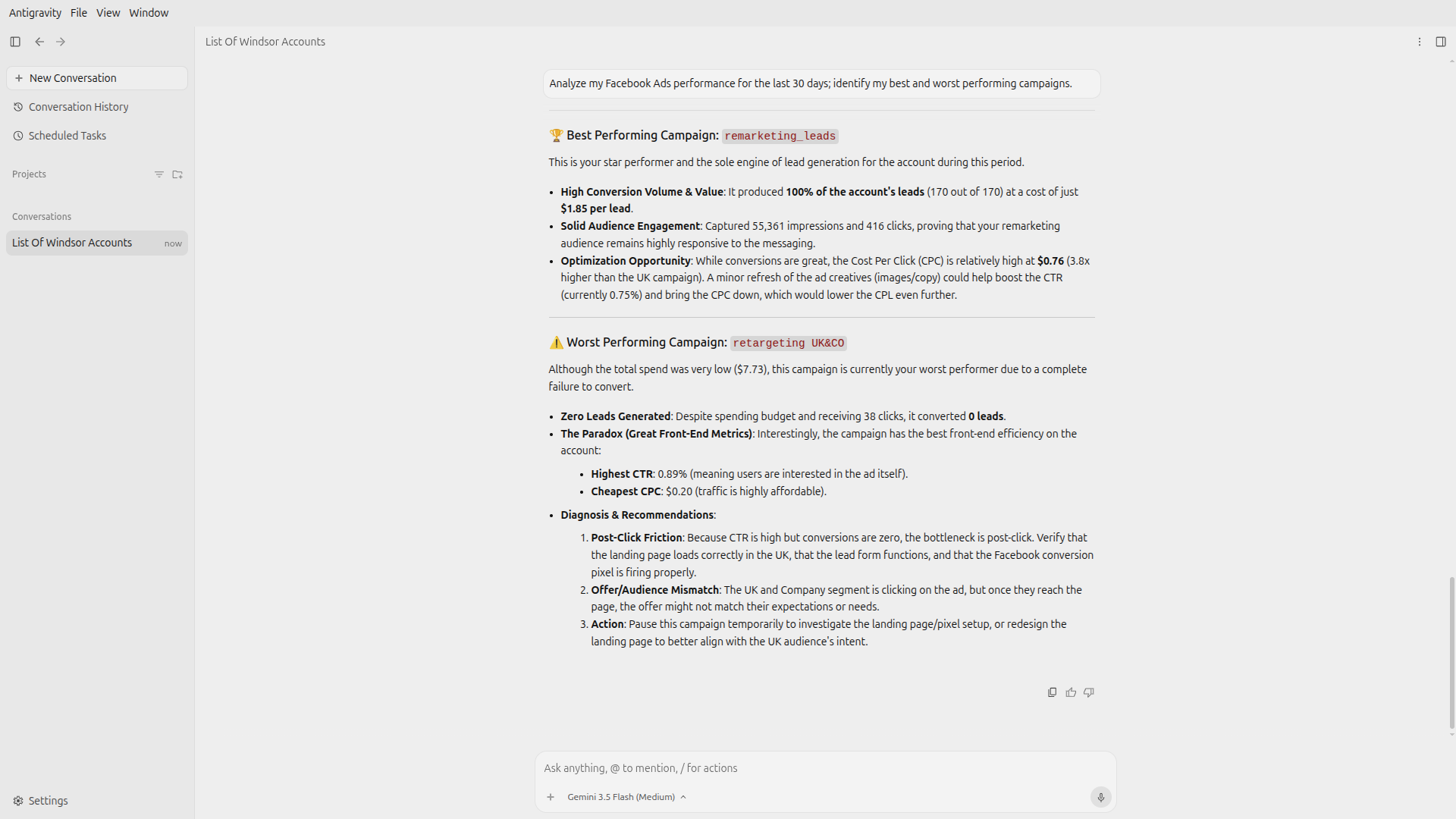
Close the Customizations window, return to the main window and ask about your GA4 data.
FAQs
What GA4 data can Antigravity use?
Windsor.ai gives Antigravity access to 480+ GA4 fields. These are some of the groups; the GA4 field reference lists all of them:
- Traffic: Sessions, Users, New users, Engagement rate, Bounce rate, Default channel group, Session source / medium.
- Conversions and revenue: Key events, Total revenue, Transactions, Ecommerce purchases.
- Ecommerce funnel: Items viewed, Items added to cart, Items purchased, Add to carts, Checkouts, Item name, Item revenue.
- Pages: Landing page, Page path, Page title, Views.
- Events: Event name, Event count.
- Audience and device: Country, Device category, Campaign name, Date.
What prompts can I use to build with GA4 data in Antigravity?
Antigravity works best when you give its agent a task with a clear output. Each of these names the fields to use and the file or Artifact you want back:
-
Pull Item name, Items viewed, Items added to cart, Items purchased, and Item revenue for the last 60 days. Build an Artifact that shows view-to-cart and cart-to-purchase rates per product, and highlight products with many views and a cart rate in the bottom quartile. Add a short note on the likely cause for the five biggest gaps.
-
Pull Landing page, Sessions, Engagement rate, Key events, and Total revenue for the last 90 days. Calculate Total revenue per Session and Key events per Session, then write a report of pages with over 500 Sessions that sit in the bottom 20% on both. Group them by page type and suggest a test for each group.
-
Pull Default channel group, Sessions, Engagement rate, Key events, Total revenue, and Date by month for the last 12 months. Write a script that outputs a channel scorecard and flags any channel where Sessions grew while Total revenue per Session fell by more than 15%.
-
List every Event name with Event count for the last 14 days and for the 14 days before. Flag events with a drop above 40% or that show zero count recently, and write tracking_audit.md that separates likely seasonal changes from likely broken tags.
-
Pull Device category, Sessions, Key events, and Transactions by Country for the last 60 days. Build an Artifact of conversion rate by device for the top 10 countries and write the three biggest differences with a suggested test for each.
-
Pull Campaign name, Sessions, New users, Key events, and Total revenue. Write a script that ranks campaigns by Total revenue per New user, marks campaigns with fewer than 200 Sessions as low confidence, and saves campaign_quality.csv.
Can Antigravity turn GA4 data into dashboards?
Yes. Antigravity generates charts, dashboards, and visual reports as Artifacts, rendered live inside the IDE. You can keep refining an Artifact in the same conversation, and ask the agent to save the code behind it as a script you can rerun with fresh GA4 data.
Can Antigravity change my GA4 account?
No. With this setup Antigravity reads your GA4 data through Windsor MCP. It can write scripts, files, and reports in your workspace, but it does not modify, update, or affect your connected accounts.
Can I combine GA4 data with other sources in Antigravity?
Yes. Windsor.ai supports 350+ data sources, so you can connect GA4 alongside tools such as Google Ads, Facebook Ads, or Shopify and ask Antigravity to work with them together. For example, ask Antigravity to join GA4 Key events by Campaign name with Google Ads Cost and Facebook Ads Amount Spent, then write a script that reports cost per key event for every paid campaign.
How do I add Windsor MCP to Antigravity?
Open the Antigravity desktop app and click Settings, then Customizations, then Add MCP. Type Windsor in the search bar and click Add. When the Windsor.ai window opens, click Finish, then Refresh. Windsor appears in your list of installed MCP servers.
Do I need to code to connect GA4 to Antigravity?
No. The connection takes no code: connect GA4 in Windsor.ai, add Windsor MCP in Antigravity’s Customizations, and sign in. After that you describe what you want in plain language, and the Antigravity agent writes and runs the code. You can read and edit everything it produces.
How much does it cost to integrate GA4 with Antigravity using Windsor.ai?
The free forever plan covers 1 data source, so connecting GA4 on its own costs nothing and needs no credit card. Combining GA4 with other sources, such as Google Ads or Shopify, needs a paid plan: $19/month for 3 sources or $99/month for 7. Antigravity is billed separately by Google. See the pricing page.
Do you have helpful links to get started with integrating GA4 and Antigravity using Windsor.ai?
Yes, we have helpful resources to help you get started. You can explore our official documentation for GA4 to Antigravity integration with Windsor.ai:
Tired of manual GA4 data exports? Try Windsor.ai today to build on live data


