 Destinations
 Data sources
 AI insights
 About us
 Careers
 Security
 Customer reviews
 Contact us
 Affiliate program
 Solution partners
 Template gallery
 Looker Studio templates
 Power BI templates
 Excel templates
 Google Sheets templates
 Tableau templates
 Facebook Ads templates
 Google Ads templates
 Data fields & Metrics
 AI prompt library & Guides
 Product documentation
 API documentation
 Case studies
 Blog
 Data models
 Windsor vs Supermetrics
 Windsor vs Funnel.io
 Windsor vs Fivetran
 Windsor vs Rivery
 Windsor vs Portermetrics
 Windsor vs Coupler.io
Connect Google Business Profile to Cursor
Connect your Google Business Profile data to Cursor with the Windsor.ai connector, so the dashboards and scripts Cursor builds use your real location, review, post, and local search performance data.
Ask Cursor for a review monitoring script, a call and directions canvas by location, or a posting gap report built on your own Review Star Rating, Call Clicks, Direction Requests, and Post Topic Type fields.
Forget CSVs. Stop copy/paste. Connect in minutes. No code required.
 Sign up with Google
 Free forever plan










Build local performance and review reports on your real profile data
Cursor works inside your project, so what it builds from your Google Business Profile data stays with you as files, scripts, and canvases you can rerun. Key use cases:

Never miss a review that needs a reply
Cursor can read Review Star Rating, Review Comment, and Review Reply Comment and write a script that lists unanswered low-rating reviews first, by location.

See which locations drive real action
Ask for a canvas of Call Clicks and Direction Requests by Location ID alongside search and Maps Impressions, so weak locations stand out.

See what you post and where it has gone quiet
Using Post Topic Type, Post CTA Action Type, and Post Create Time, Cursor can show which kinds of local posts you publish, how often, and which locations have not posted lately.

Compare search and Maps visibility
Cursor can split Impressions Desktop Search, Mobile Search, Desktop Maps, and Mobile Maps to show where customers find each location.
Using Windsor.ai to connect data from Google Business Profile to Cursor
Without Windsor.ai, Cursor builds on placeholder numbers or on CSV exports you paste into the project. Windsor MCP gives Cursor live Google Business Profile data with the real field names, so the dashboards and scripts it writes match your account.
Connect in minutes, then ask Cursor to build something with your Google Business Profile data.
Available actions
Create Local Post Publish a standard "What's New" post on the connected Google Business Profile location. Provide the post text, an optional publicly accessible photo URL (JPG or PNG, at least 250x250 px and 10 KB) and an optional call-to-action button. Call-to-action types: BOOK, ORDER, SHOP, LEARN_MORE, SIGN_UP (each needs cta_url) or CALL (uses the listing's phone number, no cta_url). The post can be edited afterwards via update_local_post.
Publish a standard "What's New" post on the connected Google Business Profile location. Provide the post text, an optional publicly accessible photo URL (JPG or PNG, at least 250x250 px and 10 KB) and an optional call-to-action button. Call-to-action types: BOOK, ORDER, SHOP, LEARN_MORE, SIGN_UP (each needs cta_url) or CALL (uses the listing's phone number, no cta_url). The post can be edited afterwards via update_local_post.
Update Local Post Update the text, photo or call-to-action of an existing post on the connected Google Business Profile location. post_id is the trailing id from the post's resource name (the post_id field of the Local Posts table); full resource names are also accepted. Only the provided fields are changed. Call-to-action types: BOOK, ORDER, SHOP, LEARN_MORE, SIGN_UP (each needs cta_url) or CALL (uses the listing's phone number, no cta_url).
Update the text, photo or call-to-action of an existing post on the connected Google Business Profile location. post_id is the trailing id from the post's resource name (the post_id field of the Local Posts table); full resource names are also accepted. Only the provided fields are changed. Call-to-action types: BOOK, ORDER, SHOP, LEARN_MORE, SIGN_UP (each needs cta_url) or CALL (uses the listing's phone number, no cta_url).
Reply to Review Publish the owner's reply to a customer review on the connected Google Business Profile location, or replace the existing reply. review_id comes from the review_id field of the Reviews table; full resource names are also accepted. The reply is public; replying again replaces the existing reply.
Publish the owner's reply to a customer review on the connected Google Business Profile location, or replace the existing reply. review_id comes from the review_id field of the Reviews table; full resource names are also accepted. The reply is public; replying again replaces the existing reply.
Upload Photo Add a photo to the connected Google Business Profile location's gallery. Provide a publicly accessible photo URL (JPG or PNG, at least 250x250 px and 10 KB) and the gallery category it belongs to (default ADDITIONAL; COVER and PROFILE replace the current cover or profile photo).
Add a photo to the connected Google Business Profile location's gallery. Provide a publicly accessible photo URL (JPG or PNG, at least 250x250 px and 10 KB) and the gallery category it belongs to (default ADDITIONAL; COVER and PROFILE replace the current cover or profile photo).
Update Location Info Update the business description, website URL and/or primary phone number of the connected Google Business Profile location. Only the provided fields are changed. Edits may be reviewed by Google before they appear on the listing.
Update the business description, website URL and/or primary phone number of the connected Google Business Profile location. Only the provided fields are changed. Edits may be reviewed by Google before they appear on the listing.
Update Service Items Replace the full list of service items (services offered) on the connected Google Business Profile location. Each item is either structured — a Google-predefined service_type_id valid for one of the location's categories — or free-form — a category_id plus a custom display_name; both take an optional description and price. This replaces all existing service items: to keep current ones, read the location_service_items field first and resend them together with the changes. Google removes duplicate items automatically.
Replace the full list of service items (services offered) on the connected Google Business Profile location. Each item is either structured — a Google-predefined service_type_id valid for one of the location's categories — or free-form — a category_id plus a custom display_name; both take an optional description and price. This replaces all existing service items: to keep current ones, read the location_service_items field first and resend them together with the changes. Google removes duplicate items automatically.
Update Categories Set the primary category and the full list of additional categories of the connected Google Business Profile location. Category ids are stable Google ids like 'gcid:plumber' (accepted with or without the 'categories/' prefix); current values appear in the location_primary_category_id and location_additional_categories fields. Replaces all existing categories — omitting additional_category_ids removes every additional category. Category changes may be reviewed by Google and can in some cases trigger re-verification of the listing.
Set the primary category and the full list of additional categories of the connected Google Business Profile location. Category ids are stable Google ids like 'gcid:plumber' (accepted with or without the 'categories/' prefix); current values appear in the location_primary_category_id and location_additional_categories fields. Replaces all existing categories — omitting additional_category_ids removes every additional category. Category changes may be reviewed by Google and can in some cases trigger re-verification of the listing.
Update Service Area Replace the service area (the list of places the business serves) of the connected Google Business Profile location, and whether the business serves customers only at their locations or also at its own address. Replaces all existing places: to keep current ones, read the location_service_area field first and resend them together with the changes. Google caps the service area at 20 places.
Replace the service area (the list of places the business serves) of the connected Google Business Profile location, and whether the business serves customers only at their locations or also at its own address. Replaces all existing places: to keep current ones, read the location_service_area field first and resend them together with the changes. Google caps the service area at 20 places.
Update Attributes Update and/or remove individual attributes (e.g. amenities, payment options, appointment links) of the connected Google Business Profile location. Only the attributes named in the request are touched — unlike the other update actions, the rest of the set is left as is. Currently set attributes can be audited via the location_attributes field; Google rejects attributes that are not available for the location's categories.
Update and/or remove individual attributes (e.g. amenities, payment options, appointment links) of the connected Google Business Profile location. Only the attributes named in the request are touched — unlike the other update actions, the rest of the set is left as is. Currently set attributes can be audited via the location_attributes field; Google rejects attributes that are not available for the location's categories.
Update Address Replace the storefront address of the connected Google Business Profile location. WARNING: changing the address can put the listing back into Google's re-verification flow, which may unpublish it until the business verifies again — the action refuses to run unless acknowledge_reverification_risk is set to true, which requires the end user's explicit approval. The whole address is replaced: provide every part the listing should keep (current values are in the location_address_* fields). Google locates the new address on the map itself and rejects one it cannot geocode (PIN_DROP_REQUIRED), e.g. landmark-style lines such as 'Near X'; when the business has not moved, keep_map_pin=true keeps the listing's current map pin instead. The API cannot place a new pin. Google may normalise the stored address (line order, casing). Use validate_only=true to check an address without changing it.
Replace the storefront address of the connected Google Business Profile location. WARNING: changing the address can put the listing back into Google's re-verification flow, which may unpublish it until the business verifies again — the action refuses to run unless acknowledge_reverification_risk is set to true, which requires the end user's explicit approval. The whole address is replaced: provide every part the listing should keep (current values are in the location_address_* fields). Google locates the new address on the map itself and rejects one it cannot geocode (PIN_DROP_REQUIRED), e.g. landmark-style lines such as 'Near X'; when the business has not moved, keep_map_pin=true keeps the listing's current map pin instead. The API cannot place a new pin. Google may normalise the stored address (line order, casing). Use validate_only=true to check an address without changing it.
Set Regular Hours Set the weekly opening hours of the connected Google Business Profile location. Provide one period per continuous open span (a day may have several, e.g. before and after a lunch break; days with no period are shown as closed). For 24-hour opening use 00:00 to 24:00. Replaces all existing regular hours.
Set the weekly opening hours of the connected Google Business Profile location. Provide one period per continuous open span (a day may have several, e.g. before and after a lunch break; days with no period are shown as closed). For 24-hour opening use 00:00 to 24:00. Replaces all existing regular hours.
Set Special Hours Set exceptional opening hours of the connected Google Business Profile location for specific dates (holidays, events). Each period is a date that is either fully closed or open for the given time span. Replaces all existing special hours, so include every upcoming exceptional date in one call; regular hours are not affected.
Set exceptional opening hours of the connected Google Business Profile location for specific dates (holidays, events). Each period is a date that is either fully closed or open for the given time span. Replaces all existing special hours, so include every upcoming exceptional date in one call; regular hours are not affected.
Set Open Status Mark the connected Google Business Profile location as OPEN or CLOSED_TEMPORARILY (e.g. for renovations). A temporarily closed location stays on Google with a "Temporarily closed" label. Reversible by calling this action with the other status.
Mark the connected Google Business Profile location as OPEN or CLOSED_TEMPORARILY (e.g. for renovations). A temporarily closed location stays on Google with a "Temporarily closed" label. Reversible by calling this action with the other status.


How to connect Google Business Profile to Cursor with Windsor.ai
Explore our video tutorial and a step-by-step guide to add Windsor MCP to Cursor and start building on your Google Business Profile data.
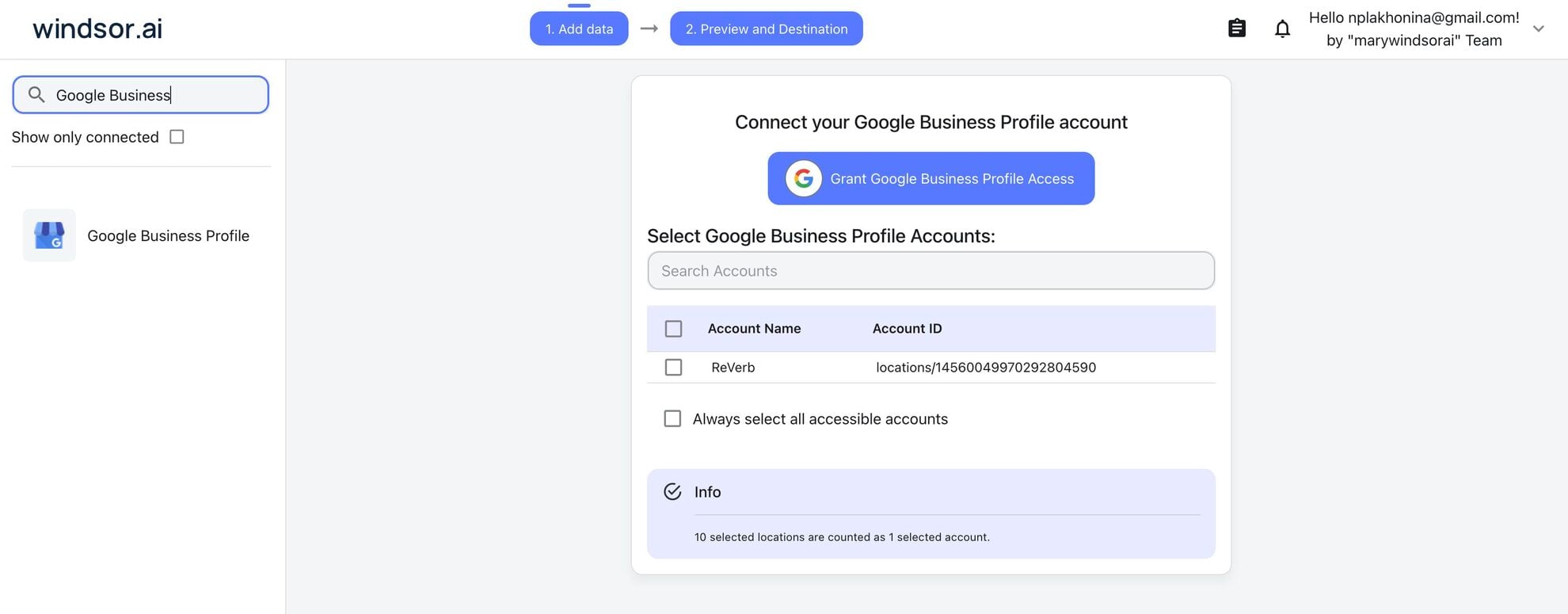
Connect Google Business Profile in the Windsor.ai dashboard
Log in at onboard.windsor.ai, choose Google Business Profile as your data source, and grant Windsor.ai access.
Add Windsor MCP in Cursor
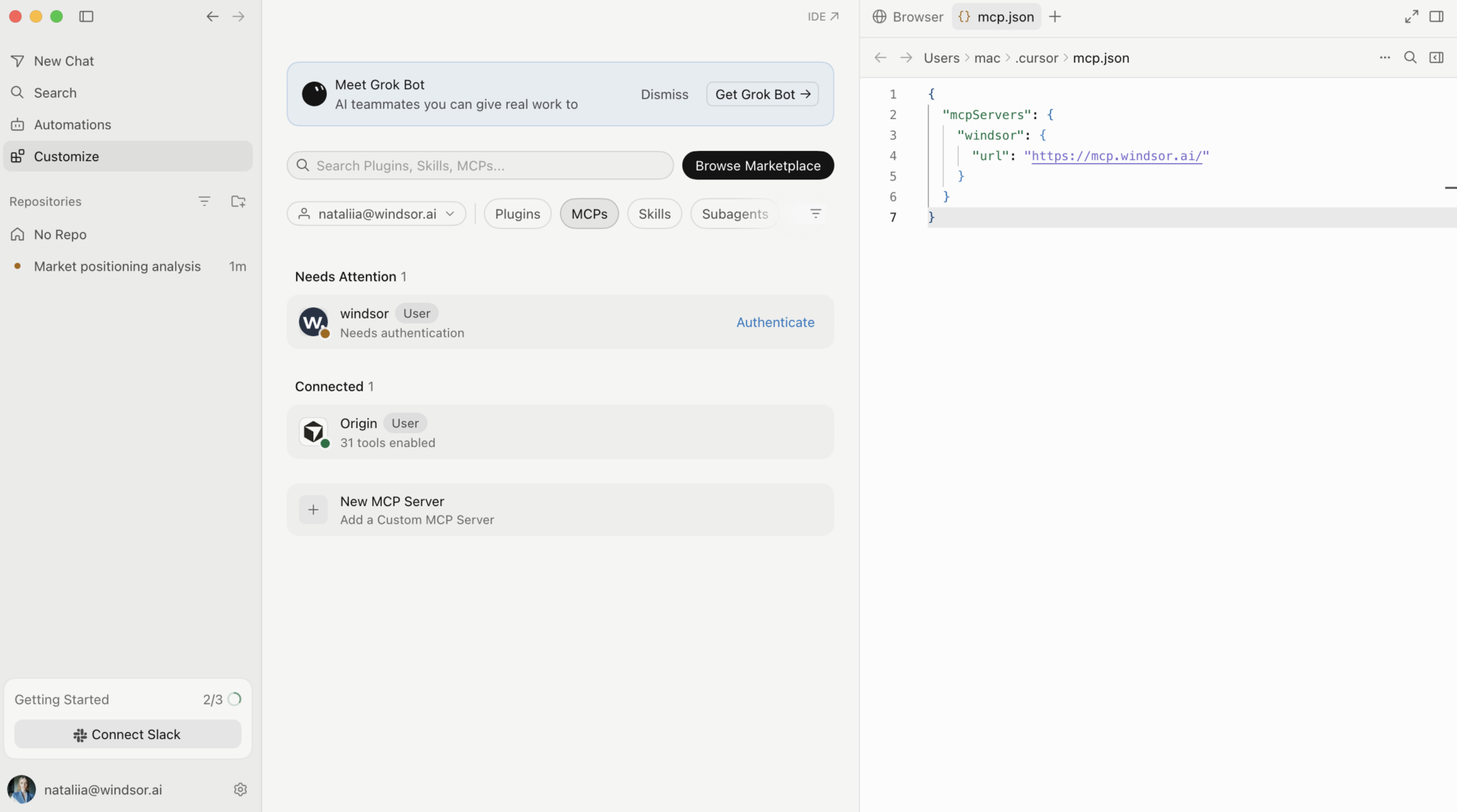
Open Settings in Cursor Desktop and go to Tools & Integrations → New MCP Server. When mcp.json opens, add Windsor:
{
  "mcpServers": {
    "windsor": {
      "url": "https://mcp.windsor.ai/"
    }
  }
}
Authenticate with Windsor.ai
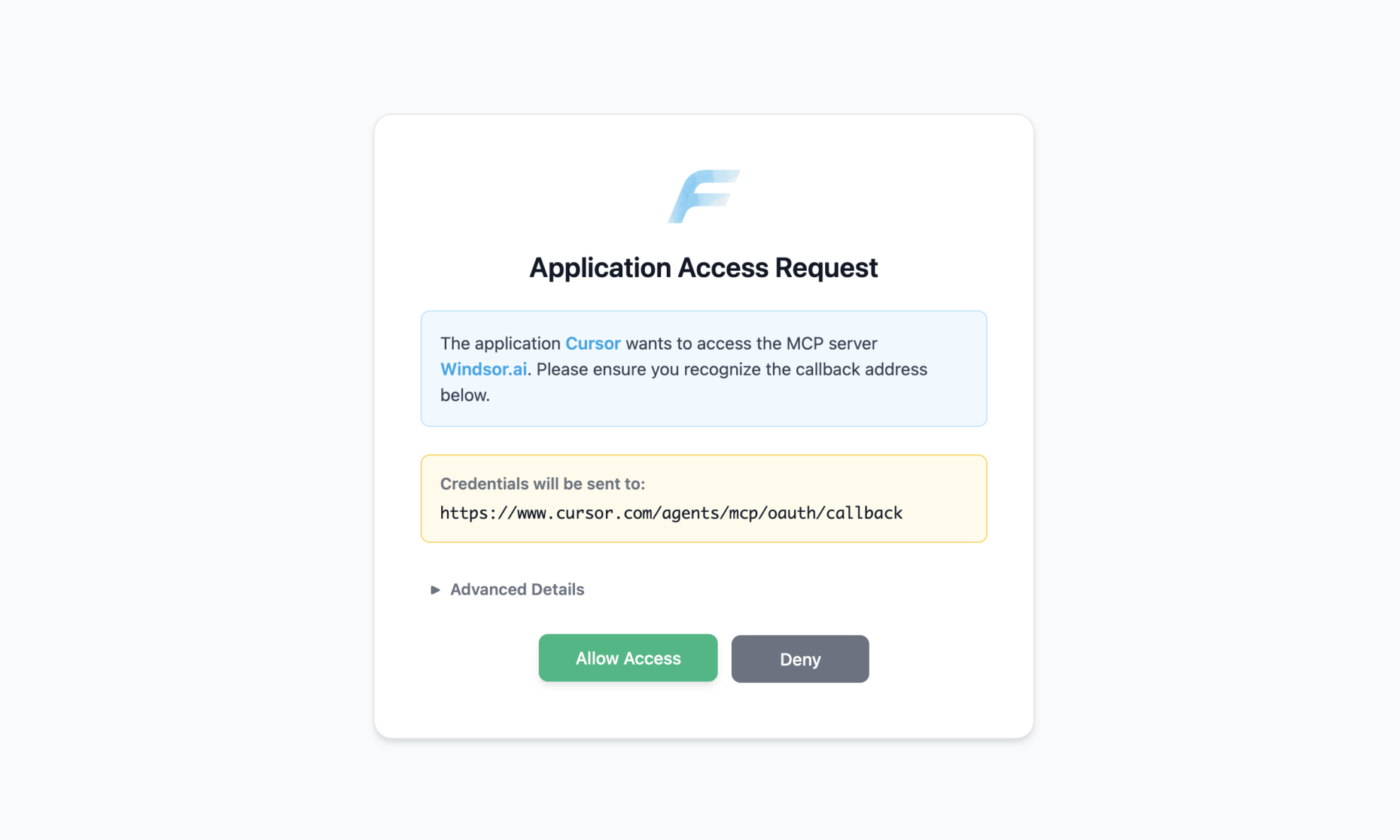
Save mcp.json. Windsor appears in your MCP list and asks you to authenticate. Click Authenticate and sign in to Windsor.ai in the browser.
Ask Cursor to build on your Google Business Profile data
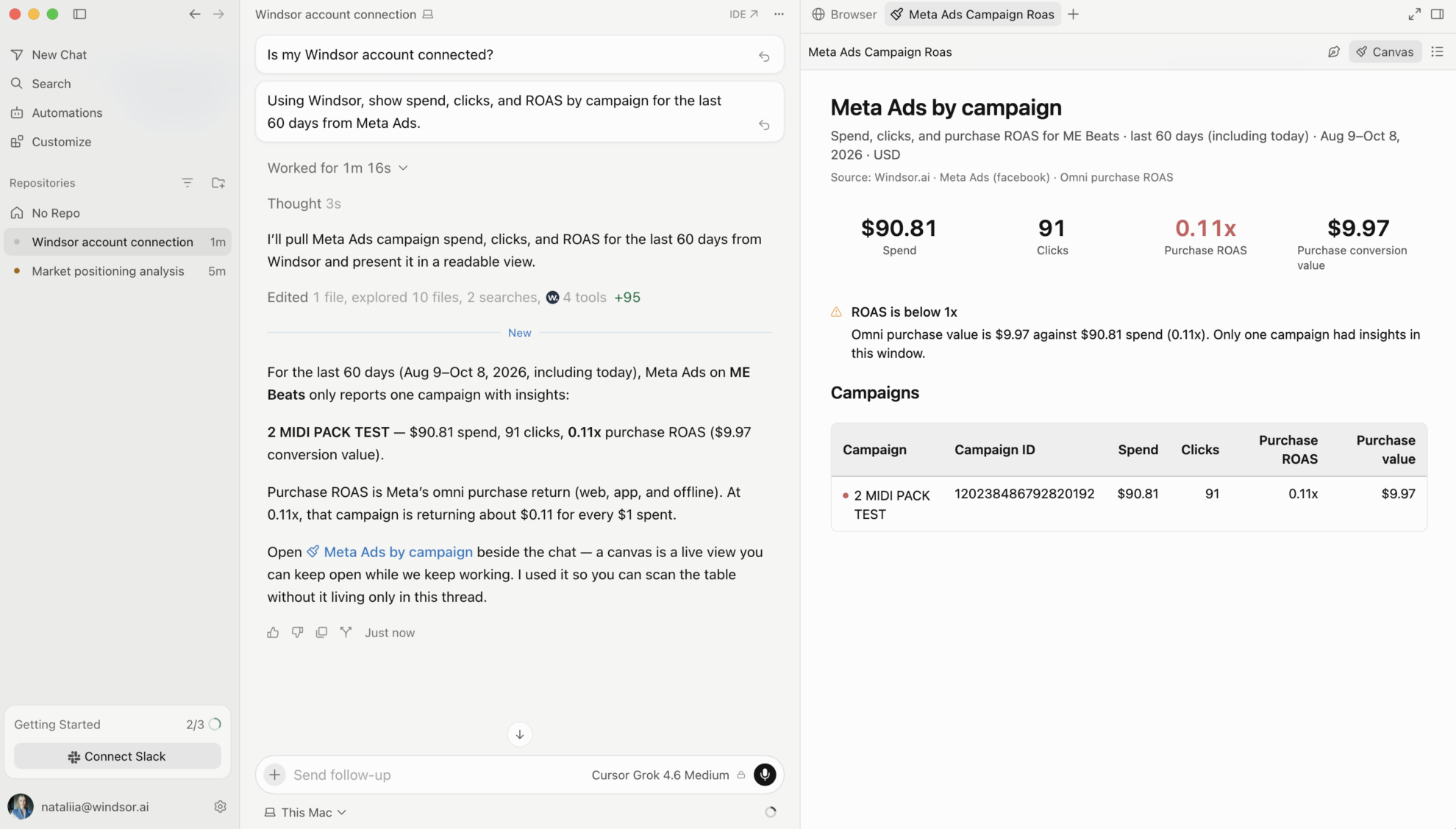
Open a chat in your project and ask about your Google Business Profile data.
FAQs
What Google Business Profile data can Cursor use?
Windsor.ai gives Cursor access to 140 Google Business Profile fields. These are some of the groups; the Google Business Profile field reference lists all of them:
- Local performance: Impressions Desktop Search, Impressions Mobile Search, Impressions Desktop Maps, Impressions Mobile Maps.
- Actions: Call Clicks, Direction Requests, Clicks, Business Bookings.
- Reviews: Review Star Rating, Review Comment, Review Create Time, Review Reply Comment, Reviewer, Review Average Rating, Review Total Count.
- Posts: Post Summary, Post Topic Type, Post CTA Action Type, Post Create Time, Post State.
- Photos: Media Category, Media View Count.
- Locations: Location ID, Location Address Locality, Location Label 1.
What prompts can I use to build with Google Business Profile data in Cursor?
Cursor works best when you ask it to build something with a clear output. Each of these names the fields to use and the file or canvas you want back:
-
Pull Location ID, Location Address Locality, Review Star Rating, Review Comment, Review Create Time, and Review Reply Comment. Write a script that lists reviews with 3 stars or fewer and no reply, newest first, grouped by location. For each, quote the first sentence of the comment and name the likely theme such as wait time, staff, price, or quality.
-
Pull Call Clicks, Direction Requests, Clicks, and the four Impressions fields by Location ID for the last 90 days. Build a canvas that ranks locations on actions per 1,000 impressions, flags locations in the bottom quartile, and shows the trend over the period.
-
Pull Impressions Desktop Search, Impressions Mobile Search, Impressions Desktop Maps, and Impressions Mobile Maps by month for the last 12 months. Show the split per location as a canvas and write which locations depend most on Maps and which on Search.
-
Pull Location ID, Post Topic Type, Post CTA Action Type, Post State, and Post Create Time. Show how many posts each location published in the last 90 days by Post Topic Type, list locations with no post in the last 30 days, and write a posting plan that fills the gaps.
-
Pull Review Star Rating and Review Create Time by Location ID for the last 12 months. Build a canvas of average rating by month for each location and flag locations whose rating fell by 0.2 or more over the last 3 months.
-
Pull Call Clicks by Date for every Location ID for the last 8 weeks. Write a script that compares the latest week with the average of the previous four and prints locations that dropped by more than 25%, with the Impressions trend beside each so I can tell visibility drops from conversion drops.
Can Cursor turn Google Business Profile data into dashboards I can share?
Yes. Cursor can render a dashboard, analysis, or report as a canvas next to the chat, and it saves the canvas so you can reopen and rerun it later with fresh data. On paid Cursor plans you can publish a canvas to a read-only share link for teammates. See the Cursor canvas documentation for the current plan requirements.
Can Cursor change my Google Business Profile account?
Yes. Windsor.ai has write actions for Google Business Profile, and Cursor can run them through Windsor MCP when you ask: it can create and update posts, reply to reviews, upload photos, and update hours, categories, services, attributes and addresses. See the full list of write actions.
Can I combine Google Business Profile data with other sources in Cursor?
Yes. Windsor.ai supports 350+ data sources, so you can connect Google Business Profile alongside tools such as GA4, Google Ads, or HubSpot and ask Cursor to work with them together. For example, ask Cursor to join Google Business Profile Call Clicks and Direction Requests by Location ID with GA4 Key events by Landing page, then write a report that shows which locations drive online as well as local actions.
How do I add Windsor MCP to Cursor?
Open Settings in Cursor Desktop, go to Tools & Integrations → New MCP Server, and add Windsor to mcp.json:
{
  "mcpServers": {
    "windsor": {
      "url": "https://mcp.windsor.ai/"
    }
  }
}
Save the file, click Authenticate next to Windsor in your MCP list, and sign in to Windsor.ai in the browser.
Do I need to code to connect Google Business Profile to Cursor?
No. The connection takes no code: connect Google Business Profile in Windsor.ai, add Windsor to Cursor’s MCP settings, and sign in. After that you describe what you want in plain language, and Cursor writes and runs the code. You can read and edit everything it produces.
How much does it cost to integrate Google Business Profile with Cursor using Windsor.ai?
The free forever plan covers 1 data source, so connecting Google Business Profile on its own costs nothing and needs no credit card. Combining Google Business Profile with other sources, such as GA4 or Google Ads, needs a paid plan: $19/month for 3 sources or $99/month for 7. Cursor is billed separately by Cursor. See the pricing page.
Do you have helpful links to get started with integrating Google Business Profile and Cursor using Windsor.ai?
Yes, we have helpful resources to help you get started. You can explore our official documentation for Google Business Profile to Cursor integration with Windsor.ai:
Tired of manual Google Business Profile data exports? Try Windsor.ai today to build on live data


