 Destinations
 Data sources
 AI insights
 About us
 Careers
 Security
 Customer reviews
 Contact us
 Affiliate program
 Solution partners
 Template gallery
 Looker Studio templates
 Power BI templates
 Excel templates
 Google Sheets templates
 Tableau templates
 Facebook Ads templates
 Google Ads templates
 Data fields & Metrics
 AI prompt library & Guides
 Product documentation
 API documentation
 Case studies
 Blog
Blog Data models
 Windsor vs Supermetrics
 Windsor vs Funnel.io
 Windsor vs Fivetran
 Windsor vs Rivery
 Windsor vs Portermetrics
 Windsor vs Coupler.io
Connect Kommo to Gemini Enterprise
Connect your Kommo data to Gemini Enterprise with the Windsor.ai connector, and ask about your sales pipeline in plain language.
Ask for deal value by stage, leads by origin, or lost deals by reason, built on your own Lead Price, Stage Name, Lead Origin and Lead Loss Reason fields.
Forget CSVs. Stop copy/paste. Connect in minutes. No code required.
 Sign up with Google
 Free forever plan
No credit card needed
Free forever plan
No credit card needed








Get your Kommo data into Gemini Enterprise
Kommo is connected once in Windsor.ai, and these are the use cases the fields support:

See deal value by stage
Lead Price comes with the Lead Stage ID and Lead Pipeline ID of every lead, and the Stages report gives each Stage Name, so the value in each stage of each pipeline sits in one table.

Compare lead origins
Lead Origin shows where each lead came from, so you can count leads and add up Lead Price per origin.

Review lost deals
Lead Loss Reason and Lead Closed At show why and when leads were lost, by month or by pipeline.

Compare sales reps
Lead Responsible User ID links each lead to a User Name, so you can compare the number of leads and their Lead Price per person.
Using Windsor.ai to connect data from Kommo to Gemini Enterprise
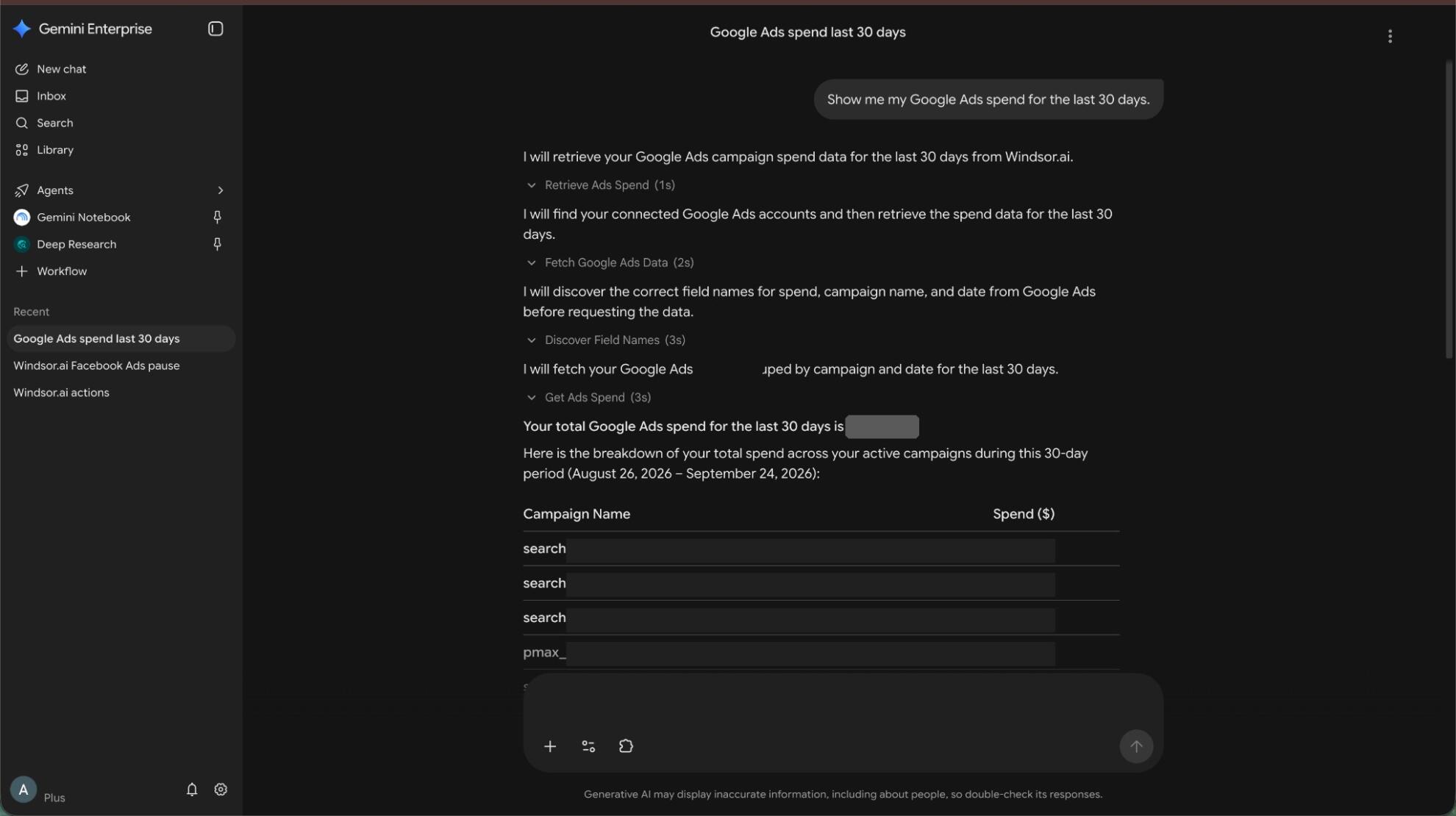
Without Windsor.ai, Gemini Enterprise answers about Kommo data come from a file you exported and pasted in. Through the Windsor.ai connector, Gemini Enterprise reads the live records with their real field names, so the answers match what is in Kommo today.
Connect in minutes, then ask about your leads, deal value, pipeline stages, lead origins, contacts and companies.














How to connect Kommo to Gemini Enterprise with Windsor.ai
Watch the video tutorial, or follow the step-by-step guide to connect your Kommo data to Gemini Enterprise with Windsor.ai.
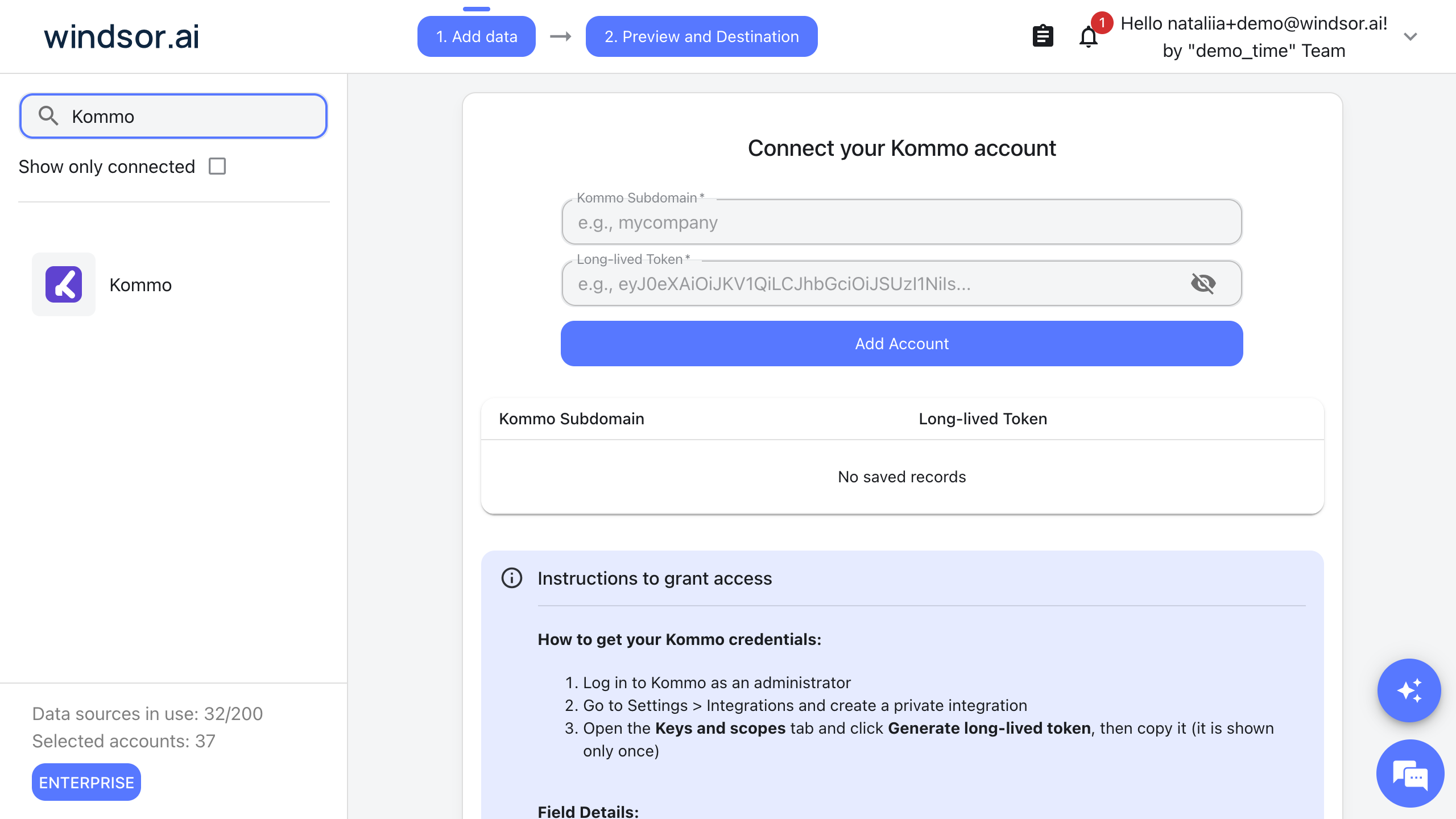
Connect Kommo in your Windsor.ai dashboard
Log in at onboard.windsor.ai, choose Kommo as your data source and enter your Kommo subdomain and an API token from your Kommo account. Gemini can only query sources connected in Windsor.ai.
Create the Windsor.ai data store in Google Cloud
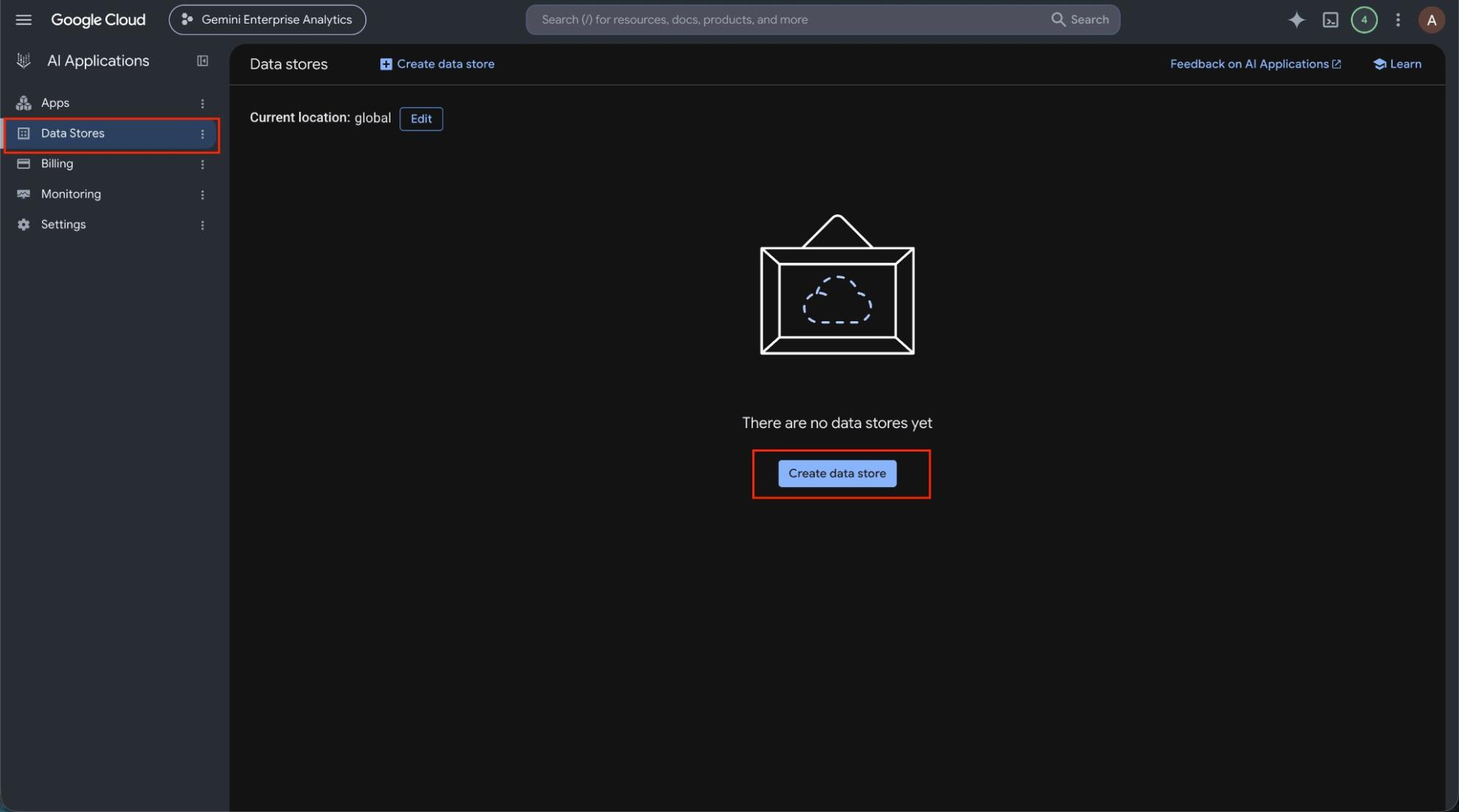
In the Google Cloud console, open Gemini Enterprise, go to Data stores and click Create data store. Under Third-party data sources, find Windsor.ai and click Add data source. Choose the actions to enable, set the location and create the store.
Create an app and connect the data store
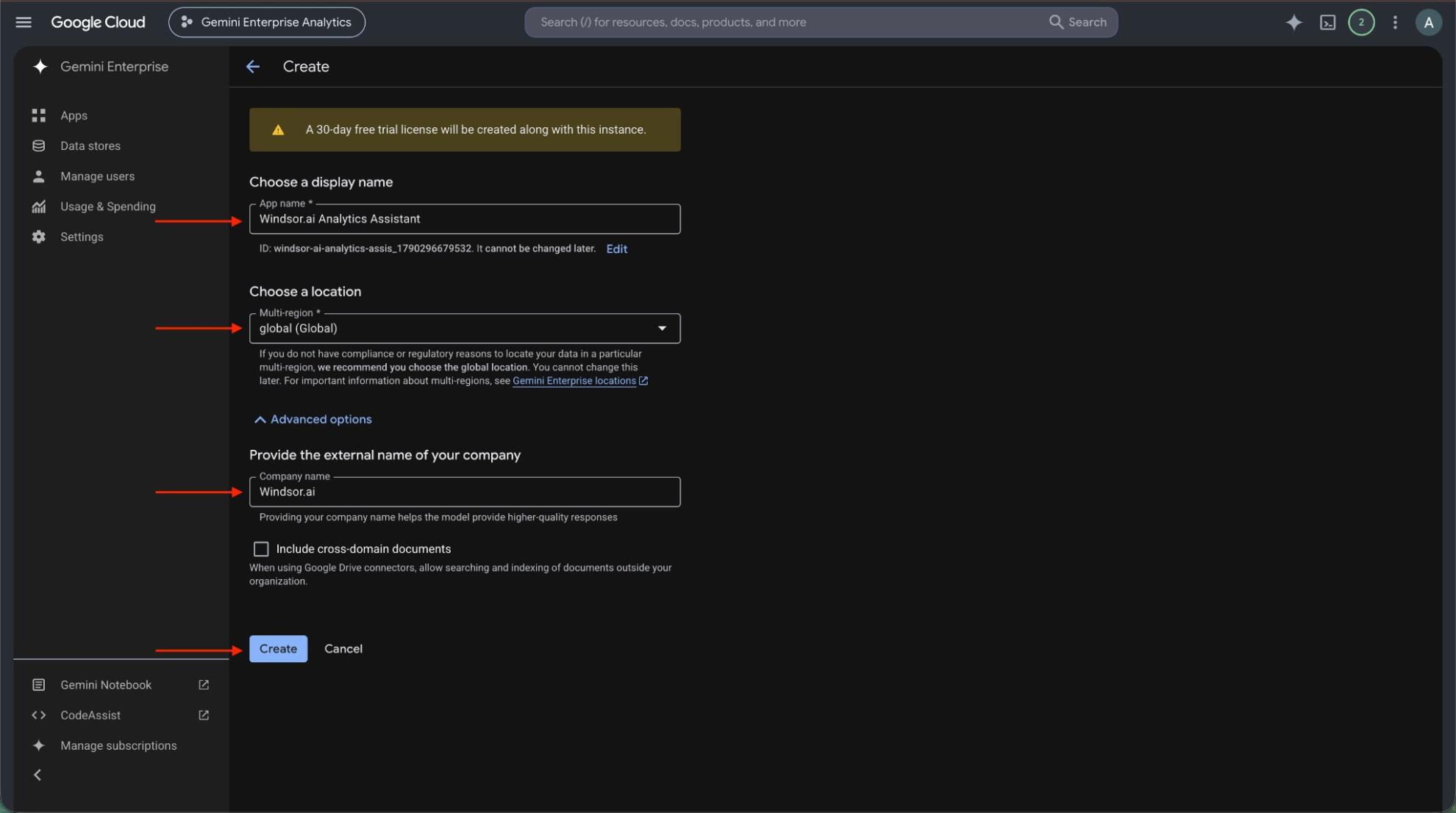
Create a Gemini Enterprise app in the same location as your data store, or pick an existing one. Then open Connected data stores in the app and add the Windsor.ai data store.
Authorize Windsor.ai
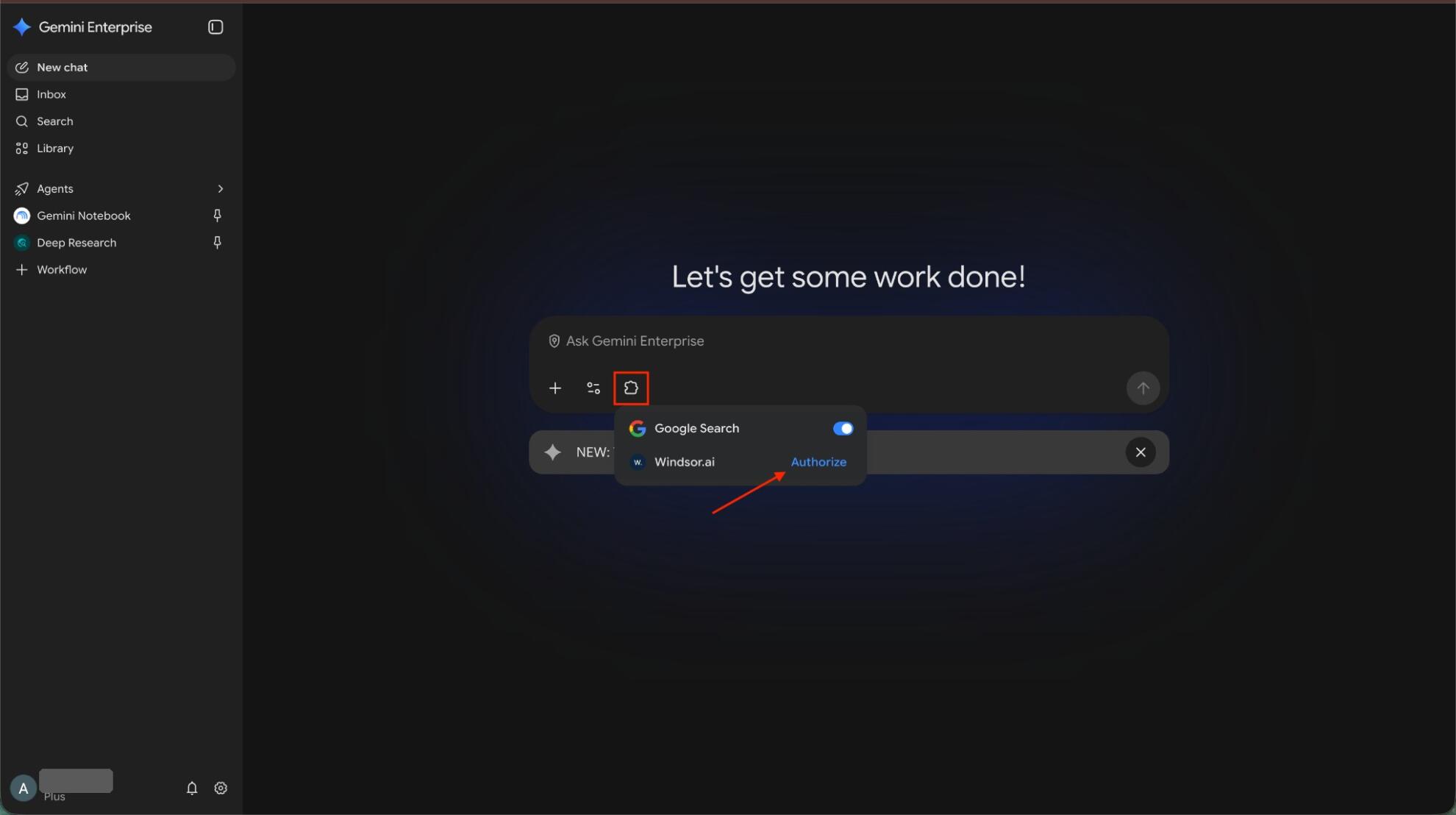
Open the app’s web app, click the puzzle piece icon and click Authorize next to Windsor.ai. Allow access, sign in to Windsor.ai if asked, and click Finish.
Ask Gemini about your Kommo data
Ask a question such as “Show the total Lead Price by Stage Name for each Pipeline Name.” Data can take about 10 minutes to appear after you connect the data store to the app.
FAQs
What Kommo data can Gemini Enterprise use?
Windsor.ai gives access to 79 Kommo fields. These are the groups; the Kommo field reference lists all of them:
- Leads: Lead Deal Name, Lead Price, Lead Origin, Lead Stage ID, Lead Pipeline ID, Lead Loss Reason, Lead Tags, Lead Created At, Lead Closed At.
- Pipelines and stages: Pipeline Name, Pipeline Is Main, Stage Name, Stage ID, Stage Type, Stage Pipeline ID.
- Contacts and companies: Contact Name, Contact Tags, Contact Leads, Company Name, Company Tags, Company Contacts, Company Leads.
- Users: User Name, User Email, User Is Active, User Is Admin, and the Responsible User ID on leads, contacts and companies.
- Time and account: Date, Account ID (your Kommo subdomain), Account Name.
What can I ask Gemini Enterprise about my Kommo data?
These prompts name the fields to use, so the answer comes back on your own records:
-
Show the total Lead Price by Stage Name for each Pipeline Name.
-
Count leads created in the last 30 days by Lead Origin and add up their Lead Price.
-
List the Lead Loss Reasons for leads closed last quarter, with the number of leads for each.
-
Compare the number of leads and total Lead Price per User Name for leads created this month.
Can Gemini Enterprise change my Kommo data?
No. The Kommo connector is read-only. Gemini Enterprise can read your Kommo records through Windsor.ai and cannot create, edit or delete anything in Kommo.
Does the Kommo connector include contact details?
Yes, names only. Contacts come with Contact Name, Contact First Name and Contact Last Name, and the Users report includes the User Email of each Kommo user on your account. The connector has no fields for the phone numbers or email addresses of your contacts.
Can I combine Kommo data with other sources in Gemini Enterprise?
Yes. Windsor.ai supports 350+ data sources, so you can connect Kommo alongside tools such as Google Ads, GA4 or Shopify and ask about them together. For example, put Kommo leads by Lead Origin and week next to Meta Ads and Google Ads spend for the same weeks, so ad spend and new leads sit in one table.
Do I need to code to connect Kommo to Gemini Enterprise?
No. Connect Kommo in Windsor.ai, add Windsor to Gemini Enterprise, and sign in. After that you ask in plain language.
How much does it cost to integrate Kommo with Gemini Enterprise using Windsor.ai?
The free forever plan covers 1 data source, so connecting Kommo on its own costs nothing and needs no credit card. Combining Kommo with other sources needs a paid plan: $19/month for 3 sources or $99/month for 7. Gemini Enterprise is billed separately by Google. See the pricing page.
Do you have helpful links to get started with Kommo and Gemini Enterprise?
Yes. These are the resources to start with for the Kommo to Gemini Enterprise integration:
Tired of manual Kommo data exports? Try Windsor.ai today to work on live data


