 Destinations
 Data sources
 AI insights
 About us
 Careers
 Security
 Customer reviews
 Contact us
 Affiliate program
 Solution partners
 Template gallery
 Looker Studio templates
 Power BI templates
 Excel templates
 Google Sheets templates
 Tableau templates
 Facebook Ads templates
 Google Ads templates
 Data fields & Metrics
 AI prompt library & Guides
 Product documentation
 API documentation
 Case studies
 Blog
 Data models
 Windsor vs Supermetrics
 Windsor vs Funnel.io
 Windsor vs Fivetran
 Windsor vs Rivery
 Windsor vs Portermetrics
 Windsor vs Coupler.io
Connect LineLeader to Cursor
Connect your LineLeader data to Cursor with the Windsor.ai connector, and ask about your leads in plain language.
Ask for the pipeline by center, the lead origin mix, or inquiry volume by week, built on your own Lead Status, Lead Origin, Inquiry Type and Center fields.
Forget CSVs. Stop copy/paste. Connect in minutes. No code required.
 Sign up with Google
 Free forever plan










Get your LineLeader data into the project Cursor is working in
LineLeader is connected once in Windsor.ai, and these are the use cases the fields support:

See the pipeline by center
Count families by Lead Status for each Center, so you can compare how enrollment is moving across locations instead of opening each center’s view in turn.

Find out which sources bring families in
Group leads by Lead Origin and Inquiry Type to see which routes, such as Self-Scheduled Tour, produce the most inquiries at each center.

Watch inquiry volume over time
Use Date, the day each lead was created, to count new inquiries by week or month and see how this period compares with the last one.

Keep one view across every center
Account Name, Center and Center ID come through on every row, so a group with several centers reads one table instead of a file per location.
Using Windsor.ai to connect data from LineLeader to Cursor
Without Windsor.ai, Cursor answers about LineLeader data come from a file you exported and pasted in. Through the Windsor.ai connector, Cursor reads the live records with their real field names, so the answers match what is in LineLeader today.
Connect in minutes, then ask about your lead and family records with their status, origin, inquiry type and center.
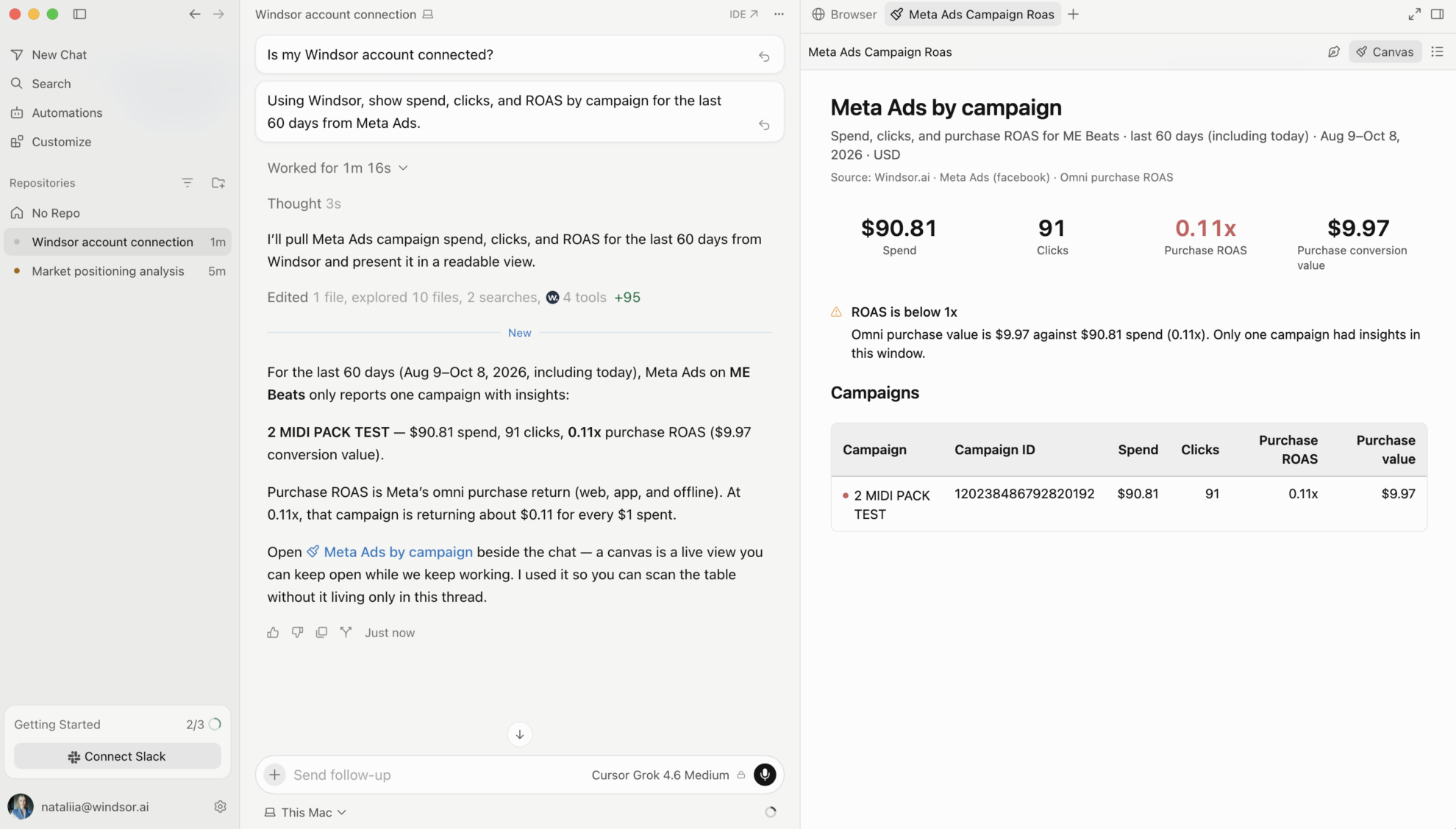


How to connect LineLeader to Cursor with Windsor.ai
Explore a step-by-step guide to integrate your LineLeader data into Cursor with the Windsor.ai connector.
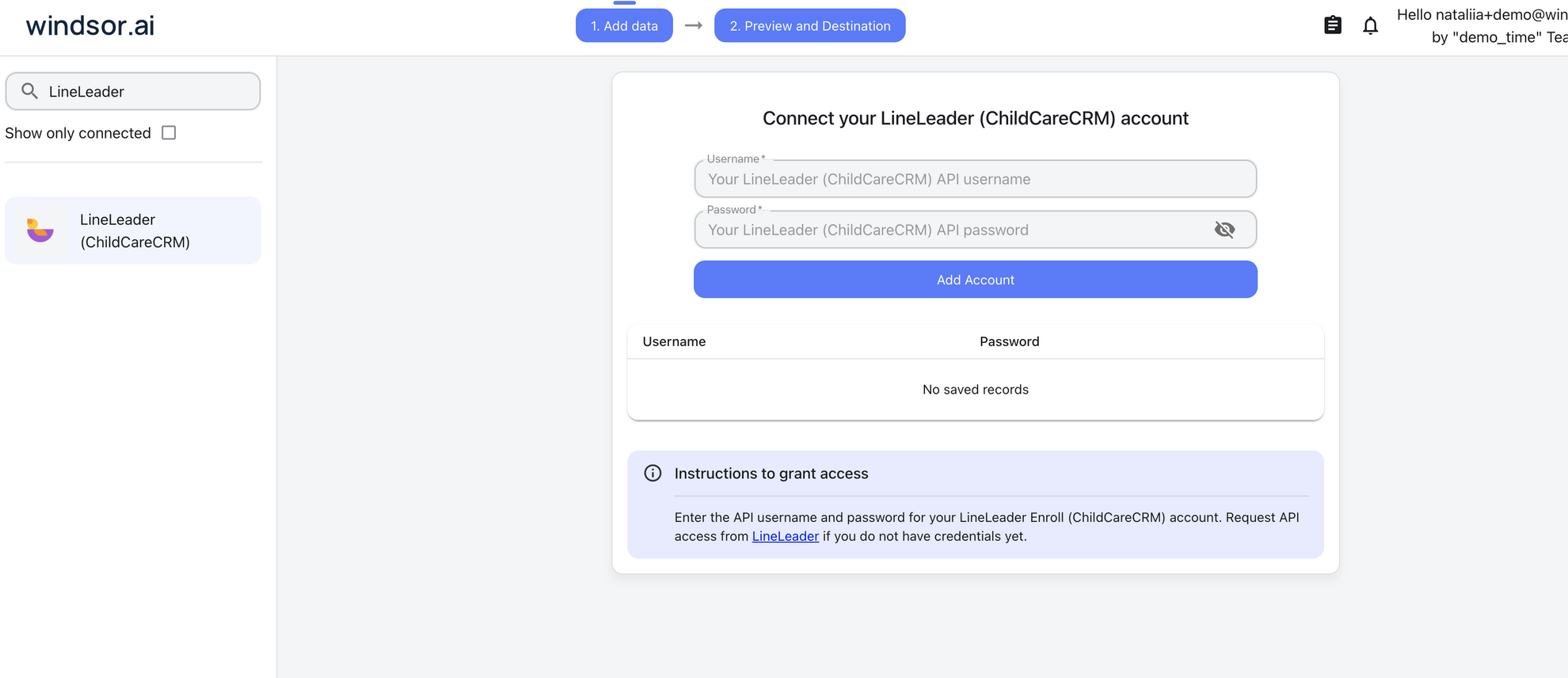
Connect LineLeader in the Windsor.ai dashboard
Choose LineLeader as your data source and sign in with your LineLeader username and password.
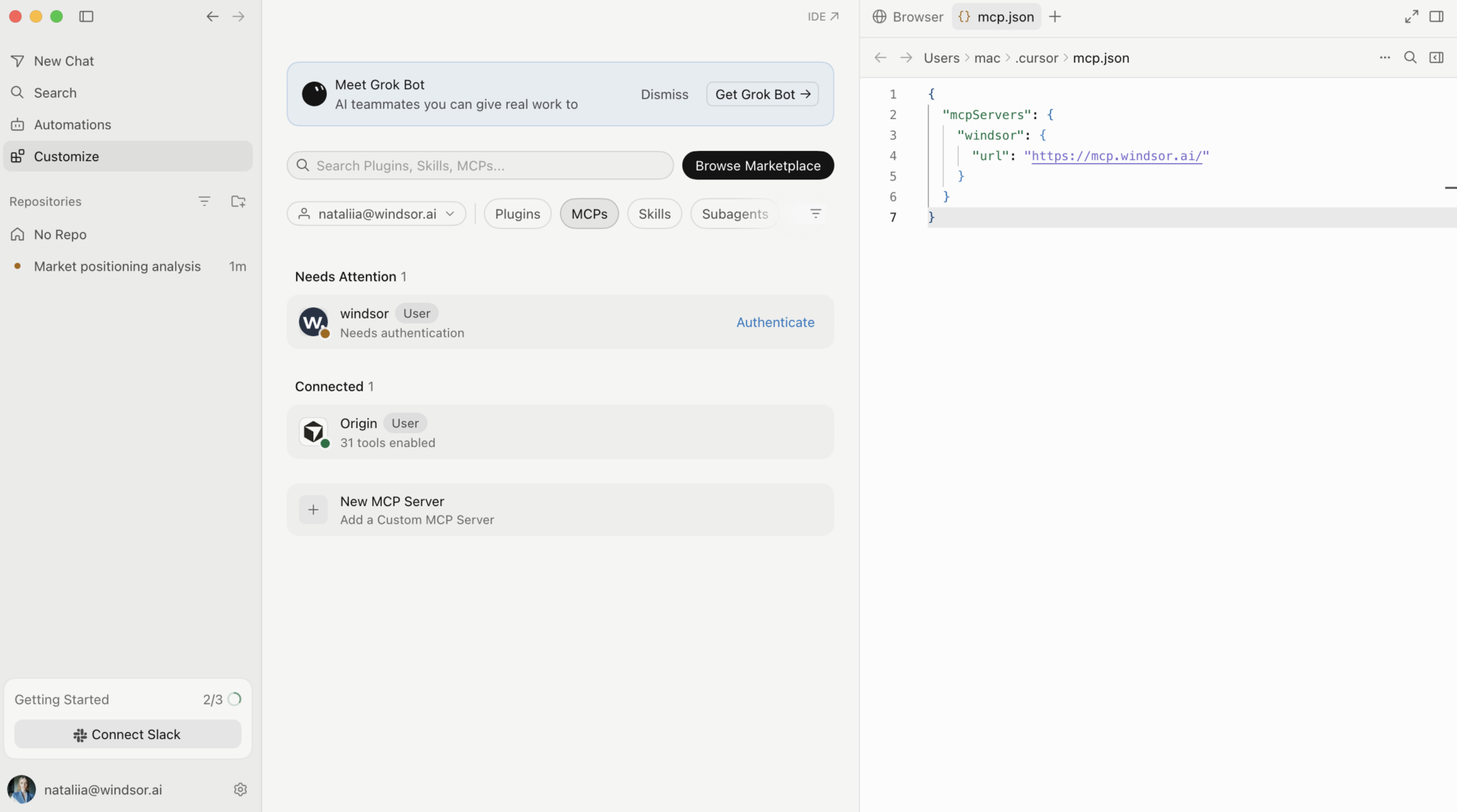
Add Windsor MCP in Cursor
Open Settings in Cursor Desktop and go to Tools & Integrations → New MCP Server. When mcp.json opens, add Windsor:
{
  "mcpServers": {
    "windsor": {
      "url": "https://mcp.windsor.ai/"
    }
  }
}
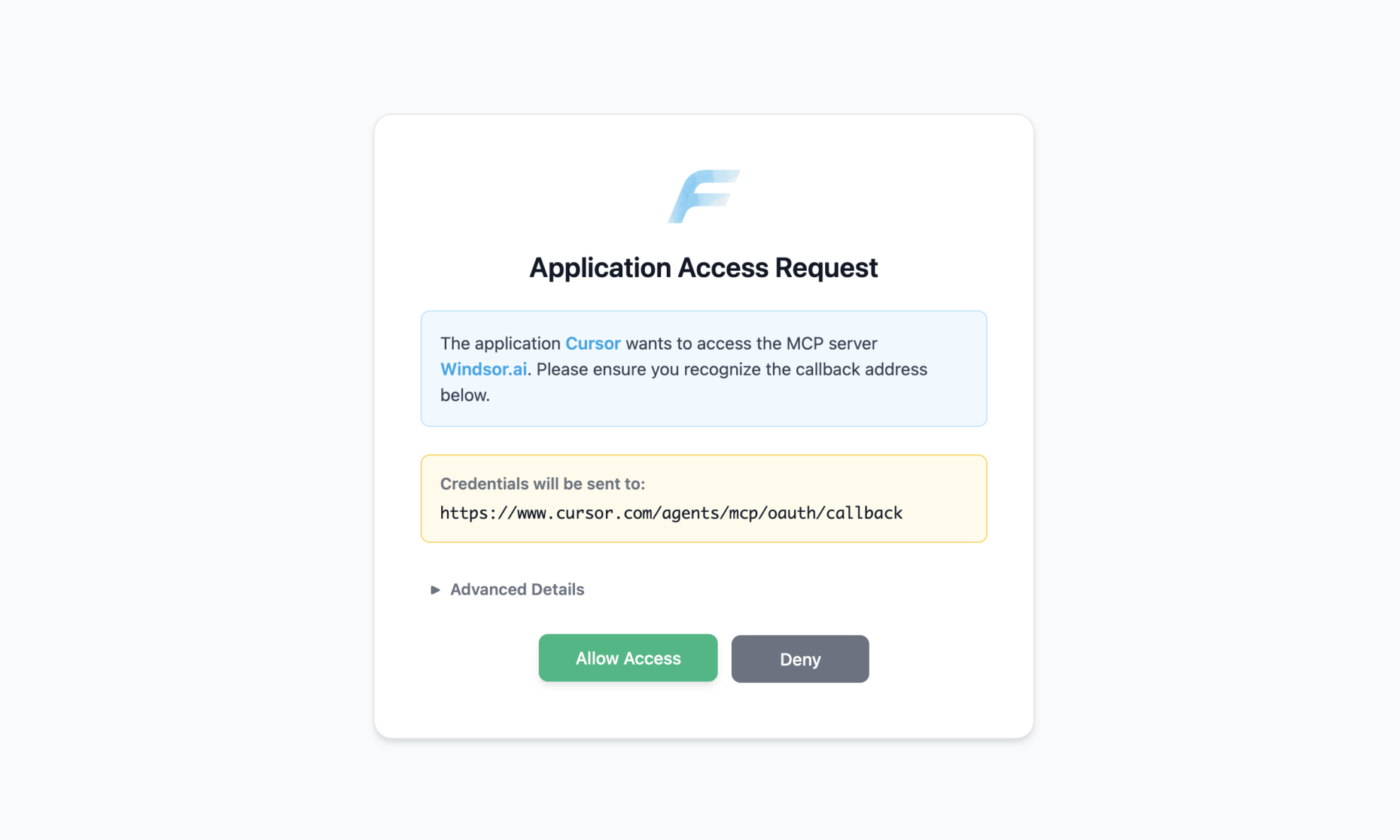
Authenticate with Windsor.ai
Save mcp.json. Windsor appears in your MCP list and asks you to authenticate. Click Authenticate and sign in to Windsor.ai in the browser.
Ask Cursor to build on your LineLeader data
Open a chat in your project and ask about your LineLeader data.
FAQs
What LineLeader data can Cursor use?
Windsor.ai gives access to 31 LineLeader fields. These are the groups; the LineLeader field reference lists all of them:
- Leads and families: Family ID, Contact Name, Contact Email, Contact Phone.
- Pipeline stage: Lead Status, for example Enrolled.
- Lead source: Lead Origin and Lead Origin ID, for example Self-Scheduled Tour.
- Inquiry detail: Inquiry Type.
- Location: Center and Center ID.
- Time and account: Date (the date the lead was created), Account ID, Account Name.
What can I ask Cursor about my LineLeader data?
These prompts name the fields to use, so the answer comes back on your own records:
-
Count families by Lead Status for each Center over the last 90 days.
-
Group the last 30 days of leads by Lead Origin and show which centers each one fed.
-
Show the Inquiry Type mix per center and flag the centers whose mix differs most from the group.
-
Count new leads by week using Date, and compare the last 4 weeks with the 4 before them.
Can Cursor change my LineLeader data?
No. The LineLeader connector is read-only. Cursor can read your LineLeader records through Windsor.ai and cannot create, edit or delete anything in LineLeader.
Does the LineLeader connector include family contact details?
Yes. Contact Name, Contact Email and Contact Phone are available fields on the family record, alongside Family ID and Center. Pick only the fields a report needs, and leave the contact fields out of reports that are shared widely.
Can I combine LineLeader data with other sources in Cursor?
Yes. Windsor.ai supports 350+ data sources, so you can connect LineLeader alongside tools such as Google Ads, GA4 or Shopify and ask about them together. For example, ask for Google Ads Cost by campaign next to the count of LineLeader leads by Lead Origin for the same weeks, so paid spend and inquiry volume sit in one table.
Do I need to code to connect LineLeader to Cursor?
No. Connect LineLeader in Windsor.ai, add Windsor to Cursor, and sign in. After that you ask in plain language.
How much does it cost to integrate LineLeader with Cursor using Windsor.ai?
The free forever plan covers 1 data source, so connecting LineLeader on its own costs nothing and needs no credit card. Combining LineLeader with other sources needs a paid plan: $19/month for 3 sources or $99/month for 7. Cursor is billed separately by Cursor. See the pricing page.
Do you have helpful links to get started with LineLeader and Cursor?
Yes. These are the resources to start with for the LineLeader to Cursor integration:
Tired of manual LineLeader data exports? Try Windsor.ai today to work on live data


