 Destinations
 Data sources
 AI insights
 About us
 Careers
 Security
 Customer reviews
 Contact us
 Affiliate program
 Solution partners
 Template gallery
 Looker Studio templates
 Power BI templates
 Excel templates
 Google Sheets templates
 Tableau templates
 Facebook Ads templates
 Google Ads templates
 Data fields & Metrics
 AI prompt library & Guides
 Product documentation
 API documentation
 Case studies
 Blog
Blog Data models
 Windsor vs Supermetrics
 Windsor vs Funnel.io
 Windsor vs Fivetran
 Windsor vs Rivery
 Windsor vs Portermetrics
 Windsor vs Coupler.io
Connect Salesforce to BigQuery
Quickly integrate your Salesforce data into BigQuery using Windsor.ai.
Our automated ELT connector imports data from CRM and other channels into BigQuery, creating instant reports on your sales performance and customer management. Use these actionable insights to fine-tune your sales strategies and enhance each stage of the customer journey.
Forget CSVs. Stop copy/paste. Connect data in 2 minutes. No code required.
 Sign up with Google
 Free forever plan
No credit card needed
Free forever plan
No credit card needed







Automate scalable reporting and analytics with Salesforce to BigQuery integration
With Windsor.ai ELT connector, you can seamlessly combine data from Salesforce and additional sources and integrate it with Google’s suite of data tools, enabling a comprehensive and streamlined analytics workflow along with these transformative benefits:

High-capacity data storage
BigQuery’s scalable architecture allows you to efficiently store and manage increasing volumes of Salesforce data as your business expands. Thanks to Windsor.ai’s automated data flows, your BigQuery database is continuously updated with the latest information, enabling consistent management of large datasets with just a few clicks.

Comprehensive data reporting and analysis
BigQuery offers powerful tools for data modeling and executing complex SQL queries on your Salesforce datasets. Its built-in machine learning capabilities allow you to model data and extract valuable insights from your CRM at scale, empowering fast, data-driven decision-making.

Easy integration with Google tools
In addition to BigQuery, Google offers a great suite of advanced cloud-based tools for effective CRM data analysis. For instance, Google Looker Studio provides interactive dashboards for querying data, along with robust business intelligence tools for data visualization and insight extraction. With Windsor.ai, you can easily integrate these tools as you transfer Salesforce data to BigQuery.
Using Windsor.ai connector to import data from Salesforce into BigQuery
Most available methods for syncing Salesforce CRM data with BigQuery can be complex, costly, and require specialized technical knowledge. However, with Windsor.ai’s easy-to-use ELT connector, the integration process becomes simple and cost-effective.
In just a few minutes, Windsor.ai extracts, transforms, and loads your Salesforce data into BigQuery. No technical skills are required. This integration helps you unify and analyze your CRM, sales, and marketing data on an enterprise level, empowering you to make data-driven decisions that maximize ROI.
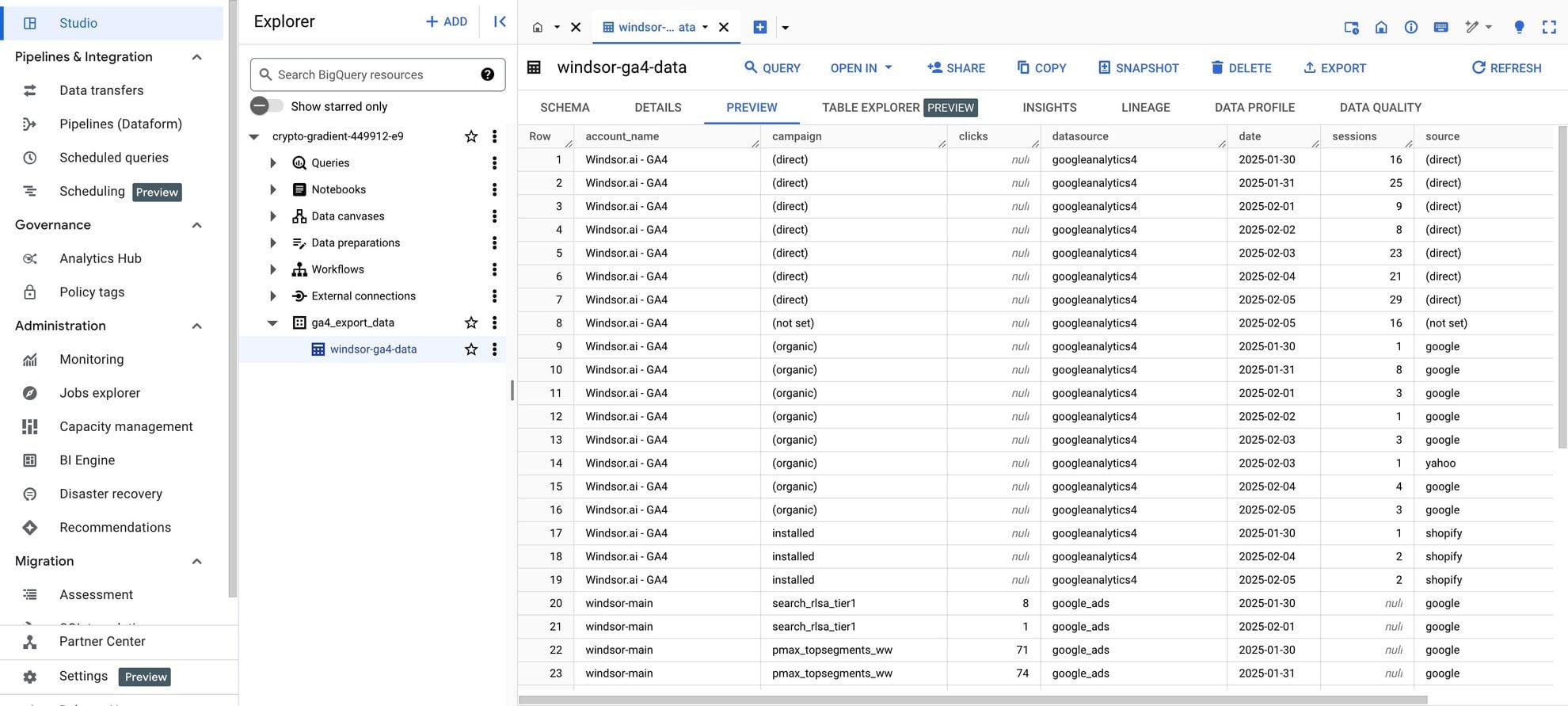














How to connect Salesforce to BigQuery in Windsor.ai
Make sure you have the following prerequisites before setting up the connector:
- Salesforce account with appropriate API permissions
- Google Cloud Platform (GCP) account with BigQuery enabled
- Active Windsor.ai account
Register and log in to Windsor.ai
Create a new Windsor.ai account or log in if you already have one.
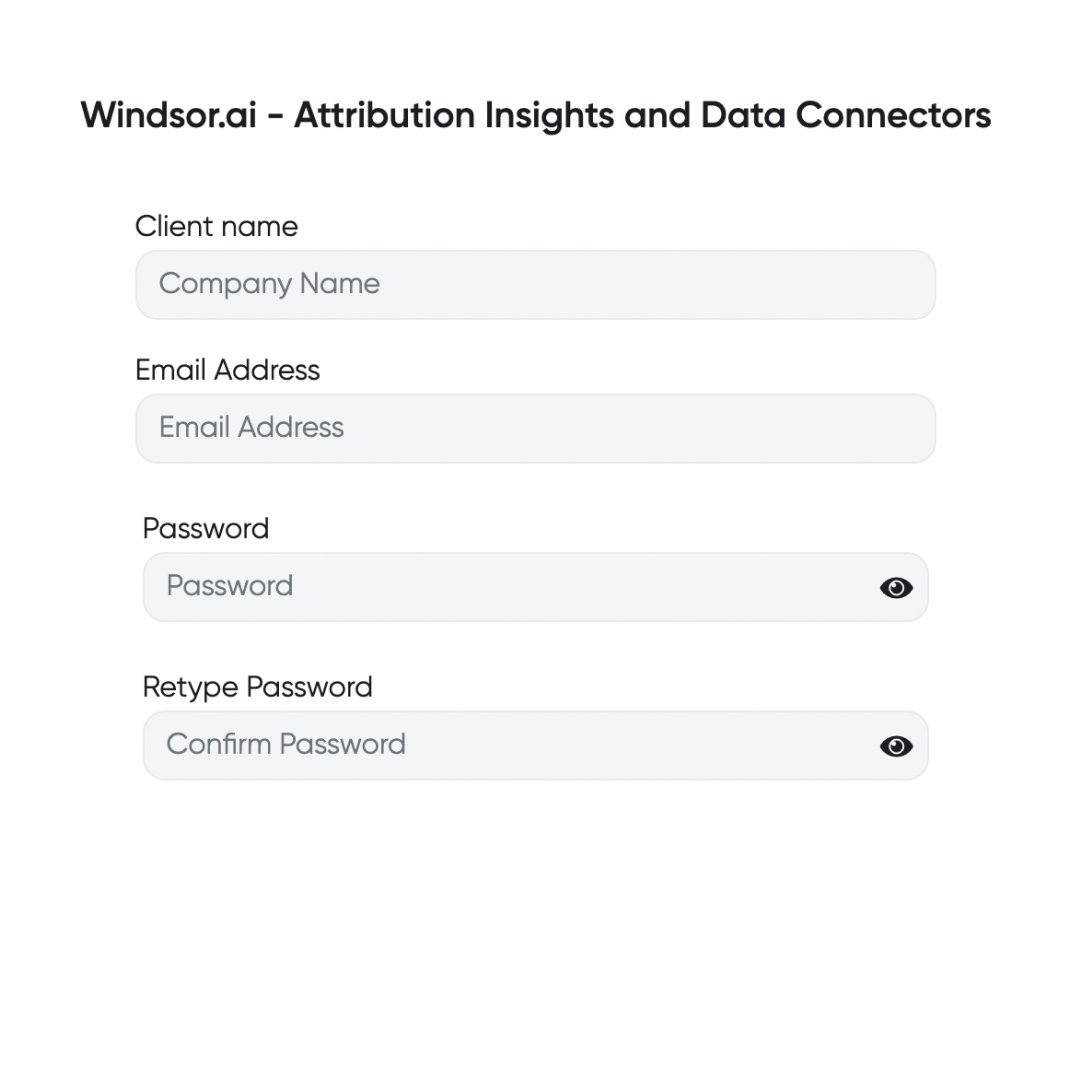
Select your data source
Choose Salesforce as your data source and follow the connector installation instructions.

Select your destination
Set BigQuery as the destination for your data.
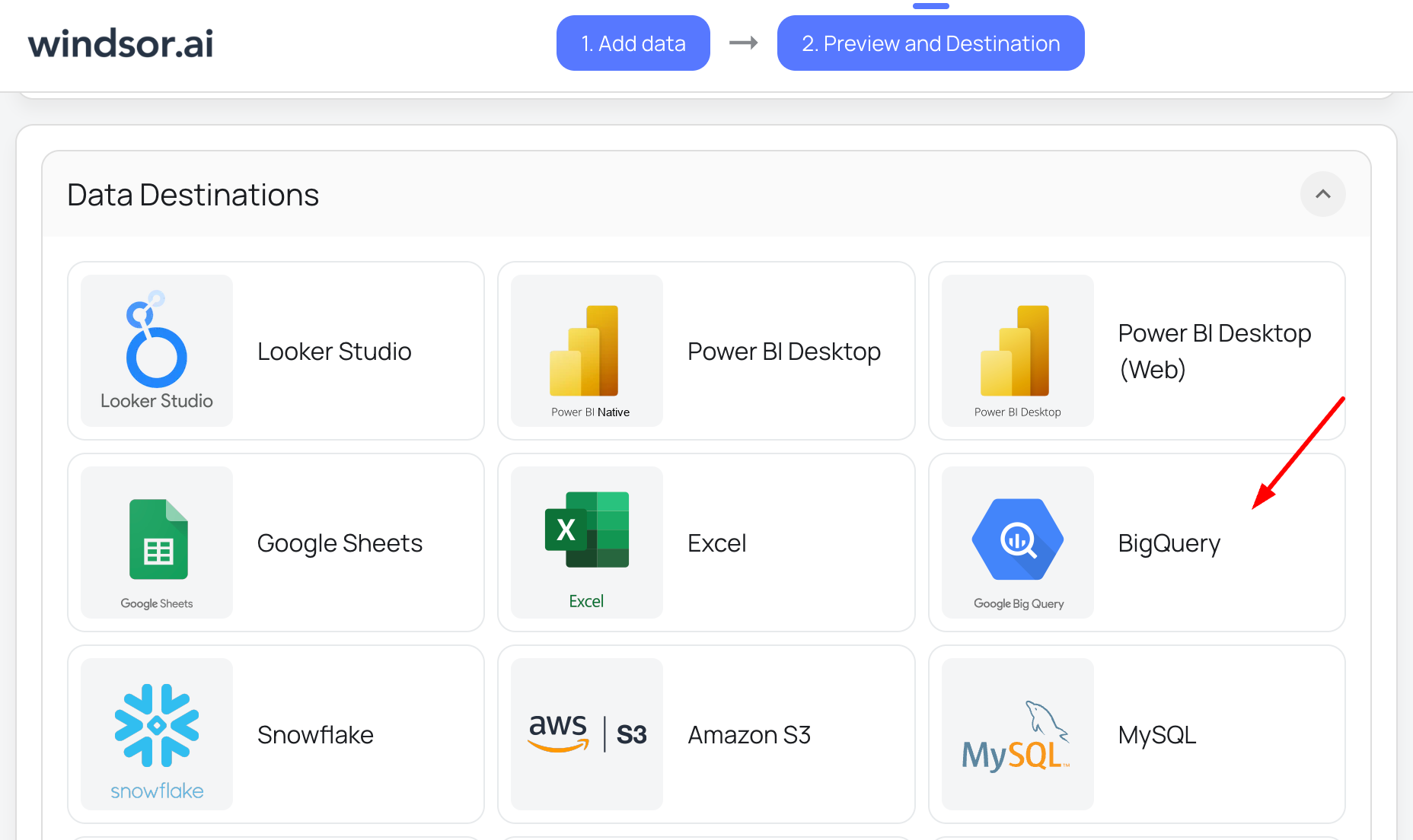
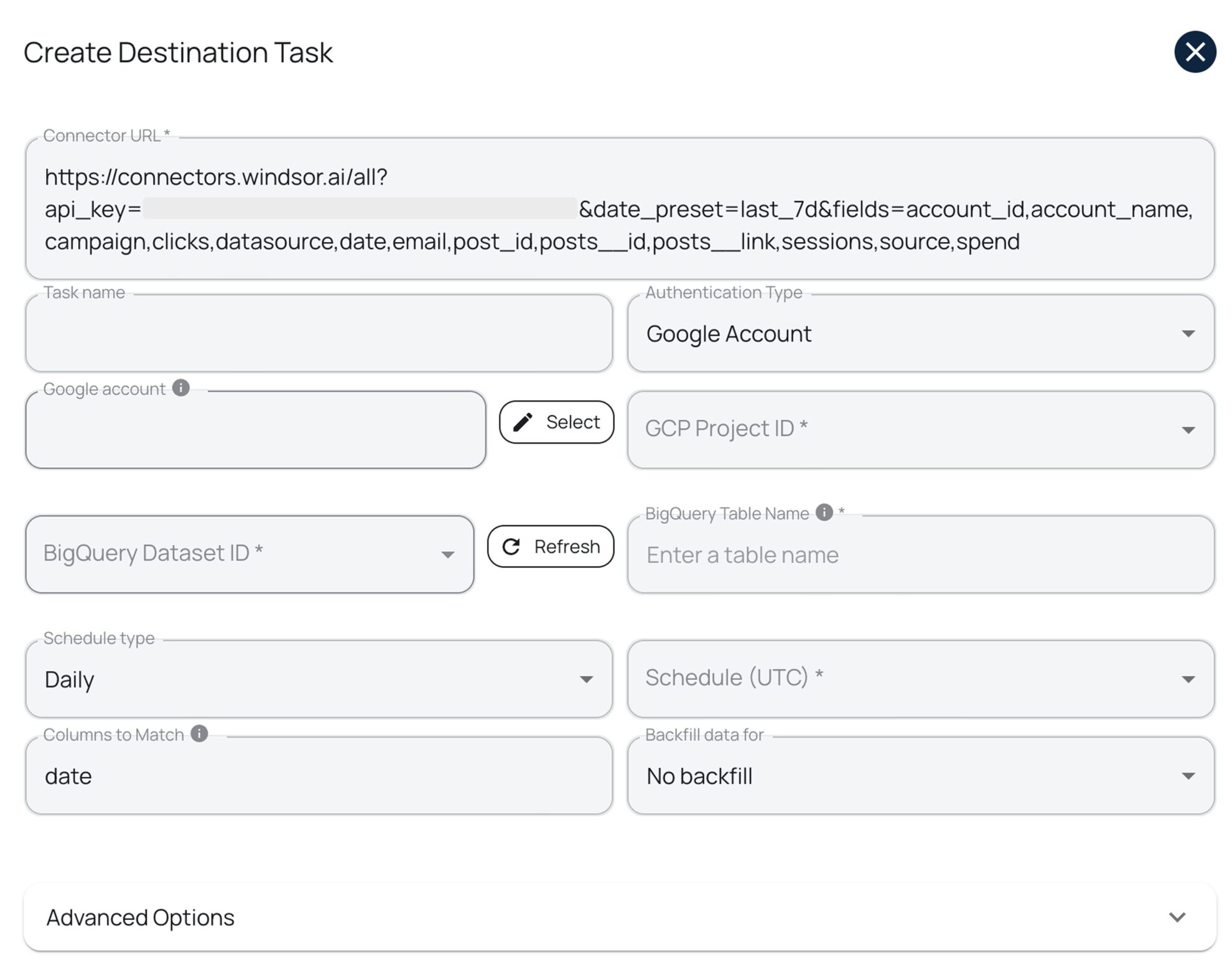
Create a destination task
Click on the “Add Destination Task” button and fill out the required fields along with the advanced settings (optional). Save and run the task.
How to connect Salesforce to BigQuery manually
Manually integrating Salesforce with BigQuery involves multiple steps, including creating a Salesforce Connected App, configuring OAuth authentication, setting up a data transfer, and scheduling updates.
Windsor.ai streamlines the integration by automating data transfer, eliminating the need for manual setup, ensuring real-time synchronization, and minimizing errors.
However, if you prefer a manual integration, follow this step-by-step guide to connect Salesforce with BigQuery via BigQuery Data Transfer API.
Prerequisites
Before starting, ensure you have the following accesses:
- Salesforce developer account with API access enabled.
- Google Cloud Platform (GCP) account with BigQuery enabled.
- A service account with the necessary BigQuery permissions.
Step 1. Creating a Salesforce connected app
1. Log in to your Salesforce developer account, go to setup, navigate to App Manager, and click New Connected App.
2. Enter the App Name and Contact Email.
3. Check the Enable OAuth Settings box, set the Callback URL based on your application, and under OAuth Scopes, select Manage user data via APIs (API).
4. Modify authentication settings:
- Uncheck Required Proof Key for Code Exchange (PKCE).
- Enable Client Credentials Flow and confirm the prompt.
5. Click Save to create the connected app.
6. In Salesforce Setup, search for Connected Apps, click Manage Connected Apps and Edit on your created app.
7. Under Client Credentials Flow, enter the username of your user in the Run As User field. Make sure your user has the required permissions.
8. Click Save to finalize the configuration.
Step 2. Retrieve required Salesforce credentials
1. Get My Domain. For this, navigate to Salesforce Setup, search for My Domain and click on it. Find the domain prefix in the Current My Domain URL (e.g., it is an example if the URL is example.my.salesforce.com).
2. Get Client ID and Client Secret:
- In Salesforce Setup, search for Apps Manager, and on your created app, select View from the actions dropdown.
- Click Manage Consumer Details. Verify identity if prompted and copy the Consumer Key (Client ID) and Consumer Secret (Client Secret).
Step 3. Configure BigQuery data transfer
1. Enable BigQuery API and BigQuery Data Transfer API:
- Go to the Google Cloud Console.
- Select your project or create a new one.
- Navigate to APIs & Services -> Library.
- Search for BigQuery API and click Enable.
- Search for BigQuery Data Transfer API and click Enable.
2. Create a BigQuery Dataset:
- Go to the BigQuery Console.
- Click on your project in the left panel.
- Click Create Dataset and provide a name.
3. Create a Service Account for BigQuery:
- Navigate to IAM & Admin -> Service Accounts.
- Click Create Service Account.
- Assign BigQuery Admin and BigQuery Data Transfer Service Agent roles.
4. Search Data Transfers and click on it -> Create Transfer.
5. Select Salesforce as the source, and in the Data source details section, enter the My Domain, Client ID, and Client Secret you’ve previously received from the Salesforce platform.
6. Click Browse to select objects for transfer (e.g., Accounts, Leads, Objects etc).
7. In the Destination settings section, select the Dataset you’ve previously created.
8. Enter Transfer Config name (it can be anything you want).
9. Schedule the data transfer; you can choose a recurring frequency (e.g., daily, hourly) or on-demand transfers.
10. Choose the service account you created previously.
11. Click Save. The transfer will now run based on the scheduled frequency.
Step 4. Verify data in BigQuery
- Open the BigQuery Console and navigate to the dataset you’ve created or selected.
- Run SQL queries to explore the data:
SELECT *
FROM `your_project.your_table.events_*`
Cheers, you’ve successfully sent your Salesforce data to Google BigQuery!
Now, you can use SQL queries to analyze objects, leads, accounts, and any other Salesforce objects you’ve selected while creating the data transfer directly in BigQuery.
FAQs
What is BigQuery?
BigQuery is a fully managed, serverless data warehouse developed by Google, designed to store and analyze massive datasets without the need to manage hardware or software infrastructure.
This platform comes with advanced machine learning and business intelligence tools, enabling businesses to model and compare data effectively. With its powerful analytics capabilities, BigQuery allows users to extract actionable insights from petabyte-scale datasets quickly and efficiently, making it an ideal solution for data-driven decision-making.
What types of data can I import from Salesforce into BigQuery?
Salesforce API allows users to extract a great set of metrics and dimensions, including the following:
- Calendar
- Account
- Contact
- Campaign
- Contact
- Order
- Payment
- Product
- Case
- Asset
- Custom Salesforce objects
- User
- Task
- Lead
- Opportunity
How much time do I need to create the Salesforce and BigQuery integration?
Windsor.ai provides a user-friendly interface and a powerful data connector that enables you to integrate Salesforce with BigQuery in under 5 minutes, making the process quick and hassle-free.
How much does it cost to integrate Salesforce into BigQuery with Windsor.ai?
Windsor.ai’s pricing for Salesforce to BigQuery data integration can vary depending on your use case and data volume. We offer absolutely transparent, volume-based event pricing plans for diversified business needs and budgets.
What should I do if the Salesforce data transfer fails?
- Ensure Salesforce credentials are correct and client credentials flow in the connected app is set.
- Verify Service account has required permissions.
- Check for network or authentication errors.
Do you have helpful links to get started with integrating Salesforce and BigQuery using Windsor.ai?
Yes, we have helpful resources to help you get started. You can explore our official documentation and ready-to-use templates for seamless Salesforce to BigQuery integration with Windsor.ai:
Can I connect Salesforce to BigQuery by writing custom code?
Using the APIs provided by Salesforce and BigQuery gives you a high level of flexibility and control over data import and export operations. You can write code in your preferred programming language, such as Java or Python, to handle the data transfer operations according to your specific requirements.
When it comes to writing custom code to transfer data from Salesforce to BigQuery, you have to consider several pivotal disadvantages:
- Resource requirements: Developing and maintaining custom code requires skilled programmers who are knowledgeable about both Salesforce and BigQuery. Finding and retaining such talents can be challenging and expensive.
- Platform knowledge: Custom code must account for the intricacies of Salesforce and BigQuery. Understanding the internals and nuances of these platforms is essential to ensuring data integrity and efficient data transfer.
- Testing and verification: Building a custom solution requires a dedicated team to test and verify that the desired data is successfully transferred to BigQuery. This team must ensure the data is in a suitable format for further analysis, which adds complexity and time to the development process.
- Code maintenance and updates: Custom code must be regularly updated to accommodate any changes in your business processes or the underlying platforms. This ongoing maintenance effort can be time-consuming and costly, as it requires constant monitoring and adjustment.
- Data source integration: When using custom code, you must write multiple programs to extract data from different sources and transfer them to BigQuery. This can be a complex and labor-intensive task, especially if you have disparate data sources.
- Cost considerations: The investment required for developing custom code, including programming resources, testing, maintenance, and updates, can quickly exceed the cost of using a specialized data integration platform like Windsor.ai. The upfront savings of building a custom solution can be outweighed by the long-term expenses associated with its development and maintenance.
Using a dedicated ELT data integration platform like Windsor.ai can provide a more powerful and cost-effective solution for transferring data from Salesforce to BigQuery.
What are the authentication options for connecting BigQuery to Windsor.ai?
Windsor.ai supports two authentication methods:
- Google Account (OAuth 2.0): Recommended for quick setup, testing, or personal use.
- Service Account (JSON Key File): Ideal for automated, scheduled, and production-level data transfers.
Tired of manual Salesforce data exports? Get started with Windsor.ai today to automate your reporting


