 Destinations
 Data sources
 AI insights
 About us
 Careers
 Security
 Customer reviews
 Contact us
 Affiliate program
 Solution partners
 Template gallery
 Looker Studio templates
 Power BI templates
 Excel templates
 Google Sheets templates
 Tableau templates
 Facebook Ads templates
 Google Ads templates
 Data fields & Metrics
 AI prompt library & Guides
 Product documentation
 API documentation
 Case studies
 Blog
Blog Data models
 Windsor vs Supermetrics
 Windsor vs Funnel.io
 Windsor vs Fivetran
 Windsor vs Rivery
 Windsor vs Portermetrics
 Windsor vs Coupler.io
Connect SE Ranking to Google Sheets
Bring your SE Ranking data into Google Sheets with Windsor.ai, so your sheets read live keyword ranking data.
Pick the SE Ranking fields you need, and Windsor.ai keeps them flowing without a CSV export in between.
Forget CSVs. Stop copy/paste. Connect in minutes. No code required.
 Sign up with Google
 Free forever plan
No credit card needed
Free forever plan
No credit card needed










Get your SE Ranking data into Google Sheets
SE Ranking is connected once in Windsor.ai, and these are the use cases the fields support:

See which keywords moved
Position Change per Keyword shows which tracked keywords went up or down since the previous check.

Check which page ranks
Ranking URL shows which page ranked for each Keyword on each Date.

Prioritize by search volume
Search Volume next to Position shows which keywords with many monthly searches are outside the top 10.
Using Windsor.ai to connect data from SE Ranking to Google Sheets
Windsor.ai moves your SE Ranking fields into Google Sheets on a connection you set up once, so the sheets stay on live records rather than a CSV someone exported last week.
Pick the fields you need and Windsor.ai handles the rest.















How to connect SE Ranking to Google Sheets with Windsor.ai
Explore a step-by-step guide to integrate your SE Ranking data into Google Sheets with the Windsor.ai connector.
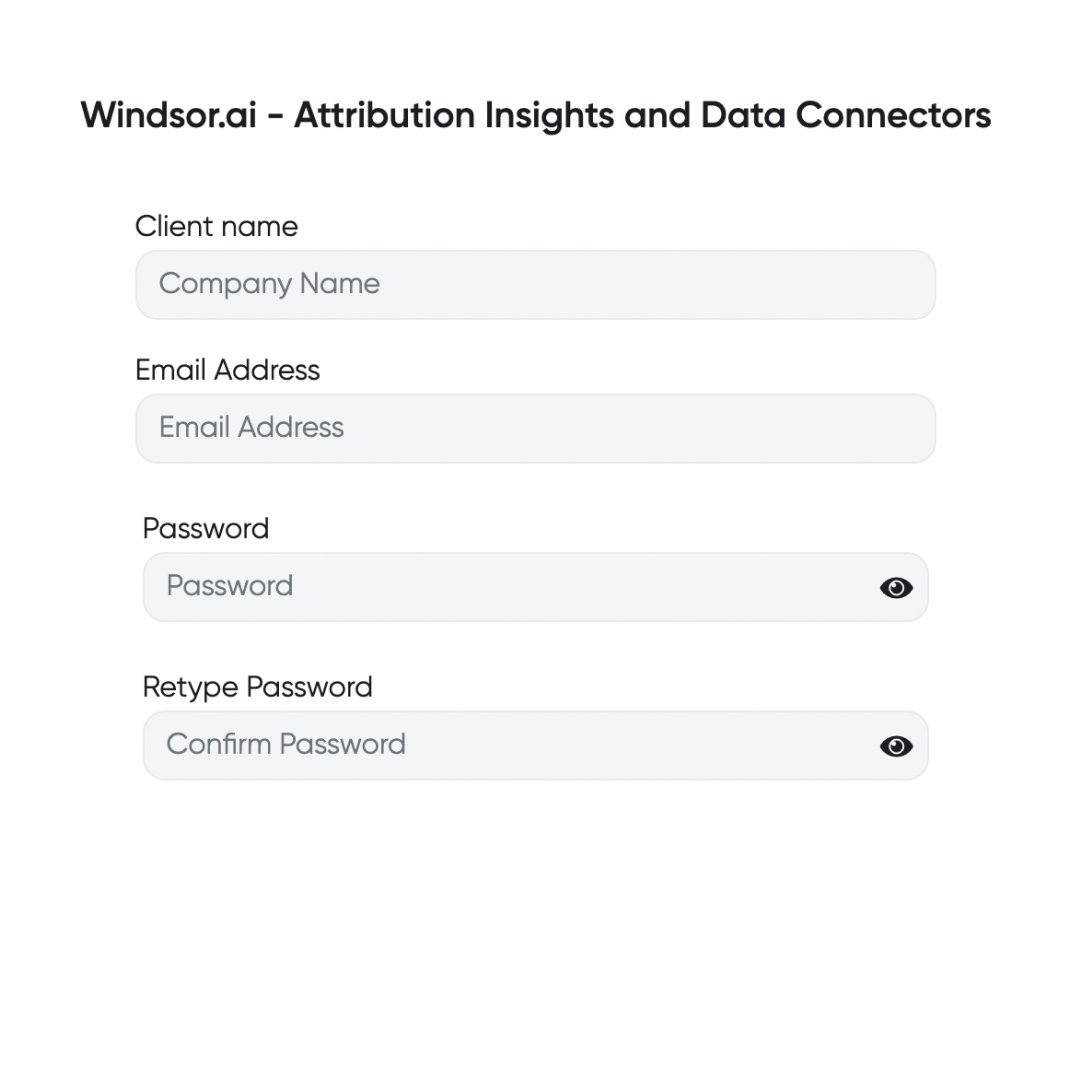
Register and log in to Windsor.ai
Create a new Windsor.ai account or log in if you already have one.
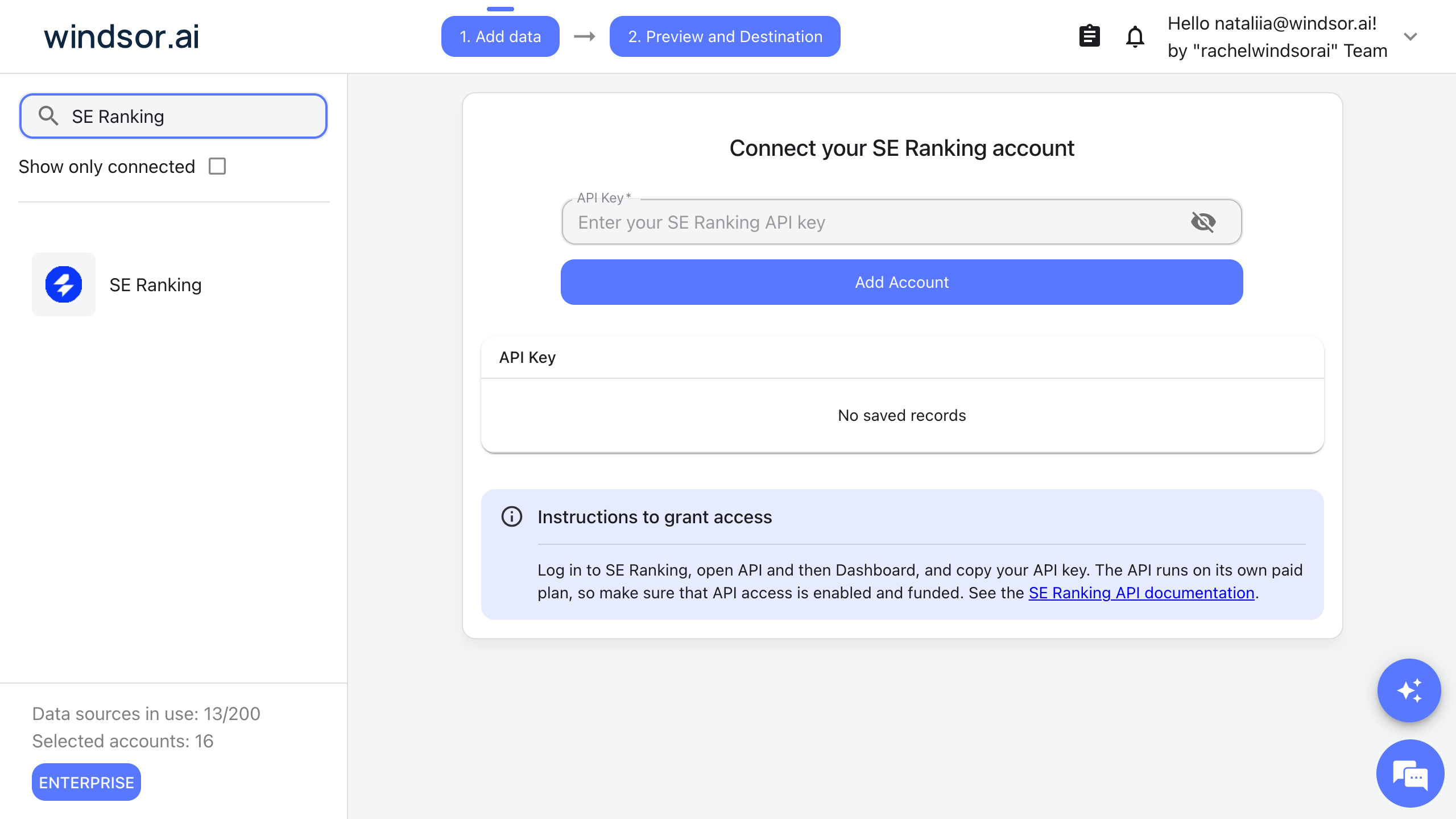
Select your data source
Choose SE Ranking as your data source and enter your SE Ranking API key. You find it in SE Ranking under API, then Dashboard. The SE Ranking API is a separate paid plan, so API access must be enabled on your account.
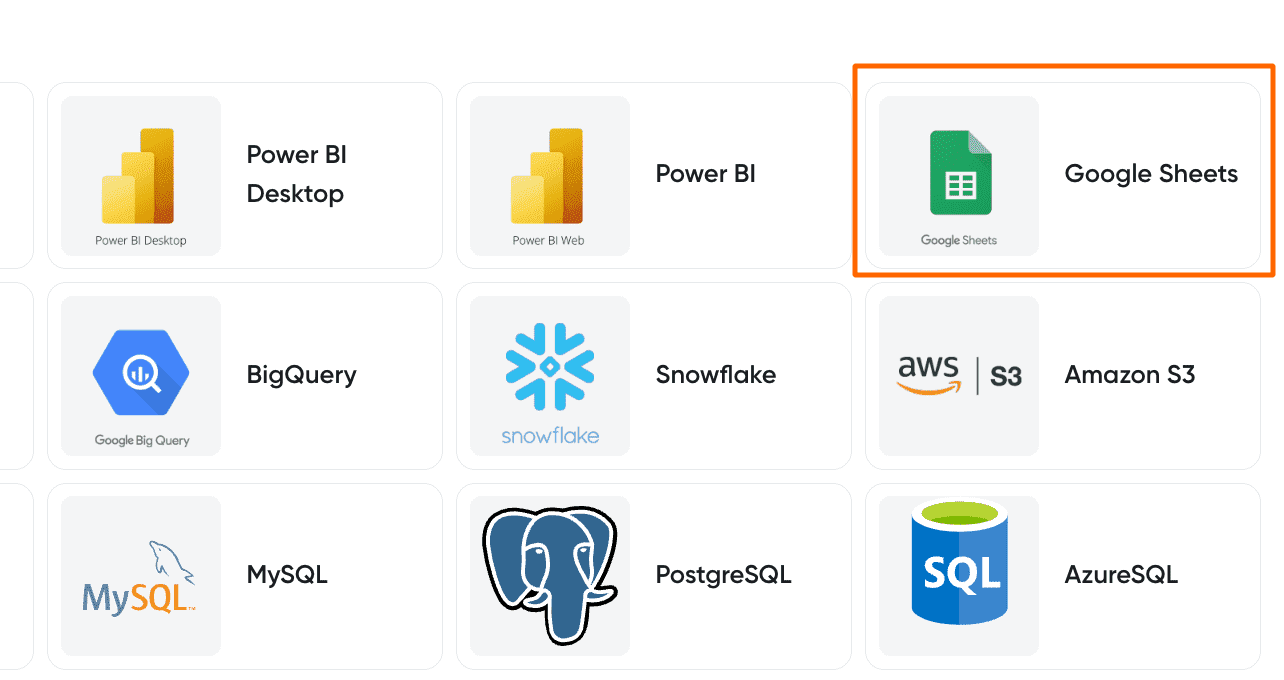
Select your destination
Set Google Sheets as the destination for your data.
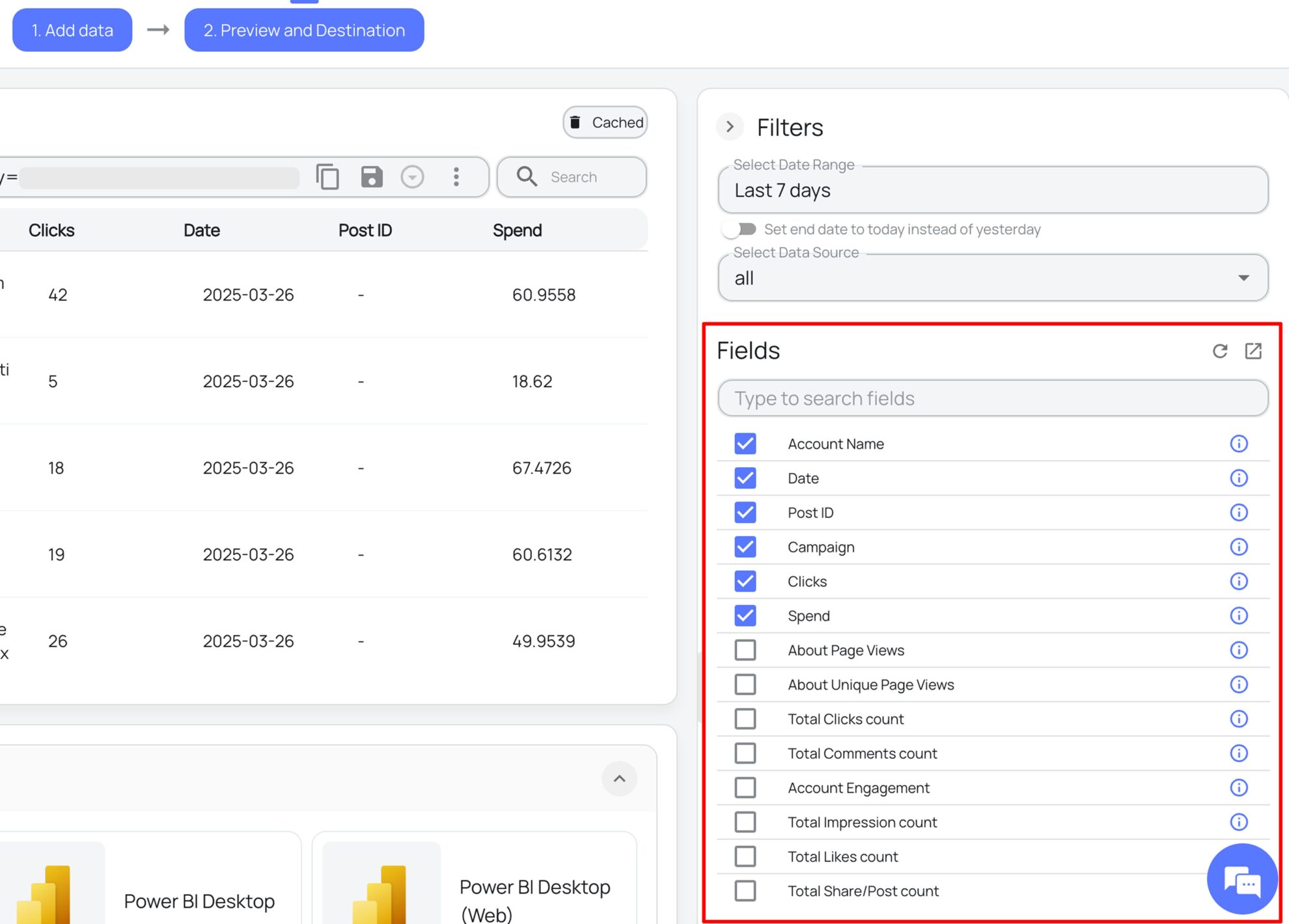
Select the reporting fields
Choose the SE Ranking fields you want to show in your spreadsheet.
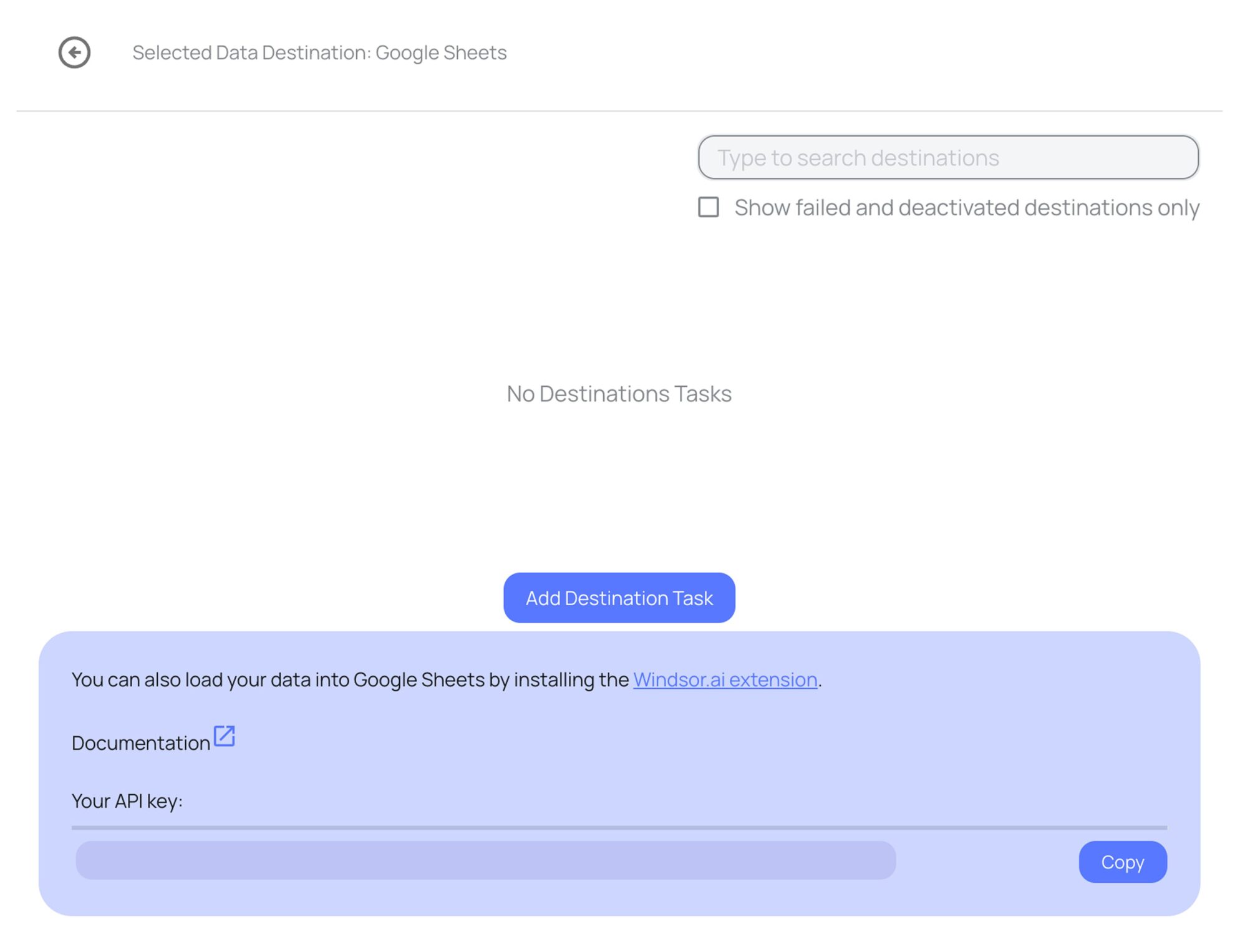
Follow the setup instructions to complete the integration
Depending on the integration method you choose, set up the connection by following the prescribed steps, whether through an extension or directly via an in-app destination task.
FAQs
What SE Ranking data can I load into Google Sheets?
Windsor.ai gives access to 43 SE Ranking fields. These are the groups; the SE Ranking field reference lists all of them:
- Rankings: Keyword, Position, Position Change, Ranking URL, Search Volume.
- Competitor rankings: Competitor, Competitor Keyword, Competitor Position, Competitor Position Change, Competitor URL, Competitor Domain Trust.
- Project: Project Name, Project Domain, Search Engine Location, Search Engine Language.
- Time: Date, Week, Month, Year.
How does Windsor.ai load SE Ranking data into Google Sheets?
Windsor.ai sends your chosen SE Ranking fields straight into a sheet, either through the Google Sheets add-on or through an in-app destination task. You can set it to refresh on a schedule.
Can I combine SE Ranking data with other sources in my sheets?
Yes. Windsor.ai supports 350+ data sources, so SE Ranking data can sit next to other connected sources in the same sheets. For example, put SE Ranking Position by Keyword and Google Search Console Clicks and Impressions by Search Query in one table.
Do I need to code to connect SE Ranking to Google Sheets?
No. You connect SE Ranking in the Windsor.ai dashboard, pick the fields you want, and Windsor.ai handles the transfer.
How much does it cost to integrate SE Ranking with Google Sheets using Windsor.ai?
The free forever plan covers 1 data source, so connecting SE Ranking on its own costs nothing and needs no credit card. Combining SE Ranking with other sources needs a paid plan: $19/month for 3 sources or $99/month for 7. See the pricing page.
Do you have helpful links to get started with SE Ranking and Google Sheets?
Yes. These are the resources to start with for the SE Ranking to Google Sheets integration:
Tired of manual SE Ranking data exports? Try Windsor.ai today to work on live data


