Destinations
 Data sources
 AI insights
 About us
 Careers
 Security
 Customer reviews
 Contact us
 Affiliate program
 Solution partners
 Template gallery
 Looker Studio templates
 Power BI templates
 Excel templates
 Google Sheets templates
 Tableau templates
 Facebook Ads templates
 Google Ads templates
 Data fields & Metrics
 AI prompt library & Guides
 Product documentation
 API documentation
 Case studies
 Blog
 Data models
 Windsor vs Supermetrics
 Windsor vs Funnel.io
 Windsor vs Fivetran
 Windsor vs Rivery
 Windsor vs Portermetrics
 Windsor vs Coupler.io
Connect Threads to Google Sheets
Bring your Threads data into Google Sheets with Windsor.ai, so your sheets read live post, reply and profile data.
Pick the Threads fields you need, and Windsor.ai keeps them flowing without a CSV export in between.
Forget CSVs. Stop copy/paste. Connect in minutes. No code required.
 Sign up with Google
 Free forever plan
No credit card needed









Get your Threads data into Google Sheets
Threads is connected once in Windsor.ai, and these are the use cases the fields support:

Find your top posts
Post Views, Post Likes, Post Reposts and Post Quotes per Post Text show which posts people shared and discussed.

Compare post formats
The same metrics per Post Media Type show whether text, image or video posts get more views.

Track profile views
Profile Views by Date and Profile Followers Count show how the profile grows.
Using Windsor.ai to connect data from Threads to Google Sheets
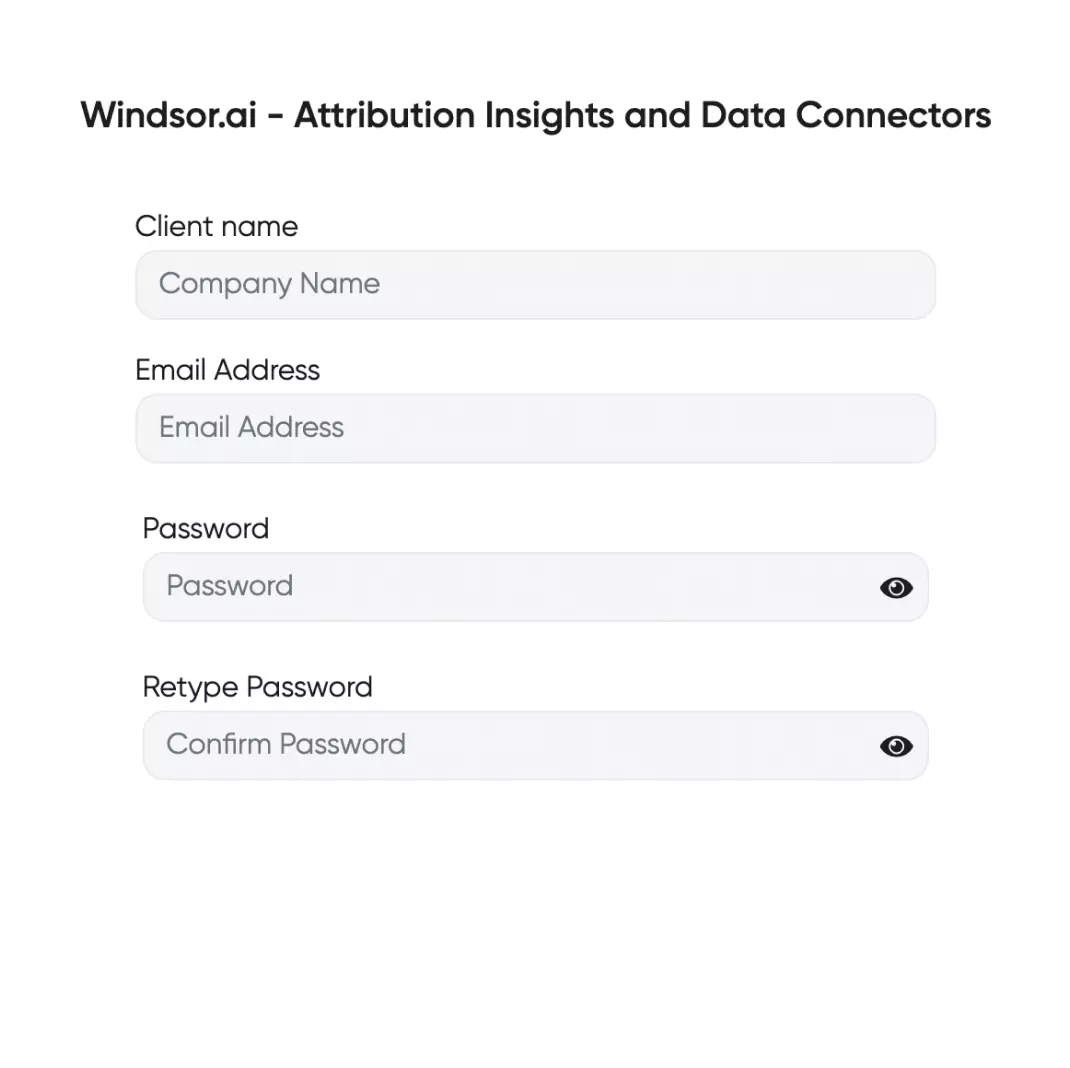
Windsor.ai moves your Threads fields into Google Sheets on a connection you set up once, so the sheets stay on live records rather than a CSV someone exported last week.
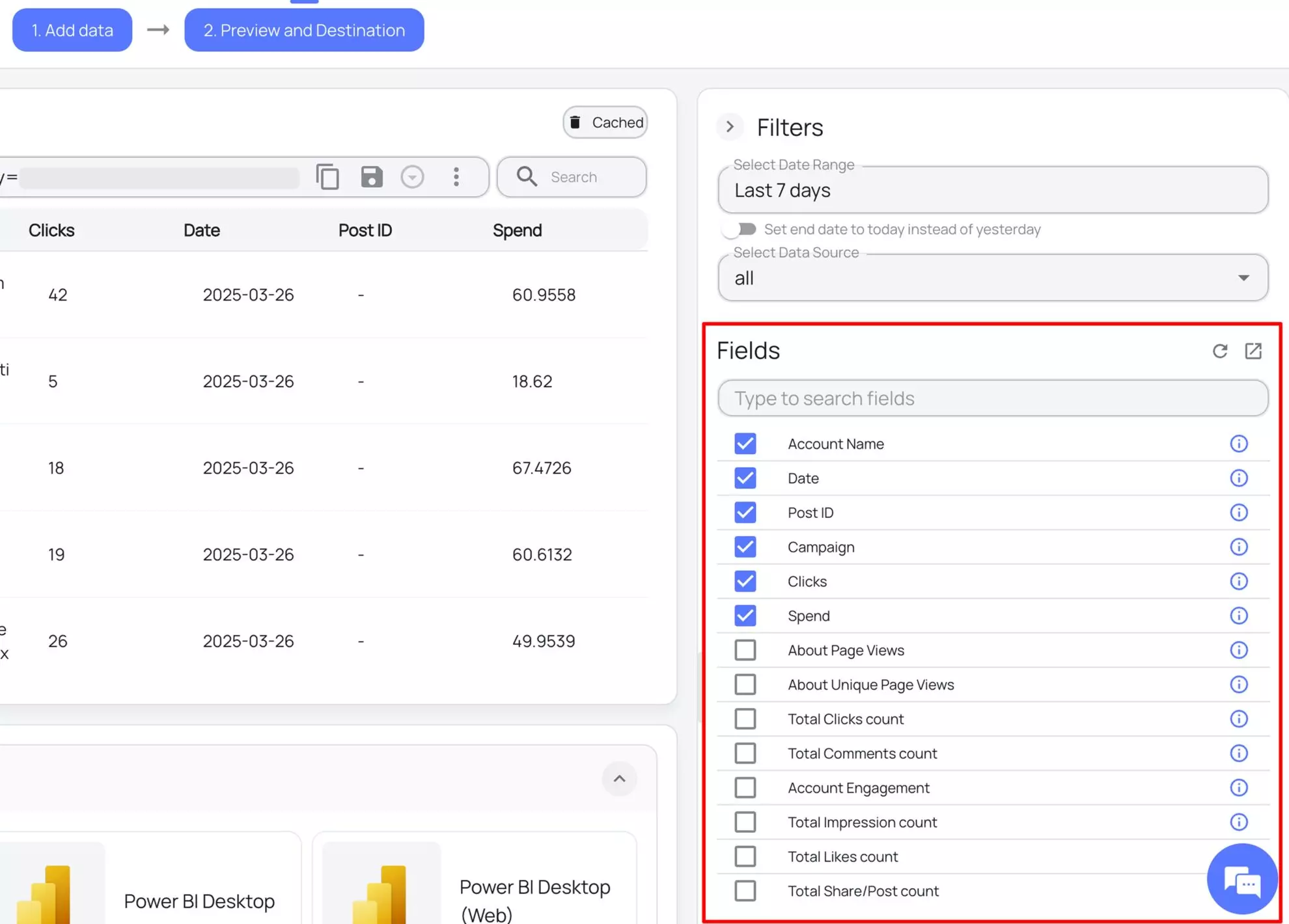
Pick the fields you need and Windsor.ai handles the rest.
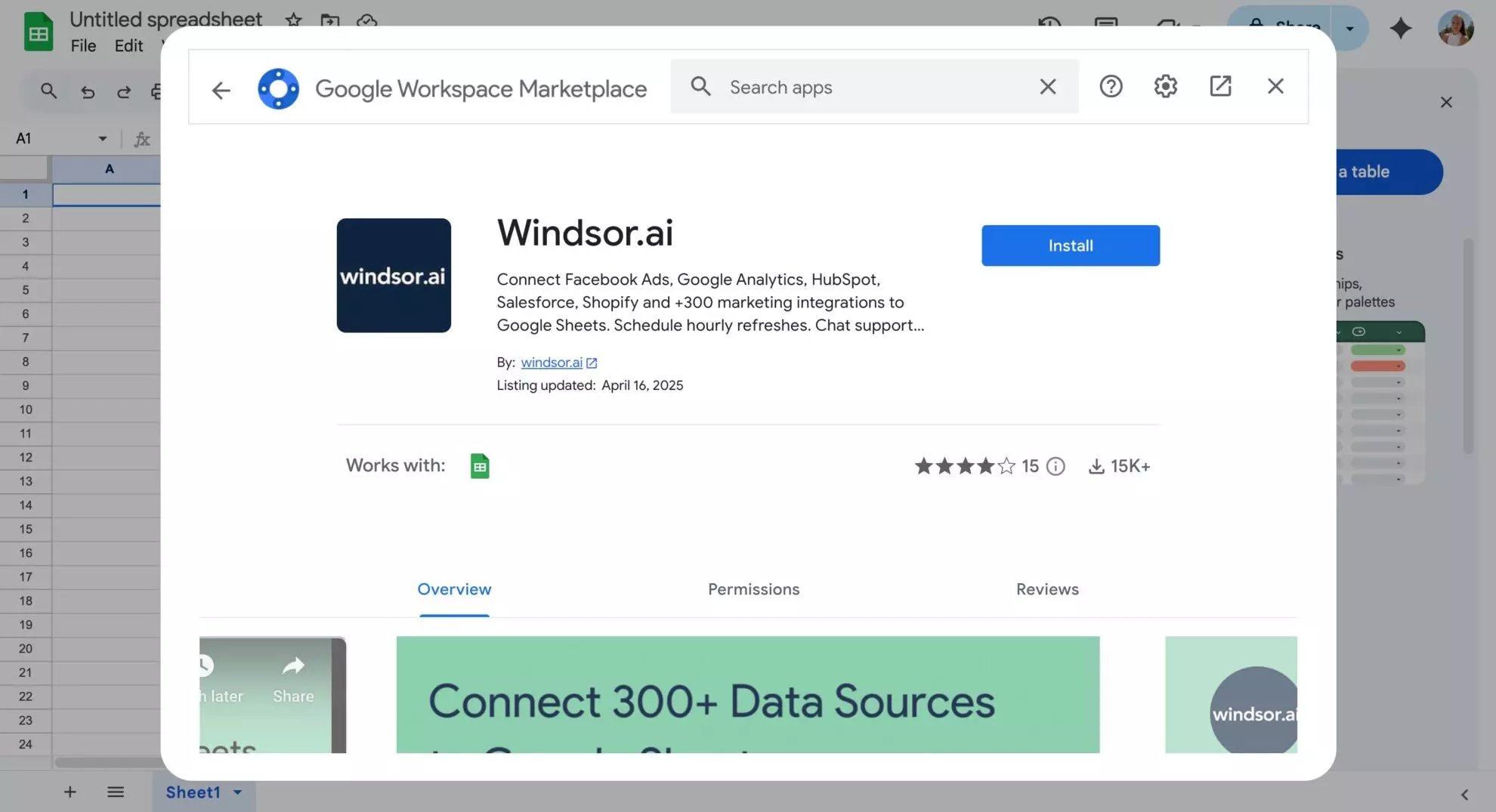






How to connect Threads to Google Sheets with Windsor.ai
Explore a step-by-step guide to integrate your Threads data into Google Sheets with the Windsor.ai connector.
Select your data source
Choose Threads as your data source and click Grant Threads Access. Sign in to your Threads account and approve access for Windsor.ai.
Select your destination
Set Google Sheets as the destination for your data.
Select the reporting fields
Choose the Threads fields you want to show in your spreadsheet.
Follow the setup instructions to complete the integration
Depending on the integration method you choose, set up the connection by following the prescribed steps, whether through an extension or directly via an in-app destination task.



FAQs
What Threads data can I load into Google Sheets?
Windsor.ai gives access to 64 Threads fields. These are the groups; the Threads field reference lists all of them:
- Post performance: Post Views, Post Likes, Post Replies, Post Reposts, Post Quotes, Post Shares.
- Post details: Post Text, Post Media Type, Post Timestamp, Post Permalink, Post Is Quote Post, Post Link Attachment URL.
- Profile insights: Profile Views, Profile Followers Count, Profile Likes, Profile Replies, Profile Reposts, Profile Quotes.
- Follower demographics: Profile Followers Age, Profile Followers Gender, Profile Followers Country, Profile Followers City.
- Replies: Reply Text, Reply Username, Reply Timestamp, Reply To ID, Reply Root Post ID, Reply Hide Status.
- Date and account: Date, Week, Month, Profile Username, Account Name.
How does Windsor.ai load Threads data into Google Sheets?
Windsor.ai sends your chosen Threads fields straight into a sheet, either through the Google Sheets add-on or through an in-app destination task. You can set it to refresh on a schedule.
Can I combine Threads data with other sources in my sheets?
Yes. Windsor.ai supports 350+ data sources, so Threads data can sit next to other connected sources in the same sheets. For example, put Threads Post Views and Post Likes by Date next to Instagram Reach and Likes for the same days, to compare how your account does on the two apps.
Do I need to code to connect Threads to Google Sheets?
No. You connect Threads in the Windsor.ai dashboard, pick the fields you want, and Windsor.ai handles the transfer.
How much does it cost to integrate Threads with Google Sheets using Windsor.ai?
The free forever plan covers 1 data source, so connecting Threads on its own costs nothing and needs no credit card. Combining Threads with other sources needs a paid plan: $19/month for 3 sources or $99/month for 7. See the pricing page.
Do you have helpful links to get started with Threads and Google Sheets?
Yes. These are the resources to start with for the Threads to Google Sheets integration:
Tired of manual Threads data exports? Try Windsor.ai today to work on live data