 Destinations
 Data sources
 AI insights
 About us
 Careers
 Security
 Customer reviews
 Contact us
 Affiliate program
 Solution partners
 Template gallery
 Looker Studio templates
 Power BI templates
 Excel templates
 Google Sheets templates
 Tableau templates
 Facebook Ads templates
 Google Ads templates
 Data fields & Metrics
 AI prompt library & Guides
 Product documentation
 API documentation
 Case studies
 Blog
Blog Data models
 Windsor vs Supermetrics
 Windsor vs Funnel.io
 Windsor vs Fivetran
 Windsor vs Rivery
 Windsor vs Portermetrics
 Windsor vs Coupler.io
Connect Yandex Metrica to Data Studio
Send your Yandex Metrica session and page-view data to Data Studio with the Windsor.ai no-code connector. You connect with a Yandex OAuth token and your Counter ID, then choose the fields for your report.
Report on traffic sources, goal completions, devices and pages next to your other marketing data in one dashboard.
Forget CSVs. Stop copy/paste. Connect data in 2 minutes. No code required.
 Sign up with Google
 Free forever plan
No credit card needed
Free forever plan
No credit card needed








Report on user behavior with Yandex Metrica in Data Studio
With Yandex Metrica data in Data Studio, you can build these reports.

Personalized dashboards
Build interactive reports focusing on the metrics and dimensions that matter the most, like sessions, bounce rate, conversion goals, and more.

Unified view of marketing performance
Combine Yandex Metrica data with other sources to get a complete picture of your digital performance in one place.

Regularly refreshed reports
See the latest traffic trends in a Data Studio report that updates from Yandex Metrica without manual exports.

Automated no-code setup
Paste a token and a Counter ID in Windsor.ai, choose your fields and connect Data Studio. There are no scripts or exports to maintain.
Using Windsor.ai connector to import data from Yandex Metrica into Data Studio
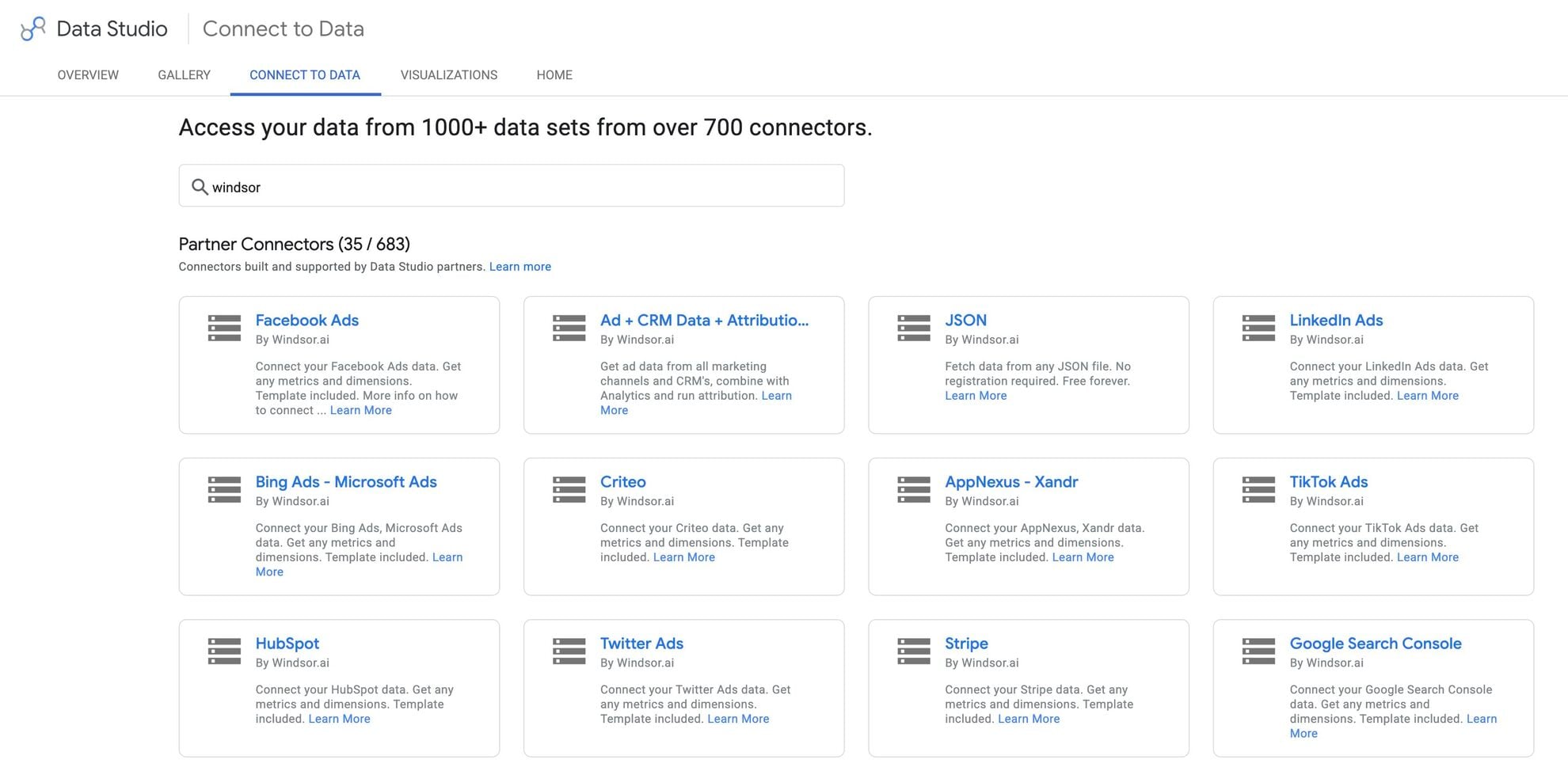
The Windsor.ai ELT connector brings your Yandex Metrica session and page-view data into Data Studio with no code.
After you connect, the data updates automatically, and you can combine it with your ad platforms and other sources in the same report.














How to connect Yandex Metrica to Data Studio in Windsor.ai
Make sure you have the following before setting up the connector:
- A Yandex account with access to the Metrica tag you want to report on (view access is enough)
- A Google account for Data Studio
- An active Windsor.ai account
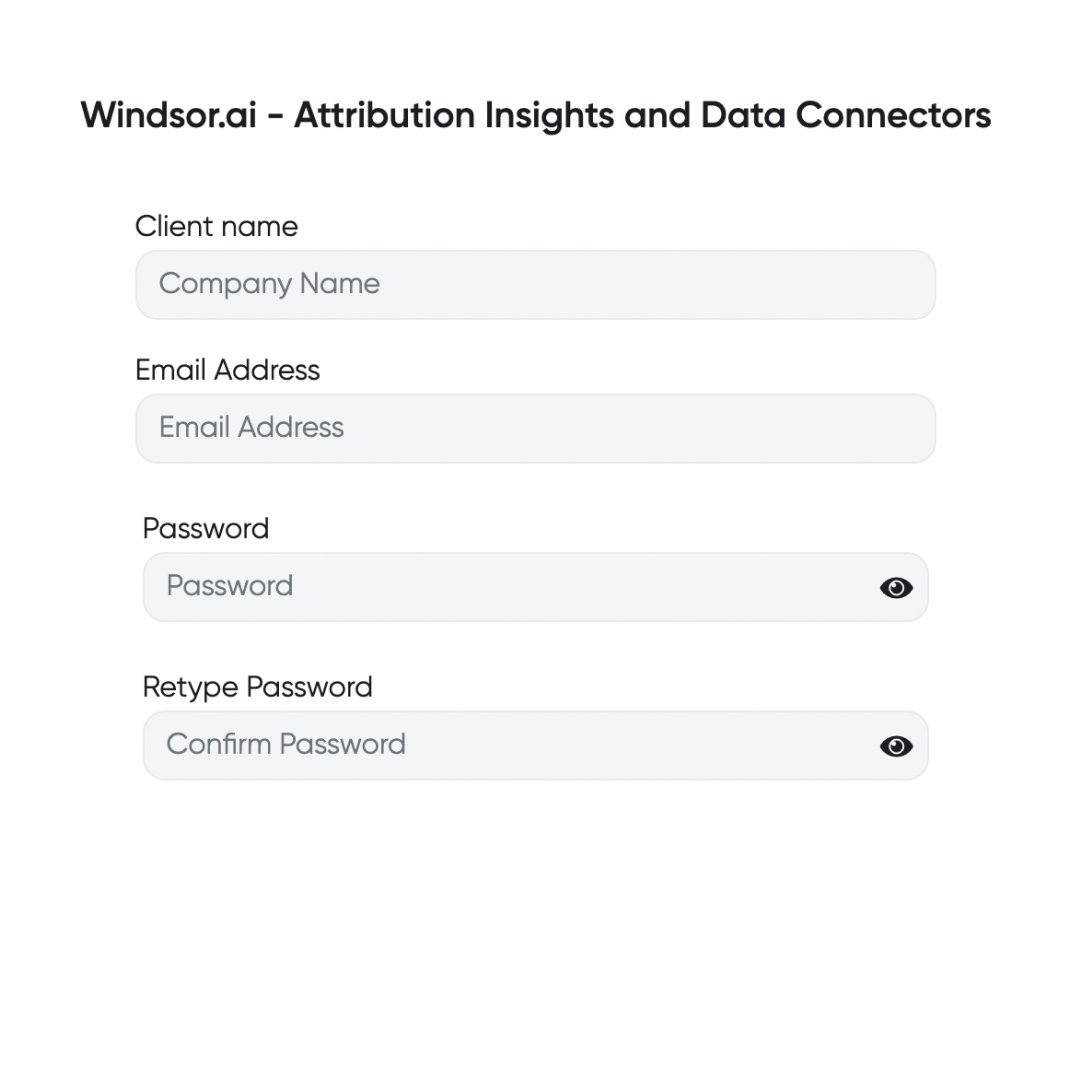
Register and log in to Windsor.ai
Create a new Windsor.ai account or log in if you already have one.
Select your data source
Choose Yandex Metrica as your data source. Windsor.ai asks for two values: a Yandex OAuth token with the metrika:read permission in Authentication Token, and your tag number in Counter ID. Paste both and click Add Account.

Select the reporting metrics and dimensions
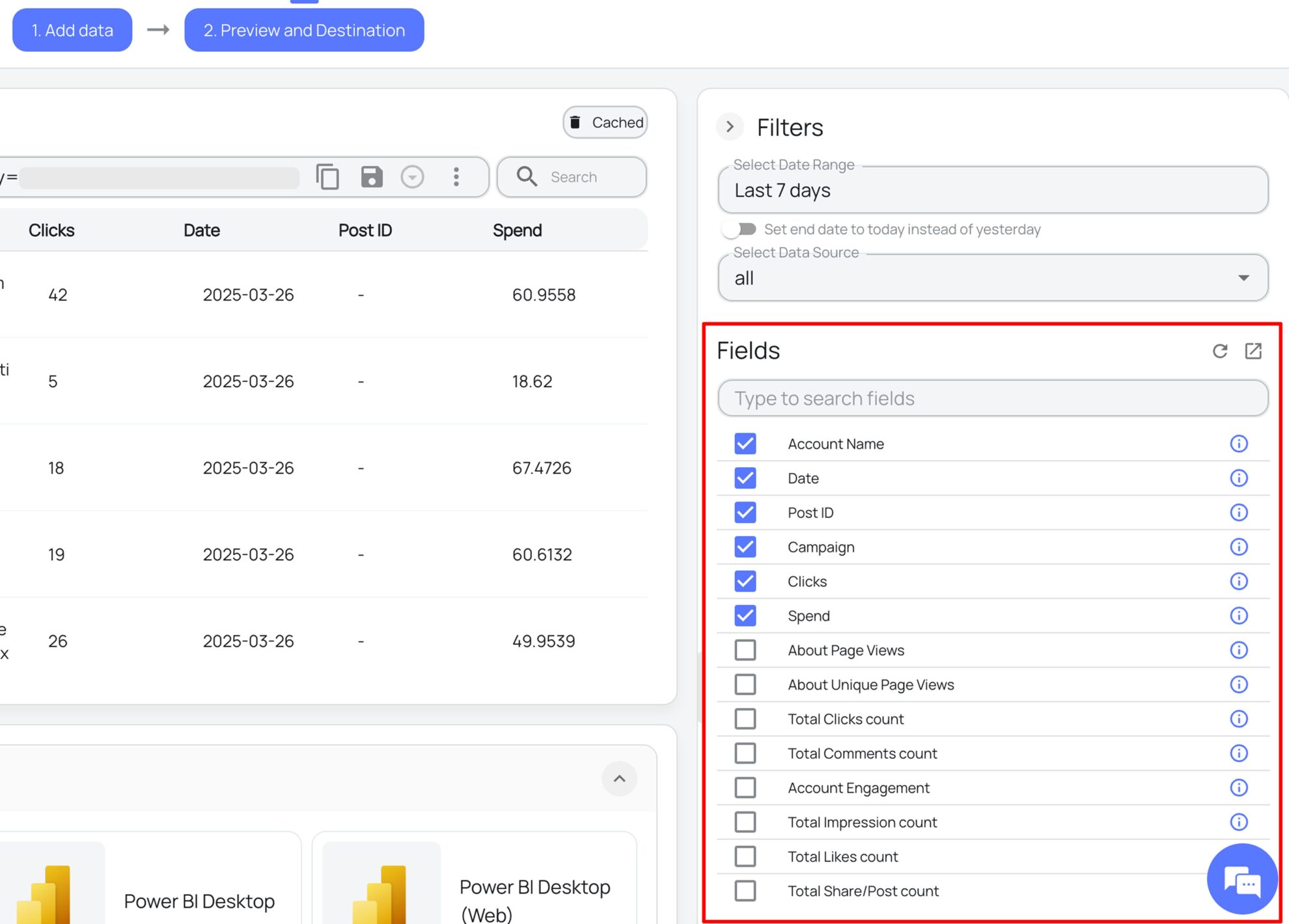
Choose the Yandex Metrica fields you want to import into Data Studio on the right side and preview your data before export.
Select Data Studio as your data destination
Scroll down to the list of data destinations and click Data Studio. Install the Windsor.ai connector by authorizing your account, selecting the required Yandex Metrica account(s), and clicking Connect → Create Report.

FAQs
What is Data Studio?
Data Studio (formerly Looker Studio) is Google’s free reporting tool. It turns data from connected sources into interactive dashboards and reports.
How much time do I need to create the Yandex Metrica and Data Studio integration with Windsor.ai?
Most setups take a few minutes: create the Yandex token, paste it with your Counter ID into Windsor.ai, choose your fields and connect Data Studio.
Do I need any technical skills to set up the integration via Windsor.ai?
No coding is needed. The one technical step is creating a Yandex OAuth token, which you do once in Yandex OAuth with a few clicks.
Can I combine Yandex Metrica data with other data sources in Data Studio?
Yes. Windsor.ai supports the integration of multiple sources, allowing users to merge Yandex Metrica metrics with platforms such as Google Ads, Facebook Ads, Google Analytics, and beyond to build comprehensive business and marketing dashboards.
Is the Yandex Metrica data updated automatically in Data Studio?
Yes. After you connect, Windsor.ai keeps pulling new Yandex Metrica data, so the report shows recent figures without manual exports.
What prerequisites are needed to set up the Windsor.ai's Yandex Metrica to Data Studio connector?
You need:
- A Yandex account with access to the Metrica tag (view access is enough) and an OAuth token for it
- A Google account for Data Studio
- An active Windsor.ai account
How do I get a Yandex Metrica token for Windsor.ai?
Create it in Yandex OAuth while signed in to the Yandex account that owns the Metrica tag or has access to it:
- Open oauth.yandex.com, create an app and choose For API access or debugging.
- Under data access, add metrika:read. If you sign in with an organization account, also add passport:business.
- Click Create app and copy the ClientID.
- Open
https://oauth.yandex.com/authorize?response_type=token&client_id=YOUR_CLIENT_IDwith your ClientID, click Allow and copy the token shown. - Paste it into the Authentication Token field in Windsor.ai.
Windsor.ai only reads your Yandex Metrica data, so metrika:read is the only Metrica permission it needs. Yandex describes the same steps in its Metrica API authorization guide.
Where do I find my Yandex Metrica Counter ID?
The Counter ID is your tag number. Yandex’s English interface calls counters “tags”. Open any report for the tag in Metrica: the number after id= in the address bar is the Counter ID. It is also in the tag code under Settings, on the Tag tab.
To report on several sites, enter each tag’s Counter ID with a token and click Add Account again.
Why did my Yandex Metrica connection stop returning data?
The token has usually expired or lost access. Yandex issues tokens for a limited time (its documentation gives one year for Metrica access as an example). A token also stops working when the Yandex account’s password changes, or when its owner loses access to the tag. Create a new token with the same steps and add it in Windsor.ai with the same Counter ID.
Do you have helpful links to get started with integrating Yandex Metrica and Data Studio using Windsor.ai?
Yes. These pages cover the Yandex Metrica fields, the Data Studio setup and ready-made templates:
- Yandex Metrica Field Reference: every session and page-view field ID with its type.
- Data Studio Integration Documentation: connecting Windsor.ai to Data Studio, step by step.
- Data Studio Dashboard Templates: ready-made reports you can copy and point at your own data.
Tired of manual Yandex Metrica data exports? Get started with Windsor.ai today to automate your reporting


