Destinations
 Data sources
 AI insights
 About us
 Careers
 Security
 Customer reviews
 Contact us
 Affiliate program
 Solution partners
 Template gallery
 Looker Studio templates
 Power BI templates
 Excel templates
 Google Sheets templates
 Tableau templates
 Facebook Ads templates
 Google Ads templates
 Data fields & Metrics
 AI prompt library & Guides
 Product documentation
 API documentation
 Case studies
 Blog
Blog Data models
 Windsor vs Supermetrics
 Windsor vs Funnel.io
 Windsor vs Fivetran
 Windsor vs Rivery
 Windsor vs Portermetrics
 Windsor vs Coupler.io
How to use “Authorize via Link” to connect external accounts in Windsor.ai
The “Authorize via Link” feature allows you to invite external users (such as clients or teammates) to securely connect their data sources directly to your Windsor.ai account, without requiring them to register, join your team, or share sensitive credentials.
When the invited user opens your authorization link, they just log in to their advertising or analytics platform (e.g., Facebook Ads, Google Ads, LinkedIn, HubSpot, etc.), select and grant access to the required account(s), and upon completion, the connection will automatically appear under your Windsor.ai account.
The Authorization Link in action:

This feature is ideal for agencies and data teams that manage multiple client accounts and are not provided with credentials for direct authorization.
Example use case
You run a digital agency that manages reports for multiple clients. Instead of asking for login data, you just send each client a unique authorization link to connect their accounts (Facebook Ads, Google Ads, etc.) to your Windsor dashboard. Clients connect their platforms once, and all reports will be updated automatically in your dashboards.
How the Authorization Link works in Windsor.ai
1. You generate a unique authorization link in your Windsor account and copy the URL.
2. You share this link with your client or external user whom you need to connect the account(s) in any data source.
3. They open the authorization link and log in to their platform(s).
4. They approve access, granting Windsor.ai permission to pull data.
5. When finished, the new connection becomes visible under your account’s Data Sources section.
You can then use that connected account in your data pipelines, dashboards, or reporting destinations (Google Sheets, Looker Studio, Power BI, etc.).
Keep in mind that the authorization link is single-use. If the invited user doesn’t connect the necessary data sources during their session, the link will expire. In that case, you can easily generate and share a new one. During one session, a user can connect as many data sources as needed (prescribed by your plan limits).
How to generate an Authorization Link
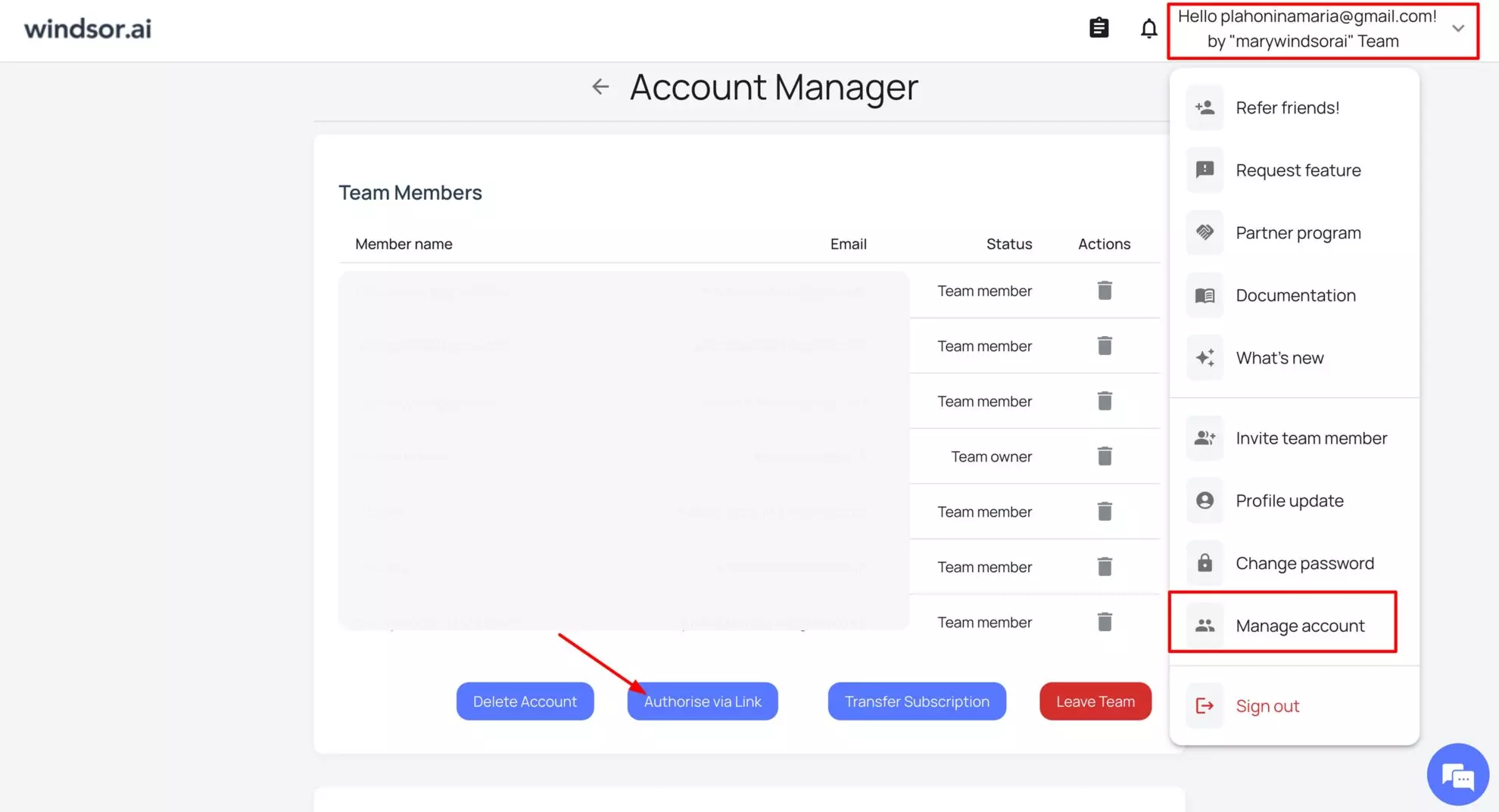
1. Log in to your Windsor.ai dashboard and navigate to settings under “Manage account.”
2. Click on the “Authorise via Link” button located below the team members list.
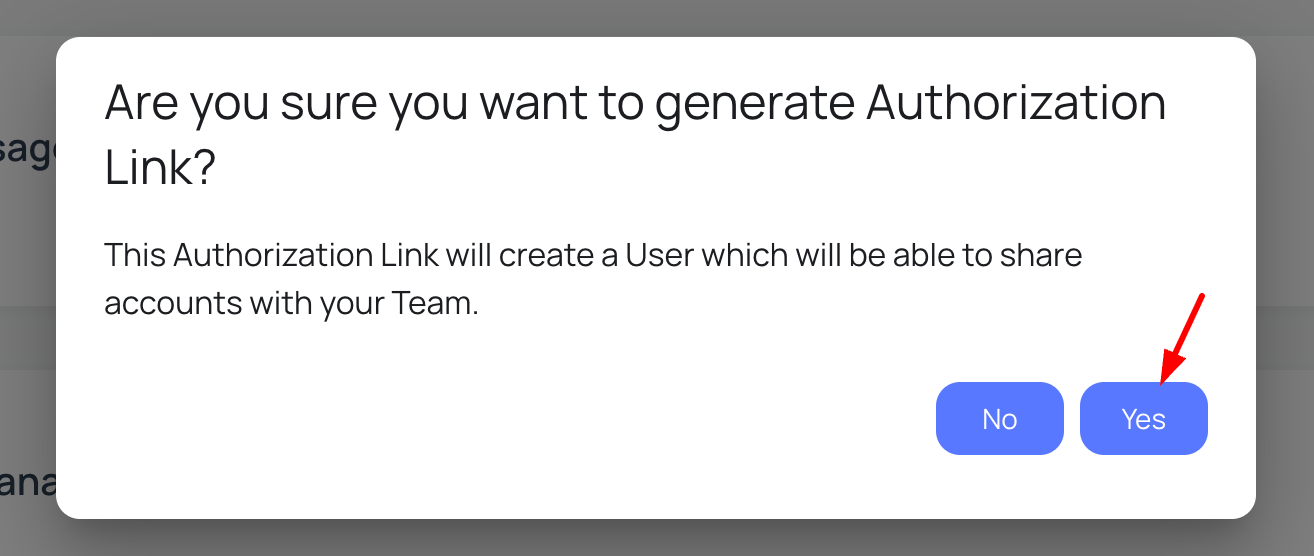
3. Confirm the action with “Yes.”
4. Copy the link URL manually or by clicking on the “Copy” button.
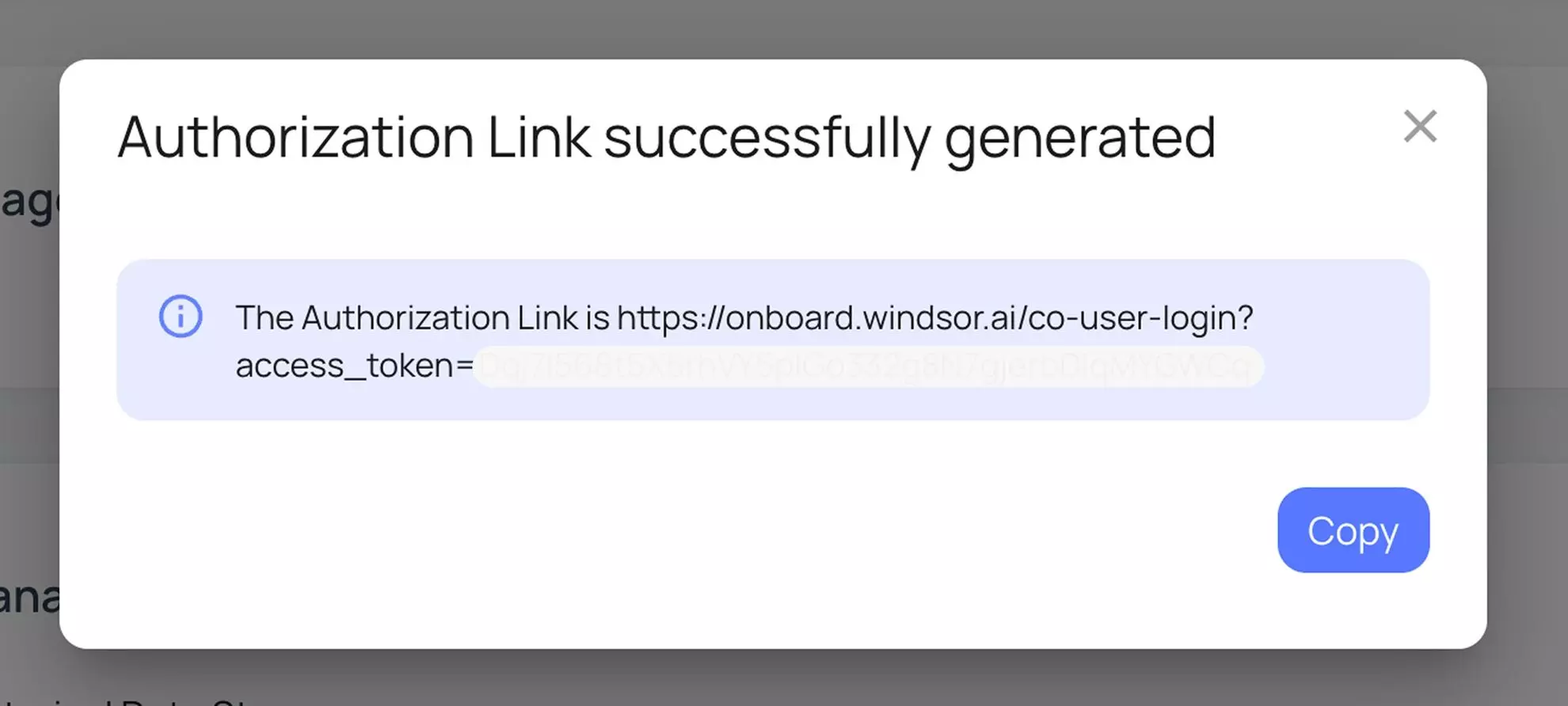
5. Share the link with an external user who should connect their data source(s).
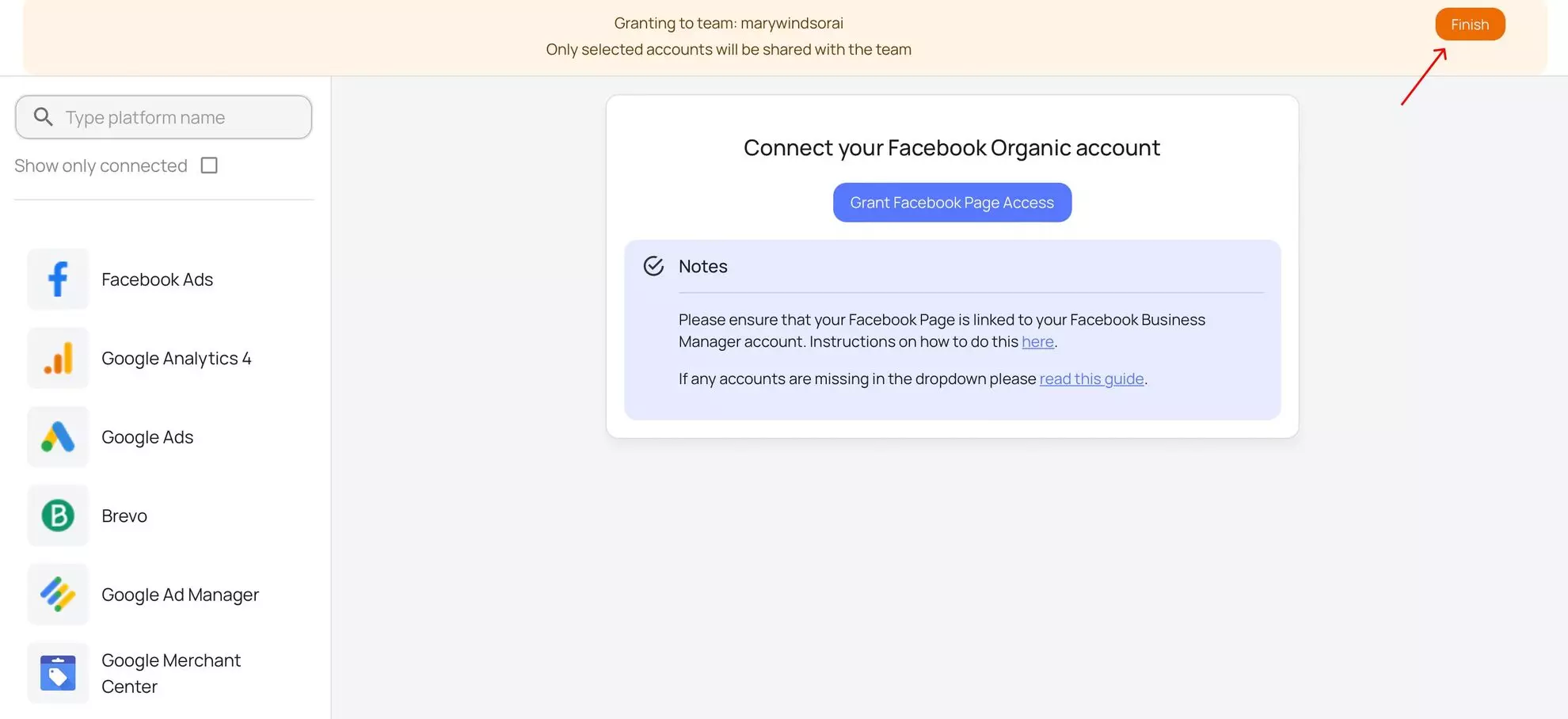
6. They open the link and connect their account(s) under one or multiple data sources. They should end the session by clicking on the “Finish” button to activate the connection.
7. When finished, you’ll see their connected account(s) appear in the Data Sources section on your side.

Security considerations when using Windsor.ai's Authorization Links
- Our external authorization process uses OAuth 2.0, ensuring that credentials aren’t shared with you directly.
- Each authorization link is unique and time-limited (for security reasons).
- The client can revoke access to their connected account at any time from their platform’s permissions page.
Tips & best practices to use Windsor.ai's Authorization Links
- Always specify which platform(s) and account(s) you’re requesting to connect in your message to clients.
- If the client has multiple accounts (e.g., several Facebook Ad Accounts), ask them to authorize only the relevant ones.
- Keep a record of which clients have already connected to which data sources.
- You can regenerate a new authorization link anytime if the old one expires.
FAQs
Will my client see my Windsor.ai account or data?
No. They access an unlogged Windsor.ai dashboard and can preview only their connected data sources.
Can I revoke a client’s connection later?
Yes, you can manage or remove authorized connections anytime in the Data Sources section.
Does the client need a Windsor.ai account to use the Authorize via Link feature?
No, they don’t have to register. The provided link allows them to connect their data sources in the unlogged state.
What happens if the authorization link expires?
Simply generate a new authorization link in your Windsor.ai dashboard following the same steps and share it with an external user.
Why don't I see the connected external account(s) under my Windsor dashboard?
Most likely, the invited user hasn’t ended the session properly, so the connection wasn’t activated. Please, ensure that your client or teammate clicked on the “Finish” button after granting access to all the required data sources.
Tired of juggling fragmented data? Get started with Windsor.ai today to create a single source of truth