 Destinations
 Data sources
 AI insights
 About us
 Careers
 Security
 Customer reviews
 Contact us
 Affiliate program
 Solution partners
 Template gallery
 Looker Studio templates
 Power BI templates
 Excel templates
 Google Sheets templates
 Tableau templates
 Facebook Ads templates
 Google Ads templates
 Data fields & Metrics
 AI prompt library & Guides
 Product documentation
 API documentation
 Case studies
 Blog
Blog Data models
 Windsor vs Supermetrics
 Windsor vs Funnel.io
 Windsor vs Fivetran
 Windsor vs Rivery
 Windsor vs Portermetrics
 Windsor vs Coupler.io
Creating custom queries in Windsor.ai for Looker Studio
This guide explains how to create custom queries in Windsor.ai and send them to Looker Studio using the native Windsor.ai connector.
With this feature, you can filter, refine, and prepare data from your data sources before streaming them into Looker Studio, saving time and effort when building custom reports.
How to create custom queries in Windsor.ai
1. Connect a data source
- Go to your dashboard at onboard.windsor.ai.
- Select and connect the required data source (e.g., Google Ads).
- Once authentication is complete, click ‘Next’ to move on.
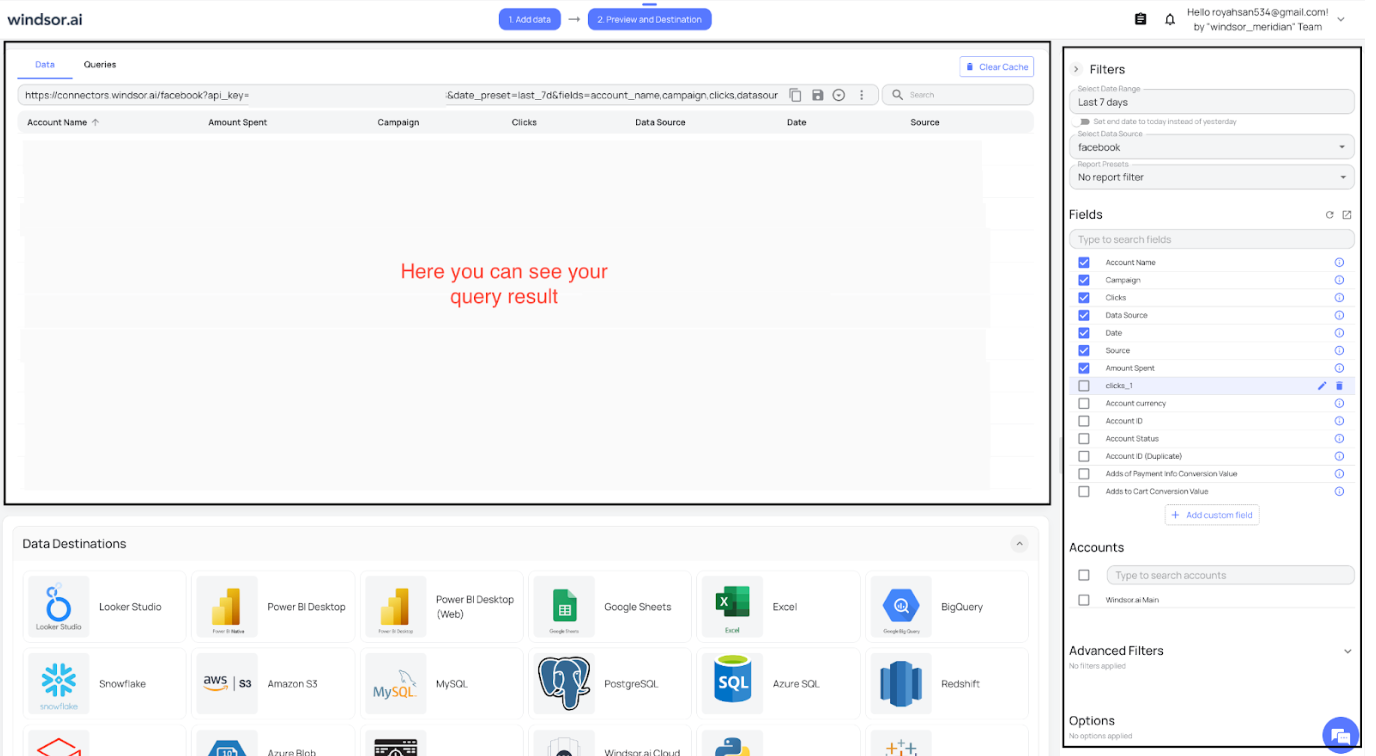
2. Configure and filter your query
On the Preview page, refine your query by selecting and filtering the data you need:
- Select time period: Choose the reporting window (last 7 days, last 30 days, this month, or custom).
- Select data source: Confirm which connected source to pull from.
- Choose fields: Pick metrics and dimensions (e.g., sessions, users, conversions, campaign name).
- Select account: If multiple accounts exist, choose the ones to analyze.
- Advanced filters & options: Further refine your dataset or exclude unwanted records.
3. Save your query
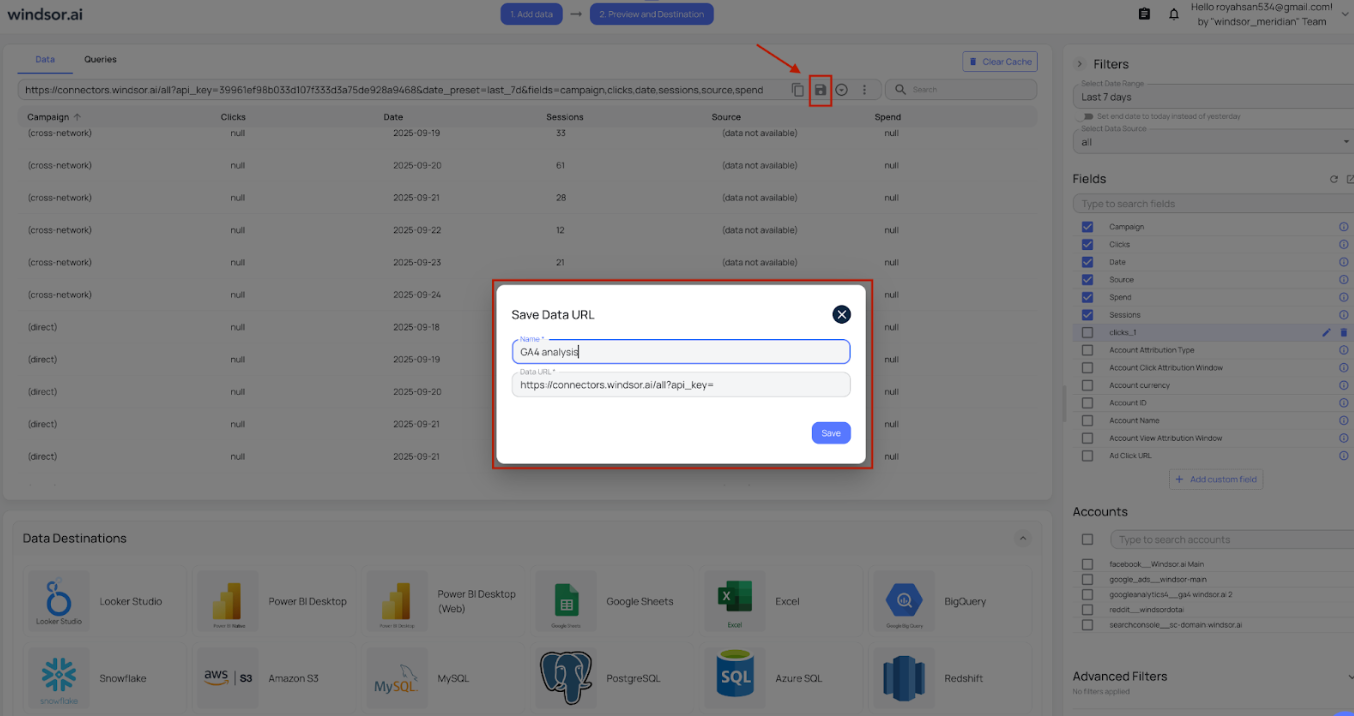
- Once your query returns the expected results, click Save.
- Enter a descriptive name to easily identify it later in Looker Studio.
4. Send data to Looker Studio
- Go to Looker Studio and log in with your account.
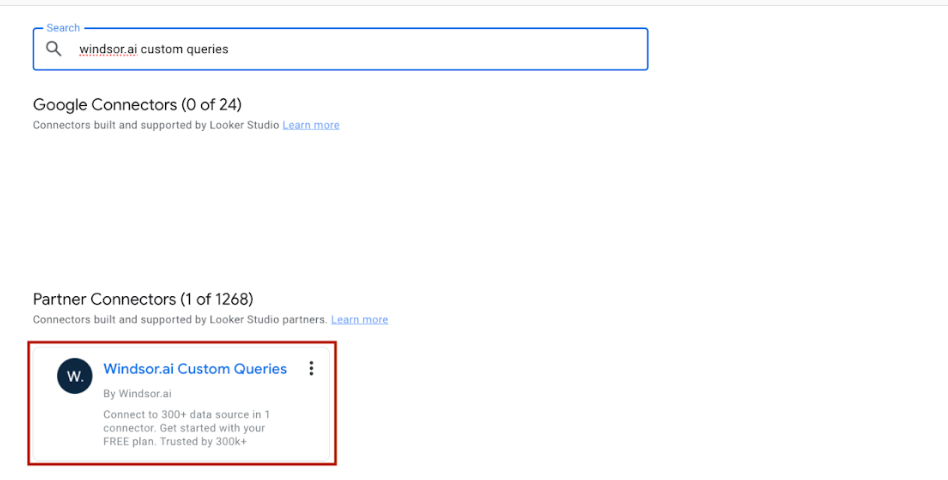
- In the connector gallery, search for ‘Windsor.ai Custom Queries’ and select it.
5. Authorization & setup process
- Grant Looker Studio access to connect to your data.
- Grant Windsor.ai access to connect to your data.
- A confirmation window will appear. Select your connected Windsor.ai data source (e.g., Facebook Ads, Google Analytics 4, etc.).
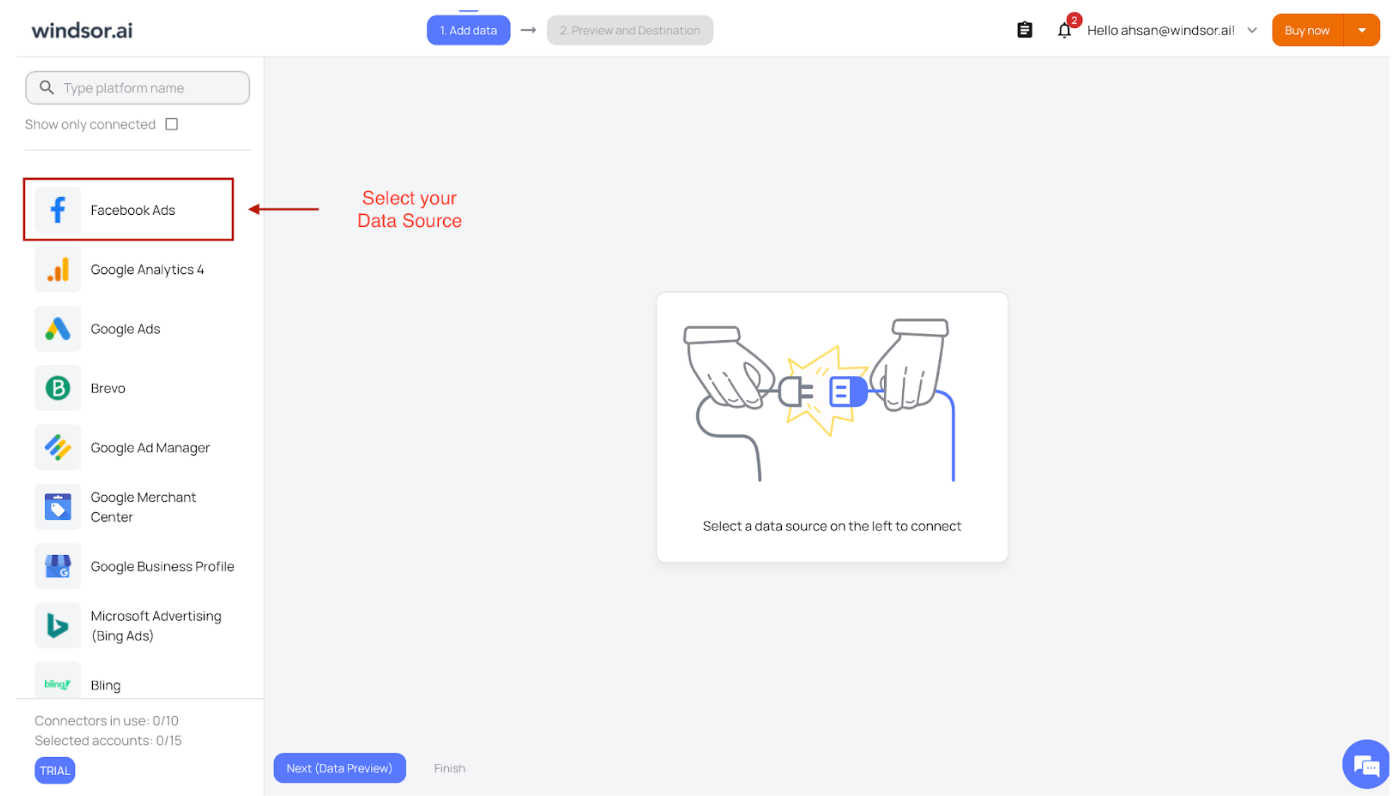
- Select your account and click ‘Finish.’
⚠️ Important: Use the same email address in Looker Studio and Windsor.ai. Authentication is only required the first time you connect.
6. Select your saved query
1. In the Select Saved URL dropdown, choose the custom query you saved earlier in Windsor.ai.

2. Click Connect to load your custom fields.

3. Then click Create Report.
🎉 Congratulations, you’ve created a custom query in Windsor.ai and connected it to Looker Studio!
7. Build your custom report
- Use the connected data to create charts, tables, and scorecards.
- Customize visualizations with your chosen dimensions and metrics.
- Add filters or date range controls to make your report interactive.

Troubleshooting common issues
When creating or connecting custom queries in Windsor.ai for Looker Studio, you may face some common issues.
Here’s how to identify and resolve them:
1. No data appears in Looker Studio
Possible cause: Your query may not return any results.
Solution:
- Double-check selected fields and filters in the Windsor.ai Data Preview dashboard.
- Expand the date range to ensure data exists.
- Confirm you selected the correct account (if multiple accounts are connected).
2. Authentication errors
Possible cause: General sign-in or authorization issues.
Solution:
- Re-authorize Windsor.ai and Looker Studio.
- Check that your account has the correct permissions for the selected data source.
3. Saved Custom Query not showing
Possible causes:
- The query was not saved correctly in Windsor.ai.
- Different email addresses were used for Windsor.ai and Looker Studio sign-ups.
Solution:
- Return to Windsor.ai and verify that the query is saved with a unique name.
- Always use the same email address for Windsor.ai and Looker Studio. If the emails don’t match, no custom query URL will appear in Looker Studio.
- Refresh the connector in Looker Studio and check the “Select Saved URL” dropdown again.
4. Data mismatch or missing fields
Possible cause: Some selected fields may not be available for your chosen data source.
Solution:
- Review the available metrics and dimensions in Windsor.ai’s preview screen.
- Remove unsupported fields from the query and re-save it.
5. Slow loading or connection timeouts
Possible cause: Large datasets or overly complex queries.
Solution:
- Apply filters to limit the scope of your query.
- Use shorter date ranges when testing.
- Reduce the number of fields in your query. You can create separate queries for different reporting needs and then combine them in a single Looker report.
Conclusion
Custom queries in Windsor.ai let you bring only the most relevant data into Looker Studio. By filtering and saving exactly what you need, you avoid clutter and make reporting more efficient.
With Windsor.ai’s query builder and native Looker Studio connector, you can streamline workflows, speed up analysis, and focus on insights that matter most.
Tired of juggling fragmented data? Get started with Windsor.ai today to create a single source of truth


