 Destinations
 Data sources
 AI insights
 About us
 Careers
 Security
 Customer reviews
 Contact us
 Affiliate program
 Solution partners
 Template gallery
 Looker Studio templates
 Power BI templates
 Excel templates
 Google Sheets templates
 Tableau templates
 Facebook Ads templates
 Google Ads templates
 Data fields & Metrics
 AI prompt library & Guides
 Product documentation
 API documentation
 Case studies
 Blog
Blog Data models
 Windsor vs Supermetrics
 Windsor vs Funnel.io
 Windsor vs Fivetran
 Windsor vs Rivery
 Windsor vs Portermetrics
 Windsor vs Coupler.io
How to add margins to different channels or campaigns using Custom Fields in Windsor.ai
When managing media budgets across multiple advertising platforms, the raw spend reported by those platforms often doesn’t reflect the cost that you want to report or bill.
You may need to add:
- Service or agency fees
- Reseller markups
- Operational cost multipliers
- Campaign-level strategy adjustments
- Rebate-reduced net costs
Instead of maintaining formulas in every dashboard, you can use Windsor.ai’s Custom Fields to apply a margin multiplier to your spend values either per channel or per campaign type.
This guide explains when and how to use Custom Fields and shows how to push your new margin-adjusted cost field to Looker Studio, Google Sheets, BigQuery, or other destinations.
About margins
A margin is a multiplier applied to your media spend to adjust it before reporting. Margins allow you to show real business-relevant cost values in dashboards, not just raw ad spend.
| Spend | Margin Multiplier | Adjusted Spend |
| $100 | 1.15 (+15%) | $115 |
| $200 | 1.10 (+10%) | $220 |
Formula:
adjusted_spend = spend * (1 + margin_percentage)
Where:
- spend = your raw media spend
- margin_percentage = expressed as a decimal (e.g., 25% becomes 0.25 and the margin multiplier is 1.25).
Why use multipliers instead of adding % manually?
When applying margins, the goal is to scale the raw spend by a percentage so that every reporting destination receives a consistent adjusted value.
Instead of adding a separate “% margin” column and manually calculating costs in Google Sheets, Looker Studio, Excel, or BI tools, we apply the margin once at the data source layer and simplify the calculation.
Using a multiplier (such as 1.20 for +20%) is clearer and safer than handling % separately.
Choosing margin method: per channel vs. per campaign
1. Per channel margin
You set a fixed margin by source or media platform.
Useful when:
- A standard fee applies across all Google Ads, Meta Ads, etc.
- Billing is based on channel categories like Paid Search or Paid Social.
| Channel | Margin % |
| Google Ads | 25% |
| Facebook Ads | 30% |
This model does not depend on campaign naming, which makes it easy to maintain even when campaign structures change.
2. Per campaign margin
Margins vary by campaign (service model, reseller vs direct, etc.).
Useful when:
- Each campaign has a different agreement or service model.
- Some campaigns are reseller campaigns, others are direct.
| Campaign Name | Margin % |
| Brand Awareness | 10% |
| Performance Lead Gen | 15% |
You can also combine both: campaign rules first, then fall back to channel defaults.
Applying per channel or per campaign spend multipliers using Custom Fields in Windsor.ai
In Windsor.ai, Custom Fields allow you to transform or enrich your data before sending it to reporting tools. When applying margins, you can use Custom Metric fields to multiply your raw spend by a margin multiplier.
This ensures that every dashboard and export receives the adjusted values, eliminating the need to add formulas manually in your destination.
How to create a Custom Field in Windsor.ai
1. Go to your windsor dashboard -> Data Preview screen.
2. Select the data sources you’re working with.
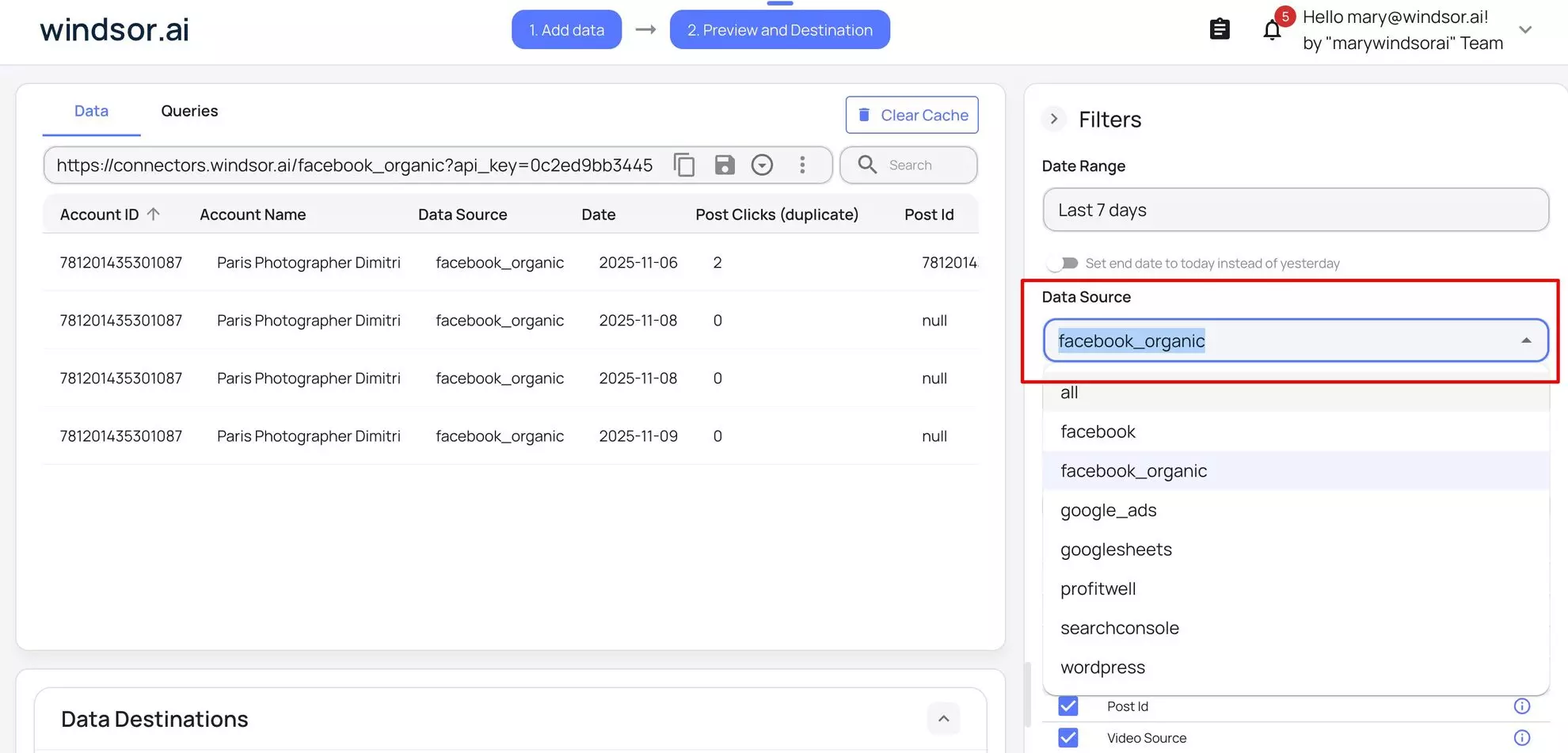
3. Click on the plus button below the available fields.

4. Enter a name for your new metric or dimension and create a formula.
Write the formula for calculating the new custom field value from your spend value according to your % of margin. You can apply a margin per channel or per campaign level.
Save and apply.
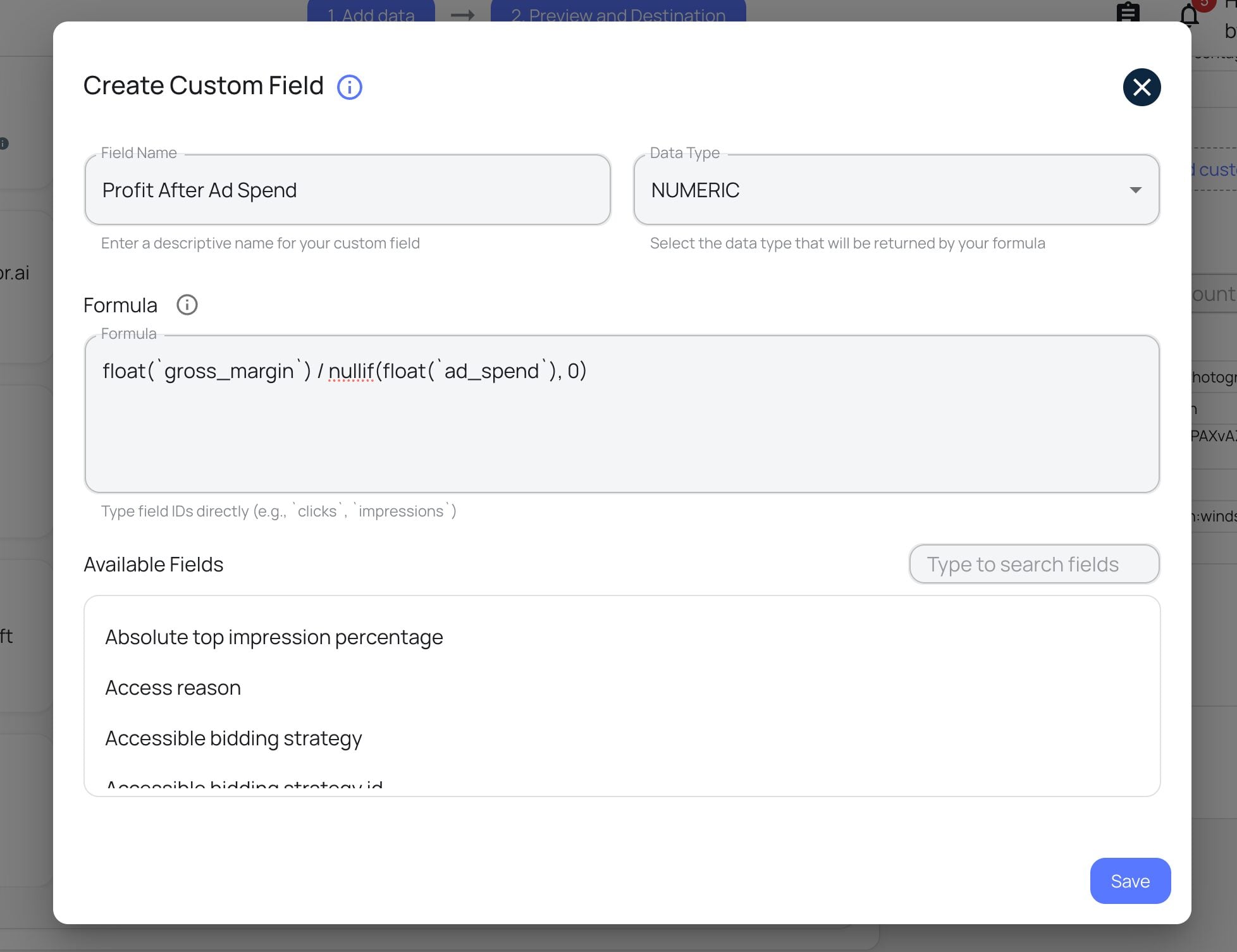

⚠️ Since margin-adjusted spend is a calculated cost value, always choose NUMERIC.
- Use NUMERIC for any value you want to use in calculations, such as spend, CPA, ROAS, CPC, etc.
- Select TEXT only if your custom field is a label. For example, when tagging campaigns as Brand, Performance, or Retargeting, and not something that will be used in calculations. Text fields can’t be summed, added, or used in mathematical formulas.
5. Once created, this new field can be pushed to any data destination, like Google Sheets, Looker Studio, BigQuery, Power BI, Tableau, Excel, etc., like a normal field.
6. After creating the field, verify the result of the formula in the destination. You will now have a custom field for your adjusted spend. No need to recreate formulas in dashboards.
| Destination | How to get the new custom field |
| Google Sheets |
Using Windsor destination task: Open the destination task and ensure spend_with_margin is selected in the field list, then refresh the sheet. Using the Windsor Google Sheets add-on: In your sheet, click Extensions -> Windsor.ai -> in the field selector panel, search and select your custom field with an updated spend. |
| Looker Studio/Excel | The new custom field will now appear in your list of metrics. Now you can use it in charts and tables. |
| BigQuery | Open your Windsor BigQuery destination and re-run the task or wait for the next scheduled sync. The new custom field column will appear automatically in your table upon the next load. |
| Power BI / Tableau | Refresh your data model. The new field will show as part of the data source and can be used like any other metric. |
| For all other destinations | If your destination supports schema refresh, just refresh the page and look for the new field by the name you created (like spend_with_margin). |
Formula examples
Note: For all the examples, we will be using margin multipliers. According to your % margin, please calculate your multiplier value as per the formula mentioned in the beginning of this guide.
Example 1: Standard agency fee by platform
Let’s say your agency charges different service fees for each platform.
- Google Ads: 20%
- Facebook Ads: 30%
- Bing Ads: 15%
Formula:
spend * to_float(
  lookup(
    coalesce(datasource, ""),
    '[ ["google_ads", "1.20"], ["facebook", "1.30"], ["bing", "1.15"] ]',
    '1',
    'eq'
  )
)
If spend = $100 on Facebook: 100 × 1.30 = $130
Example 2: Apply margin only to paid platforms
In case you want to apply the margin only to paid media channels.
For example,
- Google Ads & Facebook: 25%
- Other sources: No margin
Formula:
spend * to_float(
  lookup(
    coalesce(datasource, ""),
    '[ ["google_ads", "1.25"], ["facebook", "1.25"] ]',
    '1',
    'eq'
  )
)
If spend = $200 from Google Ads: $200 × 1.25 = $250
If spend = $50 from other channels: $50 × 1 = $50 (no margin applied)
Example 3: No margin for organic or direct traffic
If you don’t want to apply a margin to organic or direct traffic.
The rule:
- Organic or Direct traffic: 0%
- Apply margin to all other channels: 25%
Formula:
spend * to_float(
  lookup(datasource,
    '[["direct","1"],["organic","1"],["email","1"]]',
    '1.25',
    'eq'
  )
)
If spend = $100 for paid channel: $100 × 1.25 = $125
Define the field that correctly represents this traffic and replace the “datasource” field with it.
Example 4: Apply 30% margin to a specific campaign
Let’s say you have a campaign named “Campaign A”; this specific campaign should include a 30% margin. All other campaigns should remain unadjusted.
Formula:
spend *
if(
  'Campaign A' in campaign_name,
  1.30,
  1
)
This is a direct string match. The margin only applies to this campaign and not to any others.
Example 5: Apply margins based on campaign naming patterns
In case you want to apply different margins depending on the type of campaign.
For example,
- Lead generation campaigns: 35%
- Brand campaigns: 15%
- Retargeting campaigns: 10%
- All other campaigns: No margin
You can use a lookup with the “contains” operator to locate those campaigns.
Formula:
spend * to_float(
  lookup(campaign_name,
    '[ ["pmax", "1.35"], ["brand", "1.15"], ["retarget", "1.10"] ]',
    '1',
    'contains'
  )
)
Conclusion
Applying margins directly in Windsor.ai using Custom Fields allows you to adjust your media spend values before they reach your dashboards or other reporting destinations. This means you no longer need to maintain separate spreadsheets, manual markup calculations, or repeated formulas across different BI tools.
As your campaign strategy, pricing, or fee models evolve, you can simply update the formula in Windsor.ai, and the change will propagate automatically to all connected destinations upon refresh.
This guarantees long-term maintainability and reduces the risk of inconsistencies in reporting
FAQs
Will applying margins change my historical data?
To apply the margin to historical periods, ensure your export or dashboard queries include the relevant date ranges.
If you need to backfill historical data, trigger a full resync for the desired time period in your destination.
Can I combine both per channel and per campaign rules?
Yes. The recommended pattern is:
- Apply campaign-level rules first.
- If no match, fall back to channel-level margin. This ensures both accuracy and consistency.
Do all Windsor.ai destinations support Custom Fields for applying margins?
Yes. Once created, the new field becomes part of your data source schema that can be applied to any destination.
Can this custom margin be used in ROAS or CPA calculations?
Yes, you can use it like any other field.
Tired of juggling fragmented data? Get started with Windsor.ai today to create a single source of truth


