 Destinations
 Data sources
 AI insights
 About us
 Careers
 Security
 Customer reviews
 Contact us
 Affiliate program
 Solution partners
 Template gallery
 Looker Studio templates
 Power BI templates
 Excel templates
 Google Sheets templates
 Tableau templates
 Facebook Ads templates
 Google Ads templates
 Data fields & Metrics
 AI prompt library & Guides
 Product documentation
 API documentation
 Case studies
 Blog
Blog Data models
 Windsor vs Supermetrics
 Windsor vs Funnel.io
 Windsor vs Fivetran
 Windsor vs Rivery
 Windsor vs Portermetrics
 Windsor vs Coupler.io
How to integrate data into Supabase with Windsor.ai
What is Supabase?
Supabase is a development platform that helps developers build applications without having to create and manage most of the backend infrastructure themselves. It is built around PostgreSQL, a powerful relational SQL database.
Windsor.ai turns Supabase into a centralized analytics database that automatically stays up to date with data from hundreds of external services.
How to connect Supabase to Windsor.ai
1. Create your Supabase account if you don’t have one.
2. Log in to your Windsor.ai account or register if you don’t have one.
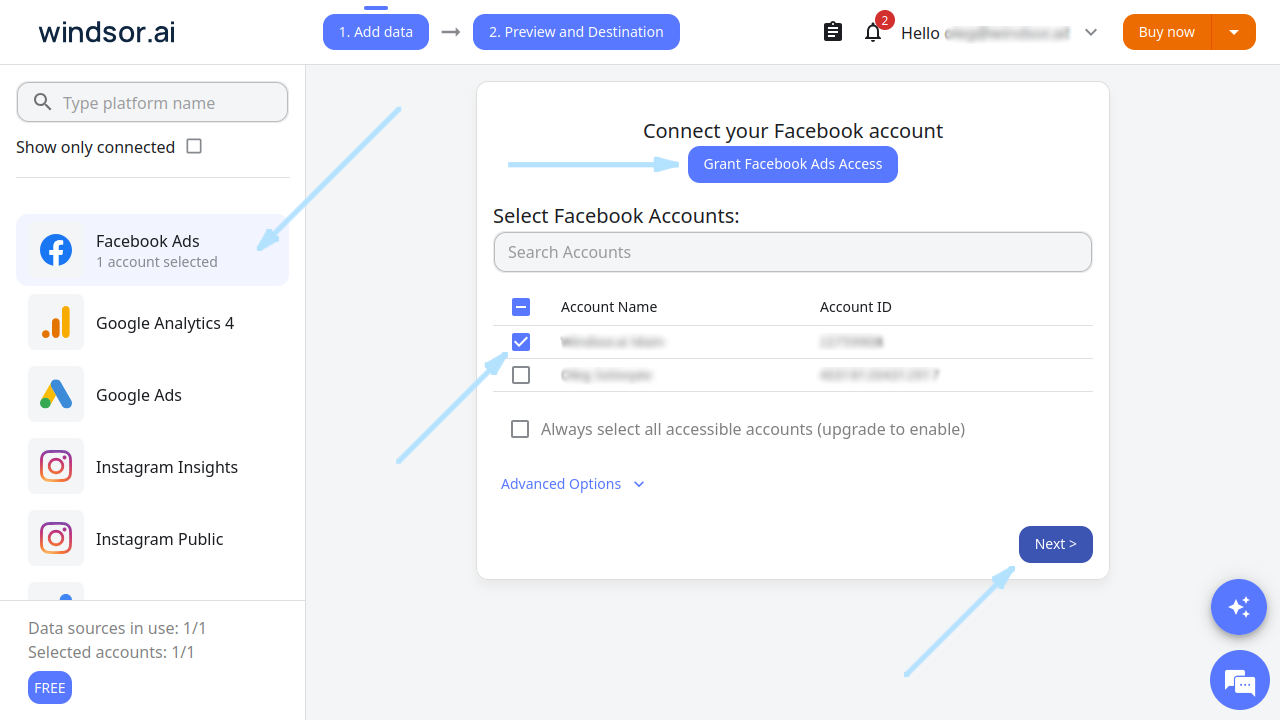
3. Select the data source from which you want to streaom data, e.g., Facebook Ads. Sign in with your associated Facebook account and click the Next button.
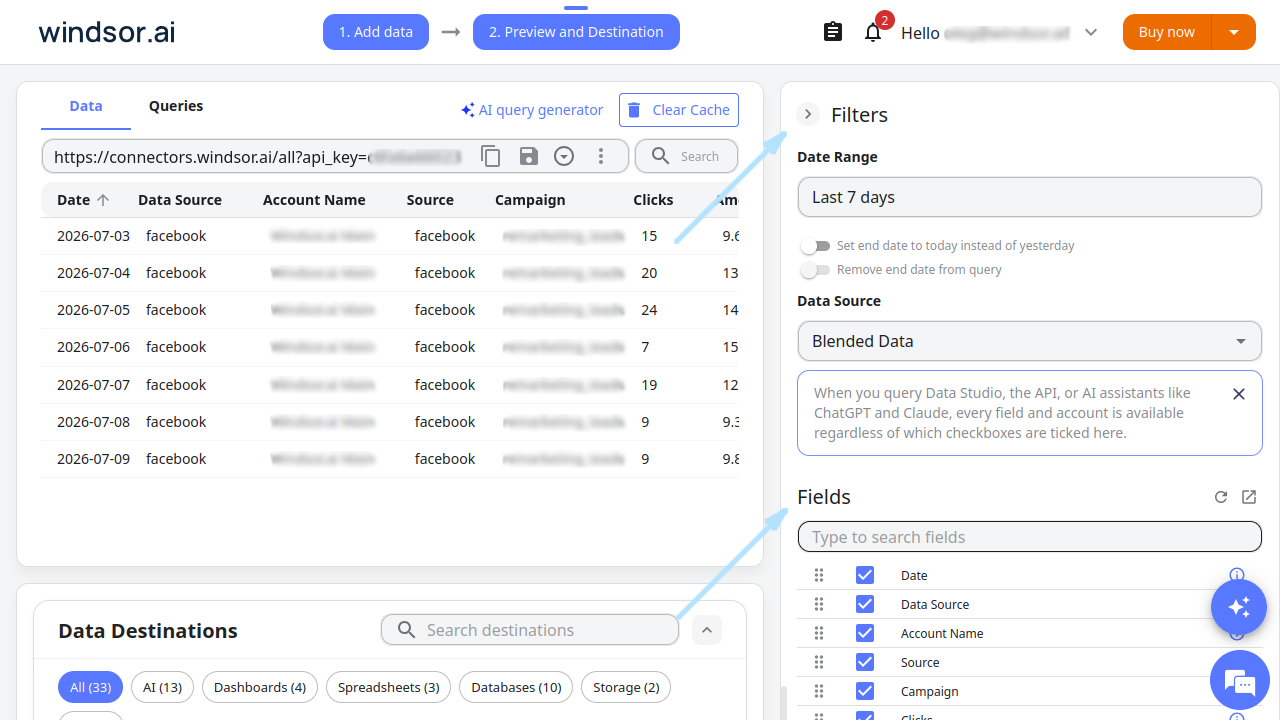
4. Select the Filters and Fields you’d like to send to Supabase for analysis.
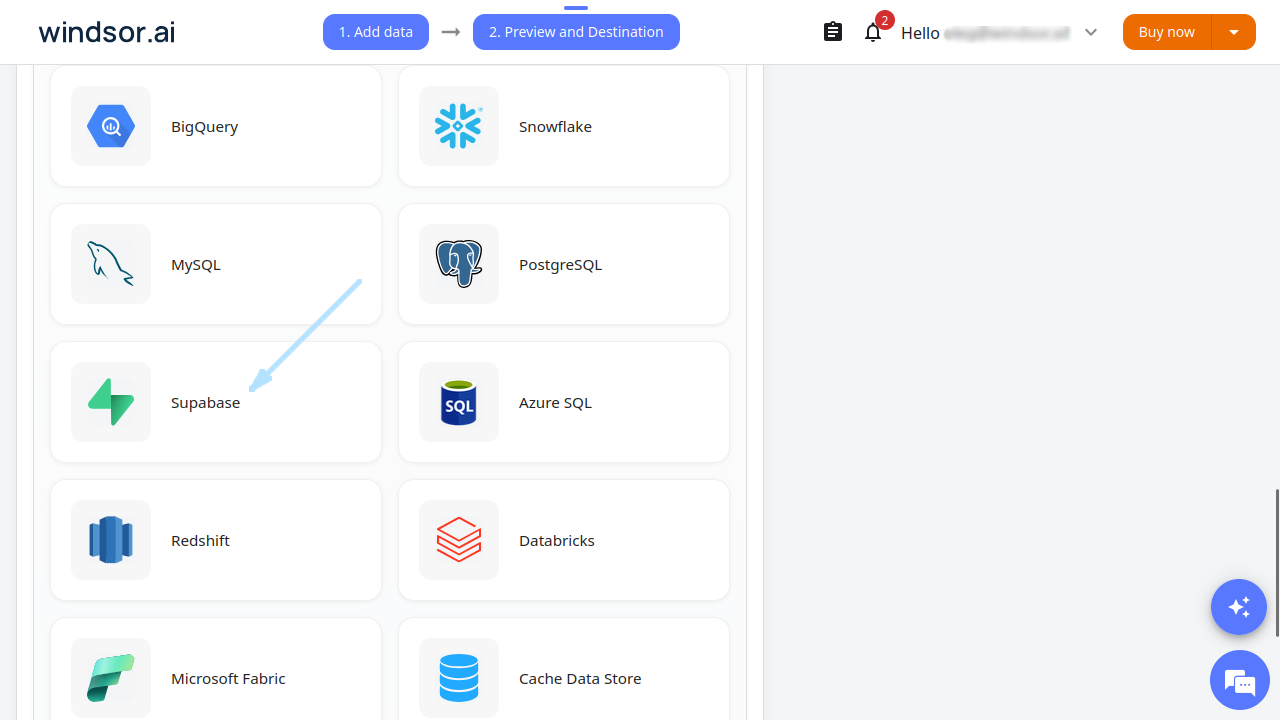
4. Scroll down to data destinations and click Supabase.
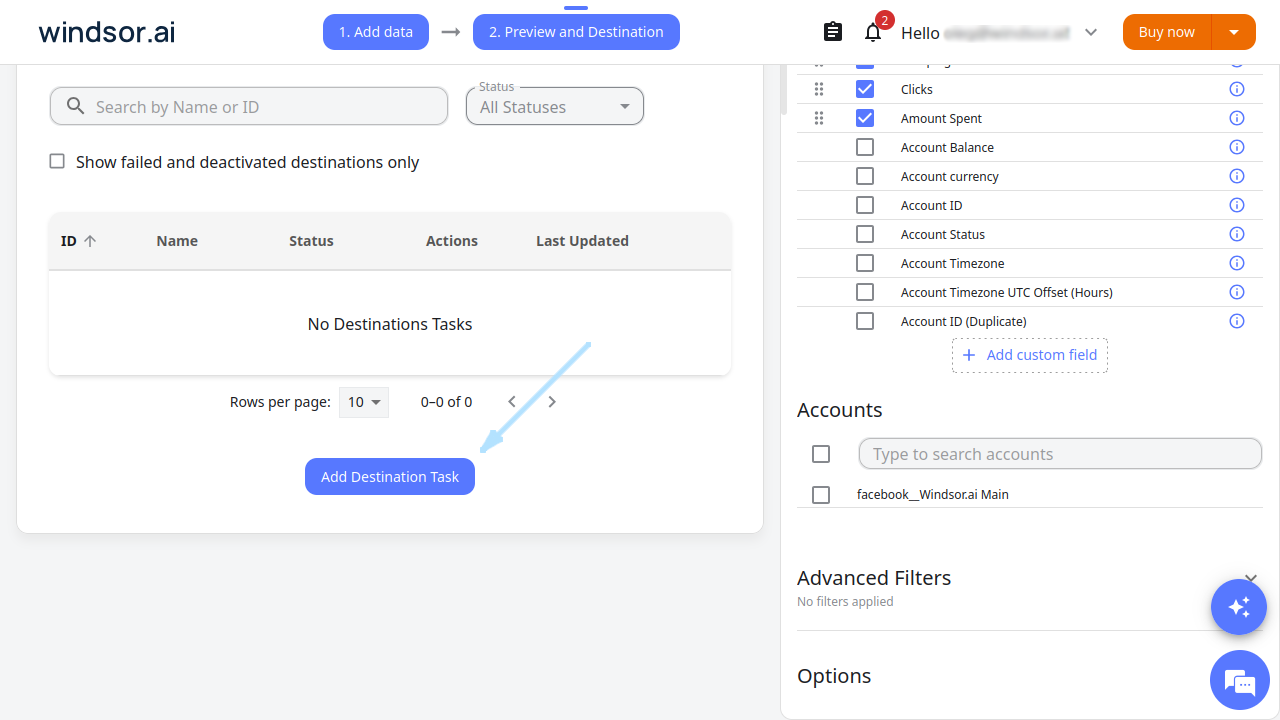
5. Click the Add Destination Task button.
5. Click the Connect Supabase button.
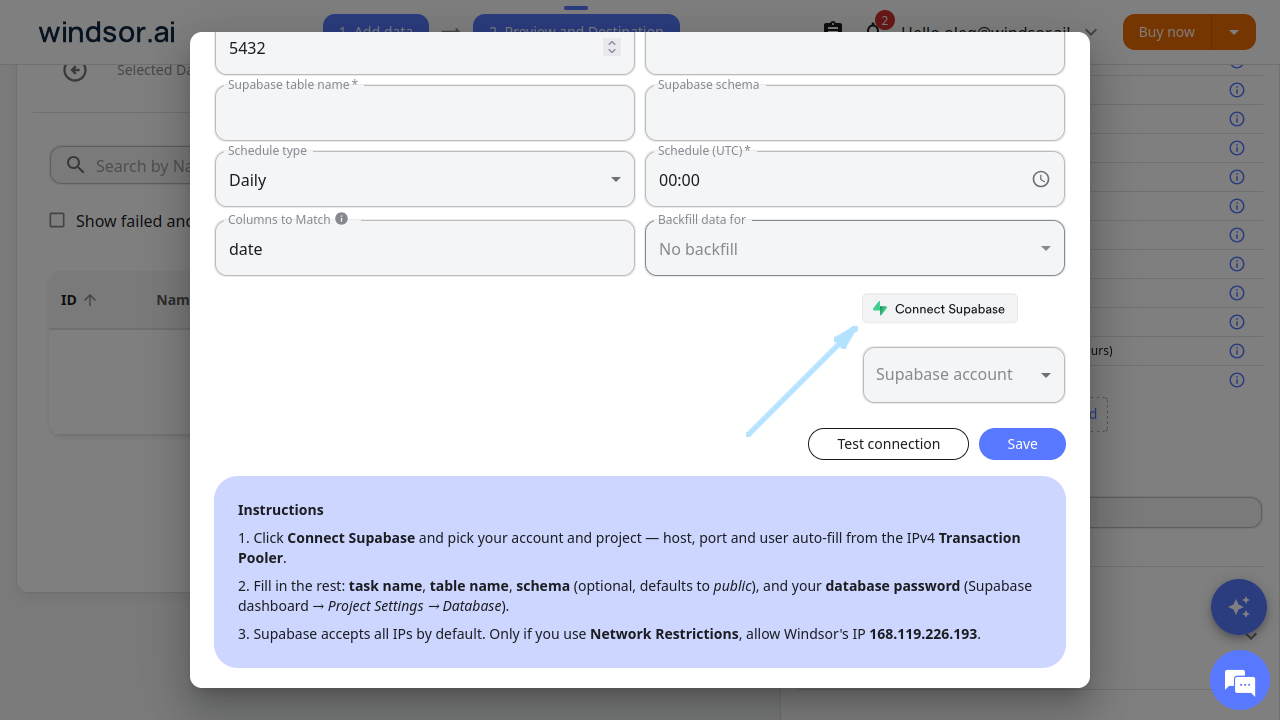
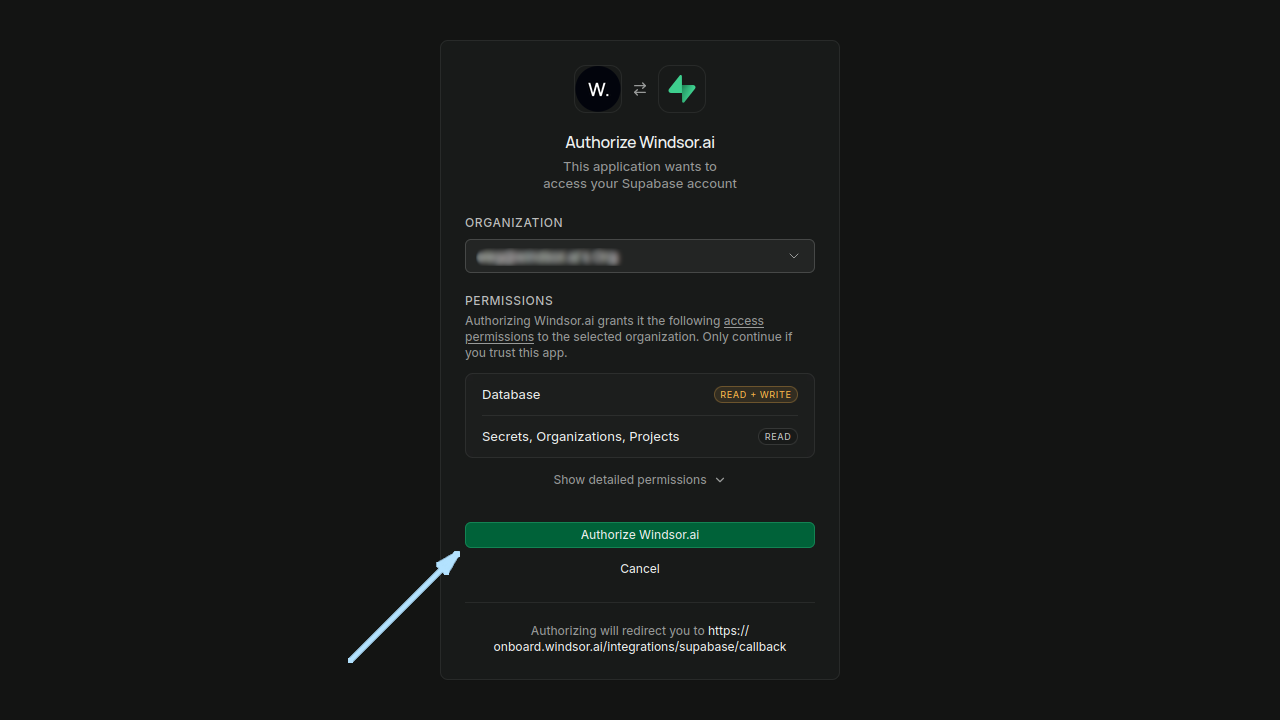
6. Enter all the required Supabase credentials if you are not logged in and click the Authorize Windsor.ai button:
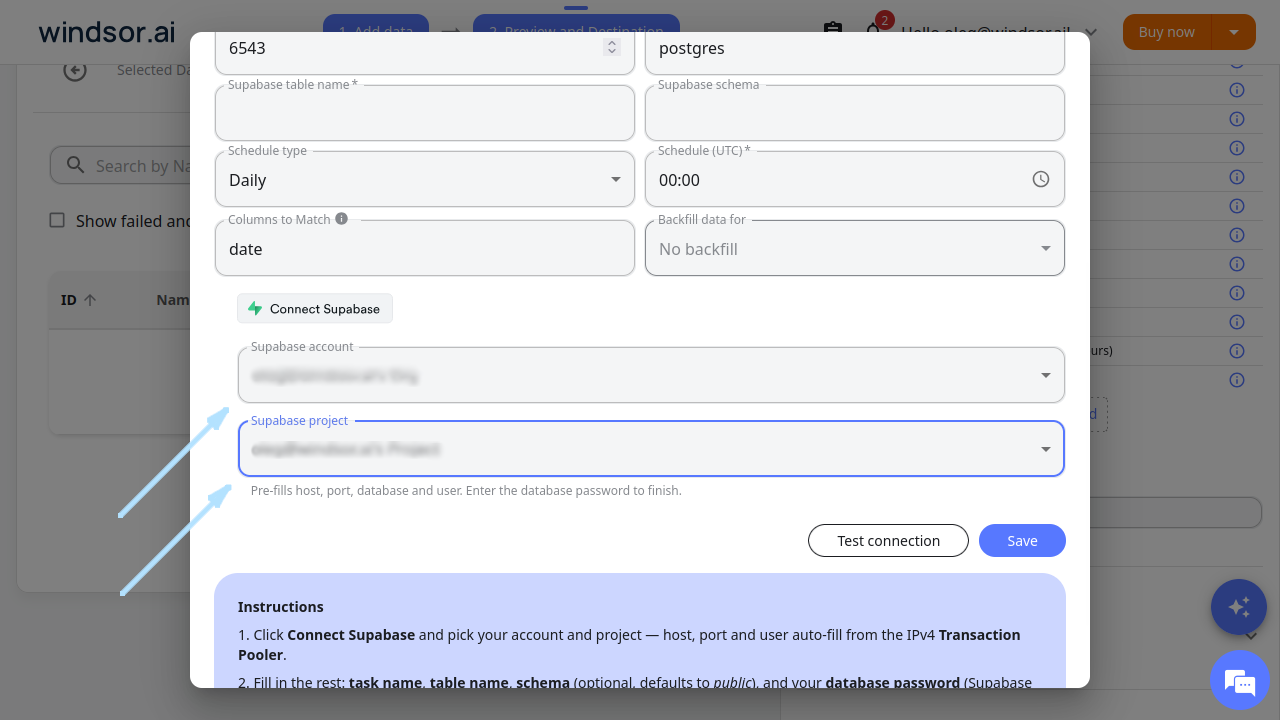
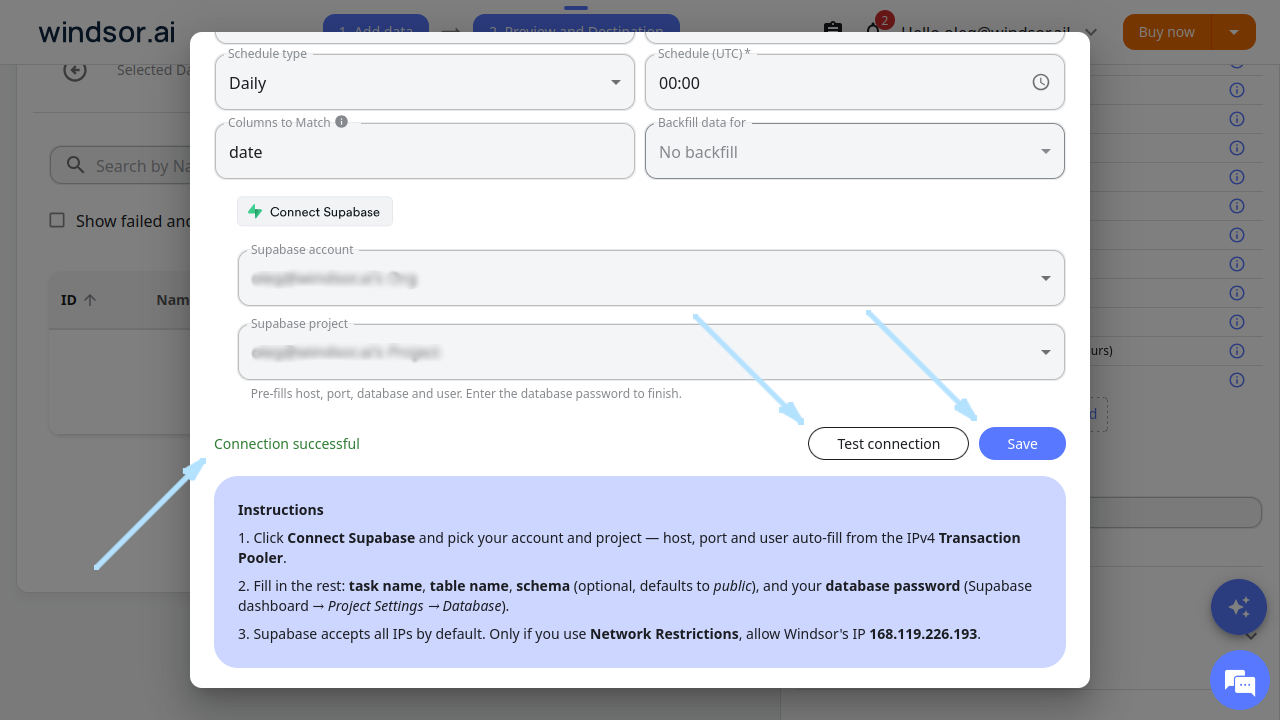
7. Select the Supabase account and Supabase project you want to export your data into.
8. Fill in the Task name, Supabase password (PostgreSQL password), and Supabase table name fields.
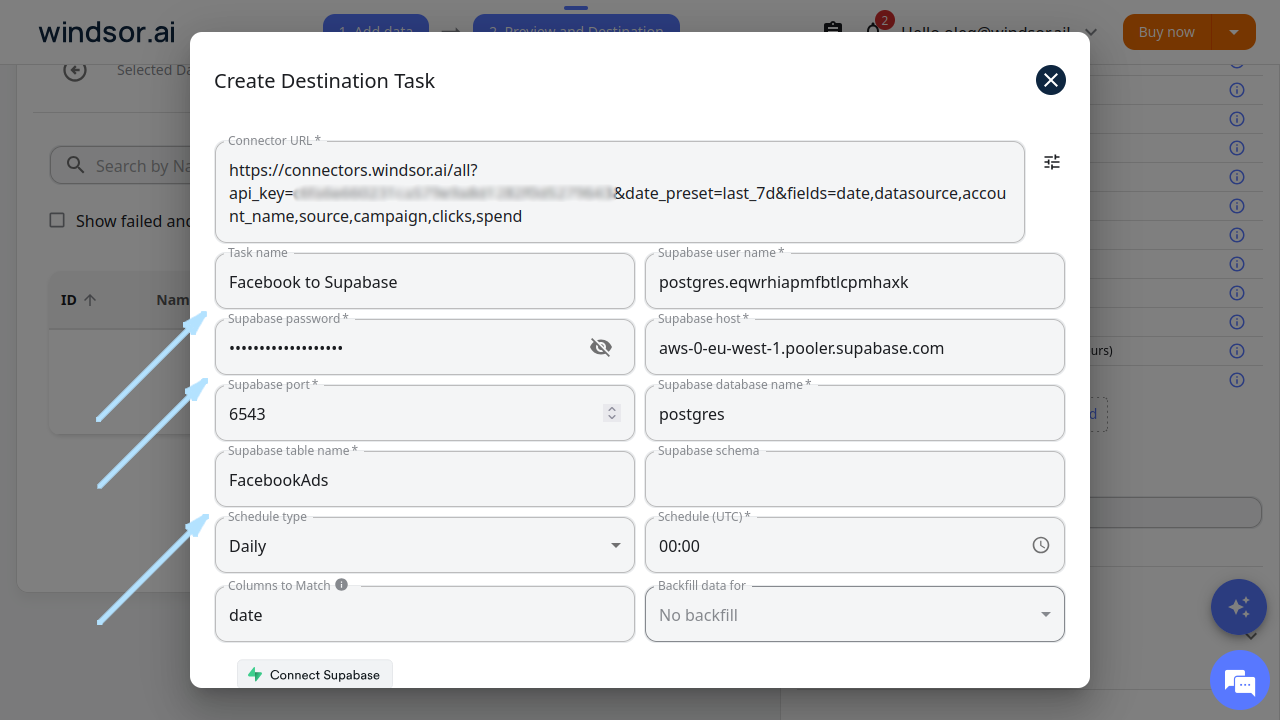
9. Click the Test Connection button. If the connection is set properly, you’ll see a success message at the bottom; otherwise, an error message will appear. When successful, click the Save button in the lower-right corner of the form. The data stream to the Supabase database will start.
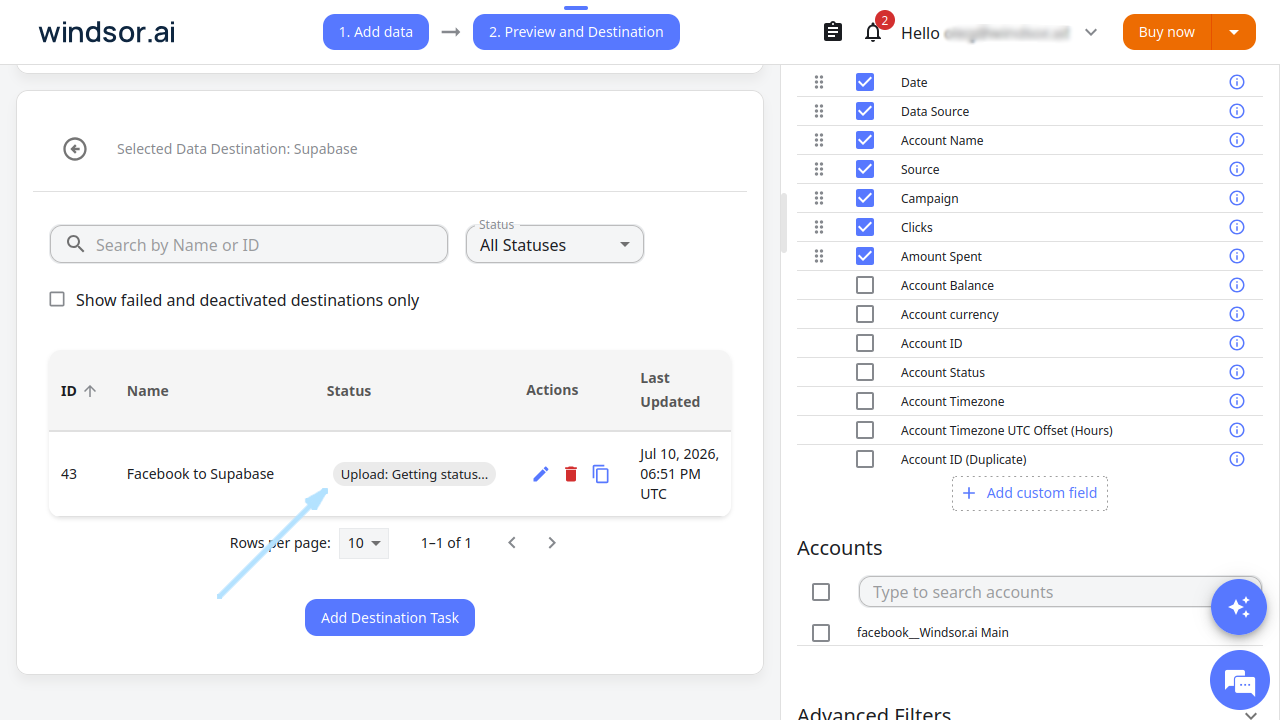
10. You can now see the task running in the selected data destination section.
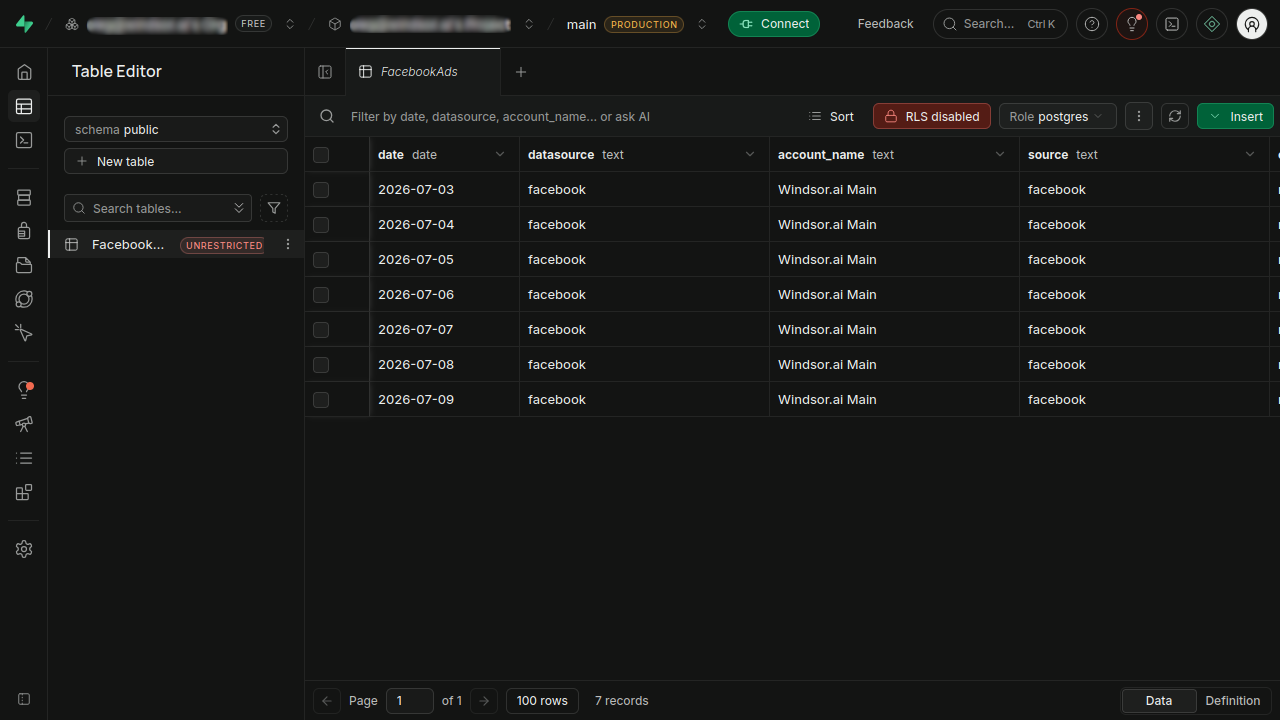
11. Open your Supabase account to verify that your data has been imported.
FAQs
Are there any size limitations for the data streamed to Supabase?
Windsor.ai can handle large datasets, but the data size may depend on your PostgreSQL database capacity and Supabase subscription plan.
Can I schedule automated reports from Windsor.ai to Supabase?
Yes, Windsor.ai allows you to automate data transfers to Supabase by configuring the schedule type and selecting when the data stream should run.
What credentials do I need to connect Supabase with Windsor.ai?
You’ll need to grant Windsor.ai access to your Supabase account using OAuth and provide PostgreSQL password.
What should I do if the connection test between Windsor.ai and Supabase fails?
Make sure you have the following things in place:
- The correct Supabase (PostgreSQL) host, username and password.
- If the table was already present, the table columns match the fields in your data.
How can I ensure the security of my data when using Windsor.ai?
Windsor.ai ensures secure data access through OAuth authentication and encrypted data transfer protocols.
Is it possible to integrate additional data sources with Supabase via Windsor.ai?
Yes, Windsor.ai supports 350+ data sources, including Facebook Ads, Google Analytics, Salesforce, and many other popular platforms. You can connect any supported data source to Supabase using a similar setup process, enabling seamless cross-channel analysis.
Tired of manually transferring data to Supabase? Try Windsor.ai today to automate the process


