 Destinations
 Data sources
 AI insights
 About us
 Careers
 Security
 Customer reviews
 Contact us
 Affiliate program
 Solution partners
 Template gallery
 Looker Studio templates
 Power BI templates
 Excel templates
 Google Sheets templates
 Tableau templates
 Facebook Ads templates
 Google Ads templates
 Data fields & Metrics
 AI prompt library & Guides
 Product documentation
 API documentation
 Case studies
 Blog
Blog Data models
 Windsor vs Supermetrics
 Windsor vs Funnel.io
 Windsor vs Fivetran
 Windsor vs Rivery
 Windsor vs Portermetrics
 Windsor vs Coupler.io
How to use BigQuery Data Transfer Service with Windsor.ai
The Google BigQuery Data Transfer Service (DTS) allows you to automatically load data from Windsor.ai into BigQuery on a scheduled basis, without manual exports or custom pipelines.
While this guide focuses on setting up BigQuery data transfers via DTS, Windsor.ai also provides a native BigQuery integration via an in-app destination task for more flexible data delivery and control. You can choose the approach that best fits your workflow.
Prerequisites
1. Google Cloud Project
- You have an active project in Google Cloud Platform
- Billing is enabled for the project
2. Enroll Windsor.ai data source
To use Windsor.ai connectors, you must first enroll them via the GCP Marketplace:
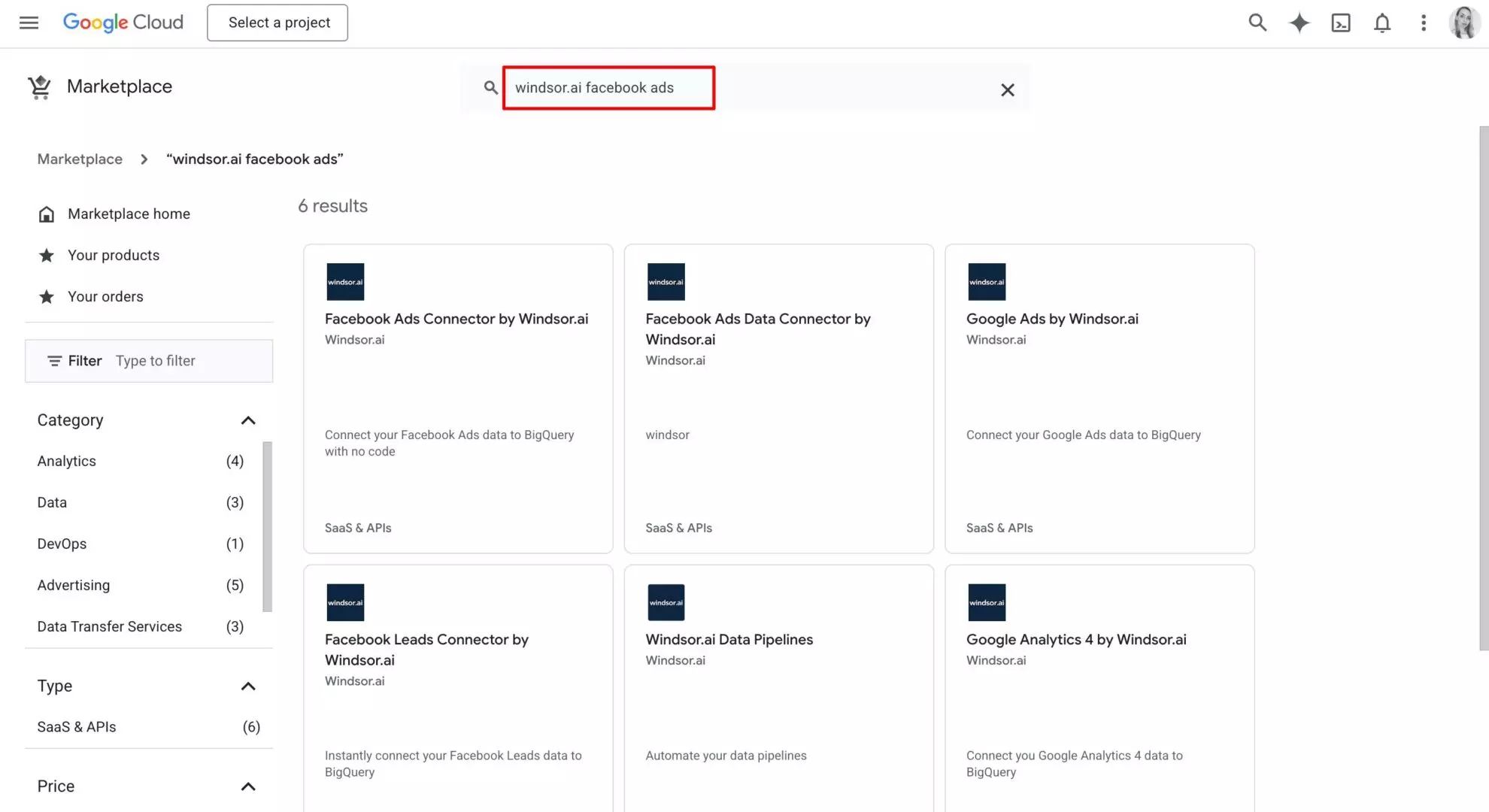
1. Go to the Google Cloud Marketplace and search for Windsor.ai.
2. Select the data source you want to connect to BigQuery (e.g., Facebook Ads connector).
3. Open the connector page and click Enroll.
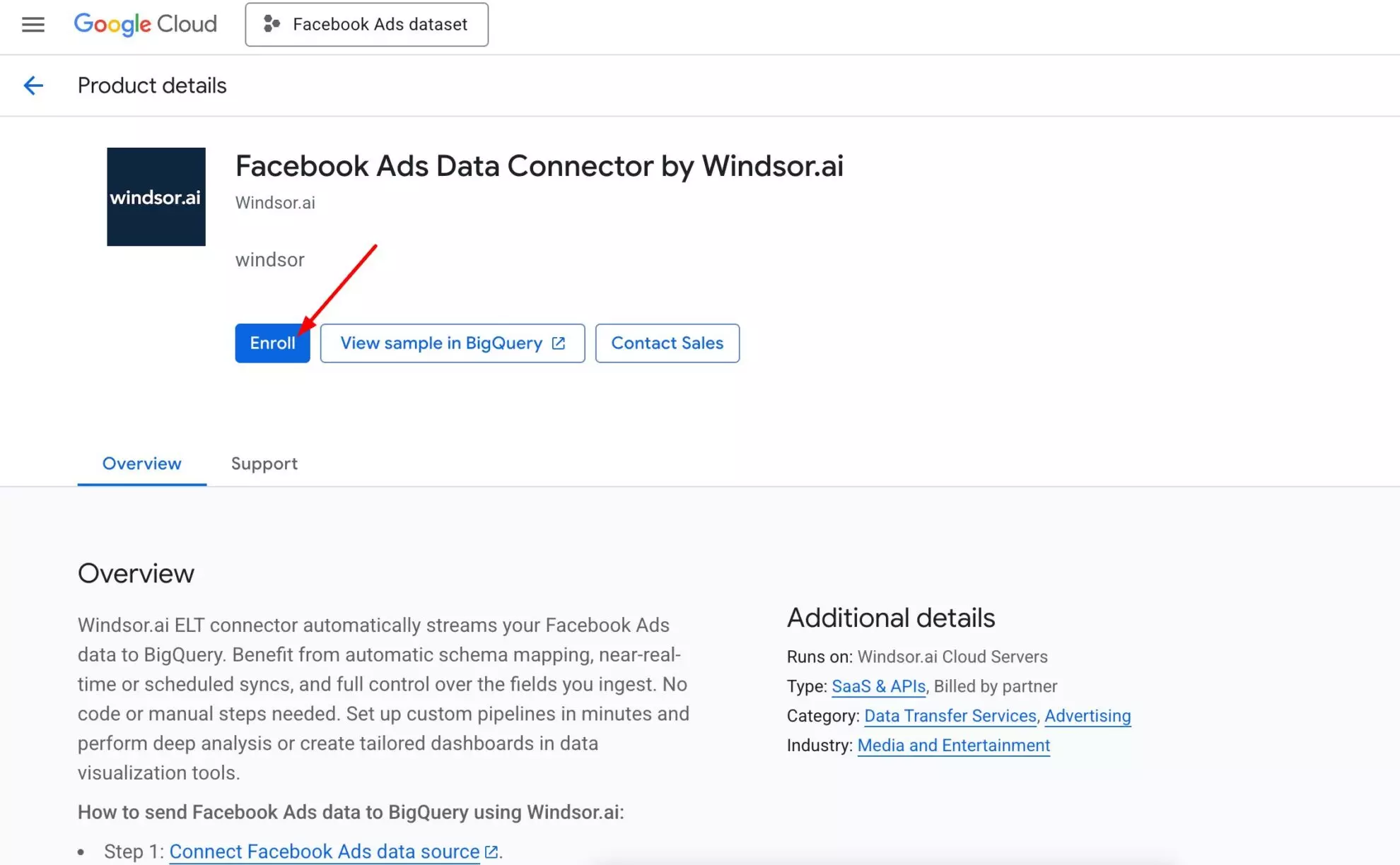
4. Choose the project where the transfer will run.
👉 Only enrolled sources will appear later during setup.
3. Required permissions
To create datasets and transfers, you need proper access in BigQuery.
You have two options:
Option A (simpler):
- Assign BigQuery Admin role
- ⚠️ Grants broad access
Option B (recommended):
- Create a custom role with:
-
bigquery.transfer.get-
bigquery.transfer.updateApply it at the dataset level for tighter control
-
4. Dataset location
Your dataset must be in one of the supported regions:
USEU
(Other regions are not supported for Windsor.ai DTS).
Additional setup (VPC service controls)
If your organization uses VPC Service Controls (VPC SC), additional configuration is required.
VPC SC restricts data movement across security perimeters, which can block data transfers.
To allow Windsor.ai transfers:
- Add Windsor’s project to your perimeter OR
- Configure ingress/egress rules
Use these Windsor.ai project details:
-
Project ID:
bigquery-connectors-public -
Project Number:
294890415393
Refer to the VPC Service Controls documentation for setup.
Steps to sync Windsor.ai with BigQuery using DTS
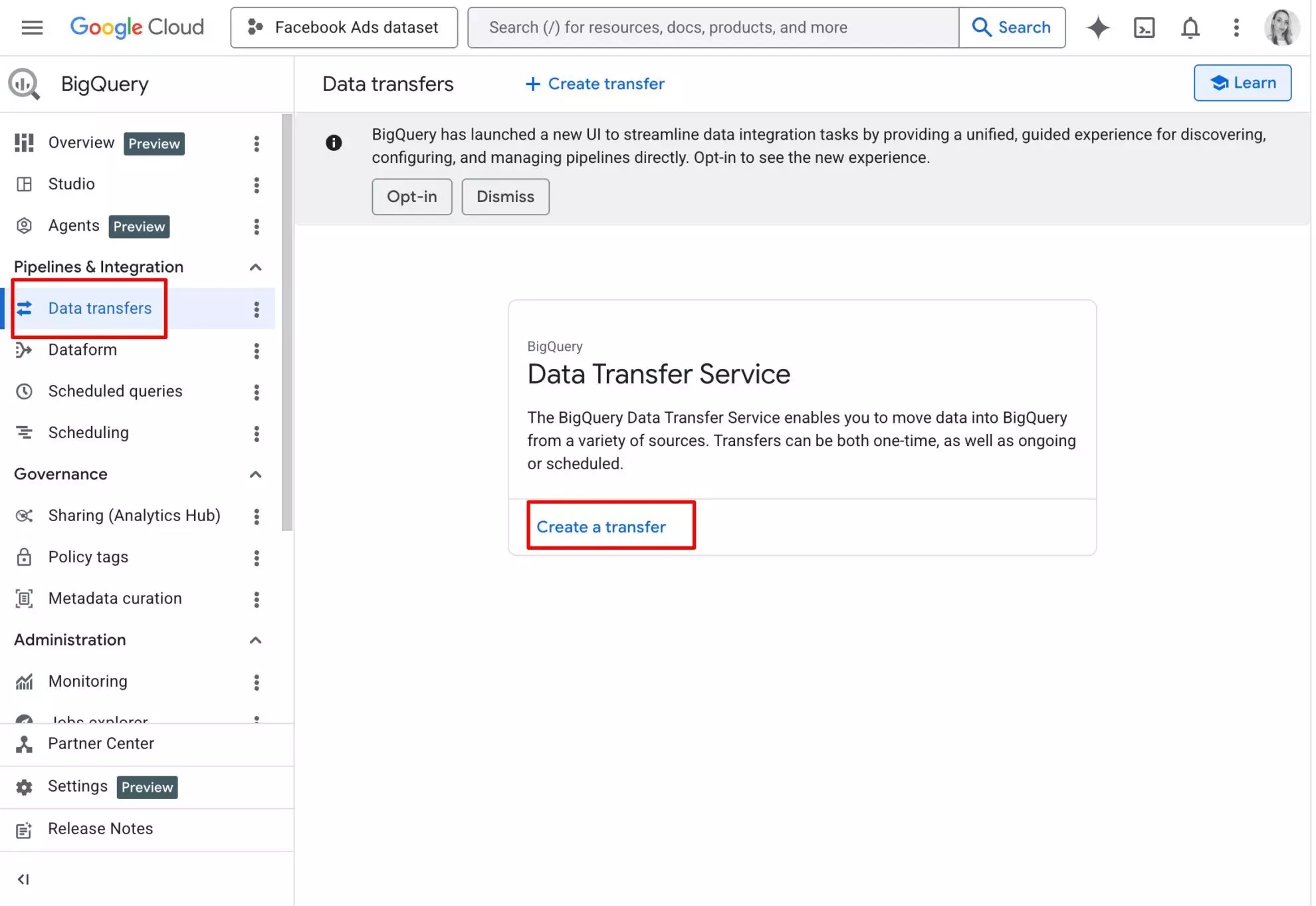
1. Open BigQuery transfers:
- In Google Cloud Console, navigate to: BigQuery → Data Transfers.
2. Create a new transfer:
- Click Create a transfer.
3. Select data source:
- Choose your Windsor.ai data source.
- (If you don’t see it, make sure it’s enrolled).
4. Configure transfer by filling the required fields:
- Display name – Name your transfer.
- Destination dataset – Select or create a dataset.
-
Refresh window – Number of days to backfill each run (Default:
2 days).
5. Connect Windsor.ai:
- Click Connect source.
- A pop-up will appear:
- Log in to your Windsor.ai account.
- Select the accounts/data sources you want to sync.
- Click Finish.
6. Save transfer.
Once configured:
- Data will automatically sync based on the schedule
- Each run updates recent data based on your refresh window
- No manual exports or API work needed
Monitoring & running transfers
After saving, you’ll be redirected to the Run History page.
Here you can:
- Monitor transfer status
- View logs and errors
- Trigger manual runs if needed
Common pitfalls & reasons
- Data source not visible → Not enrolled in Marketplace
- Transfer fails → Missing permissions
- No data → Windsor account not properly connected
- Errors with VPC SC → Missing perimeter rules
⚙️ Automate your Google BigQuery pipelines with Windsor.ai—from ingestion to ready-to-query datasets. Try it now!
Tired of juggling fragmented data? Get started with Windsor.ai today to create a single source of truth


