 Destinations
 Data sources
 AI insights
 About us
 Careers
 Security
 Customer reviews
 Contact us
 Affiliate program
 Solution partners
 Template gallery
 Looker Studio templates
 Power BI templates
 Excel templates
 Google Sheets templates
 Tableau templates
 Facebook Ads templates
 Google Ads templates
 Data fields & Metrics
 AI prompt library & Guides
 Product documentation
 API documentation
 Case studies
 Blog
Blog Data models
 Windsor vs Supermetrics
 Windsor vs Funnel.io
 Windsor vs Fivetran
 Windsor vs Rivery
 Windsor vs Portermetrics
 Windsor vs Coupler.io
HubSpot connector: common issues and how to fix them
When using HubSpot as a data source in Windsor.ai, you may encounter issues such as timeouts, data duplication, or mismatched results compared to your CRM. This guide outlines the most common problems, explains why they occur, and provides troubleshooting steps and valuable recommendations for a smooth experience.
Fundamental things you should know about the HubSpot connector
First of all, ensure that your connector is properly authenticated and has all required permissions before querying data.
To start data sync, check how you query data in HubSpot. Look out for date fields and the report type (e.g., contact report). Then replicate the same settings in the HubSpot connector using Date Options and Base Association.
1. Authentication and its associated issues
If the HubSpot connector fails to authenticate, it’s often due to missing API scopes.
Before starting data sync, make sure your connector has all necessary permissions. The following scopes are required for full access to HubSpot objects and features:
-
crm.objects.contacts.read
-
crm.schemas.contacts.read
-
crm.objects.companies.read
-
crm.objects.deals.read
-
crm.schemas.companies.read
-
crm.schemas.deals.read
-
crm.objects.custom.read
-
crm.schemas.custom.read
-
content
-
business-intelligence
-
crm.objects.owners.read
-
tickets
-
forms # for /v3/forms/ endpoint
-
conversations.read # for channels_*/channelaccounts_* fields
Missing any required scope will prevent the connector from retrieving data for that object.
Optional scopes:
-
marketing.campaigns.read
-
marketing.campaigns.revenue.read
⚠️ If you encounter a permissions error, double-check your OAuth token, ensure all required scopes are granted, and reconnect the account in Windsor.ai.
2. Date Options and their associated issues
By default, if no date option is specified, the Windsor connector defaults to: last_modified_date. If you want to query your data by another date field (i.e, close_date), you need to select it accordingly.
Always tell the connector exactly what data you want to retrieve by using a specialized Date Options filter located at the bottom of the right-side settings.
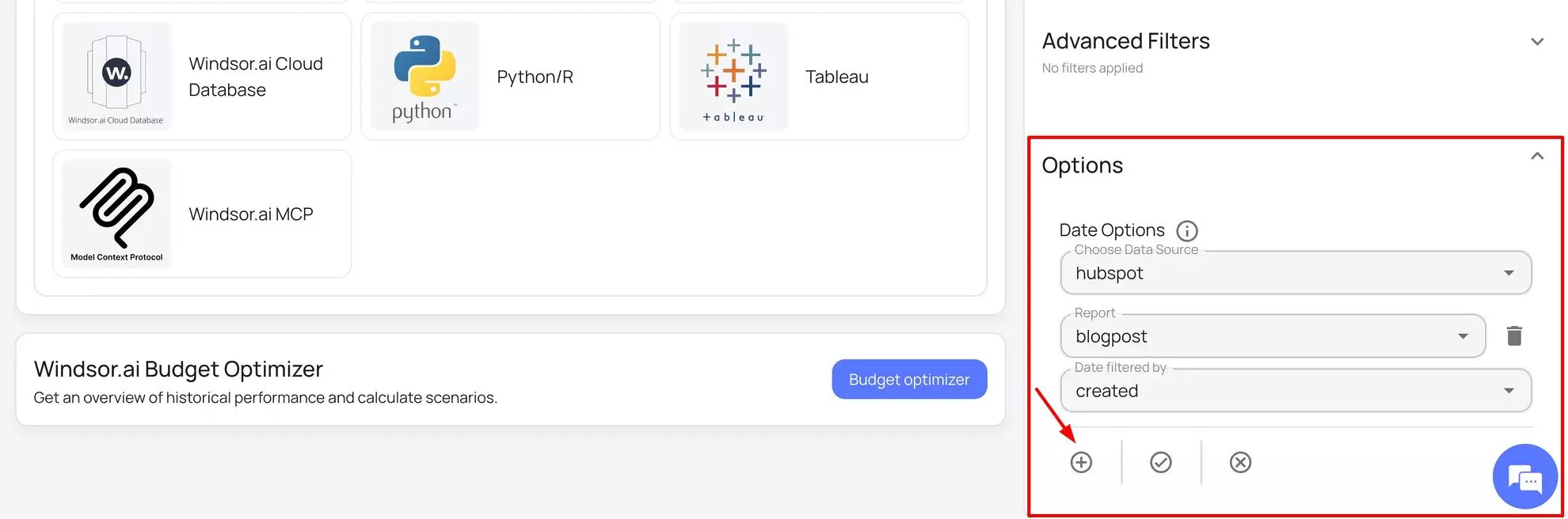
Examples:
- For Contacts: If you want a list of all contacts added last month, you’ll set date_filter to use createdate.
&date_filters={"hubspot":{"contact":"createdate"}}
- For Deals: If you want a report on all deals that were won or lost this quarter, you’ll set date_filter to use closedate.
&date_filters={"hubspot":{"deal":"closedate"}}
If date options are not applied to queries, you might face the following issues:
- Timeout errors: Trying to pull millions of records at once overloads the system, and the connection will fail.
- Duplicate data: Without a date filter, every time you refresh your data, the system may re-fetch all historical records, creating a messy and inflated dataset.
- Mismatched results: Your data won’t match the data you see in HubSpot’s CRM because those reports are built on specific dates (e.g., “deals closed this month”), while your query is pulling all data without that specific filter.
3. Base Association Entity and its associated issues
Base Association Entity helps you select the main object (contact, deal, campaign, …) to join different objects in HubSpot together (e.g., contact with deal object). Consider it the “base” for your query.
How to use Base Association Entity in Windsor.ai:
Navigate to the Options section located at the bottom of the right-side settings and select the relevant Base Association Entity.
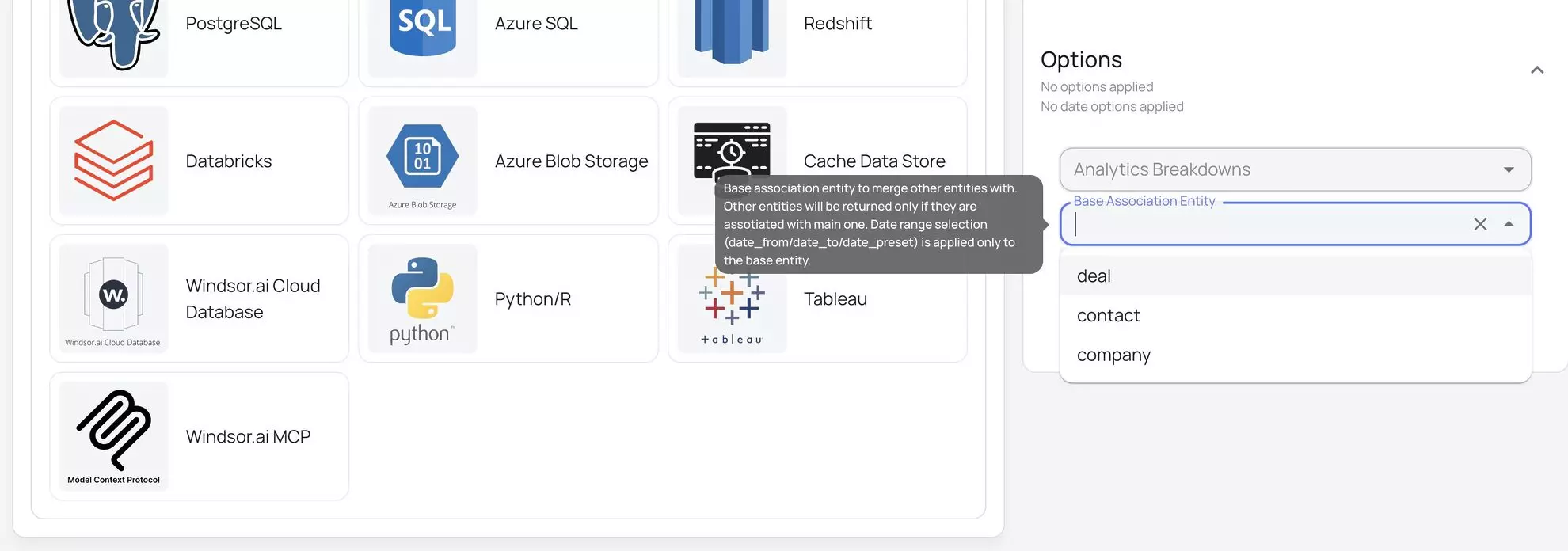
Choose your Base Association Entity based on the main question you’re trying to answer:
- If you want to analyze deals created in a certain time period and see the contacts linked to them, set deal as your base association.
- If you want to analyze contacts created in a certain time period and see the deals they are linked to, set contact as your base association.
Then Windsor.ai will:
- Apply date filters only to the selected base entity.
- Fetch all associations (contacts, tickets, companies) linked to this base entity.
This setting is critical because the date range you set only applies to the base entity. The associated records are pulled by their assignment to that base entity, not by their own dates.
Important: Make sure to select the base entity in line with how you are viewing your data in HubSpot.
Quick summary:
- Base Association Entity = the primary object you are querying (e.g., contact, deal).
- Other entities (e.g., tickets, companies) will only be returned if they are associated with the base entity.
- Date range selection (date_from/date_to/date_preset) applies only to the base entity.
4. How Backfill works
Keep in mind that if you use backfill, it’s crucial to update your HubSpot destination tasks after changing date options to prevent data duplication. For example, when you change your date filters (e.g., from the last 30 days to the last year), you’re fundamentally altering the query.
If you don’t update the destination task, the system might not recognize the new query as a replacement for the old data. Instead, it might simply add the new, overlapping historical data on top of what’s already there, leading to duplicate records.
By updating the task, you’re telling Windsor to either overwrite the existing data with the new backfilled data or to perform a deduplication process, ensuring your final dataset is clean and accurate.
Key takeaways
To ensure your data is always accurate and to quickly fix any HubSpot data mismatches, keep this checklist in mind:
- Always use Date Options. Don’t pull Hubspot data without specifying a date option (e.g., createdate, closedate). This prevents timeouts, avoids data duplication, and ensures your query is optimized and on target.
- Remember the “Base Entity” rule. Date ranges only apply to the base association entity you select. This is the most common reason for missing or extra data.
- For Backfills, update destination tasks after changing date filters to prevent duplication.
Troubleshooting data discrepancies? Start here:
- Check your CRM report: Go to the HubSpot report you’re trying to match. What specific date field is it using? (e.g., “Deals closed this quarter” uses closedate).
- Verify your query: Make sure you’re using the same date option in Windsor.ai.
- Confirm the Base Entity: Double-check that your Base Association Entity is the primary object of your report (e.g., deal for a deals report).
By following these troubleshooting steps, users can resolve common issues when retrieving HubSpot data via Windsor.ai.
If the issue persists, contact our customer support for further assistance.
Keep in mind that investigating data discrepancies takes time (1-3 days), so it’s better to organize the report and send it to [email protected]. We’ll take a detailed look and reply to you as soon as we find a resolution.
Tired of juggling fragmented data? Get started with Windsor.ai today to create a single source of truth


