 Destinations
 Data sources
 AI insights
 About us
 Careers
 Security
 Customer reviews
 Contact us
 Affiliate program
 Solution partners
 Template gallery
 Looker Studio templates
 Power BI templates
 Excel templates
 Google Sheets templates
 Tableau templates
 Facebook Ads templates
 Google Ads templates
 Data fields & Metrics
 AI prompt library & Guides
 Product documentation
 API documentation
 Case studies
 Blog
Blog Data models
 Windsor vs Supermetrics
 Windsor vs Funnel.io
 Windsor vs Fivetran
 Windsor vs Rivery
 Windsor vs Portermetrics
 Windsor vs Coupler.io
How to fix the error “Reauthentication is needed” when sending data to BigQuery or Google Sheets
Error overview
You might encounter this error when working with BigQuery or Google Sheets destination tasks on Windsor onboard
Reauthentication is needed.
This error is caused by the expiration of the OAuth token you provided when adding/editing your BigQuery or Google Sheets destination task(s). Specifically, this issue occurs when the session length configured in your Google Workspace admin console expires. Once the session ends, the authenticating user’s OAuth token becomes invalid, causing authentication failures and the error message above.
How to resolve this issue
To resolve this error, your Google Workspace administrator needs to adjust the Reauthentication policy settings to extend the session length for Google Cloud services.
An alternative way is to connect your Windsor destination task to Google services using a specialized service account. A service account is a non-human digital identity used by applications, services, or automated scripts to interact with IT systems.
Adjust the Reauthentication policy settings
Visit https://support.google.com/a/answer/9368756 for more details.
It’s necessary to set the Windsor app as a Trusted App and then exempt Trusted Apps from reauthentication.
Visit https://support.google.com/a/answer/7281227?hl=en for more details.
Troubleshooting steps:
1. Sign in with an administrator account to the Google Admin console.
If you aren’t using an administrator account, you can’t access the Admin console.
2. Go to Menu -> Security -> Access and data control -> API controls.
Requires having the Security settings administrator privilege.
3. Click on MANAGE APP ACCESS.
4. Find Windsor.ai in the Accessed apps and change access to Trusted.
5. Then follow these steps from Google to exempt trusted apps from reauthentication:
https://support.google.com/a/answer/9368756?hl=en#:~:text=Set%20the%20reauthentication%20policy.
6. Change settings to ‘Never require reauthentication.’
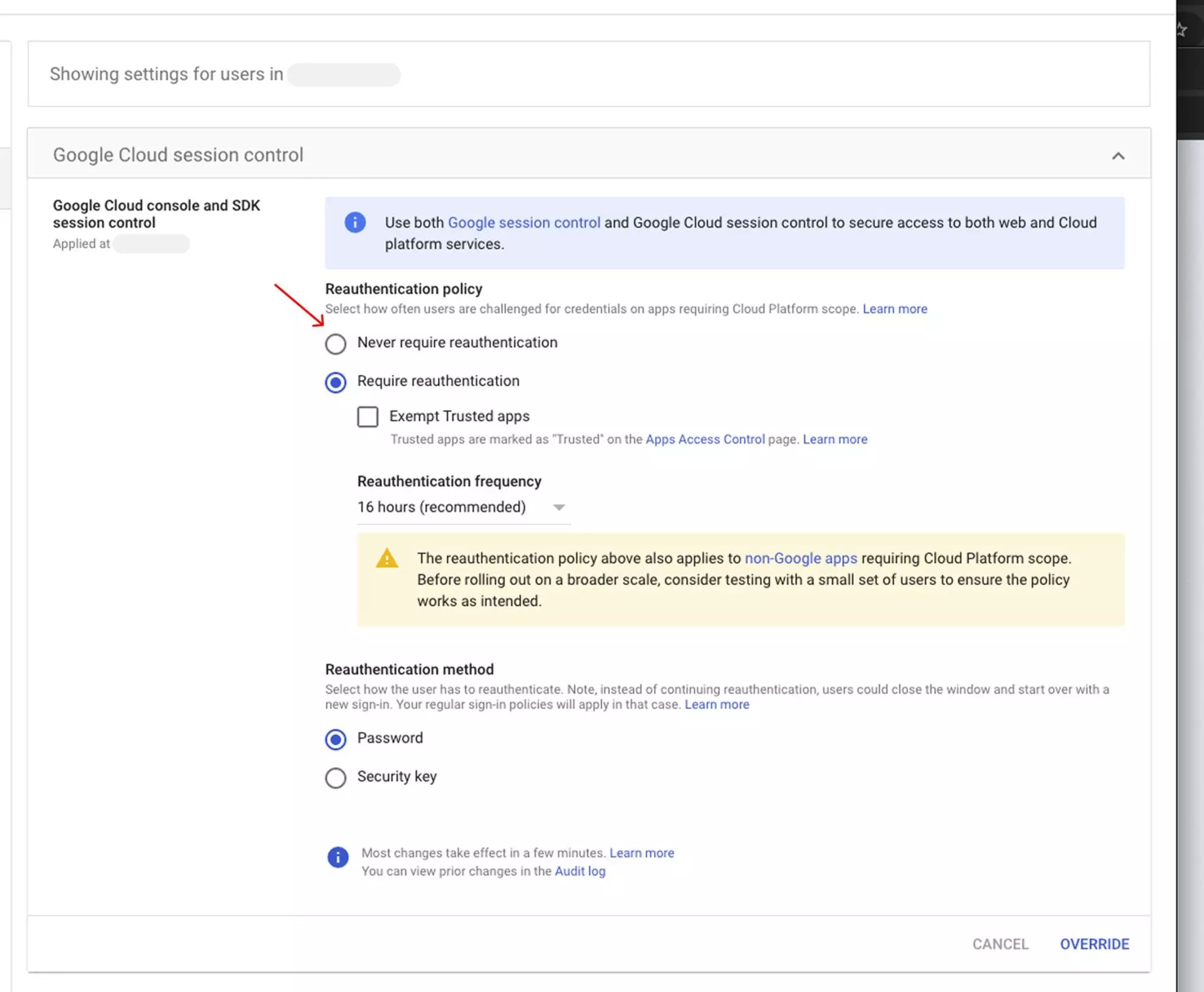
Once you have changed your settings in Google Admin, please reconnect your Google account in the affected destination tasks.
If the issue persists, try connecting to your destination task using a service account, or contact our customer support for further assistance.
Connect Windsor destination task to Google Sheets using service account
Follow these steps to connect your Windsor destination task to a Google Sheet. To connect to BigQuery, follow the steps in the section “Connect Windsor destination task to BigQuery using service account”.
Step 1: Create a service account
1. Head to console.cloud.google.com.
2. Click IAM & Admin.
3. On the left pane, click Service Accounts.
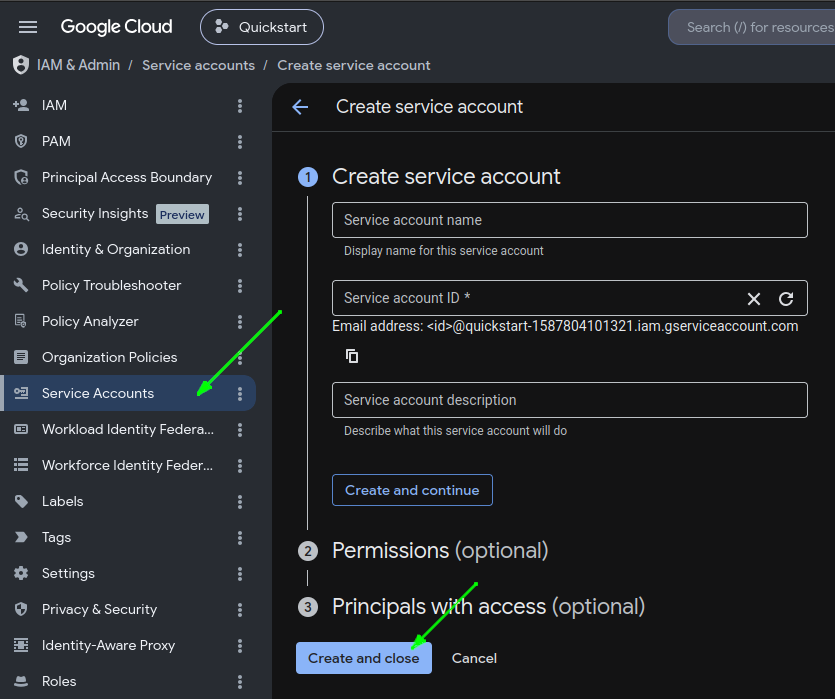
4. Click Create service account.
5. Proceed with creating a service account; at the end, you’ll get an email for that service account (e.g my-service-account@quickstart-1587804101321.iam.gserviceaccount.com).
6. After creation is done, click on the email from the menu, then head to the KEYS tab, create a new key: ADD KEY → Create new key. Choose JSON.
Step 2: Link the service-account with a Google Sheet
1. Head to console.cloud.google.com.
2. Click APIs & Services.
3. On the left pane, click Library.
4. In the Google Workspace section, click Google Drive API.
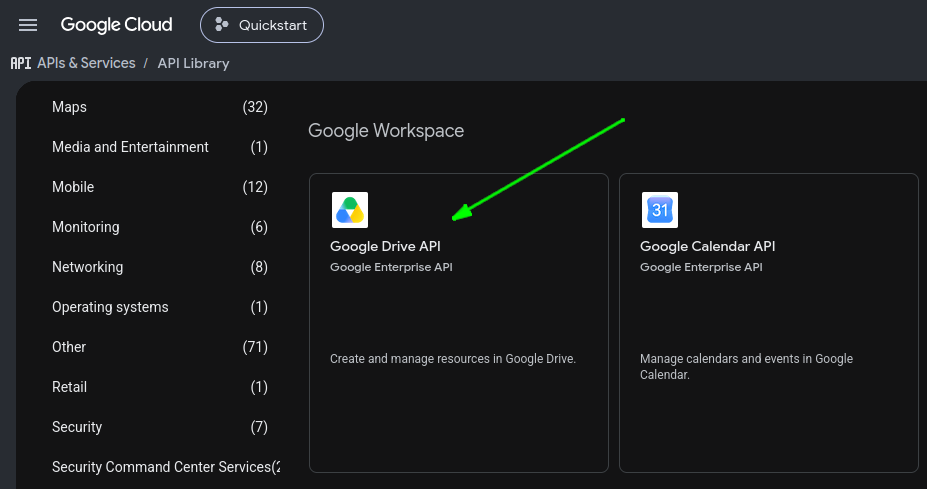
5. Click Enable.
6. Open your Google Sheet and click Share.
7. Copy-paste your service account email (e.g [email protected])
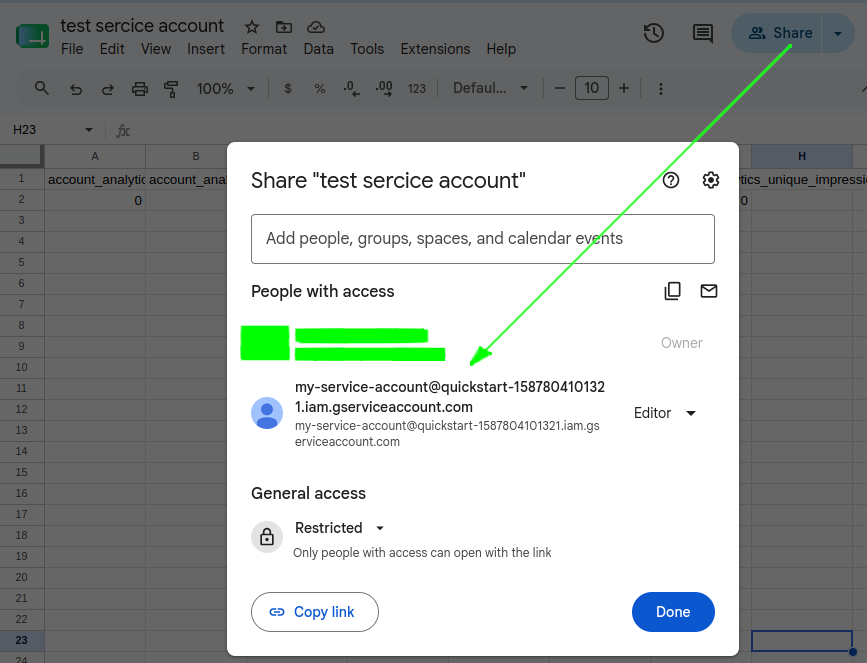
Step 3: Connect Windsor destination task to Google Sheet
1. Head to your Google Sheets destination tasks:
https://onboard.windsor.ai/app/data-preview#googlesheets
2. Click the Edit icon on the existing destination task.
3. In the Authentication type drop-down, select Service Account.
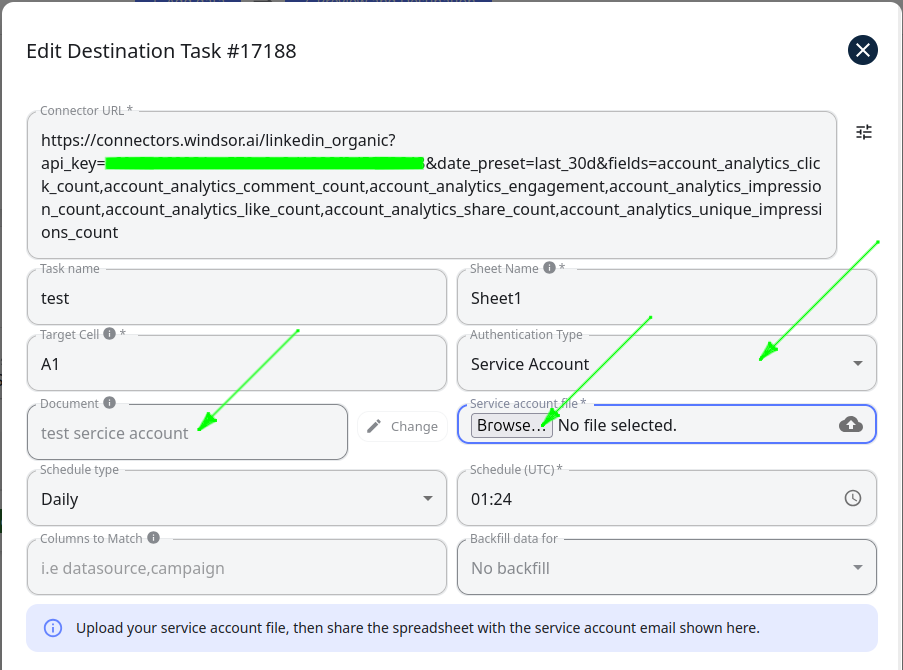
4. In the Service account file field, click Browse and select the file you created in Step 1.
5. Near the Document field, click Change and select the Google Sheet you connected in Step 2.
6. Click Save.
7. Click the Upload button to start the destination task.
When the destination task finishes, click the Edit icon and double-check the status of the last run at the bottom of the destination task.
Open your Google Sheet from Step 2 and double-check the data. If the issue persists, contact our customer support for further assistance.
Connect Windsor destination task to BigQuery using service account
Follow these steps to connect your Windsor destination task to BigQuery.
Step 1: Create a service account
1. Head to console.cloud.google.com.
2. Click IAM & Admin.
3. On the left pane, click Service Accounts.
4. Click Create service account.
5. Proceed with creating a service account; at the end, you’ll get an email for that service account (e.g my-service-account@quickstart-1587804101321.iam.gserviceaccount.com).
6. After creation is done, click on the email from the menu, then head to the KEYS tab, create a new key: ADD KEY → Create new key. Choose JSON.
You will be prompted to download a JSON file that we will use to connect the Windsor destination task to BigQuery.
Step 2: Link the service-account with BigQuery
1. Head to console.cloud.google.com.
2. Click IAM & Admin.
3. Next to your service account created in Step 1, click Edit icon.

4. In the Role drop-down, select BigQuery User.
5. Click Save.
Step 3: Connect Windsor destination task to BigQuery
1. Head to your BigQuery destination tasks:
https://onboard.windsor.ai/app/data-preview#big_query
2. Click the Edit icon on the existing destination task.
3. In the Authentication type drop-down, select Service Account.
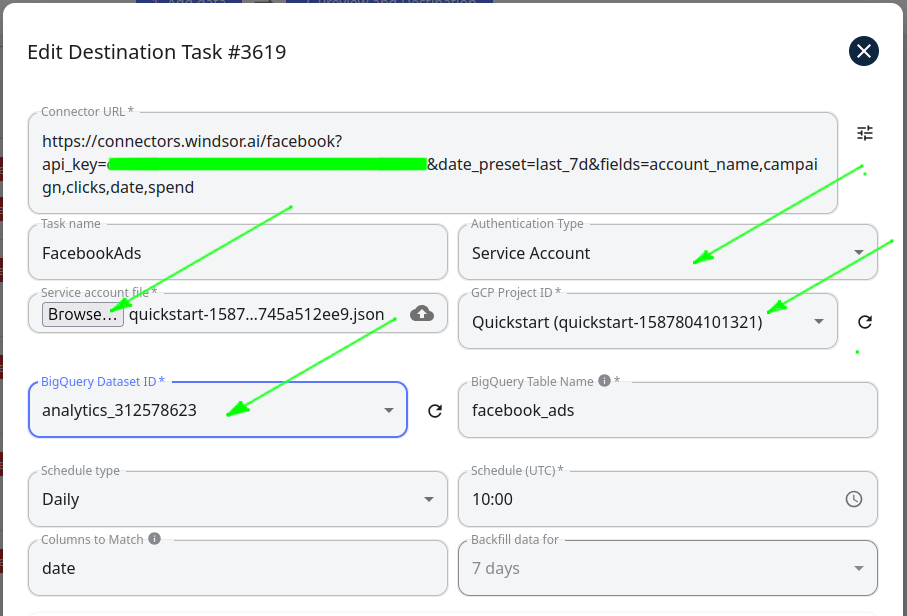
4. In the Service account file field, click Browse and select the file you created in Step 1.
5. In the GCP Project ID drop-down, select the Project you want to export your data into.
6. Click Save.
When the destination task finishes, click the Edit icon and double-check the status of the last run at the bottom of the destination task.
Open your BigQuery console and double-check the data. If the issue persists, contact our customer support for further assistance.
Tired of juggling fragmented data? Try Windsor.ai today to create a single source of truth


