 Destinations
 Data sources
 AI insights
 About us
 Careers
 Security
 Customer reviews
 Contact us
 Affiliate program
 Solution partners
 Template gallery
 Looker Studio templates
 Power BI templates
 Excel templates
 Google Sheets templates
 Tableau templates
 Facebook Ads templates
 Google Ads templates
 Data fields & Metrics
 AI prompt library & Guides
 Product documentation
 API documentation
 Case studies
 Blog
Blog Data models
 Windsor vs Supermetrics
 Windsor vs Funnel.io
 Windsor vs Fivetran
 Windsor vs Rivery
 Windsor vs Portermetrics
 Windsor vs Coupler.io
Understanding Cache Data Store and Query Cache in Windsor.ai
Windsor.ai uses two caching systems to maintain data freshness, as well as high performance and reliability of your data workflows:
- Cache Data Store: Windsor.ai’s internal database for persistent caching and backfilling. It helps reduce load on upstream sources and prevents large queries from timing out.
- Query Cache: It’s a temporary, in-memory cache that speeds up repeated API and dashboard queries.
This guide explains how both caching systems work and provides best practices for using them effectively.
Cache Data Store explained
Cache Data Store is an internal Windsor.ai database that stores large or long-range datasets. It lets you query historical data quickly and reliably without repeatedly calling the source APIs.
This is especially important because many advertising, CRM, and analytics platforms have:
- Slow API response times
- Short timeouts (30–120 seconds)
- Rate limits
- Difficulty returning large date ranges (1+ year of data)
Cache Data Store is created through a Destination Task; Windsor fetches the data once or on a schedule and stores it in this internal database.
How to create a Cache Data Store Destination Task
1. Select the data source(s) and connect the account(s) you want to extract data from.
2. Pick the reporting date range (for example, last year or a custom range) and the fields you want to include in your query.
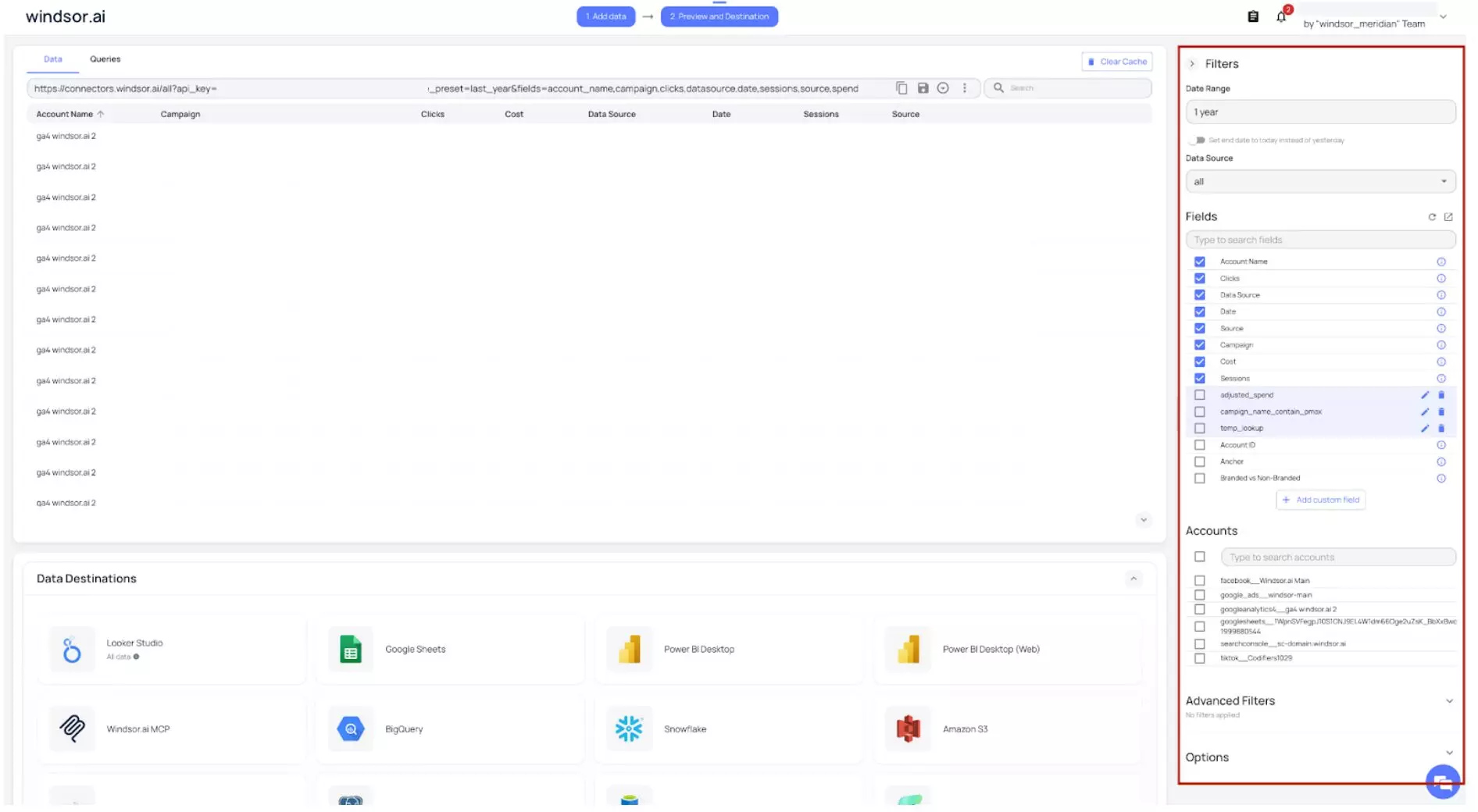
3. Scroll down to the list of Data Destinations and select Cache Data Store.
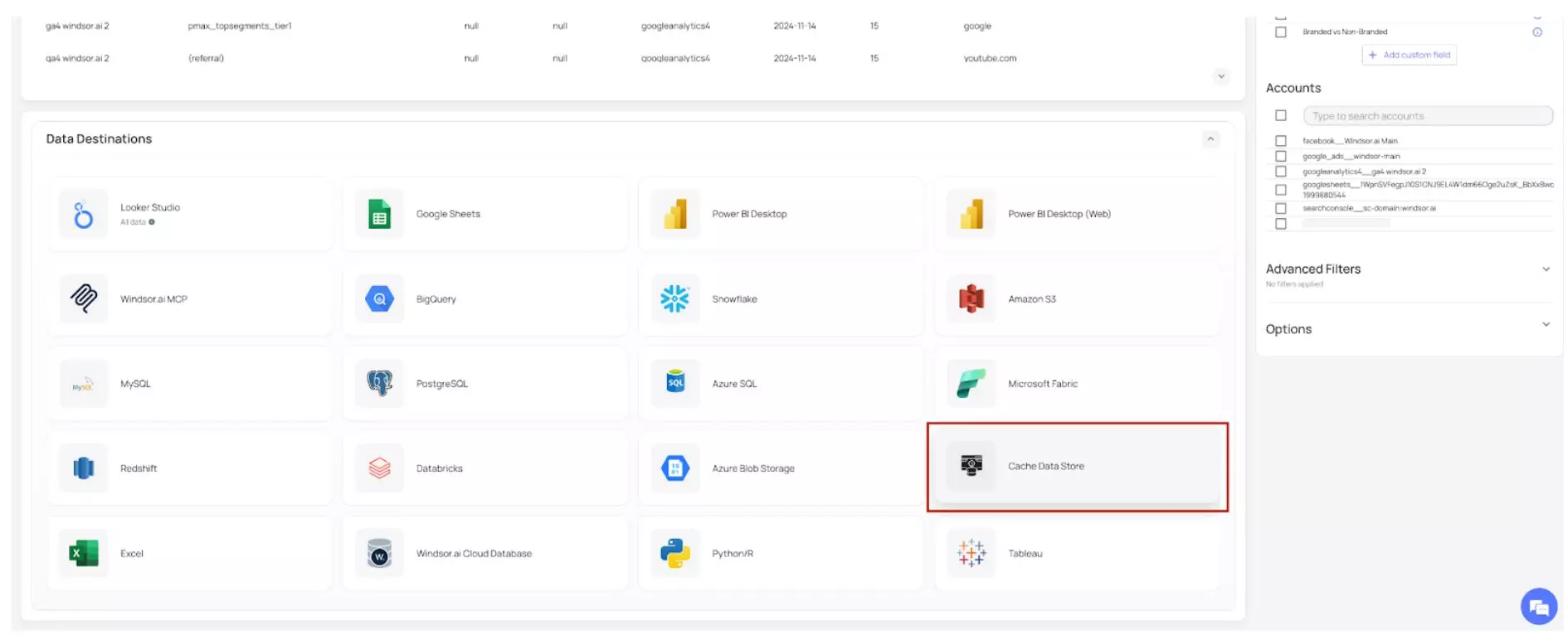
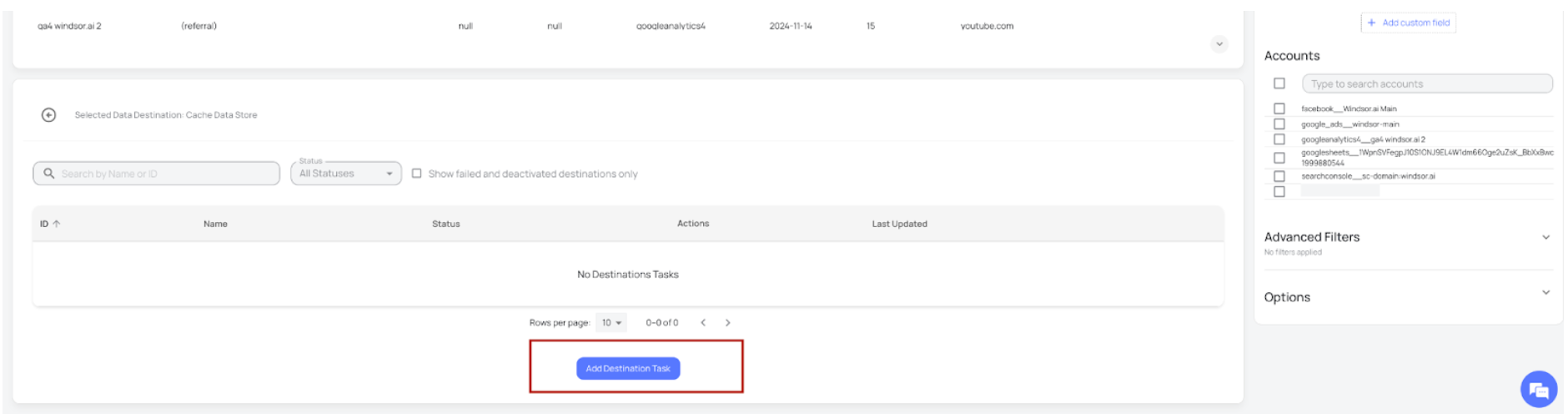
4. Click “Add Destination Task.” This will open a window with your generated Connector URL (query).
5. Review the Connector URL to make sure it contains the correct date range, fields, and filters.
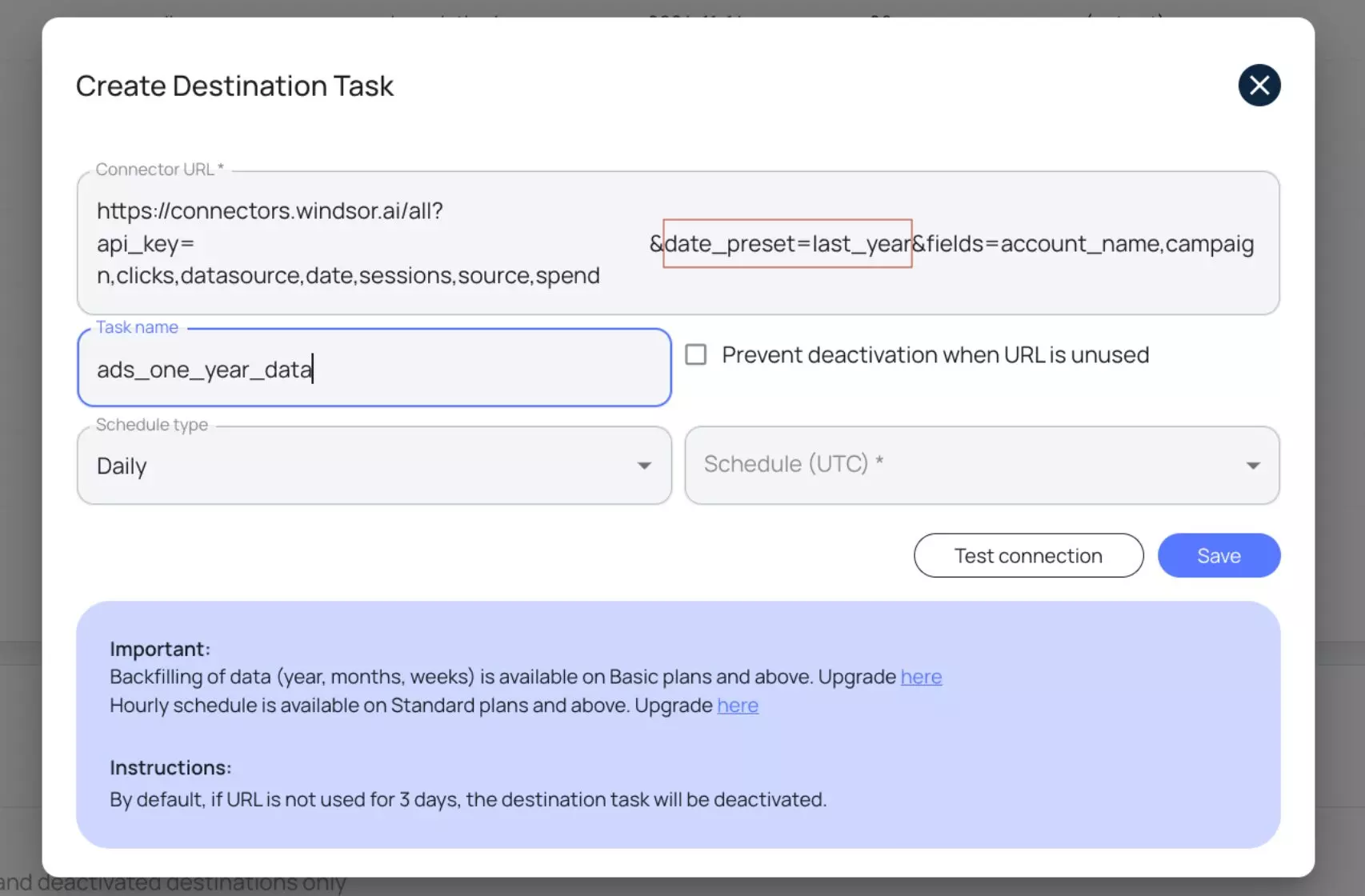
6. Enter a task name (any you wish).
7. Optionally, you can enable “Prevent deactivation when URL is unused” depending on your use case. Note that if the Connector URL is not used for 3 days, the task will be deactivated automatically unless this option is checked.
8. Choose the refresh schedule (daily, hourly, weekly) to determine how often you want the data to update.
- Backfilling (year, months, weeks) is available on Basic plans and above.
-
Hourly scheduling is available on Standard plans and above.
9. Click Save to create your Cache Data Store destination task.
The green “upload” button with the status “ok” indicates that the task has successfully completed.

Once created, Windsor will fetch the data into its internal cache database, and you can query it instantly in your final destinations without timeouts or heavy API load.
When to use the Cache Data Store: examples & use cases
1. To avoid timeout errors
Suppose you want to pull a full 1-year Amazon Ads or Facebook Ads dataset into Looker Studio or Google Sheets; the source API often times out.
How to solve this with Cache Data Store:
Before sending your data to the destination of your choice,
- In the Date Range filter, select a long period (such as the last year or a custom range).
- In the Fields list, select all the required reporting fields you want to retrieve.
- Create a Cache Data Store destination task.
- Windsor will load the data into its internal cache database.
Now you can proceed with integrating your data into the final destination (in our example, Looker Studio or Google Sheets). Your dashboards will query the cached data instantly with no timeouts.
2. To backfill past years of data
If you need to retrieve 2–5 years of historical advertising data, large backfills may fail or take too much time to load.
How to solve this with Cache Data Store:
- Create a Cache Data Store destination task.
- Windsor will fetch data gradually in the background.
- Your data becomes available inside the internal database.
- Complete data integration into the preferred destination, and feel free to query it right away.
3. To store specific fields
Cache Data Store is also helpful when you need to store only a specific subset of fields instead of the full dataset returned by the source API.
For example, if your reporting involves only date, campaign, and spend, you can select just these fields and store them in the Cache Data Store destination task with your scheduled refresh interval.
This creates a smaller and more efficient table inside Windsor, which loads faster, reduces the risk of timeouts, and keeps your downstream analytics cleaner and easier to work with.
By storing only the data that you need, you avoid unnecessary processing and make your reporting more effective.
How the Query Cache Works
Windsor.ai uses a short-term query cache to speed up your dashboards and API requests.
When a user runs a query, Windsor temporarily stores the response for 6 hours for that exact Connector URL. Any repeated use of the same URL within those 6 hours will return the cached result immediately, instead of calling the original data source again.
This improves performance and reduces load on external APIs, especially for such heavy platforms as HubSpot, Facebook Ads, Google Ads, Amazon Ads, etc.
This temporary cache mainly affects users who rely on manual refreshes. If a user has a scheduled refresh configured, Windsor will fetch fresh data on that schedule even if the cached version is still active.
Scheduled refreshes automatically bypass the 6-hour query cache window.
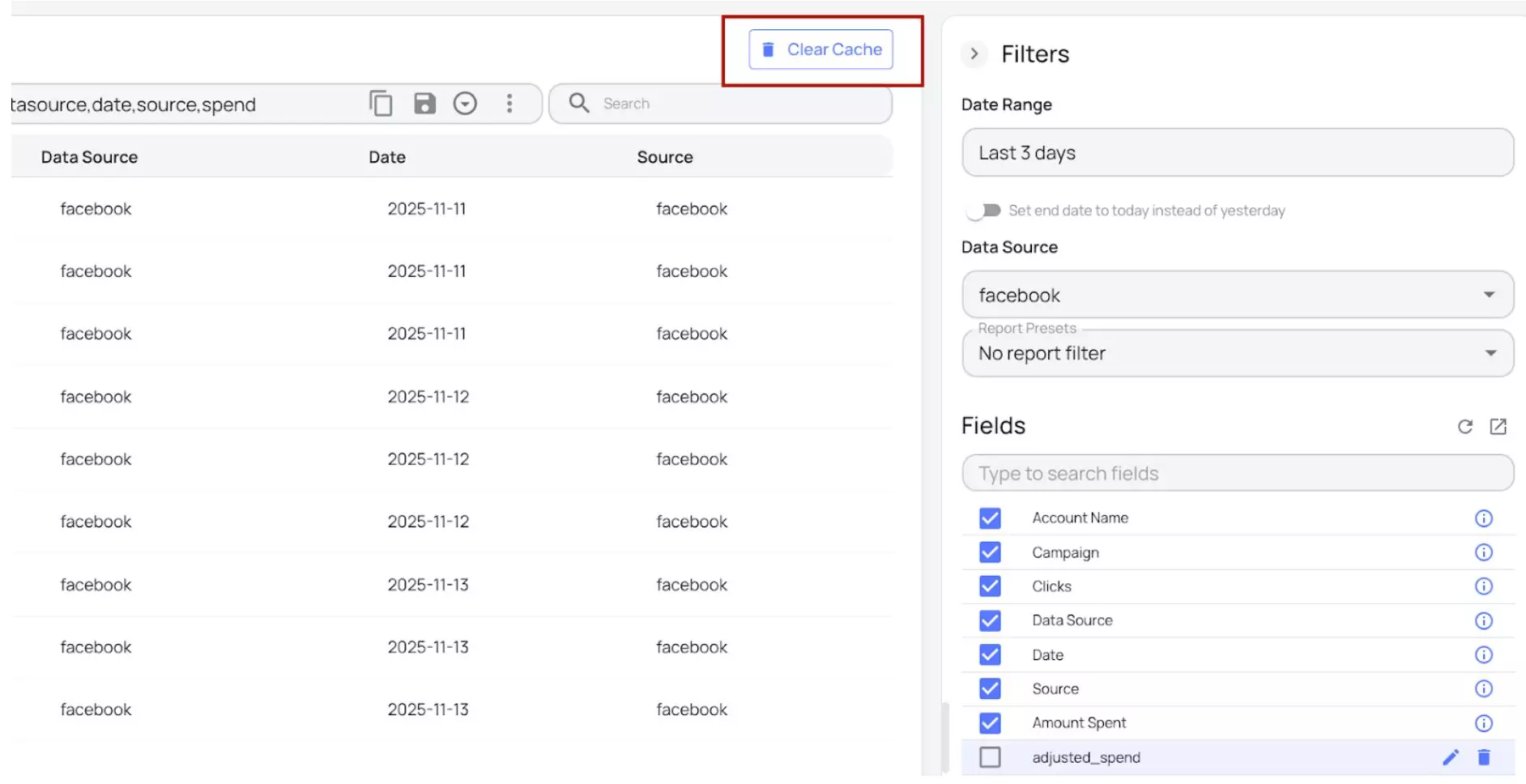
Manual cache clearing is available when immediate fresh data is needed. To clear the cache manually, please click on the “Clear Cache” button located at the top right side of your data preview window.
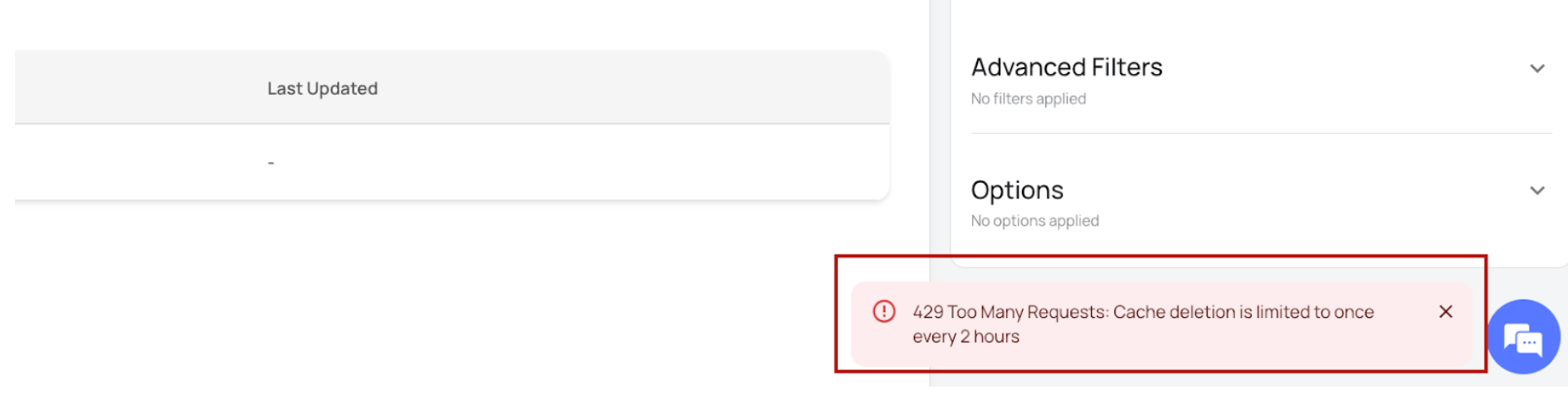
You can use this option only once every two hours. Attempting to clear it more often leads to this error.
This rate limit only applies to the temporary query cache and does not affect Cache Data Store destination tasks.
Example of using Query Cache
Suppose you’re a marketing analyst using the Facebook Ads to Google Sheets integration through Windsor.ai. When you refresh the sheet for the first time, Windsor pulls the data from Facebook and stores the response for 6 hours. Any refreshes within that time return instantly because the Connector URL is the same.
If you want to get fresh data asap, you can clear the cache manually once in 2 hours; Windsor.ai will fetch the latest data. If you try to clear the cache again within two hours, you’ll receive a 429 error.
If you configure the Google Sheets sync with an automatic hourly refresh, the data will be updated every hour regardless of Windsor’s 6-hour query cache window.
Conclusion
Our Cache Data Store and Query Cache systems serve different purposes but work together to keep Windsor.ai data ingestion fast and reliable.
The Cache Data Store is ideal for large datasets, long date ranges, and backfilling without timeouts, while the Query Cache simply speeds up repeated manual queries for six hours at a time.
Using scheduled refreshes ensures you always get fresh data when needed, without relying on manual cache clearing.
Understanding how each caching layer works helps you choose the right approach and ensures smoother, more dependable reporting.
FAQs
When should I use the Cache Data Store?
Utilize Cache Data Store when you need to retrieve data for long date ranges, use backfills, or when source APIs often timeout.
Why do I see the “429 Too Many Requests” error when clearing the cache?
This happens because the Query Cache can only be cleared once every two hours. Clearing the cache manually more frequently is blocked to protect system stability.
If I change my Connector URL, does the 6-hour query cache still apply?
No. The cache is tied to the exact URL. Any change in fields, filters, date range, or parameters will create a new Connector URL and bypass the cached version.
Is Cache Data Store required for daily dashboards?
Not necessarily. If your dashboards use small date ranges or have scheduled refreshes, Query Cache and normal direct API calls may be enough. Cache Data Store is primarily designed for heavy workloads and long-range queries.
What happens if my Cache Data Store task is not used?
By default, it deactivates after 3 days of no usage unless you enable the ‘Prevent deactivation’ option.
Can Cache Data Store help solve Looker Studio or Google Sheets timeout issues?
Yes. This is one of its main purposes. Once the data is stored internally, Looker Studio and Google Sheets call Windsor instead of the original API, which prevents timeouts.
If I schedule Cache Data Store hourly, does that bypass the 6-hour query cache?
Yes. Each scheduled run fetches fresh data and updates the internal database, regardless of the default Query Cache timing.
Tired of juggling fragmented data? Get started with Windsor.ai today to create a single source of truth


