 Destinations
 Data sources
 AI insights
 About us
 Careers
 Security
 Customer reviews
 Contact us
 Affiliate program
 Solution partners
 Template gallery
 Looker Studio templates
 Power BI templates
 Excel templates
 Google Sheets templates
 Tableau templates
 Facebook Ads templates
 Google Ads templates
 Data fields & Metrics
 AI prompt library & Guides
 Product documentation
 API documentation
 Case studies
 Blog
Blog Data models
 Windsor vs Supermetrics
 Windsor vs Funnel.io
 Windsor vs Fivetran
 Windsor vs Rivery
 Windsor vs Portermetrics
 Windsor vs Coupler.io
How to connect Windsor MCP to any MCP-compatible AI client
Windsor MCP lets you connect your Windsor-integrated business data to MCP-compatible AI clients, so you can query your marketing, sales, analytics, CRM, and e-commerce data in natural language.
Windsor.ai offers native integrations for Claude, Copilot, and ChatGPT. However, you can also connect Windsor MCP to many other MCP-compatible agents and tools, including Cursor, Perplexity, Manus, OpenClaw, Claude Code, Cline, Continue, Roo Code, Goose, and more.
The setup pattern is nearly identical across all LLMs.
❗Important note: For Claude, ChatGPT, and Microsoft Copilot, Windsor MCP supports both read access for analysis and write-back actions on select platforms like Meta Ads, Google Ads, TikTok Ads, LinkedIn Ads, Microsoft/Bing Ads, and Amazon Seller Central, with more platforms coming soon.
Prerequisites
Before setup, make sure you have:
- An active Windsor.ai account
- At least one connected data source in Windsor.ai
- An MCP-compatible AI client
- Your Windsor API key (optional)
🚀 Start free with Windsor MCP today https://onboard.windsor.ai/ and unlock smarter, AI-powered analytics.
Steps to configure Windsor MCP in any AI client
Step 1. Connect your data sources to Windsor.ai
Go to https://onboard.windsor.ai/ and connect the data sources you want to analyze in your AI tool.
Step 2. Add Windsor MCP to your AI client
Most MCP-compatible clients have a menu similar to:
- Settings
- Connectors/MCP Servers/Integrations
- Add MCP Server/Add Connector
- Import via JSON
The exact menu names vary by platform, but the setup process is usually the same.
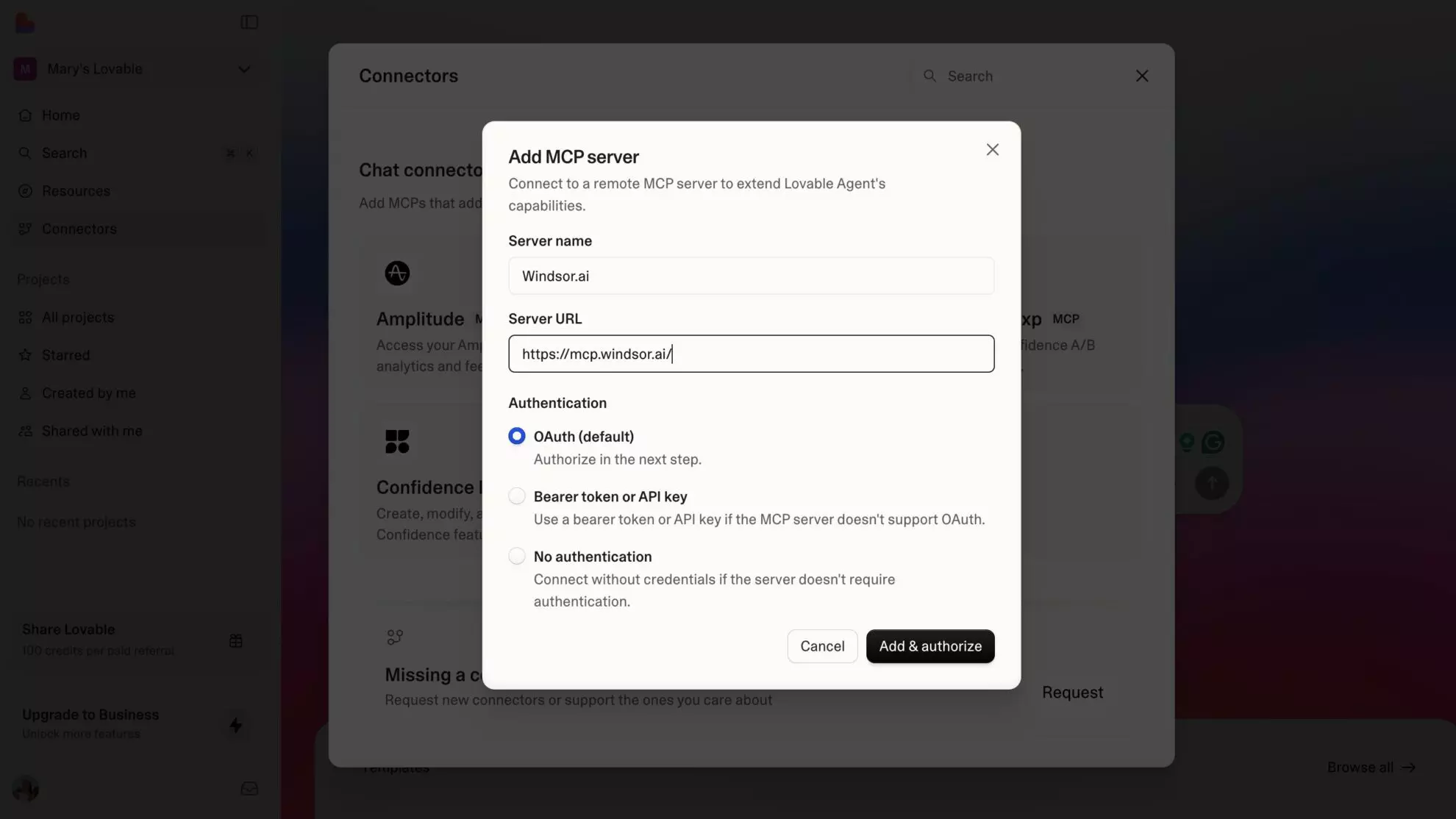
Method 1: Enter the server name and URL
Add a new MCP server manually by entering:
- Server name: Windsor.ai
- URL: https://mcp.windsor.ai/
Method 2: Paste the configuration JSON
Paste the following configuration into your MCP client and save it:
{
  "mcpServers": {
   "windsor": {
    "url": "https://mcp.windsor.ai/",
    "headers": {
     "Authorization": "Bearer YOUR_WINDSOR_API_KEY"
   }
  }
 }
}
Replace YOUR_WINDSOR_API_KEY with your actual Windsor API key (you can find it in your Windsor.ai settings in the API Access section).
Step 3. Test the connection and start querying your data
After saving the configuration, open a new chat in your AI client and try a simple prompt such as:
What data sources are connected to my Windsor.ai account?
You can also try:
- Show me the total spend for the last 30 days
- Which ad platforms are connected to my Windsor account?
- Compare ROAS across my connected channels
If the connection works, you can move on to deeper questions about spend, revenue, ROAS, conversions, pipeline quality, attribution, and cross-channel performance.
Important notes
- Exact setup steps vary slightly by the AI client
- Windsor MCP uses read-only access for analysis
- Your original data is never modified in the connected platforms
- If your client supports native remote MCP servers, the direct URL setup (https://mcp.windsor.ai/) is usually enough
- Some clients may require restarting the app after adding a new MCP server
Common MCP-compatible AI clients
You can use Windsor MCP with clients such as:
- Cursor
- Perplexity
- Manus
- OpenClaw
- Claude Code
- Cline
- Continue
- Roo Code
- Goose
- Windsurf
- Open WebUI
- LibreChat
- Other MCP-compatible tools and agents
Helpful links
- About Windsor MCP – Explore general info about Windsor MCP: supported data sources and LLMs, benefits, use cases, etc.
- Windsor MCP use cases & examples (30+ prompts inside) – If you don’t know what to ask or are looking for advanced Windsor MCP use cases, read this guide for a batch of practical examples and useful prompts to make your ChatGPT data analysis even more effective and deeper.
- AI Prompt Library by Windsor.ai – Discover a list of advanced, ready-to-use prompts focused on different data sources and use cases.
Tired of manual data reporting and analysis? Get started with Windsor MCP today to unlock instant AI insights


