 Destinations
 Data sources
 AI insights
 About us
 Careers
 Security
 Customer reviews
 Contact us
 Affiliate program
 Solution partners
 Template gallery
 Looker Studio templates
 Power BI templates
 Excel templates
 Google Sheets templates
 Tableau templates
 Facebook Ads templates
 Google Ads templates
 Data fields & Metrics
 AI prompt library & Guides
 Product documentation
 API documentation
 Case studies
 Blog
Blog Data models
 Windsor vs Supermetrics
 Windsor vs Funnel.io
 Windsor vs Fivetran
 Windsor vs Rivery
 Windsor vs Portermetrics
 Windsor vs Coupler.io
Connect Google BigQuery to Claude
Automatically sync your BigQuery data to Claude using the Windsor.ai connector.
Leverage Claude to explore your BigQuery data and uncover performance changes, customer behavior, and revenue drivers using natural language instead of SQL.
Forget CSVs. Stop copy/paste. Connect data in minutes. No code required.
 Sign up with Google
 Free forever plan
No credit card needed
Free forever plan
No credit card needed









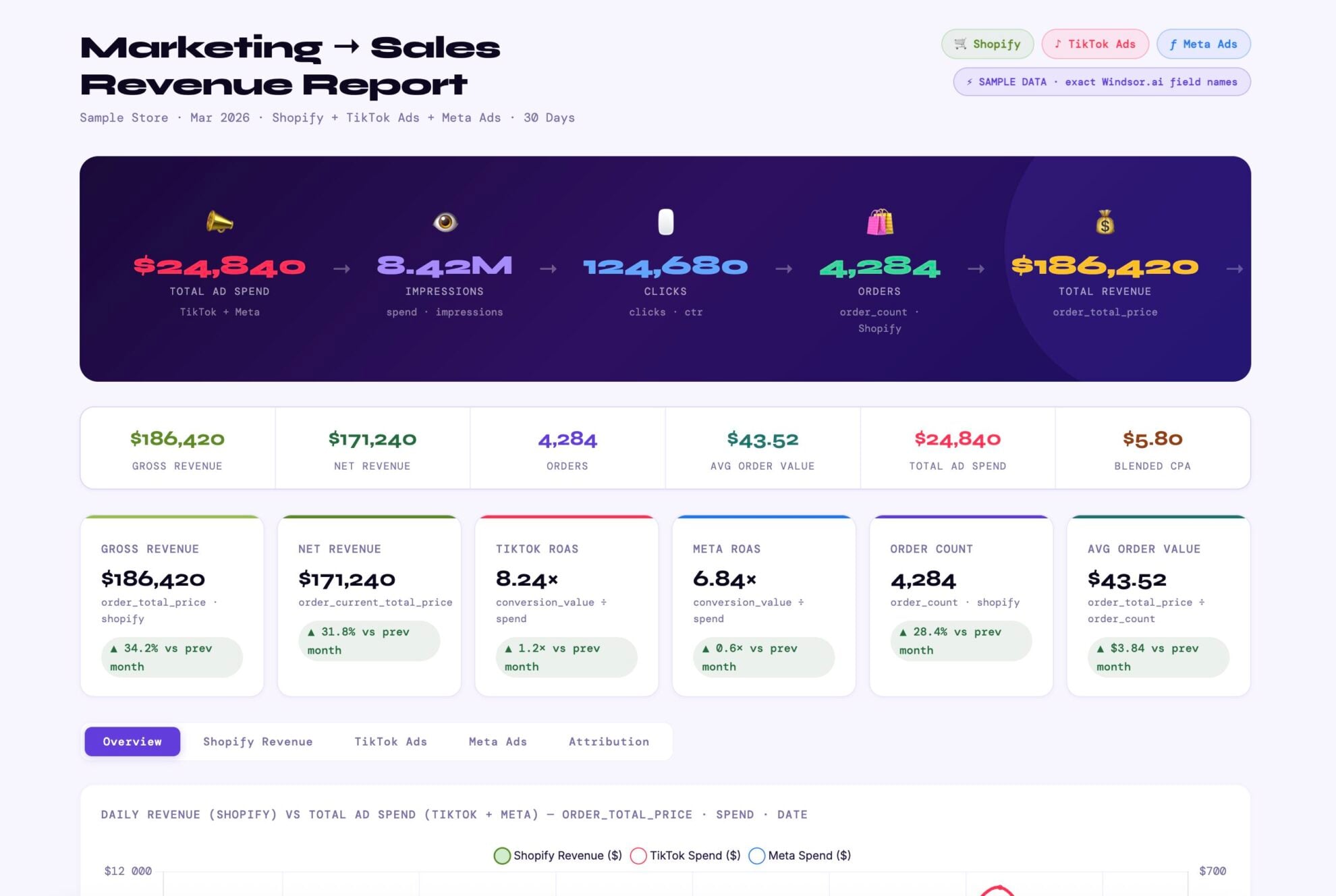
Make the most out of your data with BigQuery to Claude integration
Syncing BigQuery data with Claude through Windsor.ai allows you to go from raw data to business decisions in minutes, unlocking the following benefits:

Cross-channel attribution
Ask Claude to blend Google Ads click data with internal CRM records. It will calculate ‘Cost Per Quality Lead’ or ‘Profit-based ROAS’ and identify which campaigns drive actual revenue rather than just clicks.

Predictive customer analytics
This integration allows Claude to analyze large volumes of behavioral and transaction data from BigQuery. It can identify churn patterns, detect early warning signals, and estimate customer lifetime value (CLV) based on historical activity and purchase trends.

Natural language data exploration
Query your BigQuery data without writing SQL. Ask complex questions across multiple tables, like cohort performance, revenue breakdowns, or retention trends, and Claude will generate the queries, run the analysis, and return clear, structured answers.

Narrative insights
Claude doesn’t just summarize BigQuery data; it explains ‘why’ metrics change. It can link performance shifts to specific drivers, such as product usage spikes or changes in ad performance. You can also ask Claude to recommend actions to improve business performance based on these insights.
Using Windsor.ai to connect data from BigQuery to Claude
Connecting BigQuery to Claude often requires technical setups, data cleanup, or expensive tools. Windsor.ai removes these barriers by automatically syncing and structuring your BigQuery business data for analysis in Claude.
Set up in minutes and explore your data using natural language, from tracking revenue patterns to uncovering customer behavior.














How to connect BigQuery to Claude with Windsor.ai
Explore our video tutorial and a step-by-step guide to integrate your data from any source into Claude with the Windsor.ai connector.
Select your data source
Choose BigQuery as your data source and grant access to Windsor.ai.

Install the Windsor.ai connector in Claude
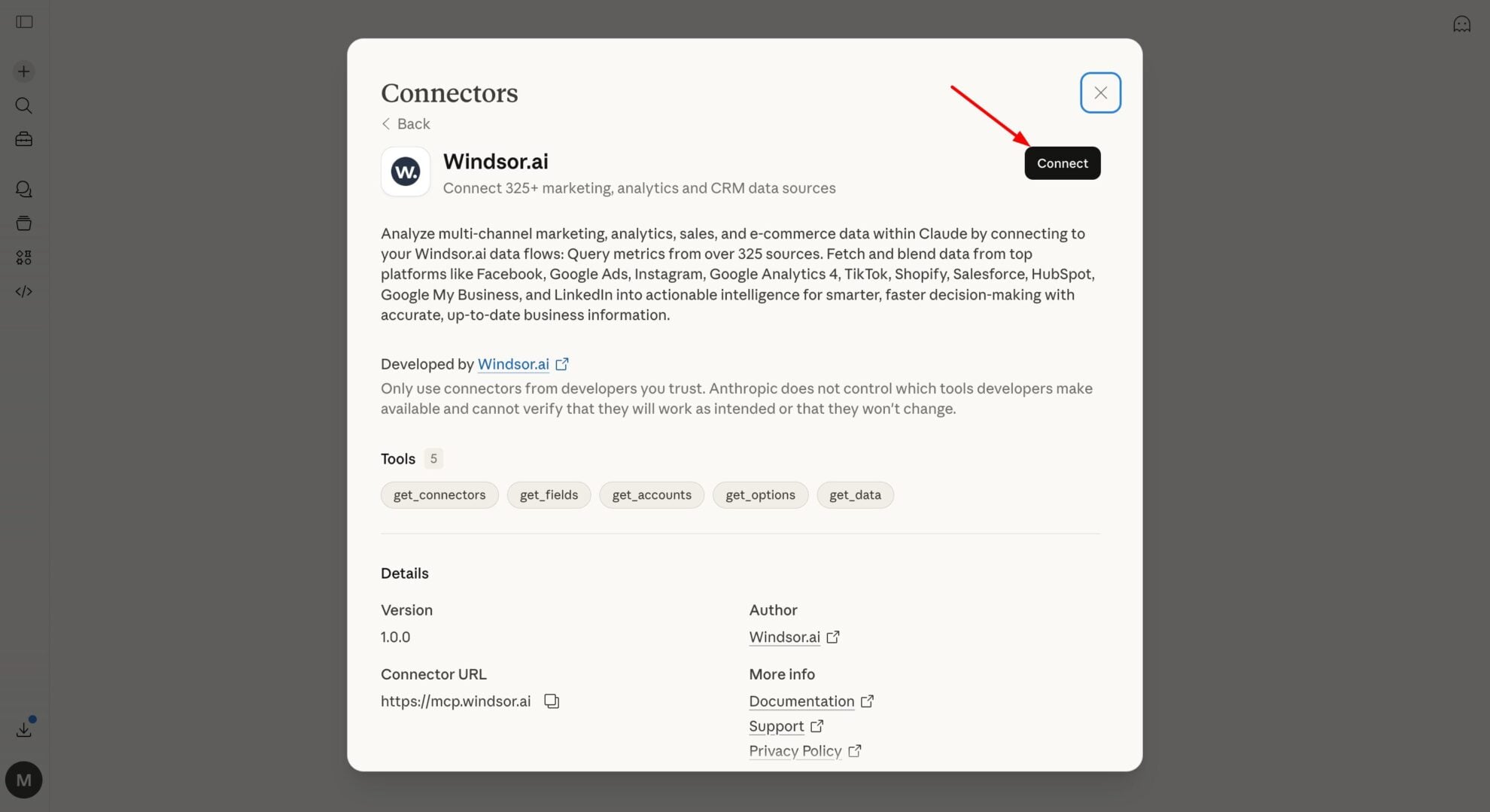
In Claude, open Customize, then Connectors, search for Windsor and click Add. Sign in to your Windsor.ai account when prompted, and the connector appears in your Connectors list. You can also open the Windsor.ai listing in the Claude directory and click Connect.
Query your data in Claude
Start a new chat and ask Claude questions about your connected data: summarize KPIs, create client reporting dashboards, or run advanced analyses.

FAQs
What specific business problems can this integration solve?
By connecting your Google BigQuery data warehouse with Claude, organizations can solve key operational and strategic challenges:
The SQL bottleneck.
- The Problem: Business teams rely on analysts to write SQL queries in BigQuery.
- The Solution: Claude enables self-service analytics. Ask questions in natural language, and instantly get answers based on your BigQuery data.
Fragmented data and siloed insights.
- The Problem: BigQuery stores internal business data, but marketing, CRM, and product data often live in separate tools, making it difficult to get a unified view.
- The Solution: Windsor.ai connects BigQuery with your marketing and business data sources, allowing Claude to perform cross-channel analysis.
Slow time-to-insight.
- The Problem: Understanding why metrics change requires combining multiple datasets and writing complex queries, which takes time.
- The Solution: Claude analyzes multiple data sources in BigQuery simultaneously, identifying patterns, correlations, and root causes, so you get answers instantly.
Hidden inefficiencies and missed opportunities.
- The Problem: Wasted spend, underperforming channels, and low-value segments are often buried in large datasets and go unnoticed.
- The Solution: Claude uncovers inefficiencies and growth opportunities in your BigQuery data, helping you optimize performance, reduce waste, and improve ROI.
Can Claude handle BigQuery tables with billions of rows?
Yes. Claude doesn’t ‘download’ the billion rows. It sends a specific SQL command to BigQuery to aggregate the data first, and then it only analyzes the summarized result.
Can I compare this year’s BigQuery data with last year’s in Claude?
Claude can quickly analyze large volumes of historical data, compare time periods, and explain what changed. For example: ‘Compare Q1 2026 revenue with Q1 2025 and explain the primary drivers of the 10% growth.’
Can I use Claude for 'What-If' scenario planning?
Yes. You can pull current sales from BigQuery and ask: ‘Based on this data, what would our profit look like if we increased our ad spend by 20% but conversion dropped by 2%?’
Can I analyze Google BigQuery data alongside marketing sources?
Yes. Windsor.ai lets you blend BigQuery data with your marketing channels (Google Ads, Meta, GA4, or TikTok Ads), so Claude can perform cross-channel analysis, revealing how campaigns impact revenue and helping you optimize spend based on real ROI.
What prompts can I use with BigQuery data in Claude?
Analyzing BigQuery data with Claude becomes more effective when you move beyond simple queries and use context-aware prompts. For example:
-
Access my Google Ads 'Campaign' data and my BigQuery 'Orders' table for the last 90 days. Join them by
campaign_id. Identify campaigns that have a higher-than-average Cost Per Click (CPC) but result in customers with a 'Lifetime Value' (LTV) in the top 10% of our database. Explain why these expensive clicks are actually our most profitable investments. -
Analyze the last 6 months of user activity logs in BigQuery. Specifically, look at the correlation between 'Frequency of Login' and 'Last Purchase Date.' Identify the 'tipping point' where a customer is 80% likely to never return. Then, suggest a personalized email discount strategy based on the product category they last browsed.
-
Compare the 'Conversions' reported in my Meta Ads and LinkedIn Ads accounts against the 'Successful_Transactions' recorded in BigQuery for the same period. Highlight the discrepancy percentage for each channel. Based on the UTM parameters in BigQuery, tell me which platform is over-reporting its impact on our bottom line the most.
-
Query my BigQuery 'Inventory_Levels' and 'Daily_Sales' tables alongside Google Search Console 'Trending Keywords' for our niche. Identify products that are currently in 'Low Stock' but are seeing a 15% week-over-week increase in organic search interest. Prioritize which SKUs we need to reorder immediately to avoid missing out on the current trend.
How much does it cost to integrate BigQuery into Claude using Windsor.ai?
Windsor.ai’s pricing for Claude data integration varies depending on the number of connected accounts and data sources. We offer absolutely transparent pricing plans for diversified business needs and budgets.
Do you have helpful links to get started with integrating BigQuery and Claude using Windsor.ai?
Yes, we have helpful resources to help you get started. You can explore our official documentation and tutorials for seamless BigQuery to Claude integration with Windsor.ai:
Tired of manual BigQuery data exports? Try Windsor.ai today to automate your reporting


