Destinations
 Data sources
 AI insights
 About us
 Careers
 Security
 Customer reviews
 Contact us
 Affiliate program
 Solution partners
 Template gallery
 Looker Studio templates
 Power BI templates
 Excel templates
 Google Sheets templates
 Tableau templates
 Facebook Ads templates
 Google Ads templates
 Data fields & Metrics
 AI prompt library & Guides
 Product documentation
 API documentation
 Case studies
 Blog
 Data models
 Windsor vs Supermetrics
 Windsor vs Funnel.io
 Windsor vs Fivetran
 Windsor vs Rivery
 Windsor vs Portermetrics
 Windsor vs Coupler.io
 Last updated: 20 November 2026




To connect Bling to ChatGPT, sign in to Bling from Windsor.ai and grant Windsor.ai access, then install the Windsor.ai plugin in ChatGPT. ChatGPT can then read your Bling ERP data, such as sales and purchase orders, bills to pay and receive, products and supplier prices, invoices and contacts, when you ask in plain English.
The connection is read-only. ChatGPT reports on your Bling data but can’t create or change orders, invoices or products (Bling has no write actions in Windsor.ai, checked on 20 November 2026).
Before you start
- A Bling account and a Bling login that can see the orders, bills and products you want to report on. Windsor.ai connects with a Bling sign-in, not with an API key.
- A Windsor.ai account. Windsor.ai has a free forever plan with 1 data source and the last 30 days of data. Paid plans start at $19/month for 3 sources, billed annually (pricing).
- A ChatGPT account that can install plugins. In a ChatGPT workspace, your admin may limit which plugins you can install.
Step 1. Add Bling to Windsor.ai
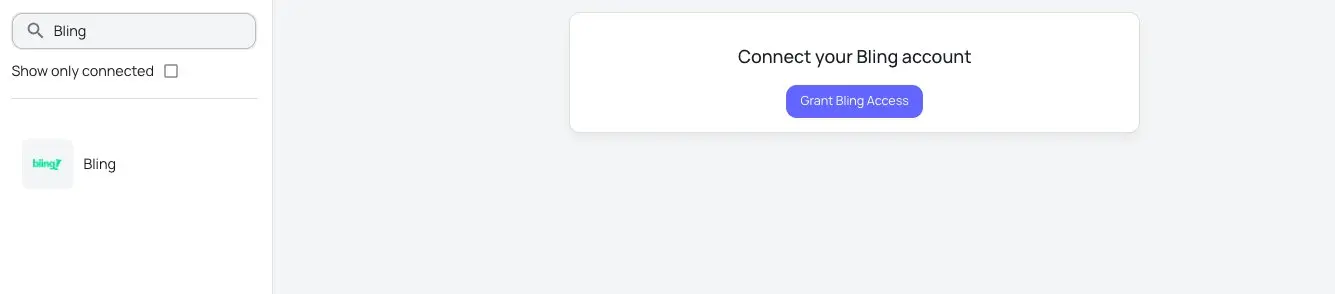
- Go to onboard.windsor.ai/app/bling and sign in or create a Windsor.ai account.
- Click Grant Bling Access.
- Sign in to Bling and allow Windsor.ai to read your account.
Step 2. Install the Windsor.ai plugin in ChatGPT
- In ChatGPT, click Plugins in the sidebar and search for Windsor.ai, or open the Windsor.ai plugin page.
- Click Install plugin and sign in to Windsor.ai with the account you added Bling to.
- In a new chat, click the + sign and pick Windsor.ai, or type @Windsor.ai before your question.
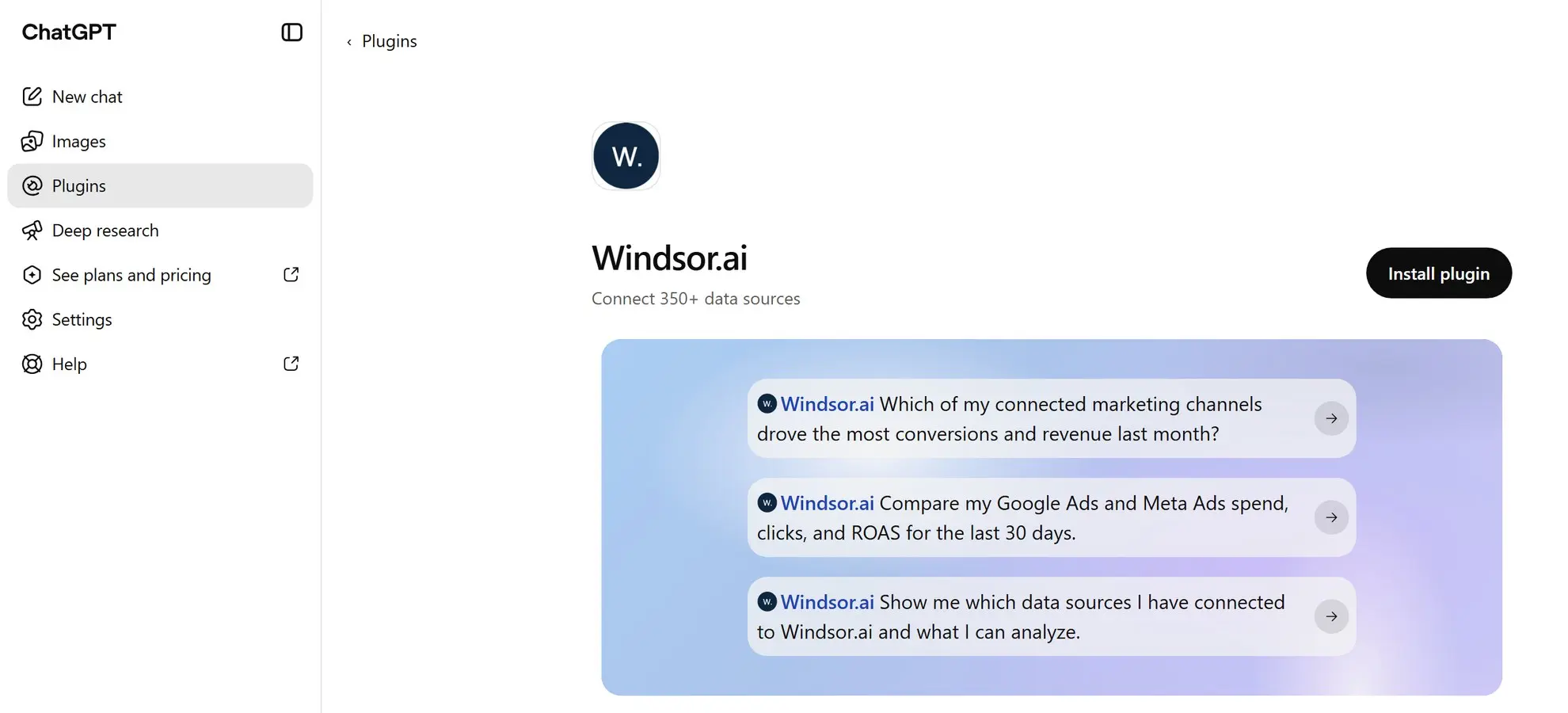
The Windsor.ai ChatGPT setup guide shows each setup screen.
Step 3. Check the Bling connection in ChatGPT
To check the Bling connection, ask ChatGPT whether Bling is connected before you ask about orders:
@Windsor.ai Is Bling connected in my Windsor.ai account? If it is not, how do I connect it?
On 20 November 2026 we asked this in our own Windsor.ai account, which has no Bling account added. ChatGPT answered that Bling is not connected, linked the Bling connection page and said to sign in and follow the authorization steps, which matches the Grant Bling Access button.
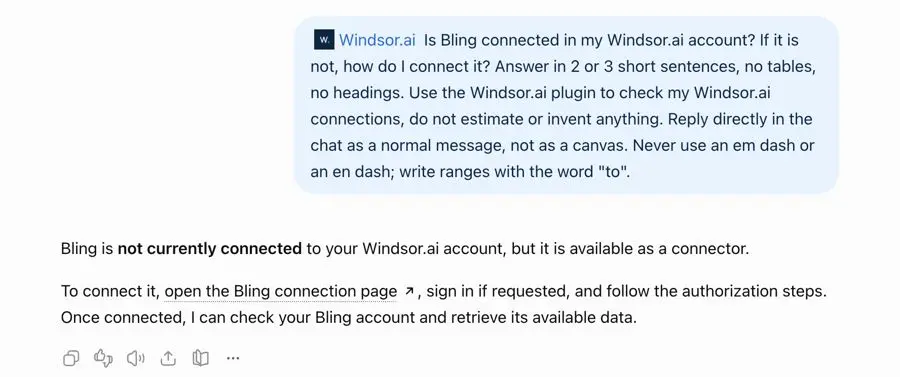
If ChatGPT says Bling is not connected after you granted access, the sign-in was not finished. Open the Bling page in Windsor.ai again and click Grant Bling Access.
Bling data ChatGPT can read through Windsor.ai
Through the Windsor.ai connector, ChatGPT can read 199 Bling fields from 23 parts of your Bling account. The full list is in the Bling field reference. The main parts are:
- Sales orders: number, date, expected date, ship-out date, status, customer name, store, total and product total.
- Purchase orders: number, date, expected date, status, supplier ID, total and product total.
- Bills to pay and bills to receive: value, due date, status (open, received, partly received, returned or canceled), contact ID and payment method.
- Products and supplier prices: product name, code, type, status and price, and each supplier’s cost price and purchase price.
- Invoices: electronic invoices (NF-e), consumer invoices (NFC-e) and service invoices, with number, issue date, status and customer details. Service invoices also have a value.
- Other records: contacts, sellers, contracts, logistics and carriers, deposits, payment methods, categories and accounting accounts.
Only 14 of the fields are numbers: the order totals, bill values, contract and service invoice values, product and supplier prices, seller discount limit and two logistics fields. Electronic invoices and consumer invoices have no value field. Each part is a separate Bling list. Ask about one part at a time, for example sales orders by status or bills by due date. Supplier prices have no date field. ChatGPT can compare cost and purchase price as they are now, but it can’t show how they changed over time.
Bling prompts to try in ChatGPT
Start each prompt with @Windsor.ai, or pick Windsor.ai from the + menu first.
-
Show the total of my Bling sales orders by status for the last 30 days.
-
List open sales orders older than 7 days, with customer name, order date and total.
-
Compare the total of bills to pay and bills to receive that are due in the next 14 days.
-
List products where the supplier cost price is higher than 70% of the product price.
-
Show the total of purchase orders by supplier ID for the last 30 days.
The free forever plan reaches back 30 days. A prompt for a quarter or year over year needs a paid plan.
Combine Bling with other sources in ChatGPT
With Bling and your sales channels in the same Windsor.ai account, ChatGPT can put them side by side in one answer. For example, ask for Bling sales order totals by week next to Google Ads cost for the same weeks. More than one source kept long term needs a paid plan.
Next steps
- The Bling to ChatGPT connector page lists more use cases and prompt ideas.
- To use the same Bling data in Claude, see the Bling to Claude connector page.
- To build dashboards instead of chat answers, see Bling to Data Studio.
To start, connect your Bling account to Windsor.ai on the free forever plan, then install the Windsor.ai plugin in ChatGPT.
FAQs
Can ChatGPT show the value of my NF-e invoices?
No. Electronic invoices (NF-e) and consumer invoices (NFC-e) come through with number, date, status and customer details, but without a value field. Use sales order totals for revenue questions. Service invoices do have a value.
How much does it cost to connect Bling to ChatGPT?
Windsor.ai has a free forever plan with 1 data source and the last 30 days of data. Paid plans start at $19/month for 3 sources, billed annually. See the pricing page.
Can ChatGPT change orders or invoices in Bling?
No. The connection is read-only. Bling has no write actions in Windsor.ai (write actions list, checked on 20 November 2026). ChatGPT can read and analyze your Bling data, but it can’t create or change records.