 Destinations
 Data sources
 AI insights
 About us
 Careers
 Security
 Customer reviews
 Contact us
 Affiliate program
 Solution partners
 Template gallery
 Looker Studio templates
 Power BI templates
 Excel templates
 Google Sheets templates
 Tableau templates
 Facebook Ads templates
 Google Ads templates
 Data fields & Metrics
 AI prompt library & Guides
 Product documentation
 API documentation
 Case studies
 Blog
Blog Data models
 Windsor vs Supermetrics
 Windsor vs Funnel.io
 Windsor vs Fivetran
 Windsor vs Rivery
 Windsor vs Portermetrics
 Windsor vs Coupler.io
 Last updated: 1 October 2026




ChatGPT can reach your Search Console data by three routes. The Windsor.ai plugin comes from ChatGPT’s plugin directory and takes about a minute, with no code. A remote MCP server needs hosting and goes in through Developer Mode. A CSV export from the Performance report is enough for a single question.
For the full comparison of MCP servers and the data checks I run before trusting an answer, see Google Search Console MCP. What you can ask once Search Console is connected, with example answers, is on the Search Console to ChatGPT page.
Three ways to connect Search Console to ChatGPT
| Method | Setup | Best for |
|---|---|---|
| Windsor.ai plugin | Install from ChatGPT’s Plugins directory, sign in to Windsor.ai, pick the property | Daily analysis, and Search Console next to GA4 or ad data |
| Remote MCP server you host | Developer Mode custom connector, a server deployed on HTTPS, Google Cloud OAuth credentials | Teams that want their own code |
| CSV export and upload | Export from the Performance report, upload to a chat | One question about one period |
ChatGPT does not start local MCP servers, so the open-source Search Console servers that run on your own computer do not work in ChatGPT unless you deploy one on a server.
Method 1: the Windsor.ai plugin
Before you start
- A Windsor.ai account. The free forever plan covers one data source, with no credit card.
- A Google account with access to the Search Console property.
- A ChatGPT account.
Step 1: install the plugin
In ChatGPT, click Plugins in the sidebar and search for Windsor. Two plugins fit Search Console:
- Windsor.ai Search Console works with Search Console only. Use it if Search Console is all you need in ChatGPT.
- Windsor.ai connects every source you have in Windsor.ai (350+, including GA4 and Google Ads). Use it if you want to combine Search Console with other data in one answer.
Open the plugin and click Install plugin. Direct links: Windsor.ai Search Console and Windsor.ai.

The Windsor.ai plugins in ChatGPT’s plugin directory, 1 October 2026.
Step 2: sign in and connect Search Console
Sign in to Windsor.ai when ChatGPT asks, then connect Google Search Console with the Google account that has access to your property. Pick the property type you use in Search Console. I use the domain property for windsor.ai, because a cannibalization check needs every URL that gets impressions for a query, and a URL-prefix property shows only part of them.
You can also connect Search Console first at onboard.windsor.ai and install the plugin after.
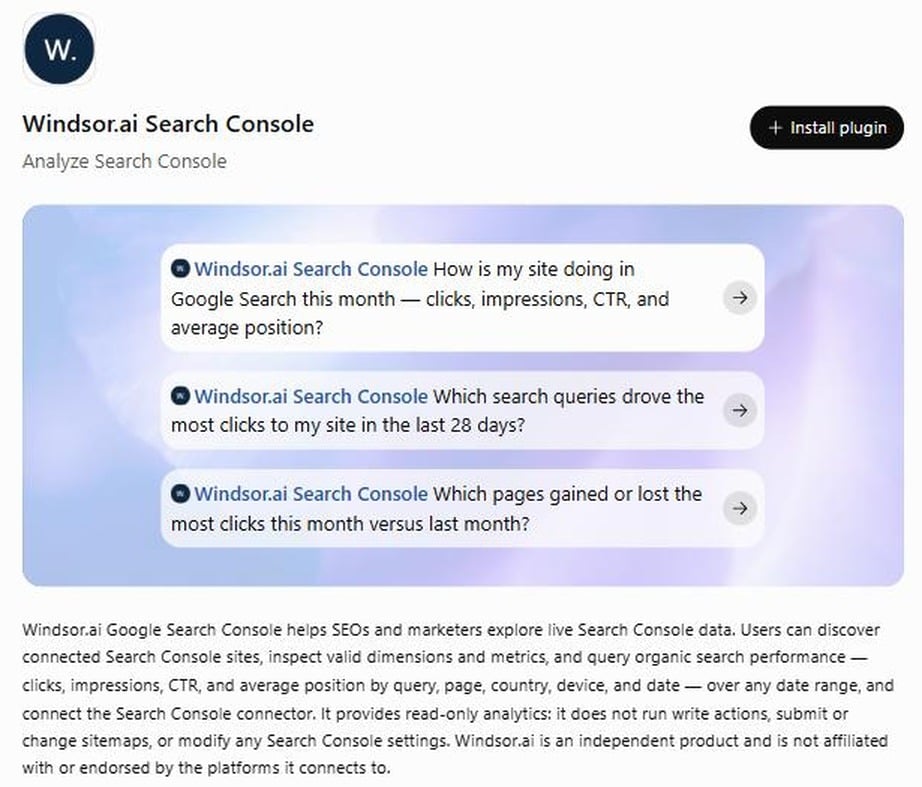
The Windsor.ai Search Console plugin page. It is read-only: it does not submit sitemaps or change settings.
Step 3: check the connection with a number you know
On the plugin page, click Try in chat. ChatGPT opens a new chat with the plugin chip (Windsor.ai Search Console) in the message box. Replace the example question with:
Using Windsor.ai, show clicks and impressions for [property] for the last 28 days. Tell me the latest date in the data.
Compare the answer with the Performance report for the same dates. Search Console data is usually 2 to 3 days behind, so a “last 7 days” window can hold only four or five days of data. Ask for the latest date every time.

Try in chat opens a new chat with the plugin chip in the message box.

ChatGPT’s answer through the Windsor.ai Search Console plugin on windsor.ai, 1 October 2026. Asked for the last 7 days by day, it returned the five days with data and said the latest date was 28 September.
Method 2: a remote MCP server
Google does not publish a Search Console MCP server. Community servers exist, and ChatGPT can use one only if it runs on a server you can reach over HTTPS. You then add it in ChatGPT as a custom connector in Developer Mode. You need a Google Cloud project with the Search Console API, OAuth credentials, a host for the server, and someone to maintain it.
Choose this route if you need URL inspection from ChatGPT, which the Windsor.ai plugin does not have. The open-source servers and their setup are compared in Google Search Console MCP.
Method 3: CSV export and upload
- In Search Console, open Performance, then Search results.
- Set the date range and search type.
- Click Export, then Download CSV. The ZIP holds one file per tab (Queries, Pages, Countries, Devices, Search appearance, Dates).
- Upload the files you need to a ChatGPT chat and say what each one is.
The Performance report table and the export stop at 1,000 rows. On windsor.ai for 2 to 28 September, the API returned 54,577 queries when the request was split by device, and 21,228 when it was not. Ranked by clicks, the export’s 1,000 queries covered most clicks but just 55% of impressions, with the remaining 45% spread over more than 50,000 smaller queries. A click report from the export is close. Long-tail or impression work needs the full data.
What ChatGPT can analyze through Windsor.ai
| Data | Fields |
|---|---|
| Search performance | Clicks, impressions, CTR and average position by query, page, date, country, device, search type and search appearance |
| Fields Windsor adds | Branded or non-branded (domain name in the query), words in the query, results page number, URL path levels (pathlevel1 to pathlevel4), page path, hostname |
| Sitemaps | Submitted URLs, errors, warnings, last download per sitemap |
Two limits apply on every route. Google returns only its top rows for a request (up to 25,000 per request), and it hides rare queries: on windsor.ai in September, rows with a query covered 68% of clicks. Ask ChatGPT whether a share is of all clicks or of clicks with a query. The full list is in the Search Console field reference.
Three prompts to start with
Queries close to page one
Using Windsor.ai, list queries with an average position between 11 and 20 and at least 500 impressions in the last 28 days. Show clicks, CTR and the ranking page. For each query, tell me whether another of our pages also gets impressions for it.
Pages losing visibility
Show the pages that lost the most impressions in the last 28 days compared with the 28 days before. For each page, list the queries that lost position and the queries that lost the most impressions.
Branded and non-branded clicks
Split our clicks for the last 3 months into branded and non-branded queries, month by month. Use this regex for branded: [your brand regex]. Tell me what share of clicks has no query at all.
More prompts, including cannibalization and title checks, are on the Search Console to ChatGPT page. The questions I ask every week are in Google Search Console MCP.
Search Console data not showing in ChatGPT?
- Plugin not chosen. Start the chat from the plugin’s Try in chat button, so the plugin chip is in the message box.
- Wrong property. Ask about the property you connected. A domain property and a URL-prefix property of the same site report different totals.
- Recent days missing. Search Console fills in the last 2 to 3 days late, so they look empty or low.
- No access. Sign in with a Google account that is a user on the property in Search Console.
Analyze Search Console next to GA4 and Google Ads
With the main Windsor.ai plugin and more than one source connected, one prompt can join them:
- Search Console and GA4: landing pages that earn organic clicks but where visitors leave without engaging. Match the URL format of the two sources before you compare them.
- Search Console and Google Ads: paid keywords for which your page already ranks in positions 1 to 3.
Windsor.ai’s free forever plan includes one data source. After the first 30 days, two or more sources need a paid plan, at $19 a month for three or $99 a month for seven. See pricing.
Conclusion
For daily work in ChatGPT, install the Windsor.ai Search Console plugin, or the main Windsor.ai plugin if you want GA4 and ad data in the same answer, and check one number you know. Use a remote MCP server only if you need URL inspection and can host it. Use a CSV export for a single question. For the same setup in Claude, see how to connect Google Search Console to Claude.
🚀 Connect Search Console to ChatGPT with Windsor.ai. Free forever plan, no credit card. Try Windsor.ai.
FAQs
Which ChatGPT SEO tools have a Search Console integration?
The Windsor.ai Search Console plugin reads your Search Console data in ChatGPT: clicks, impressions, CTR and position by query, page, country, device and date. The main Windsor.ai plugin adds GA4, Google Ads and 350+ other sources in the same chat.
Does the plugin give ChatGPT URL inspection data?
No. It reads search analytics and sitemaps. For index status of a single URL, use URL Inspection in Search Console or an MCP server that has it.
How far back does Search Console data go in ChatGPT?
Up to 16 months, the same as Search Console. That covers a month-on-month or a 3-month year-on-year comparison, but not the last 12 months against the 12 before.
Can I connect several Search Console properties?
Yes. Every property you connect in Windsor.ai is available in the same chat, so you can compare two sites or two clients in one prompt.
Can the plugin change my Search Console settings?
No. It is read-only: it does not submit or change sitemaps or settings.


