 Destinations
 Data sources
 AI insights
 About us
 Careers
 Security
 Customer reviews
 Contact us
 Affiliate program
 Solution partners
 Template gallery
 Looker Studio templates
 Power BI templates
 Excel templates
 Google Sheets templates
 Tableau templates
 Facebook Ads templates
 Google Ads templates
 Data fields & Metrics
 AI prompt library & Guides
 Product documentation
 API documentation
 Case studies
 Blog
Blog Data models
 Windsor vs Supermetrics
 Windsor vs Funnel.io
 Windsor vs Fivetran
 Windsor vs Rivery
 Windsor vs Portermetrics
 Windsor vs Coupler.io
Connect Monday.com to Claude
Automatically sync your Monday.com data to Claude using the Windsor.ai connector.
Quickly send Monday.com metrics to Claude and generate AI insights to improve productivity, resource allocation, and project delivery.
Forget CSVs. Stop copy/paste. Connect data in minutes. No code required.
 Sign up with Google
 Free forever plan
No credit card needed
Free forever plan
No credit card needed










Streamline project management with Monday.com to Claude integration
Windsor.ai enables fast integration between Monday.com and Claude, so you can analyze your project data using conversational AI and unlock these key benefits:

Natural-language querying
Ask Claude questions in plain English, like “Which projects are at risk of missing deadlines?” or “How is team workload distributed across tasks?” Receive clean, structured answers that help you prioritize tasks and optimize workflows.

Instant AI insights
Claude quickly uncovers trends, patterns, anomalies, and correlations in your project metrics that would take hours to find by manually analyzing spreadsheets or dashboards. Claude doesn’t just present numbers; it interprets data and provides recommendations, acting as a smart project assistant in real time.

Visual dashboards and reporting
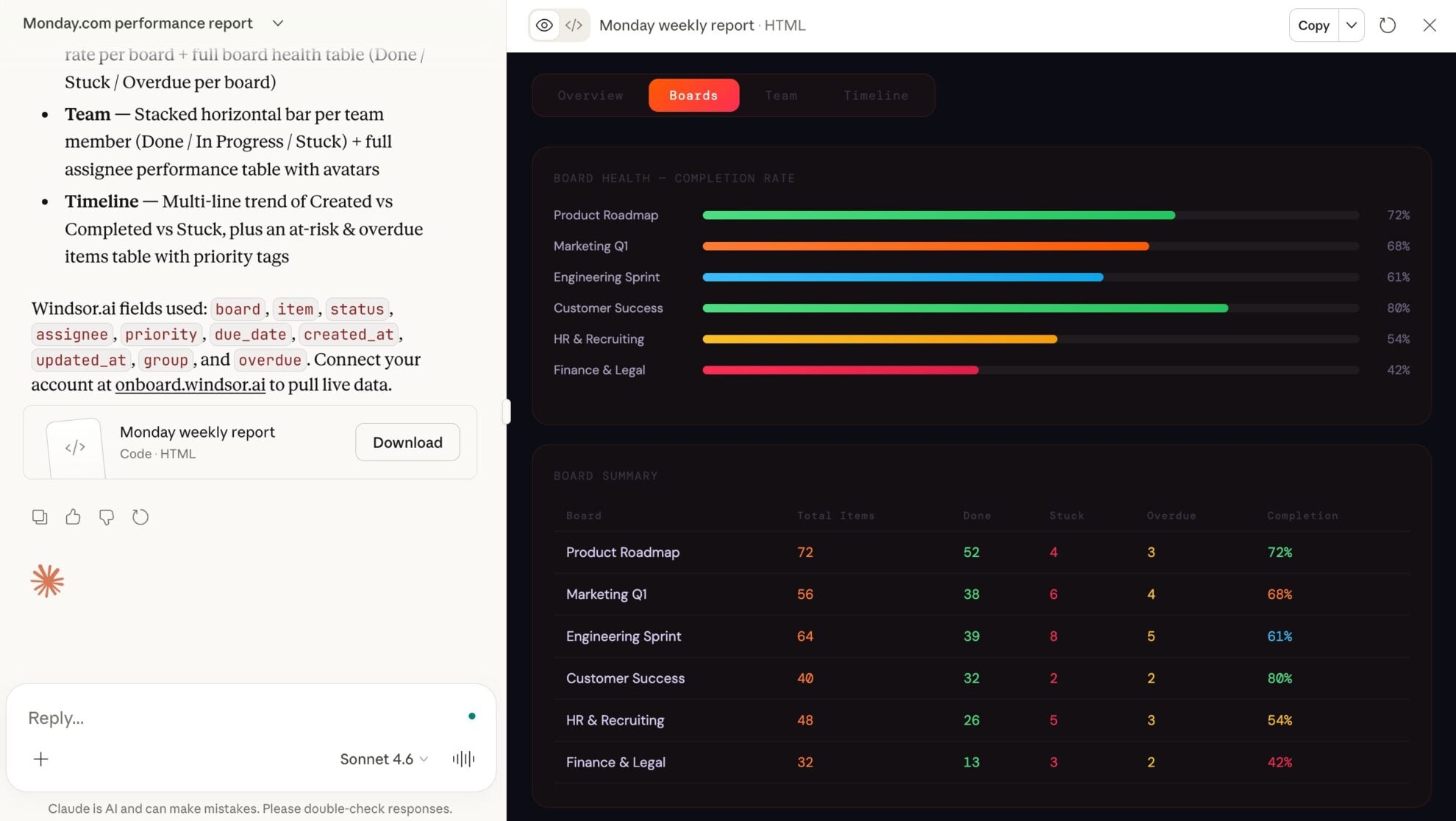
Generate visual dashboards and reports tailored to your project needs in Claude. Easily adjust them with simple prompts and share the latest insights with team members.

Project health audit
Claude reviews your boards to identify overdue items, stalled tasks, and potential timeline slips before they affect delivery. It generates a clear narrative summary of project health, enabling managers to focus on high-impact problem-solving rather than manual data review.

Deadline risk alerts
Claude monitors planned vs. actual completion dates to flag projects or tasks at risk of missing deadlines. Managers receive proactive alerts to prevent timeline slippage.
Using Windsor.ai to connect data from Monday.com to Claude
Getting your Monday.com data into Claude usually requires manual exports, complex setups, or expensive tools. Windsor.ai removes these barriers with a connector that automatically collects, normalizes, and streams your Monday.com data into Claude.
Connect in minutes and ask questions in plain English to uncover AI-powered insights across projects, timelines, and team performance.
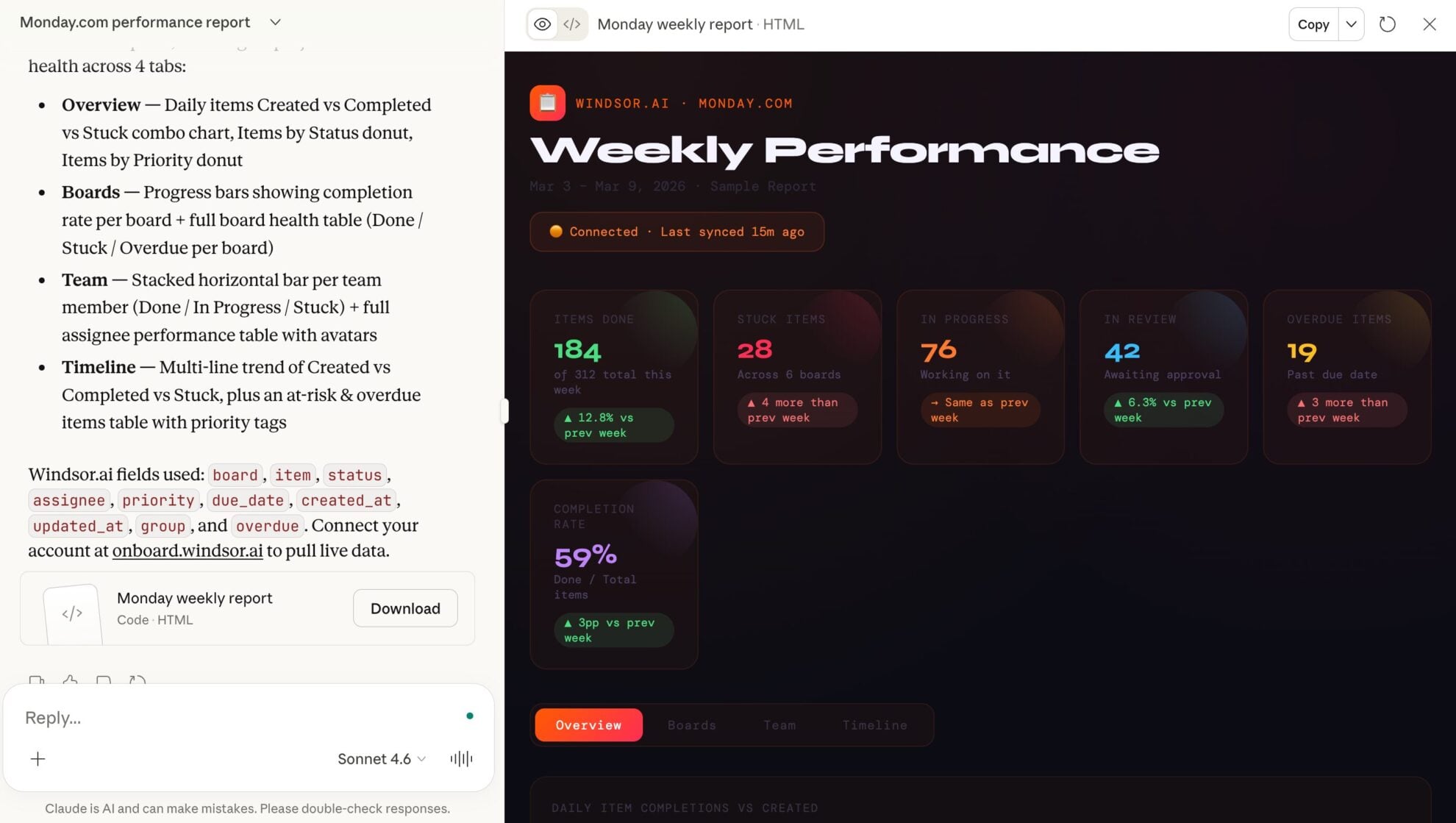














How to connect Monday.com to Claude with Windsor.ai
Explore our video tutorial and a step-by-step guide to integrate your data from any source into Claude with the Windsor.ai connector.
Select your data source
Choose Monday.com as your data source and grant access to Windsor.ai.

Install the Windsor.ai connector in Claude
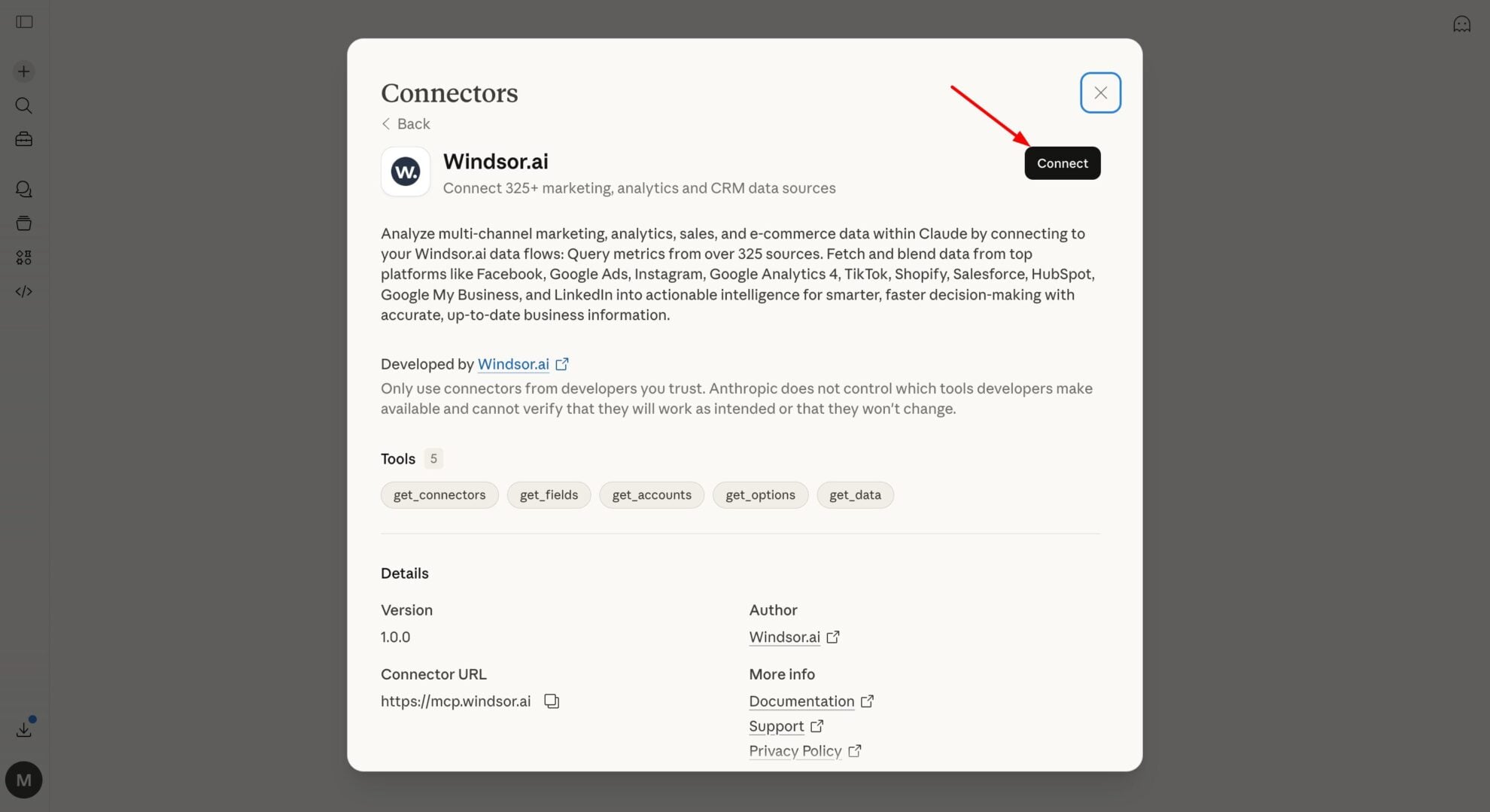
In Claude, open Customize, then Connectors, search for Windsor and click Add. Sign in to your Windsor.ai account when prompted, and the connector appears in your Connectors list. You can also open the Windsor.ai listing in the Claude directory and click Connect.
Query your data in Claude
Start a new chat and ask Claude questions about your connected data: summarize KPIs, create client reporting dashboards, or run advanced analyses.
FAQs
What can I do with my Monday.com data in Claude?
Once your Monday.com data is in Claude, you can:
- Analyze boards and workspaces. Claude can summarize project progress, highlight inactive boards, and flag delayed or updated projects.
- Track tasks and items. See which tasks are overdue, stalled, or blocked, and monitor overall task completion.
- Monitor updates and activity. Ask Claude to review updates and activity logs to show recent changes, trends, and recurring issues.
- Understand team workload. Identify overloaded or underutilized team members and optimize task distribution.
- Generate reports: Instantly deliver dashboards, summaries, and reports that accelerate data-driven decisions and team collaboration.
Find more details about Windsor MCP for Claude use cases in this guide: https://windsor.ai/how-to-use-windsor-mcp-examples-use-cases/.
What prompts can I use when analyzing Monday.com data in Claude?
To gain deeper, actionable insights, you can query your Monday.com data with more targeted prompts. For example:
-
Analyze the time elapsed between 'In Progress' and 'Done' statuses across all tasks this quarter. Identify which phase of our workflow is the slowest.
-
Predict potential project delays for next month based on historical completion rates and current team capacity.
-
Evaluate the efficiency of our 'Sprint' boards by comparing estimated hours vs. actual time tracked, and identify the team members with the highest accuracy.
-
Audit our task distribution to see if any specific department is consistently exceeding their 'Planned' budget vs. 'Actual' costs recorded in the board columns.
Can Claude help identify workflow bottlenecks in Monday.com?
Yes. Claude analyzes task status history (items__state), creation and update dates (items__created_at, items__updated_at), and activity logs (activity_logs__event) to pinpoint where work tends to stall. It provides actionable insights to streamline processes and improve delivery speed.
How much does it cost to integrate Monday.com into Claude using Windsor.ai?
Windsor.ai’s pricing for Claude data integration varies depending on the number of connected accounts and data sources. We offer absolutely transparent pricing plans for diversified business needs and budgets.
How long does it take to connect Monday.com to Claude?
With Windsor.ai’s intuitive connector, the integration process takes just a few minutes. No technical expertise is required; connecting Monday.com to Claude is simple, straightforward, and completely code-free.
Do you have helpful links to get started with integrating Monday.com and Claude using Windsor.ai?
Yes, we have helpful resources to help you get started. You can explore our official documentation and tutorials for seamless Monday.com to Claude integration with Windsor.ai:
Can Claude help with resource planning and team capacity?
Absolutely. Claude aggregates People and Numbers columns across multiple Monday.com boards to provide a unified view of team bandwidth. It highlights overloaded or underutilized team members and suggests more efficient ways to distribute tasks based on historical completion rates.
How secure is my Monday.com data in Claude?
By default, the Windsor.ai connector provides “read-only” access to ensure your data remains secure and unchanged. While Claude can analyze and summarize your information, it cannot modify your board structures, delete items, or change task owners, which maintains the integrity of your original data.
Can Claude help me find specific items across hundreds of boards?
Yes. Claude can interpret natural-language queries to locate tasks across all your boards. Instead of manually searching, you can ask, “Where is the task related to the Q3 Logo redesign?” and Claude will identify the relevant item, its board, and current status instantly.
Tired of manual Monday.com data exports? Try Windsor.ai today to automate your reporting


