 Destinations
 Data sources
 AI insights
 About us
 Careers
 Security
 Customer reviews
 Contact us
 Affiliate program
 Solution partners
 Template gallery
 Looker Studio templates
 Power BI templates
 Excel templates
 Google Sheets templates
 Tableau templates
 Facebook Ads templates
 Google Ads templates
 Data fields & Metrics
 AI prompt library & Guides
 Product documentation
 API documentation
 Case studies
 Blog
Blog Data models
 Windsor vs Supermetrics
 Windsor vs Funnel.io
 Windsor vs Fivetran
 Windsor vs Rivery
 Windsor vs Portermetrics
 Windsor vs Coupler.io
Connect Google Analytics 4 (GA4) to BigQuery
Easily integrate your Google Analytics data into BigQuery with Windsor.ai for scalable data analysis.
Our no-code ELT connectors automate GA4 reporting, enabling multi-channel performance analysis and delivering actionable insights into your digital platform’s results, all in just a few clicks, without the need for a complex technical setup.
Forget CSVs. Stop copy/paste. Connect data in 2 minutes. No code required.
 Sign up with Google
 Free forever plan
No credit card needed
Free forever plan
No credit card needed










Get the most out of your GA4 data with BigQuery integration
While you can conduct comprehensive analysis in Google Analytics 4 (GA4), integrating it with BigQuery revolutionizes the scope and scale of your analytics efforts. Here are the game-changing benefits that GA4 BigQuery integration through Windsor.ai’s ELT connector can bring to your business:

Analyze large datasets without performance lags
Collecting and analyzing data from multiple websites and applications via GA4 can often be slow due to the reliance on numerous APIs. By integrating Google Analytics 4 with BigQuery, you can streamline the analysis of large-scale datasets, ensuring fast, reliable performance without any slowdowns.

Automate data reporting across multiple sources
The GA4 to BigQuery integration lets you automatically sync data from multiple websites and apps. You can build fully automated dashboards for large-scale analysis and schedule automated reports for timely data delivery, helping you make more informed decisions.

Make powerful data-driven decisions with real-time insights
Integrating Google Analytics with BigQuery gives you real-time access to every click, scroll, and conversion. With instant data at scale, you can optimize user experience and drive key marketing goals, from higher sales to stronger lead generation and brand growth.

Access raw data for custom reporting
Integrating GA4 with BigQuery gives you direct access to raw, event-level data instead of the aggregated views in the GA4 interface. This unlocks full flexibility for advanced analytics, custom reporting, and deeper insights tailored to your business needs.

Unify cross-channel data for a complete view
The GA4 to BigQuery integration via Windsor.ai lets you unify data from websites, mobile apps, and other marketing platforms in one place. With all touchpoints connected, you can see how each channel contributes to overall performance in a single, blended report.
Using Windsor.ai connector to import data from GA4 into BigQuery
While there are various ways to transfer Google Analytics 4 data into BigQuery, many methods are complex, time-consuming, and expensive.
This is where Windsor.ai steps in. With our powerful ELT connector, you can directly transfer your data from GA4 to Google BigQuery in a hassle-free and fully automated manner.














How to connect Google Analytics 4 to BigQuery in Windsor.ai
Make sure you have the following prerequisites before setting up the connector:
- GA4 property with Editor or Administrator permissions
- Google Cloud Platform (GCP) account with BigQuery enabled
- Active Windsor.ai account
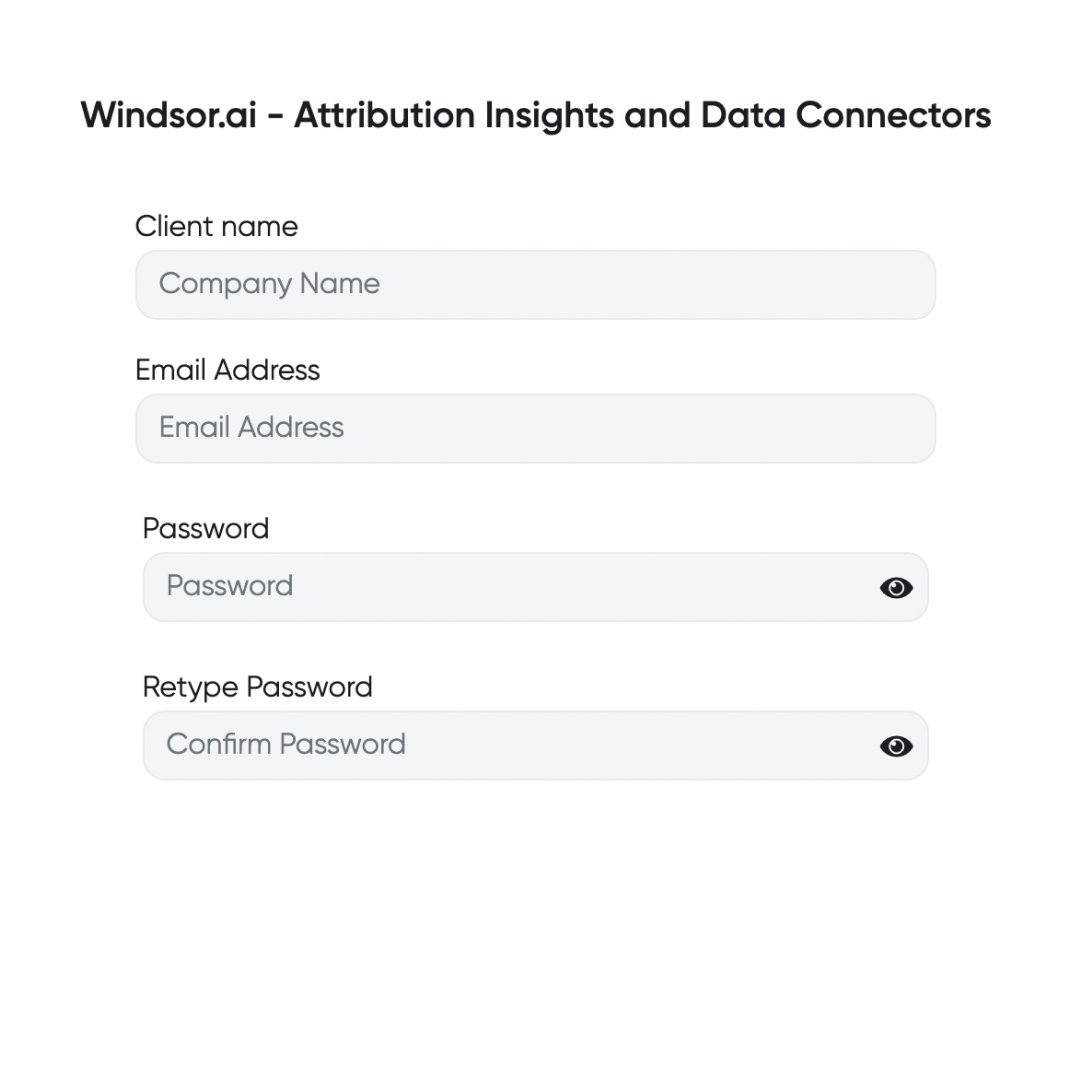
Register and log in to Windsor.ai
Create a new Windsor.ai account or log in if you already have one.
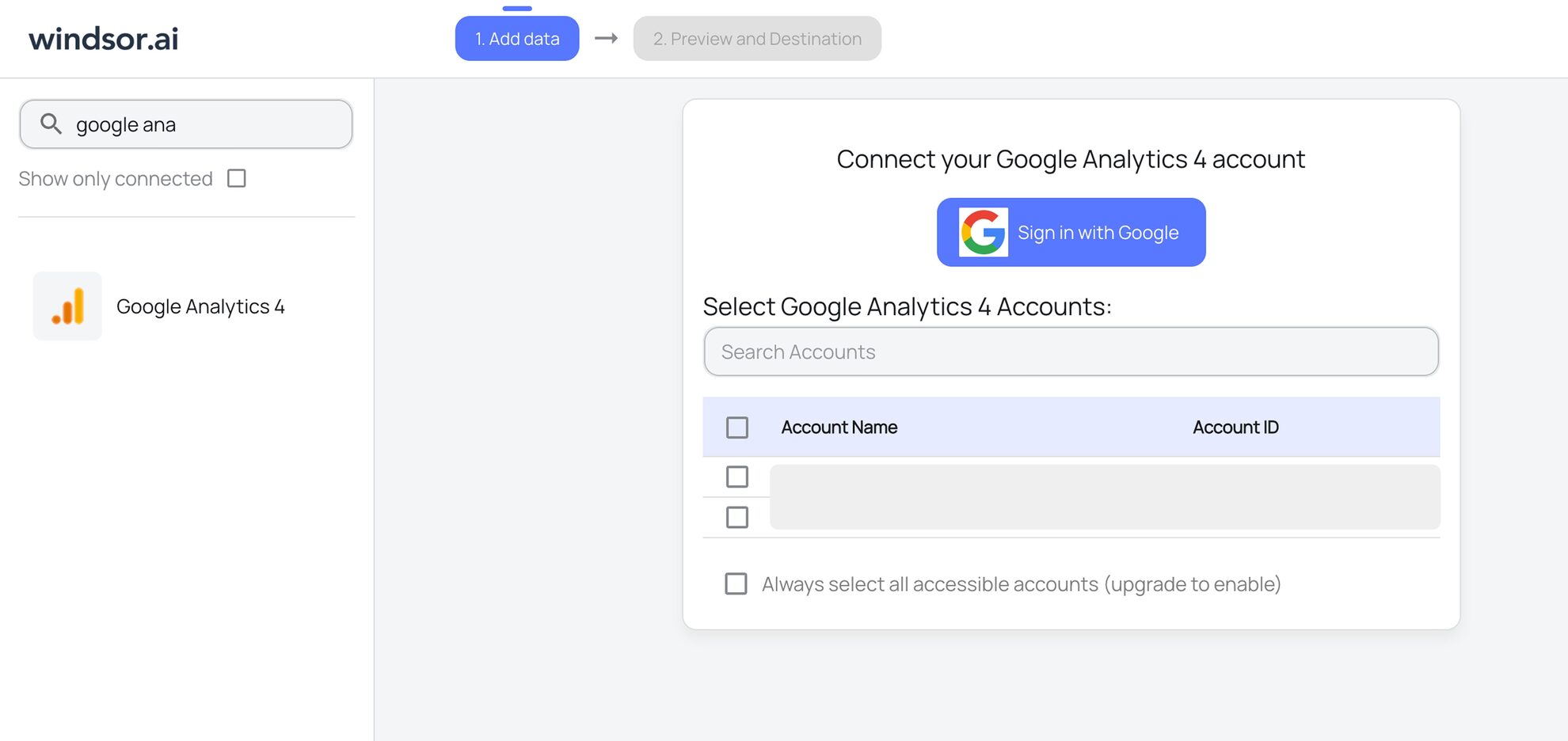
Select your data source
Choose Google Analytics 4 as your data source and grant access to Windsor.ai.
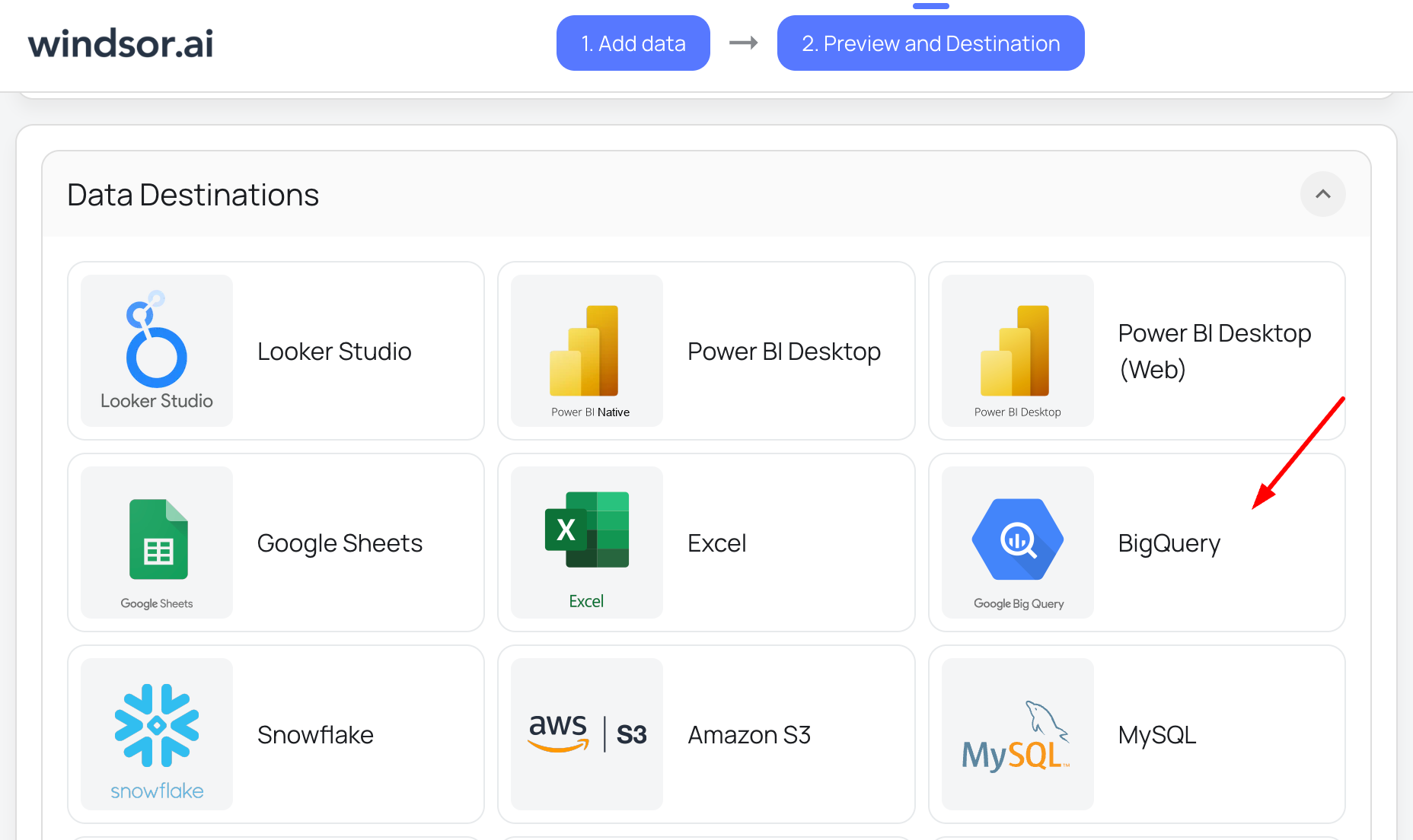
Select your destination
Set BigQuery as the destination for your data.
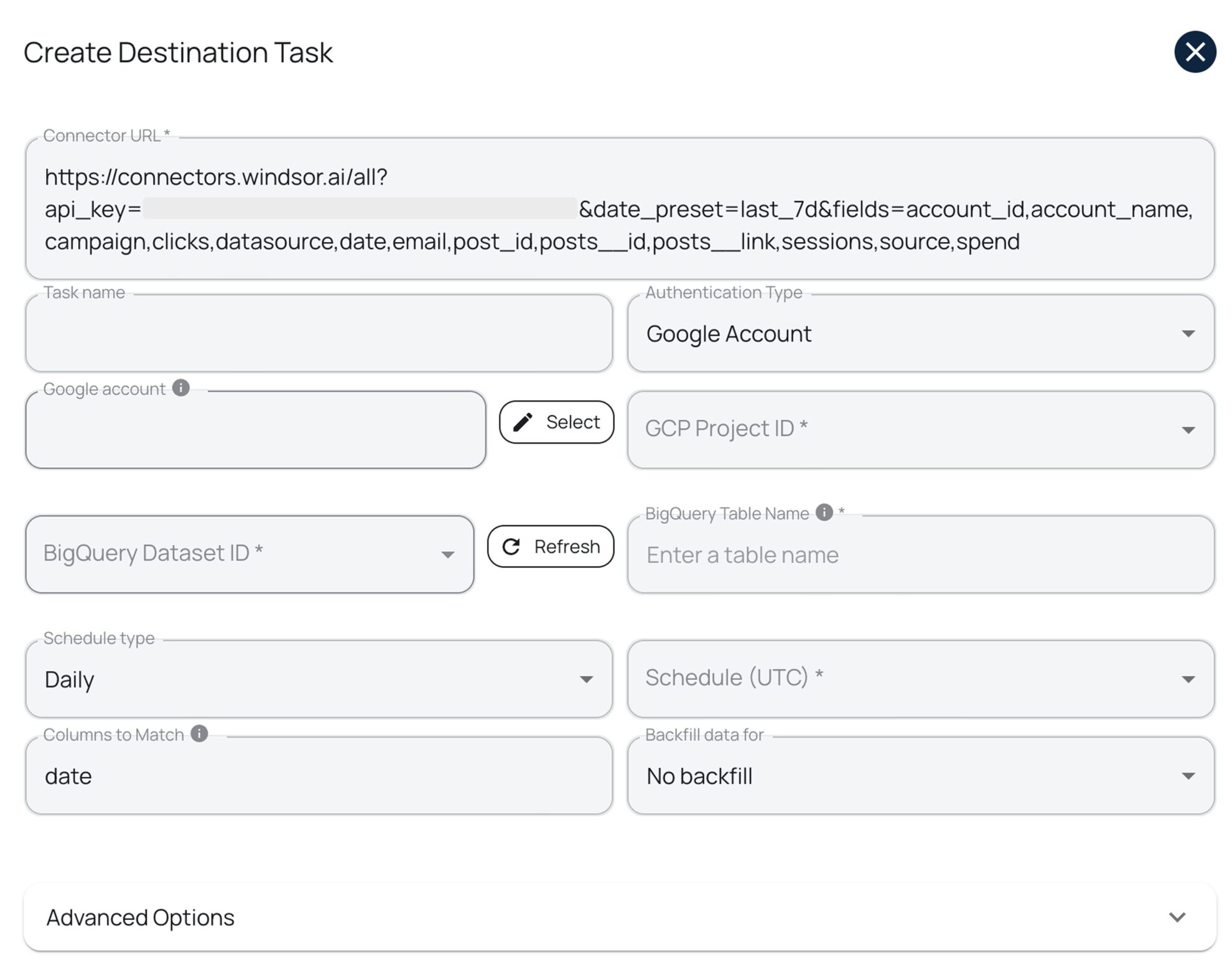
Create a destination task
Click on the “Add Destination Task” button and fill out the required fields along with the advanced settings (optional). Save and run the task.
How to connect Google Analytics 4 to BigQuery manually
Manually integrating Google Analytics 4 (GA4) with BigQuery involves multiple steps, including GA4 BigQuery link creation and setup, transforming and scheduling data. While this approach requires technical expertise, it provides full control over the data pipeline.
Windsor.ai streamlines the integration by automating data transfer, removing the need for manual setup, ensuring real-time updates, and reducing errors.
However, if you prefer a manual integration, follow this step-by-step guide to set up BigQuery linking and extract GA4 data into Google BigQuery.
Prerequisites
Before proceeding with the integration, ensure you have the following things in place:
- A Google Analytics 4 (GA4) account with Editor or Admin access.
- A Google Cloud Platform (GCP) account with billing enabled.
- Access to BigQuery and permissions to create datasets and tables.
Step 1. Set up Google Cloud and BigQuery
1. Enable BigQuery API:
- Go to the Google Cloud Console → APIs & Services → Library.
- Search for BigQuery API and click Enable.
2. Create a BigQuery Dataset:
- Open the BigQuery Console.
- Select your project and click Create Dataset.
- Name the dataset (e.g., ga4_export_data).
- Choose a data location and set the expiration policy (optional).
- Click Create Dataset.
Step 2. Enable BigQuery export in Google Analytics
1. Log in to your Google Analytics Account and click Admin from the sidebar.
2. Under the Property Settings, click Product Links.
3. Select BigQuery Links.
4. Click Link and select your Google Cloud Project.
5. Choose your BigQuery dataset location (select the closest region for better performance).
6. Select the dataset where GA4 data will be stored (the one you’ve created previously).
7. Select the data streaming frequency:
- Daily Export: Sends processed data once a day.
- Streaming Export: Sends data in near real-time.
8. Click Confirm and Save.
Step 3. Verify data in BigQuery
1. Open the BigQuery Console and navigate to the dataset you’ve created or selected.
2. You should see automatically created tables, such as:
- events_intraday_YYYYMMDD
- events_YYYYMMDD
3. Run SQL queries to explore the data:
SELECT *
FROM `your_project.ga4_export_data.events_*`
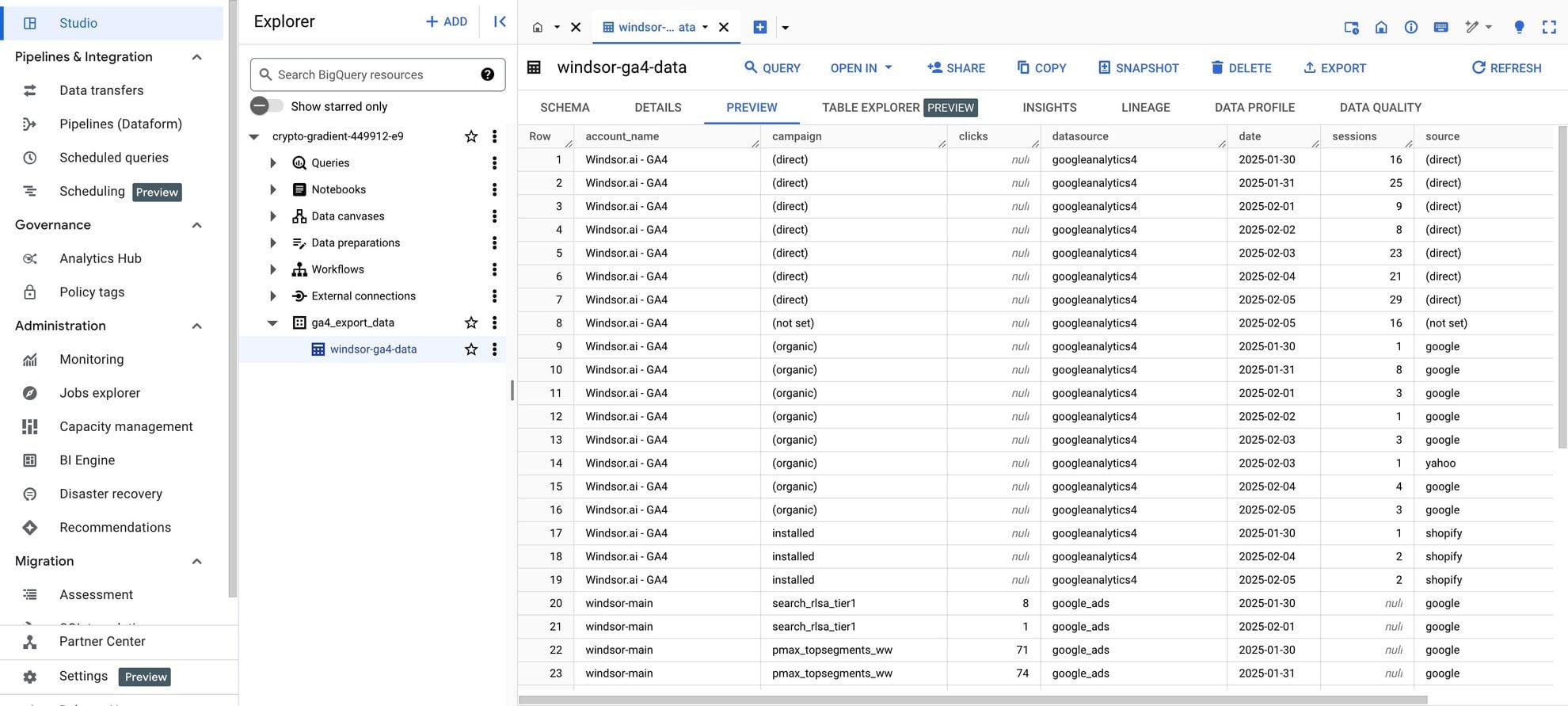
Cheers, you’ve sent your Google Analytics 4 data to Google BigQuery!
Keep in mind that the Daily Export is free within Google Cloud’s free tier while the Streaming Export incurs additional costs based on usage.
FAQs
What is BigQuery?
BigQuery, also known as Google Cloud BigQuery, is a cloud-based data storage and analytics platform that enables businesses to store and analyze large datasets.
Powered by AI, it leverages artificial intelligence to assist you in data processing. With integrated machine learning and business intelligence capabilities, BigQuery automates much of your analytics work. Plus, with its 99.99% uptime, you don’t need to worry about database maintenance or service disruptions.
How much time do I need to create a GA4 and BigQuery integration?
Windsor.ai provides a user-friendly interface and a powerful data connector that extracts, transforms, and loads GA4 data into BigQuery in under 5 minutes, making the process quick and hassle-free.
What prerequisites do I need to integrate GA4 with BigQuery?
To set up the GA4 to BigQuery connector from Windsor.ai, you need the following prerequisites:
- GA4 property with Editor or Administrator permissions
- Google Cloud Platform (GCP) account with BigQuery enabled
- Service account credentials for BigQuery
- Active Windsor.ai account
Do you have helpful links to get started with integrating GA4 and BigQuery using Windsor.ai?
Yes, we have helpful resources to help you get started. You can explore our official documentation and ready-to-use templates for seamless Google Analytics 4 to BigQuery integration with Windsor.ai:
How much does it cost to integrate Google Analytics 4 into BigQuery with Windsor.ai?
Windsor.ai’s pricing for Google Analytics to BigQuery data integration can vary depending on your use case and data volume. We offer absolutely transparent, volume-based event pricing plans for diversified business needs and budgets.
What should I do if my BigQuery data upload fails?
Here are things you can look into:
- Ensure your service account has the correct permissions.
- Verify the JSON format of the uploaded file.
- Check if the dataset and table names in the API request are correct.
Does Google Analytics 4 have some limitations when exporting data?
Yes, Google Analytics has some inherited quota limits preventing complete data export and analysis:
- Maximum number of hits per property per day: GA4 allows a maximum of 10 million hits per property per day. A hit is defined as any request to the GA4 servers, such as a pageview or event. If you exceed this limit, GA4 may discard some of your data to stay within the quota.
- Maximum number of events per hit: GA4 allows a maximum of 20 custom events per hit. If you exceed this limit, GA4 may discard some of your events to stay within the quota.
- Maximum size of a hit payload: GA4 allows a maximum hit size of 8 KB. If you exceed this limit, GA4 may discard some of your data to stay within the quota.
- Maximum number of user properties per property: GA4 allows a maximum of 25 user properties per property. User properties are custom dimensions that you can use to segment your data. If you exceed this limit, you may need to consolidate or remove some of your user properties.
Why use Windsor.ai’s GA4 to BigQuery connector?
Windsor.ai’s ELT connectors streamline data integration by automating the entire workflow, ensuring a seamless and efficient process. Our platform instantly syncs your Google Analytics 4 data with BigQuery or other destinations, cutting data preparation time by over 50%.
With Windsor.ai’s GA4 connector, users eliminate manual data retrieval and gain access to reporting right out of the box.
What’s more, our ELT platform lets you get around the following Google Analytics’ inherited quota limits; your data will be cached and retrieved anytime without hitting any limits or issues.
What are the authentication options for connecting BigQuery to Windsor.ai?
Windsor.ai supports two authentication methods:
- Google Account (OAuth 2.0): Recommended for quick setup, testing, or personal use.
- Service Account (JSON Key File): Ideal for automated, scheduled, and production-level data transfers.
What data types and file formats does BigQuery support for GA4 data?
If you’re loading data manually rather than through Windsor.ai’s connector, BigQuery accepts ORC, Avro, Parquet, CSV, and NDJSON files, with Parquet and Avro performing best for heavy workloads. GA4 fields need to map to BigQuery’s own types before a manual load runs cleanly: STRING for campaign or page names, INTEGER for counts like events or users, FLOAT for metrics like session duration, BOOLEAN for flags or status fields, STRUCT for nested objects, and TIMESTAMP for event timestamps.
What are the limitations of BigQuery Data Transfer Service (DTS) for GA4?
Google’s native DTS handles GA4-to-BigQuery imports, but with real limits. It only syncs once a day, so there’s no intraday or real-time data. It offers little control over which fields get exported, no data transformations happen before loading, and the schema is fixed, so anything custom needs cleanup after the fact in BigQuery itself. Windsor.ai’s connector supports field selection and more frequent refreshes.
Tired of manual GA4 data exports? Get started with Windsor.ai today to automate your reporting


