 Destinations
 Data sources
 AI insights
 About us
 Careers
 Security
 Customer reviews
 Contact us
 Affiliate program
 Solution partners
 Template gallery
 Looker Studio templates
 Power BI templates
 Excel templates
 Google Sheets templates
 Tableau templates
 Facebook Ads templates
 Google Ads templates
 Data fields & Metrics
 AI prompt library & Guides
 Product documentation
 API documentation
 Case studies
 Blog
 Data models
 Windsor vs Supermetrics
 Windsor vs Funnel.io
 Windsor vs Fivetran
 Windsor vs Rivery
 Windsor vs Portermetrics
 Windsor vs Coupler.io
Connect Google Search Console to Gemini Enterprise
Connect your Google Search Console data to Gemini Enterprise with the Windsor.ai connector, and ask about your search performance in plain language.
Ask for queries close to page one, pages with low CTR or branded and non-branded clicks, built on your own Search Query, Position, CTR and Clicks fields.
Forget CSVs. Stop copy/paste. Connect in minutes. No code required.
 Sign up with Google
 Free forever plan
No credit card needed






Get your Google Search Console data into Gemini Enterprise
Google Search Console is connected once in Windsor.ai, and these are the use cases the fields support:

Find queries close to page one
Search Query with Position between 8 and 20 and high Impressions shows where a small gain adds clicks.

Find pages with low CTR
Page with high Impressions and low CTR shows titles and descriptions to rewrite.

Separate brand from discovery
Branded vs Non-Branded splits clicks from people who already know you from new searches.

Compare devices and countries
Device and Country Name show where your search traffic comes from.
Using Windsor.ai to connect data from Google Search Console to Gemini Enterprise
Without Windsor.ai, Gemini Enterprise answers about Google Search Console data come from a file you exported and pasted in. Through the Windsor.ai connector, Gemini Enterprise reads the live data with its real field names, so the answers match what is in Google Search Console today.
Connect in minutes, then ask about your queries, pages, clicks, impressions and position.


How to connect Google Search Console to Gemini Enterprise with Windsor.ai
Watch the video tutorial, or follow the step-by-step guide to connect your Google Search Console data to Gemini Enterprise with Windsor.ai.
Connect Google Search Console in your Windsor.ai dashboard
Log in at onboard.windsor.ai, choose Google Search Console as your data source and sign in to grant Windsor.ai access to your account. Gemini can only query sources connected in Windsor.ai.

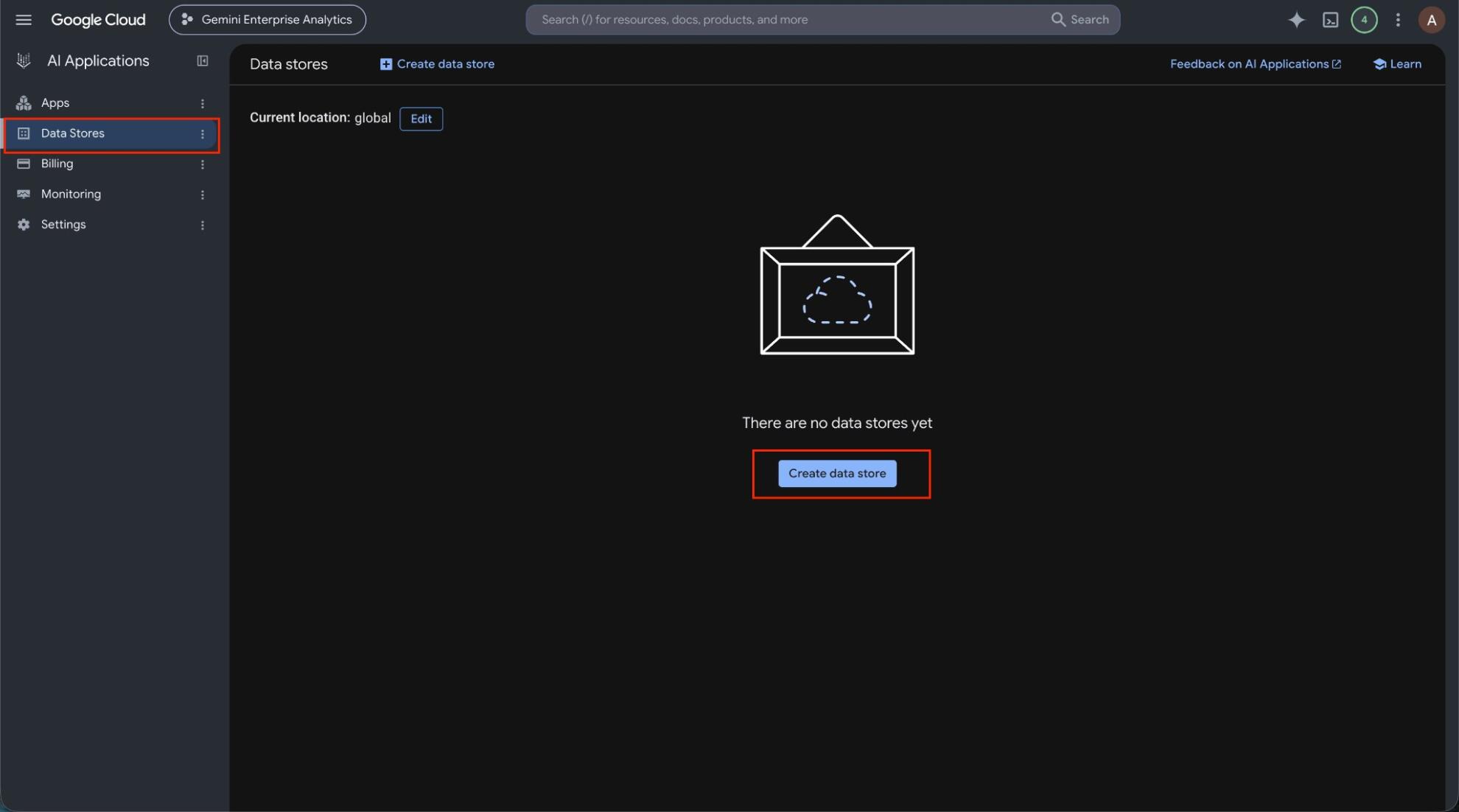
Create the Windsor.ai data store in Google Cloud
In the Google Cloud console, open Gemini Enterprise, go to Data stores and click Create data store. Under Third-party data sources, find Windsor.ai and click Add data source. Choose the actions to enable, set the location and create the store.
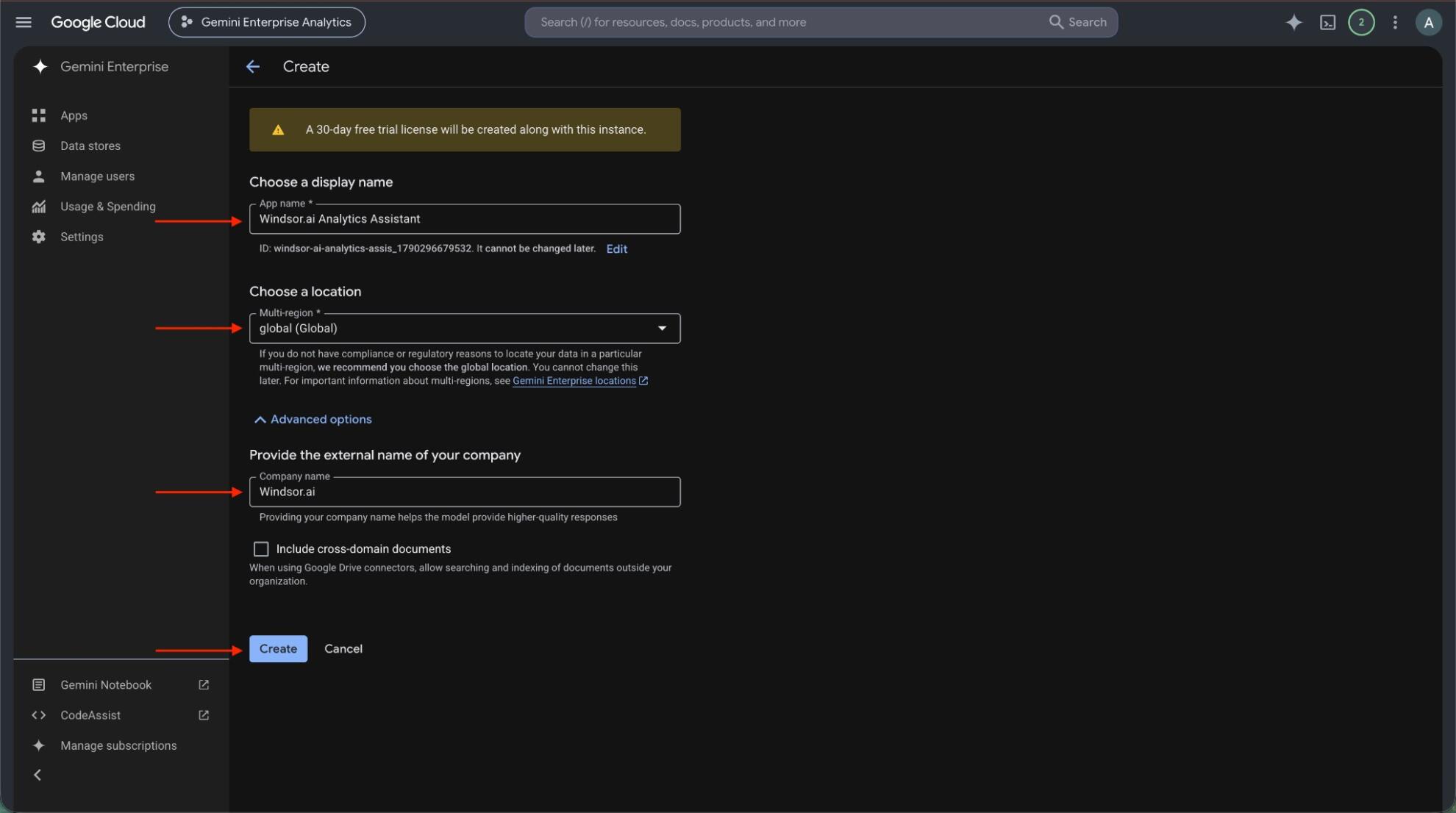
Create an app and connect the data store
Create a Gemini Enterprise app in the same location as your data store, or pick an existing one. Then open Connected data stores in the app and add the Windsor.ai data store.
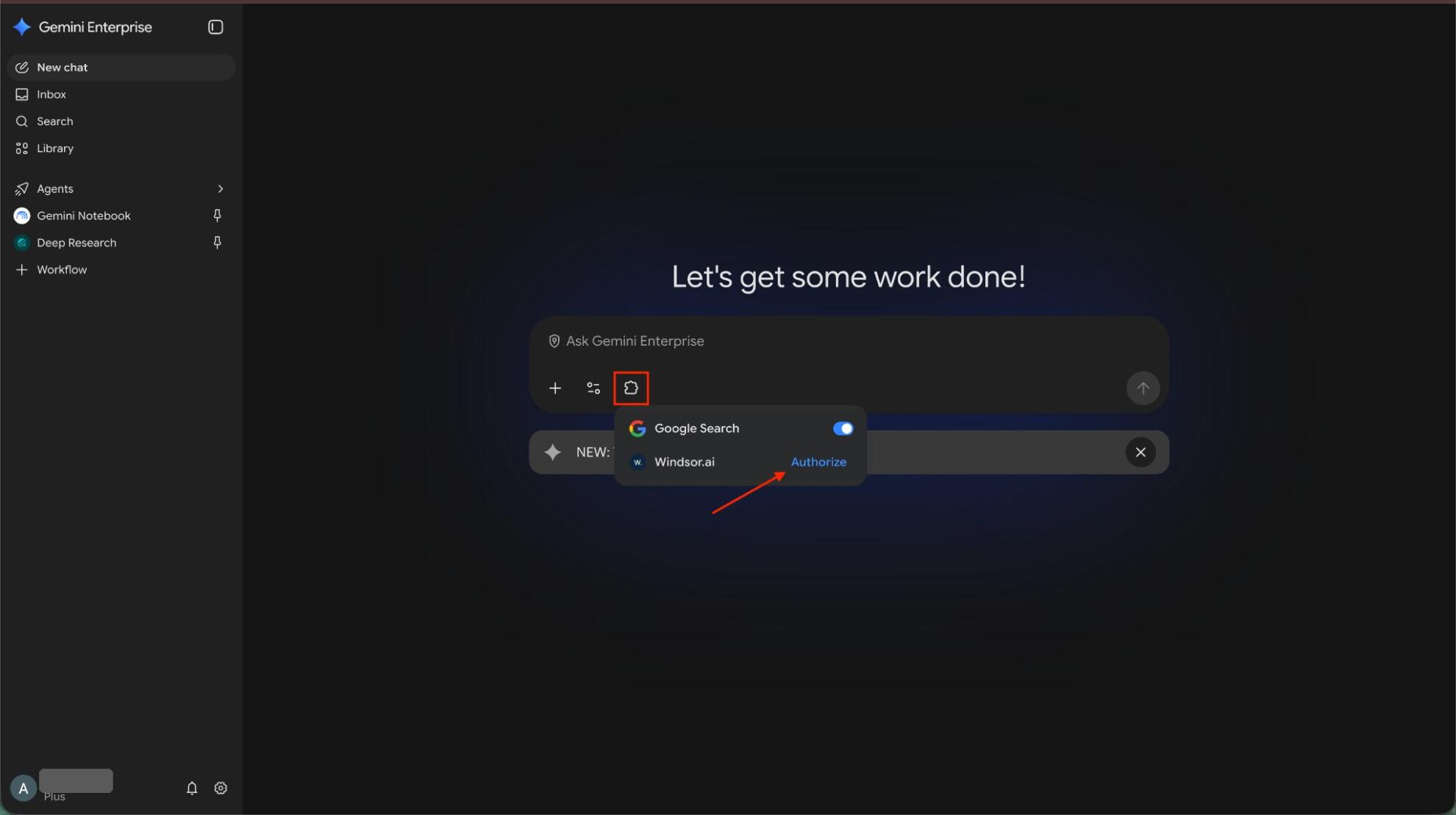
Authorize Windsor.ai
Open the app’s web app, click the puzzle piece icon and click Authorize next to Windsor.ai. Allow access, sign in to Windsor.ai if asked, and click Finish.
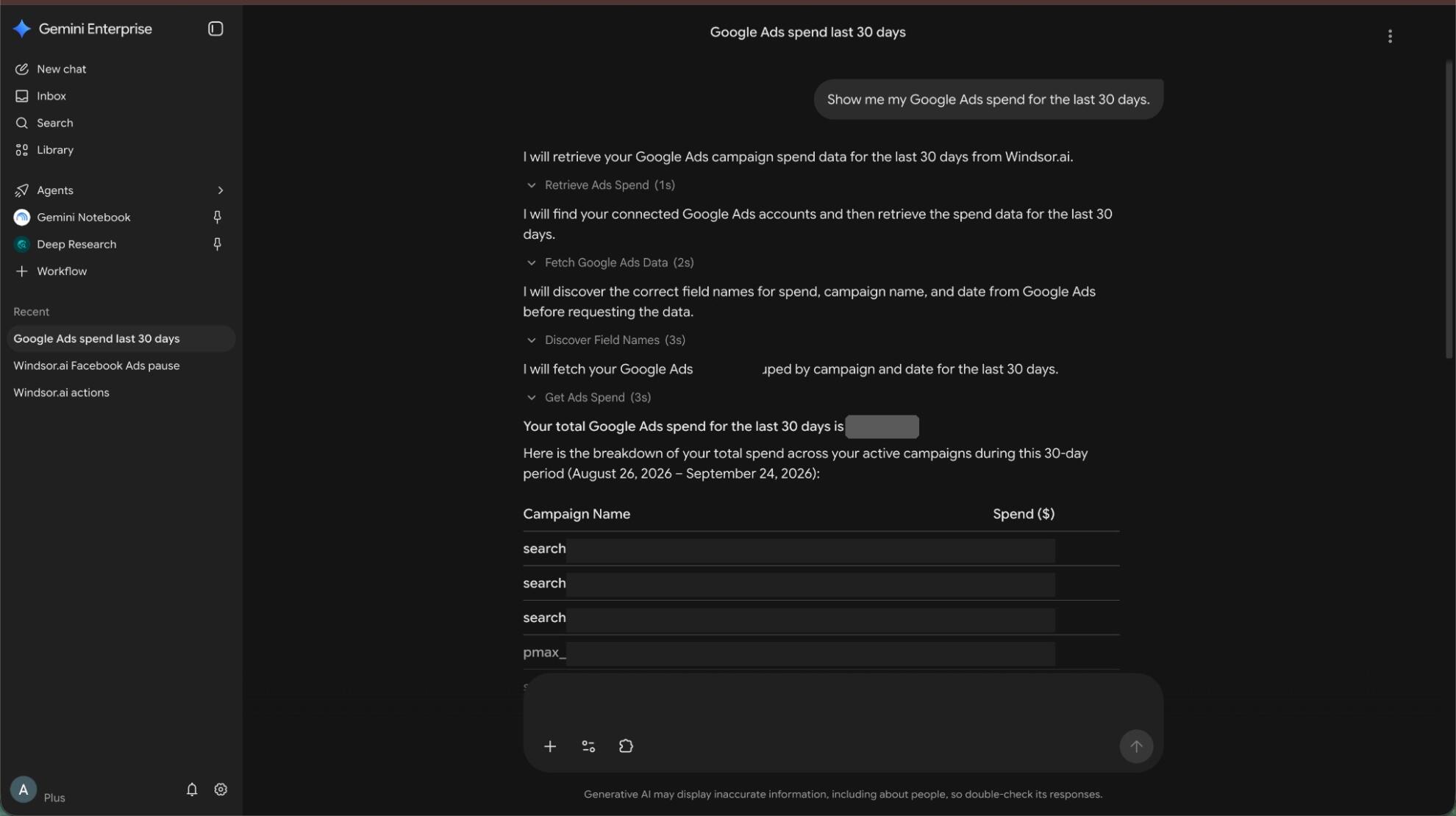
Ask Gemini about your Google Search Console data
Ask a question such as “List queries with Position between 8 and 20 and more than 500 Impressions in the last 28 days.” Data can take about 10 minutes to appear after you connect the data store to the app.
FAQs
What Google Search Console data can Gemini Enterprise use?
Windsor.ai gives access to 50+ Google Search Console fields. These are the main groups; the Google Search Console field reference lists all of them:
- Performance: Clicks, Impressions, CTR, Position.
- Queries and pages: Search Query, Page, Page Path, Branded vs Non-Branded.
- Segments: Device, Country Name, Search type, Search Appearance.
- Sitemaps: Submitted, Errors, Warnings.
- Time: Date.
What can I ask Gemini Enterprise about my Google Search Console data?
These prompts name the fields to use, so the answer comes back on your own data:
-
List queries with Position between 8 and 20 and more than 500 Impressions in the last 28 days.
-
Which pages have more than 1,000 Impressions and a CTR below 1% this month?
-
Show Clicks split by Branded vs Non-Branded for the last 3 months.
-
Compare Clicks and Position by Device for my top 20 pages.
Can Gemini Enterprise change my Google Search Console data?
No. The Google Search Console connector is read-only. Gemini Enterprise can read your Google Search Console data through Windsor.ai and cannot create, edit or delete anything in Google Search Console.
Can I combine Google Search Console data with other sources in Gemini Enterprise?
Yes. Windsor.ai supports 350+ data sources, so you can connect Google Search Console alongside other tools and ask about them together. For example, put Search Console Clicks by Page next to GA4 Key events by landing page, so search clicks and on-site results sit in one table.
Do I need to code to connect Google Search Console to Gemini Enterprise?
No. Connect Google Search Console in Windsor.ai, add Windsor to Gemini Enterprise, and sign in. After that you ask in plain language.
How much does it cost to integrate Google Search Console with Gemini Enterprise using Windsor.ai?
The free forever plan covers 1 data source, so connecting Google Search Console on its own costs nothing and needs no credit card. Combining Google Search Console with other sources needs a paid plan: $19/month for 3 sources or $99/month for 7. Gemini Enterprise is billed separately by Google. See the pricing page.
Do you have helpful links to get started with Google Search Console and Gemini Enterprise?
Yes. These are the resources to start with for the Google Search Console to Gemini Enterprise integration:
Tired of manual Google Search Console data exports? Try Windsor.ai today to work on live data


