 Destinations
 Data sources
 AI insights
 About us
 Careers
 Security
 Customer reviews
 Contact us
 Affiliate program
 Solution partners
 Template gallery
 Looker Studio templates
 Power BI templates
 Excel templates
 Google Sheets templates
 Tableau templates
 Facebook Ads templates
 Google Ads templates
 Data fields & Metrics
 AI prompt library & Guides
 Product documentation
 API documentation
 Case studies
 Blog
 Data models
 Windsor vs Supermetrics
 Windsor vs Funnel.io
 Windsor vs Fivetran
 Windsor vs Rivery
 Windsor vs Portermetrics
 Windsor vs Coupler.io
Connect Instagram Public to Cursor
Connect your Instagram Public data to Cursor with the Windsor.ai connector, so the dashboards and scripts Cursor builds use your real public profile, post and engagement data from the accounts you track.
Ask Cursor for a competitor benchmark canvas, a posting cadence report or a caption analysis script built on your own Likes per post, Media product type and Media caption fields.
Forget CSVs. Stop copy/paste. Connect in minutes. No code required.
 Sign up with Google
 Free forever plan
No credit card needed










Build competitor reports on public Instagram data in your Cursor project
Cursor works inside your project, so what it builds from your Instagram Public data stays with you as files, scripts and canvases you can rerun. Key use cases:

Benchmark the profiles you follow
Cursor can build a canvas that ranks each tracked Instagram user name by Likes per post and Comments per post, with Profile followers count (Current) beside it, and you rerun it each month.

Track how often competitors post
Ask for a script that counts posts per Week for every profile and flags weeks when a competitor posted far more or less than usual.

Compare formats across accounts
Media product type and Media type with Media Like Count show whether reels, carousels or single images earn more likes for each profile.

Read what the top posts say
Cursor can write a script that pulls the Media caption of the best posts by likes, finds the most common words and hashtags, and saves them to a file.
Using Windsor.ai to connect data from Instagram Public to Cursor
Without Windsor.ai, Cursor builds on placeholder numbers or on CSV exports you paste into the project. Windsor MCP gives Cursor live Instagram Public data with the real field names, so the dashboards and scripts it writes match your account.
Connect in minutes, then ask Cursor to build something with your Instagram Public data.


How to connect Instagram Public to Cursor with Windsor.ai
Explore a step-by-step guide to add Windsor MCP to Cursor and start building on your Instagram Public data.
Connect Instagram Public in the Windsor.ai dashboard
Choose Instagram Public as your data source and sign in to grant Windsor.ai access to your account.

Add Windsor MCP in Cursor
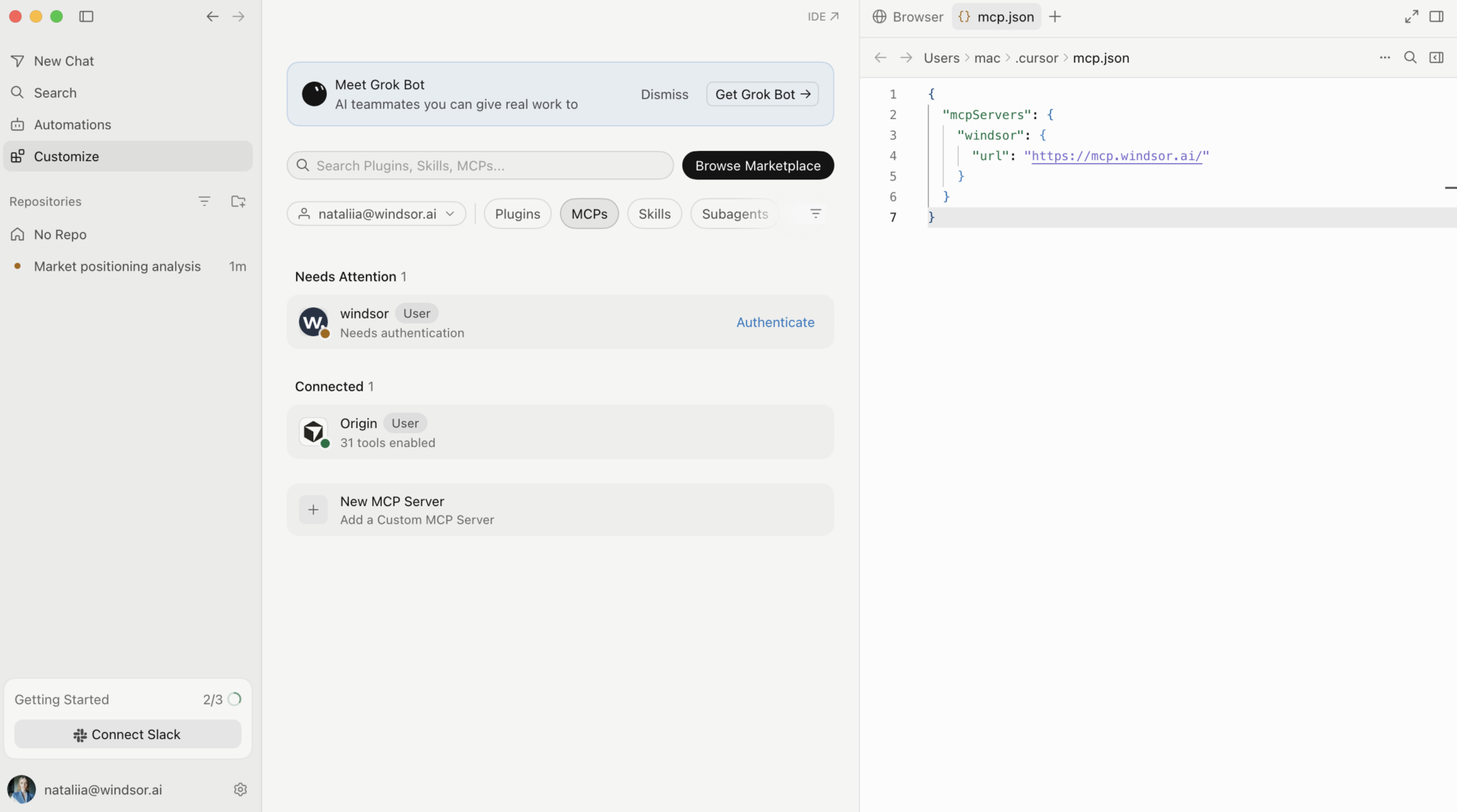
Open Settings in Cursor Desktop and go to Tools & Integrations → New MCP Server. When mcp.json opens, add Windsor:
{
  "mcpServers": {
    "windsor": {
      "url": "https://mcp.windsor.ai/"
    }
  }
}
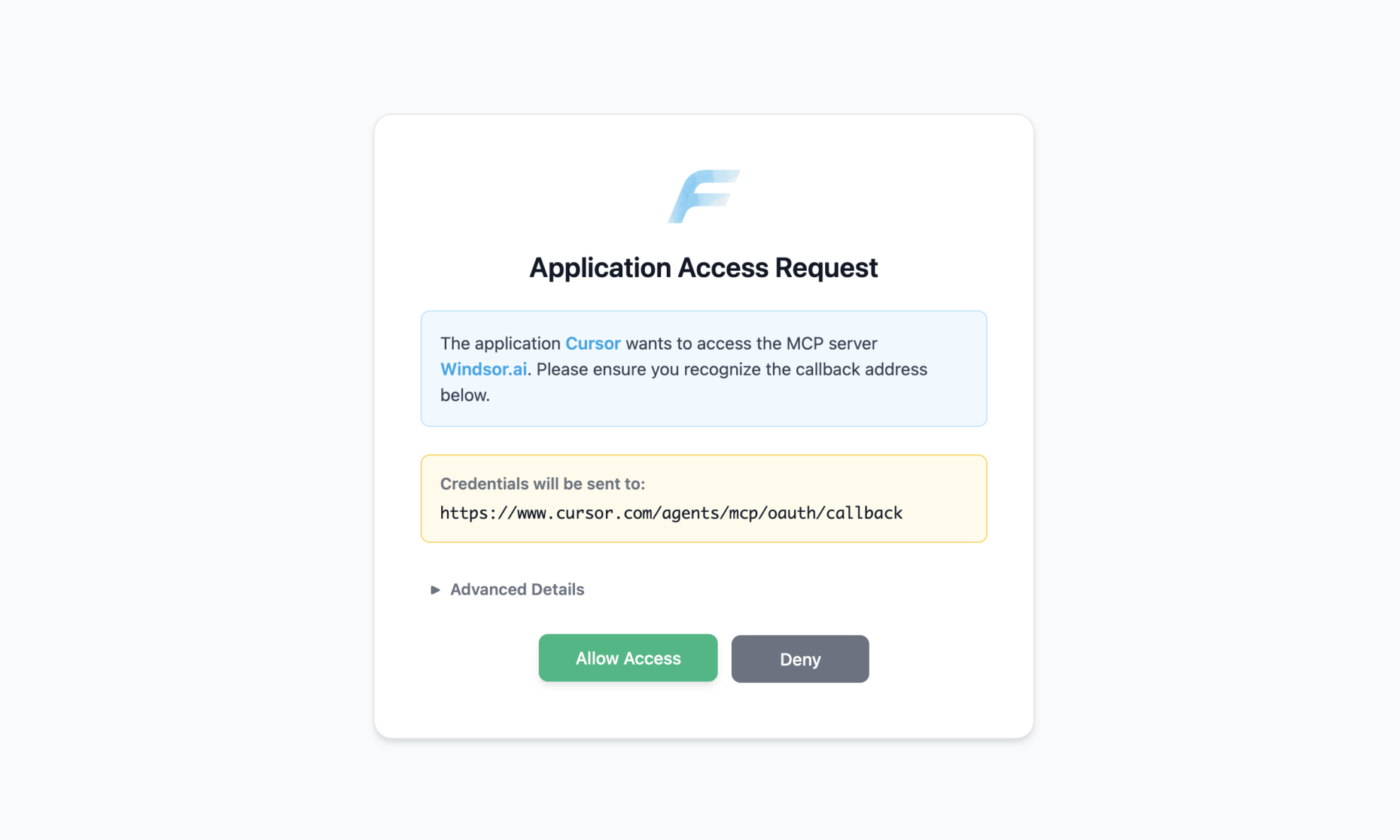
Authenticate with Windsor.ai
Save mcp.json. Windsor appears in your MCP list and asks you to authenticate. Click Authenticate and sign in to Windsor.ai in the browser.
Ask Cursor to build on your Instagram Public data
Open a chat in your project and ask about your Instagram Public data.
FAQs
What Instagram Public data can Cursor use?
Windsor.ai gives Cursor access to 42 Instagram Public fields. These are some of the groups; the Instagram Public field reference lists all of them:
- Profiles: Instagram user name, Instagram profile (account) name, Instagram profile (account) biography, Profile followers count (Current), Profile follows count, Profile media/posts count (Current).
- Posts: Media ID, Media type, Media product type, Media caption, Media created, Media permalink.
- Engagement: Media Like Count, Comments count, Likes per post, Comments per post.
- Time: Date, Week, Month.
What prompts can I use to build with Instagram Public data in Cursor?
Cursor works best when you ask it to build something with a clear output. Each of these names the fields to use and the file or canvas you want back:
-
Pull Instagram user name, Likes per post, Comments per post and Profile followers count (Current) for every profile I track, for the last 30 days. Build a canvas that ranks the profiles by Likes per post, shows likes per post as a share of followers next to it, and marks the profiles that post less than once a week.
-
Pull Instagram user name, Media ID and Media created for the last 12 weeks. Write a Python script that counts posts per Week for each profile, compares each week with that profile's own average, and writes posting_cadence.csv with the weeks that are more than 50% above or below it.
-
Pull Media product type, Media type, Media Like Count and Comments count by Instagram user name for the last 90 days. Build a grouped bar chart of average likes per post by format for each profile, and list the format that performs best for each one.
-
Pull Media caption, Media Like Count and Media permalink for the 50 most liked posts across all tracked profiles this quarter. Write a script that extracts hashtags and the most frequent words from the captions, saves them to caption_terms.csv with how many top posts use each one, and links each term to an example post.
-
Write a monthly competitor report as report.md: for each Instagram user name, the Profile followers count (Current), Profile media/posts count (Current), posts this month, average Media Like Count and the Media permalink of the best post. Keep the script in the project so I can rerun it next month.
Can Cursor turn Instagram Public data into dashboards I can share?
Yes. Cursor can render a dashboard, analysis or report as a canvas next to the chat, and it saves the canvas so you can reopen and rerun it later with fresh data. On paid Cursor plans you can publish a canvas to a read-only share link that members of your Cursor team can open. See the Cursor canvas documentation for the current plan requirements.
Can Cursor change my Instagram Public data?
No. The Instagram Public connector is read-only. Cursor reads your Instagram Public data through Windsor MCP and can write scripts, files and reports in your project, but it cannot create, edit or delete anything in Instagram Public.
Can I combine Instagram Public data with other sources in Cursor?
Yes. Windsor.ai supports 350+ data sources, so you can connect Instagram Public alongside tools such as Instagram, Facebook Page Insights or TikTok Organic and ask Cursor to work with them together. For example, ask Cursor to put Instagram Public Likes per post for the profiles you track next to your own Instagram Media engagement by post, and build one chart that compares your posts with theirs.
How do I add Windsor MCP to Cursor?
Open Settings in Cursor Desktop, go to Tools & Integrations → New MCP Server, and add Windsor to mcp.json:
{
  "mcpServers": {
    "windsor": {
      "url": "https://mcp.windsor.ai/"
    }
  }
}
Save the file, click Authenticate next to Windsor in your MCP list, and sign in to Windsor.ai in the browser.
Do I need to code to connect Instagram Public to Cursor?
No. The connection takes no code: connect Instagram Public in Windsor.ai, add Windsor to Cursor’s MCP settings, and sign in. After that you describe what you want in plain language, and Cursor writes and runs the code. You can read and edit everything it produces.
How much does it cost to integrate Instagram Public with Cursor using Windsor.ai?
The free forever plan covers 1 data source, so connecting Instagram Public on its own costs nothing and needs no credit card. Combining Instagram Public with other sources, such as your own Instagram account, needs a paid plan: $19/month for 3 sources or $99/month for 7. Cursor is billed separately by Cursor. See the pricing page.
Do you have helpful links to get started with Instagram Public and Cursor?
Yes. These are the resources to start with for the Instagram Public to Cursor integration:
Tired of manual Instagram Public data exports? Try Windsor.ai today to build on live data


