 Destinations
 Data sources
 AI insights
 About us
 Careers
 Security
 Customer reviews
 Contact us
 Affiliate program
 Solution partners
 Template gallery
 Looker Studio templates
 Power BI templates
 Excel templates
 Google Sheets templates
 Tableau templates
 Facebook Ads templates
 Google Ads templates
 Data fields & Metrics
 AI prompt library & Guides
 Product documentation
 API documentation
 Case studies
 Blog
 Data models
 Windsor vs Supermetrics
 Windsor vs Funnel.io
 Windsor vs Fivetran
 Windsor vs Rivery
 Windsor vs Portermetrics
 Windsor vs Coupler.io
Connect Lazada to Power BI
Easily bring your Lazada data into Power BI with Windsor.ai for catalog and advertising analysis.
Windsor.ai delivers Lazada products, categories, ad campaigns, and ad product performance to Power BI Desktop or Power BI on the web in a structured format, so you can build dashboards without CSV exports.
Forget CSVs. Stop copy/paste. Connect data in 2 minutes. No code required.
 Sign up with Google
 Free forever plan
No credit card needed








Get more from your Lazada data with Power BI
Connecting Lazada to Power BI with Windsor.ai gives sellers and marketing teams one report for catalog and ad performance. Here are the key benefits of this integration:

Dashboards without exports
Power BI reads your Lazada data through Windsor.ai, so reports for products and ads do not depend on manual file uploads.

Ad spend and clicks in one view
Chart Spend, Impressions, Clicks, CTR, and CPC by campaign to see how your ads perform over time.

Ad product returns
Put Revenue, Units Sold, and ROAS by ad group beside campaign spend to see which advertising pays back.
Using Windsor.ai connector to import data from Lazada into Power BI
Without Windsor.ai, getting Lazada data into Power BI means downloading reports from Seller Center and loading the files by hand. Windsor.ai’s connector delivers your Lazada products, categories, ad campaigns, and ad product performance to Power BI as a data source, with no code.
Connect in minutes and build reports from your Lazada data.
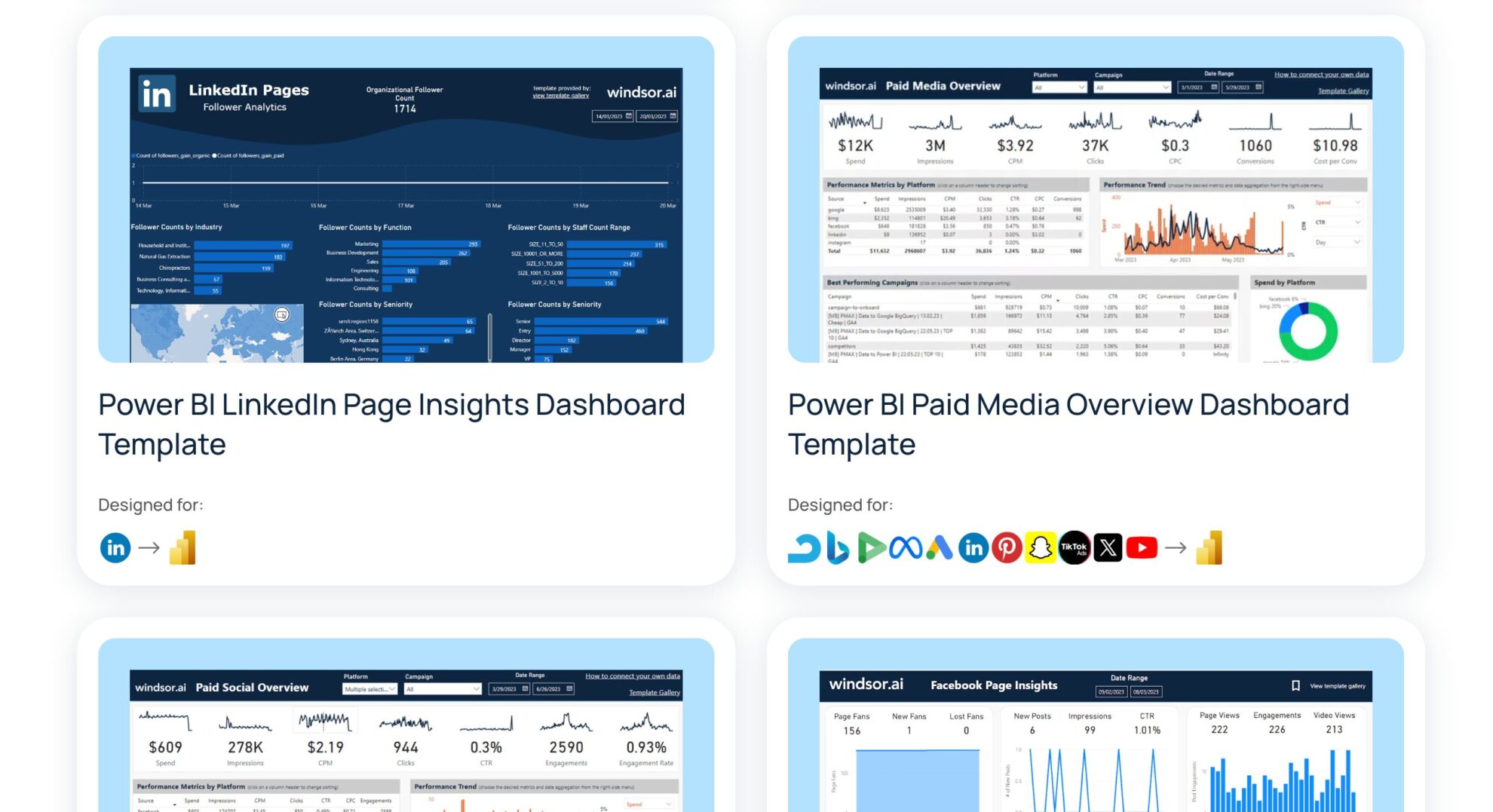


How to connect Lazada to Power BI in Windsor.ai
Windsor.ai supports two Power BI integration methods: Desktop and Web. Follow our step-by-step guide and video tutorials to get started quickly.
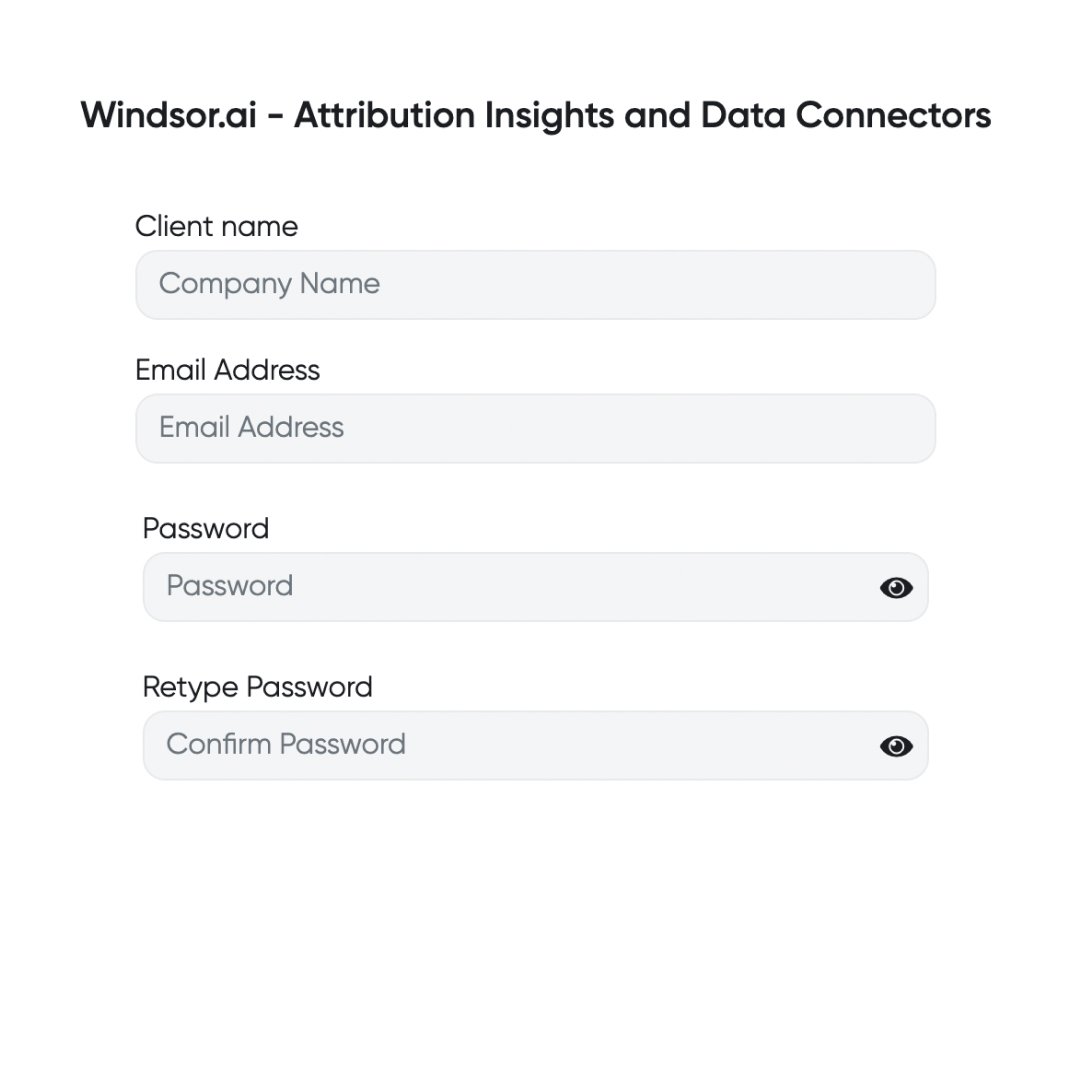
Register and log in to Windsor.ai
Create a new Windsor.ai account or log in if you already have one.
Select your data source
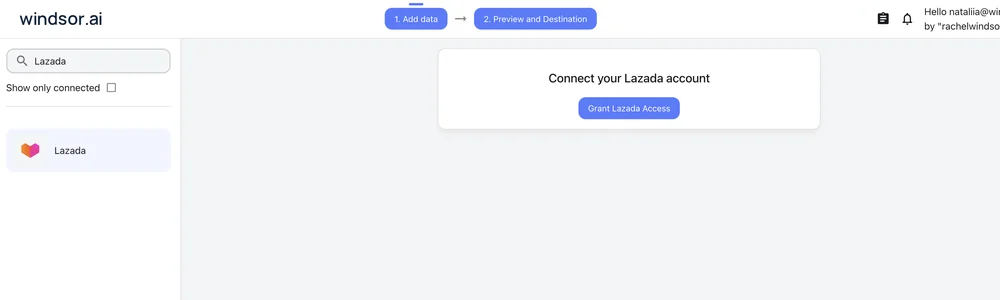
Choose Lazada as your data source and click Grant Lazada Access to authorize Windsor.ai.
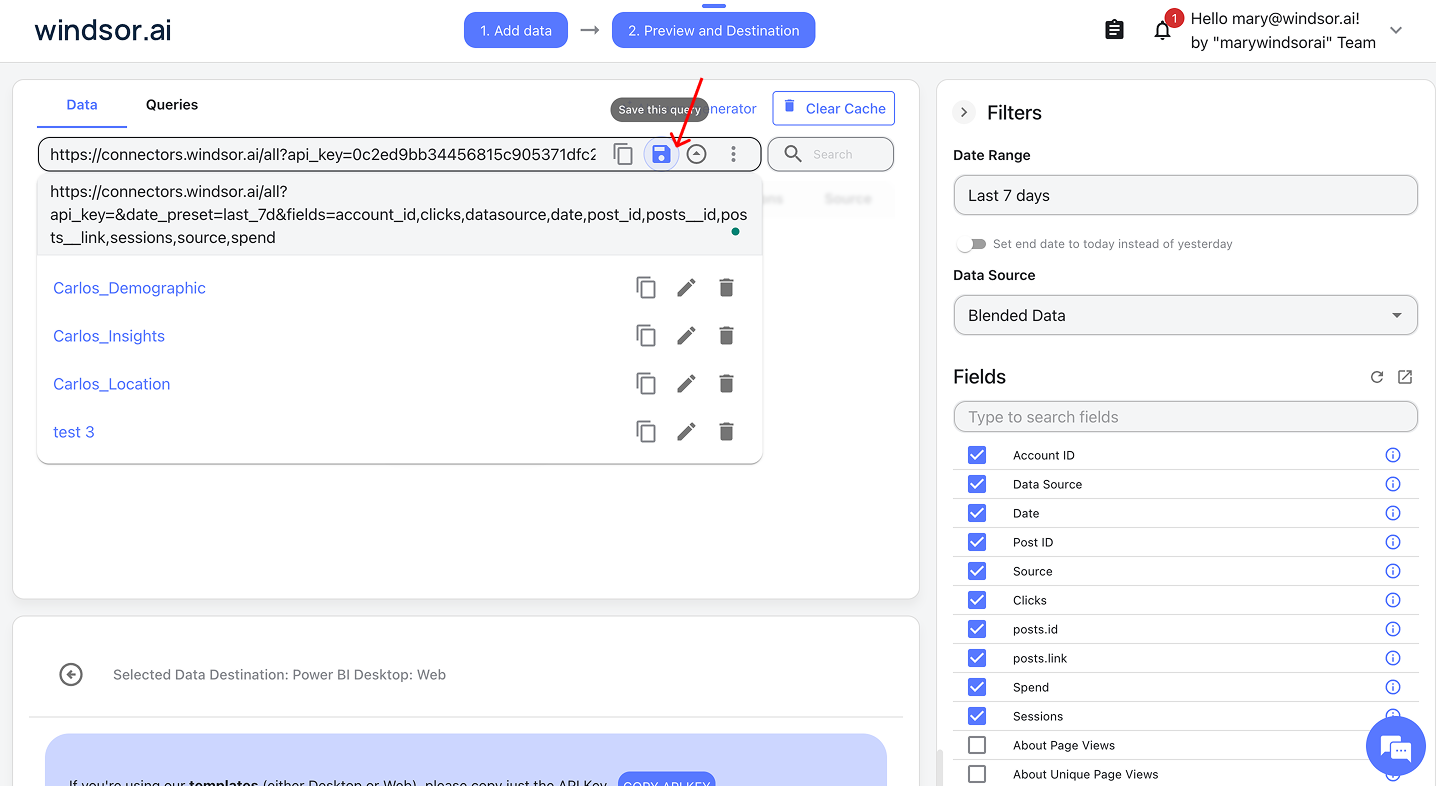
For Power BI Desktop: Save your query and select it in the app
- Save a query if you’re building a custom report in Power BI Desktop
- In Power BI Desktop, go to Get Data → Windsor → Sign in
- Select your saved query from Windsor and click Load
Video instructions: https://www.youtube.com/watch?v=Zf-3JYC1d1Q.
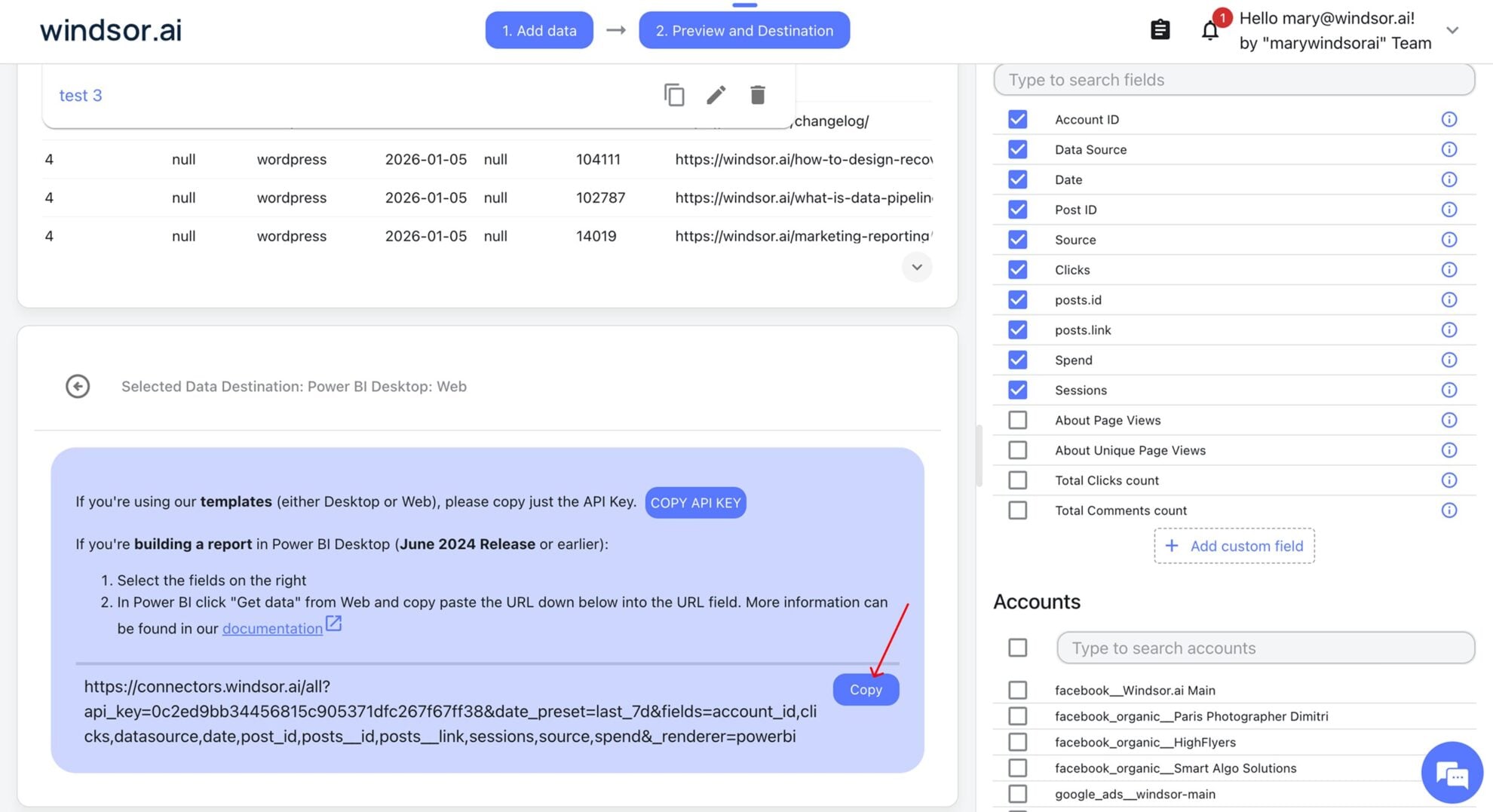
For Power BI Web: Copy your Windsor query URL
- Copy your query URL if you’re using Power BI Web
- In Power BI, go to Get Data → Web, paste your copied query URL, and click Ok
- Let the dashboard auto-load data
Video instructions: https://www.youtube.com/watch?v=L1NeAKUwqXk.
Build and refresh your report
You have connected your Lazada data to Power BI via Windsor.ai. Now you can visualize it the way you prefer.

FAQs
What is Power BI?
Power BI is Microsoft’s business analytics tool for building interactive reports and dashboards from many data sources.
What Lazada data can I report on in Power BI?
Windsor.ai delivers your Lazada data to Power BI in five groups. These are some of the fields in each; the Lazada field reference lists all of them:
- Products: Product Name, Product ID, Brand, Primary Category, Seller SKU, Shop SKU, SKU ID, Product Price, Product Special Price, Product Quantity, Product Available, Product Status, SKU Status.
- Categories: Category Name, Category ID, Category Path, Parent Category ID, Category Leaf.
- Ad campaigns: Campaign Name, Campaign Status, Campaign Start Date, Campaign End Date, Daily Budget, Impressions, Clicks, CTR, CPC, Spend.
- Ad products: Ad Product ID, Ad Group Name, Ad Status, Bid Price, Units Sold, Revenue, ROAS.
- Date and account fields: Date, Week, Month, Year, Account ID, Account Name.
How does Windsor.ai connect Lazada to Power BI?
There are two methods. In Power BI Desktop, you save a query in Windsor.ai, then go to Get Data, choose Windsor, sign in, and select the saved query. In Power BI on the web, you copy your Windsor.ai query URL and paste it under Get Data, then Web. Both are no-code.
Can I combine Lazada with other data sources in one Power BI report?
Yes. Windsor.ai supports 350+ data sources, so you can connect Lazada alongside tools such as Google Ads, Facebook Ads, or Shopify and report on them together. For example, you can compare Lazada ad spend with Google Ads spend, or compare Lazada ad revenue with sales from your own online store.
How much time do I need to create the Lazada and Power BI integration?
Connecting Lazada in Windsor.ai and loading the data into Power BI takes a few minutes, with no code.
How much does it cost to integrate Lazada with Power BI using Windsor.ai?
The free forever plan covers 1 data source, so connecting Lazada on its own costs nothing and needs no credit card. Combining Lazada with other sources, such as Google Ads or Shopify, needs a paid plan: $19/month for 3 sources or $99/month for 7. See the pricing page.
Do you have helpful links to get started with integrating Lazada and Power BI using Windsor.ai?
Yes, we have helpful resources to help you get started. You can explore our official documentation for Lazada to Power BI integration with Windsor.ai:
Tired of manual Lazada data exports? Get started with Windsor.ai today to automate your reporting


