 Destinations
 Data sources
 AI insights
 About us
 Careers
 Security
 Customer reviews
 Contact us
 Affiliate program
 Solution partners
 Template gallery
 Looker Studio templates
 Power BI templates
 Excel templates
 Google Sheets templates
 Tableau templates
 Facebook Ads templates
 Google Ads templates
 Data fields & Metrics
 AI prompt library & Guides
 Product documentation
 API documentation
 Case studies
 Blog
 Data models
 Windsor vs Supermetrics
 Windsor vs Funnel.io
 Windsor vs Fivetran
 Windsor vs Rivery
 Windsor vs Portermetrics
 Windsor vs Coupler.io
Connect LinkedIn Ads to Cursor
Connect your LinkedIn Ads data to Cursor with the Windsor.ai connector, so the dashboards and scripts Cursor builds use your real campaign, creative, cost and audience data.
Ask Cursor for an audience breakdown canvas, a budget pacing script or a company report built on your own Spend, Member seniority, Member company name and Campaign Daily Budget Amount fields.
Forget CSVs. Stop copy/paste. Connect in minutes. No code required.
 Sign up with Google
 Free forever plan










Build B2B ad reports on live LinkedIn Ads data in your Cursor project
Cursor works inside your project, so what it builds from your LinkedIn Ads data stays with you as files, scripts and canvases you can rerun. Key use cases:

See who your ads reach
Cursor can build a canvas of Spend, CTR and Cost Per External Website Conversions by Member seniority, Member job title and Member industry, so you see which audiences cost the least per conversion.

List the companies that click
Ask for a report of Member company name with Clicks and Spend that sales can use as a target account list.

Check budgets against spend
Cursor can write a script that compares Campaign Daily Budget Amount with average daily Spend for each Campaign (Ad Set in LinkedIn UI) and prints the ones that underspend.

Compare creatives
Creative ID with Engagement Rate, Video views and Video Completions shows which creatives hold attention, in a report you rerun each week.
Using Windsor.ai to connect data from LinkedIn Ads to Cursor
Without Windsor.ai, Cursor builds on placeholder numbers or on CSV exports you paste into the project. Windsor MCP gives Cursor live LinkedIn Ads data with the real field names, so the dashboards and scripts it writes match your account.
Connect in minutes, then ask Cursor to build something with your LinkedIn Ads data.
Available actions
Enable Campaign Group Enable a paused LinkedIn Ads campaign group. Reversible via pause_campaign_group.
Enable a paused LinkedIn Ads campaign group. Reversible via pause_campaign_group.
Pause Campaign Group Pause an active LinkedIn Ads campaign group. Reversible via enable_campaign_group.
Pause an active LinkedIn Ads campaign group. Reversible via enable_campaign_group.
Enable Campaign Enable a paused LinkedIn Ads campaign. Reversible via pause_campaign.
Enable a paused LinkedIn Ads campaign. Reversible via pause_campaign.
Pause Campaign Pause an active LinkedIn Ads campaign. Reversible via enable_campaign.
Pause an active LinkedIn Ads campaign. Reversible via enable_campaign.
Enable Creative Enable a paused LinkedIn Ads creative. Reversible via pause_creative.
Enable a paused LinkedIn Ads creative. Reversible via pause_creative.
Pause Creative Pause an active LinkedIn Ads creative. Reversible via enable_creative.
Pause an active LinkedIn Ads creative. Reversible via enable_creative.
Set Campaign Group Budget Set the total budget of a LinkedIn Ads campaign group. The amount is in the account currency major unit (e.g. 100.00 means one hundred); the currency is resolved automatically from the account. The campaign group must have a schedule end date for a total budget to apply.
Set the total budget of a LinkedIn Ads campaign group. The amount is in the account currency major unit (e.g. 100.00 means one hundred); the currency is resolved automatically from the account. The campaign group must have a schedule end date for a total budget to apply.
Set Campaign Budget Set the daily or total budget of a LinkedIn Ads campaign. The amount is in the account currency major unit (e.g. 100.00 means one hundred); the currency is resolved automatically from the account. A total budget requires the campaign to have a schedule end date.
Set the daily or total budget of a LinkedIn Ads campaign. The amount is in the account currency major unit (e.g. 100.00 means one hundred); the currency is resolved automatically from the account. A total budget requires the campaign to have a schedule end date.
Rename Campaign Change the name of a LinkedIn Ads campaign. Only the name changes; budget, schedule, targeting and status are left untouched, and reporting stays attached because it keys on the campaign id.
Change the name of a LinkedIn Ads campaign. Only the name changes; budget, schedule, targeting and status are left untouched, and reporting stays attached because it keys on the campaign id.
Set Campaign Schedule Change the run schedule of a LinkedIn Ads campaign. Provide start_date and/or end_date as YYYY-MM-DD; at least one is required. The unspecified bound keeps its current value. The end date is exclusive: the campaign stops at the start of that day. The start date cannot be changed once the campaign has started.
Change the run schedule of a LinkedIn Ads campaign. Provide start_date and/or end_date as YYYY-MM-DD; at least one is required. The unspecified bound keeps its current value. The end date is exclusive: the campaign stops at the start of that day. The start date cannot be changed once the campaign has started.
Create Creative Create a new ad (creative) in a LinkedIn Ads campaign from an existing post. post_urn must reference a published post or InMail content (urn:li:ugcPost:..., urn:li:share:... or urn:li:adInMailContent:...); the connector does not build post content from scratch. Created as DRAFT by default so it does not serve until enabled with enable_creative.
Create a new ad (creative) in a LinkedIn Ads campaign from an existing post. post_urn must reference a published post or InMail content (urn:li:ugcPost:..., urn:li:share:... or urn:li:adInMailContent:...); the connector does not build post content from scratch. Created as DRAFT by default so it does not serve until enabled with enable_creative.
Set Campaign Targeting Replace the target audience (targetingCriteria) of a LinkedIn Ads campaign. include and exclude map a facet name to a list of full entity URNs, for example {"locations": ["urn:li:geo:103644278"], "interfaceLocales": ["urn:li:locale:en_US"], "industries": ["urn:li:industry:9"]}. Included facets are AND-ed together and the values within a facet are OR-ed. interfaceLocales is required. locations and profileLocations cannot be used together. The resulting audience must have at least 300 members. This replaces the campaign's entire audience.
Replace the target audience (targetingCriteria) of a LinkedIn Ads campaign. include and exclude map a facet name to a list of full entity URNs, for example {"locations": ["urn:li:geo:103644278"], "interfaceLocales": ["urn:li:locale:en_US"], "industries": ["urn:li:industry:9"]}. Included facets are AND-ed together and the values within a facet are OR-ed. interfaceLocales is required. locations and profileLocations cannot be used together. The resulting audience must have at least 300 members. This replaces the campaign's entire audience.


How to connect LinkedIn Ads to Cursor with Windsor.ai
Explore a step-by-step guide to add Windsor MCP to Cursor and start building on your LinkedIn Ads data.
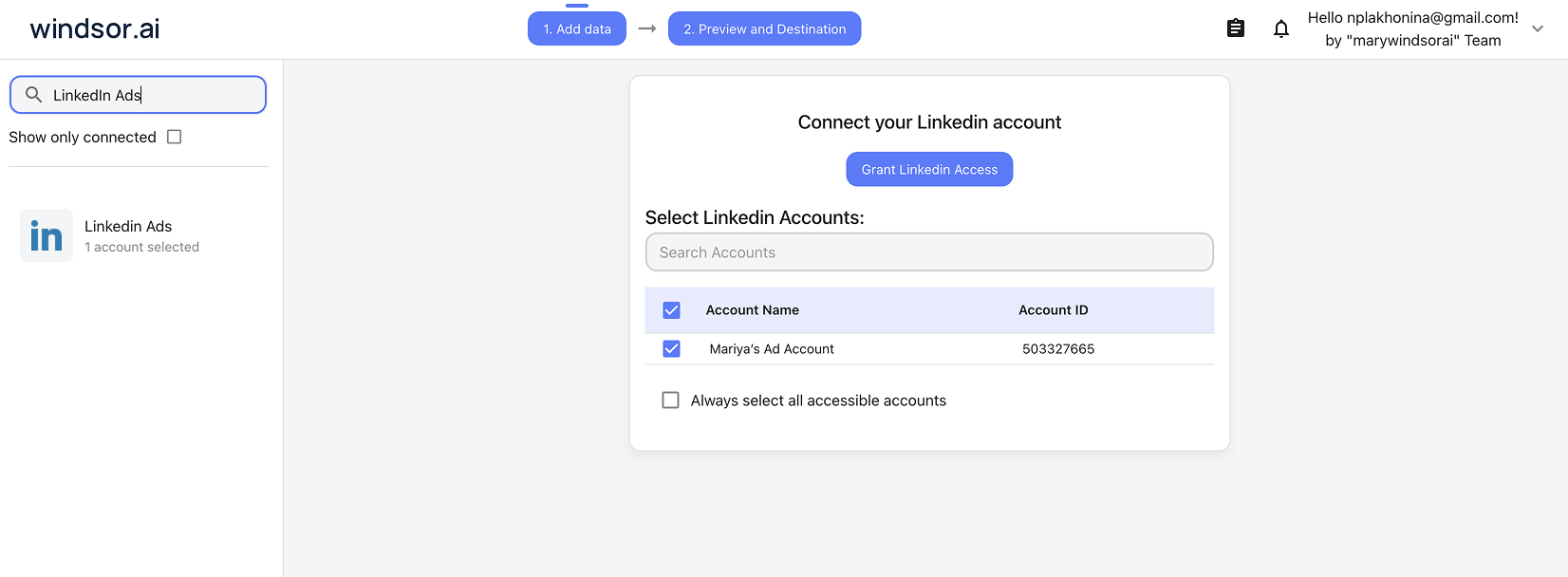
Connect LinkedIn Ads in the Windsor.ai dashboard
Choose LinkedIn Ads as your data source and sign in to grant Windsor.ai access to your account.
Add Windsor MCP in Cursor
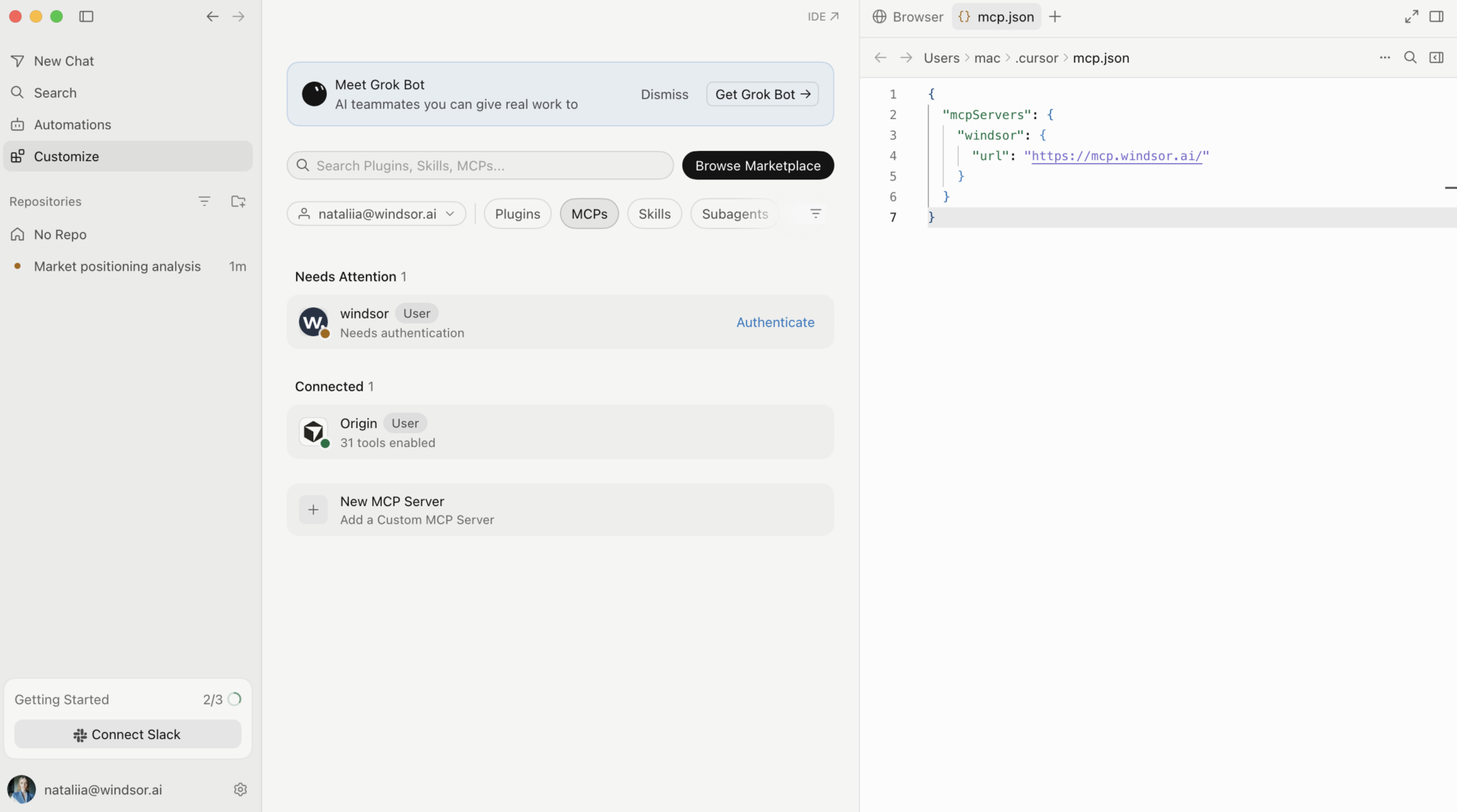
Open Settings in Cursor Desktop and go to Tools & Integrations → New MCP Server. When mcp.json opens, add Windsor:
{
  "mcpServers": {
    "windsor": {
      "url": "https://mcp.windsor.ai/"
    }
  }
}
Authenticate with Windsor.ai
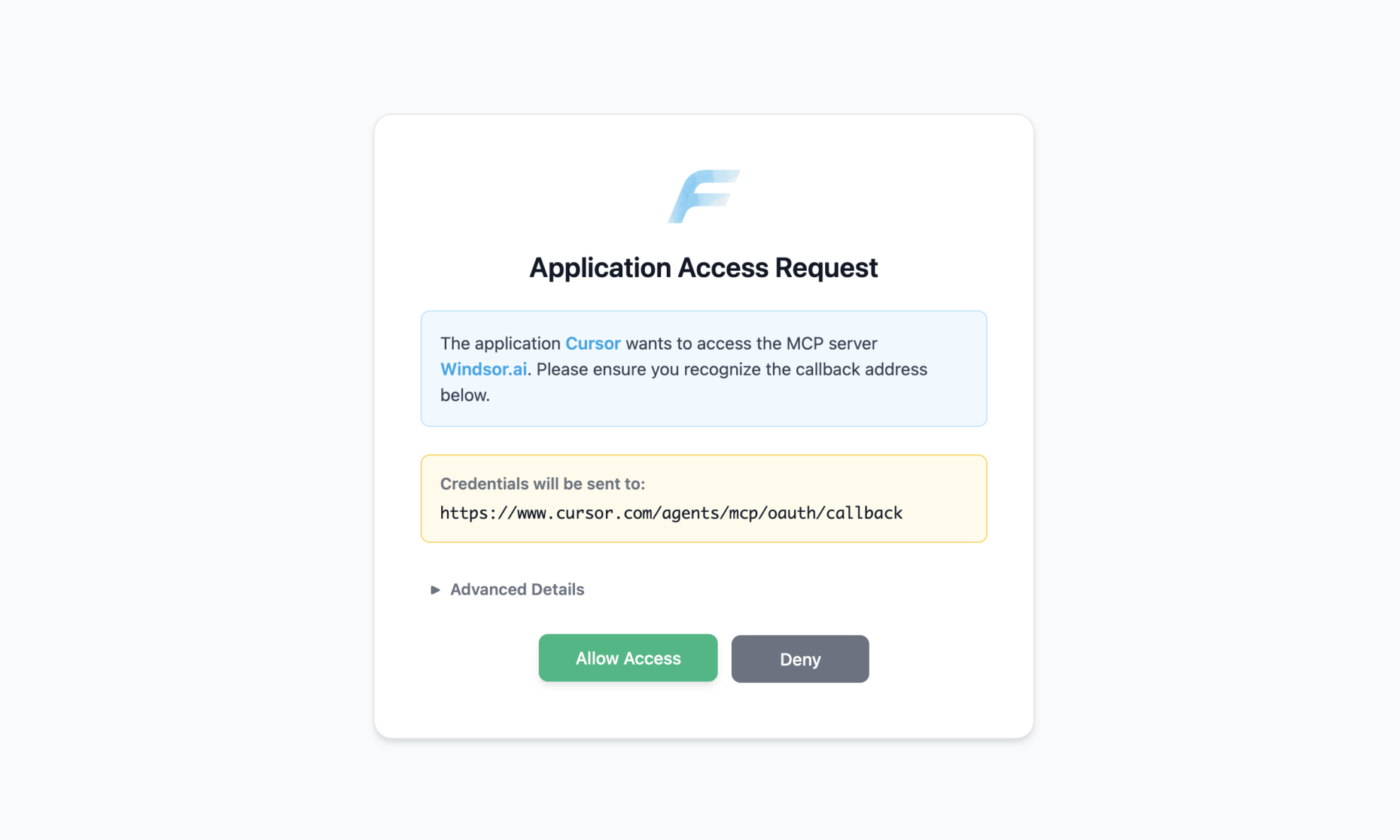
Save mcp.json. Windsor appears in your MCP list and asks you to authenticate. Click Authenticate and sign in to Windsor.ai in the browser.
Ask Cursor to build on your LinkedIn Ads data
Open a chat in your project and ask about your LinkedIn Ads data.
FAQs
What LinkedIn Ads data can Cursor use?
Windsor.ai gives Cursor access to 237 LinkedIn Ads fields. These are some of the groups; the LinkedIn Ads field reference lists all of them:
- Performance: Spend, Impressions, Clicks, CTR, CPC, CPM, Engagements, Engagement Rate.
- Conversions and leads: Conversion Name, Conversion Value (Local Currency), Cost Per External Website Conversions, Lead Generation Mail Contact Info Shares.
- Structure: Campaign Group Name (Campaign Name in LinkedIn UI), Campaign (Ad Set in LinkedIn UI), Campaign Status (Ad Set Status in LinkedIn UI), Objective Type, Campaign Daily Budget Amount, Creative ID.
- Audience: Member company name, Member job title, Member seniority, Member industry, Member company size, Member country.
- Video: Video views, Video Completions, Video watches at 50%.
What prompts can I use to build with LinkedIn Ads data in Cursor?
Cursor works best when you ask it to build something with a clear output. Each of these names the fields to use and the file or canvas you want back:
-
Pull Spend, Clicks, CTR and Cost Per External Website Conversions by Member seniority and Member industry for the last 60 days. Build a canvas with one table per dimension, sorted by cost per conversion, and mark rows with less than 100 clicks as low volume.
-
Pull Member company name, Member company size, Clicks, Impressions and Spend for this quarter. Write a Python script that ranks companies by clicks, keeps those with at least 5 clicks, and writes target_accounts.csv that I can share with sales.
-
Pull Campaign (Ad Set in LinkedIn UI), Campaign Status (Ad Set Status in LinkedIn UI), Campaign Daily Budget Amount and daily Spend for the last 14 days. Write a script that compares average daily spend with the daily budget for each active campaign and prints the campaigns spending less than 70% of it.
-
Pull Creative ID, Impressions, Engagement Rate, Video views, Video watches at 50% and Video Completions for the last 30 days. Build a chart that ranks video creatives by completion rate and list the three with the lowest share of views that reach 50%.
-
Write a weekly report as linkedin_weekly.md with Spend, Clicks, CTR, CPC and Conversion Value (Local Currency) by Campaign Group Name (Campaign Name in LinkedIn UI), compared with the week before. Keep the script in the project so I can rerun it every Monday.
Can Cursor turn LinkedIn Ads data into dashboards I can share?
Yes. Cursor can render a dashboard, analysis or report as a canvas next to the chat, and it saves the canvas so you can reopen and rerun it later with fresh data. On paid Cursor plans you can publish a canvas to a read-only share link that members of your Cursor team can open. See the Cursor canvas documentation for the current plan requirements.
Can I combine LinkedIn Ads data with other sources in Cursor?
Yes. Windsor.ai supports 350+ data sources, so you can connect LinkedIn Ads alongside tools such as HubSpot, Salesforce or Google Ads and ask Cursor to work with them together. For example, ask Cursor to put LinkedIn Ads Spend by month next to HubSpot Deal amount for deals created in the same months, and write a script that reports pipeline created per unit of ad spend.
How do I add Windsor MCP to Cursor?
Open Settings in Cursor Desktop, go to Tools & Integrations → New MCP Server, and add Windsor to mcp.json:
{
  "mcpServers": {
    "windsor": {
      "url": "https://mcp.windsor.ai/"
    }
  }
}
Save the file, click Authenticate next to Windsor in your MCP list, and sign in to Windsor.ai in the browser.
Do I need to code to connect LinkedIn Ads to Cursor?
No. The connection takes no code: connect LinkedIn Ads in Windsor.ai, add Windsor to Cursor’s MCP settings, and sign in. After that you describe what you want in plain language, and Cursor writes and runs the code. You can read and edit everything it produces.
How much does it cost to integrate LinkedIn Ads with Cursor using Windsor.ai?
The free forever plan covers 1 data source, so connecting LinkedIn Ads on its own costs nothing and needs no credit card. Combining LinkedIn Ads with other sources, such as HubSpot or Salesforce, needs a paid plan: $19/month for 3 sources or $99/month for 7. Cursor is billed separately by Cursor. See the pricing page.
Do you have helpful links to get started with LinkedIn Ads and Cursor?
Yes. These are the resources to start with for the LinkedIn Ads to Cursor integration:
Tired of manual LinkedIn Ads data exports? Try Windsor.ai today to build on live data


