 Destinations
 Data sources
 AI insights
 About us
 Careers
 Security
 Customer reviews
 Contact us
 Affiliate program
 Solution partners
 Template gallery
 Looker Studio templates
 Power BI templates
 Excel templates
 Google Sheets templates
 Tableau templates
 Facebook Ads templates
 Google Ads templates
 Data fields & Metrics
 AI prompt library & Guides
 Product documentation
 API documentation
 Case studies
 Blog
 Data models
 Windsor vs Supermetrics
 Windsor vs Funnel.io
 Windsor vs Fivetran
 Windsor vs Rivery
 Windsor vs Portermetrics
 Windsor vs Coupler.io
Connect LinkedIn Pages to Manus
Connect your LinkedIn Pages data to Manus with the Windsor.ai connector, and ask about your LinkedIn company page in plain language.
Ask for your best posts, follower growth or who your followers are, built on your own Share/Post Engagement Rate, Share/Post Clicks Count and Follower Counts by Seniority fields.
Forget CSVs. Stop copy/paste. Connect in minutes. No code required.
 Sign up with Google
 Free forever plan










Get your LinkedIn Pages data into Manus
LinkedIn Pages is connected once in Windsor.ai, and these are the use cases the fields support:

Rank posts on engagement
Share/Post Engagement Rate and Share/Post Clicks Count per post show which topics people respond to.

See who follows you
Follower Counts by Industry, Follower Counts by Seniority and Follower Counts by Function describe your audience.

Follow growth over time
Organic growth of the organization’s followers per day shows which days bring new followers.

Check page visits
All Page Views and Careers Page Views show which parts of the page people visit.
Using Windsor.ai to connect data from LinkedIn Pages to Manus
Without Windsor.ai, Manus answers about LinkedIn Pages data come from a file you exported and pasted in. Through the Windsor.ai connector, Manus reads the live data with its real field names, so the answers match what is in LinkedIn Pages today.
Connect in minutes, then ask about your posts, engagement, follower demographics and page views.
Available actions
Create Post Publish a post to a connected LinkedIn company page. Provide commentary (post text), a link (shared URL), or both - at least one is required. A link is shared as an article card, so link_title is required with a link (LinkedIn does not fetch the page title) and link_description is optional. For an image post use create_image_post instead.
Publish a post to a connected LinkedIn company page. Provide commentary (post text), a link (shared URL), or both - at least one is required. A link is shared as an article card, so link_title is required with a link (LinkedIn does not fetch the page title) and link_description is optional. For an image post use create_image_post instead.
Create Image Post Publish a single image post to a connected LinkedIn company page. Provide either a publicly accessible image URL, which is downloaded and uploaded to LinkedIn, or the image_urn returned by upload_image for a local file, plus optional commentary (post text). For a text/link-only post use create_post instead.
Publish a single image post to a connected LinkedIn company page. Provide either a publicly accessible image URL, which is downloaded and uploaded to LinkedIn, or the image_urn returned by upload_image for a local file, plus optional commentary (post text). For a text/link-only post use create_post instead.
Upload Image Upload one image file (JPEG, PNG or GIF) to a connected LinkedIn company page and return its image_urn. The image is sent as a file uploaded with the request, so it needs no public URL. Nothing is published: pass the image_urn to create_image_post to publish it.
Upload one image file (JPEG, PNG or GIF) to a connected LinkedIn company page and return its image_urn. The image is sent as a file uploaded with the request, so it needs no public URL. Nothing is published: pass the image_urn to create_image_post to publish it.


How to connect LinkedIn Pages to Manus with Windsor.ai
Watch the video tutorial, or follow the step-by-step guide to connect your LinkedIn Pages data to Manus with Windsor.ai.
Connect LinkedIn Pages in your Windsor.ai dashboard
Log in at onboard.windsor.ai, choose LinkedIn Pages as your data source and sign in to grant Windsor.ai access to your account.

Open Custom MCP in Manus
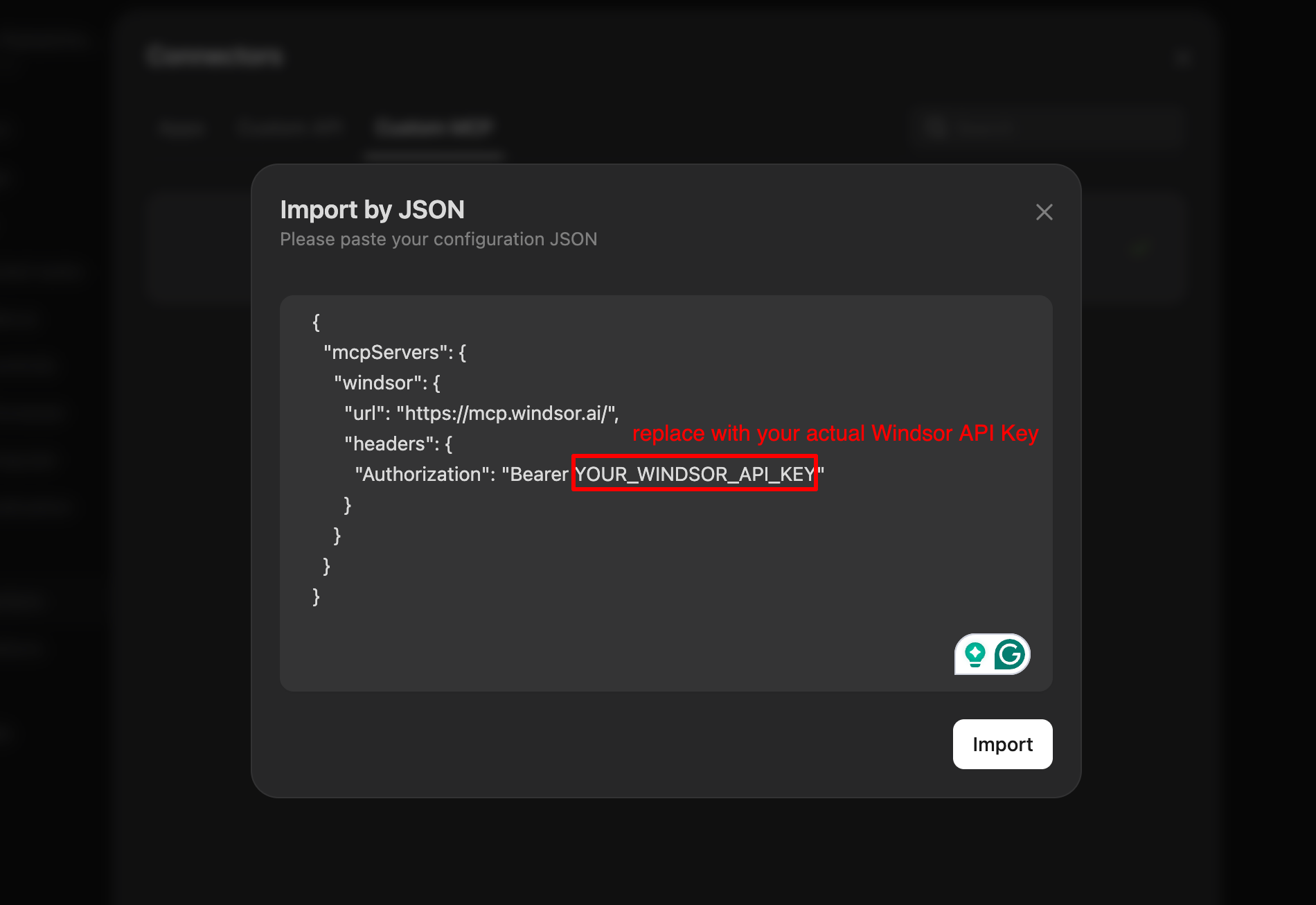
In Manus, open Settings and go to Connectors. Open the Custom MCP tab, click Add custom MCP server and choose Import by JSON.

Paste the Windsor configuration
Copy the configuration from your Windsor.ai account at onboard.windsor.ai/app/data-preview#MANUS, paste it into Manus and click Import. Windsor then appears in your list of connectors.
Ask Manus about your LinkedIn Pages data
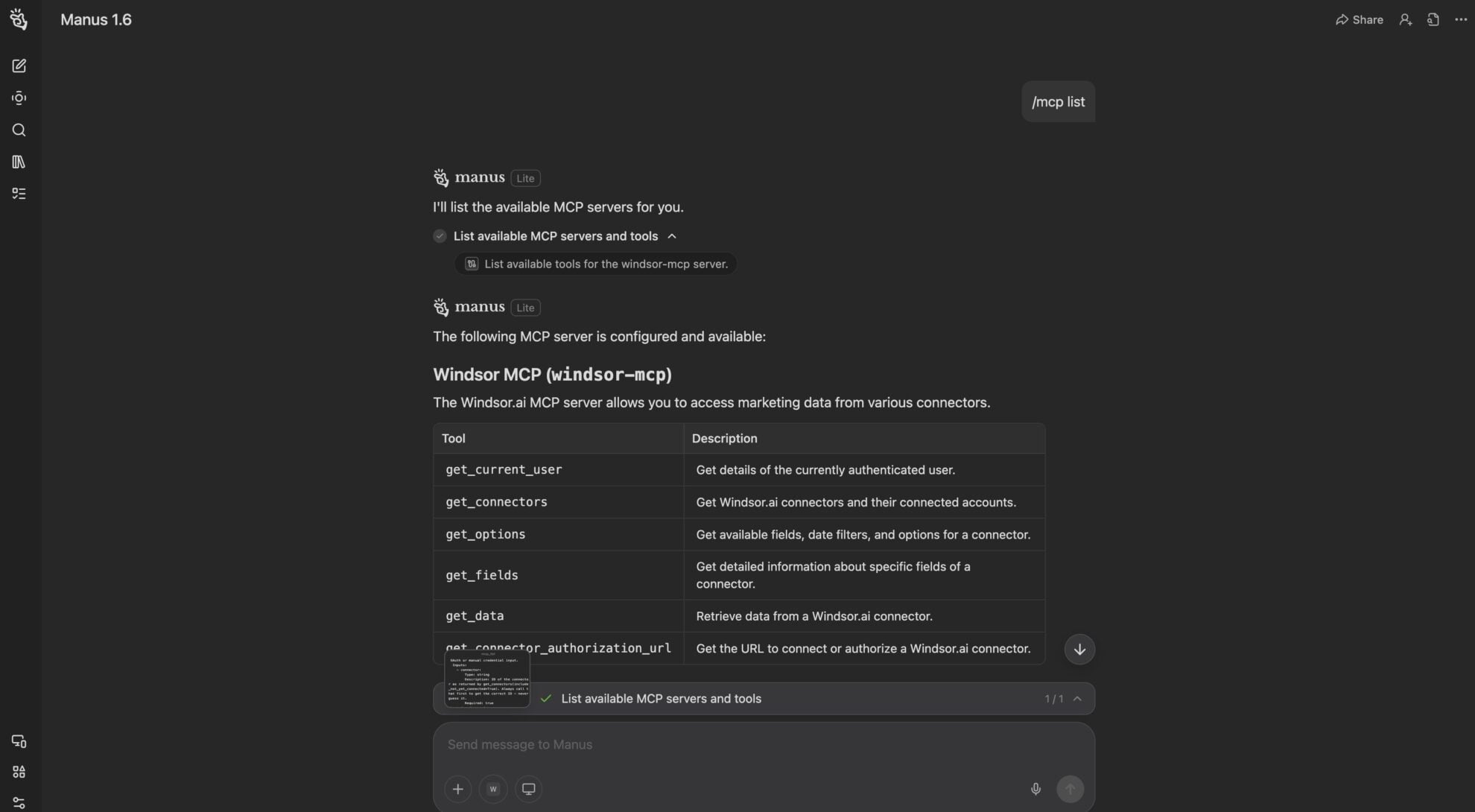
Start with a test prompt such as “What data sources are connected to my windsor.ai account?” Then ask about your LinkedIn Pages data.
FAQs
What LinkedIn Pages data can Manus use?
Windsor.ai gives access to 190 LinkedIn Pages fields. These are the main groups; the LinkedIn Pages field reference lists all of them:
- Posts: Share Text, Share Created Time, Share Post Type, Share/Post Impression Count, Share/Post Unique Impressions Count, Share/Post Clicks Count, Share/Post Like Count, Share/Post Comment Count, Share/Post Engagement Rate.
- Video posts: Share/Post Video Views, Share/Post Video Viewers, Share/Post Video Watch Time (ms).
- Followers: Organic growth of the organization’s followers per day, Follower Counts by Industry, Follower Counts by Seniority, Follower Counts by Country, Follower Counts by Function.
- Page views: All Page Views, All Unique Page Views, Careers Page Views, Jobs Page Views.
What can I ask Manus about my LinkedIn Pages data?
These prompts name the fields to use, so the answer comes back on your own data:
-
List last month's posts by Share/Post Engagement Rate, with Share/Post Impression Count and Share/Post Clicks Count.
-
Show Follower Counts by Seniority and by Industry, top 10 of each.
-
Show Organic growth of the organization's followers per day for the last 90 days by week.
-
Compare Share/Post Engagement Rate by Share Post Type for this quarter.
Can Manus make changes on my LinkedIn page?
Yes. Windsor.ai has write actions for LinkedIn Pages, and Manus can run them through Windsor MCP when you ask: it can publish a text or image post and upload an image to your page. See the full list of write actions.
Can I combine LinkedIn Pages data with other sources in Manus?
Yes. Windsor.ai supports 350+ data sources, so you can connect LinkedIn Pages alongside other tools and ask about them together. For example, put LinkedIn Pages Share/Post Impression Count by week next to LinkedIn Ads Impressions for the same weeks, so organic and paid reach sit in one table.
Do I need to code to connect LinkedIn Pages to Manus?
No. Connect LinkedIn Pages in Windsor.ai, add Windsor to Manus, and sign in. After that you ask in plain language.
How much does it cost to integrate LinkedIn Pages with Manus using Windsor.ai?
The free forever plan covers 1 data source, so connecting LinkedIn Pages on its own costs nothing and needs no credit card. Combining LinkedIn Pages with other sources needs a paid plan: $19/month for 3 sources or $99/month for 7. Manus is billed separately by Manus. See the pricing page.
Do you have helpful links to get started with LinkedIn Pages and Manus?
Yes. These are the resources to start with for the LinkedIn Pages to Manus integration:
Tired of manual LinkedIn Pages data exports? Try Windsor.ai today to work on live data


