 Destinations
 Data sources
 AI insights
 About us
 Careers
 Security
 Customer reviews
 Contact us
 Affiliate program
 Solution partners
 Template gallery
 Looker Studio templates
 Power BI templates
 Excel templates
 Google Sheets templates
 Tableau templates
 Facebook Ads templates
 Google Ads templates
 Data fields & Metrics
 AI prompt library & Guides
 Product documentation
 API documentation
 Case studies
 Blog
 Data models
 Windsor vs Supermetrics
 Windsor vs Funnel.io
 Windsor vs Fivetran
 Windsor vs Rivery
 Windsor vs Portermetrics
 Windsor vs Coupler.io
Connect Shopee to Gemini Enterprise
Connect your Shopee data to Gemini Enterprise with the Windsor.ai connector, and ask about your orders, products, returns and payouts in plain language.
Ask what each order leaves after Shopee fees, which products are low on stock, or why orders are returned, built on your own Shopee data.
Forget CSVs. Stop copy/paste. Connect in minutes. No code required.
 Sign up with Google
 Free forever plan







Get your Shopee data into Gemini Enterprise
Shopee is connected once in Windsor.ai, and these are the use cases the fields support:

See what each order leaves you
Settlement Order Selling Price next to Settlement Commission Fee, Settlement Service Fee and Settlement Escrow Amount shows how much of each sale is paid out.

Watch stock on selling products
Product Available Stock per Product Name and Product SKU shows which products are close to running out.

Find why orders come back
Return Reason and Return Refund Amount by Return Status show the most common return reasons and what they cost.

Follow orders by carrier and region
Order Status by Order Shipping Carrier and Order Region shows how many orders are still open with each carrier in each region.
Using Windsor.ai to connect data from Shopee to Gemini Enterprise
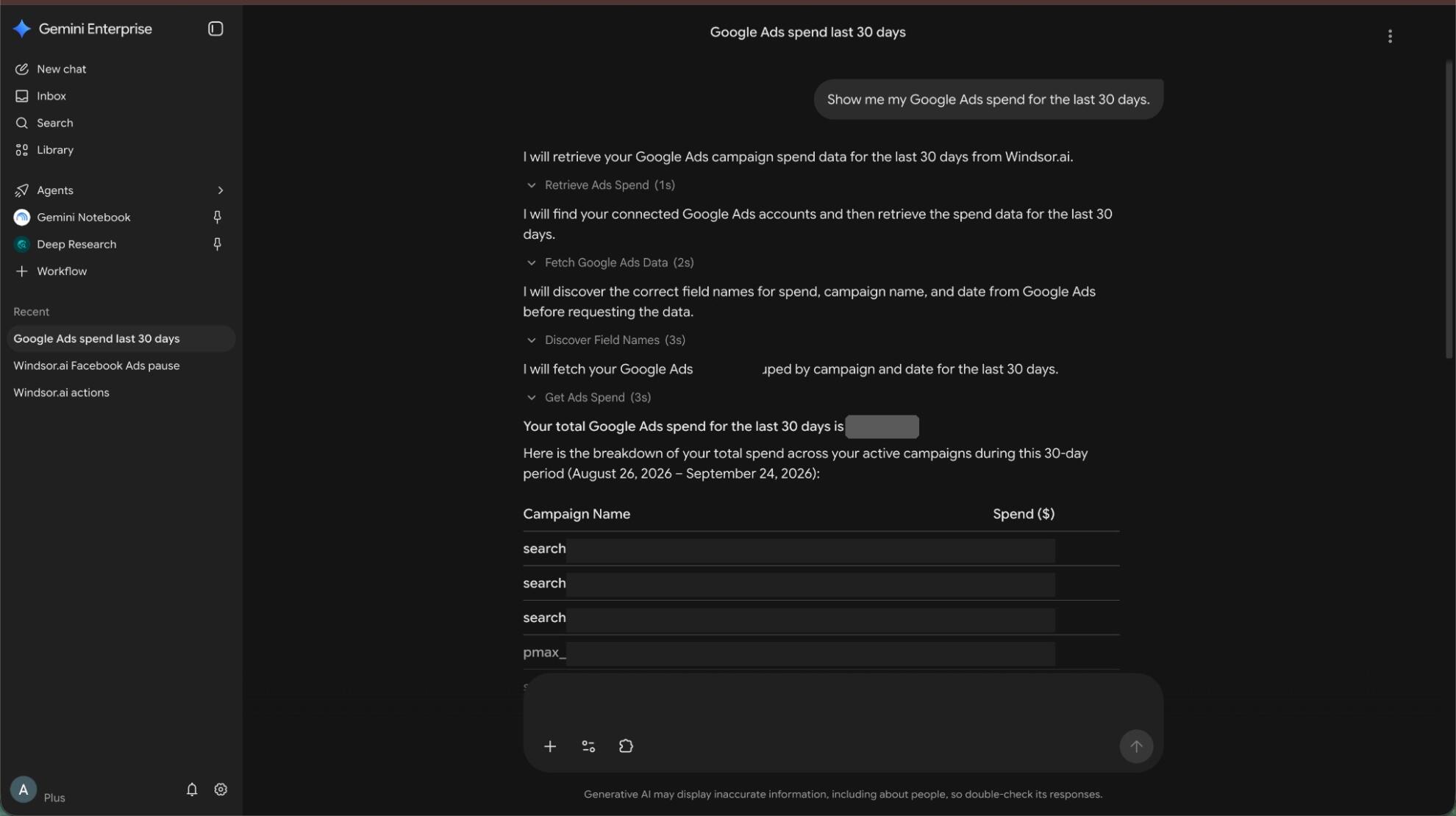
Without Windsor.ai, Gemini Enterprise answers about Shopee data come from a file you exported and pasted in. Through the Windsor.ai connector, Gemini Enterprise reads the live records with their real field names, so the answers match what is in Shopee today.
Connect in minutes, then ask about your orders, products, returns, settlements and wallet transactions.


How to connect Shopee to Gemini Enterprise with Windsor.ai
Watch the video tutorial, or follow the step-by-step guide to connect your Shopee data to Gemini Enterprise with Windsor.ai.
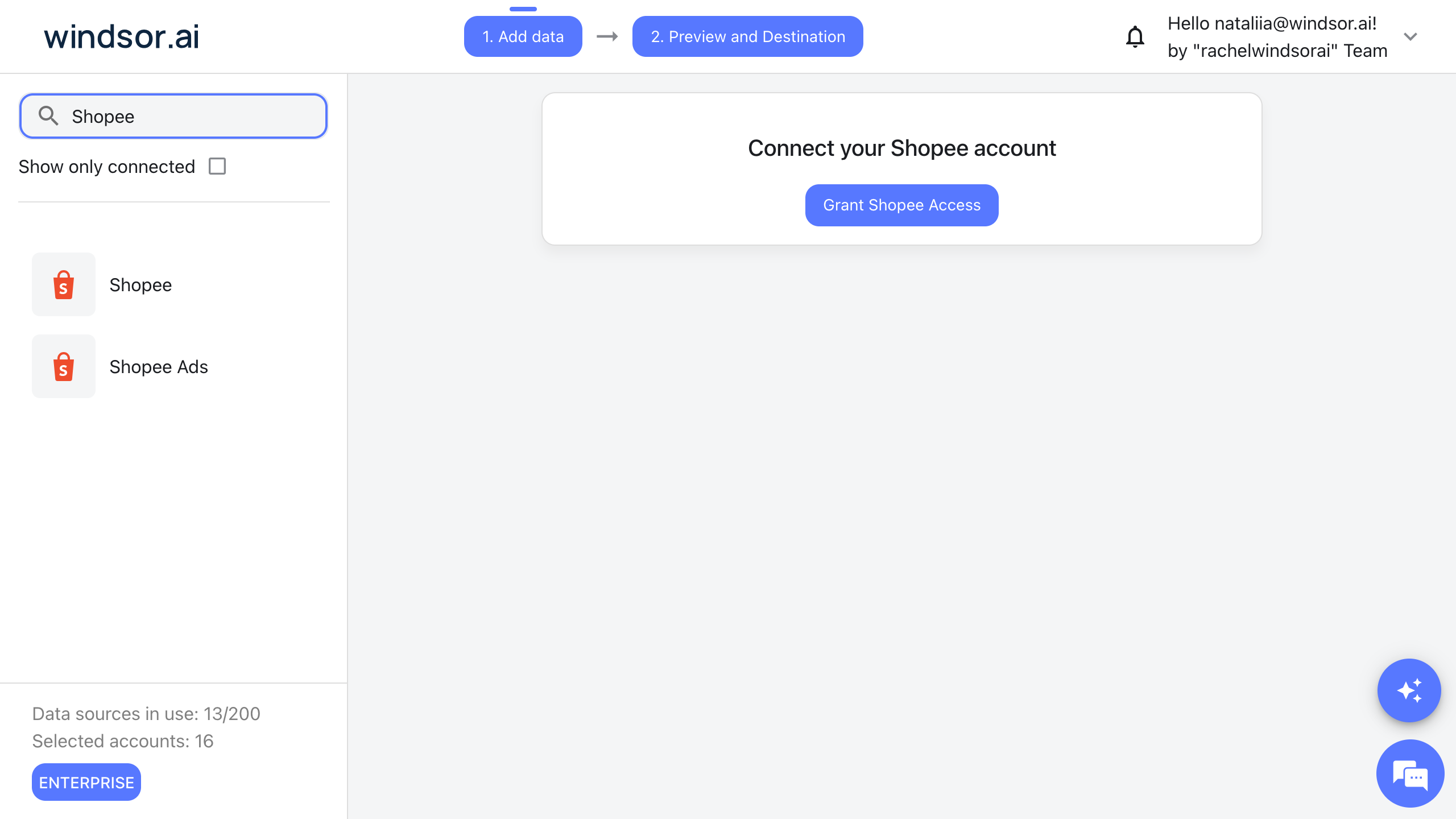
Connect Shopee in your Windsor.ai dashboard
Log in at onboard.windsor.ai, choose Shopee as your data source, click Grant Shopee Access, and sign in with the Shopee seller account of the shop you want to use. Then select the shop. Gemini can only query sources connected in Windsor.ai.
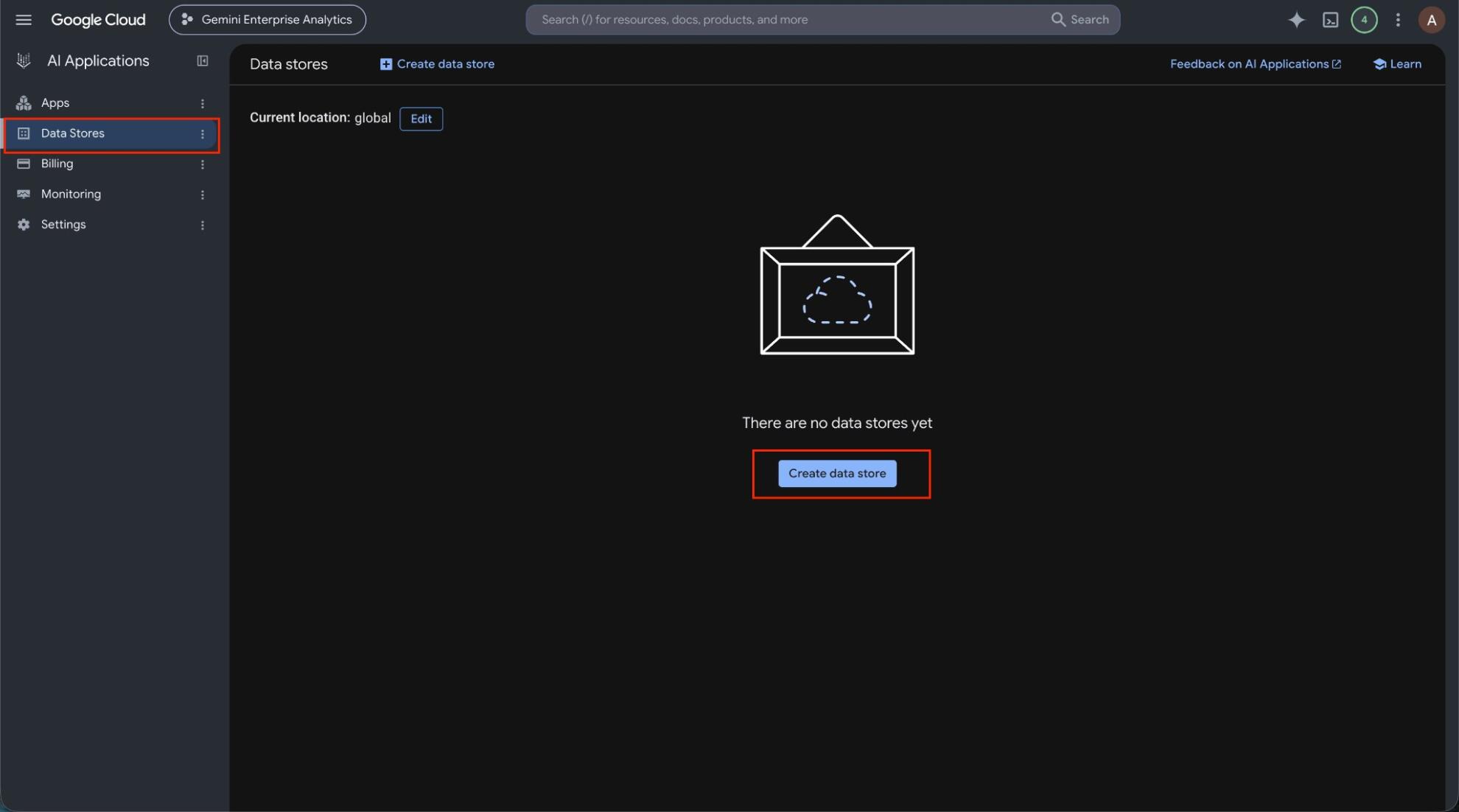
Create the Windsor.ai data store in Google Cloud
In the Google Cloud console, open Gemini Enterprise, go to Data stores and click Create data store. Under Third-party data sources, find Windsor.ai and click Add data source. Choose the actions to enable, set the location and create the store.
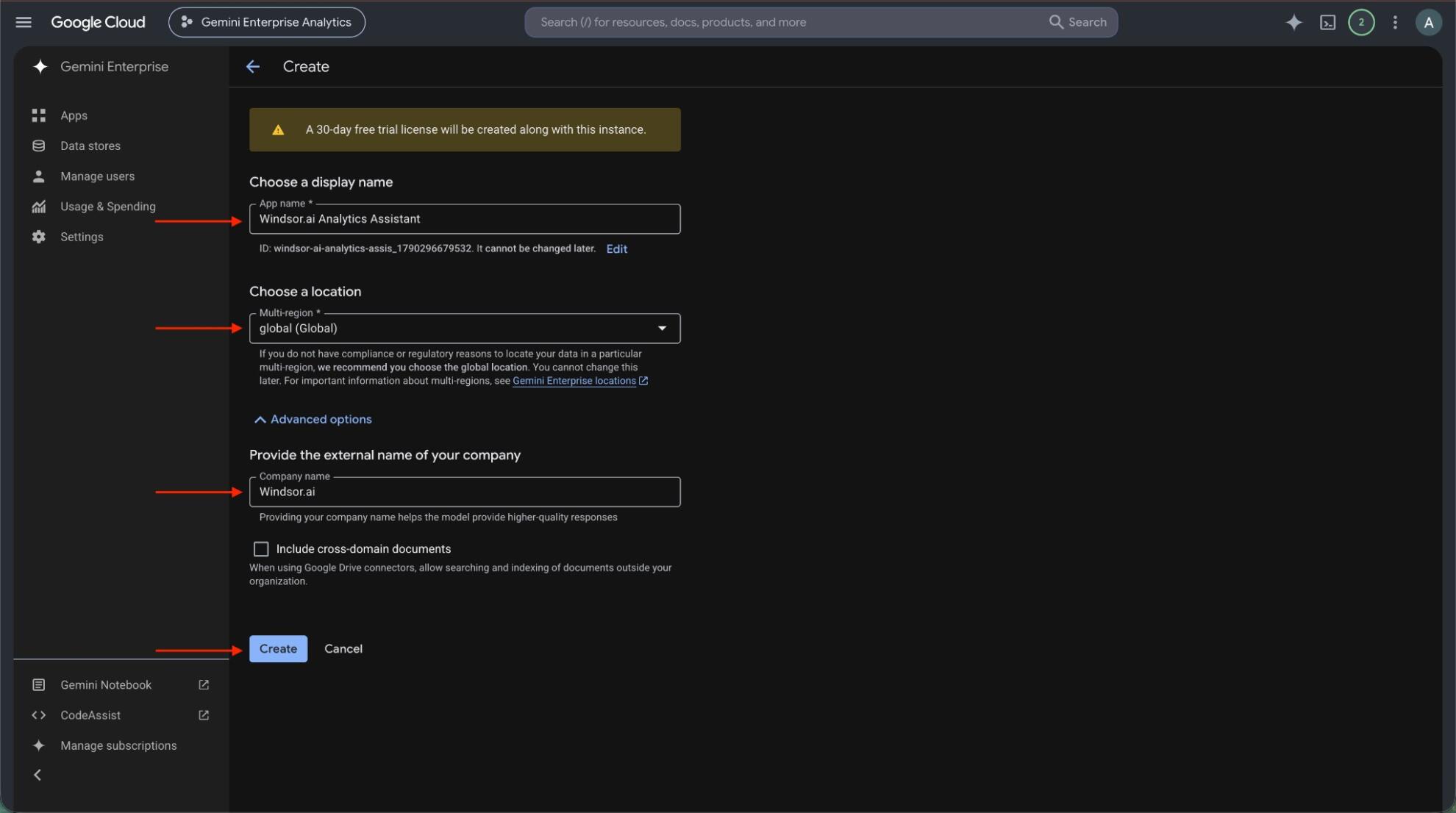
Create an app and connect the data store
Create a Gemini Enterprise app in the same location as your data store, or pick an existing one. Then open Connected data stores in the app and add the Windsor.ai data store.
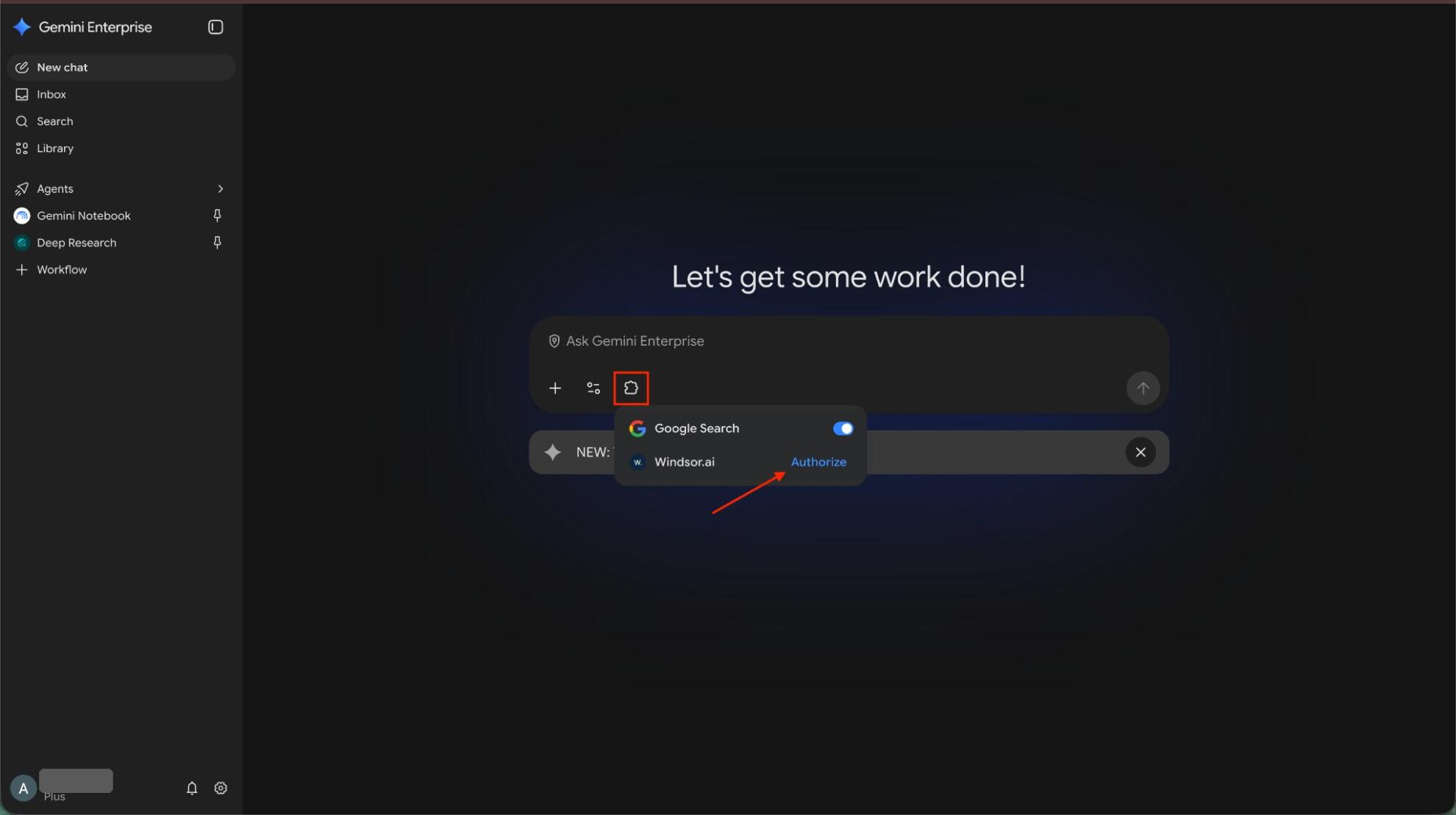
Authorize Windsor.ai
Open the app’s web app, click the puzzle piece icon and click Authorize next to Windsor.ai. Allow access, sign in to Windsor.ai if asked, and click Finish.
Ask Gemini about your Shopee data
Ask a question such as “Show Settlement Order Selling Price, Settlement Commission Fee, Settlement Service Fee and Settlement Escrow Amount by Week for the last 8 weeks.” Data can take about 10 minutes to appear after you connect the data store to the app.
FAQs
What Shopee data can Gemini Enterprise use?
Windsor.ai gives access to 107 Shopee fields. These are the groups; the Shopee field reference lists all of them:
- Orders: Order ID, Order Create Time, Order Status, Order Total Amount, Order Payment Method, Order Region, Order Shipping Carrier, Order Ship By Date.
- Products: Product Name, Product SKU, Product Brand, Product Current Price, Product Original Price, Product Available Stock, Product Status.
- Returns: Return ID, Return Reason, Return Status, Return Refund Amount, Return Refund Type, Return Create Time.
- Settlement: Settlement Order Selling Price, Settlement Commission Fee, Settlement Service Fee, Settlement Ads Fee, Settlement Actual Shipping Fee, Settlement Voucher From Seller, Settlement Escrow Amount.
- Wallet: Wallet Transaction Type, Wallet Amount, Wallet Current Balance, Wallet Money Flow, Wallet Transaction Status.
- Date and account: Date, Week, Month, Account Name.
What can I ask Gemini Enterprise about my Shopee data?
These prompts name the fields to use, so the answer comes back on your own records:
-
Show Settlement Order Selling Price, Settlement Commission Fee, Settlement Service Fee and Settlement Escrow Amount by Week for the last 8 weeks.
-
Which products have Product Available Stock below 10? List Product Name, Product SKU and Product Current Price.
-
Group last month's returns by Return Reason with the count and the sum of Return Refund Amount.
-
Count this month's orders by Order Shipping Carrier and Order Region, split by Order Status.
Can Gemini Enterprise change my Shopee data?
No. The Shopee connector is read-only. Gemini Enterprise can read your Shopee records through Windsor.ai and cannot create, edit or delete anything in Shopee.
Does the Shopee connector include buyer details?
Yes, usernames and order messages. Orders carry the Order Buyer Username and any Order Message To Seller the buyer wrote. Pick only the fields you need when you set up a report or ask a question.
Can I combine Shopee data with other sources in Gemini Enterprise?
Yes. Windsor.ai supports 350+ data sources, so you can connect Shopee alongside tools such as Google Ads, GA4 or Shopify and ask about them together. For example, put Shopee Ads Expense and Direct GMV next to Shopee Order Total Amount and Settlement Ads Fee for the same dates, to see ad spend against sales.
Do I need to code to connect Shopee to Gemini Enterprise?
No. Connect Shopee in Windsor.ai, add Windsor to Gemini Enterprise, and sign in. After that you ask in plain language.
How much does it cost to integrate Shopee with Gemini Enterprise using Windsor.ai?
The free forever plan covers 1 data source, so connecting Shopee on its own costs nothing and needs no credit card. Combining Shopee with other sources needs a paid plan: $19/month for 3 sources or $99/month for 7. Gemini Enterprise is billed separately by Google. See the pricing page.
Do you have helpful links to get started with Shopee and Gemini Enterprise?
Yes. These are the resources to start with for the Shopee to Gemini Enterprise integration:
Tired of manual Shopee data exports? Try Windsor.ai today to work on live data


