Destinations
 Data sources
 AI insights
 About us
 Careers
 Security
 Customer reviews
 Contact us
 Affiliate program
 Solution partners
 Template gallery
 Looker Studio templates
 Power BI templates
 Excel templates
 Google Sheets templates
 Tableau templates
 Facebook Ads templates
 Google Ads templates
 Data fields & Metrics
 API documentation
 Product documentation
 Case studies
 Data models
 Blog
Blog Product updates
 Windsor vs Supermetrics
 Windsor vs Funnel.io
 Windsor vs Fivetran
 Windsor vs Rivery
 Windsor vs Portermetrics
 Windsor vs Coupler.io
Connect Smaily to Looker Studio
Quickly integrate your Smaily data into Looker Studio with the Windsor.ai ETL connectors.
Our platform automates Smaily reporting, enabling you to analyze campaign performance, spot engagement trends, and optimize your email strategy with interactive Looker Studio dashboards.
Forget CSVs. Stop copy/paste. Connect data in 2 minutes. No code required.
 Sign up with Google
 30-day free trial
No credit card needed
30-day free trial
No credit card needed









Maximize the value of your data with Smaily to Looker Studio integration
Easily connect Smaily to Looker Studio via Windsor.ai, centralizing your email performance metrics in one place for deeper analysis. Key benefits of this integration include:

Automate reporting
Automate reporting
Eliminate manual exports and repetitive reporting tasks by automatically syncing Smaily with Looker Studio. Your dashboards update on a set schedule, delivering real-time visibility into email marketing performance.

Optimize campaigns
Optimize campaigns
Analyze key email metrics in Looker Studio to uncover engagement trends, subscriber behavior, and campaign performance. Use these insights to optimize send timing, personalize content across different lists, and refine your overall strategy to increase engagement and conversions.

Unify data across channels
Unify data across channels
Combine Smaily with over 325 other marketing and business data sources in Looker Studio. This unified view helps understand how email fits within broader marketing performance and customer journeys.
Using Windsor.ai connector to import data from Smaily into Looker Studio
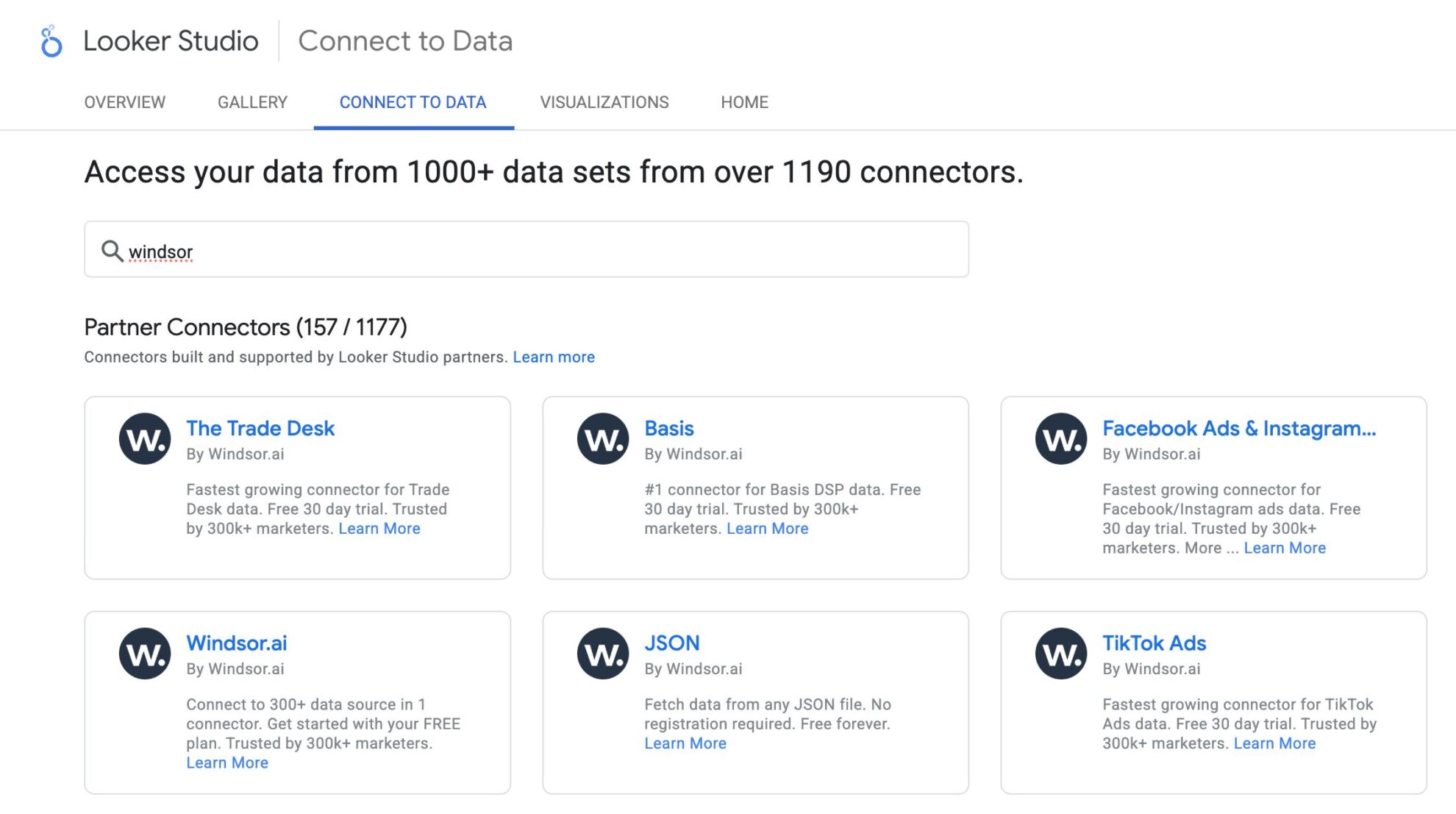















How to connect Smaily to Looker Studio in Windsor.ai
Make sure you have the following prerequisites before setting up the connector:
- Smaily account (Visit our privacy policy and terms of use)
- Google account for Looker Studio integration
- Active Windsor.ai account
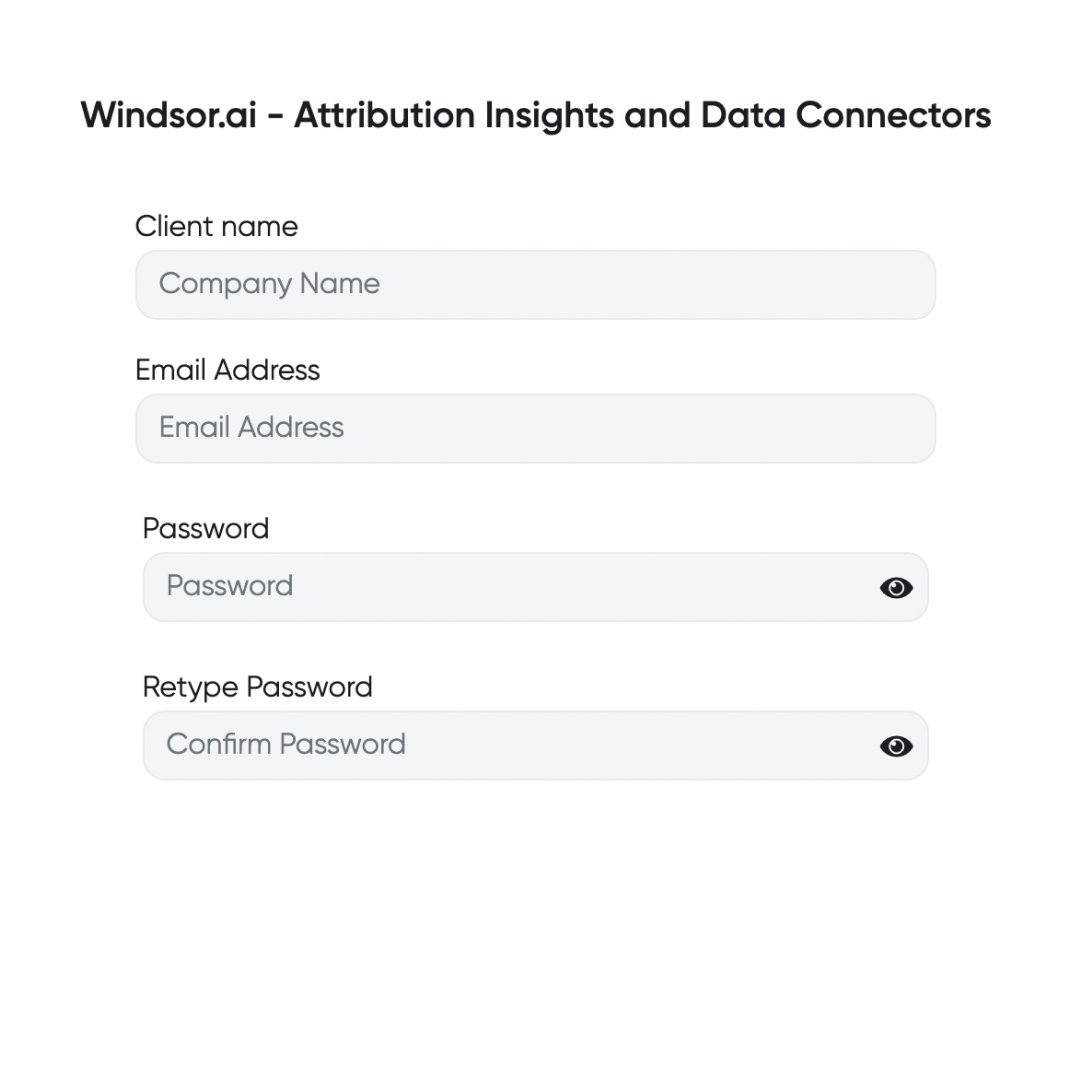
Register and log in to Windsor.ai
Create a new Windsor.ai account or log in if you already have one.
Select your data source
Choose Smaily as your data source and grant access to Windsor.ai.

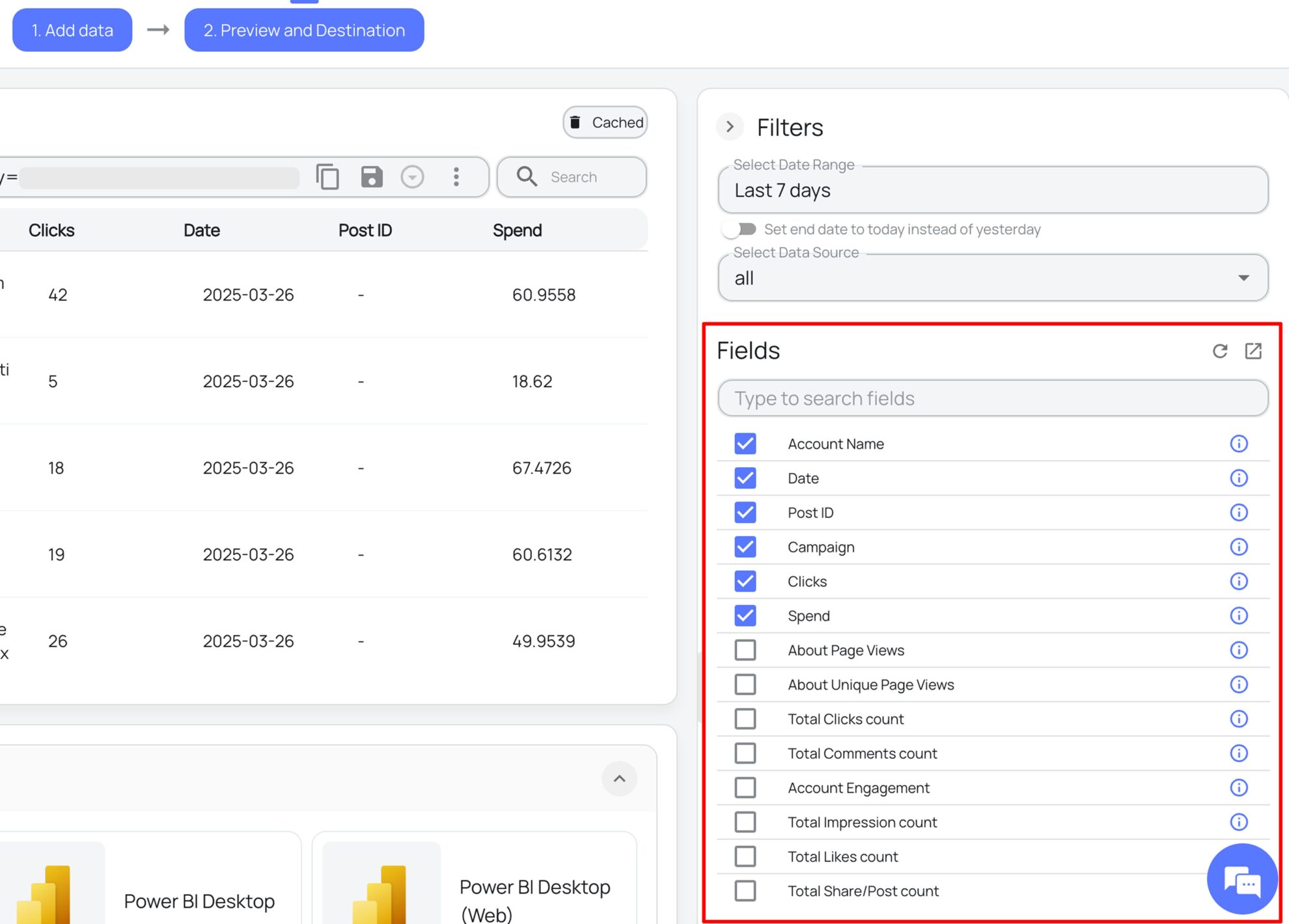
Select the reporting metrics and dimensions
Choose the Smaily fields you want to import into Looker Studio on the right side.
Connect the Looker Studio connector and sync data
Select the Windsor.ai Smaily Looker Studio Connector. Click “Authorize” and log in with your Windsor.ai credentials. You will be redirected to the connector again. Choose your Smaily account and click “Connect.” Then, click “Create Report.”
FAQs
What is Looker Studio?
Looker Studio is a free Google data visualization and business intelligence tool, bringing together data from multiple sources like CRMs, Google Analytics, marketing platforms, and spreadsheets to turn raw data into dynamic charts, graphs, and tables for detailed analysis. With Looker Studio and Windsor.ai integration, you can automate reporting, customize metrics to suit your business goals, track key performance indicators, and connect with other Google Cloud tools for enhanced analytical operations.
Do you have helpful links to get started with integrating Smaily and Looker Studio using Windsor.ai?
Yes, we have helpful resources to help you get started. You can explore our official documentation and ready-to-use templates for seamless Smaily to Looker Studio integration with Windsor.ai:
How much time do I need to create the Smaily and Looker Studio integration?
Using Windsor.ai’s no-code ETL connector, you can integrate Smaily with Looker Studio in a few minutes, benefiting from a quick and stress-free setup process.
How much does it cost to integrate Smaily into Looker Studio with Windsor.ai?
Windsor.ai’s pricing for Smaily to Looker Studio data integration can vary depending on your use case and data volume. We offer transparent pricing plans tailored to diverse business needs and budgets.
Tired of manual Smaily data exports? Try Windsor.ai today to automate your reporting