 Destinations
 Data sources
 AI insights
 About us
 Careers
 Security
 Customer reviews
 Contact us
 Affiliate program
 Solution partners
 Template gallery
 Looker Studio templates
 Power BI templates
 Excel templates
 Google Sheets templates
 Tableau templates
 Facebook Ads templates
 Google Ads templates
 Data fields & Metrics
 AI prompt library & Guides
 Product documentation
 API documentation
 Case studies
 Blog
 Data models
 Windsor vs Supermetrics
 Windsor vs Funnel.io
 Windsor vs Fivetran
 Windsor vs Rivery
 Windsor vs Portermetrics
 Windsor vs Coupler.io
Connect Vistar Media to Data Studio
Bring your Vistar Media data into Data Studio with Windsor.ai, so your reports read live campaign delivery data.
Pick the Vistar Media fields you need, and Windsor.ai keeps them flowing without a CSV export in between.
Forget CSVs. Stop copy/paste. Connect in minutes. No code required.
 Sign up with Google
 Free forever plan
No credit card needed










Get your Vistar Media data into Data Studio
Vistar Media is connected once in Windsor.ai, and these are the use cases the fields support:

See spend and delivery by campaign
Revenue (Investment), Impressions, Spots and Fixed eCPM come per Campaign Name and Insertion Order Name, so the cost and delivery of every campaign sit in one table.

Compare venue types and media owners
Group Impressions and Spots by Venue Type, Venue Name and Media Owner to see which screens carried each campaign.

Compare markets
Country / Territory, Province and Metro Area come with every row, so you can compare Fixed eCPM and Impressions across the markets a campaign ran in.
Using Windsor.ai to connect data from Vistar Media to Data Studio
Windsor.ai moves your Vistar Media fields into Data Studio on a connection you set up once, so the reports stay on live records rather than a CSV someone exported last week.
Pick the fields you need and Windsor.ai handles the rest.
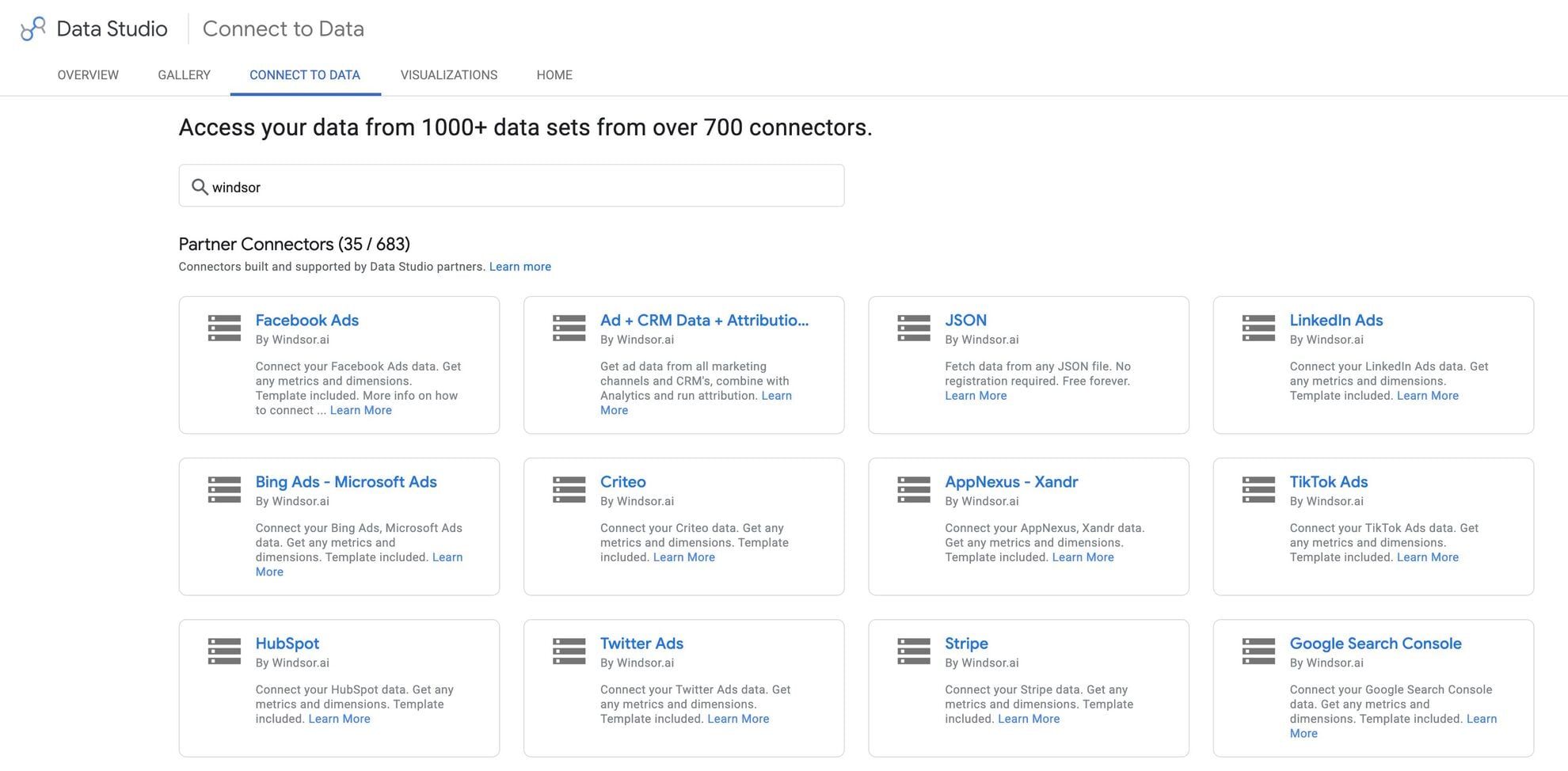


How to connect Vistar Media to Data Studio with Windsor.ai
Explore a step-by-step guide to integrate your Vistar Media data into Data Studio with the Windsor.ai connector.
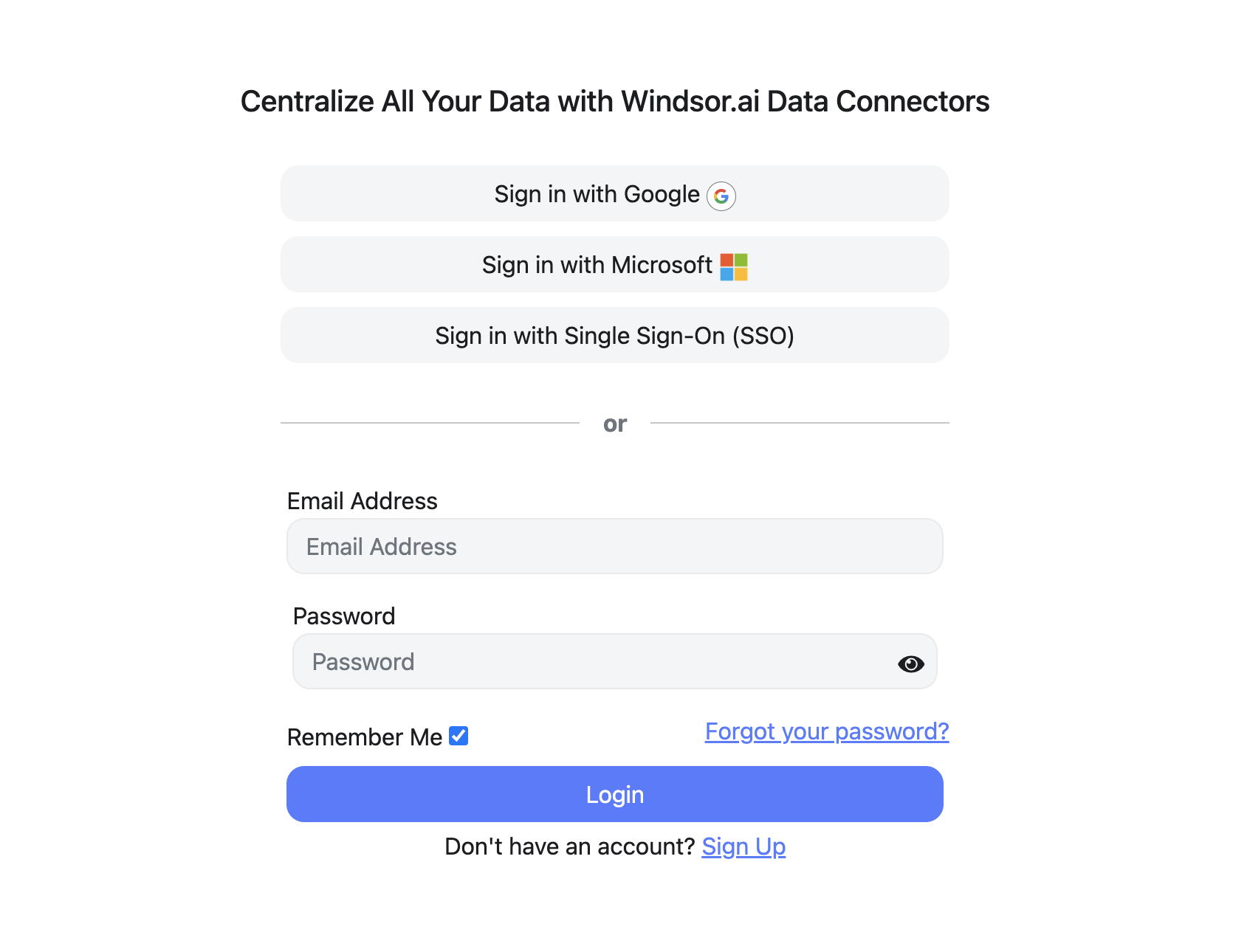
Register and log in to Windsor.ai
Create a new Windsor.ai account or log in if you already have one.
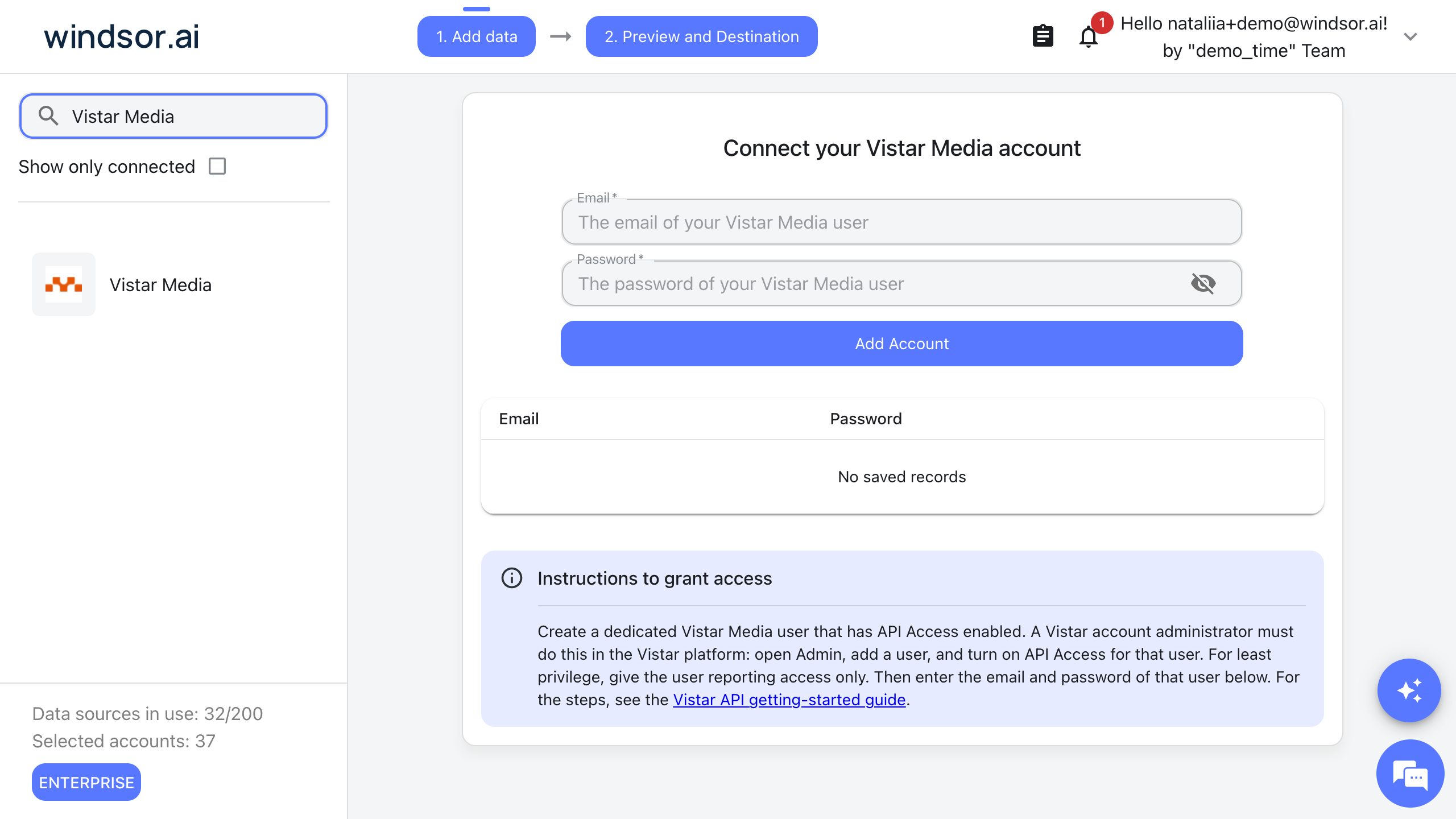
Select your data source
Choose Vistar Media as your data source and sign in with the email and password of a Vistar Media user that has API Access enabled.
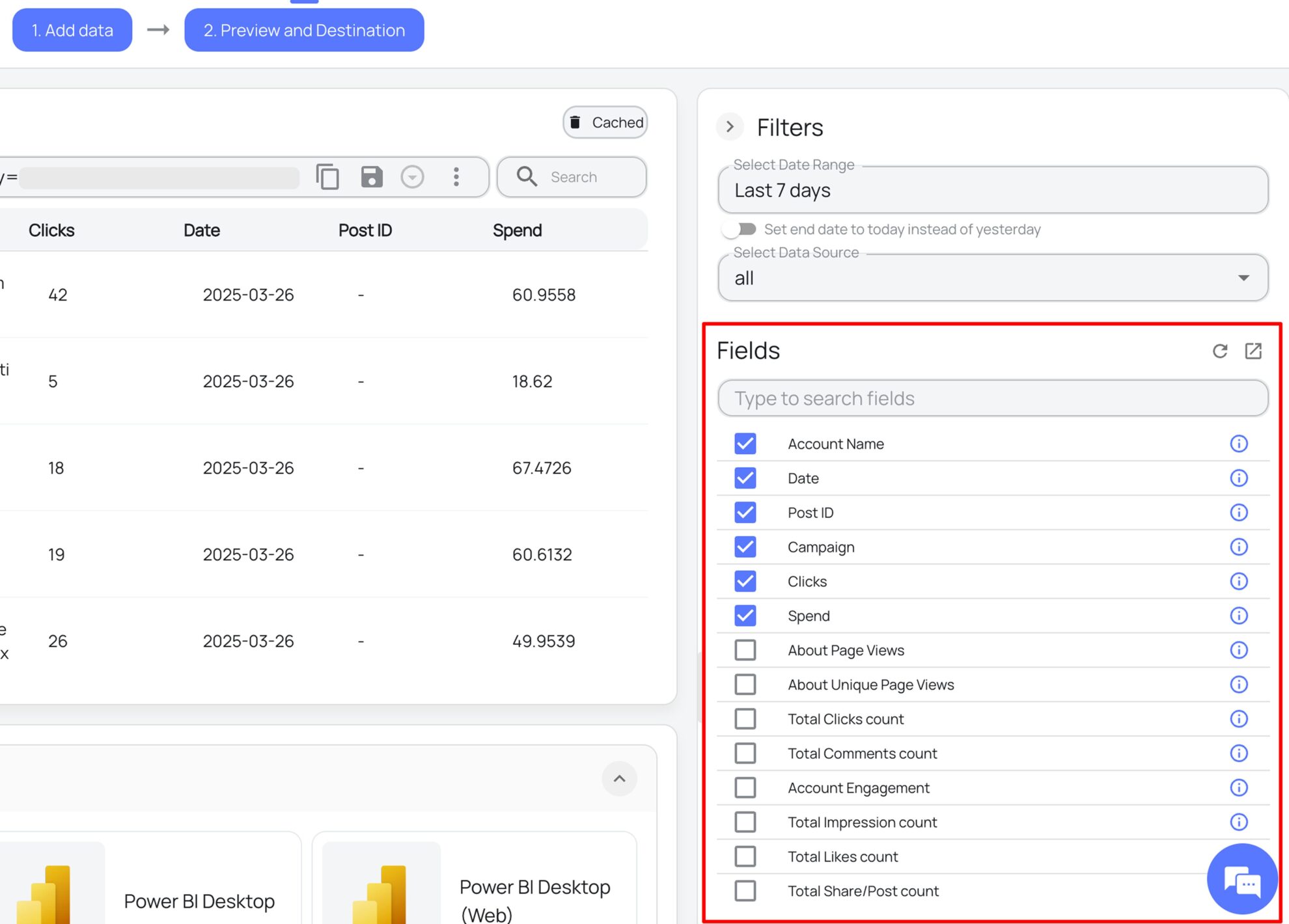
Select the reporting fields
Choose the Vistar Media fields you want in Data Studio on the right side, and preview your data before export.
Select Data Studio as your data destination
Scroll down to the list of data destinations and click Data Studio. Install the Windsor.ai connector by authorizing your account, selecting the required Vistar Media account(s), and clicking Connect, then Create Report.

FAQs
What Vistar Media data can I load into Data Studio?
Windsor.ai gives access to 25 Vistar Media fields. These are the groups; the Vistar Media field reference lists all of them:
- Delivery and cost: Impressions, Spots, Revenue (Investment), which is your spend, and Fixed eCPM.
- Campaign structure: Advertiser, Insertion Order Name and ID, Campaign Name and ID, Creative Name and ID.
- Venues: Venue Name, Venue Type, Media Owner, Network ID, Targeting ID.
- Location: Country / Territory, Province, Metro Area, Latitude, Longitude.
- Time and account: Date, Quarter, Account ID, Account Name.
How does Windsor.ai load Vistar Media data into Data Studio?
Windsor.ai provides a Data Studio connector. You authorize it once, select your Vistar Media account and the fields you want, and build the report on live data.
Can I combine Vistar Media data with other sources in my reports?
Yes. Windsor.ai supports 350+ data sources, so Vistar Media data can sit next to other connected sources in the same reports. For example, put Vistar Media Revenue (Investment) and Impressions by week next to Google Ads Cost and Impressions for the same weeks, so out-of-home and search spend sit in one table.
Do I need to code to connect Vistar Media to Data Studio?
No. You connect Vistar Media in the Windsor.ai dashboard, pick the fields you want, and Windsor.ai handles the transfer.
How much does it cost to integrate Vistar Media with Data Studio using Windsor.ai?
The free forever plan covers 1 data source, so connecting Vistar Media on its own costs nothing and needs no credit card. Combining Vistar Media with other sources needs a paid plan: $19/month for 3 sources or $99/month for 7. See the pricing page.
Do you have helpful links to get started with Vistar Media and Data Studio?
Yes. These are the resources to start with for the Vistar Media to Data Studio integration:
Tired of manual Vistar Media data exports? Try Windsor.ai today to work on live data


