 Destinations
 Data sources
 AI insights
 About us
 Careers
 Security
 Customer reviews
 Contact us
 Affiliate program
 Solution partners
 Template gallery
 Looker Studio templates
 Power BI templates
 Excel templates
 Google Sheets templates
 Tableau templates
 Facebook Ads templates
 Google Ads templates
 Data fields & Metrics
 AI prompt library & Guides
 Product documentation
 API documentation
 Case studies
 Blog
Blog Data models
 Windsor vs Supermetrics
 Windsor vs Funnel.io
 Windsor vs Fivetran
 Windsor vs Rivery
 Windsor vs Portermetrics
 Windsor vs Coupler.io
Connect Zoho CRM to Tableau
Easily send your Zoho CRM data to Tableau with Windsor.ai’s ELT connector.
Our platform automates Zoho CRM reporting, delivering clear visibility into pipeline, deals, and sales activity to support better forecasting, performance tracking, and data-driven sales decisions.
Forget CSVs. Stop copy/paste. Connect data in 2 minutes. No code required.
 Sign up with Google
 Free forever plan
No credit card needed
Free forever plan
No credit card needed










Streamline analytics with Zoho CRM to Tableau integration
Connect Zoho CRM to Tableau with Windsor.ai to visualize pipeline performance, deal progress, and sales results in interactive dashboards, unlocking the following benefits:

Increased sales efficiency
Analyze pipeline performance and deal progress across stages to identify where opportunities slow down or get stuck. Use these insights to prioritize high-value deals, adjust sales strategy, and improve team effectiveness to close more deals.

Automate reporting
Automatically stream data from Zoho CRM into Tableau without manual exports or spreadsheet updates. This saves time and allows teams focus on analysis instead of data preparation.

Improve sales forecasting
Use historical CRM data to predict future revenue, plan sales targets, and allocate resources with confidence.
Using Windsor.ai connector to import data from Zoho CRM into Tableau
Integrating Zoho CRM with Tableau often involves manual exports, custom scripts, or costly tools. Windsor.ai simplifies this with a fast and efficient no-code ELT connector.
With just a few clicks, our platform syncs Zoho CRM data into Tableau, enabling deeper analysis of pipeline, deals, and sales performance.















How to connect Zoho CRM to Tableau in Windsor.ai
Make sure you have the following prerequisites before setting up the connector:
- Zoho account
- Google account for Tableau integration
- Active Windsor.ai account
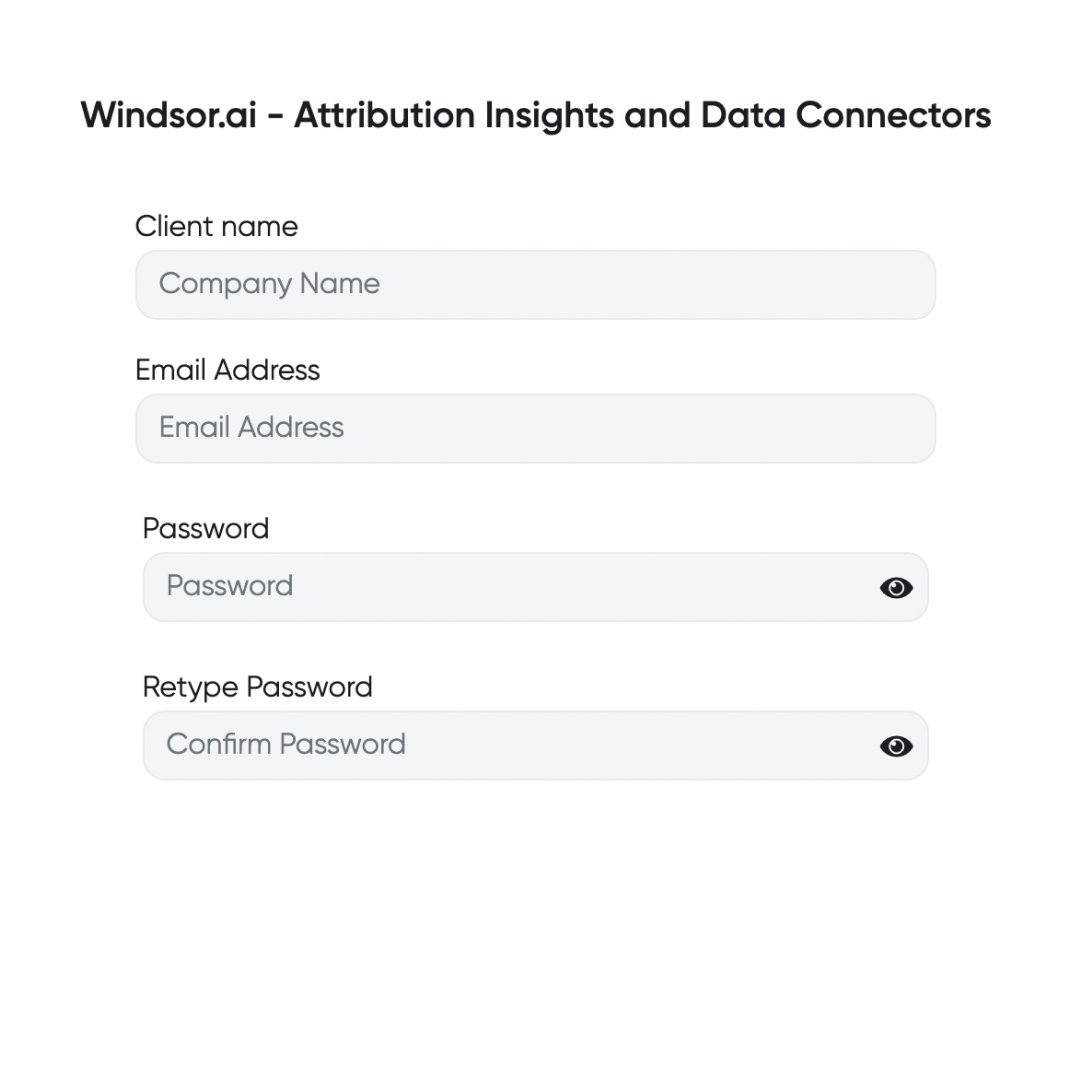
Register and log in to Windsor.ai
Create a new Windsor.ai account or log in if you already have one.
Select your data source
Choose Zoho as your data source and grant access to Windsor.ai.

Connect Tableau via Google Sheets
Tableau has temporarily halted external connectors, so the easiest way to sync data to Tableau is via Google Sheets.

Import data from Google Sheets into Tableau
In the Tableau Desktop app, go to the “Data” tab and click “New Data Source.” Select “Google Drive” and connect your data.

See the integrated data in Tableau
Congratulations! You’ve imported data to Tableau, and it’s ready for further analysis.
FAQs
What is Tableau?
Tableau is a popular business intelligence and analytics tool designed for data visualization and interactive reporting. Using Windsor.ai connectors, you can seamlessly connect Tableau to various data sources, including servers and files like Microsoft Excel, to generate dynamic charts, trends, and dashboards. Once connected, you can automatically create reports using pre-built templates or build custom visualizations from scratch with intuitive, click-through Tableau commands. You can further organize these visuals into dashboards and transform them into compelling data stories, enhancing decision-making.
Do you have helpful links to get started with integrating Zoho CRM and Tableau using Windsor.ai?
Yes, we have helpful resources to help you get started. You can explore our official documentation and ready-to-use templates for seamless Zoho CRM to Tableau integration with Windsor.ai:
How much time do I need to create the Zoho CRM and Tableau integration?
Using Windsor.ai’s no-code ETL connector, you can integrate Zoho CRM with Tableau in a few minutes, benefiting from a quick and stress-free setup process.
How much does it cost to integrate Zoho CRM into Tableau with Windsor.ai?
Windsor.ai’s pricing for Zoho CRM to Tableau data integration can vary depending on your use case and data volume. We offer transparent pricing plans tailored to diverse business needs and budgets.
Tired of manual Zoho CRM data exports? Try Windsor.ai today to automate your reporting


