 Destinations
 Data sources
 AI insights
 About us
 Careers
 Security
 Customer reviews
 Contact us
 Affiliate program
 Solution partners
 Template gallery
 Looker Studio templates
 Power BI templates
 Excel templates
 Google Sheets templates
 Tableau templates
 Facebook Ads templates
 Google Ads templates
 Data fields & Metrics
 AI prompt library & Guides
 Product documentation
 API documentation
 Case studies
 Blog
Blog Data models
 Windsor vs Supermetrics
 Windsor vs Funnel.io
 Windsor vs Fivetran
 Windsor vs Rivery
 Windsor vs Portermetrics
 Windsor vs Coupler.io
ChatGPT Ads (OpenAI Ads) connector installation guide
This document will guide you in integrating your ChatGPT Ads (OpenAI Ads) account with Windsor.ai. We will discuss some preliminary requirements, the required API key, and account setup. Further, we will define data levels and fields and provide some troubleshooting advice.
Prerequisites
The subsequent prerequisites are required before connecting ChatGPT Ads to Windsor.ai:
- An OpenAI Ads account with at least one active ad account in the OpenAI Ads Manager.
- Admin permission in OpenAI Ads Manager (required to generate an API key)
- At least one campaign with spend or delivery data, so there is data to report on.
- A Windsor.ai account (https://onboard.windsor.ai/)
Required permissions and roles
OpenAI Ads access is controlled at two levels:
- User roles and account access: your role in the organization and in the ad account, including whether you can create an API key.
- API key authentication: the bearer token Windsor.ai uses to read your reporting data.
Required user roles
To connect to Windsor.ai, the roles that matter are at the ad account level; this is where the API key is created. You need the Admin role
| Ad account | Admin | Full access to the platform: members, permissions, API keys, and billing. |
| Ad account | Member | Create and manage campaigns. |
| Ad account | Viewer | View content only. |
To connect to Windsor.ai, you need the Admin role on the ad account, since the API key lives under the account’s settings (members, permissions, API keys, and billing). The ad account must first be created by an Ads Admin; an account Admin then invites team members under Settings → Users → Invite, assigning each one Admin, Member, or Viewer.
❗ Note: The account must also be an approved advertiser (US-only beta) with billing and credits configured; see Prerequisites.
The Ads API key is not your standard OpenAI model key. The model key at platform.openai.com will not work here. The Ads key is issued separately from the Ads Manager at ads.openai.com and only works against the Ads API. To create it, open Settings → General in Ads Manager and click Create New Key under API Keys. Each key is scoped to a single ad account, and you can create and name more than one per account. Copy the key when you create it.
API permissions granted during authorization
OpenAI Ads uses bearer token authentication rather than OAuth, so there is no authorization screen during setup. You pass your Ads API key on every request to the Ads API base URL https://api.ads.openai.com/v1:
| Authorization | Bearer $OPENAI_ADS_API_KEY |
The bearer key authenticates requests against the Ads API endpoints (Campaigns, Ad Groups, Ads, Files, and Insights). Windsor.ai uses it only to read your reporting and insights data; it does not create, edit, or pause campaigns. You can confirm a key works with a simple GET /ad_account request.
❗ Note: Because authentication is a single bearer key rather than an OAuth grant, the same key authenticates every Ads API request. Treat it like a password: it is shown only once at creation, and you can revoke or rotate it at any time from the Ads Manager, which immediately stops Windsor.ai from retrieving new data.
How to connect OpenAI Ads to Windsor.ai
- Log in to your Windsor.ai account.
- Navigate to the Data Sources search in the left-hand bar.
- Find OpenAI Ads (https://onboard.windsor.ai/app/openai_ads) in the list.
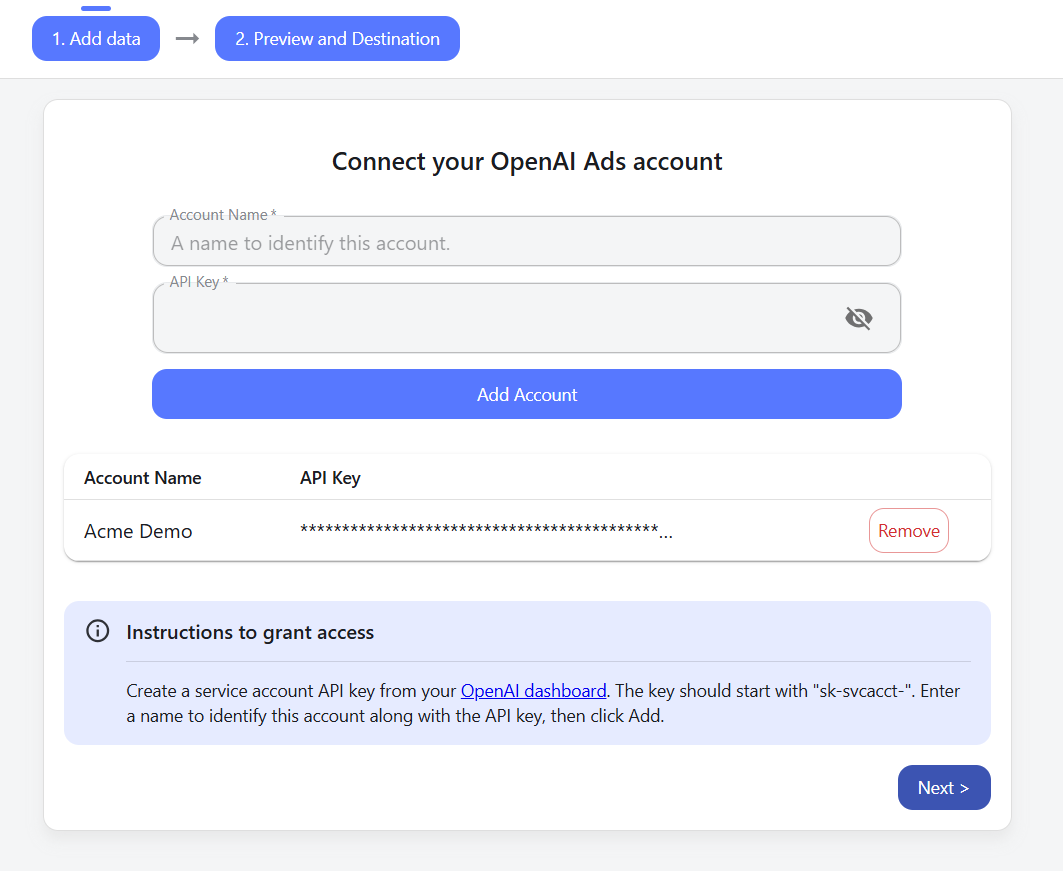
- When prompted, paste the API key you generated in the OpenAI Ads Manager.
- Click Add Account. Windsor.ai validates the key and connects to the single ad account it is scoped to, since each Ads API key maps to one ad account. To report on more than one ad account, generate a key from each account and add them to Windsor.ai individually. Note that OpenAI’s Advertiser API works with one ad account by default; for managing multiple ad accounts through the API directly, OpenAI asks advertisers to contact them.
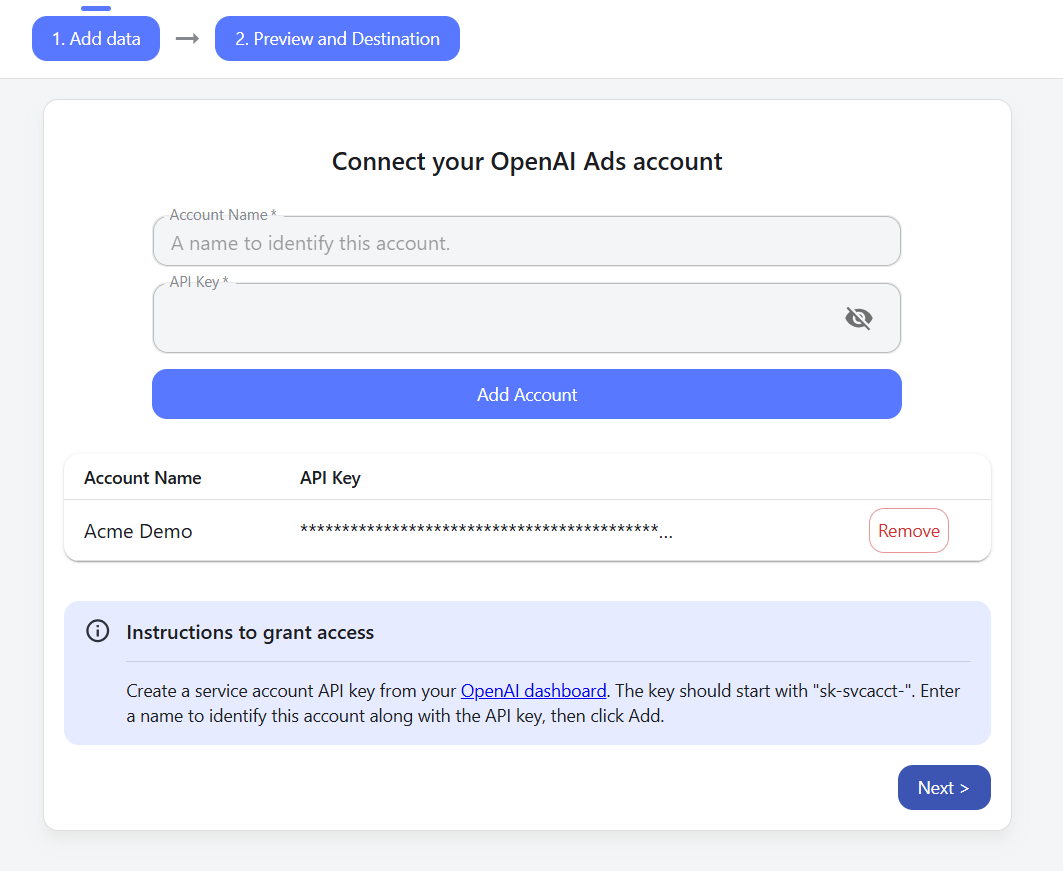
- Confirm the connected ad account and click Next.
- Choose your fields and a destination, for example, Data Studio, BigQuery, Google Sheets, Power BI, or Snowflake. Windsor.ai schedules the pull and refreshes it automatically.
- Or send your data to AI assistants such as ChatGPT, Claude, and other MCP-compatible assistants, so teams can query and act on their ad data in plain language.
Available data levels
The Windsor.ai ChatGPT Ads (OpenAI Ads) connector pulls paid advertising data from OpenAI’s advertising platform via the OpenAI Ads API. Data is available at the following levels:
- Ad account
- Campaign
- Ad group
- Ad
Core performance metrics include impressions, clicks, spend, CTR, CPC, and CPM, alongside dimensions such as account, ad account, campaign, ad group, and ad identifiers and names; campaign, ad group, and ad delivery status; and a full set of date and time dimensions.
❗Windsor.ai supports a complete ChatGPT Ads schema with 6 metrics and 29 dimensions. The full, always-current list of supported fields is in the OpenAI Ads / ChatGPT Ads Field Reference.
Common issues and troubleshooting recommendations
If you don’t see your ad accounts, data isn’t appearing, or syncing stops unexpectedly, the cause is usually the API key or account access. To resolve it:
- Invalid or expired API key: Confirm the key still exists in the OpenAI Ads Manager and hasn’t been deleted. If in doubt, generate a new key and reconnect the connector in Windsor.ai.
- Empty or zero data: Check that the selected date range contains spend or delivery, and that campaigns were active during that period.
- Sync stopped after a change: If permissions or the key changed after the initial setup, disconnect and reconnect the connector with a current, valid key.
Send your ChatGPT Ads data to any destination
After the connector is set up, you can route ChatGPT Ads (OpenAI Ads) data to BI tools, data warehouses, spreadsheets, and AI assistants. The setup flow is the same, only the destination changes:
- ChatGPT Ads to Data Studio: build live OpenAI Ads dashboards. See Data Studio.
- ChatGPT Ads to BigQuery: stream OpenAI Ads data into your warehouse for SQL analysis and blending. See BigQuery.
- ChatGPT Ads to Google Sheets: pull OpenAI Ads metrics into a spreadsheet on a schedule. See Google Sheets.
- ChatGPT Ads to Power BI: feed OpenAI Ads data into Power BI reports. See Power BI.
- ChatGPT Ads to Snowflake: load OpenAI Ads data into Snowflake for warehousing. See Snowflake.
You can also send ChatGPT Ads data to Excel, Tableau, Amazon S3, Azure, Redshift, Databricks, Microsoft Fabric, and AI assistants such as ChatGPT and Claude. View all destinations.
FAQs
Which Roles Can Connect ChatGPT Ads To Windsor.ai?
Generating the API key requires the Admin role on the ad account, since keys live under the account’s settings. Ad-account roles are Admin (full access, including members, permissions, API keys, and billing), Member (create and manage campaigns), and Viewer (view only). The ad account must already exist; in centrally managed organizations, an Ads Admin creates ad accounts at the organization level.
Is The Ads API Key The Same As My OpenAI Model API Key?
No. Your standard model key from platform.openai.com does not work for ads. The Ads API key is issued separately from the Ads Manager at ads.openai.com (Settings → General → API keys) and only works against the Ads API. It is shown only once, so copy it when you create it.
How Does Windsor.ai Authenticate With OpenAI Ads?
With bearer token authentication, not OAuth. You paste your Ads API key into Windsor.ai, and it is sent as an Authorization: Bearer header on every request to https://api.ads.openai.com/v1. Windsor.ai uses the key to read reporting plus insights data only and does not create or modify campaigns.
What ChatGPT Ads Data Can I Pull Into Windsor.ai?
Data at the ad account, campaign, ad group, and ad levels, including impressions, clicks, spend, CTR, CPC, and CPM, plus dimensions like account, campaign, ad group, and ad names and IDs, delivery status, and date fields. The connector supports 6 metrics and 29 dimensions.
Why Did My ChatGPT Ads Data Stop Syncing?
The most common causes are an exhausted billing balance (OpenAI Ads stops API responses immediately when credits run out) or an API key that was revoked or rotated. Top up credits and/or generate a new key in the Ads Manager, then reconnect the connector in Windsor.ai.
How Do I Fix ChatGPT Ads Connection Or Authorization Issues?
Confirm the advertiser account is approved and eligible, check that billing has available credits, generate a fresh API key in the Ads Manager, then disconnect and reconnect the connector in Windsor.ai with the new key. If difficulties persist, contact Windsor.ai support for connector issues or OpenAI Ads support for account-side issues.
How Do I Connect ChatGPT Ads to Data Studio?
Set up the OpenAI Ads connector in Windsor.ai with your API key, then choose Data Studio as the destination. Windsor.ai gives you a live data source to drop into a report.
How Do I Connect ChatGPT Ads to Bigquery?
After connecting ChatGPT Ads in Windsor.ai, select BigQuery as the destination. Windsor.ai streams your OpenAI Ads data into BigQuery on a schedule for SQL analysis.
How Do I Connect ChatGPT Ads to Google Sheets?
Connect ChatGPT Ads in Windsor.ai, then choose Google Sheets as the destination. Your OpenAI Ads metrics are pulled into a sheet and refreshed automatically.
Tired of juggling fragmented data? Get started with Windsor.ai today to create a single source of truth


