 Destinations
 Data sources
 AI insights
 About us
 Careers
 Security
 Customer reviews
 Contact us
 Affiliate program
 Solution partners
 Template gallery
 Looker Studio templates
 Power BI templates
 Excel templates
 Google Sheets templates
 Tableau templates
 Facebook Ads templates
 Google Ads templates
 Data fields & Metrics
 AI prompt library & Guides
 Product documentation
 API documentation
 Case studies
 Blog
Blog Data models
 Windsor vs Supermetrics
 Windsor vs Funnel.io
 Windsor vs Fivetran
 Windsor vs Rivery
 Windsor vs Portermetrics
 Windsor vs Coupler.io
How to connect Google Analytics 4 to Windsor.ai using a Service Account
This guide explains how to connect your GA4 property to Windsor.ai using a Google Cloud Service Account, step-by-step.
Steps to connect GA4 to Windsor.ai through a Service Account
Step 1. Create a Google Cloud project
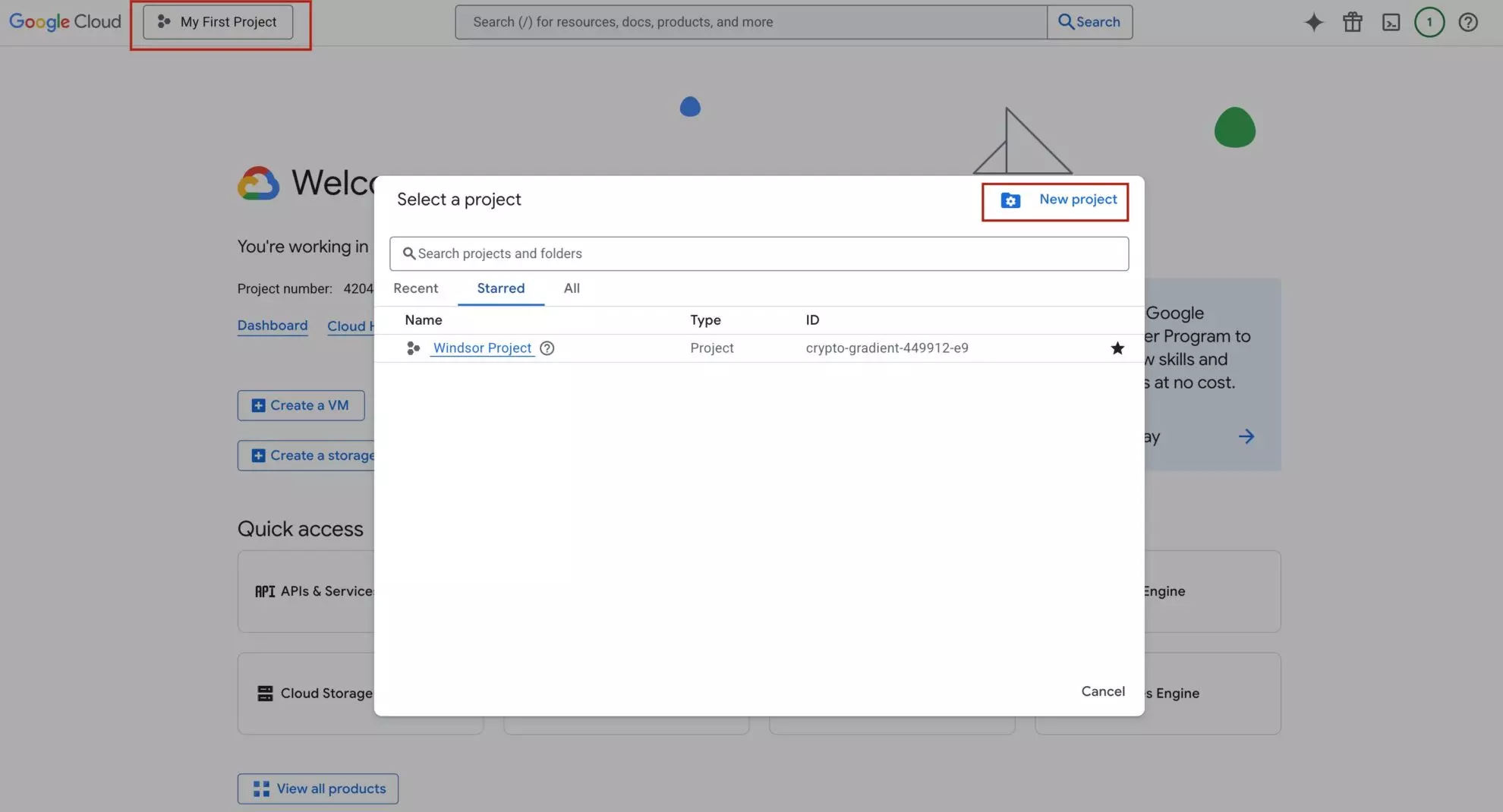
1. Go to Google Cloud Console and open the project picker on the top left side.
2. Click on ‘New project.’
3. Name your project and click ‘Create.’
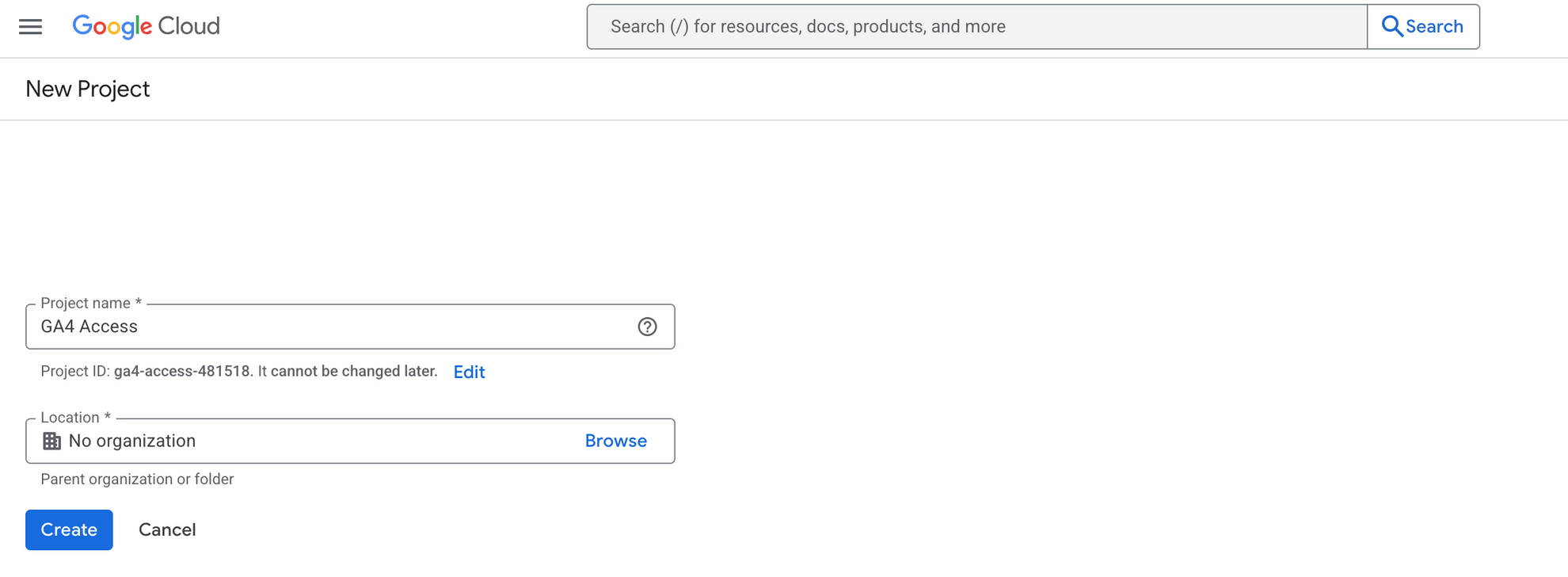
The organization doesn’t matter—you can choose any.
Step 2. Create a Service Account
1. Access your Google Cloud Console.
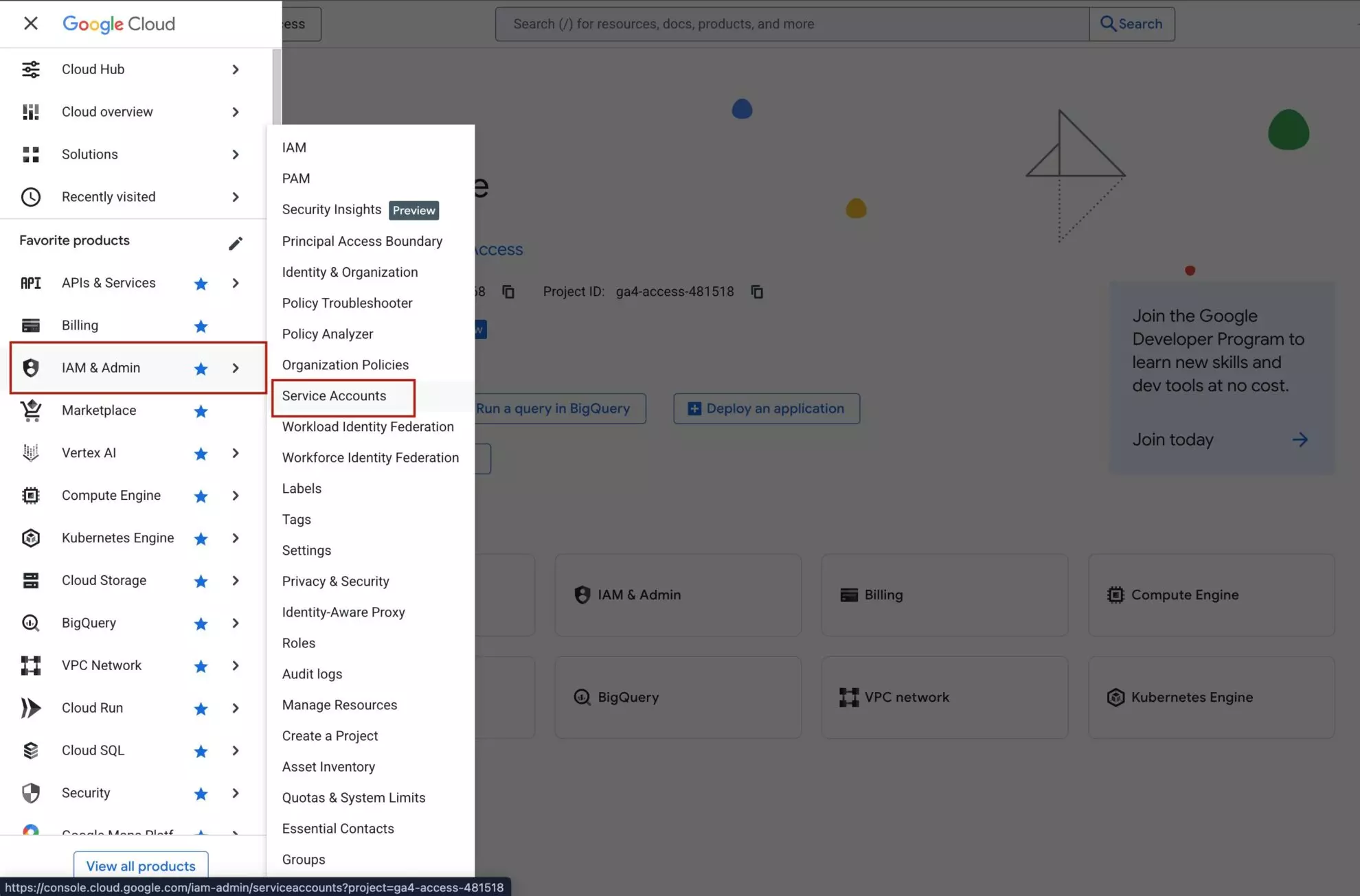
2. On the sidebar, choose IAM & Admin -> Service Accounts.
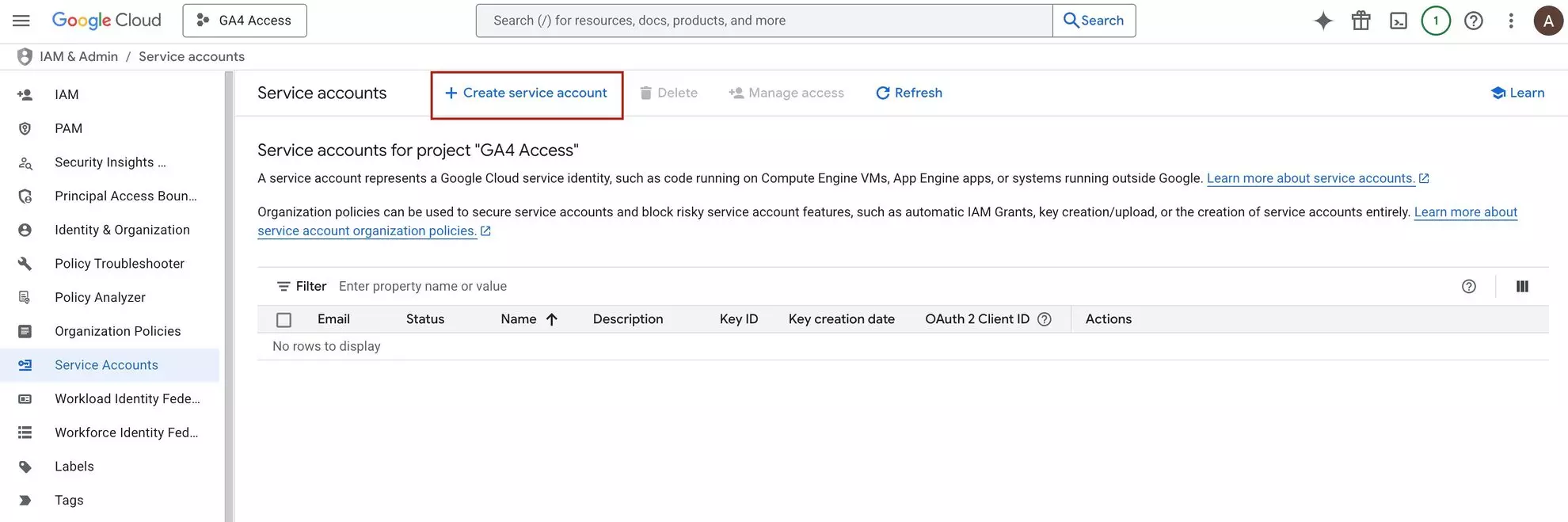
3. Click + Create Service Account.
4. Fill in the Service Account details and click ‘Done.’
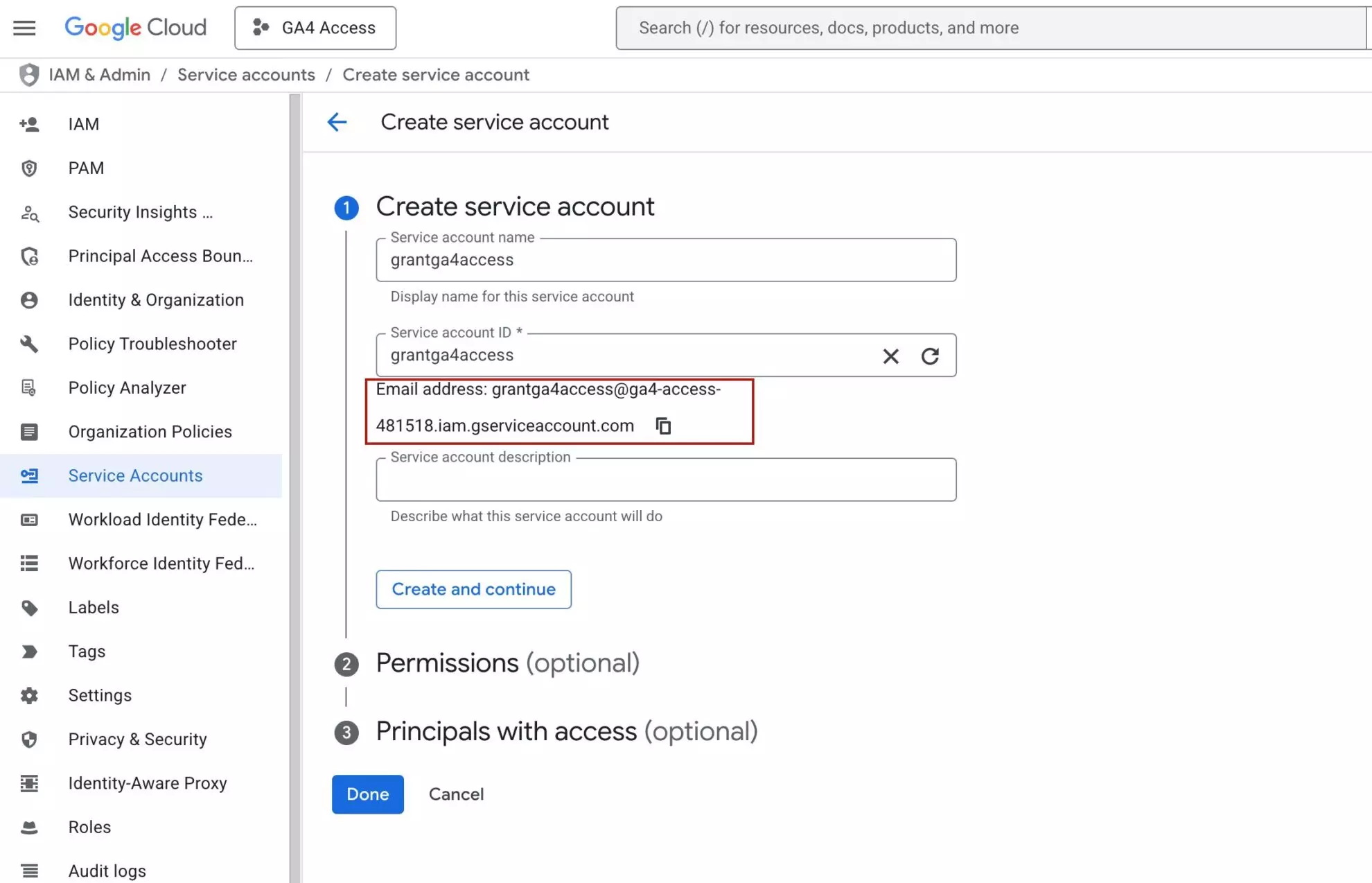
After successfully creating a Service Account, you will see it in your list.
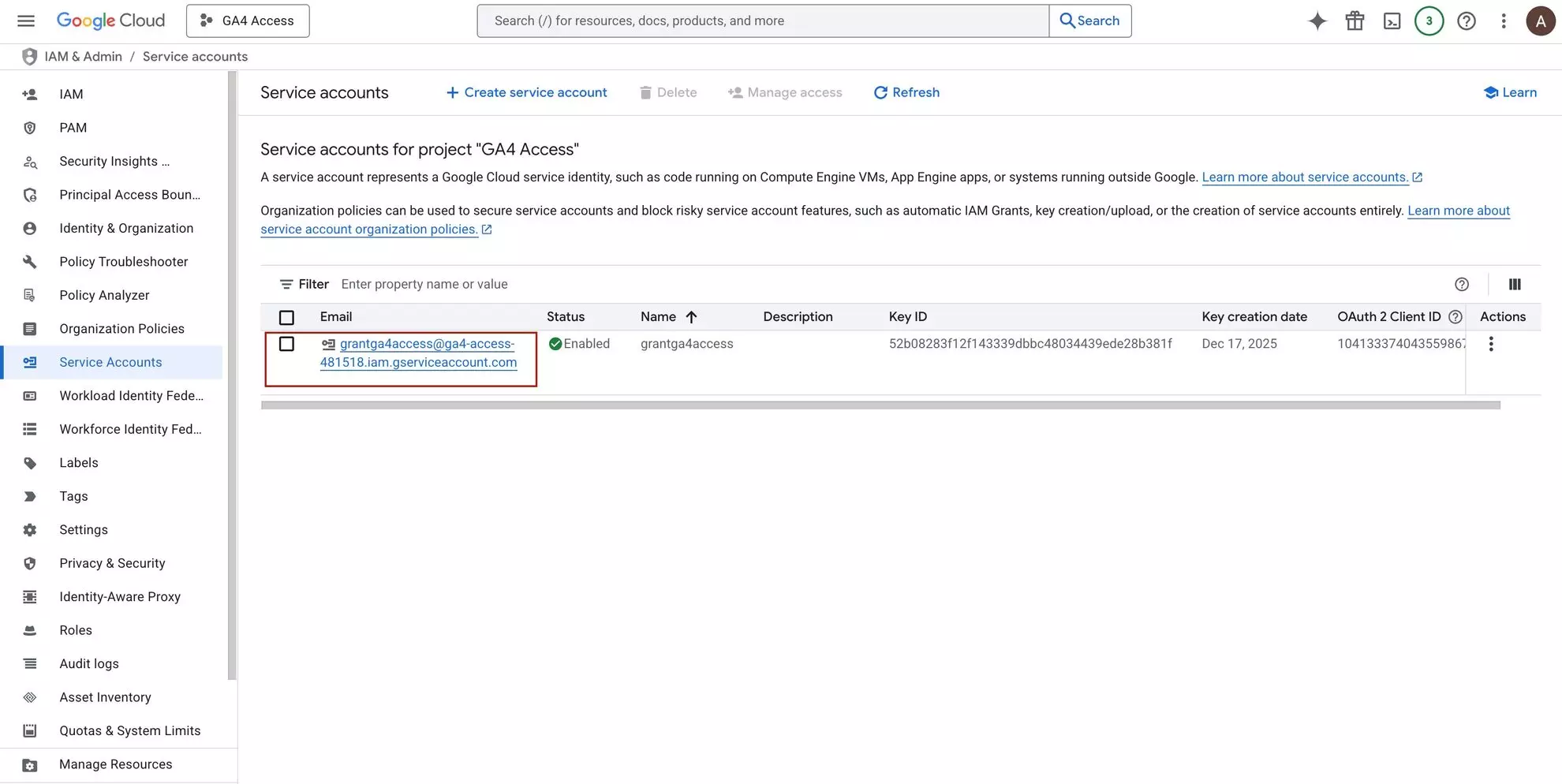
The email associated with your Service Account will be used to get access to GA4. Save this email to use it in the next steps.
Step 3. Generate a Service Account key
1. Navigate to IAM & Admin > Service Accounts.
2. Select the Service Account you created in the previous step.
- Go to the ‘Keys’ tab.
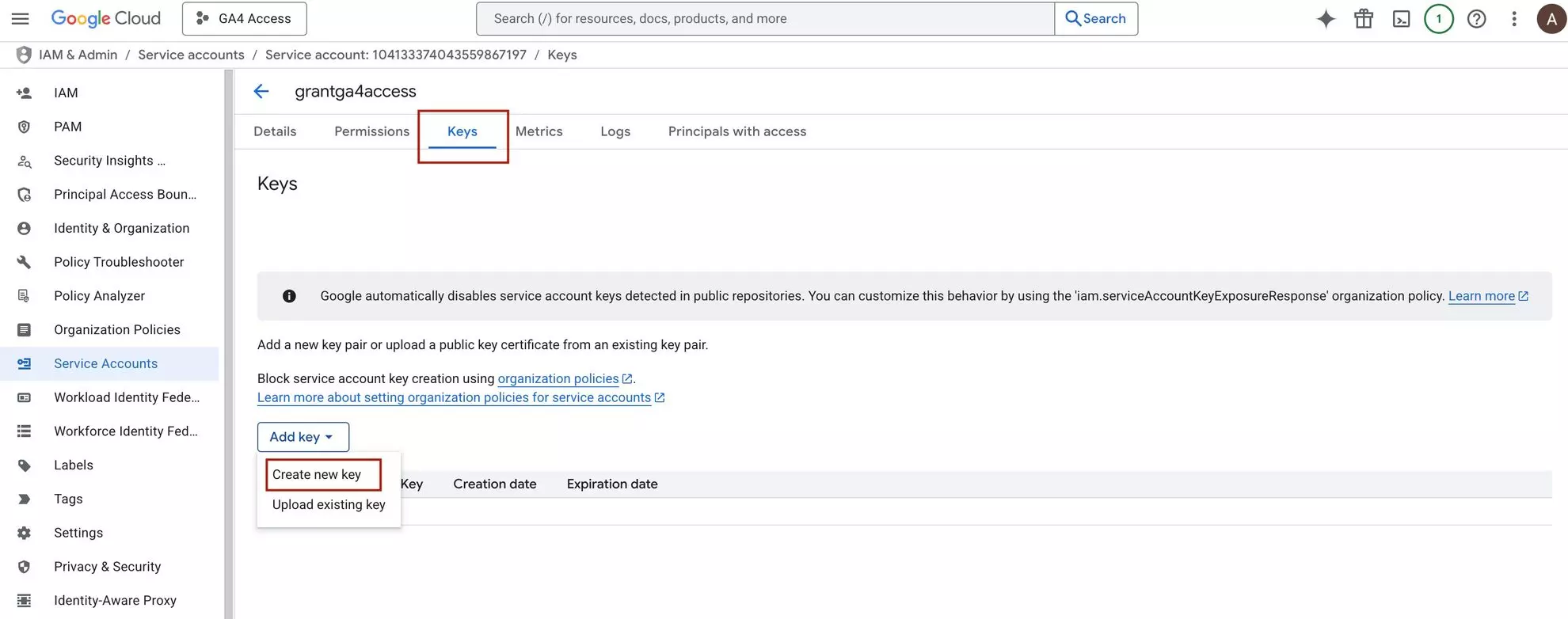
- Click ‘Add key’ -> ‘Create new key’ -> ‘JSON’ -> ‘Create.’

-
A private key (JSON) file will be automatically downloaded to your machine.
Note: You will only upload it to Windsor.ai. GA4 owners do not need it.
Step 4. Enable required Google Analytics APIs
First, you have to enable two Google APIs in the same Google Cloud project where you’ve created the Service Account.
1. Enable Google Analytics Admin API:
Go to Google Cloud Console -> API Library -> Google Analytics Admin API and click ‘Enable.’
2 Enable Google Analytics Data API:
Go to Google Cloud Console -> API Library -> Google Analytics Data API and click ‘Enable.’
Both APIs must be enabled in the same Google Cloud project as the Service Account. Admin API is used to discover GA4 accounts and properties. Data API is used to fetch GA4 report data.
Note: When enabling the Google Analytics Admin API and Data API, you will only see your project, not Service Account. Google APIs are enabled at the Google Cloud project level, not per Service Account.
Step 5. Grant GA4 access to the service account
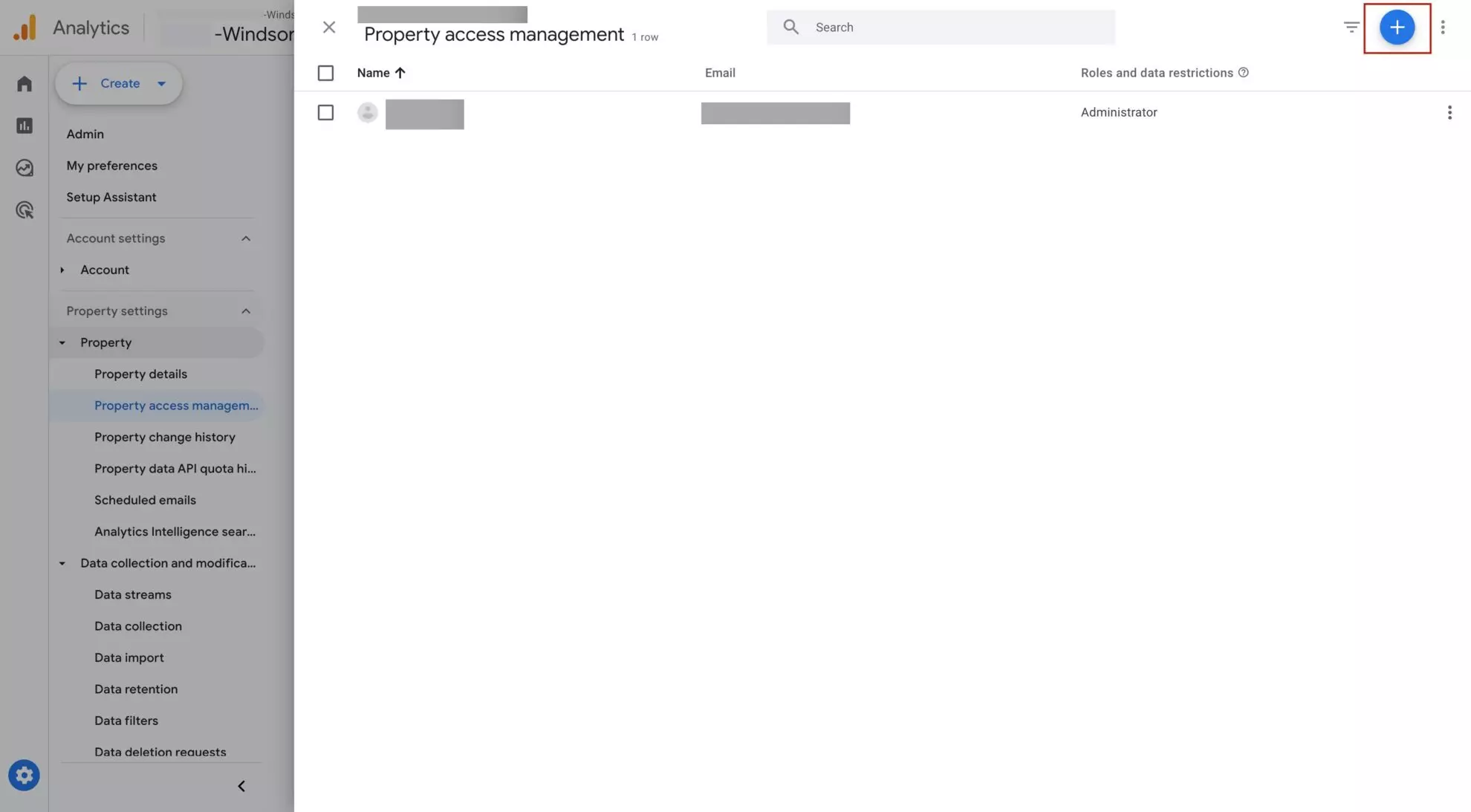
1. Open Google Analytics and click the Admin gear in the left sidebar.
2. Confirm you are in the correct Account and Property, then open Property Access Management.
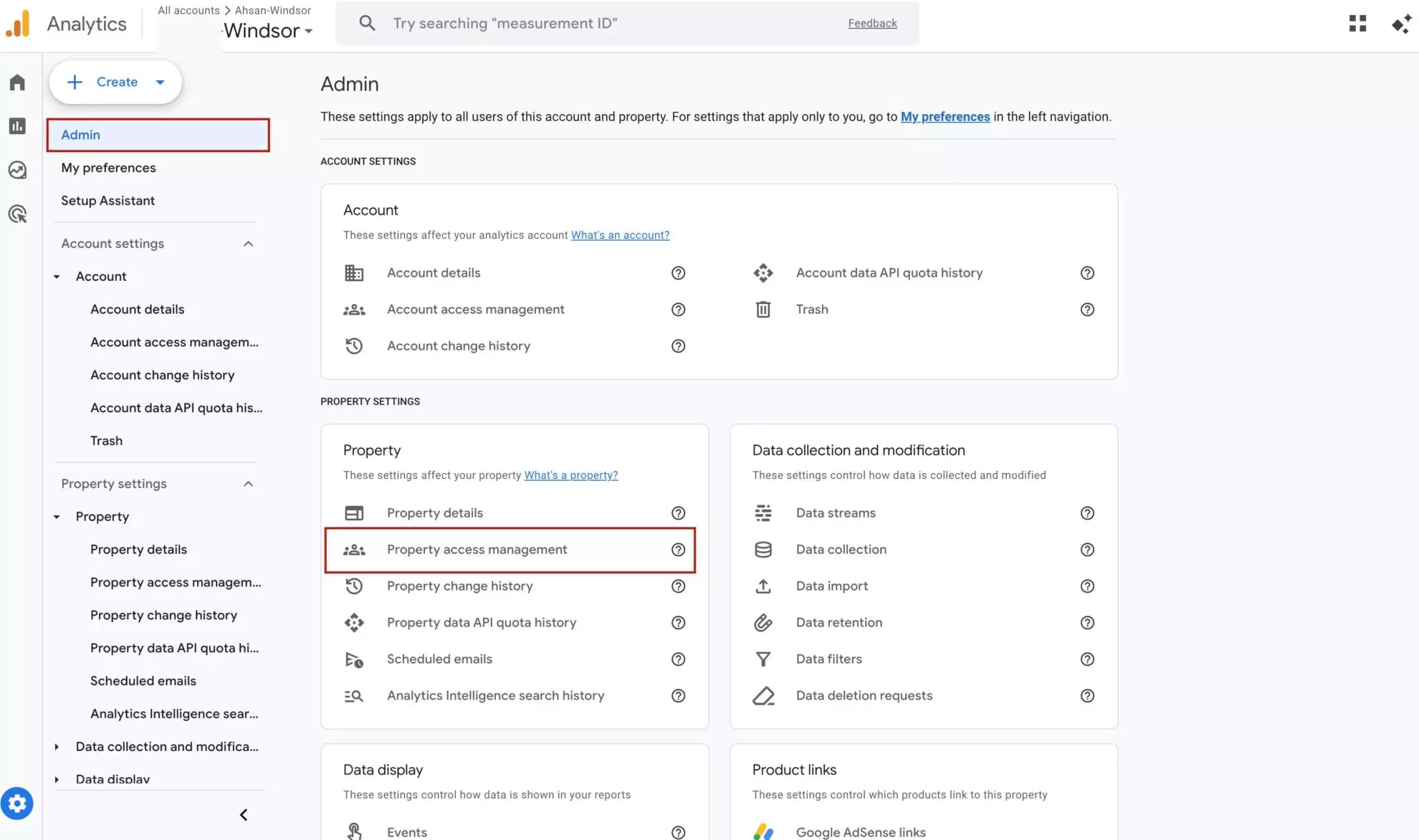
3. Click the blue + icon and choose Add users.
4. Paste the Service Account email you created earlier in Step 2. Uncheck Notify new users by email, set the role to Viewer, and click ‘Create.’
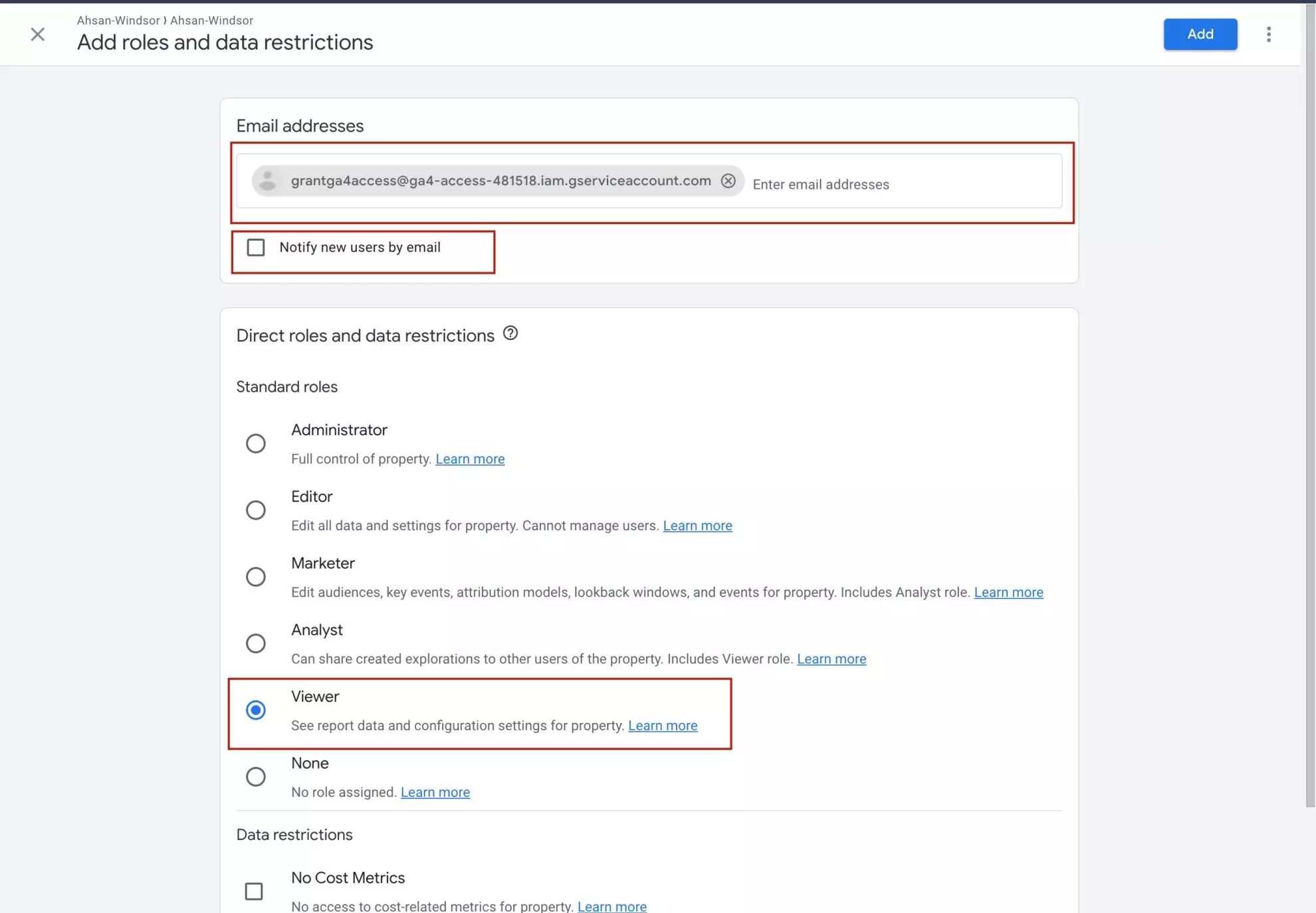
Important: If you manage the GA4 property, you can add the Service Account email yourself if you don’t want to use the “Sign in with Google” option. If someone else manages the GA4 property, ask them to add the Service Account email for you to share access. These steps are the same for both cases.
Step 6. Connect GA4 to windsor.ai via a Service Account
1. Log in to your Windsor.ai account.
2. Navigate to the Data Sources search in the left-hand bar.
3. Find Google Analytics 4 (https://onboard.windsor.ai/app/googleanalytics4) in the list.
4. Click on the ‘Use Service Account’ button.
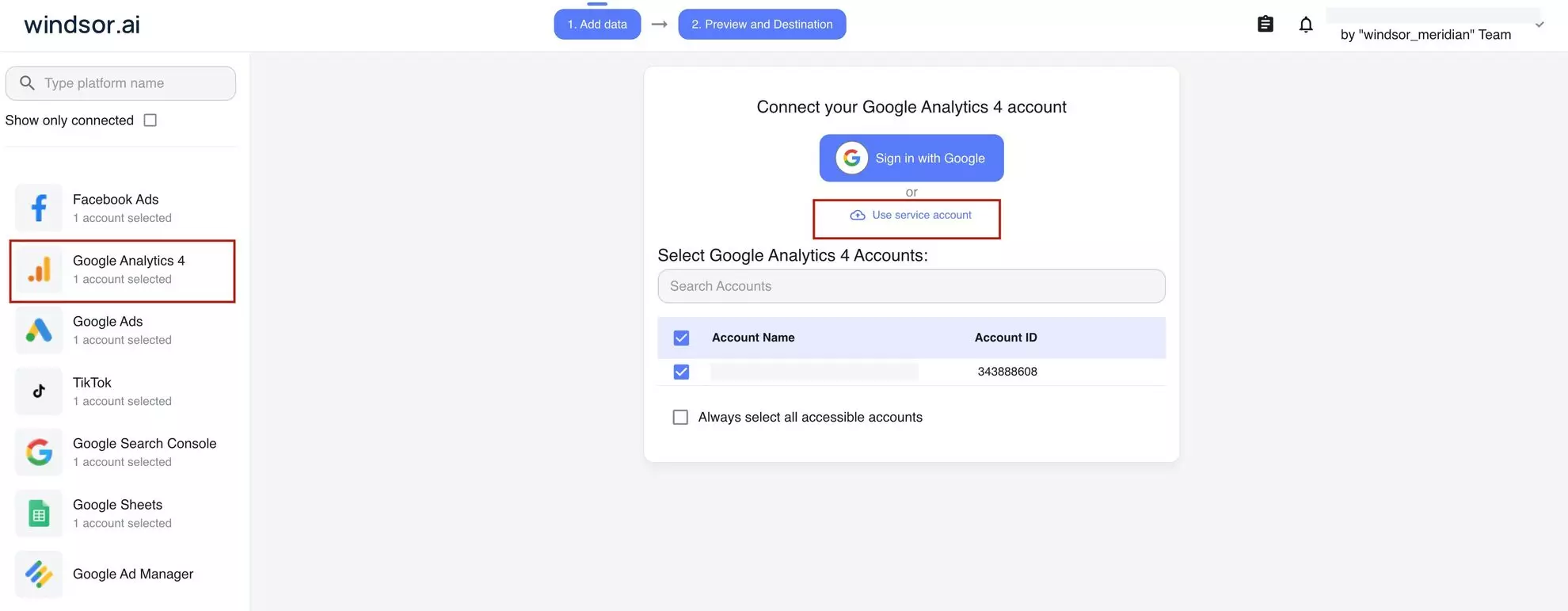
5. Upload your private key (JSON) file created in Step 3.
6. After successfully connecting to the GA4, you will see a list of your available accounts.
Support
If you encounter issues while connecting or using the Google Analytics 4 (GA4) connector in Windsor.ai:
-
If using a Service Account, verify that:
- The service account email is added to GA4 with Viewer or Analyst access.
- Both the Google Analytics Admin API and Google Analytics Data API are enabled in the Google Cloud project.
- Check GA4 Property access management for recent permission changes or removed users.
- Review Google Cloud Console for disabled APIs, deleted keys, or revoked service accounts.
- Frequently asked support questions and GA4 troubleshooting guides can be found here.
- Contact Windsor.ai Support for connector setup, authorization, or data synchronization issues.
- Contact Google Analytics or Google Cloud Support for GA4 property, permission, or API level issues.
FAQs
Why does GA4 say I don’t have permission to manage users?
You are not a GA4 Property Admin. Only Property Admins or Editors can add or remove users. If you see “Account access management” but cannot edit users, ask the GA4 owner to add the service account for you.
Do I need to enable any Google APIs for GA4?
Yes. Both the Google Analytics Admin API and Google Analytics Data API must be enabled in the Google Cloud project where the Service Account is created. Windsor.ai uses the Admin API to discover accounts and the Data API to fetch reports.
Why can’t I add or remove users in GA4?
Only GA4 Property Administrators or Editors can manage user access. If you do not see “Property access management,” ask the GA4 owner to add the service account for you.
I added the service account but Windsor.ai still can’t connect. Why?
The most common causes are:
- The Service Account was added at the account level, not the property level.
- Required APIs (Admin API or Data API) are not enabled.
- API enablement has not propagated yet (can take a few minutes).
- The wrong Google Cloud project or JSON key is being used.
Verify property level access and enabled APIs, then retry.
Tired of juggling fragmented data? Get started with Windsor.ai today to create a single source of truth


