 Destinations
 Data sources
 AI insights
 About us
 Careers
 Security
 Customer reviews
 Contact us
 Affiliate program
 Solution partners
 Template gallery
 Looker Studio templates
 Power BI templates
 Excel templates
 Google Sheets templates
 Tableau templates
 Facebook Ads templates
 Google Ads templates
 Data fields & Metrics
 AI prompt library & Guides
 Product documentation
 API documentation
 Case studies
 Blog
Blog Data models
 Windsor vs Supermetrics
 Windsor vs Funnel.io
 Windsor vs Fivetran
 Windsor vs Rivery
 Windsor vs Portermetrics
 Windsor vs Coupler.io
 Last updated: 31 August 2026




The fastest way to connect Everhour to ChatGPT is to install Windsor.ai’s native ChatGPT app: connect your Everhour account to Windsor once, then add the Windsor.ai app inside ChatGPT so it can read your tracked time, tasks, and billing rates directly in the chat, no code required.
The alternative is exporting Everhour’s timesheets as CSV files by hand every time you want to check billable hours against a project budget, then reconciling them somewhere else against your other tools. That works for a one-off check, but it leaves your time-tracking data siloed and stale the moment you close the spreadsheet. Connecting Everhour to Windsor keeps the data live and queryable in ChatGPT instead.
2 steps to connect Everhour to ChatGPT
Takes under a minute, no code or manual CSV work required.
See the full walkthrough in the Windsor.ai documentation.
Prerequisites
- A Windsor.ai account (free forever plan, no credit card, or paid from $19/month)
- An Everhour account with at least one active project and some tracked time
- A ChatGPT account that can install apps or connectors
Step 1. Connect Everhour to Windsor.ai
Start on the Windsor.ai side:
- Create a free Windsor.ai account, or log in if you already have one
- Go to onboard.windsor.ai/app/everhour and select Everhour
- Authorize Windsor to access your Everhour account
- Repeat the process to connect additional Everhour workspaces if you manage multiple teams or clients
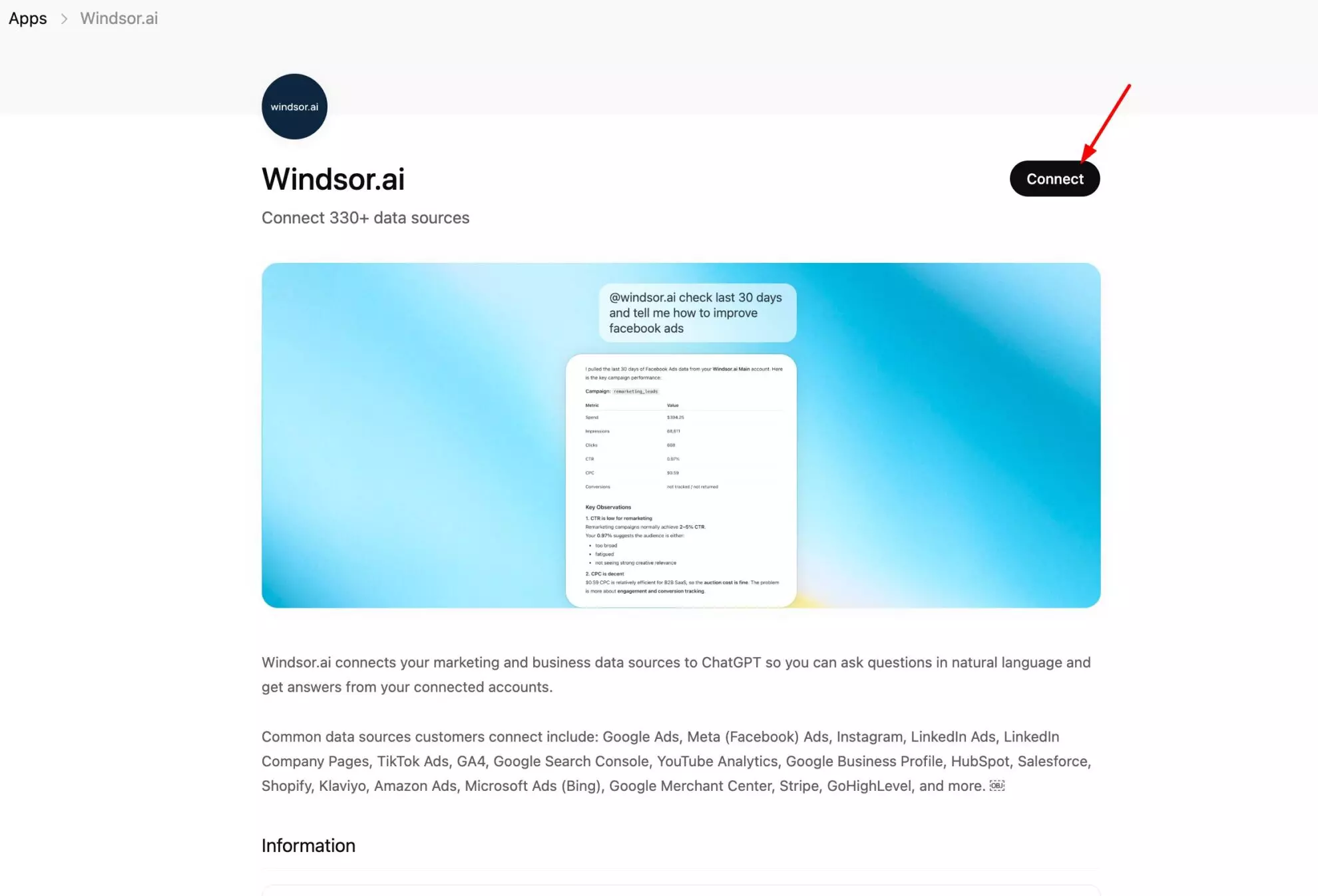
Step 2. Connect the Windsor.ai app in ChatGPT
Now install the native app inside ChatGPT:
- Open ChatGPT and go to Settings > Connectors (or Apps)
- Search for “Windsor.ai” and install it
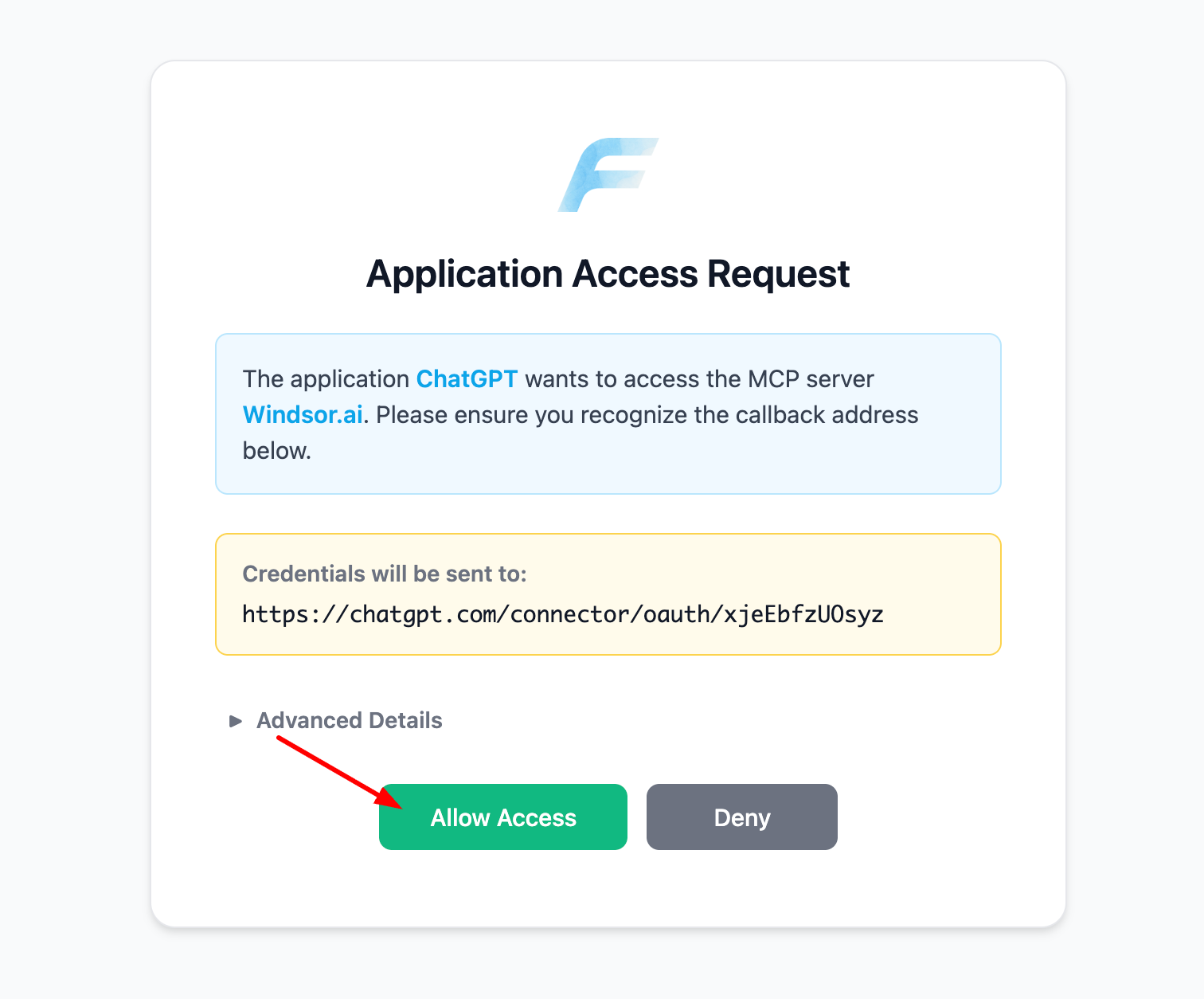
- Allow Windsor.ai access when prompted
- Confirm the app appears in your connected apps list
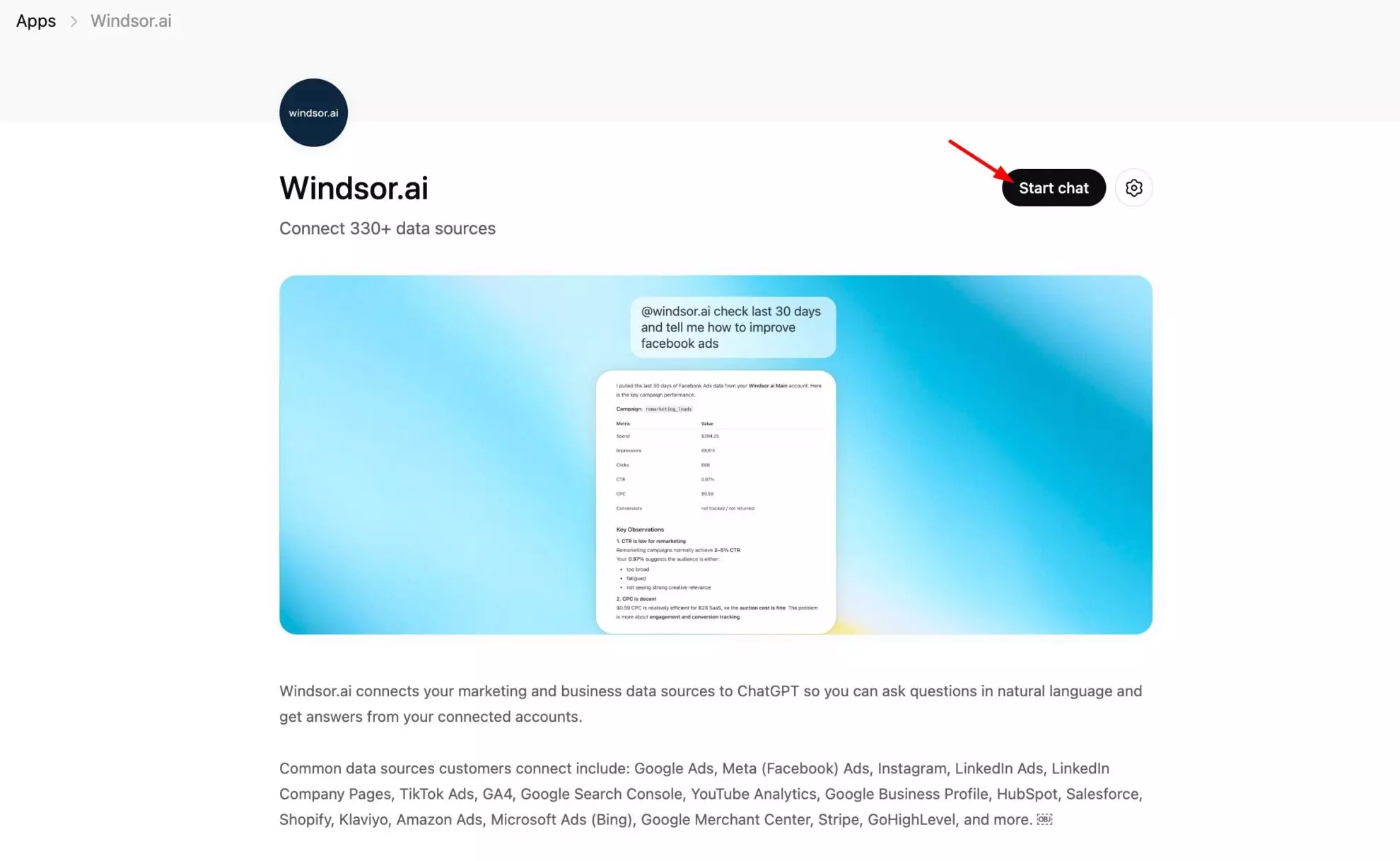
Confirm the connection is live by asking ChatGPT:
List the data sources connected to my Windsor account. Do you see Everhour there?If Everhour shows up, you’re ready to query your tracked time and tasks in plain English.
The metrics that matter for Everhour
| Metric | What it tells you |
|---|---|
| Time Tracked | The actual hours logged against a task, the base record every other time report in Everhour is built from. |
| Time Cost | The dollar value of a logged time entry (time multiplied by the applicable rate), what that block of work is worth. |
| Cost Rate | The hourly rate applied to a specific time entry, the number used to turn tracked time into cost. |
| Time Entry Locked | Whether a time entry has been locked as approved or invoiced, so you can separate finalized time from entries still open to edits. |
| Task Name | The task a block of time was logged against, the level most time reports roll up to. |
| Task Status | Whether a task is open or closed, a quick read on how much of a project’s work is still in progress. |
| Project Name | The project a task and its time belong to, the level most budgets and client billing are organized around. |
| Project Estimate Type | How a project’s estimate is set, for example by task or by total project hours, telling you what kind of budget you’re tracking against. |
| Client Name | The client a project is billed to, so you can roll up tracked time and cost per client for invoicing. |
| Team Member Name | The person who logged a given time entry, the level utilization and workload reporting is built on. |
| Team Member Capacity | A team member’s expected weekly hours, the number you compare actual tracked time against to see who’s over or under capacity. |
What to ask ChatGPT: prompt ideas
Time tracking and billable hours
Summarize total time tracked and time cost by project for the last 30 days.
Which time entries this week are still unlocked and could still change before I invoice them?
Project budgets vs. actuals
Compare tracked time against each project's estimate type and flag any project that looks over budget.
List open tasks by project so I can see what's still outstanding before the next billing cycle.
Team utilization
Show tracked hours by team member for the last two weeks and compare against their weekly capacity.
The Everhour connection through Windsor is read-only. ChatGPT can analyze your tracked time, tasks, and billing rates, but it can’t create, edit, or lock time entries inside Everhour itself.
Other ways to connect Everhour to ChatGPT
Manual CSV export
You can export a timesheet report from Everhour as a CSV and upload it to ChatGPT for a one-off analysis. It works, but it’s a static snapshot: every time you want an updated number you have to re-export and re-upload the file by hand.
Zapier or Make
Zapier or Make can move Everhour data into a spreadsheet or database on a schedule. That’s a reasonable automated workflow, but it still needs to be built and maintained separately, and it doesn’t give ChatGPT a live, queryable connection to Everhour the way the native Windsor.ai app does.
Neither approach gives you the same live view as connecting Everhour to Windsor directly.
Conclusion
Connecting Everhour to ChatGPT through Windsor.ai takes two steps: link your Everhour account to Windsor, then install the Windsor.ai app in ChatGPT. From there you can ask plain-language questions about tracked time, tasks, and billing rates, without exporting a single CSV.
🚀 Ready to connect Everhour to ChatGPT? Connect your Everhour account to Windsor.ai and start querying your time-tracking data in minutes.
FAQs
What's the fastest way to connect Everhour to ChatGPT?
The native Windsor.ai app is the fastest way. It takes under a minute, connects Everhour natively, and doesn’t require exporting or uploading any files.
Do I need any coding or technical setup?
No. Connecting Everhour to ChatGPT through Windsor.ai is a no-code process: authorize the Everhour connection, then install the app in ChatGPT.
Can ChatGPT actually analyze my Everhour performance?
Yes. Once connected, you can ask ChatGPT plain-language questions about tracked time, time cost, task status, and team capacity, and it will pull the live data through Windsor.
Can I connect multiple Everhour accounts, for example for an agency?
Yes. You can connect multiple Everhour workspaces to Windsor.ai, which is useful if you manage several teams or client accounts and want to see them all from the same ChatGPT conversation.
Which Everhour metrics are available in Windsor?
Windsor returns Everhour data including time tracked, time cost, cost rate, task name and status, project name and estimate type, client name, and team member name and capacity.
How much does it cost to connect Everhour to Windsor.ai?
Windsor.ai has a free forever plan with no credit card required, which covers connecting Everhour to ChatGPT. Paid plans start from $19/month for higher usage needs.
Is this better than exporting Everhour data as a CSV?
A CSV export is a static snapshot that goes out of date the moment new time gets logged. Connecting Everhour to Windsor keeps the data live, so ChatGPT is always working from current numbers instead of a manually re-exported file.
Can I combine Everhour with data from my other business tools?
Yes. Windsor connects to 350+ data sources, so you can blend Everhour’s time-tracking data alongside project management, CRM, or finance tools in the same ChatGPT conversation for a single source of truth instead of checking each tool on its own.
Is the connection secure, and can ChatGPT change anything in my Everhour account?
The Everhour connection through Windsor is read-only. ChatGPT can analyze your tracked time, tasks, and billing rates, but it cannot create, edit, or push any changes back into Everhour.


