 Destinations
 Data sources
 AI insights
 About us
 Careers
 Security
 Customer reviews
 Contact us
 Affiliate program
 Solution partners
 Template gallery
 Looker Studio templates
 Power BI templates
 Excel templates
 Google Sheets templates
 Tableau templates
 Facebook Ads templates
 Google Ads templates
 Data fields & Metrics
 AI prompt library & Guides
 Product documentation
 API documentation
 Case studies
 Blog
Blog Data models
 Windsor vs Supermetrics
 Windsor vs Funnel.io
 Windsor vs Fivetran
 Windsor vs Rivery
 Windsor vs Portermetrics
 Windsor vs Coupler.io
 Last updated: 30 September 2026




The fastest way to connect GA4 to Claude is the Windsor.ai connector. Add it in Claude, connect your GA4 property once, and ask about your data in a new chat. If you prefer Google’s own code, the official Google Analytics MCP server runs in Claude Code. For a one-off question, you can also upload a CSV export.
An MCP connection pulls live data when you ask, so there are no manual CSV exports to repeat and no download row limits to work around. A CSV upload is a snapshot of one report.
I use GA4 in Claude mostly to check whether a content update helped readers. I compare engagement, views per session and leads before and after the change. I also use it to decide which of two competing pages to keep.
🚀 Connect GA4 to Claude with Windsor.ai. Free forever plan, no credit card. Try Windsor.ai.
Three ways to connect GA4 to Claude
| Method | Setup | Live data | Other sources |
|---|---|---|---|
| Windsor.ai connector | 2 steps, no code | Yes | 350+ |
| Google’s Analytics MCP server | Cloud project, OAuth client, Python | Yes | GA4 only |
| CSV export and upload | A few minutes per report | No | One file at a time |
Method 1: the Windsor.ai connector (2 steps)
Before you start
- A Google account with at least Viewer access to the GA4 property.
- A Claude account on any plan.
- A Windsor.ai account. The free forever plan covers one data source, with no credit card. Questions that combine GA4 with Search Console or ad platforms need a paid plan after the first 30 days, from $19 a month billed annually for three sources, or $99 a month for seven. See pricing.
Step 1: connect GA4 to Windsor.ai
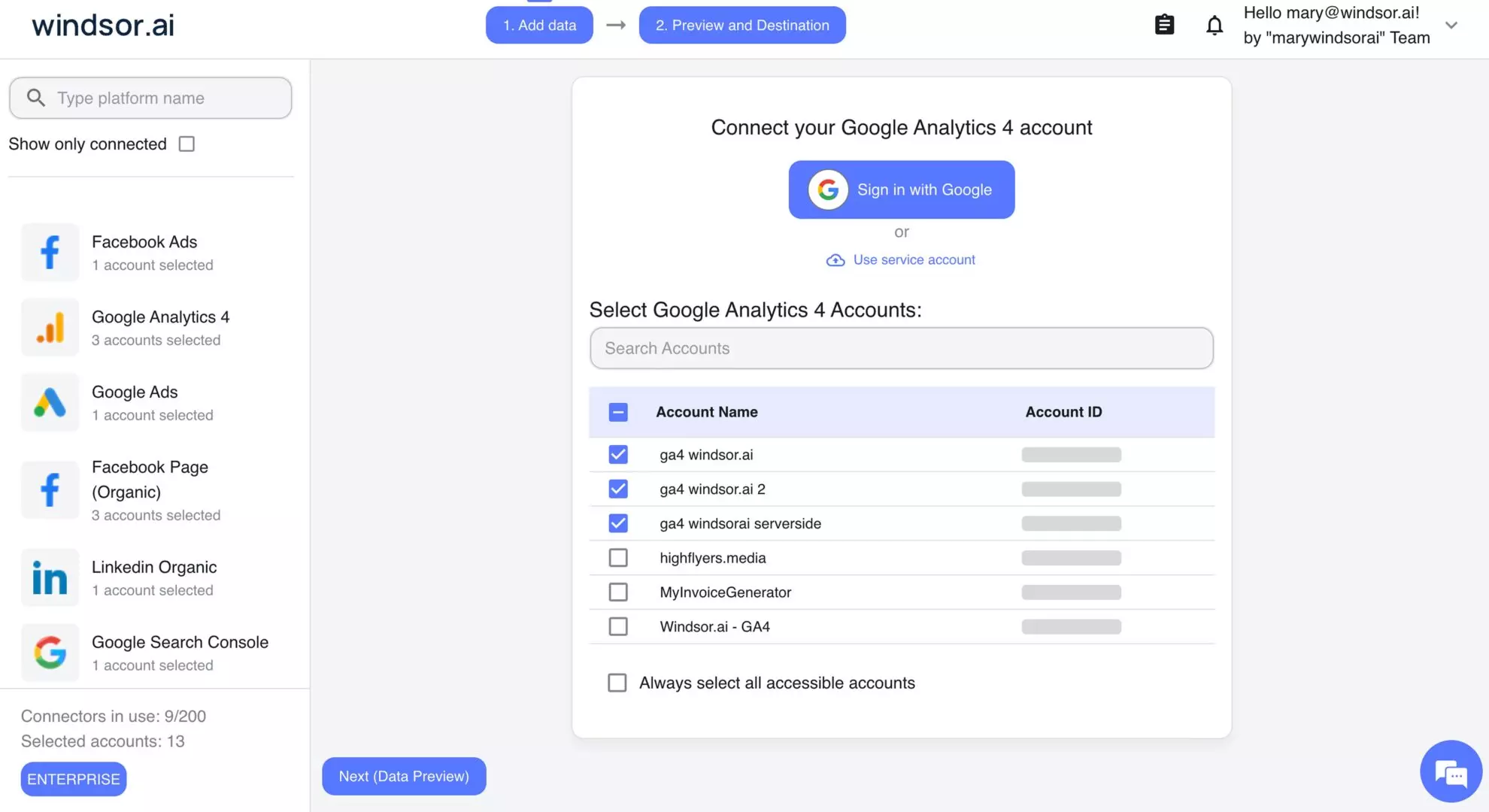
Go to onboard.windsor.ai/app/googleanalytics4, sign in with Google and select the GA4 properties you want in Claude.
Step 2: add Windsor.ai in Claude
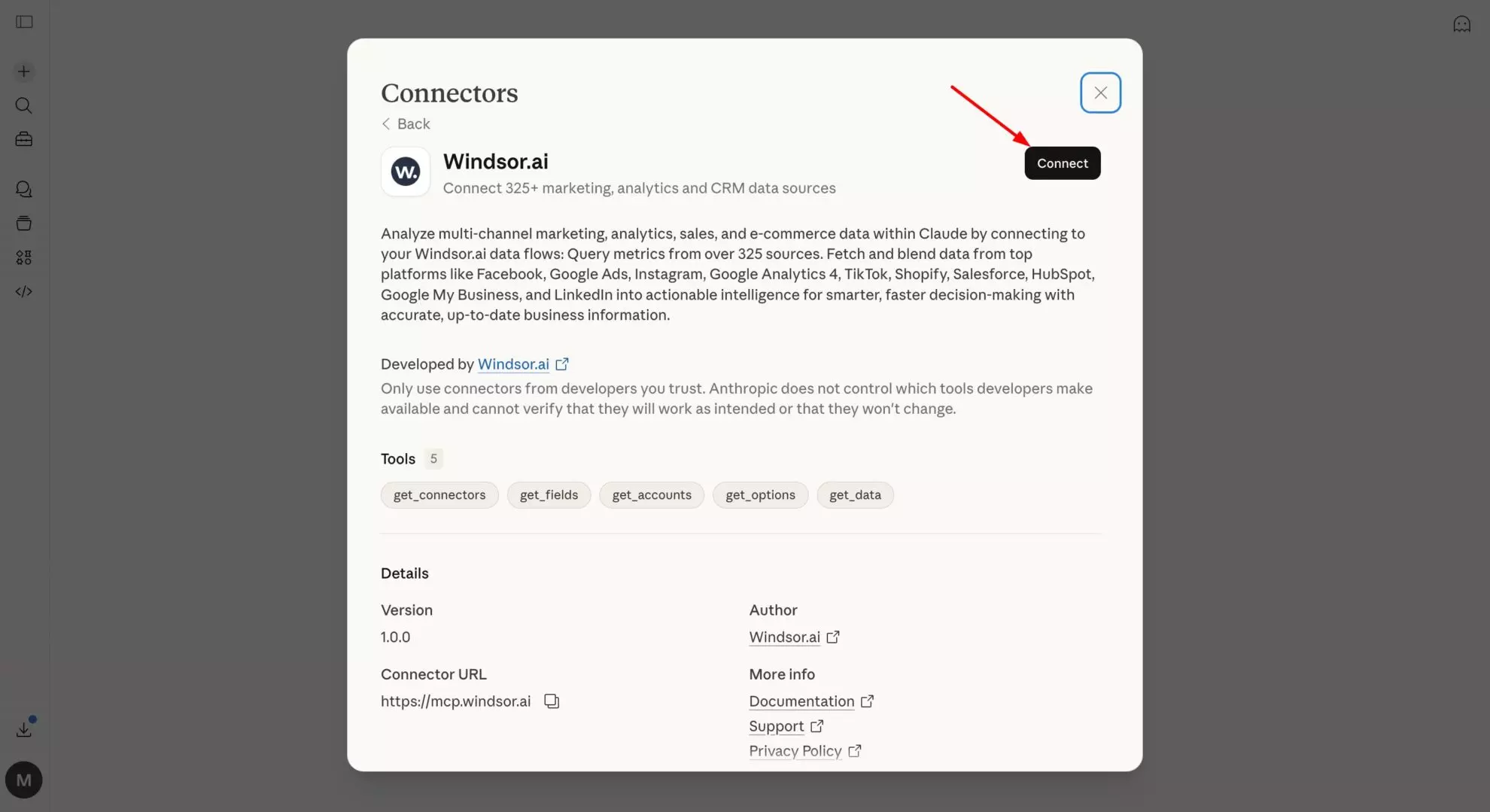
In Claude, open Customize, then Connectors, search for Windsor and click Add. Sign in to your Windsor.ai account when asked. Windsor.ai then appears in your connectors list.
Start a new chat and check the connection:
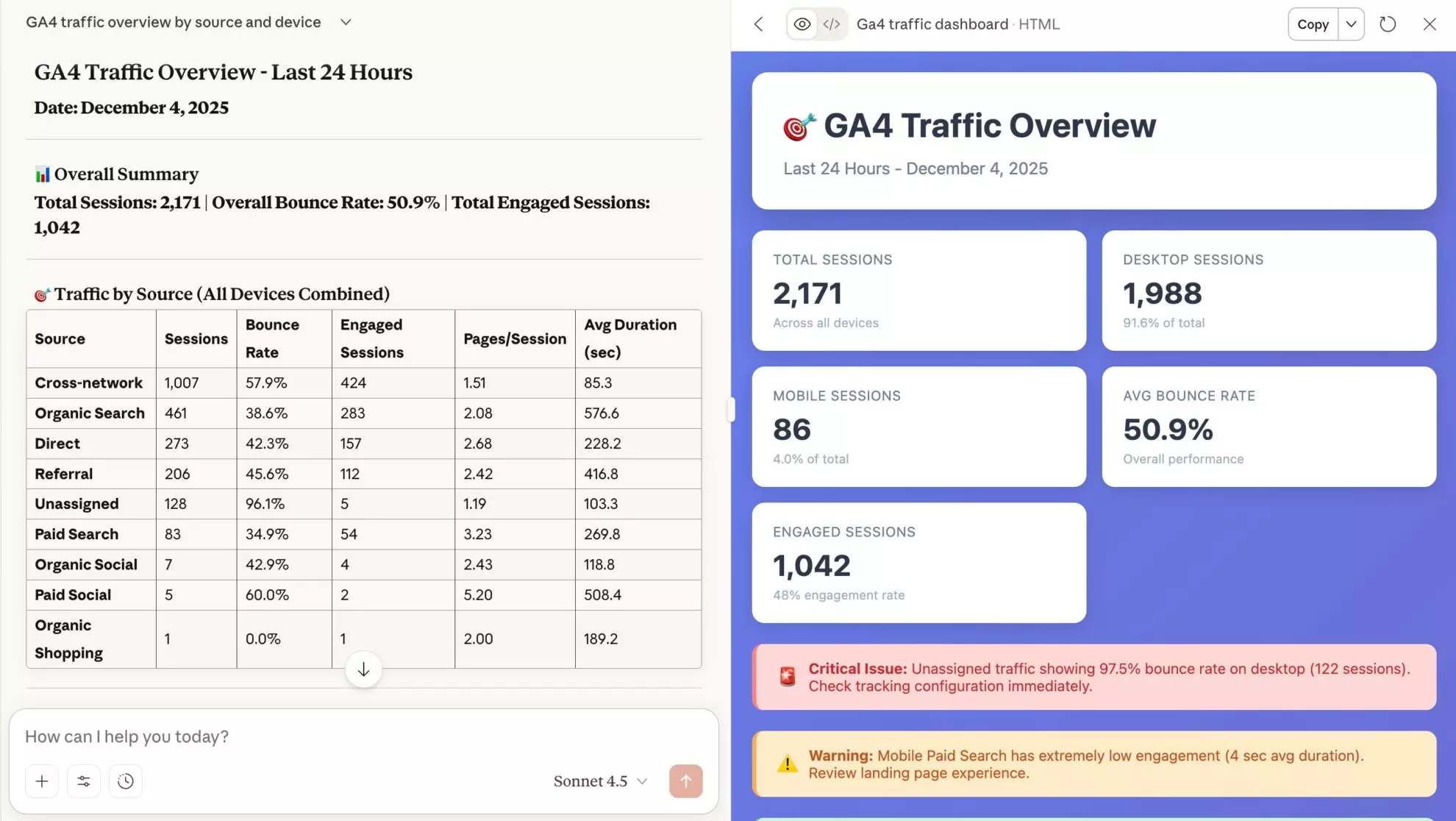
Using Windsor, list my GA4 properties and show sessions for the last 7 full days, leaving out today.
Claude asks for permission the first time it uses each Windsor tool. Allow once approves a single call, and Always allow stops the prompt for that tool. Compare the number with the GA4 interface for the same dates. GA4’s current day is always incomplete, which is why the prompt leaves it out.

GA4 access through Windsor.ai is read-only. Claude can report on your GA4 data but cannot change the property.
In Claude Code
Install the Windsor.ai plugin from the terminal:
claude plugin install windsor-aiYour GA4 data is then available in Claude Code sessions, next to the files you’re working on.
Method 2: Google’s official Analytics MCP server
Google publishes an open-source, read-only MCP server for GA4 on GitHub, labelled experimental. It runs on your computer and reads GA4 only. The setup has four parts:
- Enable the Analytics Admin API and the Analytics Data API in a Google Cloud project.
- Create an OAuth client (Desktop app) and sign in with
gcloud auth application-default login, using the analytics.readonly and cloud-platform scopes. - Install Python 3.10+ and pipx.
- Add the server to Claude Code with one command:
claude mcp add analytics-mcp --scope user -e "GOOGLE_APPLICATION_CREDENTIALS=PATH_TO_CREDENTIALS_JSON" -e "GOOGLE_PROJECT_ID=YOUR_PROJECT_ID" -- pipx run analytics-mcpEvery step, and the hosted endpoint Google also runs, are in our Google Analytics MCP guide.
Choose this route if you want Google’s own code and need GA4 only. Choose the Windsor.ai connector if you want no setup, or GA4 next to Search Console, Google Ads or your CRM in the same chat.
Method 3: CSV export and upload
For a one-off question, a CSV works:
- Open the report in GA4 (for example Traffic acquisition) and set the date range.
- Click Share this report, then Download File, then Download CSV.
- Delete the summary rows above the table so Claude reads clean columns.
- Drag the file into a Claude chat.
A standard report downloads up to 100,000 rows, and an exploration up to 10 million cells, so the row count is rarely the problem. The file is a snapshot of one report, so every follow-up question that needs another dimension means another export. Large files also take up much of Claude’s context.
Prompts for GA4 in Claude
These use real GA4 field names, so Claude can pull them without guessing.
Did a content update help?
Compare the 28 days before and after I updated [page] on [date]. For Google organic sessions that landed on it, show sessions, engagement rate, average engagement time per session, views per session and key events. Put the session count next to every rate, and tell me which differences are large enough to read.
Wait until Google has recrawled the page before you read this. Filter internal traffic too: on one of our pages, the “improvement” was our own team checking the update.
Which of two competing pages should stay?
For [page A] and [page B], show Google organic sessions, engagement rate and average engagement time per session for the last 90 days, and the sessions by default channel group. Flag either page with Paid Search or referral sessions.
Paid and referral sessions mean a page is a live landing page, so check them before any redirect. The method is in how I catch keyword cannibalization with Search Console and Claude.
Traffic quality by channel
Show sessions, engagement rate and session key event rate by session default channel group for the last 28 full days, next to the previous 28 days. Which channel changed most?
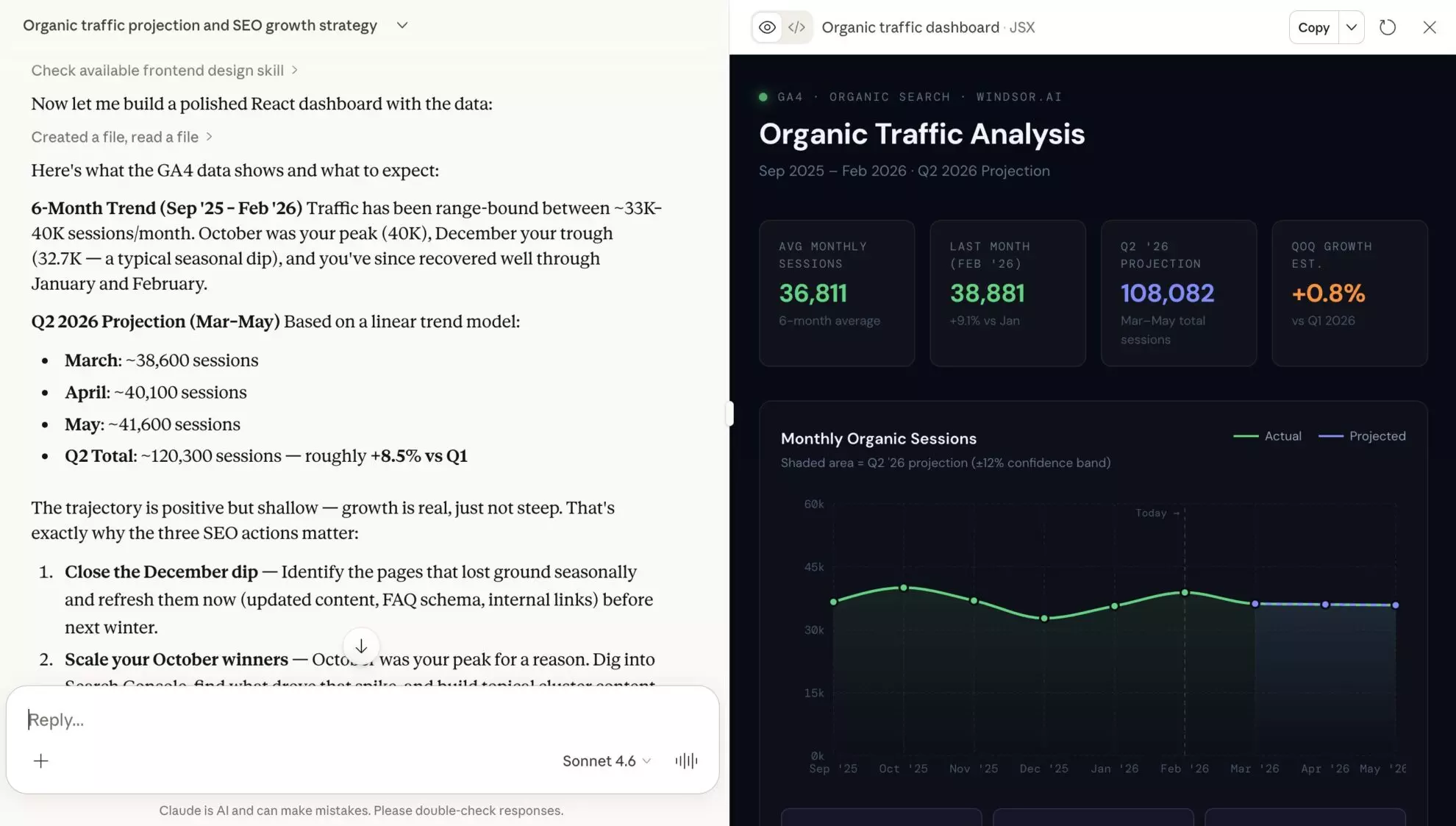
Landing pages that get traffic but no leads
List landing pages with more than 200 sessions in the last 90 days, sorted by session key event rate from lowest. Add engagement rate and average engagement time per session.
On pages built to generate leads, that list is where to start testing the page layout.
AI assistant traffic
Show sessions and key events from the AI Assistant channel by landing page for the last 90 days.
GA4’s default channel group has an AI Assistant channel, but many clicks from the ChatGPT and Claude apps arrive without a referrer and count as direct. Read this as a minimum.
Check the numbers before you act on them
Claude’s answer is only as good as the fields it picks. Before you act on a number:
- Ask Claude to check anything that looks too good or too bad, and to state the fields, filters and date range it used. In our tests it re-pulled the data by day and confirmed or corrected itself.
- Match the hostname when your GA4 property tracks more than one domain or subdomain. GA4’s landing page path has no host, so the same path on two hosts is added together.
- Expect Search Console clicks and GA4 sessions to differ. Consent banners, ad blockers and visitors who leave before the tag loads all remove sessions. Compare trends.
More checks, with the numbers from our own property, are in the Google Analytics MCP guide.
Analyze GA4 next to Search Console and Google Ads
With Windsor.ai, the same connector carries the other sources, so one prompt can use both:
- GA4 and Search Console: “Compare Search Console clicks per page with GA4 Google organic sessions per landing page for the last 28 full days, matching trailing slashes and hostnames.” GA4 landing paths have no trailing slash; Search Console URLs do.
- GA4 and Google Ads: “Compare Google Ads clicks and conversions with GA4 sessions and key events per campaign for the last 28 full days.” Check first whether the Ads conversions and the GA4 key events are the same actions. When we ran this, the conversion definitions explained most of the gap.
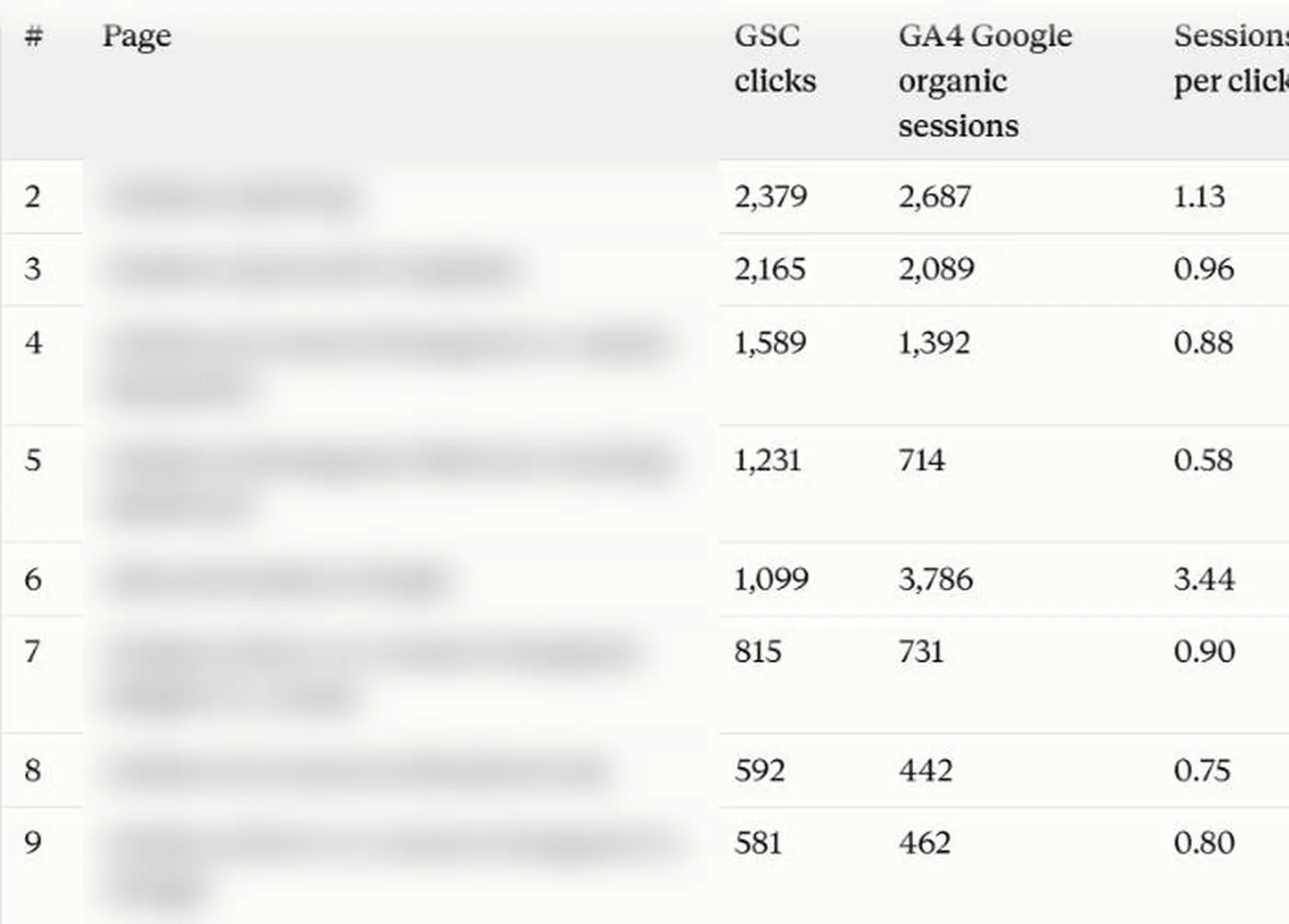
Part of Claude’s answer to the Search Console prompt above on windsor.ai, with page names blurred. Most content pages recorded 0.8 to 0.9 GA4 sessions per click.
Conclusion
The Windsor.ai connector is two steps and works in Claude, Claude Desktop and Claude Code. Google’s server suits you if you want Google’s own code for GA4 alone. A CSV is enough for a single question. Whichever you use, ask Claude to show its setup and the session counts behind every rate.
For the product side, see what you can do with GA4 in Claude. For field names, see the GA4 field reference.
🚀 Connect GA4 to Claude with Windsor.ai. Free forever plan, no credit card. Try Windsor.ai.
FAQs
Do I need to write code to connect GA4 to Claude?
No, not with the Windsor.ai connector: you add it in Claude’s connector settings and sign in. Google’s official server needs a Google Cloud project, an OAuth client and a terminal.
Does GA4 in Claude work in Claude Code?
Yes. Install the Windsor.ai plugin with claude plugin install windsor-ai, or add Google’s server with claude mcp add.
How current is the GA4 data in Claude?
It is as current as GA4 itself. The connector requests data when you ask, but GA4 takes up to 24 to 48 hours to finish processing a day, and today’s figures are always partial.
Can Claude change my GA4 settings?
No. Both the Windsor.ai connector and Google’s server have read-only access to GA4.


