 Destinations
 Data sources
 AI insights
 About us
 Careers
 Security
 Customer reviews
 Contact us
 Affiliate program
 Solution partners
 Template gallery
 Looker Studio templates
 Power BI templates
 Excel templates
 Google Sheets templates
 Tableau templates
 Facebook Ads templates
 Google Ads templates
 Data fields & Metrics
 AI prompt library & Guides
 Product documentation
 API documentation
 Case studies
 Blog
Blog Data models
 Windsor vs Supermetrics
 Windsor vs Funnel.io
 Windsor vs Fivetran
 Windsor vs Rivery
 Windsor vs Portermetrics
 Windsor vs Coupler.io
 Last updated: 29 September 2026




You can connect Jira to ChatGPT with Atlassian’s official Atlassian Rovo connector, which lets ChatGPT search, create and update Jira work items from the chat. Apps from the Atlassian Marketplace work the other way round and add ChatGPT features inside Jira.
For reporting, the Windsor.ai plugin gives ChatGPT read-only access to Jira next to 350+ other sources. For a single question, export your work items as a CSV and upload the file. Which one fits depends on two things: whether ChatGPT needs to change tickets, and whether you run Jira Cloud or Data Center.
Which way to connect Jira to ChatGPT
| Method | Changes work items | Jira + other tools | Jira hosting |
|---|---|---|---|
| Atlassian Rovo connector | Yes | Atlassian apps only | Cloud |
| Marketplace app (inside Jira) | Depends on the app | No | See the listing |
| Windsor.ai plugin | No, read-only | Yes, 350+ sources | Cloud |
| CSV export | No | By hand | Cloud or Data Center |
Method 1: connect Jira with Atlassian’s Rovo connector
Use this when you want ChatGPT to read tickets and also change them: log a bug from a conversation, update a status, add a comment.
Before you start
- A Jira Cloud site. Jira Data Center is not supported.
- A ChatGPT account where you can install plugins. On ChatGPT Business and Enterprise, a workspace admin decides which plugins members can use.
- Your normal Atlassian login. ChatGPT sees only the projects your account can see in Jira.
Steps
- In ChatGPT, click Plugins in the sidebar.
- Search for Atlassian Rovo, open it and click Install plugin.
- Sign in with your Atlassian account and approve access.
- Choose the Atlassian site and the apps (Jira, Confluence) ChatGPT may use.
- Open a new chat and test the connection with a prompt like the one below.
Show me the open bugs assigned to me in Jira, sorted by priority.
What it can do
- Search work items with plain-language questions or JQL.
- Create and update work items, including several at once, and add comments.
- Summarise a sprint or an epic from the tickets themselves.
- Delete and project-admin actions are off by default. An Atlassian org admin can turn them on.
Things to know
- Atlassian org admins control which AI tools can connect, in Atlassian Administration under Rovo > Rovo MCP server. If Atlassian Rovo connects but returns an access error, ask your admin to check that page.
- Some calls use Rovo credits from your Atlassian plan. Atlassian lists writes to work items as free, and heavier context lookups cost 1 to 10 credits each. Paid Jira plans include a monthly allowance: 25 credits per user on Standard, 70 on Premium, 150 on Enterprise (Atlassian’s credit rules).
- The connector runs on the Atlassian Rovo MCP Server. Other AI tools can use the same server at
https://mcp.atlassian.com/v2/mcp.
Method 2: add ChatGPT inside Jira with a Marketplace app
Use this when you want ChatGPT help while you work in Jira itself, for example drafting a ticket description or summarising a long comment thread, rather than asking questions from ChatGPT.
- A Jira admin opens Apps > Explore more apps in Jira and searches for “ChatGPT”.
- Check each app’s listing for pricing, supported hosting (Cloud or Data Center) and what data it sends to OpenAI, then install one.
- Follow the app’s own setup. Some ask for an OpenAI API key.
These apps are built by third-party vendors, not by Atlassian or OpenAI.
Method 3: connect Jira with the Windsor.ai plugin
Use this when the goal is reporting: sprint history, workload per person, bug trends, time logged, and Jira next to the other tools your team reports on. The connection is read-only, so ChatGPT cannot change anything in Jira through it.
Before you start
- A Windsor.ai account. Jira on its own fits the free forever plan, no credit card. Adding more tools next to Jira needs a paid plan, from $19/month for 3 sources (pricing).
- A Jira Cloud site and an Atlassian API token.
Steps
- Go to onboard.windsor.ai/app/jira and sign in or create an account.
- Enter your Jira domain, email and API token, then select the projects to include.
- In ChatGPT, open the Windsor.ai plugin and click Install plugin. Sign in to Windsor when asked.
- Test the connection with the prompt below.
List the data sources connected to my Windsor account. Is Jira there?
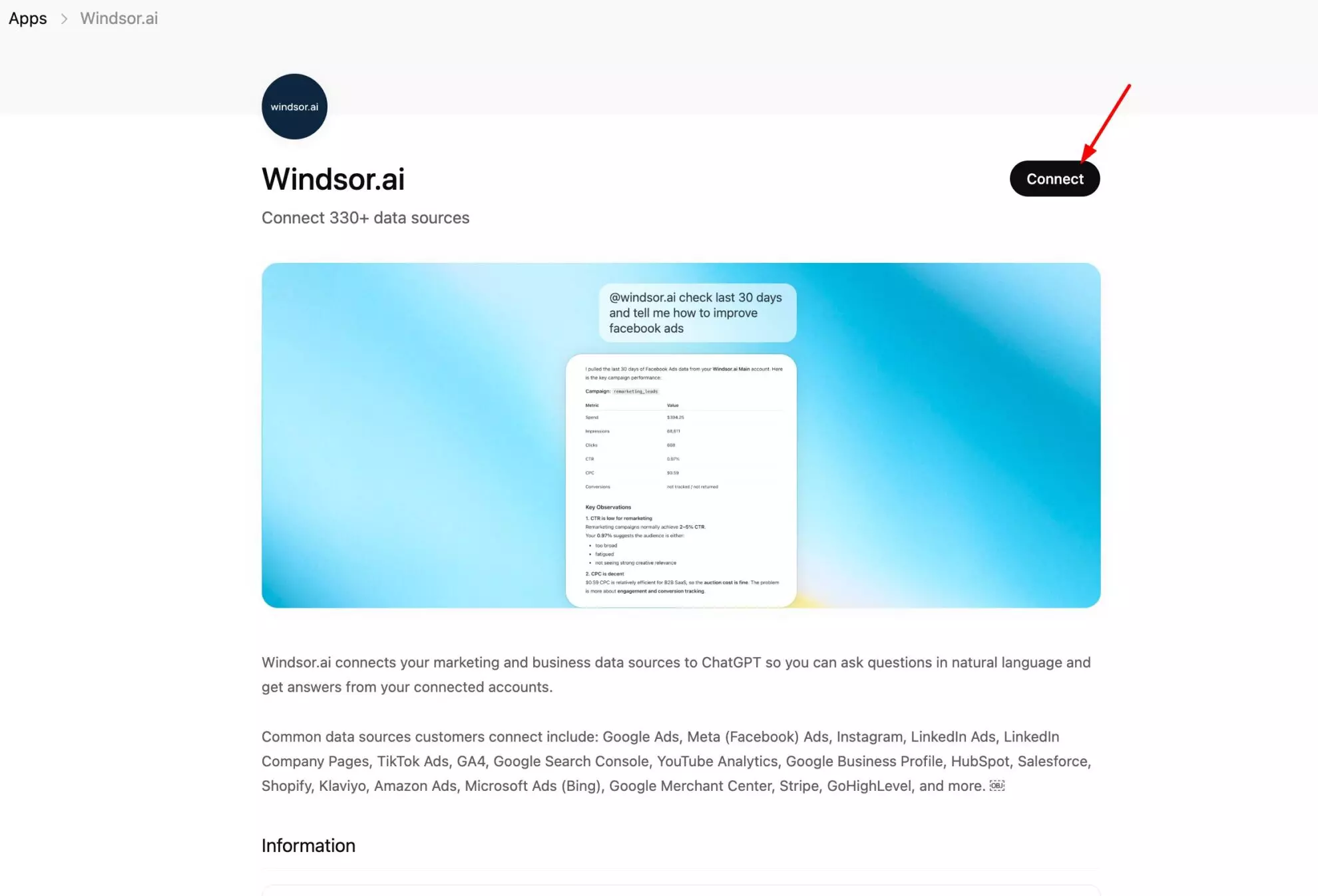
The Windsor.ai ChatGPT setup guide has every screen. What Windsor returns from Jira, and the reports teams build with it, are on the Jira data analysis in ChatGPT page.
Method 4: export Jira work items as CSV
Use this for a single question when you do not want to connect anything. It is also the one route that works on Jira Data Center.
- In Jira, open Filters and run the search you need, for example all work items in the current sprint.
- Click Export and choose Export CSV (all fields) or Export CSV (current fields). Jira Cloud exports up to 10,000 work items per file; Jira Data Center exports 1,000 by default.
- In ChatGPT, attach the file and ask your question.
The file is a snapshot. For an updated number next week, export and upload again.
Prompts to try once Jira is connected
Sprint status (Atlassian Rovo or Windsor.ai)
Summarise the active sprint: what is done, what is in progress, and which work items have not changed status in the last 3 days.
Which work items in the current sprint are past their due date? Group them by assignee.
Acting on tickets (Atlassian Rovo only)
Create a bug in project WEB: the checkout button does nothing on Safari 18. Priority High, assign it to me.
Move PAY-214 to In Review and add a comment that the fix is on the staging branch.
Reporting over time (Windsor.ai)
For all sprints closed in the last 3 months, show the number of work items completed per sprint and per board.
Break down resolved work items by resolution (Fixed, Won't Fix, Duplicate) and priority for the last quarter.
Common problems
- Atlassian Rovo is missing from Plugins. On ChatGPT Business and Enterprise, the workspace admin may not have enabled it yet. Ask them to allow it.
- Atlassian Rovo connects but cannot see a project. It uses your Jira permissions. If you cannot open the project in Jira, ChatGPT cannot either.
- Windsor shows no Jira data. The API token must belong to the email you entered. Create a new token under the right Atlassian account and reconnect.
- ChatGPT answers from memory instead of Jira. Name the app in the prompt (“Using Atlassian Rovo, …” or “Using Windsor.ai, …”), or add it to the chat from the + menu.
When to use Windsor.ai next to Atlassian’s connector
Atlassian’s connector reaches Atlassian apps. Windsor.ai puts Jira next to 350+ other sources in the same ChatGPT chat, so one question can cover Jira and GitHub, Zendesk, Salesforce or your ad accounts: support tickets per released version, or bugs opened after a campaign brought in new sign-ups. Many teams use both, Atlassian Rovo to work on tickets and Windsor.ai for reporting across tools. See what Windsor.ai reports from Jira in ChatGPT.
Conclusion
To create and update Jira work items from ChatGPT, install the Atlassian Rovo plugin from ChatGPT’s Plugins directory. To use ChatGPT inside Jira, a Jira admin can install a Marketplace app. For reporting across sprints, people and other tools, connect Jira to Windsor.ai and add the Windsor.ai plugin. For a one-off question, export a filter as CSV.
Using Claude as well? The steps for Claude are in how to connect Jira to Claude.
Ready to report on Jira in ChatGPT? Connect your Jira account to Windsor.ai. Free forever plan, no credit card.
FAQs
Is there an official Jira connector for ChatGPT?
Yes. Atlassian Rovo is Atlassian’s own connector for ChatGPT, built on the Atlassian Rovo MCP Server. It works with Jira Cloud and uses your existing Jira permissions.
Can ChatGPT create or update Jira tickets?
Yes, with the Atlassian Rovo connector. It can create and update work items, including several at once, and add comments. The Windsor.ai plugin is read-only and cannot change anything in Jira.
Do I need Jira admin rights to connect Jira to ChatGPT?
No. Atlassian Rovo and Windsor.ai both work within your own Jira permissions. An Atlassian org admin controls which AI tools may connect, and has to turn on delete and admin actions if you need them. Installing a Marketplace app inside Jira does need a Jira admin.
Does it work with Jira Data Center?
Not with Atlassian Rovo or Windsor.ai, which both need Jira Cloud. On Data Center, use a CSV export or a Marketplace app that lists Data Center support.
Is connecting Jira to ChatGPT free?
Yes, for Jira on its own through Windsor.ai: the free forever plan covers one source, with no credit card. Reporting on Jira next to other tools needs a paid plan, from $19/month for 3 sources. Atlassian Rovo uses Rovo credits for some calls, and paid Jira plans include a monthly allowance.
How do I connect ChatGPT to Jira through the API?
Point an MCP-capable client at Atlassian’s server, https://mcp.atlassian.com/v2/mcp, or build a GPT Action on the Jira REST API. Since 12 September 2026, custom GPTs can only be created in ChatGPT workspaces, not on personal accounts.
Can I use ChatGPT and Claude with the same Jira data?
Yes. Atlassian’s server and Windsor.ai both work with Claude too. See how to connect Jira to Claude.


