 Destinations
 Data sources
 AI insights
 About us
 Careers
 Security
 Customer reviews
 Contact us
 Affiliate program
 Solution partners
 Template gallery
 Looker Studio templates
 Power BI templates
 Excel templates
 Google Sheets templates
 Tableau templates
 Facebook Ads templates
 Google Ads templates
 Data fields & Metrics
 AI prompt library & Guides
 Product documentation
 API documentation
 Case studies
 Blog
Blog Data models
 Windsor vs Supermetrics
 Windsor vs Funnel.io
 Windsor vs Fivetran
 Windsor vs Rivery
 Windsor vs Portermetrics
 Windsor vs Coupler.io
 Last updated: 31 August 2026




The fastest way to connect Yahoo! Finance Price to ChatGPT is to install Windsor.ai’s native ChatGPT app: connect Yahoo! Finance Price to Windsor once, then add the Windsor.ai app inside ChatGPT so it can read ticker prices, trading volume, and price history directly in the chat, no code required.
The alternative is checking each ticker one at a time on a finance site or broker app, then exporting the numbers to a spreadsheet whenever you want to track price changes over time or compare several symbols side by side. That works for a quick look, but it doesn’t scale past a handful of tickers and the numbers are stale the moment you copy them. Connecting Yahoo! Finance Price to Windsor keeps the data live and queryable in ChatGPT instead.
2 steps to connect Yahoo! Finance Price to ChatGPT
Takes under a minute, no code or manual CSV work required.
See the full walkthrough in the Windsor.ai documentation.
Prerequisites
- A Windsor.ai account (free forever plan, no credit card, or paid from $19/month)
- The ticker symbols you want to track (stocks, ETFs, indices, or crypto pairs); no separate Yahoo account or API key is needed
- A ChatGPT account that can install apps or connectors
Step 1. Connect Yahoo! Finance Price to Windsor.ai
Start on the Windsor.ai side:
- Create a free Windsor.ai account, or log in if you already have one
- Go to onboard.windsor.ai/app/yahoo_finance_price and select Yahoo! Finance Price
- Add the ticker symbols you want reporting on
- Windsor starts pulling price data right away

Step 2. Connect the Windsor.ai app in ChatGPT
Now install the native app inside ChatGPT:
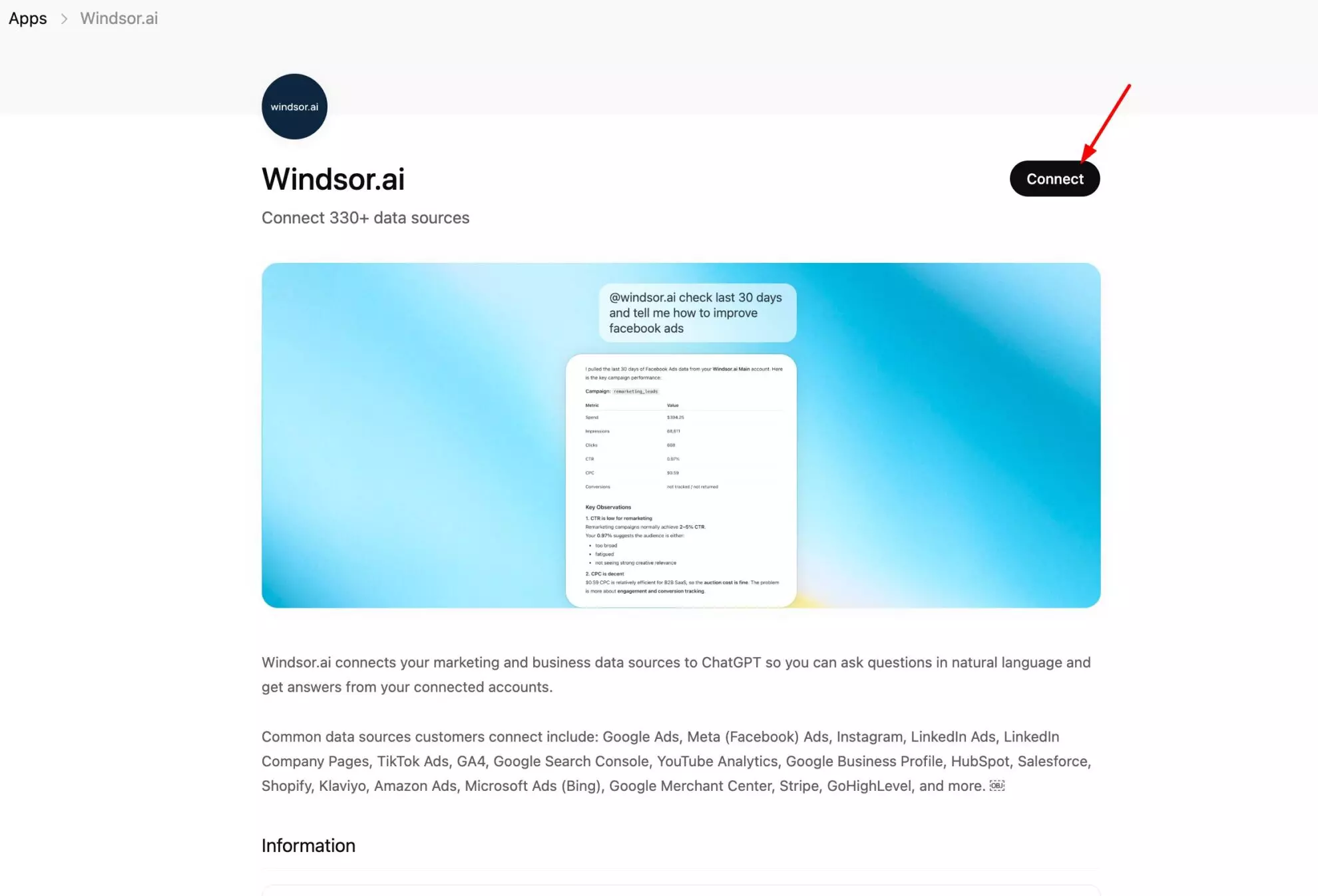
- Open ChatGPT and go to Settings > Connectors (or Apps)
- Search for “Windsor.ai” and install it
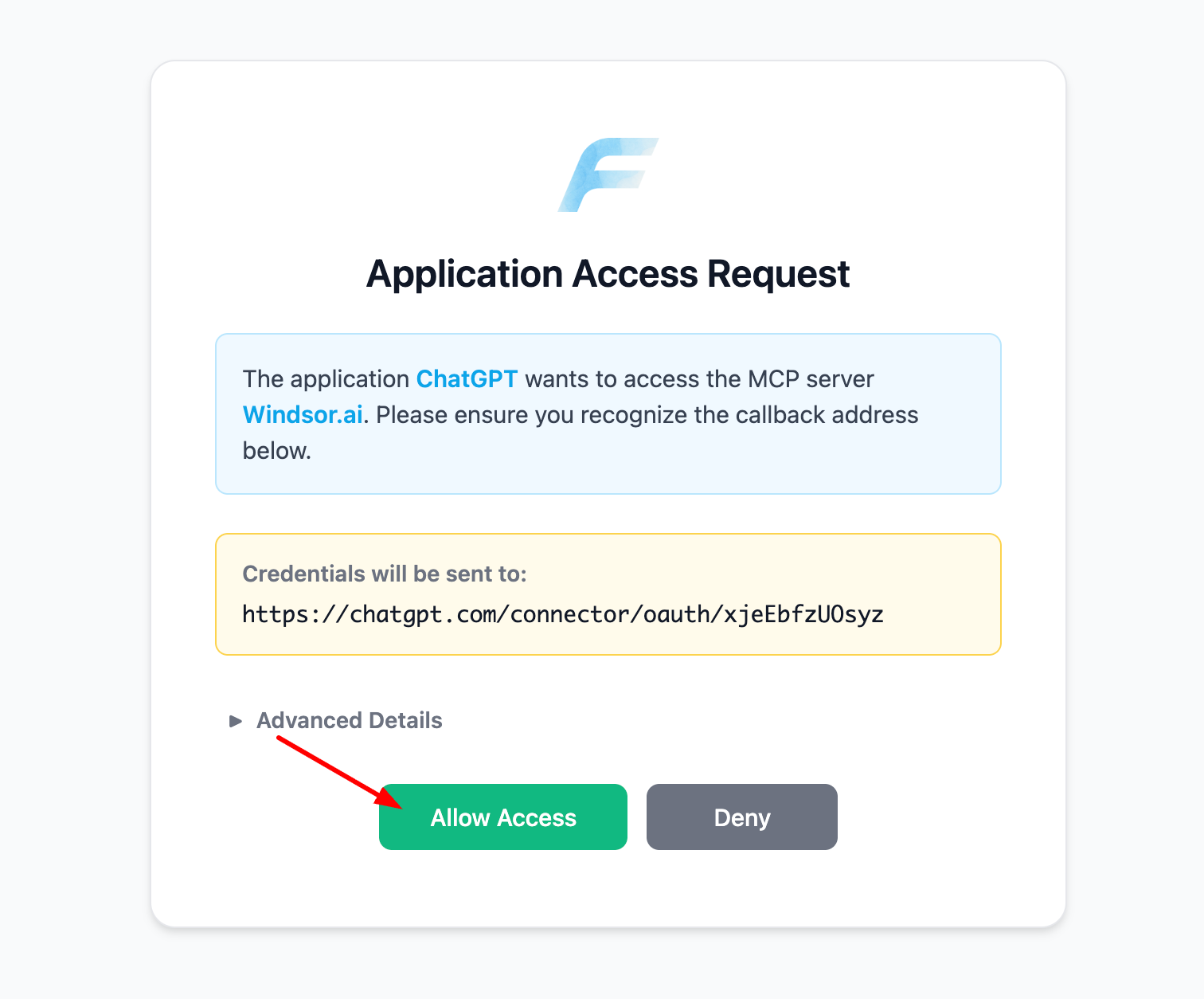
- Allow Windsor.ai access when prompted
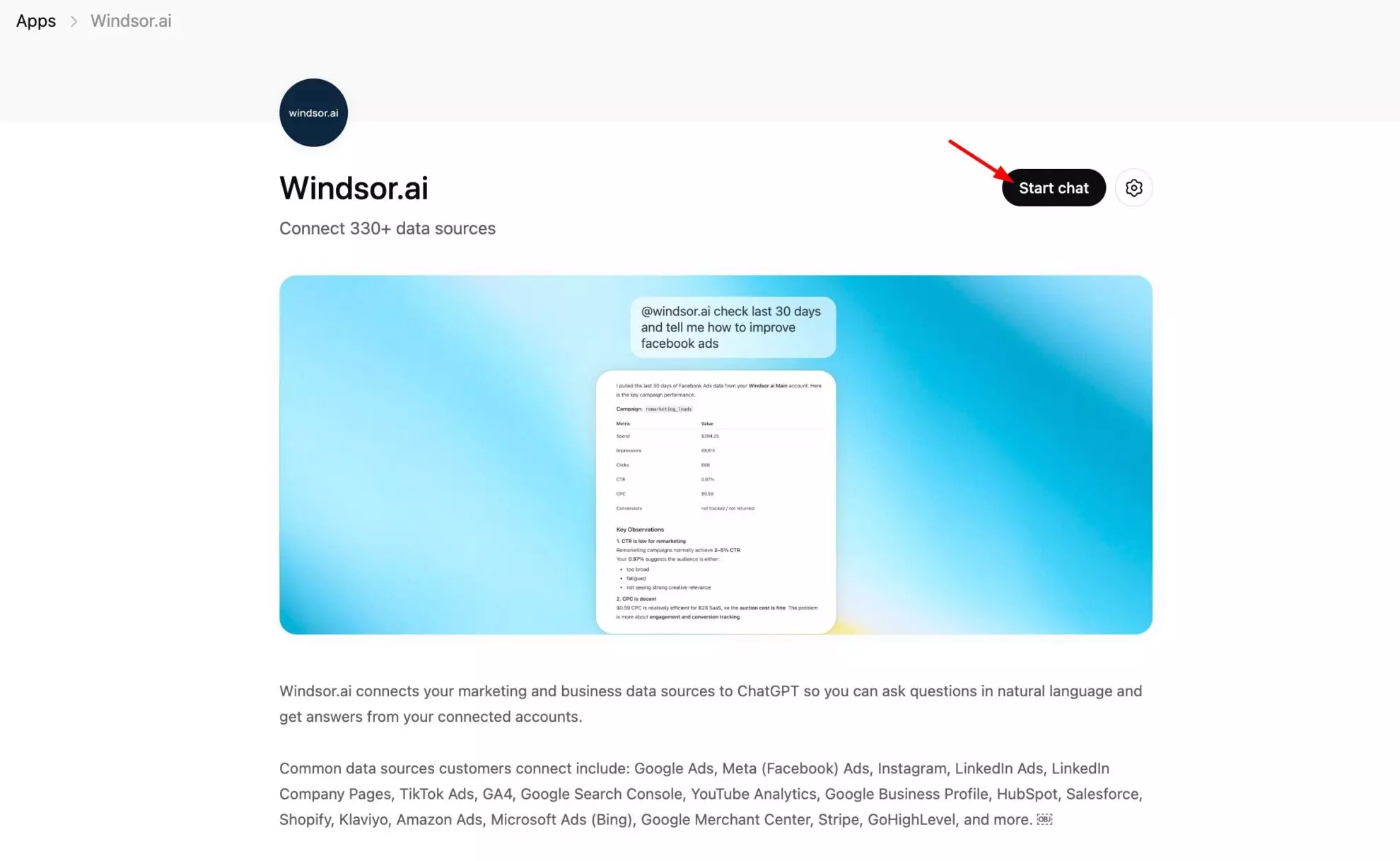
- Confirm the app appears in your connected apps list
Confirm the connection is live by asking ChatGPT:
List the data sources connected to my Windsor account. Do you see Yahoo! Finance Price there?If Yahoo! Finance Price shows up, you’re ready to ask about ticker prices in plain English.
The metrics that matter for Yahoo! Finance Price
| Metric | What it tells you |
|---|---|
| Symbol | Which ticker a price row belongs to, so you can track and compare multiple stocks, ETFs, or indices side by side. |
| Open | The price a ticker started trading at for the period, your baseline for measuring intraday or daily movement. |
| High | The highest price reached during the trading period, useful for spotting volatility and testing resistance levels. |
| Low | The lowest price reached during the trading period, the flip side of High for gauging how far a price dipped. |
| Close | The price a ticker settled at when the trading period ended, the number most price charts and comparisons are built on. |
| Adjusted Close | Closing price adjusted for stock splits and dividend payouts, a more accurate number for comparing performance over long periods. |
| Volume | How many shares changed hands during the period, a read on how much interest or conviction is behind a price move. |
| Date | The trading date each price row corresponds to, what lets you build time series and week-over-week or month-over-month comparisons. |
| Year Month Name | The trading month written out (e.g. “Jan 2026”), useful when you want ChatGPT to group price data into monthly summaries. |
| Account Name | Which connected Windsor account a row came from, handy if you track separate ticker lists, for example one portfolio versus a watchlist. |
What to ask ChatGPT: prompt ideas
Price and performance tracking
Show me the daily open, high, low, and close for AAPL over the last 30 days and summarize the overall trend.
Compare the closing price of AAPL and MSFT over the last quarter and tell me which one gained more.
Volume and volatility analysis
Which days in the last month had the highest trading volume for TSLA, and what happened to the price on those days?
Calculate the average daily price range (high minus low) for TSLA over the last 90 days to gauge how volatile it's been.
Comparing multiple tickers
Build a month-over-month closing price comparison for AAPL, MSFT, and GOOGL so I can see which one is outperforming.
The Yahoo! Finance Price connection through Windsor is read-only. ChatGPT can analyze ticker prices, volume, and trends, but it can’t place trades, execute orders, or push data back to any brokerage or trading platform.
Other ways to connect Yahoo! Finance Price to ChatGPT
Manual CSV export
You can download price history for a ticker as a CSV and upload it to ChatGPT for a one-off analysis. It works, but it’s a static snapshot: every time you want an updated price you have to re-export and re-upload the file by hand.
Zapier or Make
Zapier or Make can move price data into a spreadsheet or database on a schedule. That’s a reasonable automated workflow, but it still needs to be built and maintained separately, and it doesn’t give ChatGPT a live, queryable connection to Yahoo! Finance Price the way the native Windsor.ai app does.
Neither approach gives you the same live view as connecting Yahoo! Finance Price to Windsor directly.
Conclusion
Connecting Yahoo! Finance Price to ChatGPT through Windsor.ai takes two steps: link the tickers you want to track to Windsor, then install the Windsor.ai app in ChatGPT. From there you can ask plain-language questions about price movement, volume, and trends across as many symbols as you follow, without exporting a single CSV.
🚀 Ready to connect Yahoo! Finance Price to ChatGPT? Connect your Yahoo! Finance Price data to Windsor.ai and start asking about ticker prices in minutes.
FAQs
What's the fastest, no-code way to get Yahoo! Finance Price data into ChatGPT?
Installing Windsor.ai’s native ChatGPT app is the fastest option. It takes under a minute and needs no custom connectors, API keys, or URLs to paste.
Do I need to know how to code?
No. Both steps are point-and-click: add your tickers at onboard.windsor.ai, then install Windsor’s native ChatGPT app. No scripts, no API keys.
Can ChatGPT actually analyze my Yahoo! Finance Price data, not just display it?
Yes. Once connected, you can ask ChatGPT to summarize price trends, compare tickers, flag high-volume days, or build month-over-month comparisons, all in natural language.
Can I track multiple tickers or watchlists at once?
Yes. You can add a diversified list of tickers, stocks, ETFs, indices, or crypto pairs, and ask ChatGPT to run a comparative review across the entire group. Windsor also labels rows by connected account name, so you can keep separate ticker lists, for example a portfolio versus a watchlist, apart.
Which Yahoo! Finance Price metrics can I see?
Symbol, open, high, low, close, adjusted close, volume, and trading date, broken down per ticker and time period.
Is connecting Yahoo! Finance Price to ChatGPT with Windsor free?
Yes. Windsor has a free forever plan with no credit card required, and you can connect Yahoo! Finance Price and start asking ChatGPT questions without paying anything. Paid plans start at $19/month if you need more sources or data volume.
How is this different from manually exporting a CSV from a finance site?
A CSV export is a static snapshot: it’s accurate the moment you download it and stale right after. Windsor keeps your ticker data synced automatically, so ChatGPT is always working from current prices instead of a one-time export.
Can I combine Yahoo! Finance Price data with my other marketing or business data?
Yes. Windsor connects 350+ sources, so you can blend ticker price data with your other connected data for a single cross-channel view in ChatGPT instead of switching between separate tools.
Does this replace my trading platform or brokerage account?
No, it complements it. The Yahoo! Finance Price connection through Windsor is read-only, so ChatGPT can analyze historical prices, volume, and trends, but it can’t place trades or execute orders. Use your broker or trading platform for execution and ChatGPT for the analysis.


