Destinations
 Data sources
 AI insights
 About us
 Careers
 Security
 Customer reviews
 Contact us
 Affiliate program
 Solution partners
 Template gallery
 Looker Studio templates
 Power BI templates
 Excel templates
 Google Sheets templates
 Tableau templates
 Facebook Ads templates
 Google Ads templates
 Data fields & Metrics
 AI prompt library & Guides
 Product documentation
 API documentation
 Case studies
 Blog
 Data models
 Windsor vs Supermetrics
 Windsor vs Funnel.io
 Windsor vs Fivetran
 Windsor vs Rivery
 Windsor vs Portermetrics
 Windsor vs Coupler.io
 Last updated: 18 November 2026




With the YouTube connector in Windsor.ai, ChatGPT, Claude or Gemini Enterprise can reply to comments on your channel, hold or remove comments, add videos to playlists and change a video’s title, description, tags or privacy. You ask in a normal chat, and the assistant shows the change before it runs.
The assistant also reads your channel data through Windsor.ai. You can find the comments that need an answer and reply to them in the same chat. On 18 November 2026 we replied to a real viewer question on the Windsor.ai channel this way, from ChatGPT.
What you can do on YouTube from a chat
The YouTube connector has six write actions. Each one works on the connected channel only and uses part of the daily YouTube API quota.
- Reply to a comment. The reply goes under a top-level comment on one of your videos, is public and is posted as your channel.
- Moderate a comment. Hold a comment for review, publish it again, or reject it. Rejecting removes the comment and its replies from public view and cannot be undone. You can also block the author’s future comments when you reject.
- Delete a comment. This works only on comments your channel posted, for example a reply you want to take back. To remove a viewer’s comment, reject it instead.
- Add a video to a playlist. The video goes to the end of the playlist. A video already in the playlist is not added twice.
- Remove a video from a playlist. The video itself stays on your channel.
- Update video details. Change the title, description, tags, category or privacy (public, unlisted or private). New tags replace the whole tag list, and anything you do not mention keeps its value.
Uploading or deleting videos is not available. The current list for every connector is in the Windsor.ai write actions list.
Our test: replying to a viewer question on the Windsor.ai channel
We connected the Windsor.ai YouTube channel and asked ChatGPT, through the Windsor.ai plugin, to list the 15 newest comments on our videos without changing anything. It returned the comment text, author, date, video and comment ID for each one, and checked them for spam.
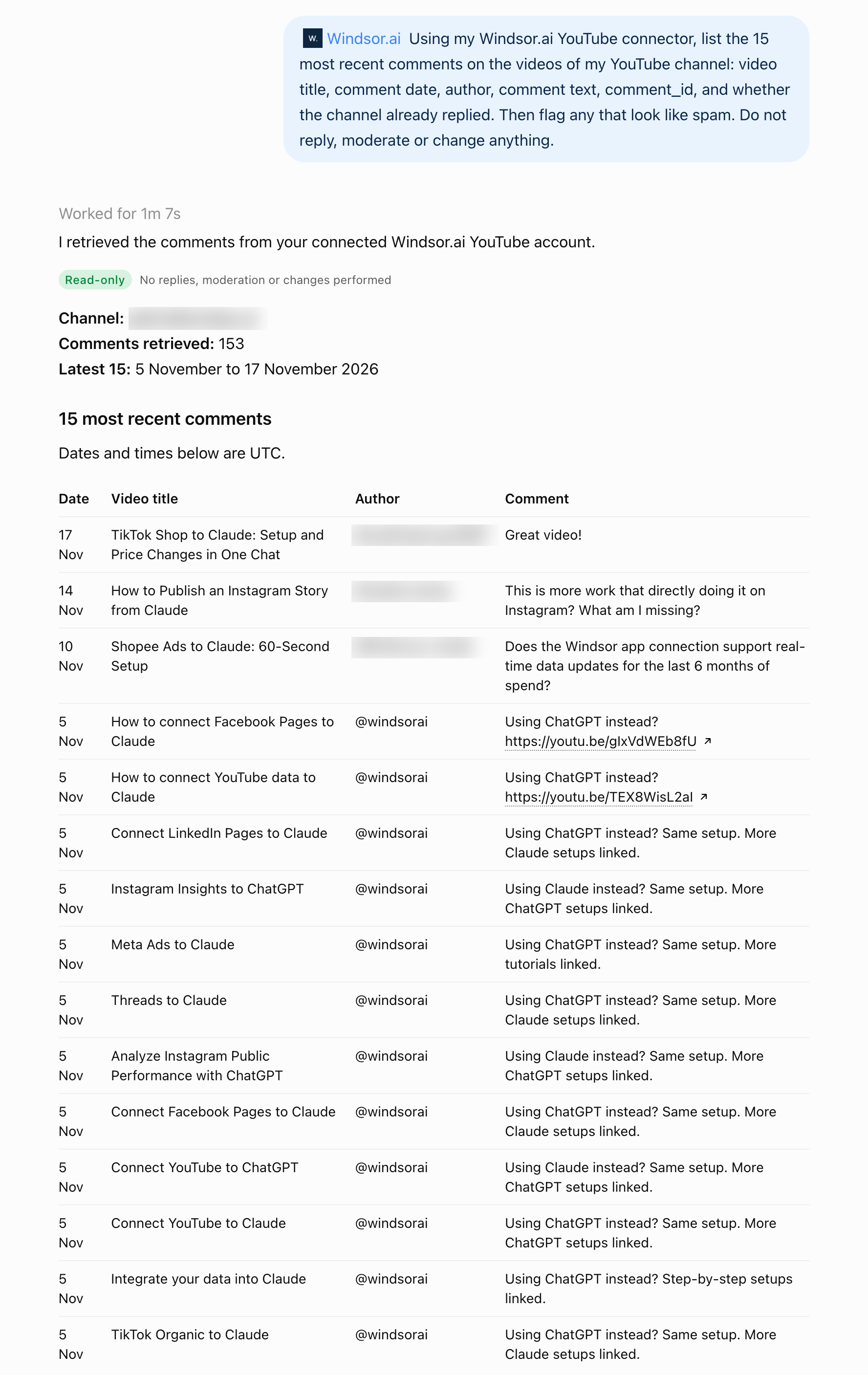
Twelve of the 15 were links our own channel had posted under its videos. One viewer question had no reply. On our Shopee Ads setup video, a viewer asked whether the connection supports real-time updates for the last 6 months of spend. We wrote the answer ourselves and asked ChatGPT to post it as a reply:
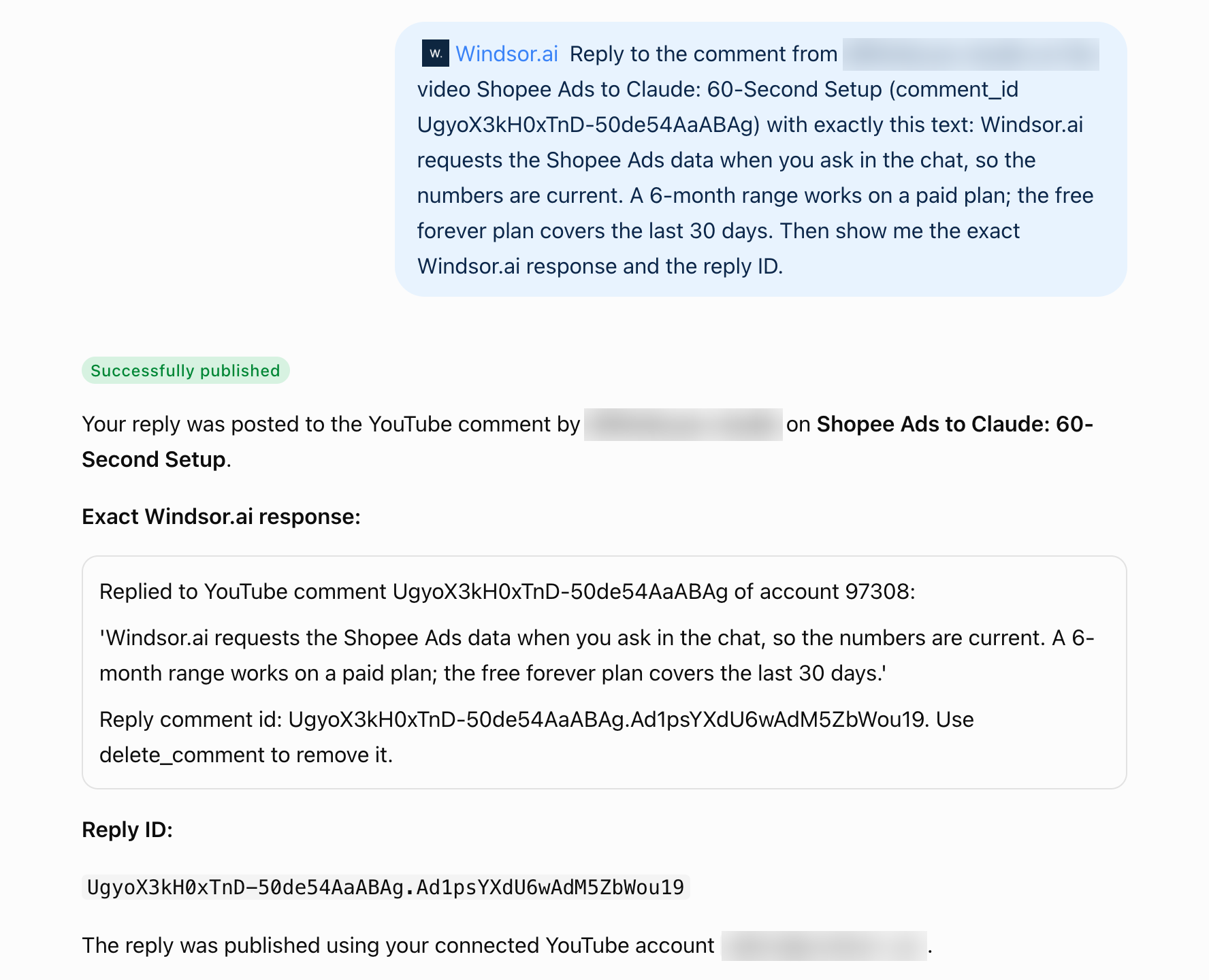
Reply to the comment from @[viewer] on the video Shopee Ads to Claude: 60-Second Setup with exactly this text: Windsor.ai requests the Shopee Ads data when you ask in the chat, so the numbers are current. A 6-month range works on a paid plan; the free forever plan covers the last 30 days.
ChatGPT asked for approval before it ran the action, then posted the reply. Windsor.ai confirmed it with the reply’s comment ID.
Two things needed a second look:
- Who already replied. The comment data gives the number of replies on each thread, not who wrote them. Two viewer comments showed 1 reply each, and ChatGPT could not say whether those replies came from our channel or from another viewer. Check those threads in YouTube Studio before you reply.
- No link back to the comment. When we asked for a link to the comment thread, ChatGPT gave none we could open. The reply is in YouTube Studio under Community.
Second test: editing a video description
The same Shopee Ads video had a description that said the connector “streams live Shopee Ads data”, which is the point the viewer had asked about. We asked ChatGPT to read the current description first, without changing anything, and saved a copy of it.
Then we asked ChatGPT to change only one sentence and add one link, and to leave every other line, the title and the tags as they were:
Update the description of video . Replace the sentence "Windsor.ai's native Claude connector streams live Shopee Ads data into your chat" with "With Windsor.ai's native Claude connector, you ask about your Shopee Ads data in the chat". In Helpful links, add the Shopee Ads to Claude setup page after the Prompt library line. Keep everything else unchanged.
The update_video_details action replaces the whole description field. ChatGPT sent the full text with the two edits. Windsor.ai confirmed the update, and the public video page showed the new text when we checked it right after.
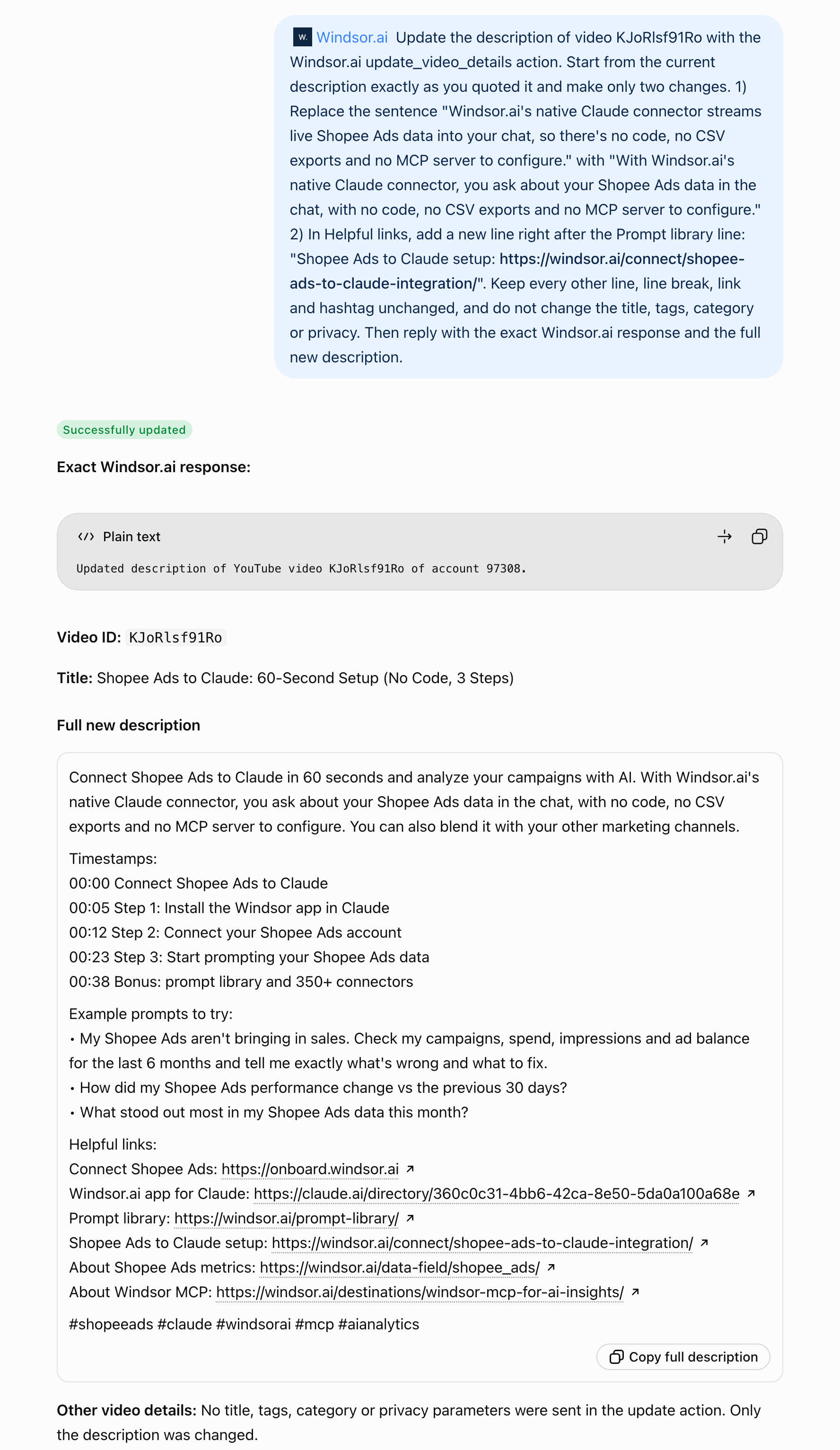
Ask for the current description first and keep a copy. The action has no undo, but you can restore the old text with the same action.
Prompts worth running
Change the video names and limits to fit your channel. Each prompt asks the assistant to wait for your approval before it changes anything.
List the comments from the last 7 days that have no replies, with the video, the comment text and the comment ID. Do not reply yet.
Draft a reply to each of those comments in our channel's tone. Show me the drafts and post only the ones I approve.
Find comments from the last 30 days that look like spam or self-promotion. Show me the list first, then hold the ones I approve for review.
Add my 5 most viewed videos from the last 30 days to the playlist "Start here", in order of views. Show me the list before you add them.
Rewrite the description of my latest video so the first two lines name the main topic. Show me the old and new text before you change it.
The last-30-days prompts work on the free forever plan. A longer period needs a paid plan, from $19/month for 3 sources.
YouTube Studio’s own reply suggestions
YouTube Studio suggests replies under comments in the Community section, and some suggestions use AI to match the tone of your recent replies. You pick a suggestion, edit it and click Reply, one comment at a time. The details are in YouTube Help: Use comment reply suggestions.
Studio suggestions fit a quick reply while you are already in Studio. The assistant fits when you want to find the comments first by a rule (no reply yet, a question, a spam pattern), see them next to the video’s views and watch time, or change several videos in one request.
Safety: what the assistant changes and what it cannot undo
- Replies are public and posted as your channel. Read the text before you approve it.
- A rejected comment cannot be published again. Hold a comment for review when you are not sure.
- The assistant cannot delete a viewer’s comment. It can only reject it, and it can delete only comments your channel posted.
- Each action uses YouTube API quota. A request that changes many comments or videos at once uses more of it.
- Only the channel owner can connect the channel. YouTube gives API access to the owner, not to managers or editors invited in YouTube Studio.
Set it up
Connect your YouTube channel in Windsor.ai with the channel owner’s Google account, then add Windsor.ai to your assistant. The setup for each assistant is in how to connect YouTube Analytics to ChatGPT, how to connect YouTube Analytics to Claude and how to connect YouTube Analytics to Gemini Enterprise. In Gemini Enterprise, write actions also need Execute Action selected on the data store and Write actions turned on in Windsor.ai.
The same flow on another platform is in post and reply on Threads with AI Assistant. Windsor.ai has a free forever plan, no credit card.
FAQs
Can AI delete YouTube comments from viewers?
No. Through Windsor.ai the assistant can reject a viewer’s comment, which removes it and its replies from public view, or hold it for review. It can delete only comments your own channel posted.
Can the assistant upload videos to YouTube?
No. The YouTube connector has no upload action. It can change the details of videos already on your channel and add them to playlists or remove them.
Does it reply to comments automatically?
No. Every reply runs when you ask for it in a chat, and the assistant asks for approval first. For replies on a schedule, you would need an automation tool or a dedicated comment tool.
Can a channel manager connect the channel?
No. YouTube gives API access only to the channel owner, and the owner connects the channel in Windsor.ai. Managers and editors can still use YouTube Studio.