 Destinations
 Data sources
 AI insights
 About us
 Careers
 Security
 Customer reviews
 Contact us
 Affiliate program
 Solution partners
 Template gallery
 Looker Studio templates
 Power BI templates
 Excel templates
 Google Sheets templates
 Tableau templates
 Facebook Ads templates
 Google Ads templates
 Data fields & Metrics
 AI prompt library & Guides
 Product documentation
 API documentation
 Case studies
 Blog
Blog Data models
 Windsor vs Supermetrics
 Windsor vs Funnel.io
 Windsor vs Fivetran
 Windsor vs Rivery
 Windsor vs Portermetrics
 Windsor vs Coupler.io
 Last updated: 11 October 2026




To connect YouTube Analytics to Claude, connect your channel in Windsor.ai, then add Windsor.ai to Claude from the Claude directory. Start a new chat and ask about your channel. In Claude Code, the same connection is one plugin install.
Setup needs no code. What you can ask once it works, with answers from our own channel, is on the YouTube to Claude connector page.
Before you start
- A Windsor.ai account. The free forever plan covers one data source, YouTube included, with no credit card, and reads the last 30 days of data. For longer periods, like the 3 months in our worked example, or to keep GA4 or ad accounts next to YouTube, paid plans start at $19 a month for 3 sources, billed annually (pricing).
- The right Google account. Sign in with the channel owner’s account, or as an owner or manager of the Brand Account if the channel still uses one. People invited through YouTube Studio’s channel permissions (Manager, Editor or Viewer) cannot connect the channel, because YouTube does not give them API access.
- Claude on claude.ai, the Desktop or mobile app, or Claude Code.
Step 1: Connect your YouTube channel in Windsor.ai
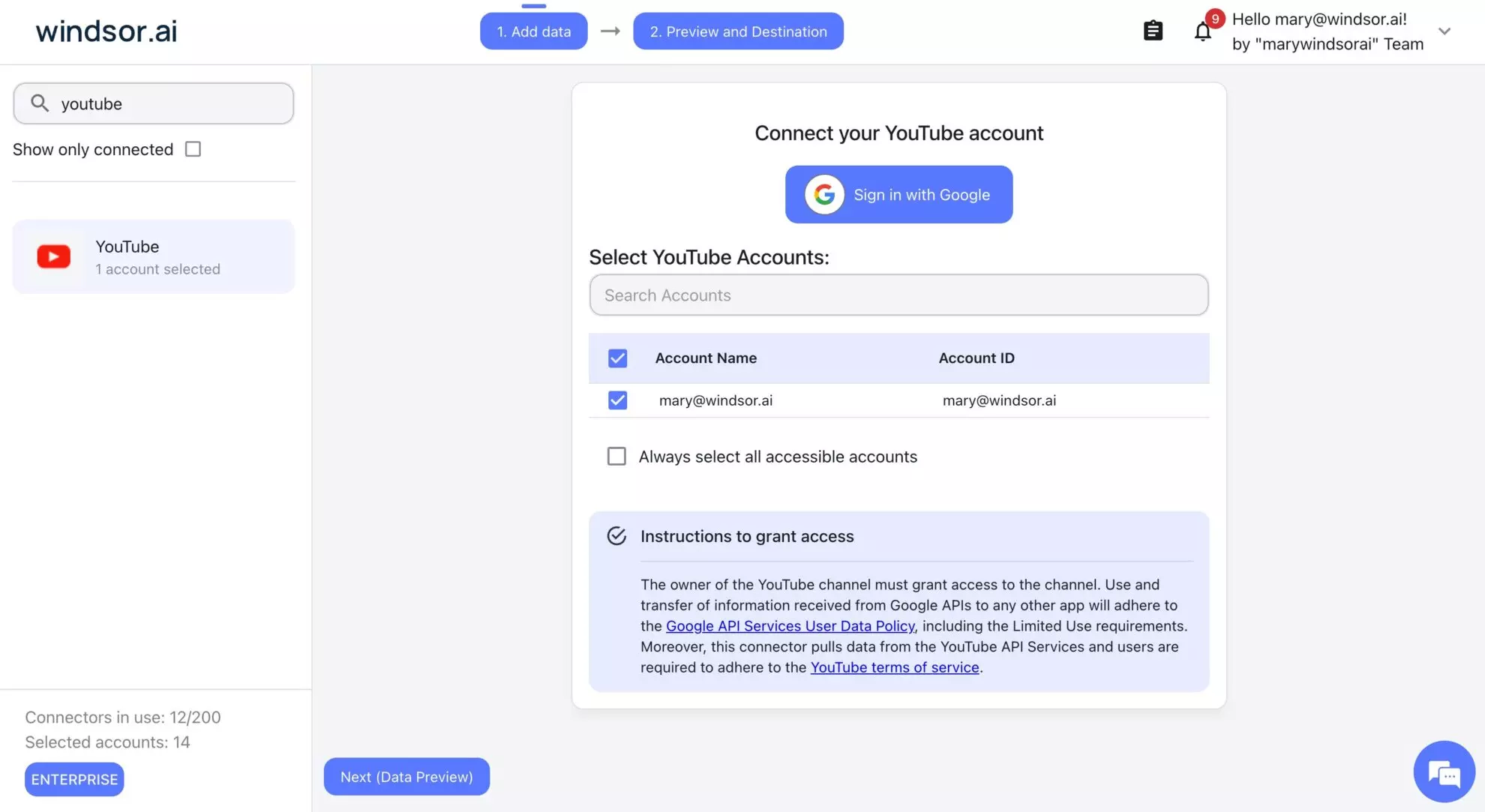
- Open onboard.windsor.ai/app/youtube and sign in to Windsor.ai, or create a free account.
- Sign in with Google and allow Windsor.ai to read your YouTube Analytics.
- Select the channel you want to analyze.
Step 2: Add Windsor.ai to Claude
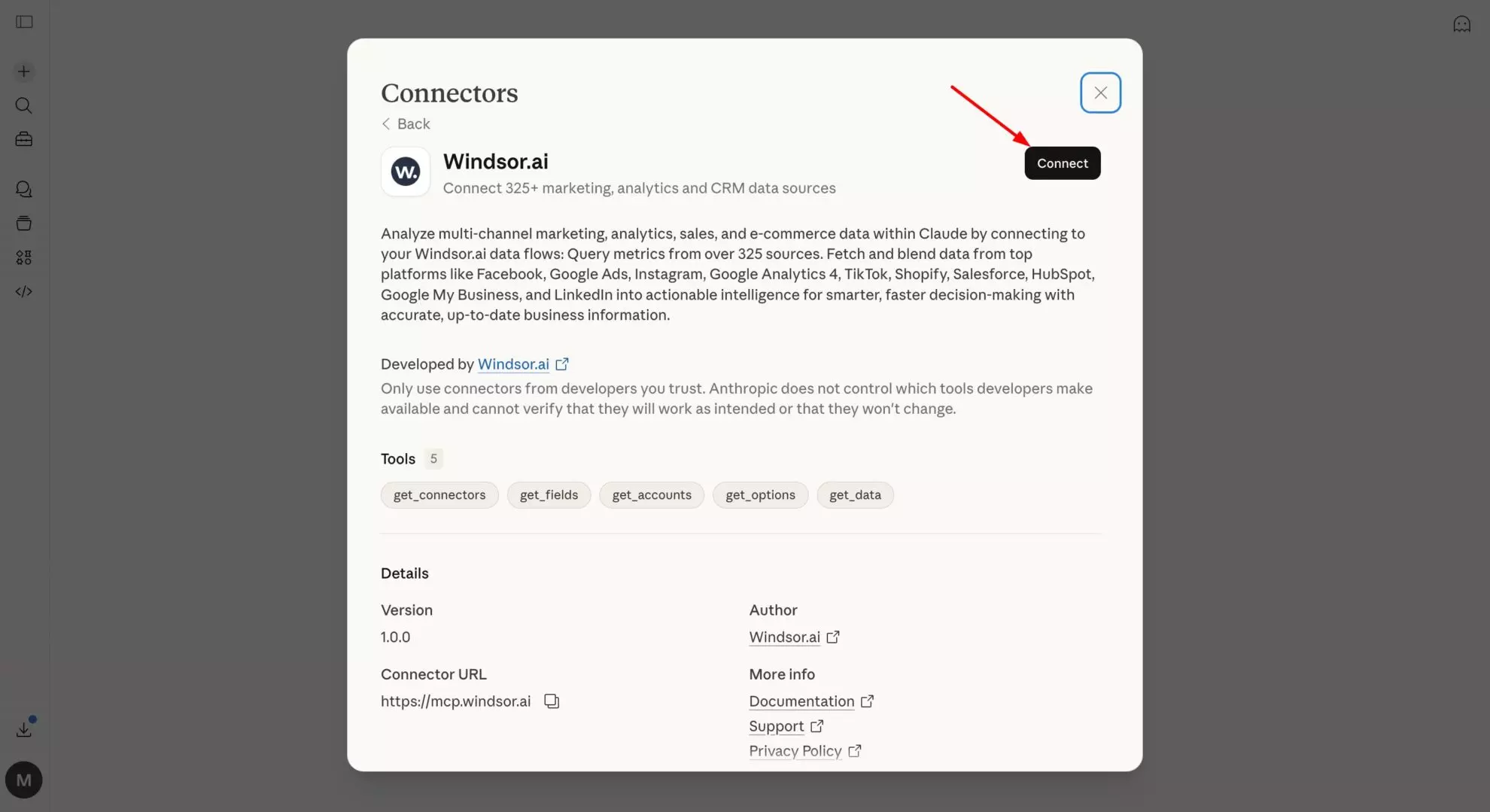
On claude.ai or in Claude Desktop, open the Windsor.ai listing in the Claude directory and click Connect. You can also open Customize, then Connectors, search for Windsor and click Add. Sign in to Windsor.ai when Claude asks.
You add it once. Connectors you add on claude.ai or in Claude Desktop are available in the Claude iOS and Android apps the next time you sign in there.
Step 3: Switch the connector on and approve the first request
In a new chat, check that Windsor.ai is switched on under the + menu, then Connectors. The first time Claude calls Windsor.ai in a chat, it asks for permission with three options: Deny, Always allow and Allow once. Choose Always allow if you do not want to approve each request.

Step 4: Check the connection
Ask “Is my Windsor YouTube account connected?”. Claude lists the YouTube connector, the account ID and the Windsor.ai login it uses. Then ask a question with dates in it, for example “Show subscribers gained and lost per month for July, August and September 2026.” On our channel, Claude returned gained, lost and net subscribers per month in one table: 105 gained and 12 lost in July, 78 and 13 in August, 74 and 10 in September.

Connect YouTube Analytics in Claude Code
- Connect YouTube in Windsor.ai first (Step 1).
- In Claude Code, run
/plugin install windsor-ai@claude-plugins-official. - Sign in to Windsor.ai when Claude Code asks.
- Run
/windsor-ai:windsor-sourcesto list your connected sources and fields, or/windsor-ai:social-reportfor a 30-day summary that includes YouTube.
The plugin uses the same Windsor.ai connection, so Claude Code gets the same YouTube data as claude.ai. It can also write the results to a CSV or JSON file in your project.
Can Claude watch a YouTube video?
Not through this connection. Windsor.ai gives Claude your channel’s numbers and each video’s title, description, tags and length, not the picture or sound. When we pasted a link to one of our videos into claude.ai, Claude could not open it and asked for the transcript. To give Claude a video’s content, open the video on YouTube, click Show transcript in the description, then copy the text into the chat.
Worked example: our channel, 3 July to 30 September 2026
We ran two questions on the Windsor.ai YouTube channel in claude.ai, then checked the answers in YouTube Studio for the same dates.
First question: “Which traffic sources brought the most views to my YouTube channel from 3 July to 30 September 2026, and how many minutes did each source watch per view?” Claude answered with a table of every traffic source. YouTube search brought 52,208 of 76,915 views (68%) at 0.49 minutes watched per view. External sites brought 13,150 views (17%) at 0.89 minutes per view.

Second question: “Compare Shorts with long-form videos from 3 July to 30 September 2026: views, watch time per view, and subscribers gained per 1,000 views.” Shorts had 23,329 views, 0.44 minutes per view and 1.59 subscribers gained per 1,000 views. Long-form videos had 53,636 views, 0.67 minutes per view and 2.33 subscribers per 1,000 views. The table also had engaged views: 14,403 for Shorts and 38,713 for long-form. For Shorts they are the closer comparison, because YouTube counts every Shorts replay as a view.

In YouTube Studio’s Advanced mode, a week later, the same dates showed YouTube search at 68.2% of views and external sites at 17.0%. Studio’s total was about 3% higher, at 79,542 views, with the same shares. The two answers show that search brings most of our views, while viewers from external sites watch almost twice as long, and long-form videos bring more subscribers per 1,000 views than Shorts.
If something does not work
- The channel is missing in Windsor.ai: check which Google account you signed in with. Accounts invited through YouTube Studio’s channel permissions cannot connect a channel; use the owner’s account or a Brand Account owner or manager.
- Claude answers without using Windsor.ai: switch Windsor.ai on under + then Connectors in that chat.
-
Sign-in fails in Claude Code: run
/mcp, select windsor-ai and sign in again. - Claude cannot find retention, impressions, click-through rate or device type: the connector does not include them (checked 9 October 2026). The connector page lists the data it includes.
-
Numbers differ from YouTube Studio: these are the differences we found on our channel.
- YouTube says Studio data can take a few days to appear, and totals for recent dates keep growing.
- Studio’s Average view duration is not watch time divided by views. For our YouTube search traffic from 3 July to 30 September, Studio shows 0:48, while its own watch time divided by its views gives 29 seconds.
- Per-video subscriber counts added up to 162 gained for 3 July to 30 September, while the channel total for July to September was 257. Channel totals also count people who subscribe from the channel page, search results or the Shorts feed.
- Studio notes that views are counted differently from 27 August 2026. Compare periods that are both before or both after that date.
First questions to ask
- Which 10 videos gained the most subscribers in the last 90 days? Show views and publish date for each.
- Compare views and engaged views for my Shorts in the last 30 days.
- Break down last month’s views by traffic source, with minutes watched per view for each source.
- Show views and minutes watched per day for the last 28 days.
- List my videos published in the last 6 months with their average view percentage, from highest to lowest.
With GA4 connected as well, you can ask whether weeks with more YouTube views also brought more website sessions from YouTube. More examples across sources are in our guide to Windsor MCP use cases.
Other ways to get YouTube data into Claude
A CSV export from YouTube Studio works for one report and one period at a time. A YouTube MCP server you run yourself needs a Google Cloud project, OAuth credentials and API quota. The connector page compares these routes with the Windsor.ai connector.
FAQs
Does it work in the Claude mobile app?
Yes. Add Windsor.ai on claude.ai or in Claude Desktop, and it is available in the iOS and Android apps the next time you sign in. Switch it on per chat under + then Connectors.
How fresh is the YouTube data in Claude?
Claude requests the data from Windsor.ai each time you ask a question. Recent days can come from Windsor.ai’s cache. On plans with hourly refresh, you can ask Claude for a fresh pull, which fetches the most recent days again. YouTube itself can take a few days to finish recent data, so the newest days may still change. To see when a figure was fetched, ask Claude to include the data fetched at time.
Can I connect more than one YouTube channel?
Yes. Windsor.ai can connect several channels and Claude can compare them. More channels need a paid plan, because the free forever plan includes one account.
Can I connect a Brand Account channel?
Yes. Sign in with the channel owner’s account, or as an owner or manager of the Brand Account if the channel has not moved to YouTube Studio’s channel permissions. People invited through channel permissions cannot connect it, because YouTube does not give them API access.
Can Claude see my YouTube search terms or device split?
No. The connector does not include traffic source detail or device type. YouTube Studio shows both.
Can Claude change my videos or channel?
No. The YouTube connector is read-only: it had no write actions when we checked on 9 October 2026. Windsor.ai has write actions for some other connectors, such as Google Ads and Meta Ads, but not for YouTube. Claude can draft titles, descriptions or a posting plan, and you make the changes in YouTube Studio.
How much does it cost?
The Claude connector is included on every Windsor.ai plan. The free forever plan covers one data source and one account with no credit card, with the last 30 days of data. Paid plans start at $19 a month for 3 sources and $99 a month for 7, billed annually. See the pricing page.


