 Destinations
 Data sources
 AI insights
 About us
 Careers
 Security
 Customer reviews
 Contact us
 Affiliate program
 Solution partners
 Template gallery
 Looker Studio templates
 Power BI templates
 Excel templates
 Google Sheets templates
 Tableau templates
 Facebook Ads templates
 Google Ads templates
 Data fields & Metrics
 AI prompt library & Guides
 Product documentation
 API documentation
 Case studies
 Blog
Blog Data models
 Windsor vs Supermetrics
 Windsor vs Funnel.io
 Windsor vs Fivetran
 Windsor vs Rivery
 Windsor vs Portermetrics
 Windsor vs Coupler.io
 Last updated: 1 September 2026




BigQuery is Google Cloud’s fully managed, serverless data warehouse for running fast SQL queries across massive datasets — from gigabytes to petabytes — without managing any servers or infrastructure.
Have you ever struggled to unify data from multiple channels or extract deeper insights from raw datasets? You’re not alone. Many marketing analysts and data engineers face the same challenge. BigQuery solves this by letting you connect data from various sources and run complex queries in seconds, without the infrastructure overhead of a traditional warehouse.
Getting started with Google BigQuery is usually the hardest part. You might find yourself stuck during platform setup, data integration, or when building your first data pipeline.
This guide is here to answer what Google BigQuery is and guide you on how to start using it as a destination for your data. Along the way, you’ll learn about its key benefits and use cases, pricing structure, and potential drawbacks.
So, if you’re wondering about the pros and cons of BigQuery, whether it’s expensive to use, and what setup steps it involves, this blog has you covered. Let’s begin.
What is BigQuery?
BigQuery is a fully managed, cloud-based data warehouse provided by Google, designed for large-scale data storage and querying. It’s able to handle extensive datasets, containing petabytes of data, in a few seconds.
You just need to write SQL queries; data storage and handling are covered automatically by BigQuery.
A great aspect of using BigQuery is that it can be seamlessly connected with other Google services, such as Looker Studio, Firebase, and BigQuery ML.
So, you can effectively create reports, monitor app data in real-time, and train machine learning models within one ecosystem, making BigQuery a powerful tool for marketers and data engineers.
How does BigQuery work?
Google built BigQuery on a shared architecture that separates the two core components of a data system: storage and compute.
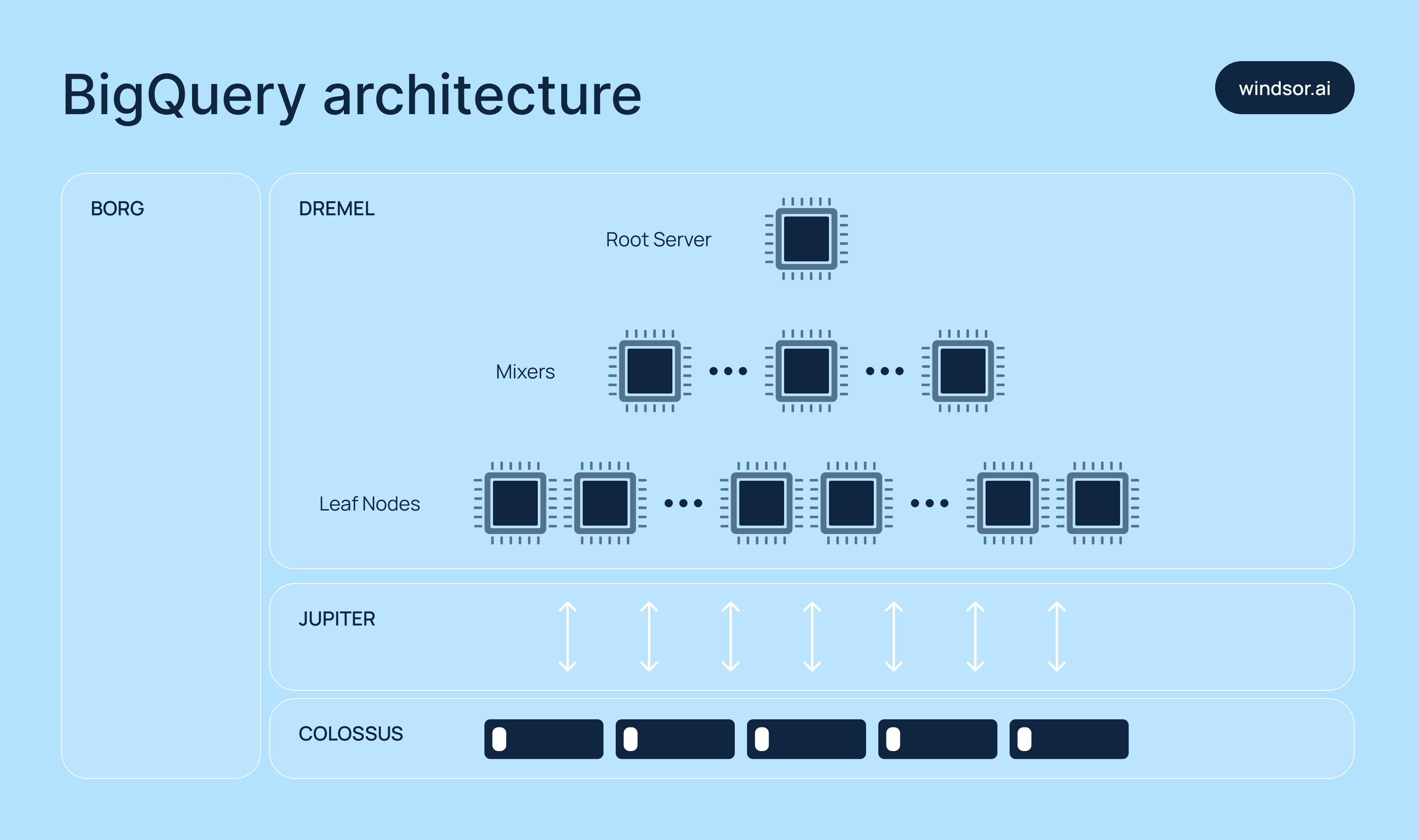
Here are the core technologies behind BigQuery:
1) Dremel (compute engine)
Queries in BigQuery are executed using a tree-based structure called execution trees, managed by Dremel. Here’s how it works:
- Slots (leaf nodes): Scan and process data in parallel.
- Mixers (branches): Aggregate partial results from slots.
- Root node: Consolidates everything and returns the final result.
To make queries fast, BigQuery allocates thousands of slots to handle workloads concurrently.
2) Colossus (storage systems)
BigQuery stores data in a columnar format called Capacitor, where each column is saved in a separate file. This makes it easy to scan only the relevant columns during a query.
Colossus also manages data replication, error fixes, and metadata storage across distributed systems.
3) Borg (cluster manager)
Borg coordinates how computing resources are allocated across Google’s infrastructure. It schedules Dremel jobs and ensures fault tolerance, so your queries continue to run even if issues arise.
4) Jupiter (network)
Jupiter connects storage and compute across Google’s global data centers. Its ultra-high-speed network enables BigQuery to move massive volumes of data in just seconds.
What types of data does BigQuery support?
BigQuery supports a wide range of data types. Below are some of the most common ones, along with examples and typical use cases:
| Type | Example | Use cases |
| STRING | “example” | Names, groups, text fields |
| INT64 | 123 | IDs, counts, number values |
| FLOAT64 | 45.67 | Prices, averages, ratios |
| BOOL | TRUE or FALSE | Yes/No flags |
| BYTES | b’…’ | Binary files, codes |
| ARRAY | [1,2,3] | Lists of tags or items |
| STRUCT | STRUCT<name STRING, age INT64> | Nested data like {name: “Alice”} |
| GEOGRAPHY | ST_GEOGPOINT(-73.9857, 40.7484) | Map points and area checking |
You can also use nested and repeated fields, which are good for data like JSON or event logs.
What are the data format requirements before exporting data into BigQuery?
When moving data from Shopify to BigQuery, ensure the data is in a format BigQuery can process. For example, if the API returns XML, you’ll need to convert it to a supported format before loading it into BigQuery.
Currently, BigQuery supports two primary data formats:
- CSV
- JSON
How information is structured in BigQuery: tables, partitioning, and clustering
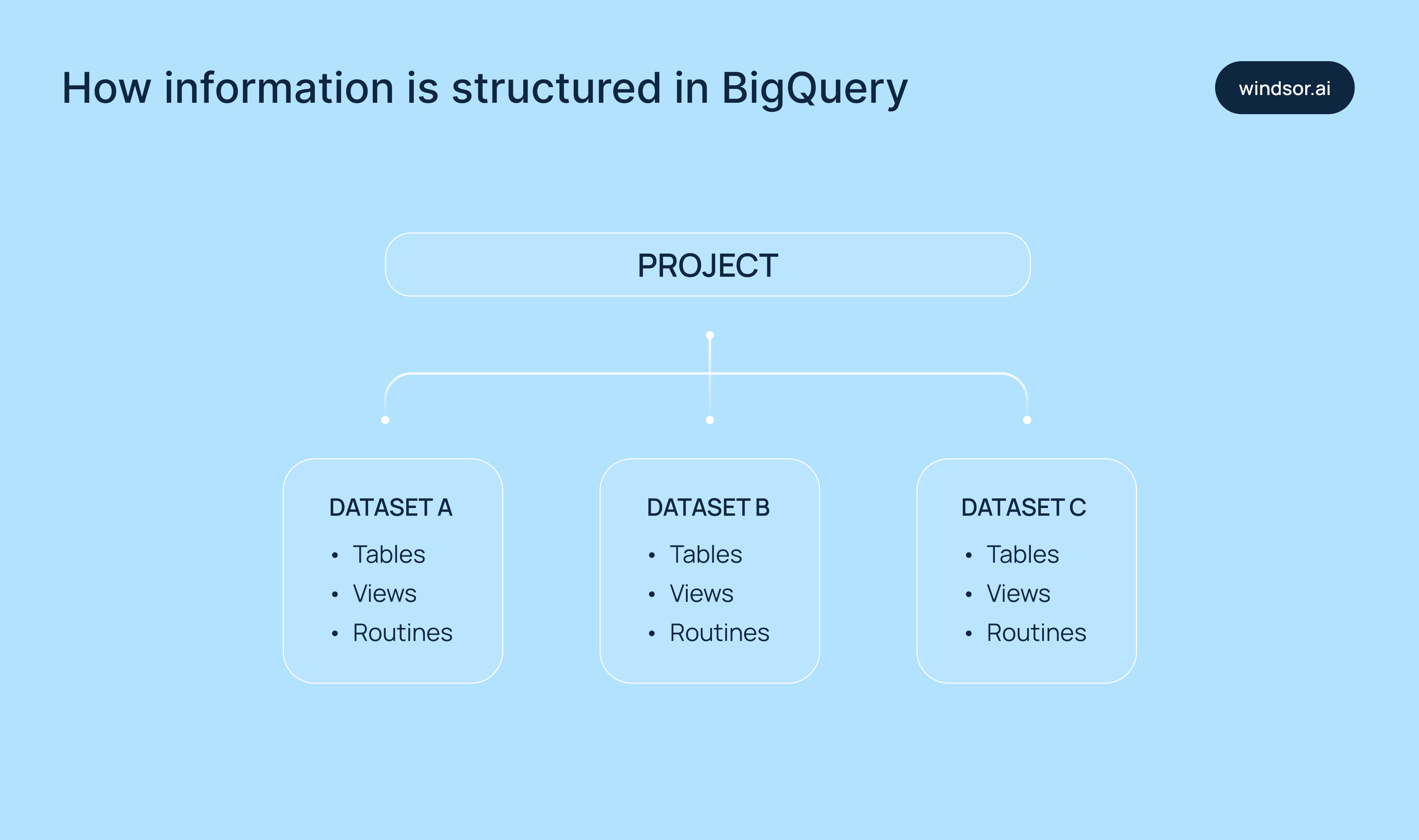
In BigQuery, datasets contain the following components:
- Tables: Store data in a structured format using rows and columns.
- Views: Virtual tables made from saved SQL queries.
- UDF (user-defined functions): Custom SQL logic that can be reused across queries.
Partitioning
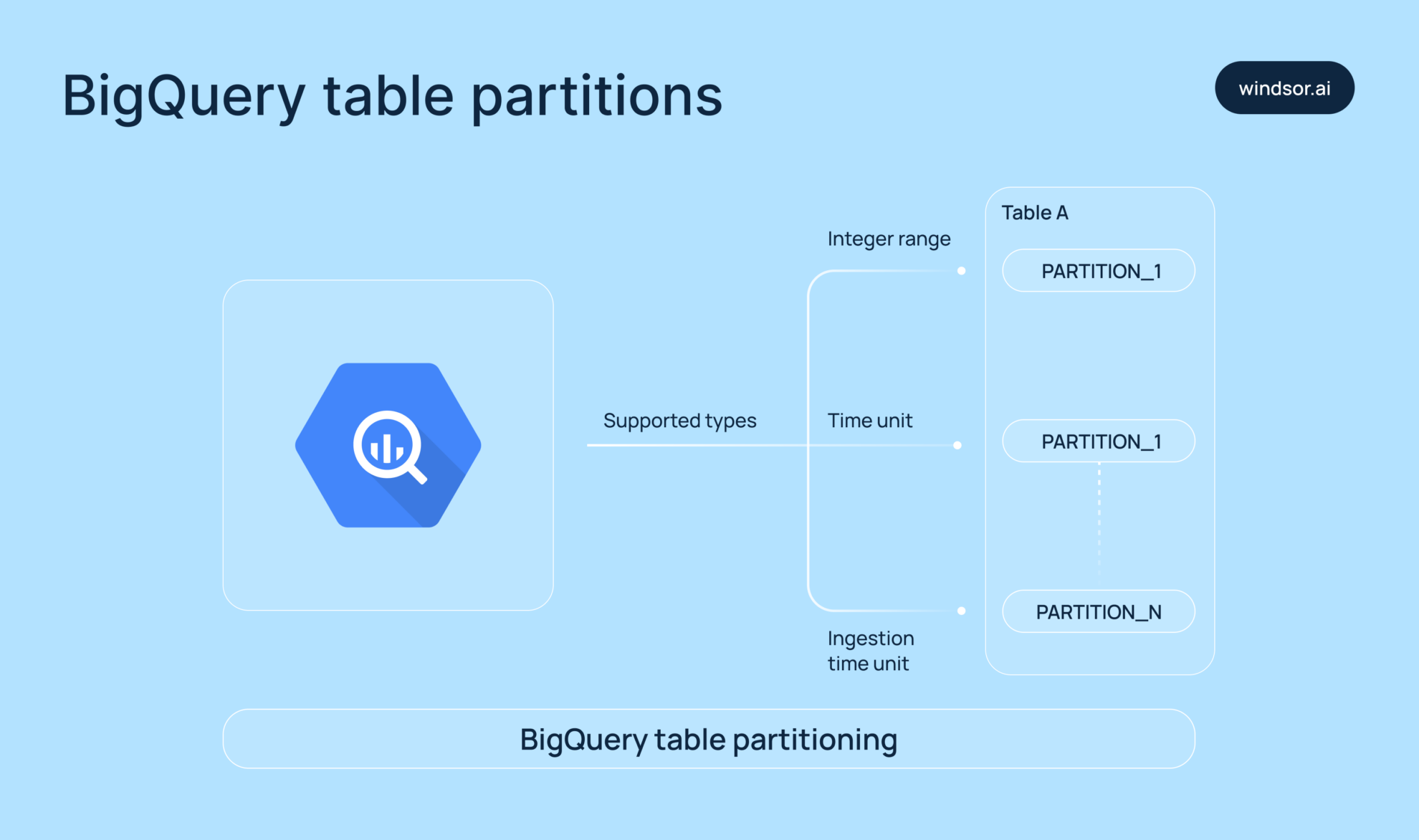
Partitioning allows you to split large tables into smaller, more manageable segments based on:
- Date/time values
- Numeric ranges
- Ingestion time (when the data was added)
This helps BigQuery scan only the relevant partitions, which significantly reduces query time and cost.
Example: A sales table partitioned by order_date would only scan the needed date, f.e, June 1, 2024, rather than the entire dataset.
Clustering
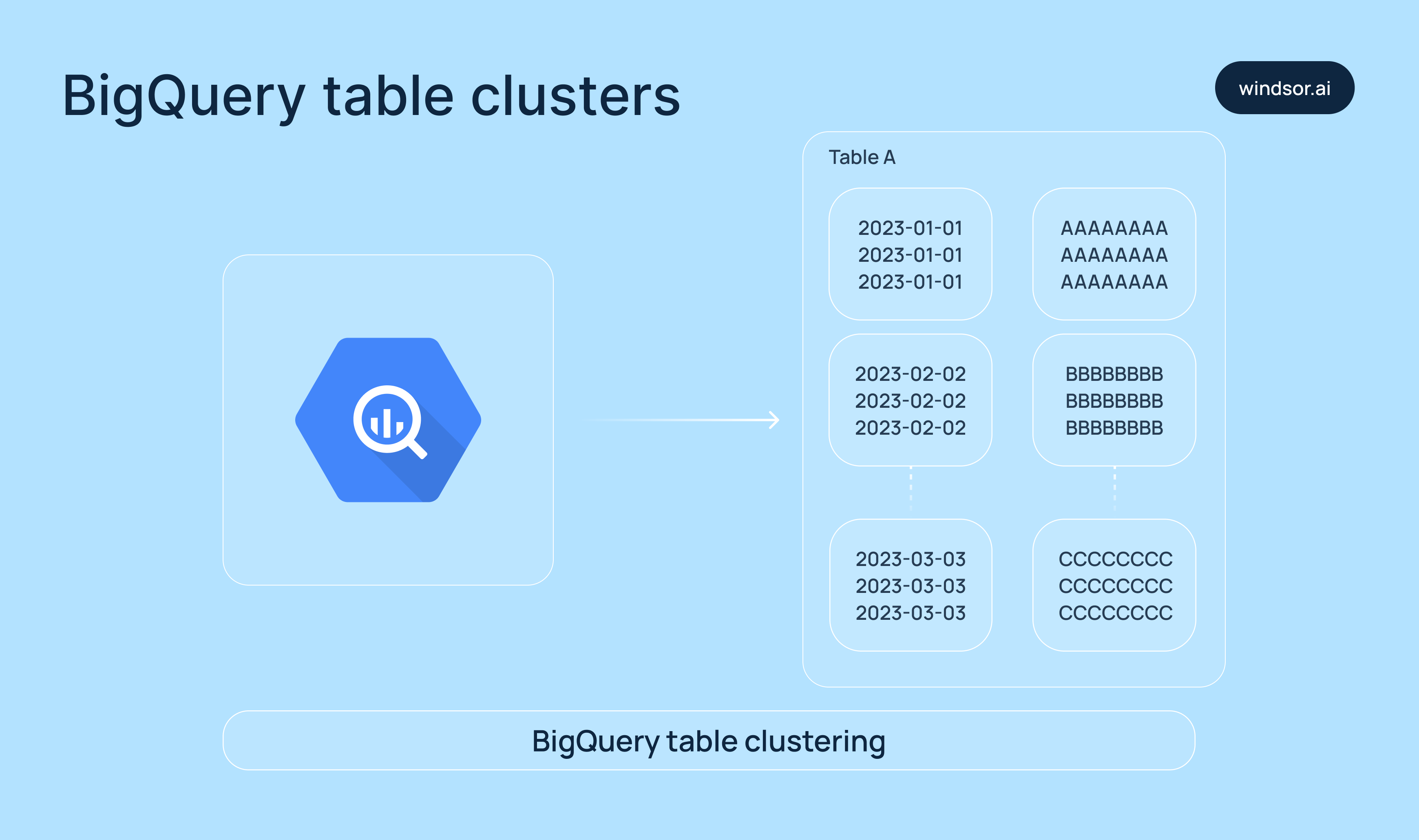
Clustering organizes data within a table (or within each partition) by one or more columns, known as cluster keys. This makes it easier for BigQuery to quickly locate matching rows.
Example: Clustering a table by country and status can speed up queries that filter by those fields.
You can also use both partitioning and clustering to keep your tables fast, no matter how big they are.
Why is BigQuery so fast?
Now that you’re familiar with the underlying technologies, it’s easy to see why BigQuery delivers such high processing speed. Its performance comes from a combination of robust design decisions:
- Column-based storage: Only the necessary columns are scanned, which reduces the amount of data read during queries.
- Dremel: Queries are broken into smaller parts and processed in parallel across thousands of slots.
- Separation of compute and storage: Resources scale independently, ensuring flexibility and efficiency.
- Jupiter network: Enables lightning-fast movement of massive data volumes across Google’s infrastructure.
Pros and cons of Google BigQuery
Google BigQuery offers powerful advantages for marketing and data teams, but it’s not without its challenges. It’s important to understand both the BigQuery benefits and potential limitations before diving in.
Pros of Google BigQuery
Quick and simple setup
One of BigQuery’s key strengths is its ease of use and fast setup. The platform offers a streamlined setup process, allowing you to upload datasets and start querying them almost immediately. Thanks to its intuitive web interface, you don’t need to possess extensive technical expertise to work with your data.
Scalability
BigQuery is built to handle data at scale. Whether you’re working with gigabytes or petabytes, the platform automatically adjusts to your volumes without compromising performance. This makes it ideal for companies dealing with huge datasets and seeking reliable, high-speed processing.
Enterprise-grade data security
BigQuery keeps your data secure both at rest and in transit through robust encryption. It enforces strict access controls to prevent unauthorized access and supports compliance with major industry standards like GDPR, HIPAA, and ISO/IEC 27001, helping organizations meet regulatory and privacy requirements.
Built-in Data Transfer Service
BigQuery offers a native Data Transfer Service that automates importing data from a variety of external sources, without needing to write custom code.
Using it, you can transfer data from platforms like:
- Google Marketing Platform (e.g., Campaign Manager, Display & Video 360)
- Google Ads
- Partner SaaS applications that support BigQuery integration (e.g., Salesforce, Marketo)
This built-in feature helps streamline your ELT/ETL process, enabling fully automated data ingestion into your BigQuery environment.
Cons of Google BigQuery
- The costs can grow fast if your queries aren’t well-optimized.
- You need strong SQL skills and a deep understanding of data layout to utilize the platform effectively.
- It might not be ideal for low-latency, real-time data processing.
- The speed of query execution heavily depends on how your data is sorted, partitioned, and clustered.
- It doesn’t have built-in charting or dashboard tools (as a workaround, you can connect BigQuery to Looker Studio or Power BI for data visualization).
- External data integration can be complex and time-consuming as it usually requires additional setup, middleware tools, or custom pipelines.
How much does Google BigQuery cost?
Google BigQuery offers a flexible pay-as-you-go pricing model. You pay separately for data storage and query processing. Storage is charged monthly based on the amount of data stored, while queries are billed per terabyte of data scanned.
For teams with predictable workloads, BigQuery’s flat-rate pricing brings fixed monthly costs. This enables marketing analysts and data engineers to scale without upfront investments. Moreover, BigQuery provides a free tier with limited resources for testing and learning purposes.
As a result, BigQuery pricing allows you to confidently control costs while scaling your analytics.
Ways marketing teams use BigQuery
Sync data from marketing platforms for advanced analytics (f.e, GA4)
Marketing teams often use BigQuery to centralize data from platforms like Google Analytics 4, Google Ads, Facebook Ads, TikTok Ads, Shopify, and many more. This enables deeper, cross-channel analysis that’s not possible with platform-specific dashboards alone.
Here’s an example: Let’s say you run an online store. BigQuery allows you to reconstruct the entire user journey—from first visit to final purchase—by stitching together raw event data from GA4.
GA4’s normal reports won’t show that much detail, while BigQuery gives access to the following information:
- Events like page views, scrolls, clicks, purchases
- User behavior across sessions and devices
- Custom funnels and retention reports
In addition, BigQuery helps you avoid data sampling for complete accuracy.
Build custom attribution models
The standard attribution model can be misleading, as most marketing platforms give all the credit to the last click, ignoring the earlier interactions that played a critical role.
But marketing isn’t that simple.
With BigQuery, you can design and implement your own attribution model tailored to your business needs and typical customer journey. Whether you prefer first-click, linear, U-shaped, or time decay, BigQuery allows you to:
- Combine multi-platform data
- Track full customer journeys
- Assign credit across multiple touchpoints
For example, a user clicks on your Google ads, then finds your brand on Facebook, and only then buys. With a custom attribution model in BigQuery, you can give partial credit to each interaction, enabling more accurate insights into what channels drive conversions.
This level of analytics leads to smarter budget allocation, better campaign optimization, and a deeper understanding of your customer journey.
Unify data across multiple platforms
Most businesses rely on multiple platforms: GA4, Google Ads, HubSpot, Salesforce, Omnisend, and many more. But with data scattered across these tools, it becomes difficult to get a complete picture of your overall marketing and business performance.
BigQuery solves this problem by acting as a centralized data warehouse where you can bring all your advertising, organic, CRM, e-commerce, and web analytics data together.
Once unified in BigQuery, you can perform the following analytical operations:
- Connect ad clicks to lead quality
- Match impressions to actual sales
- Tie ad spend directly to revenue
- Run custom transformations and models tailored to your business goals
This centralized view helps you understand which channels bring the best results and where to focus your budget for maximum ROI.
Perform advanced segmentation
BigQuery enables you to segment users based on virtually any parameter that matters to your business.
For example, you can:
- Identify users who discovered your brand during a specific campaign
- Track what they purchased afterward
- Group them into dynamic segments for deeper analysis or remarketing
This level of segmentation empowers marketing teams to understand which campaigns drive high-value customers and, consequently, refine messaging based on user behavior and send personalized follow-ups to boost engagement and retention.
Using BigQuery for SEO
BigQuery is also a common workaround for one specific Search Console limitation: the native GSC interface only retains about 16 months of historical query data. Exporting Search Console data into BigQuery removes that cap and lets you blend it with GA4 or server-log data using SQL, useful for long-term ranking trend analysis, or for powering a Looker Studio dashboard directly from BigQuery tables instead of GSC’s slower native reports.
Ways data engineers use BigQuery
Build and orchestrate ELT pipelines
BigQuery supports the creation of fast and scalable ELT pipelines, giving data teams full control over data movement and transformation.
Data engineers rely on BigQuery’s structured query environment and schema enforcement to ensure that their pipelines stay consistent, accurate, and audit-ready.
You can build BigQuery ELT pipelines in two main ways:
1) Manual ELT with native Google Cloud Tools
Using tools like Cloud Functions, Cloud Scheduler, Cloud Storage, and BigQuery’s built-in scripting and DAGs, engineers can:
- Extract data from various sources
- Load it into BigQuery
- Clean and transform it using SQL queries
This approach offers extensive flexibility and customization, but requires advanced technical skills and engineering resources.
2) Automated ELT with no-code tools
Platforms like Windsor.ai help you automate the entire ELT process, covering the following processes:
- Connect multiple marketing platforms (e.g., GA4, Facebook Ads, HubSpot)
- Build pipelines in minutes
- Stream data into BigQuery with full schema matching
- Enable auto-refreshing and error handling
The best part of using Windsor.ai for BigQuery integration is that it requires no coding, making it perfect for marketers and analysts who need reliable data sync without relying on developers, while also saving valuable time for data engineers by eliminating time-consuming routine tasks. For a deeper look at building and orchestrating these pipelines, see our guide on how to automate BigQuery pipelines.
Once your data is loaded, you can write SQL directly in BigQuery to transform, join, and enrich it for reporting, modeling, and decision-making. When teams need additional technical support to scale these data operations efficiently, nearshore it staff augmentation can provide skilled talent in compatible time zones without the overhead of full in-house hiring.
Create a single source of truth
Data scattered across platforms often leads to inconsistencies and gaps. Building accurate, holistic reports becomes difficult when you have to pull and reconcile data from each system manually.
BigQuery eliminates data silos by acting as a centralized data warehouse, a true single source of truth.
Once your data is unified in BigQuery using Windsor.ai, you can:
- Join user behavior data with CRM records using SQL joins or matching logic
- Link campaign IDs, UTM parameters, and ad views directly to conversions and ROI
- Identify top- and low-performing campaigns across all channels
- Uncover insights that could improve audience targeting, messaging, and budget strategy
Instead of acting as just a storage solution, BigQuery becomes the engine powering your data ecosystem. It ensures that everyone, from marketing and product to sales, is working with the same consistent, accurate data, leading to stronger alignment, smarter decisions, and better business outcomes.
Optimize cost, performance, and data quality at scale
Data teams reduce query costs by leveraging BigQuery’s columnar storage, partitioning, and clustering. They monitor scanned bytes per query and use scheduled queries with in-built cost controls. BI Engine caching is commonly used to reduce dashboard latency and repeated compute charges.
Then, by scaling compute and storage parts of the project independently, teams can run complex pipelines without affecting dashboard performance. Stepwise query development, saved views, and reusable logic in UDFs help them manage complexity while keeping performance predictable.
Additionally, data engineers usually use BigQuery to automate checks for schema drift, null values, or duplicate records using time-triggered SQL and scheduled alerts. Standard naming conventions and clearly defined table schemas help improve governance and prevent errors.
Ensure data validation and quality control
Data engineers use BigQuery extensively to validate and clean incoming data. By writing SQL scripts, they can automatically detect and flag duplicates, missing values, and format inconsistencies before the data is allowed to move further through the pipeline. This proactive validation ensures the integrity of the datasets and keeps downstream processes reliable.
Conduct advanced analytics with built-in machine learning
BigQuery’s ability to process huge volumes of data quickly makes it ideal for advanced analytics. Data engineers use it to explore trends, build data products, and create dashboards, without needing to develop and maintain infrastructure. With BigQuery ML, they can even train and deploy machine learning models directly inside BigQuery, turning raw data into predictive insights.
How to get started with Google BigQuery
BigQuery setup steps
Getting started with BigQuery involves a few setup steps to prepare your environment for data storage, processing, and analysis. Here’s what you need to do:
- Create an account on Google Cloud and ensure that billing is enabled.
- Turn on the BigQuery API in your Google Cloud console.
- Start a new project in Google Cloud.
- Create a dataset in BigQuery. This will act as your container for tables and views.
- Assign the appropriate IAM roles. This includes using BigQuery Admin or Data Editor roles so the user/service account can load and handle data.
Once these steps are complete, you’re ready to begin integrating data.
Methods to integrate data into BigQuery
As already mentioned, you can integrate data into BigQuery manually or in a fully automated way via third-party data integration tools like Windsor.ai, depending on your use case and scale.
Here’s a quick overview of what each method takes:
1) Method 1. Manual integration
Manual uploads are good for small, static, or one-time datasets. Here’s how it works:
- Export your data from the source platform in a supported format such as CSV, JSON, or AVRO.
- Then, navigate to your BigQuery project in the Google Cloud Console.
- Choose the required dataset and click “Create Table.”
- Upload your file, set the file format, and define schema (or use auto-detect).
- Run a quick SELECT query to verify that the data was uploaded correctly.
Keep in mind that the manual integration is time-consuming and doesn’t scale well, especially if you’re dealing with multiple platforms or need access to frequently updated data.
2) Method 2. Data integration through Windsor.ai
Use the Windsor.ai ELT tool for automated BigQuery data integration
Windsor.ai’s BigQuery Integration Documentation: https://windsor.ai/documentation/how-to-integrate-data-into-google-bigquery/.
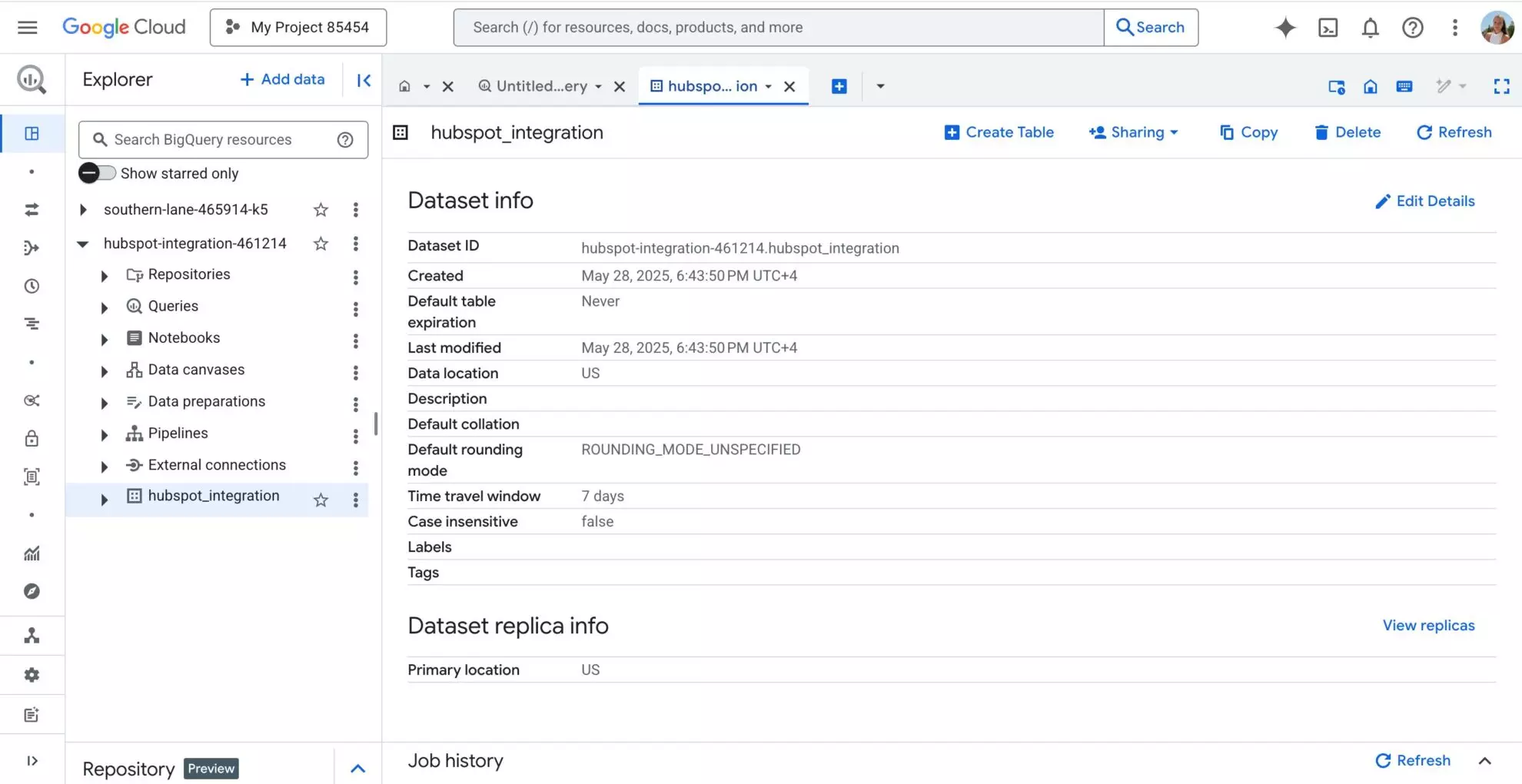
1) Start by setting up your work environment in BigQuery.
Make sure you have the right access to use BigQuery through the Google Cloud console. Prepare a Project and Dataset in your BigQuery account.
2) Go to Windsor.ai.
Either log in to your existing account or create a new one if this is your first time.
3) Connect your data source.
Connect the source from which you need to send data to BigQuery. Select the necessary account(s) and click “Next.”

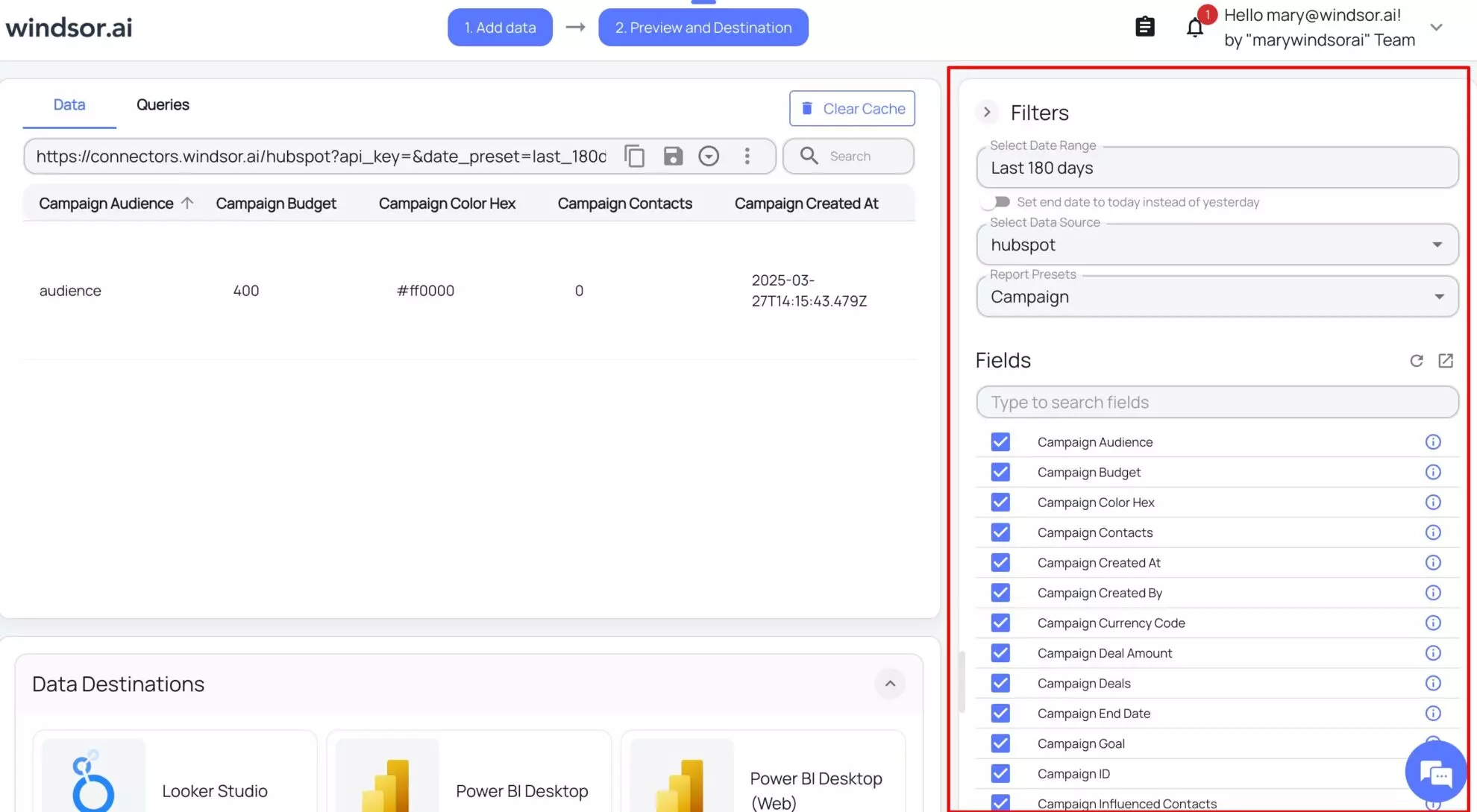
4) Set your reporting filters and metrics.
Select the date range and pick the fields that you need to send to BigQuery for further reports and analysis.
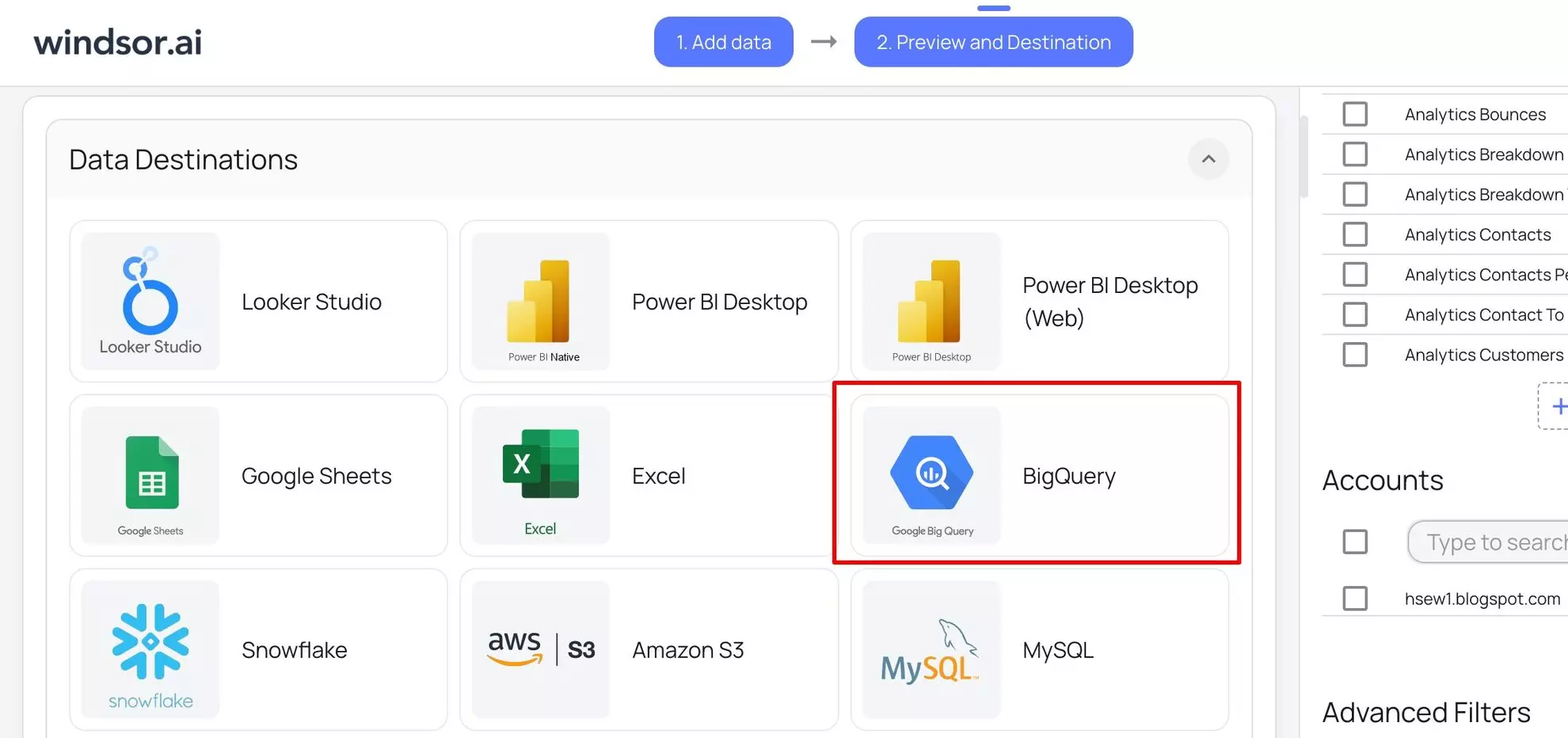
5) Choose BigQuery as your data destination.
Scroll down to the “Destinations” section and choose “BigQuery.”
6) Click ‘Add Destination Task’.
To set up the data transfer to BigQuery, you have to fill in the following fields:
- Task Name: Choose any name you like.
- Authentication type: Choose between logging in with your Google Account using OAuth 2.0 or a Service Account file.
- Project ID: Get this from your Google Cloud Console.
- Dataset ID: Get this from your BigQuery project.
- Table Name: Windsor.ai will automatically create the new table for you if it doesn’t already exist.
- Backfill (optional): Lets you backfill historical data when setting up the task (available only on the paid plans).
- Schedule: Sets how often to update the data (hourly, daily; available on Standard plans and higher).
- Optional* Use advanced settings: Windsor.ai supports partitioning (to split data by date ranges) and clustering (to sort data by column values).
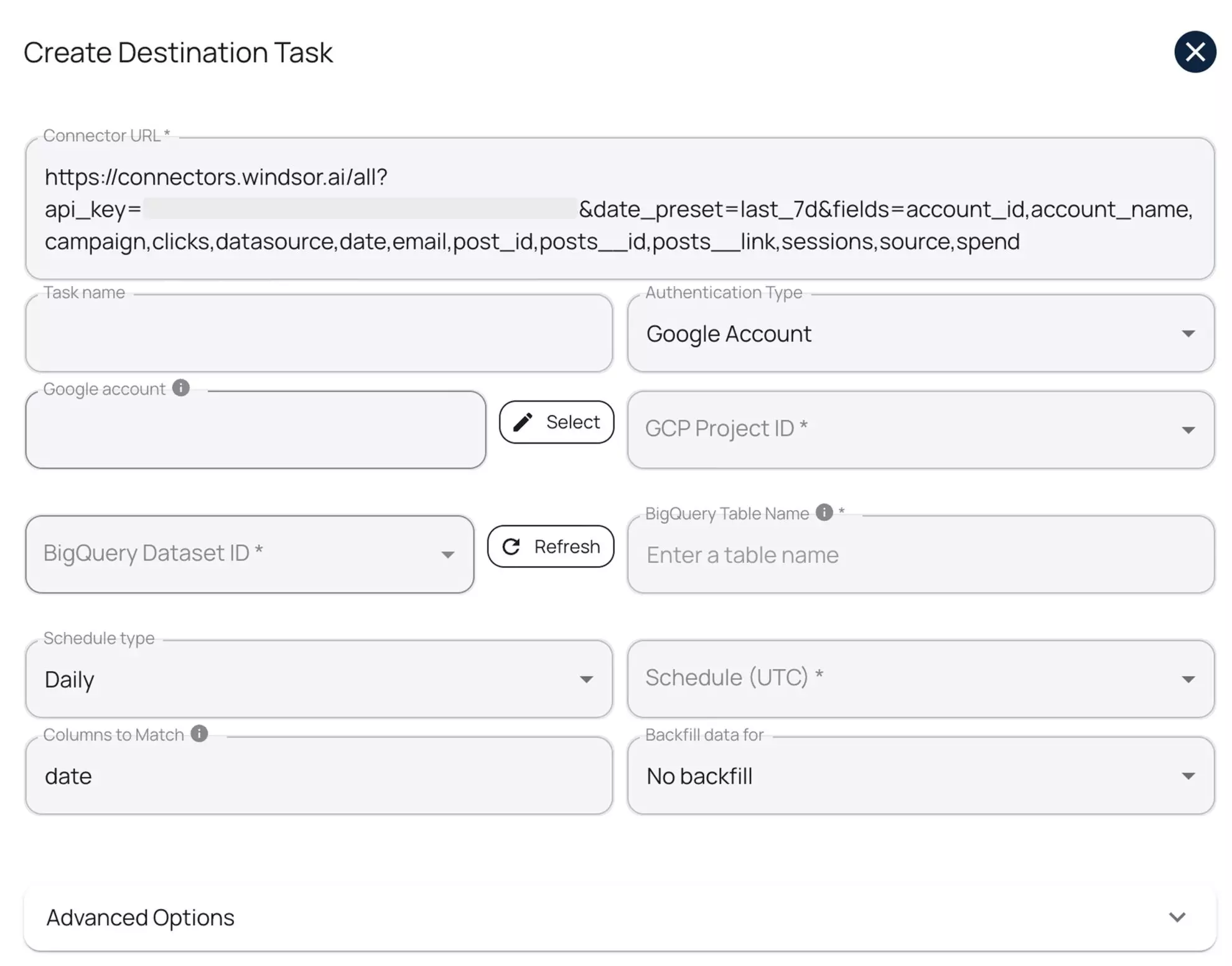
When the form is completed, click “Test Connection.” A success message means everything is set up right. Then click “Save” to run the task and start streaming data to your selected BigQuery project.

Note: If you’ve already made a query in Windsor.ai and later add or change some fields or settings, we suggest creating a new destination task. Windsor.ai will create a new table with the updated setup. Or, you
7) Monitor the data transfer.
You’ll see your task in the “Data Destinations” section. A green “upload” icon showing “OK” status means the setup is working.

8) Verify your data in BigQuery.
Open your BigQuery project, go to the necessary dataset, and see your data integrated from Windsor.ai. Your first BigQuery ELT pipeline was created successfully. Cheers!

Conclusion
Now you’ve realized why use Google BigQuery? BigQuery helps both data engineers and marketing analysts turn messy, fragmented data into holistic, actionable insights. When set up correctly, it can take your analytics to the next level, empowering faster and more accurate decisions.
Now it’s your turn. Start small – connect your first data source and run your first query.
As you get more confident, scale your ELT pipeline. Also, remember to use filters, partitions, clusters, and well-optimized SQL queries to keep costs low and speed high.
🚀 Use Windsor.ai to accelerate your journey with BigQuery!
With Windsor.ai, you can integrate data from 350+ sources into BigQuery in less than 5 minutes, absolutely code-free. Save hours of setup time, reduce engineering workload, and start gaining insights immediately.
FAQs
Is BigQuery free to use?
BigQuery offers a free tier with monthly limits: 10 GB of storage and 1 TB of query processing. Beyond that, you pay based on data storage volumes and query usage.
Do I need to know SQL to use BigQuery?
Yes, knowing SQL helps you write queries, transform data, and build reports. Still, you can connect your BigQuery dataset with visual tools or BI platforms that generate SQL automatically and allow you to extract insights right away.
How is BigQuery different from a traditional database?
BigQuery is a cloud-native, serverless data warehouse, optimized for analytical queries on massive datasets. Unlike traditional databases, it separates storage and compute for better scalability and cost control.
What types of data can I store in BigQuery?
You can store structured, semi-structured, and nested JSON data. It’s great for clickstream logs, event data, marketing data, sales records, and other large analytical datasets.
How do I get data into BigQuery?
You can load data manually via CSV or JSON files, stream real-time data through the API, or automate BigQuery data pipelines with ETL/ELT tools like Windsor.ai.
Is BigQuery for batch data, or can it handle real-time data too?
Although BigQuery is optimized for batch processing, it also supports real-time data via streaming inserts.
Most teams use batch uploads (e.g., hourly or daily) because they’re cost-efficient and ideal for dashboards, reports, and historical analysis. However, BigQuery also supports real-time streaming—you can push new rows every few seconds using the insertAll API or tools like Pub/Sub + Dataflow.
This enables near real-time analytics for use cases like live ad campaign tracking, clickstream monitoring, and alerting.
How does BigQuery pricing work?
BigQuery charges mainly for on-demand queries based on data scanned and for storage volume used. You can also choose flat-rate pricing to reserve compute capacity for predictable costs.
How much does it cost to use Windsor.ai for BigQuery integration?
Windsor.ai offers diversified pricing tiers, all starting with a free forever plan. Paid plans depend on the number of data sources, accounts, and refresh frequency. The Basic plan starts at just $19 per month.
What is BigQuery in data engineering?
Data engineers utilize BigQuery to build complex ELT pipelines: they extract data from different sources, load it into BigQuery, and transform it using SQL for deep insights.
BigQuery handles large-scale datasets and offers tools like partitioning, clustering, and scheduling to support real-time analysis, automation, and central data control across platforms.
What is Google BigQuery used for?
BigQuery connects with data from external platforms and allows for the running of SQL commands, so it can be used for unifying data from Google Analytics, CRMs, ad platforms, and other data-focused systems and conducting advanced analytics over them.
The tool also helps to reduce the number of manual tasks as well as automate work, giving better insights that help improve decisions and boost performance.
Why integrate Google Analytics 4 data into BigQuery?
BigQuery allows deeper web analysis by sending unstructured GA4 data that can be analyzed in detail. Marketers can use it to query the full (unsampled) data, follow users over many sessions, and create custom reports for better control over data.
GA4 to BigQuery integration also helps to get deeper insights that can’t be discovered in the native GA4 analytics.


