Destinations
 Data sources
 AI insights
 About us
 Careers
 Security
 Customer reviews
 Contact us
 Affiliate program
 Solution partners
 Template gallery
 Looker Studio templates
 Power BI templates
 Excel templates
 Google Sheets templates
 Tableau templates
 Facebook Ads templates
 Google Ads templates
 Data fields & Metrics
 AI prompt library & Guides
 Product documentation
 API documentation
 Case studies
 Blog
 Data models
 Windsor vs Supermetrics
 Windsor vs Funnel.io
 Windsor vs Fivetran
 Windsor vs Rivery
 Windsor vs Portermetrics
 Windsor vs Coupler.io
 Last updated: 23 November 2026




To connect Apify to Claude, add your Apify API token and a dataset ID to Windsor.ai, then connect Windsor.ai in Claude. Claude can then read that dataset’s details and items. Ask it about your scraped data in plain English.
The connection is read-only. Claude reads datasets that already exist but can’t run Actors or change data through Windsor.ai (Apify Dataset has no write actions in Windsor.ai, checked on 23 November 2026). Apify Dataset is a community connector in Windsor.ai.
Windsor.ai or the Apify MCP server
Apify runs its own MCP server. Through it, Claude can search the Apify Store, run Actors and read their results. Use it when you want Claude to start scrapes.
Use Windsor.ai when you already have a dataset and want it in the same Claude chat as your other data, such as Google Search Console clicks or GA4 sessions, through one connector.
Before you start
- Your Apify API token and dataset ID. In Apify Console, the token is under Settings, then Integrations. Dataset IDs are under Storage, then Datasets.
- A Windsor.ai account. Windsor.ai has a free forever plan with 1 data source and the last 30 days of data. Paid plans start at $19/month for 3 sources, billed annually (pricing).
- A Claude account that can add connectors. In a Claude Team or Enterprise workspace, your admin may limit which connectors you can add.
Step 1. Add your Apify dataset to Windsor.ai
- Go to onboard.windsor.ai/app/apify_dataset and sign in or create a Windsor.ai account.
- Enter your API token and the Dataset ID.
- Click Add Account. Repeat for each dataset you want Claude to read.
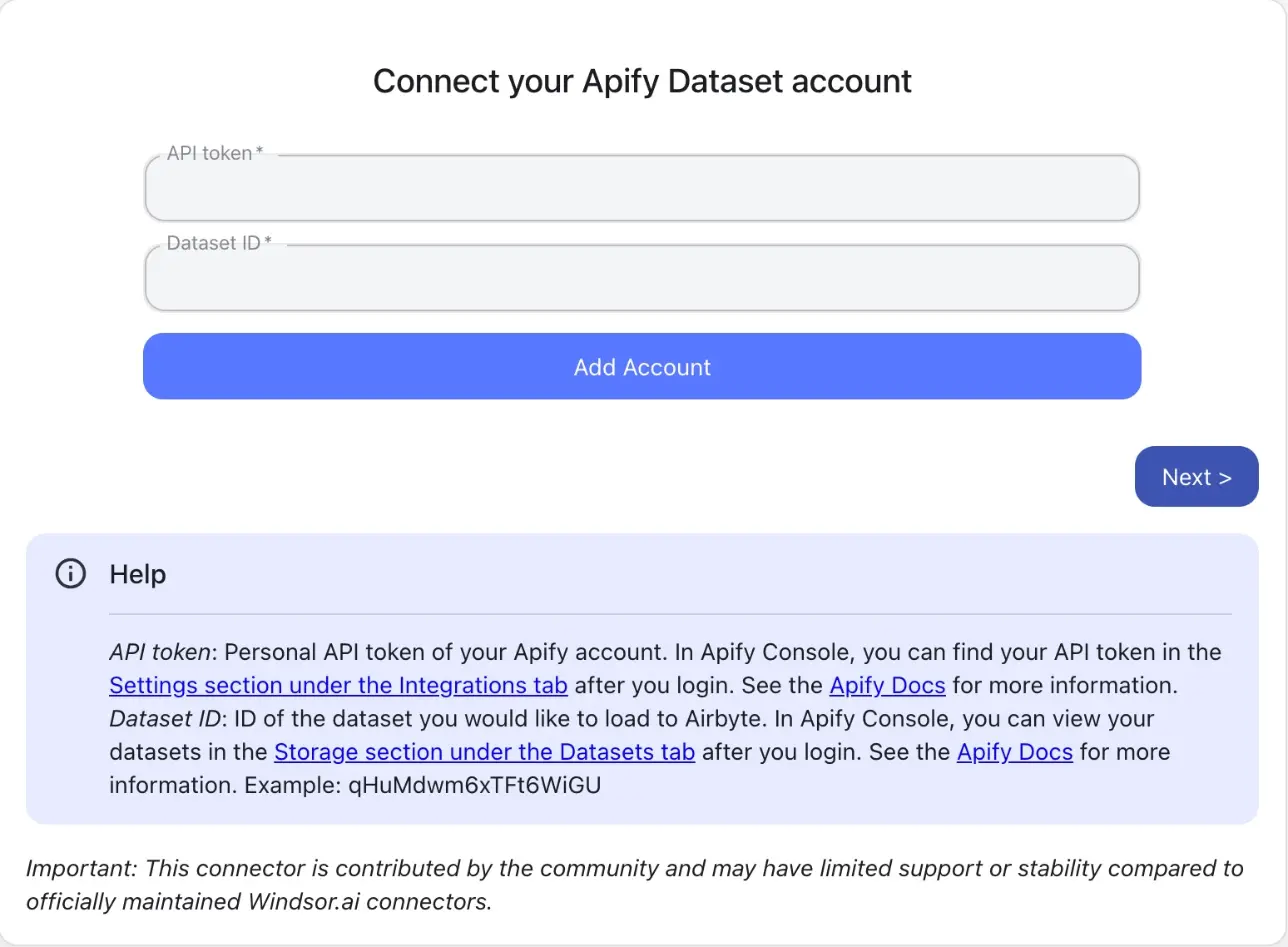
Enter the API token in the Windsor.ai form only. Never paste it into a Claude chat.
Step 2. Connect Windsor.ai in Claude
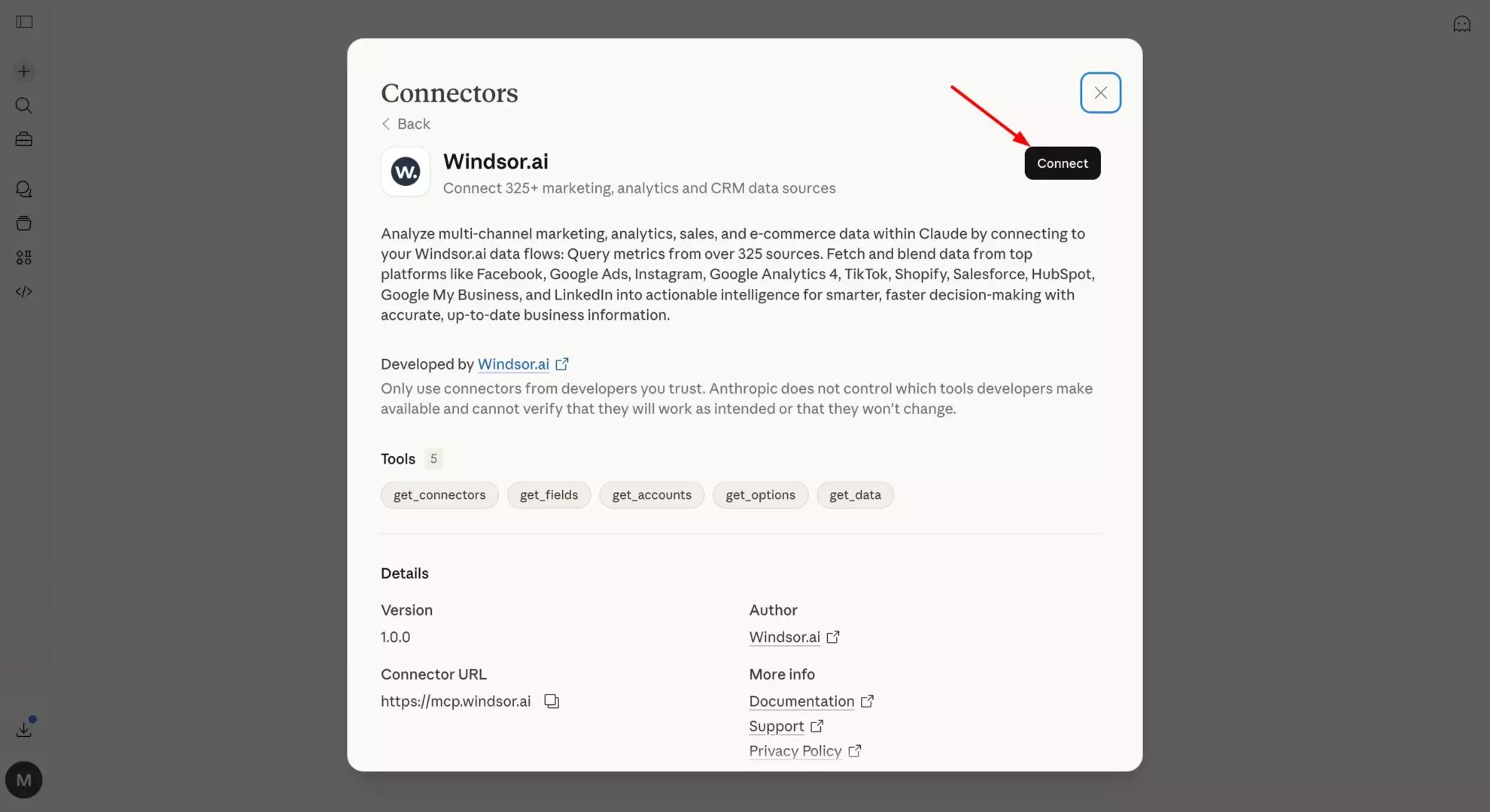
- In Claude, open Customize in the sidebar, then Connectors, or open the Windsor.ai listing in the Claude directory.
- Search for Windsor.ai and click Connect.
- Sign in to Windsor.ai with the account you added the dataset to.
The Windsor.ai Claude setup guide shows each setup screen.
Test it: check crawled pages in Claude
On 23 November 2026 we asked Claude, in a new chat, about our own dataset windsor-ai-pages-test. It is a Website Content Crawler run over 10 windsor.ai pages:
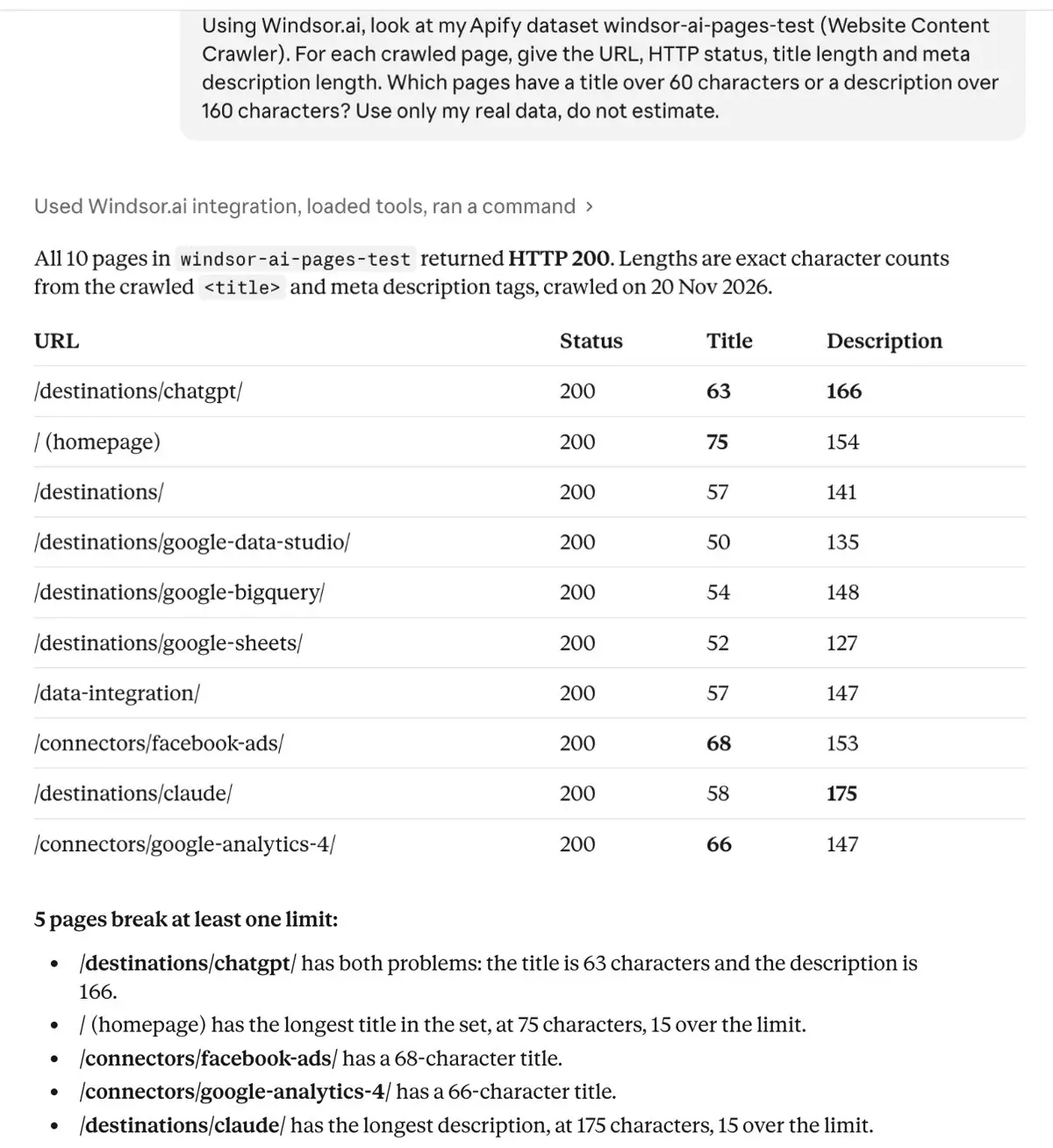
Using Windsor.ai, look at my Apify dataset windsor-ai-pages-test (Website Content Crawler). For each crawled page, give the URL, HTTP status, title length and meta description length. Which pages have a title over 60 characters or a description over 160 characters? Use only my real data, do not estimate.
Claude read the items through Windsor.ai and answered with a table of all 10 pages. Every page returned 200. Five pages broke a limit:
- Titles over 60 characters: the homepage (75), the Facebook Ads connector page (68), the GA4 connector page (66) and the ChatGPT destination page (63).
- Descriptions over 160 characters: the Claude destination page (175) and the ChatGPT destination page (166).
We pulled the same items from Windsor.ai ourselves and every length matched. Claude also noted that Google cuts titles by pixel width. The 60-character limit is a rule of thumb.
If Claude finds more than one dataset, name the one you mean. For a large dataset with long page text, ask only for the fields you need, such as URL and title.
Apify data Claude can read through Windsor.ai
Through the Windsor.ai connector, Claude can read 41 Apify Dataset fields (4 metrics, 37 dimensions). The full list is in the Apify Dataset field reference.
- Dataset details: name, title, item count, clean item count, created and modified dates, and the Actor and run that filled it.
- Items: each item’s data as the Actor saved it.
- Website Content Crawler items: URL, page text, markdown, metadata (title, description, canonical URL), crawl details (HTTP status, depth) and screenshot URL.
Apify prompts to try in Claude
-
List every crawled page with its HTTP status, title length and description length.
-
List pages that returned a status other than 200.
-
Which pages have no meta description?
-
Summarize the text of each crawled page in one sentence.
-
How many items does my dataset have, and when was it last modified?
Combine Apify with other sources in Claude
With Apify and your other tools in the same Windsor.ai account, Claude can put them side by side. For example, ask for the crawled pages with long titles next to their clicks from Google Search Console. More than one source kept long term needs a paid plan.
Next steps
- The Apify Dataset to Claude connector page lists more use cases and prompt ideas.
- To use the same dataset in ChatGPT, see how to connect Apify Dataset to ChatGPT.
To start, add your Apify API token and dataset ID to Windsor.ai on the free forever plan, then connect Windsor.ai in Claude.
FAQs
Where do I find my Apify API token and dataset ID?
In Apify Console, the API token is under Settings, then Integrations. Dataset IDs are under Storage, then Datasets.
Can Claude run Apify Actors through Windsor.ai?
No. The Windsor.ai connection is read-only (write actions list, checked on 23 November 2026). Apify’s own MCP server can run Actors.
Should I use Windsor.ai or the Apify MCP server?
Use the Apify MCP server to run Actors from Claude. Use Windsor.ai to analyze an existing dataset next to other sources, such as Google Search Console or GA4, in the same chat.
How much does it cost?
Windsor.ai has a free forever plan with 1 data source and the last 30 days of data. Paid plans start at $19/month for 3 sources, billed annually (pricing).